BigQuery Output Node
Output data from Visual Notebooks to BigQuery. You must have a Google Cloud account with access to BigQuery to use this node. To learn more about BigQuery, see https://cloud.google.com/bigquery.
Prerequisites
You must add a Google Cloud "service account JSON key" to Visual Notebooks before using the BigQuery node. Follow the steps below to generate this key and add it to Visual Notebooks. For more information about service account JSON keys, see the Google Cloud documentation.
- Log into the Google Cloud Platform
- Select the hamburger menu in the top left corner, then select IAM & Admin > Service Accounts
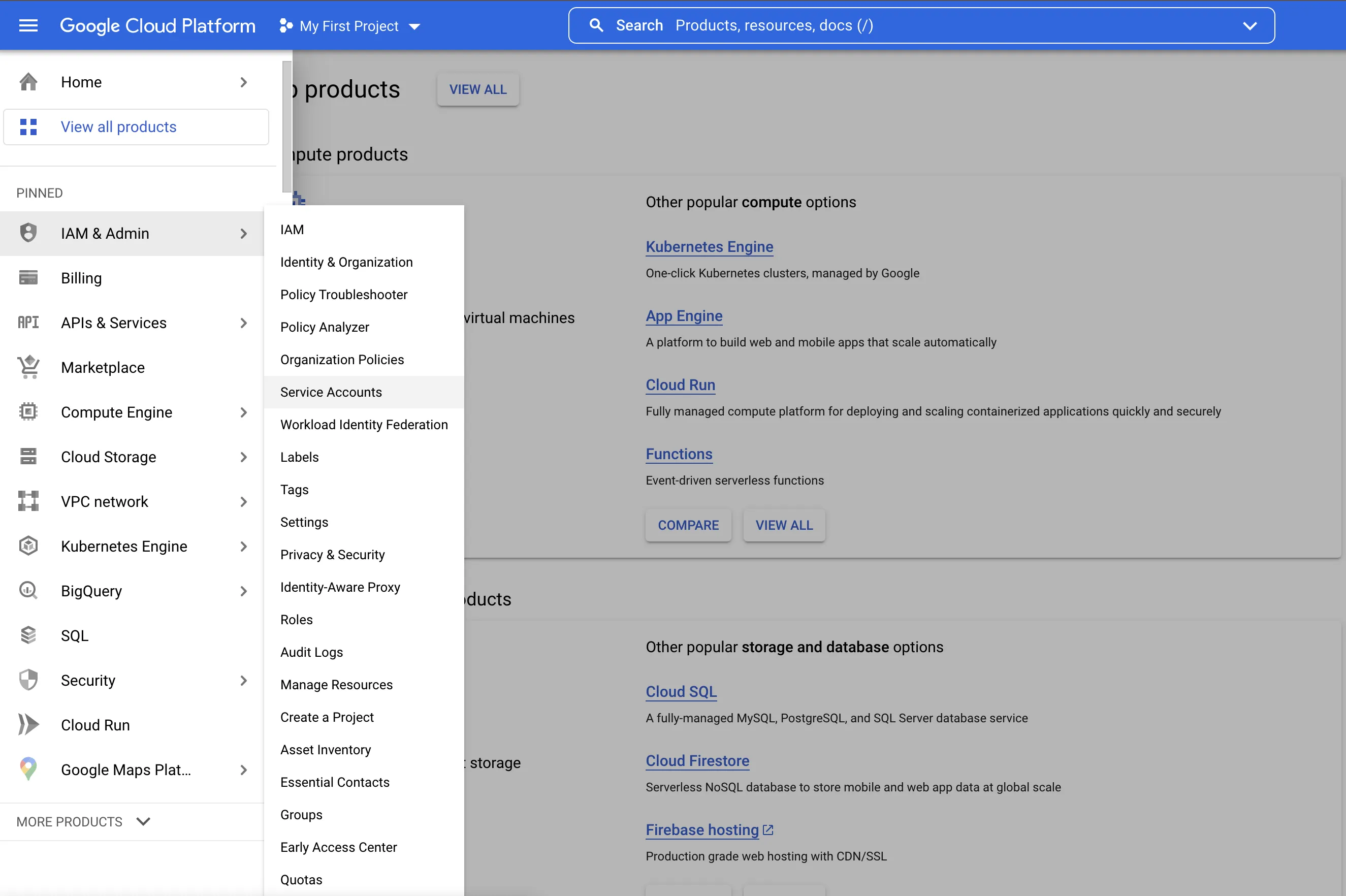
- Select Create Service Account near the top of the page
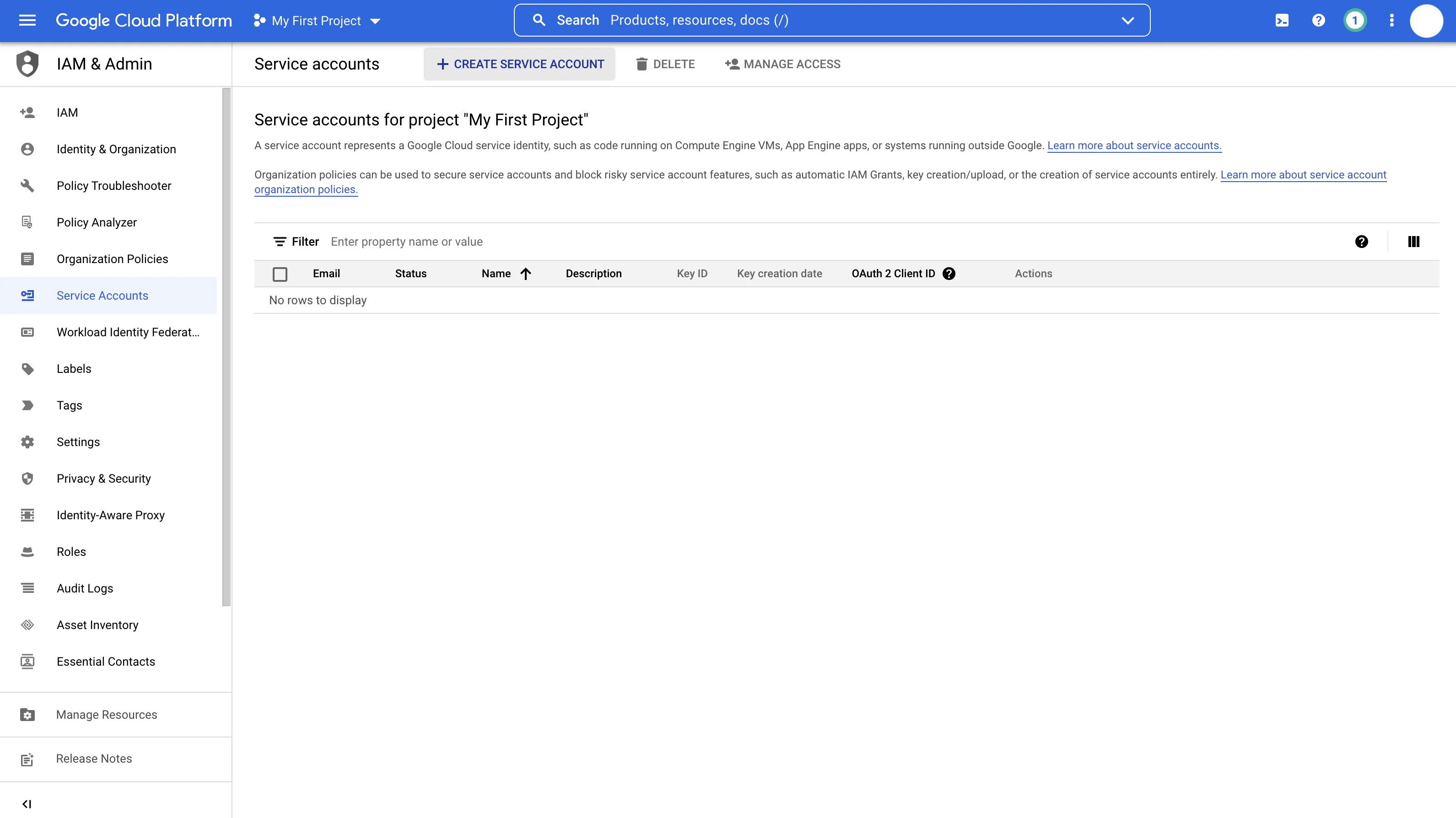
- Enter a service account name. This will auto-generate a service account ID
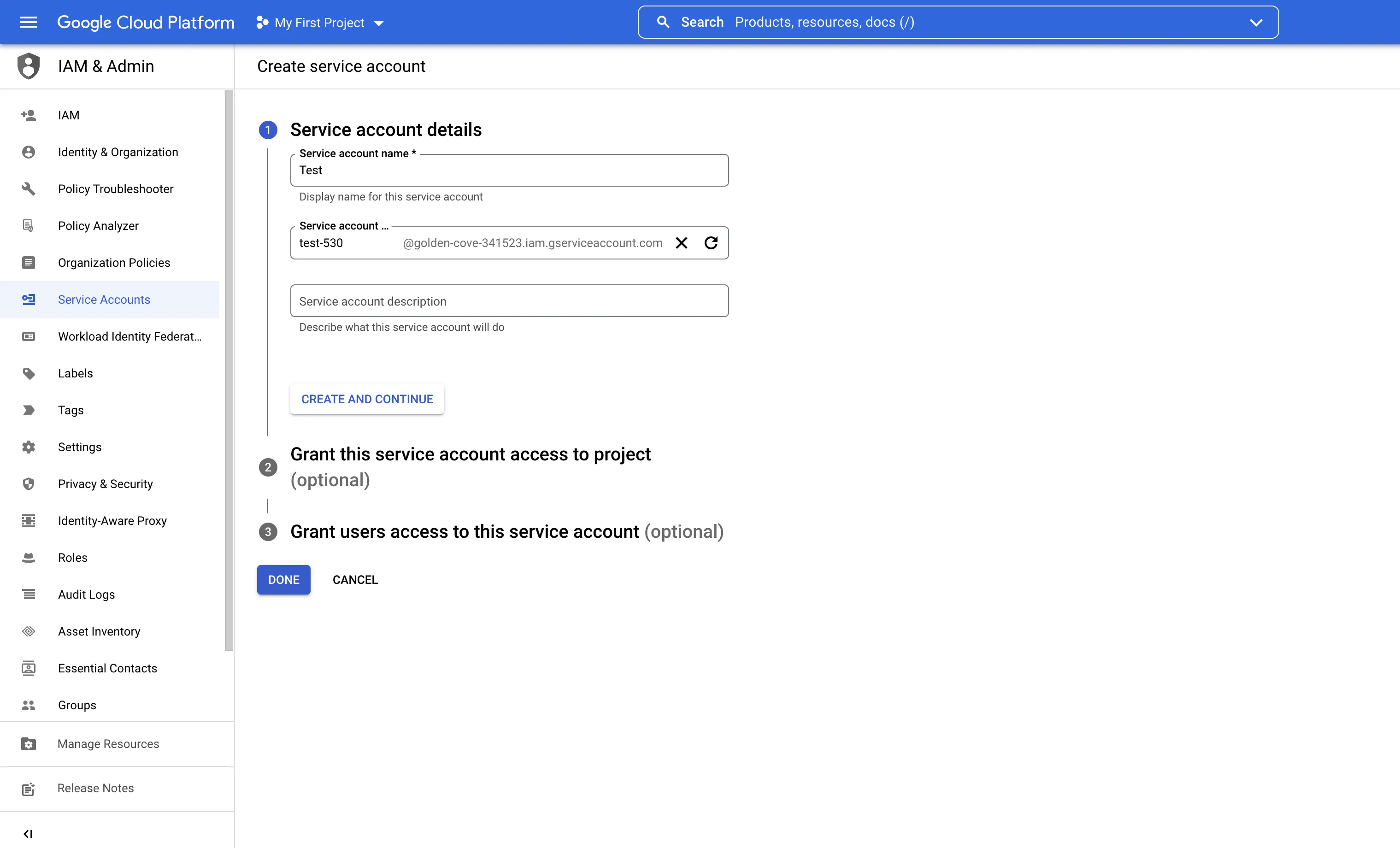
- Select Create and Continue
- Add the following roles:
- BigQuery > BigQuery Data Editor
- BigQuery > BigQuery Data Viewer
- BigQuery > BigQuery Job User
- BigQuery > BigQuery Read Session User
- Cloud Storage > Storage Object Admin
- Cloud Storage > Storage Object Viewer
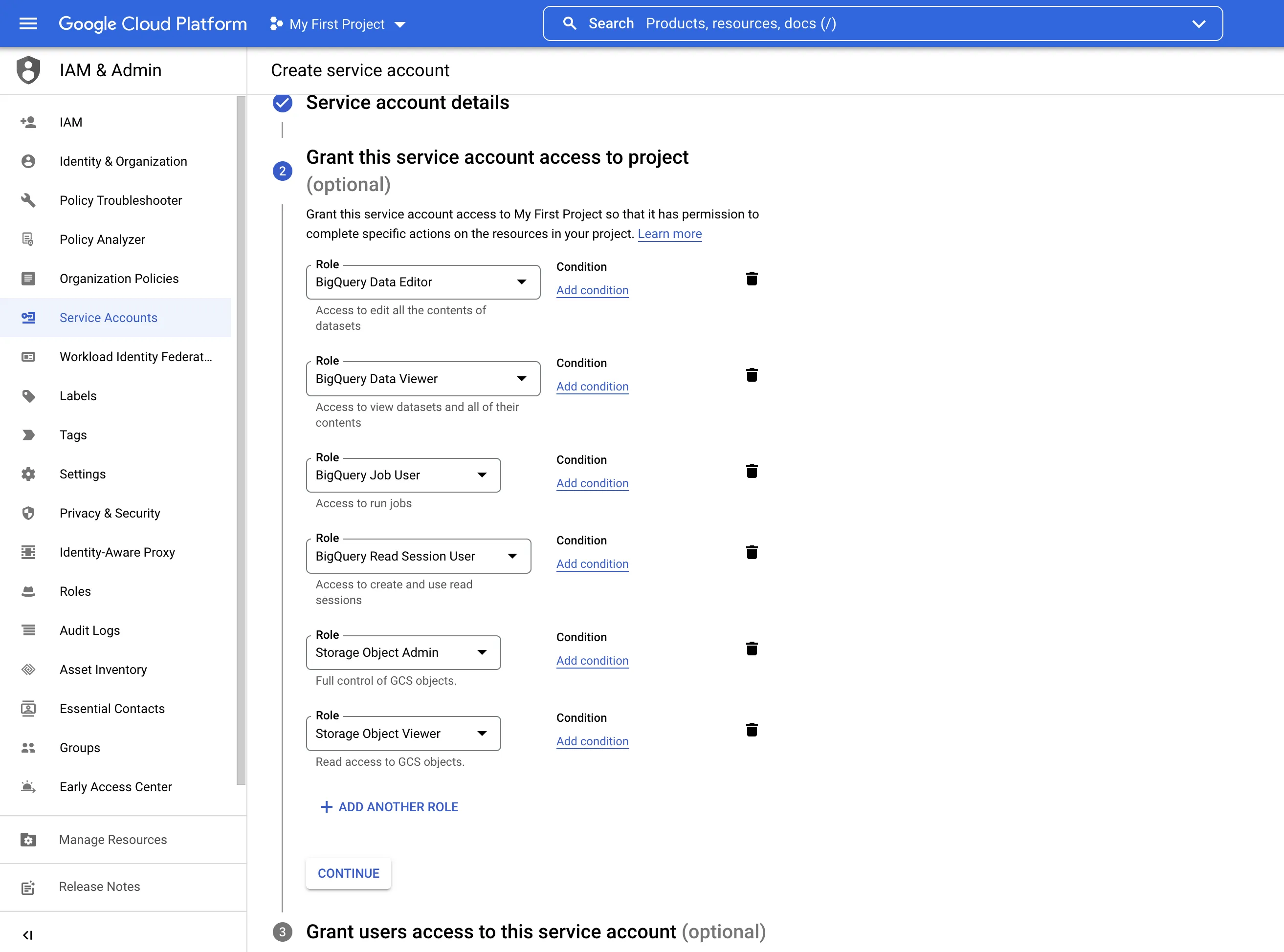
- Select Done
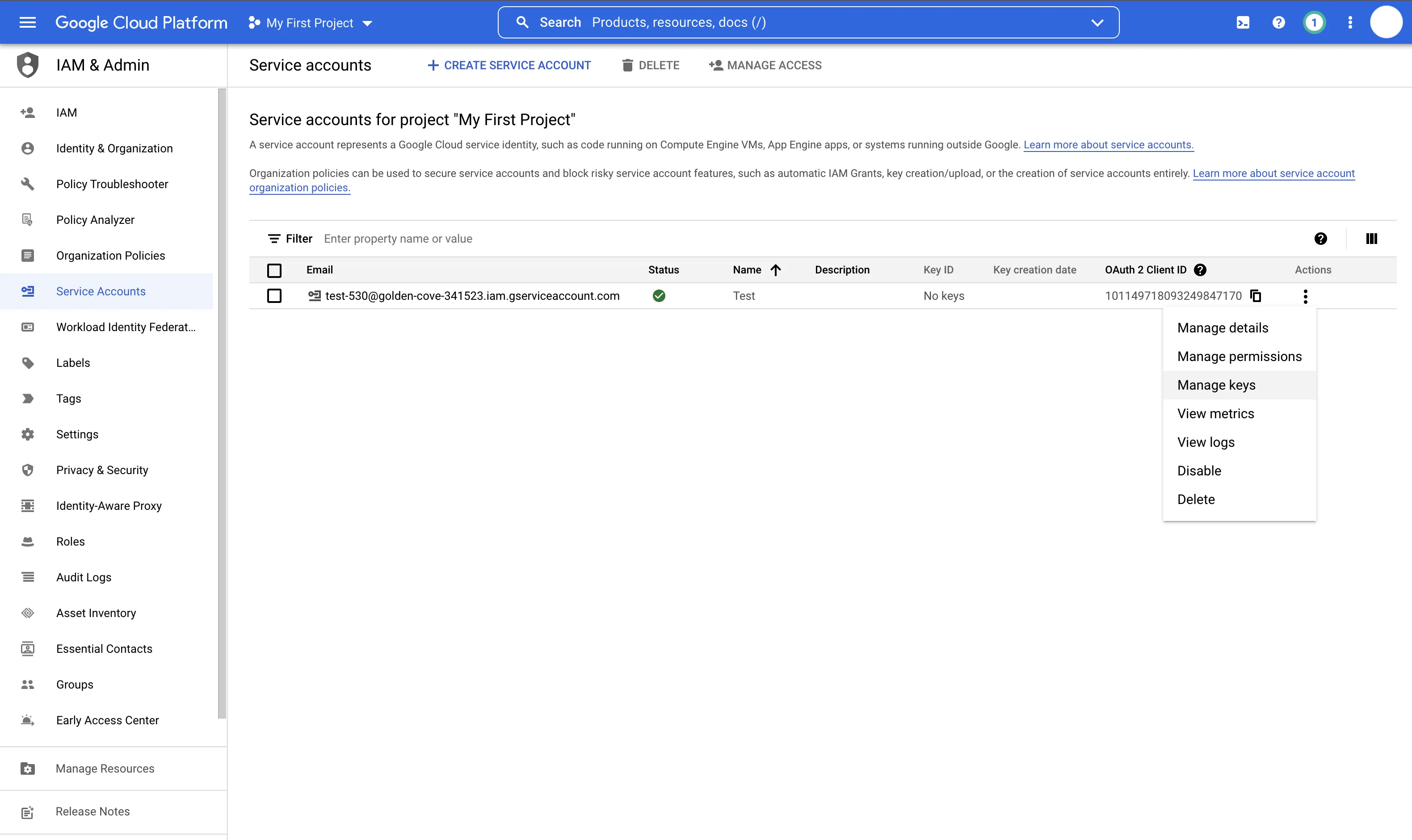
- Select the three vertical dots under Actions, then Manage keys
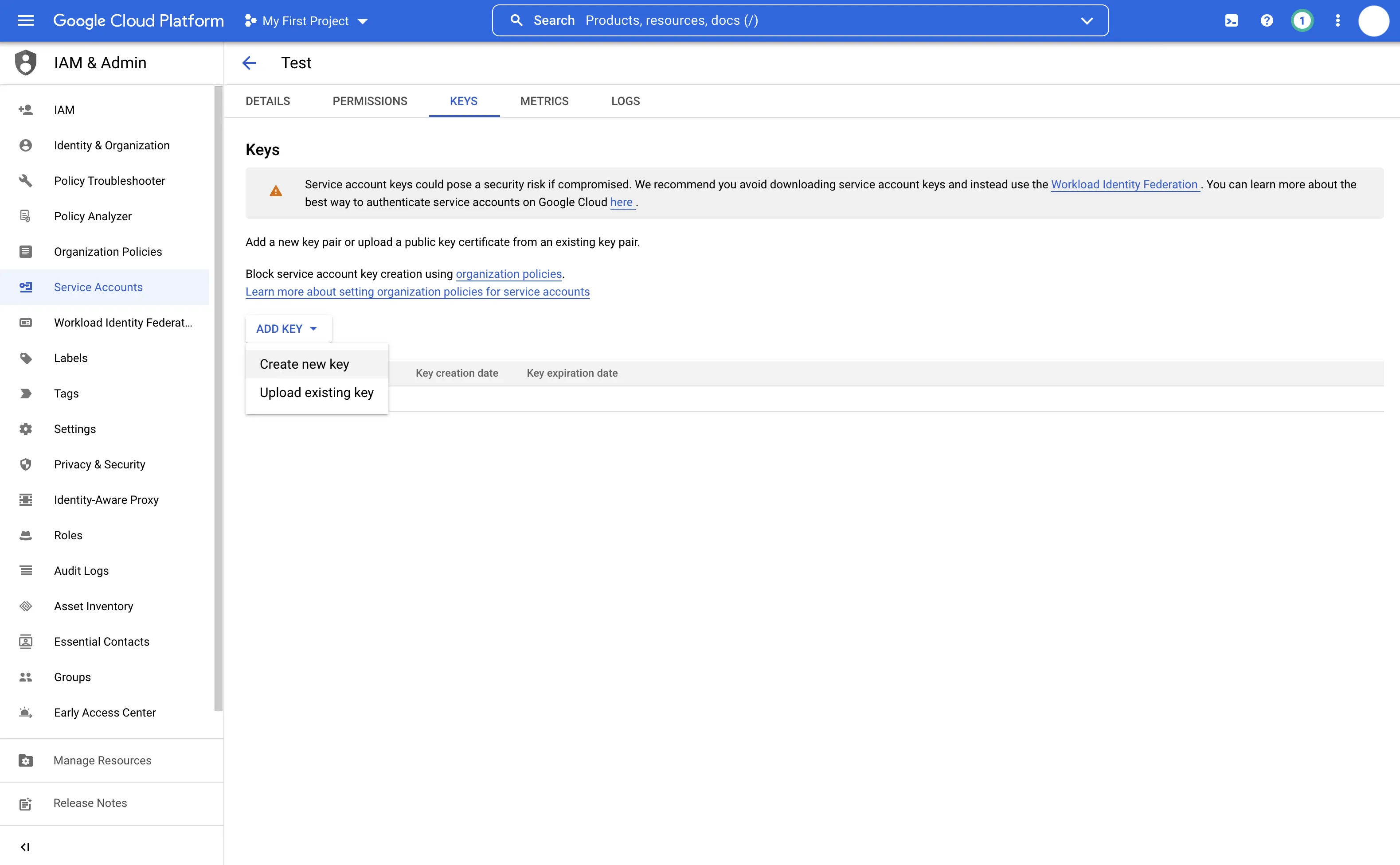
- Select Add Key > Create New Key
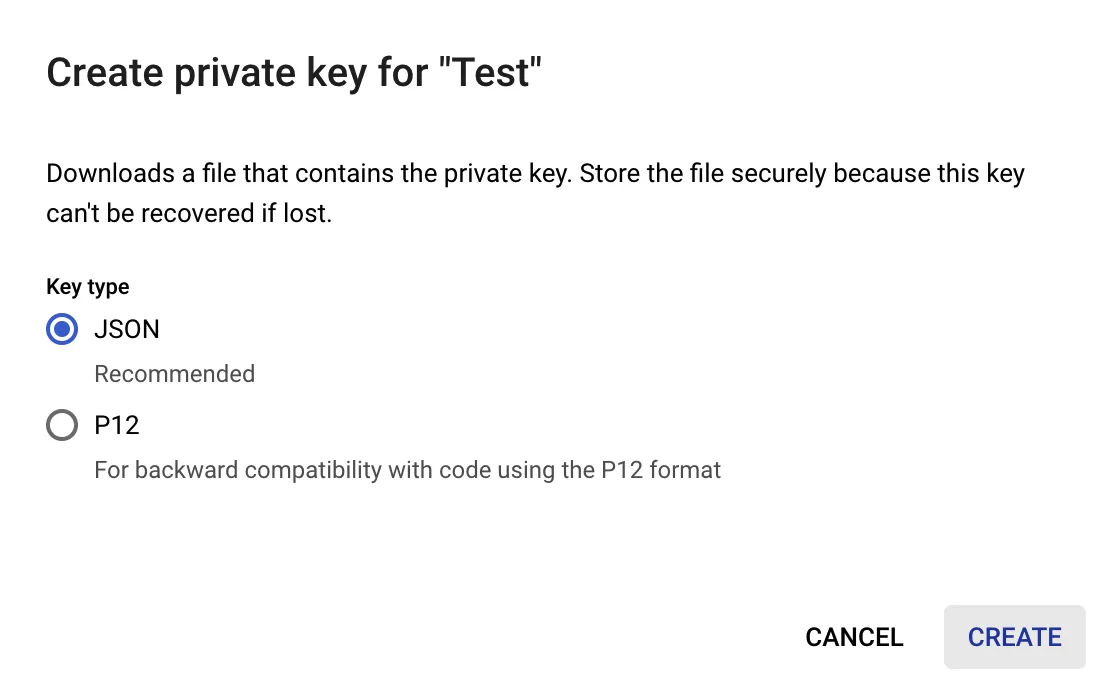
- Check that JSON is selected, then select Create
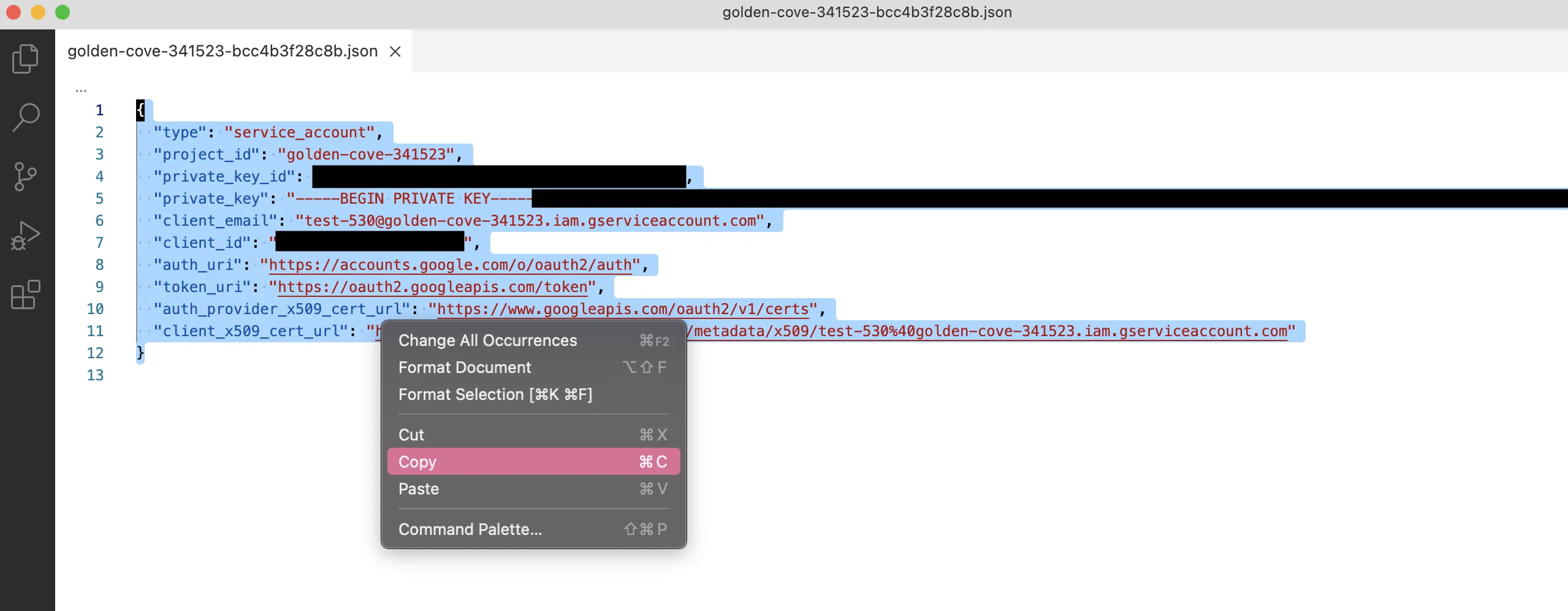
- Open the file that automatically downloads and copy the content
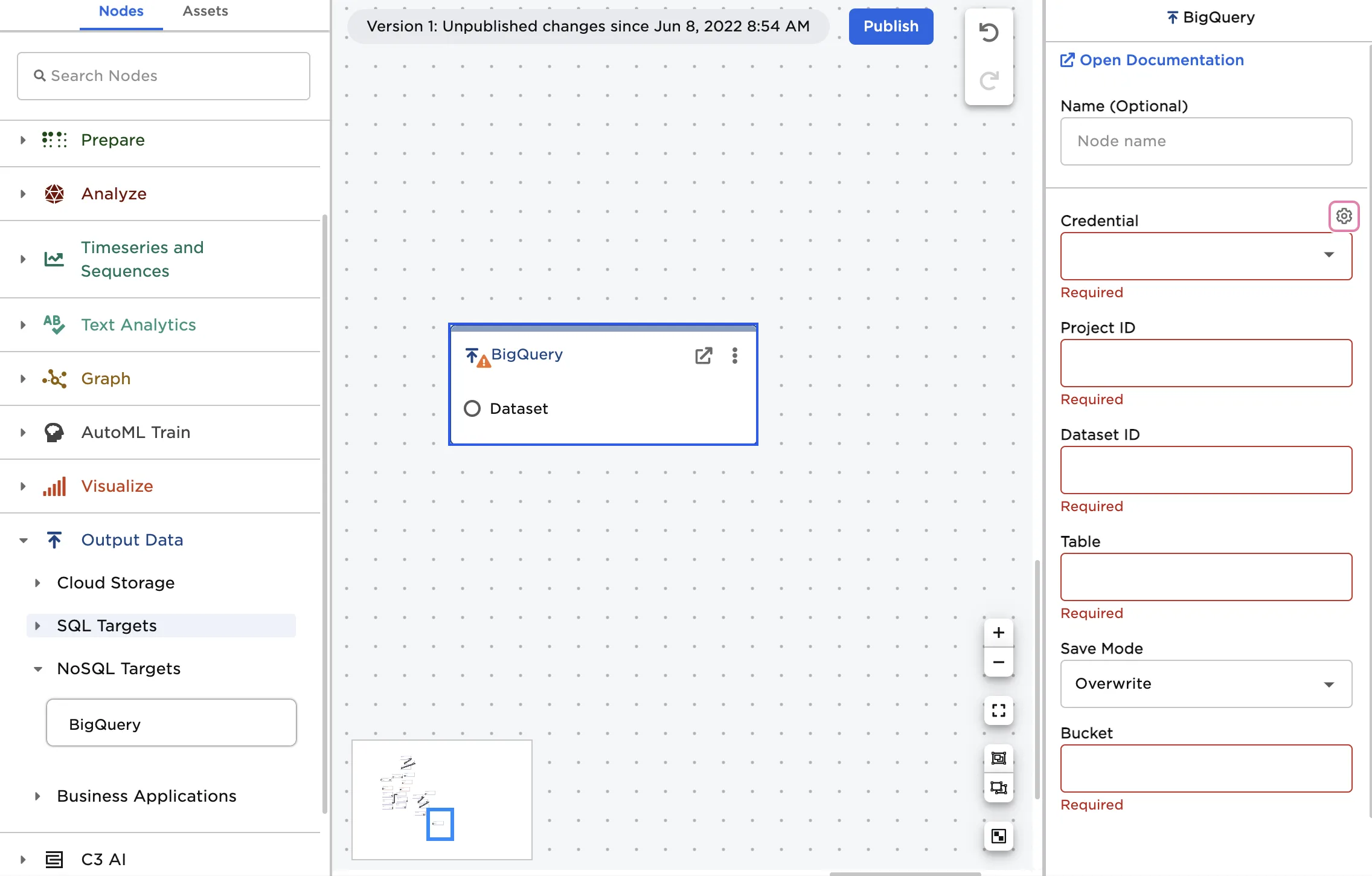
- Drag a BigQuery node onto the Visual Notebooks workspace
- Select the gear icon beside the Credential field
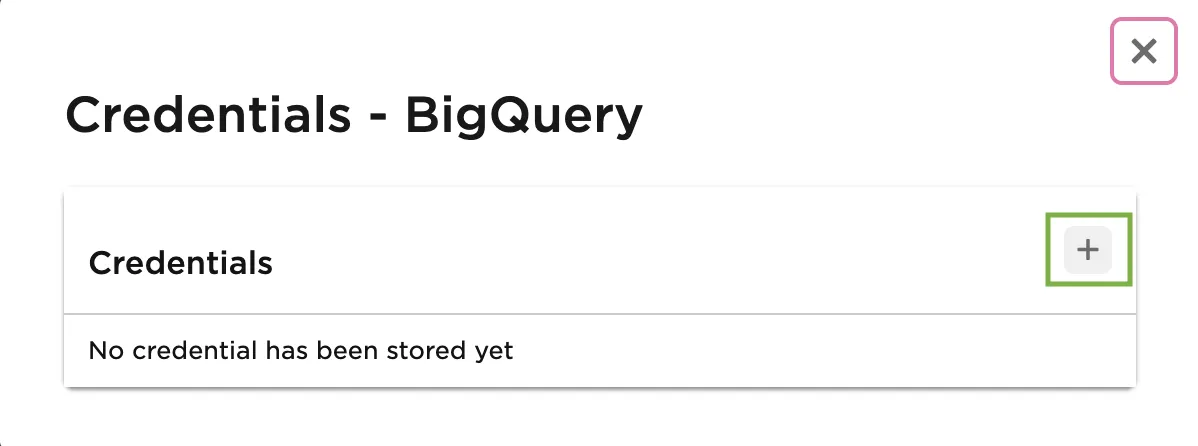
- Select the plus sign in the upper right corner
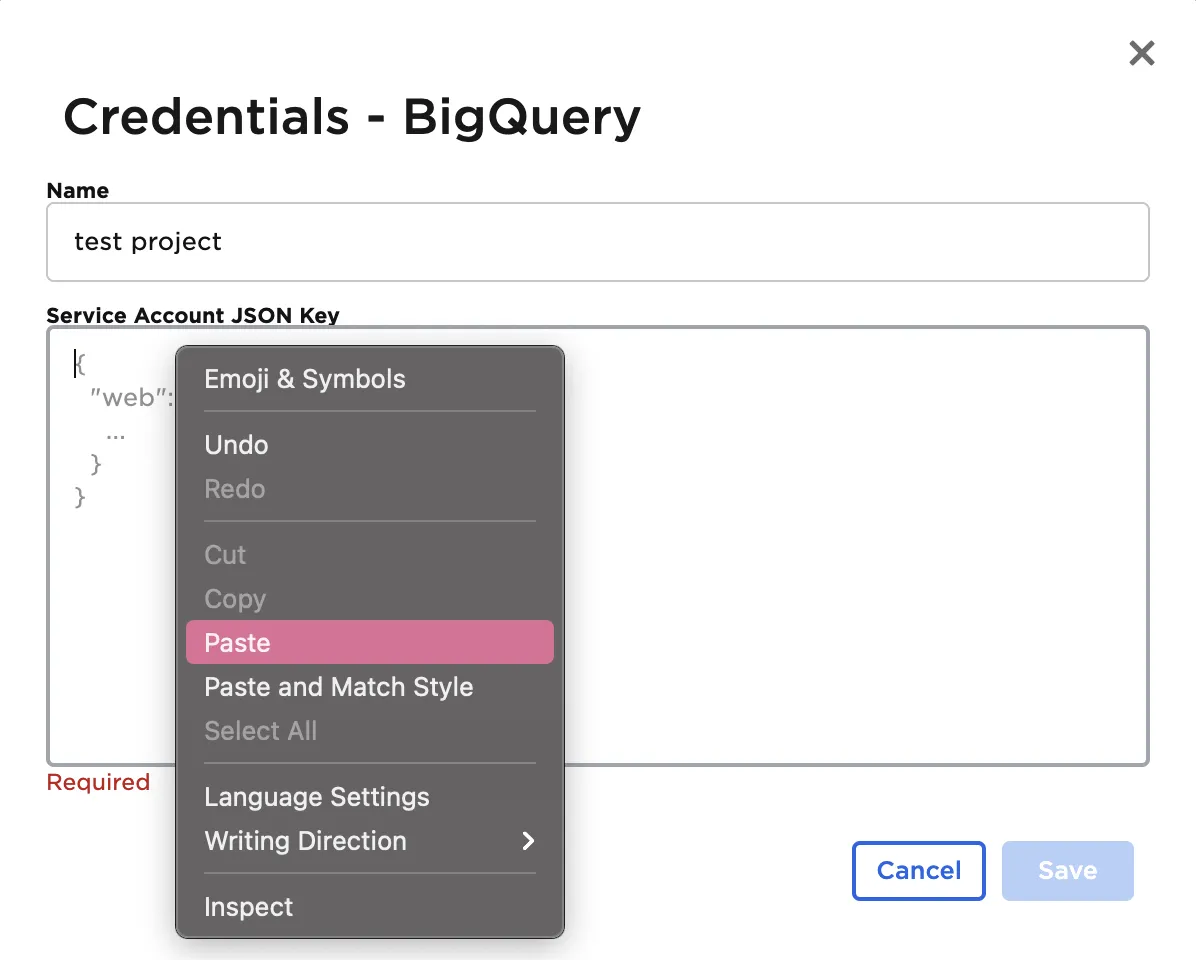
- Enter a name for the credentials
- Paste the contents of the downloaded file into the Service Account JSON Key field
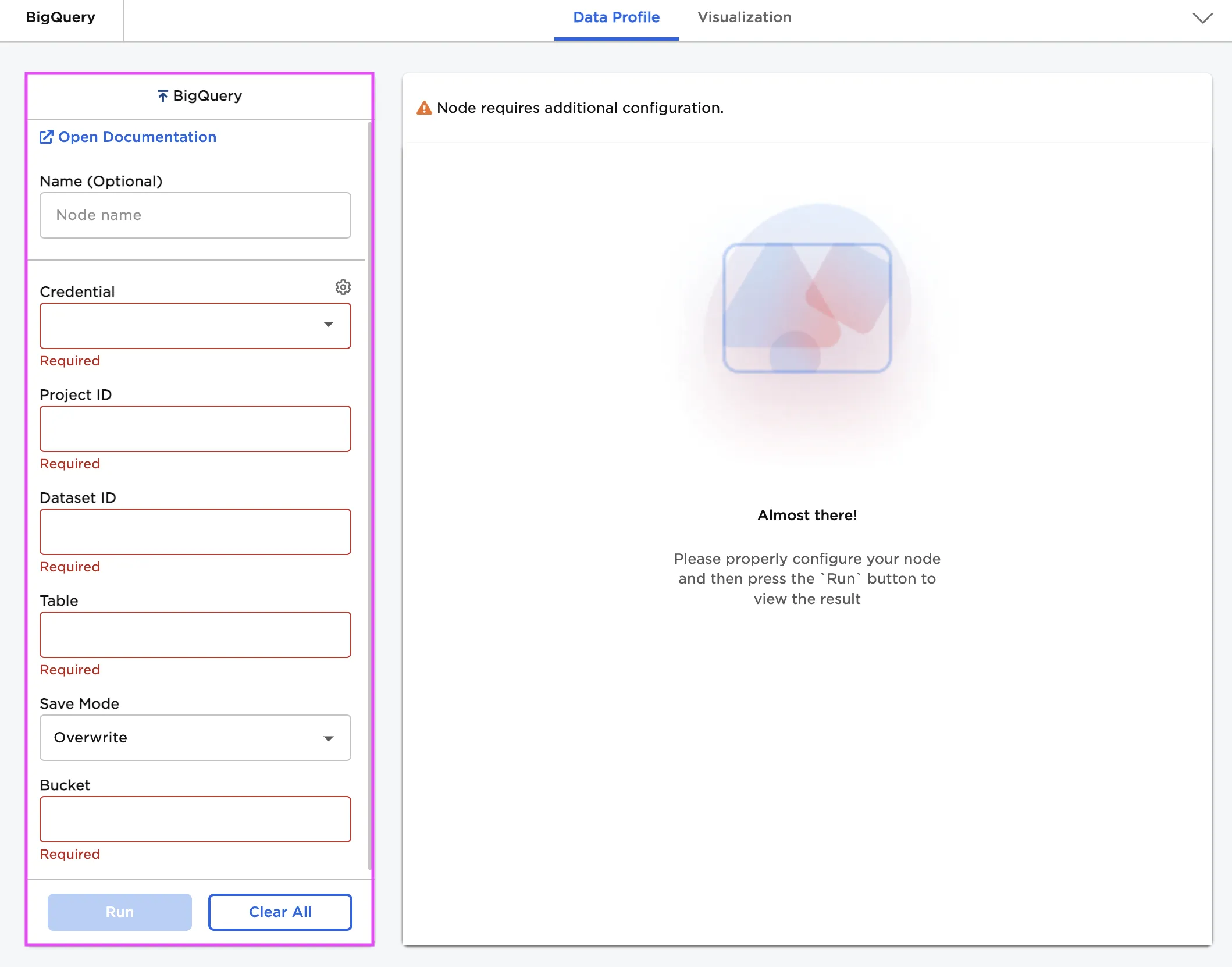
Configuration
| Field | Description |
|---|---|
| Name Optional | Name of the node An optional user-specified node name displayed in the workspace, both on the node and in the dataframe as a tab. |
| Credential Required | The information needed to access BigQuery data Select a saved credential from the dropdown menu. Select the gear icon to add a new credential or delete existing credentials. |
| Project ID Required | The name of the desired BigQuery project Enter the name of the desired project. |
| Dataset ID Required | The unique ID of the desired BigQuery dataset Enter the dataset ID for the desired dataset. |
| Table Required | A name to give the data Enter a name to save the data as in BigQuery |
| Save Mode Default: Overwrite | Duplicate data strategy Specify how to save the data from Visual Notebooks if a table with the given name already exists in BigQuery. Select Append to add the new data at the end of the preexisting BigQuery table. Select Overwrite to replace the preexisting table with the new data. Select Error If Exists to show an error if a table with the same name already exists in BigQuery. Select Ignore to keep the preexisting table and ignore the request to save the new data. |
| Bucket Required | The name of the Google Cloud Storage bucket Enter the name of an existing Cloud Storage bucket. For more information about buckets, see the Google Cloud documentation. |
Node Inputs/Outputs
| Input | A Visual Notebooks dataframe |
|---|---|
| Output | None |
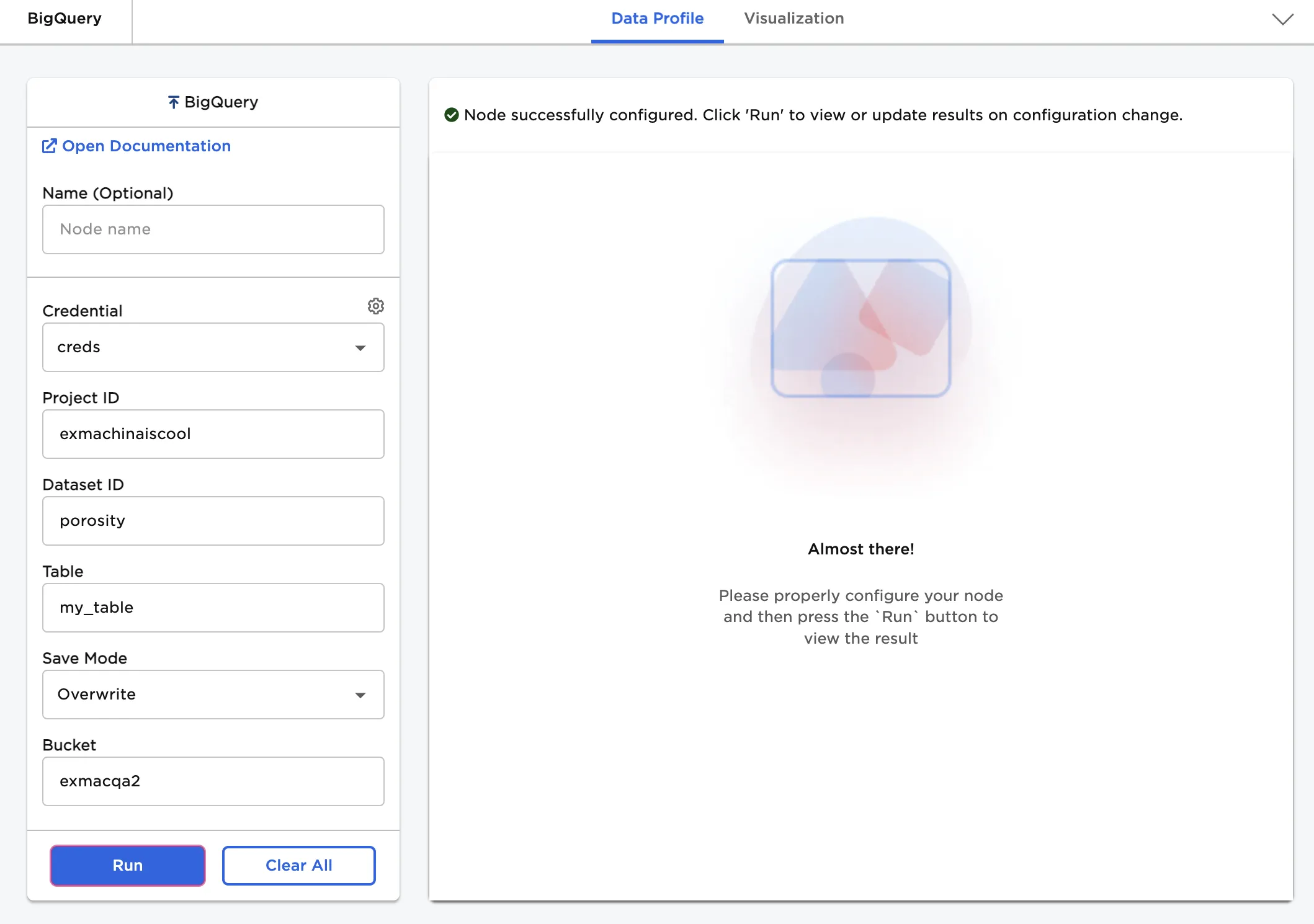
Figure 1: Example output
Examples
Follow the steps below to save data from Visual Notebooks to BigQuery.
- Connect a BigQuery output node to an existing node.
- Select the saved credentials used to access BigQuery. If you have not yet saved credentials, follow the steps in the Prerequisites section above.
- Enter the name of the BigQuery project ID and dataset ID where you would like to save the data.
- Enter a name for the data in the Table field. Note that if a table with the same name already exists in BigQuery, the preexisting table will be overwritten with the new data. Use the Save Mode field to change this behavior.
- Enter the name of a Google Cloud bucket to use to save the data.
- Select Run to save the data to BigQuery.
Although the node doesn't display any output, the data saves successfully. The data should be present in your BigQuery account.
Figure 2: BigQuery output node