CSV
Load data from a .csv, .txt, or .data file into Visual Notebooks.
Configuration
| Field | Description |
|---|---|
| Name default=name of the first uploaded file | A user-specified node name displayed in the workspace |
| File Required | The file or files to upload |
| Upload data from a .csv, .txt, or .data file. If uploading multiple files, make sure all files have the same structure and type of data. Files are stored in a scalable cloud environment with stringent security measures. The total size of all uploaded files must not exceed 50 GB. | |
Has Header default=On | Header data to be used as column names |
| Toggle the "Has Header" switch on if the uploaded file has an initial header row of column names. Toggle the switch off to use numerical column names ("_c0", "_c1", etc.) instead. | |
Schema inference mode default=Drop rows containing bad values | Data type inference options |
Select the Drop rows containing bad values option to infer the data type (string, integer, decimal, Boolean, etc.) used in each column. Rows with different data types or empty values are not uploaded to the workspace. Select the Read as strings (no schema inference) option to read all columns as strings and upload all values. | |
Number of rows to use in schema inference default=5 | Rows used to determine a column's data type |
| Set this value to any valid whole number. Visual Notebooks reads the number of rows specified, starting with the first row of the file. These rows are used to determine each column's data type. | |
Delimiter default=, Comma | The character that separates values |
| Set the delimiter to comma, pipe, colon, semicolon, tab, or space. Only change this field if the uploaded file uses nonstandard formatting. | |
Quote default=" | The character that surrounds values to ignore |
| Set the quote to any character. Delimiters inside quotes are ignored. Only change this field if the uploaded file uses nonstandard formatting. | |
Escape default=" Double Quote | The character that precedes a character to ignore |
| Set the escape to quote, double quote, or backslash. Any character immediately following an escape character is ignored. Only change this field if the uploaded file uses nonstandard formatting. | |
Timestamp format option default=Autodetect timestamp format | Timestamp inference options |
| Select the "Autodetect timestamp format" option to infer timestamp formatting. Visual Notebooks examines the number of rows specified in the "Number of rows to use in schema inference" field and compares those values to a list of known timestamp formats. Select the "Specify timestamp format" option to manually enter the exact timestamp format used in the uploaded file. | |
Track file names default=Off | Additional file name column |
| Toggle the "Track file names" switch on to create an additional column with the name of the input file. |
Node Inputs/Outputs
| Input | None |
|---|---|
| Output | Visual Notebooks returns a table, called a dataframe, that contains all uploaded data. Columns are labeled and include a symbol that specifies the data type of that column. |
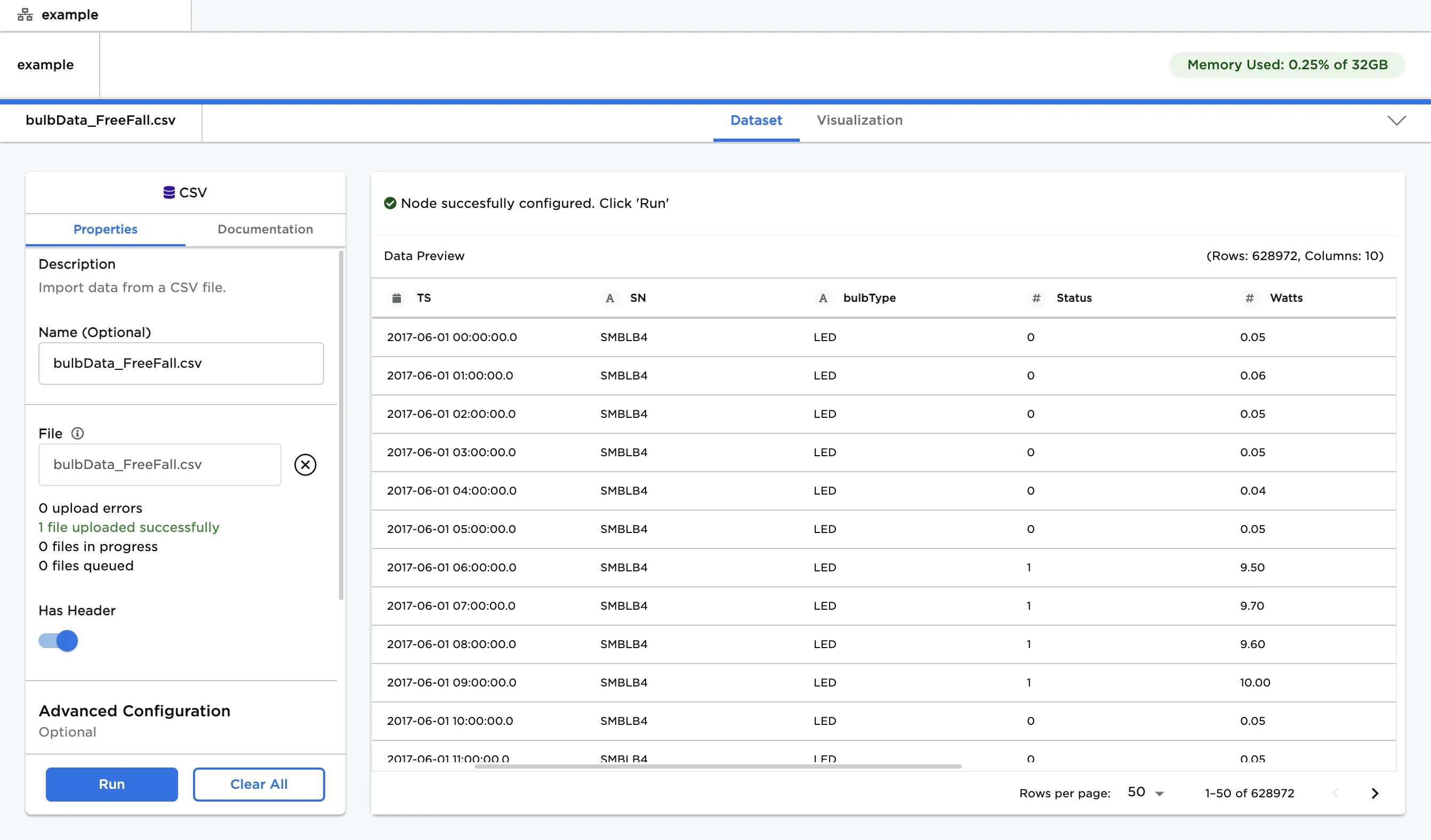
Figure 1: Example dataframe output
Examples
- Drag and drop the .csv, .txt, or .data file that you want to upload into the outlined space, or use the "Browse" button to select files from your computer.
- The file shown below is used in this example. Notice that there are eleven rows of data, including the column labels in the first row.
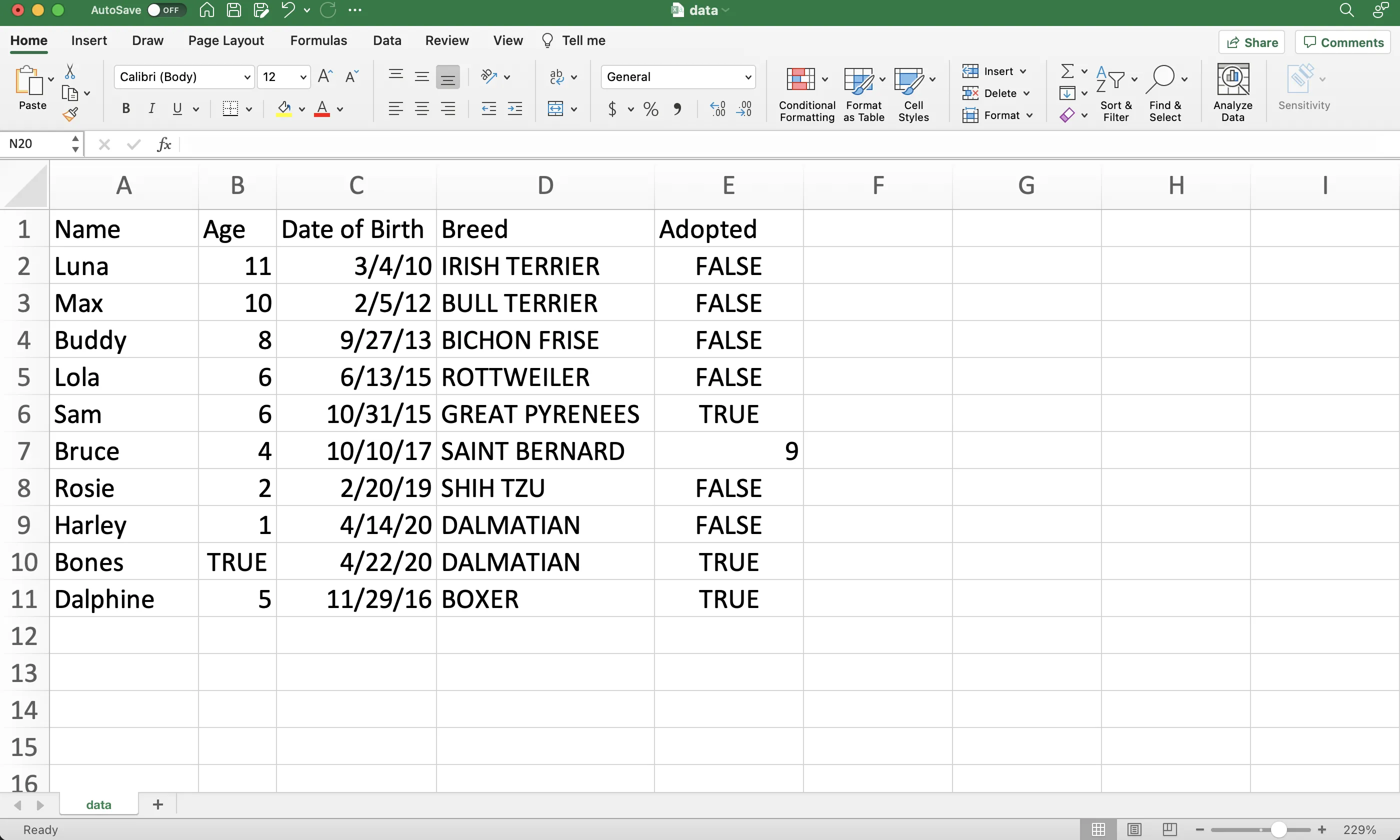
Figure 2: Example source data file
- Upload this file then select "Run" to create a dataframe with the default settings.
- Notice that the columns are labeled and include an icon that indicates the data type.
- By default, Visual Notebooks drops rows with missing values or mismatched data types. Since there are only eight rows in the dataframe, two rows have been dropped.
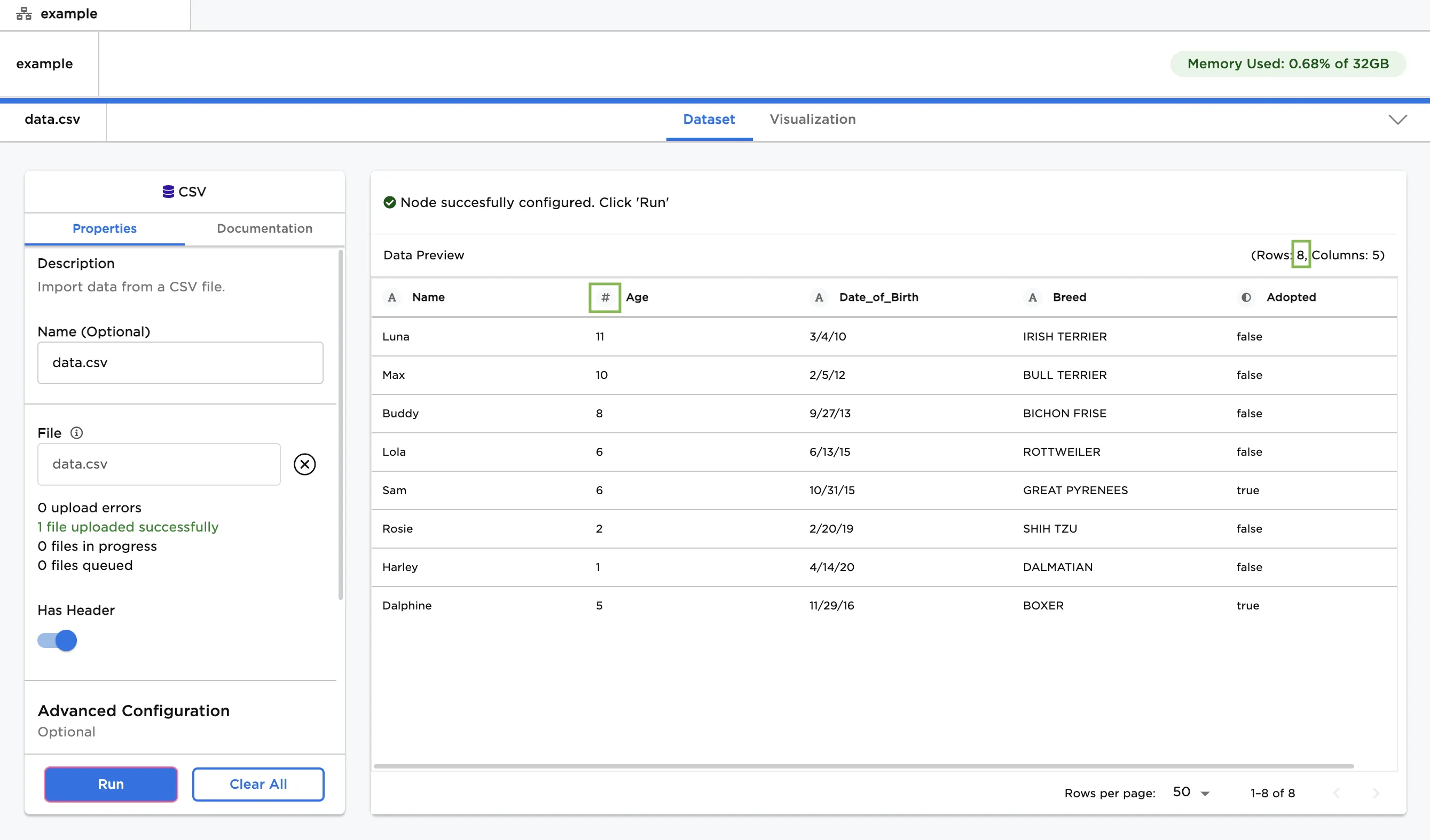
Figure 3: Example dataframe with default settings
- To preserve all rows, select the "Read as strings (no schema inference)" option.
- Notice that all ten rows are imported into the dataframe, including the two rows with mismatched data types.
- The "A" icon next to each column label indicates that all columns are stored as strings.
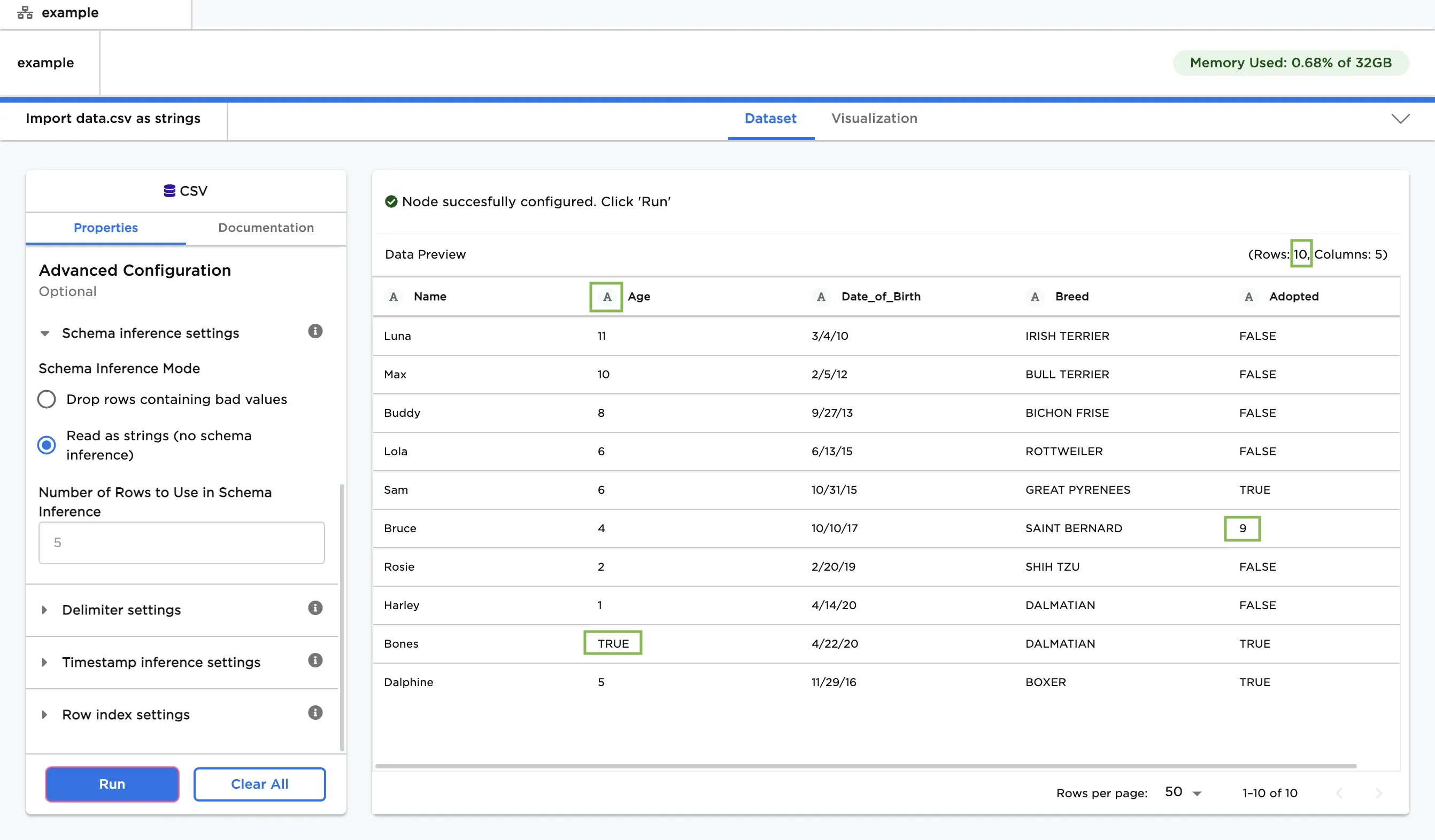
Figure 4: Example dataframe with all data imported as strings
- If you want to convert a column to a date or timestamp type, reference the Spark SQL guide for an explanation of the available datetime symbols. The table below shows example timestamp formats.
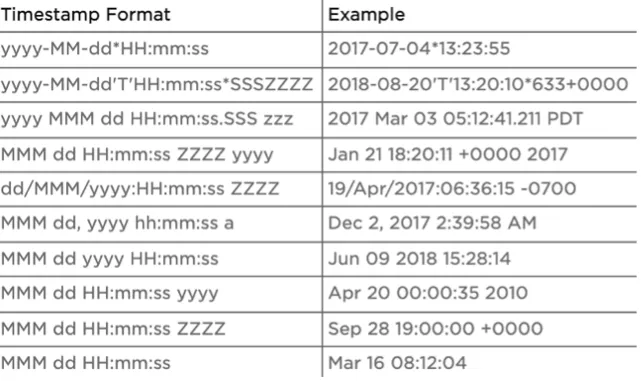
Figure 5: Example timestamp formats