JSON
Load data from a .json file into Visual Notebooks.
Configuration
| Field | Description |
|---|---|
| Name default=name of the first uploaded file | A user-specified node name displayed in the workspace |
| File Required | The file or files to upload |
| Upload data from a .json file. If uploading multiple files, make sure all files have the same structure and type of data. Files are stored in a scalable cloud environment with stringent security measures. The total size of all uploaded files must not exceed 100 MB. | |
Mode default=Multiline | JSON structure |
| Select "multiline" to upload a JSON file that is multiple lines of data. Select "singleline" to upload a JSON file that is a single line. | |
Timestamp format option default=yyyy-MM-dd'T'HH:mm:ss[.SSS][Z] | Timestamp formatting |
| Select one of the given timestamp options or enter a custom format. |
Node Inputs/Outputs
| Input | None |
|---|---|
| Output | Visual Notebooks returns a table, called a dataframe, that contains all uploaded data. Columns are labeled and include a symbol that specifies the data type of that column. |
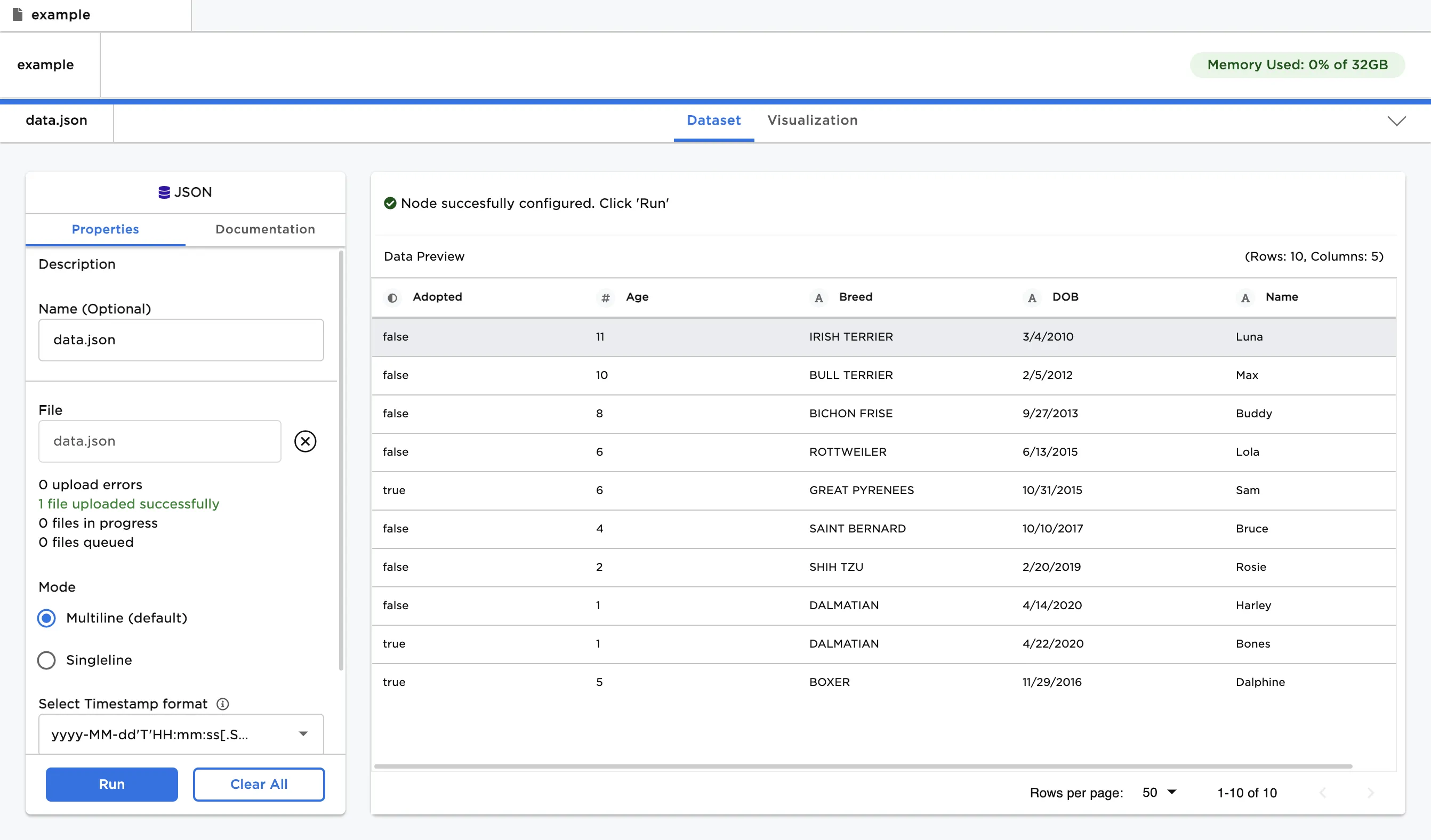
Figure 1: Example dataframe output
Examples
- Drag and drop the .json file that you want to upload into the outlined space,
or use the "Browse" button to select files from your computer. - Select "Run" to create a dataframe with the default settings.
Figure 2: Example dataframe with default settings