Data Input in Visual Notebooks
Visual Notebooks offers capabilities to integrate data from files, from the C3 AI Type System, and from external data resources. The existing connectors are shown Figure 1.
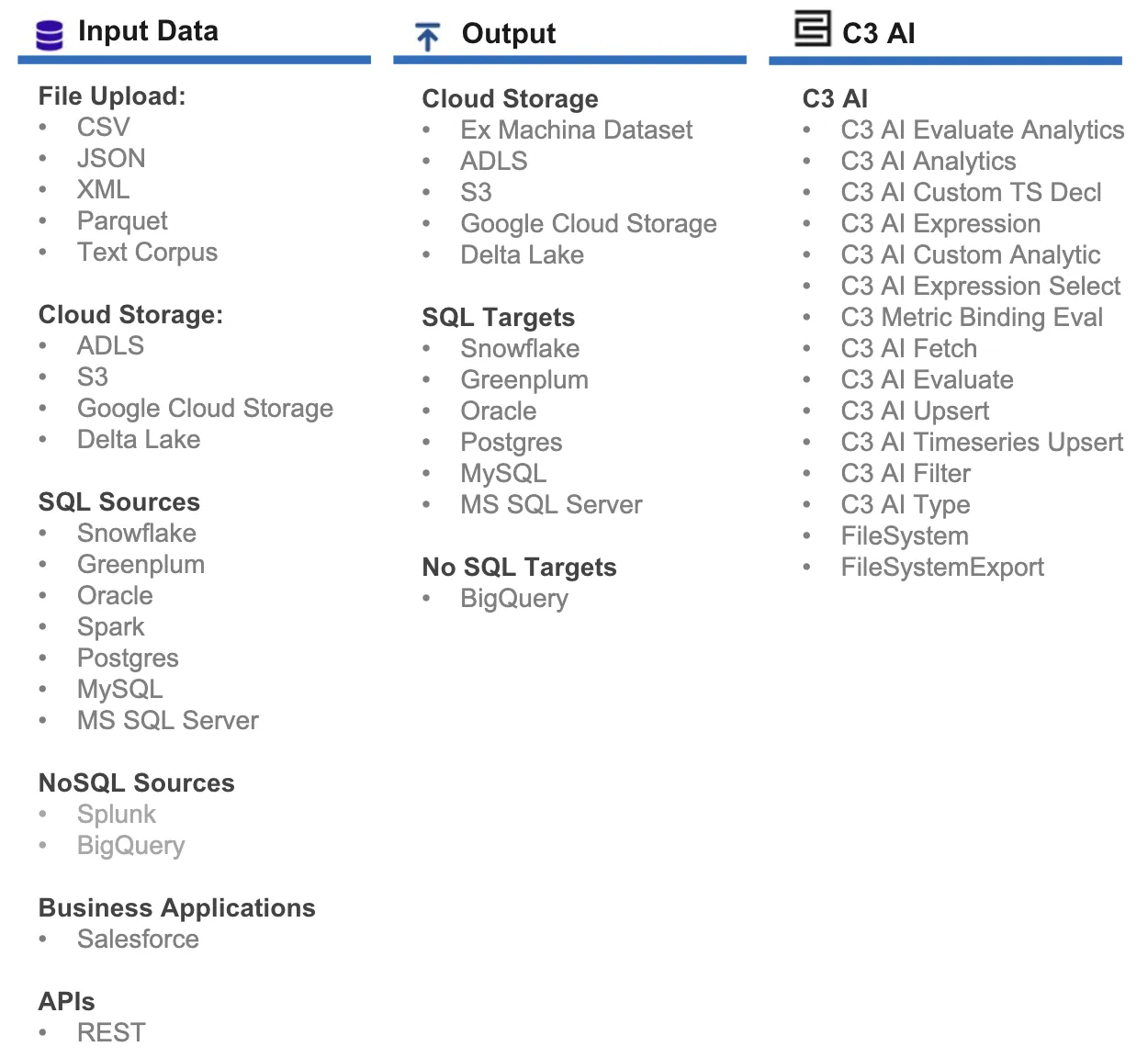
Figure 1: Input, output, and Type data connectors
Many common file formats are supported such as CSV, JSON, XML, and Parquet. File upload functionality supports files sizes of up to 50GB per file (supported on stable internet connections with minimum of 10Mbs upload bandwidth).
Visual Notebooks exposes connectors to modern data warehouses such as:
- Delta Lake/Databricks
- Snowflake
- Big Query
The above connectors are designed for scalability and speed, and each have been tested on 500Gbs data ingest on an Visual Notebooks 1Tb workspace.
Note: When connecting to an external database, it is important to first confirm network accessibility between the C3 AI Platform and the data resource. It may be necessary to work with C3 AI operations to discuss network and firewall settings.
Input from File
File upload nodes are equipped with many options including:
- Automated schema detection
- Automatic timestamp format detection
- Batch file upload and merge
Visual Notebooks can autodetect timestamp columns by matching against possible timestamp formats. You can also manually specify a custom timestamp format.
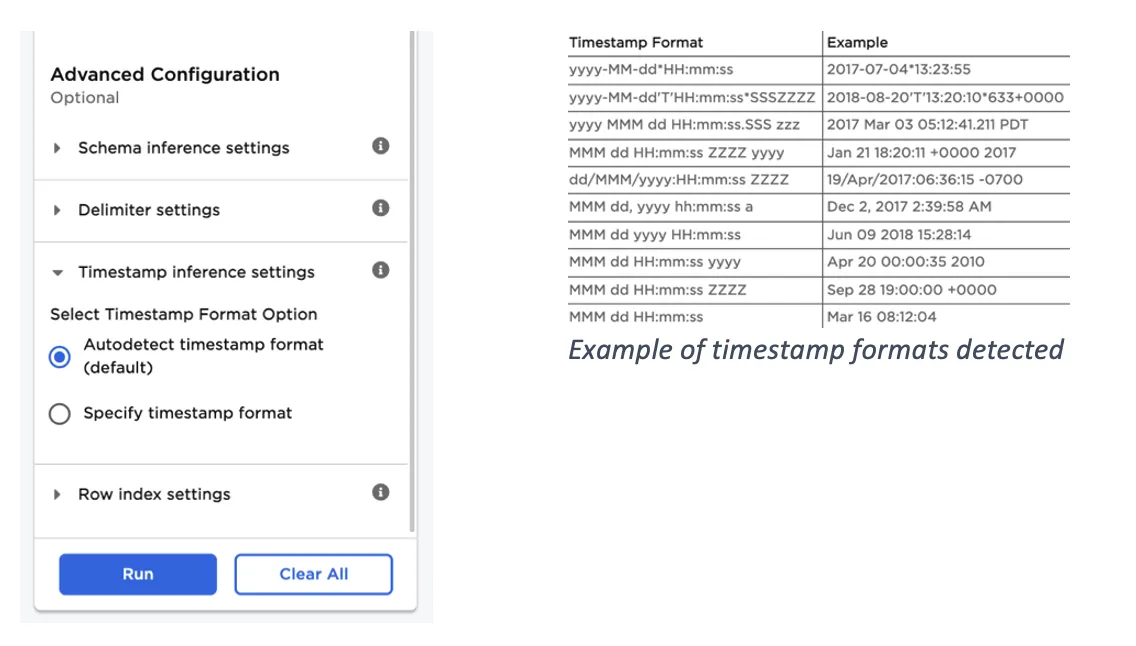
Figure 2: CSV input node advanced settings
Most file upload nodes--including CSV, XML, and Text Corpus--support loading a directory or nested directory of files. All files are merged into a single dataset, referred to as an Visual Notebooks dataframe.
When using the text corpus file upload node, for example, each text file is read as a single row into the dataframe. The row represents a single unit of information-—such as an individual email, a news article, or a customer product review. A directory of text files may represent a set of emails from a single employee, or a set of product reviews for a single product.
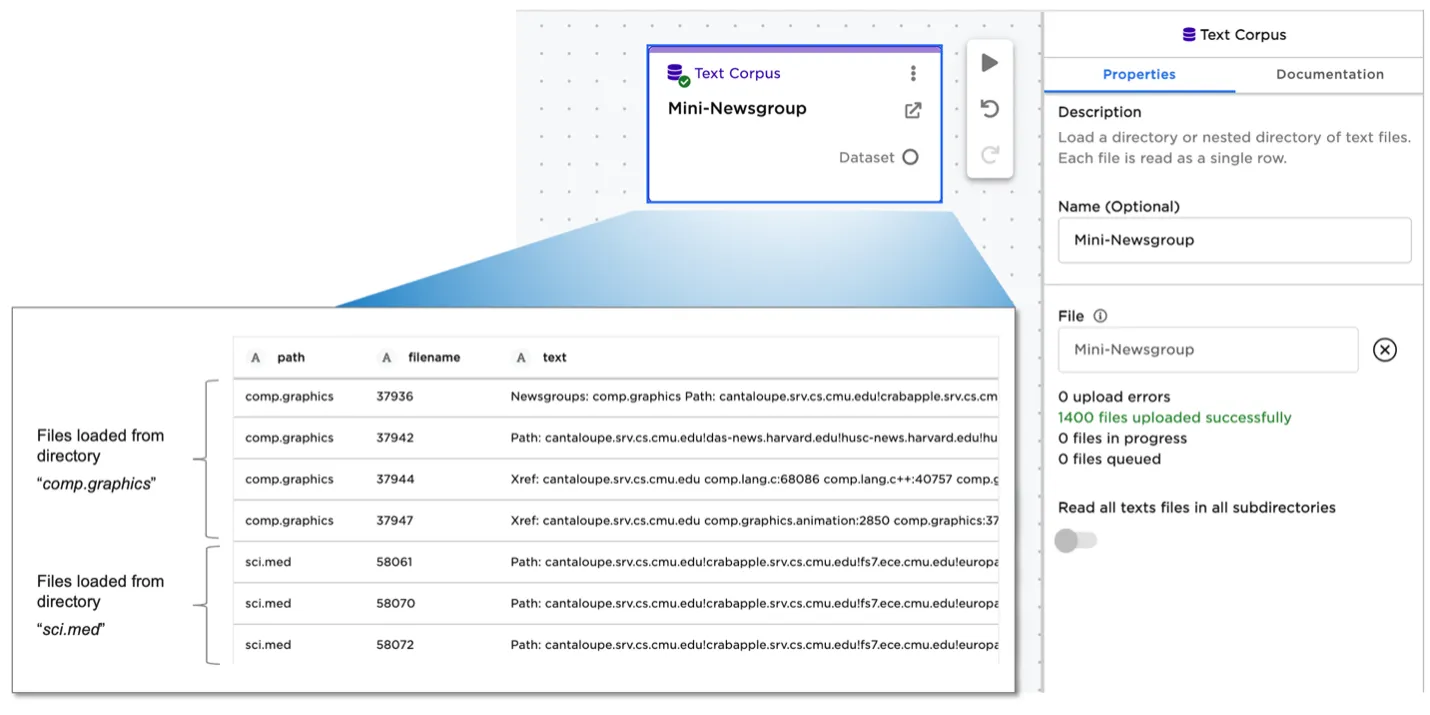
Figure 3: Text Corpus node
Input from External Source: Delta Lake Example
Visual Notebooks offers two methods to ingest data from Databricks/Delta Lake.
The first method uses the Spark connector to read data through the customer's Databricks Spark cluster. Any query to the connector is processed on the Databricks cluster and only the results are returned to Ex Machina. This method incurs runtime costs from the Databricks cluster and is not recommended for larger datasets.
The second method includes reading the Delta table files directly from the underlying cloud storage, such as Azure ADLS. Connecting directly to source files enables Visual Notebooks to ingest datasets at speed without the need for a large Databricks compute cluster.
Authentication options include ADLS Access Key, or Azure Service Principle.
This connector allows advanced options:
- Querying the Delta table to only ingest the needed or filtered data
- Reading a specific version of a table
- Reading a table as of a specified date
- Configuring caching options--caching accelerates downstream analysis at the cost of using more workspace memory. For large datasets it is recommend turning off caching
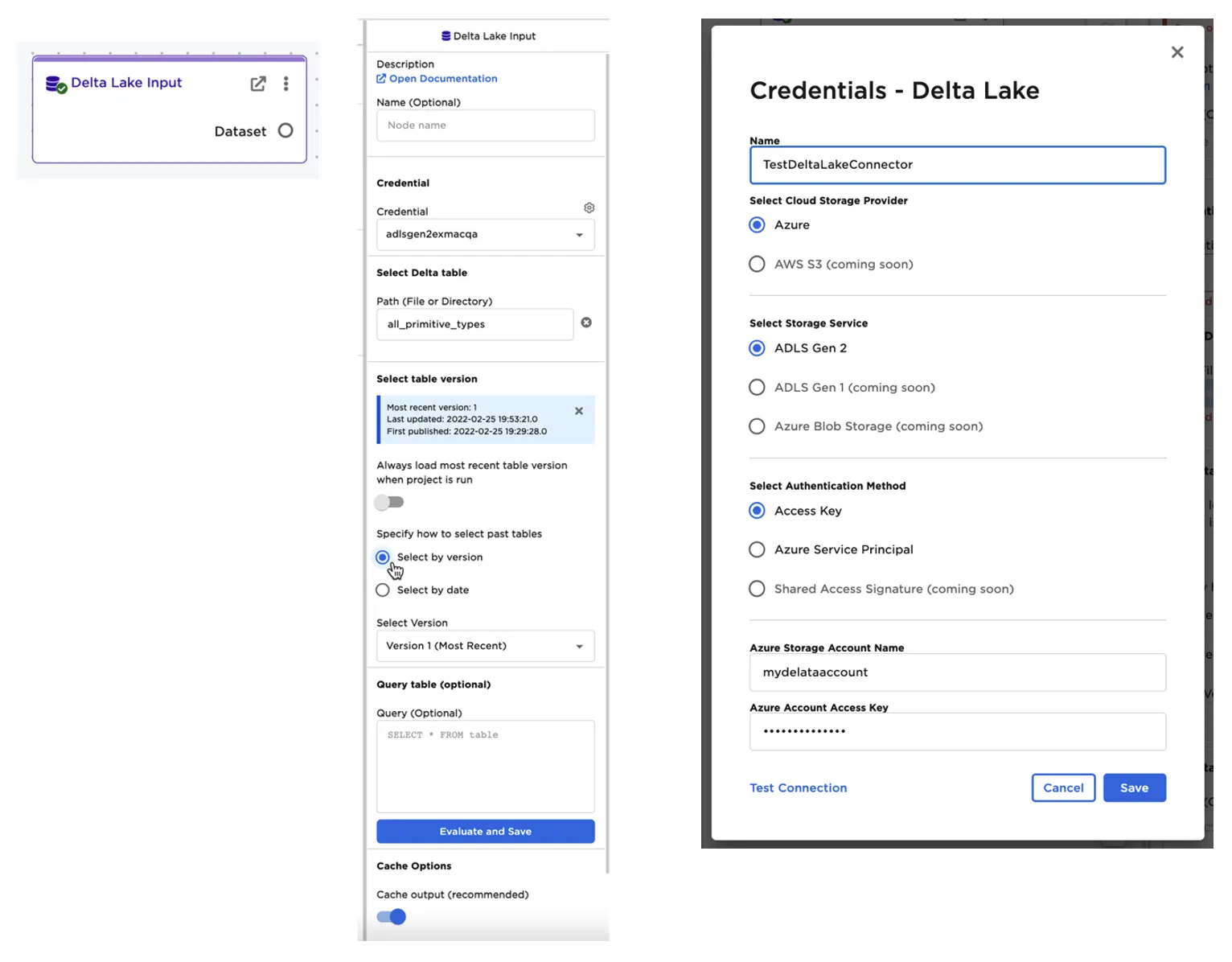
Figure 4: Delta Lake connector
Loading data from the C3 AI Type System
When Visual Notebooks is deployed as an integrated companion to a C3 AI application, Visual Notebooks can load any application Type data using dedicated C3 AI nodes.
You can evaluate timeseries data, called metrics, by specifying the Type, metric of interest, and then specifying the interval and start/end dates. It is also possible to query and fetch to retrieve data from a specified Type.
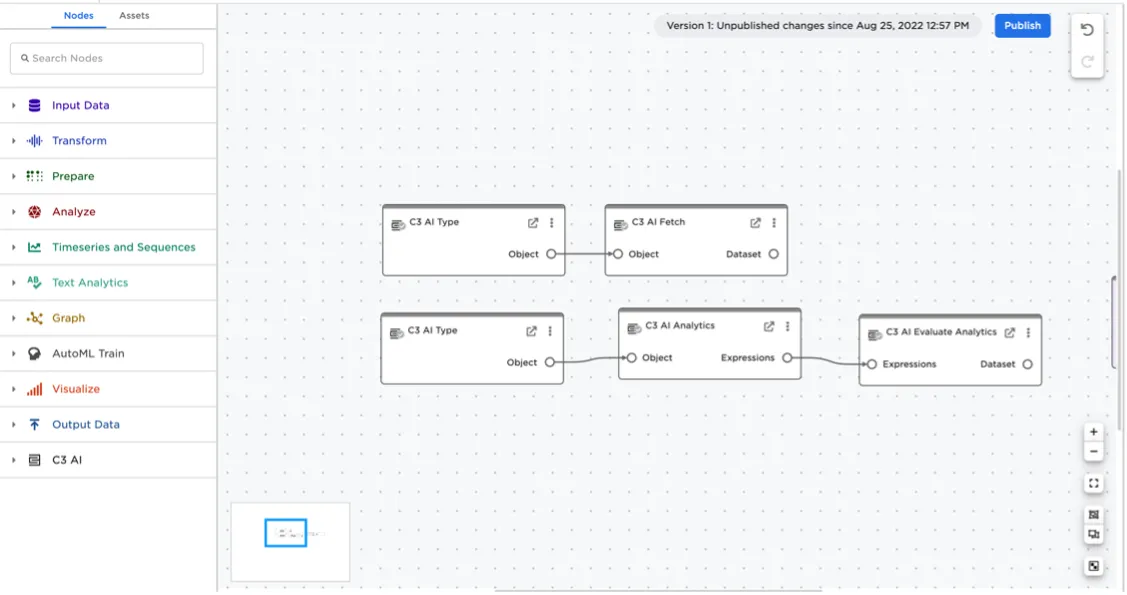
Figure 5: Interacting with the C3 AI Type System from the Visual Notebooks canvas