Extract Field from Object
Extract only selected fields of interest from a column of type Object, consisting of multiple and possibly nested key/value pairs, into new columns.
Objects in Visual Notebooks are equivalent to:
- JavaScript objects as defined using JavaScript Object Notation "JSON" syntax
- Python dictionaries
Data analysis often involves "semi structured" data provided as JSON or XML input files. Such data may not cleanly fit into a flat tabular structure and often involves wrangling of more complex "Object" columns. Visual Notebooks provides several transformations for manipulating Objects, including creating Objects, extracting fields from Objects, and disassembling Objects.
Configuration
| Field | Description |
|---|---|
| Name default=none | Name of the node A user-specified node name, displayed in the canvas and in the dataframe as a tab. |
| Select Object Column to Extract Required | Select single column of type Object Select the input Object column from which to extract a specific field. |
| Select Field Required | Field to extract from the Object column Select a key/value to extract using the schema viewer. If the field is itself an Object with lower level key/value pairs, then a column of type Object is returned. Otherwise, a column with the same type as the one assigned to the key/value is returned. |
| Output Column Name default=Default | Desired name for the output column Select "Default" if you want the column name to display according to Default Naming Convention. Select "Custom" to specify a different name. |
| Drop Original Column(s) default=On | Toggle to drop or keep the selected input column(s) Leave the switch on to delete the Object column(s) from which output columns are extracted. Toggle the switch off to keep the selected column(s). |
| Default Naming Convention default=Use field name | Determine how output columns are named Select "Use field name" if you want the default column name to be the same as the field(s) to extract. Select "Use nested structure" if you want to include the names of all parent Objects in addition to the field(s) to extract. You can preview the name for each setting in Output Column Name for the extracted field(s); ensure "Default" is selected. |
Node Inputs/Outputs
| Input | A Visual Notebooks dataframe |
|---|---|
| Output | A dataframe with extracted fields |

Figure 1: Example dataframe output
Examples
The data shown in Figure 2 is used in the following example. We start with a JSON file comprised of a single category, or level, of customer details. The file, when loaded using the JSON input node, creates a single column of Objects corresponding to customer details. The Object column contains three keys: First_Name, Last_Name, and Suffix. We wish to extract the first and last names only.
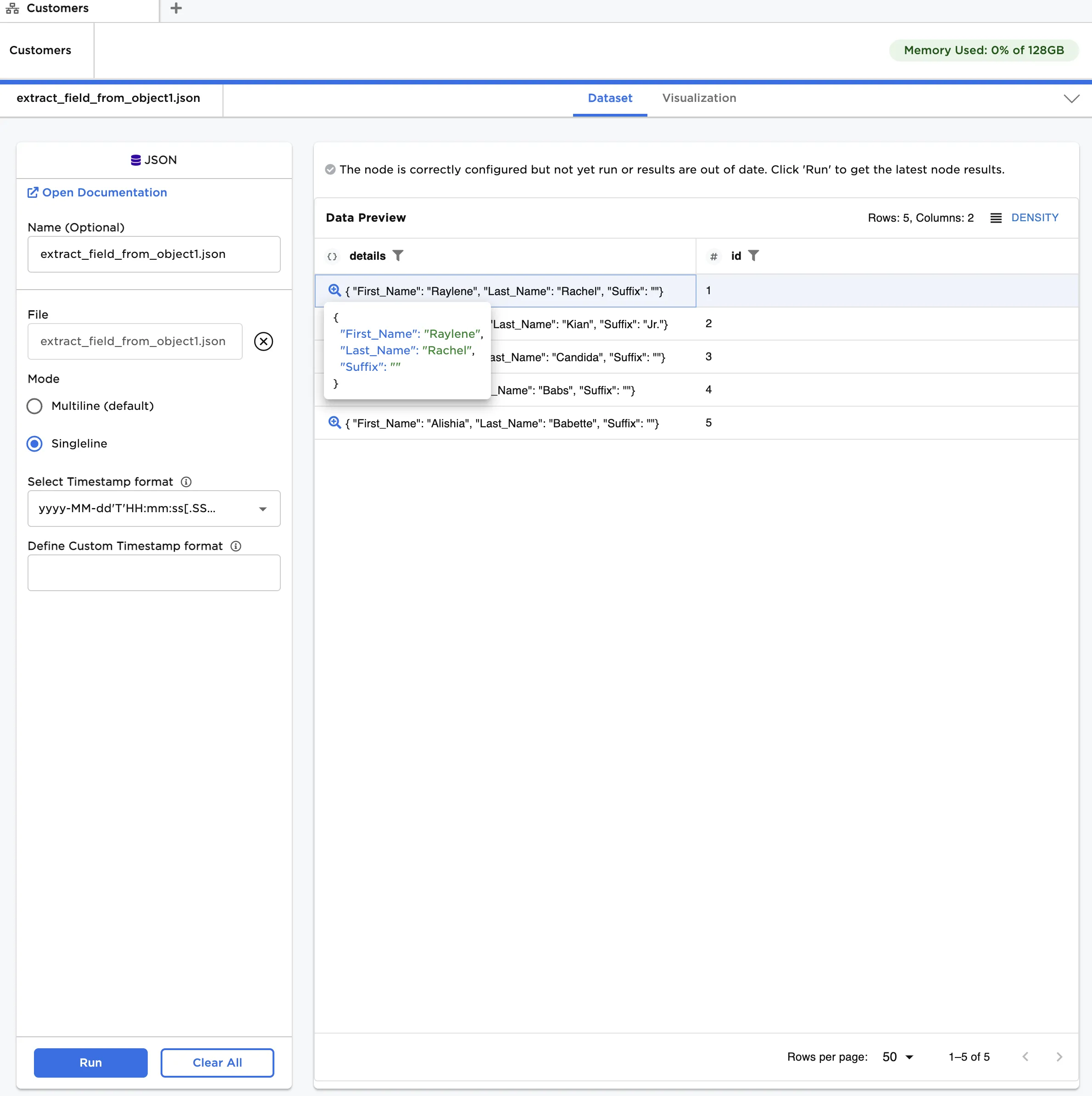
Figure 2: Example input data for single level object
- Connect an Extract Field from Object node to an existing node. In this case, it is connected to a JSON node with the example data provided.
- In the JSON node under Mode, select "Singleline."
- In the Extract field from Object node, select the "details" column under Select Object Column to Extract.
- Click Launch Schema Viewer and select "First."
- Click +Additional Field and repeat steps 3-4, except select "Last" in the schema viewer.
- Click Run.
After running the node, the first and last names can be seen in the second and third columns, which is shown in Figure 3.
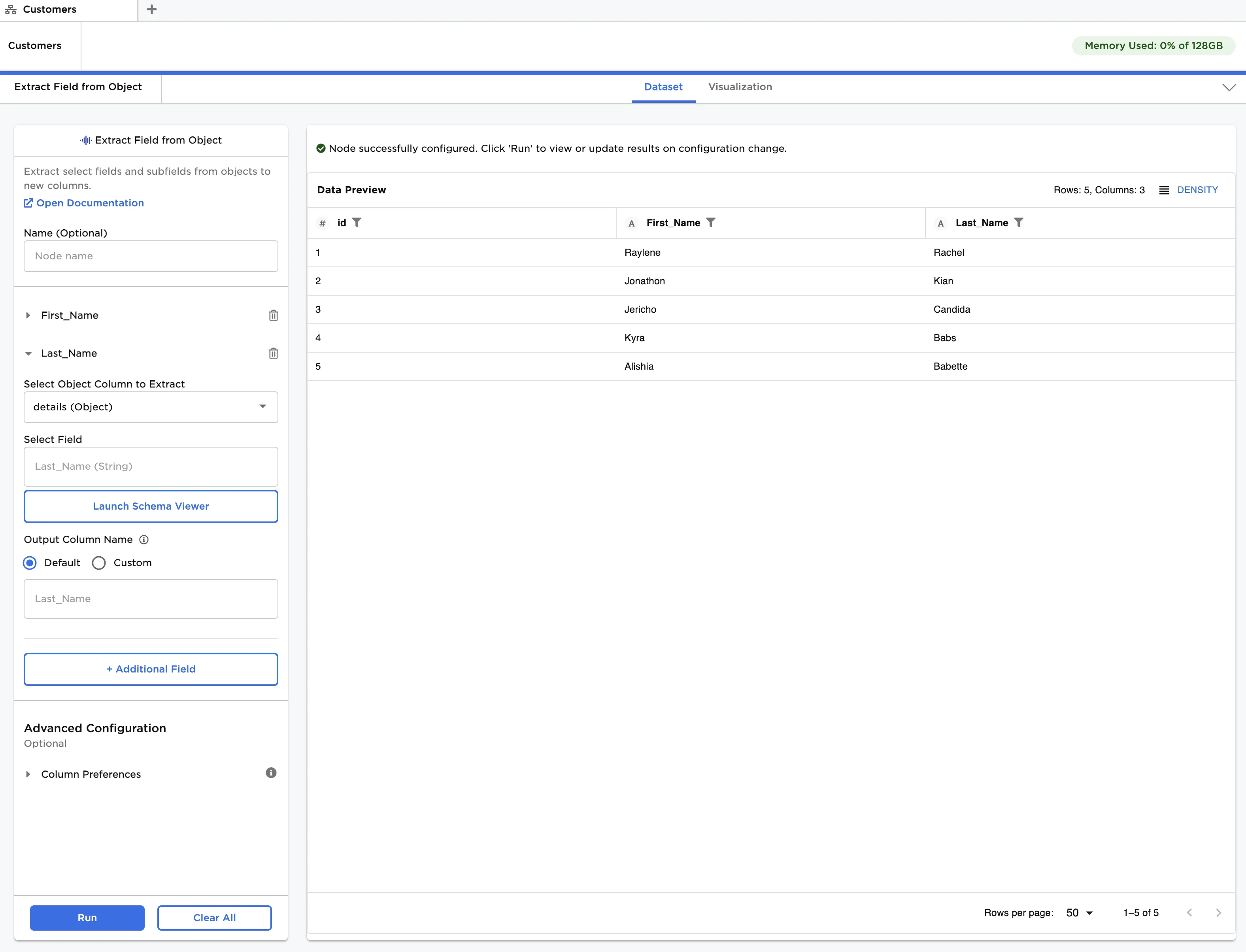
Figure 3: Extracting fields from a single level object
Now, let's analyze a JSON file comprising multiple categories, or levels, of customer details. The file, when loaded using the JSON input node, creates a single Objects column with nested structure representing the various categories of customer information. This data is shown in Figure 4.
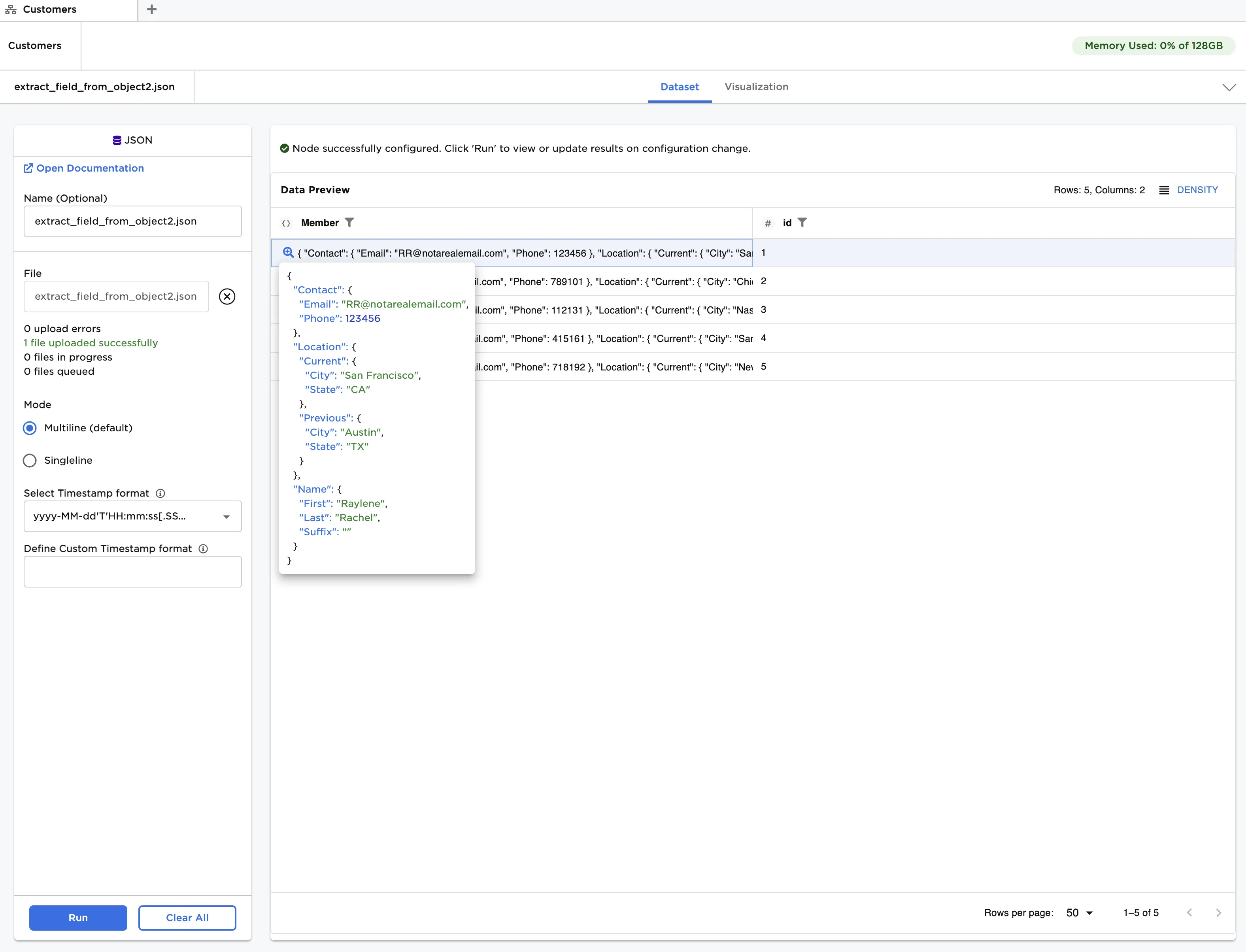
Figure 4: Example input data for multilevel object
Once loaded, we can see that there are three "top level" key/value pairs, with each value containing another Object. The top level pairs are:
- Name
- Location
- Contact
We can extract any level of key/value pairs. Let's extract the current location as an object, first and last names, and e-mail.
- Connect an Extract Field from Object node to a JSON node with the example data provided.
- Select the "Member" column under Select Object Column to Extract.
- Click Launch Schema Viewer and select "Current."
- Click +Additional Field and repeat steps 2-3 to select "First," "Last," and "Email."
- In Advanced Configuration, under Default Naming Convention, select "Use nested struct name."
- Click Run.
The current location is an Object with key/value pairs for city and state. The first and last names, and e-mail are extracted as string columns, since they do not contain further nesting. This is shown in Figure 5.
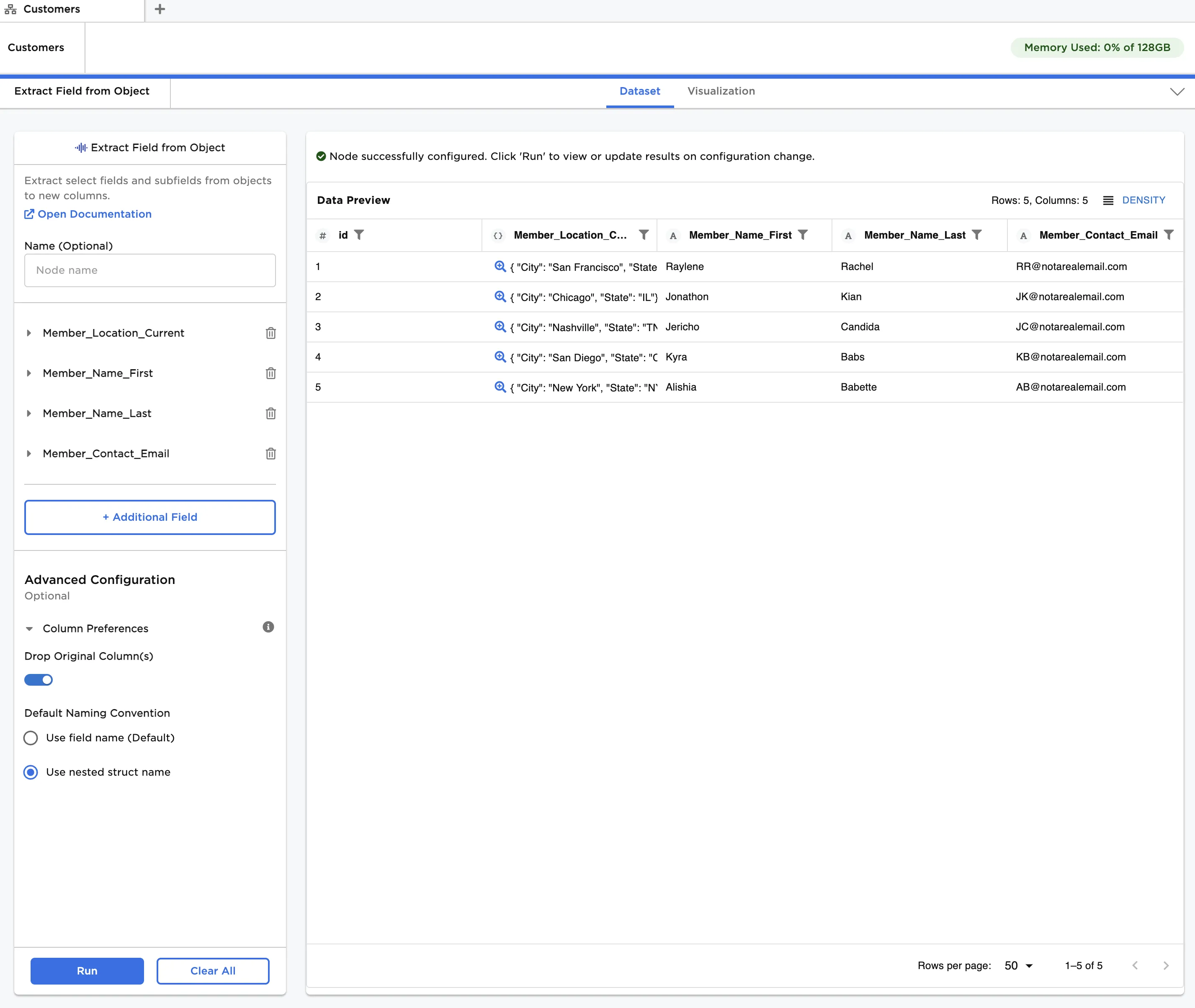
Figure 5: Extracting fields from a multilevel Object
Notice how the column names of deeply nested fields are generated by appending, as a prefix, the key name at each level of the original structure. This is a result of changing the default naming convention to use the nested structure. In this example, the current location field is nested in the original object as part of the following hierarchy:
- Member
- Location
- Current
- Location
The resulting column name for this field is thus: "Member_Location_Current."