Google Cloud Storage Output Node
The Google Cloud Storage Output node enables you to export data from Visual Notebooks to Google Cloud Storage buckets. You must have an existing Cloud Storage account to use this node. For more information about Cloud Storage, visit the Google Cloud Storage documentation.
Prerequisites
Before using the Google Cloud Storage node, you need to create a Google Cloud service account and generate a JSON key. Follow these steps:
- Log into Google Cloud Platform
- Navigate to IAM & Admin > Service Accounts from the main menu
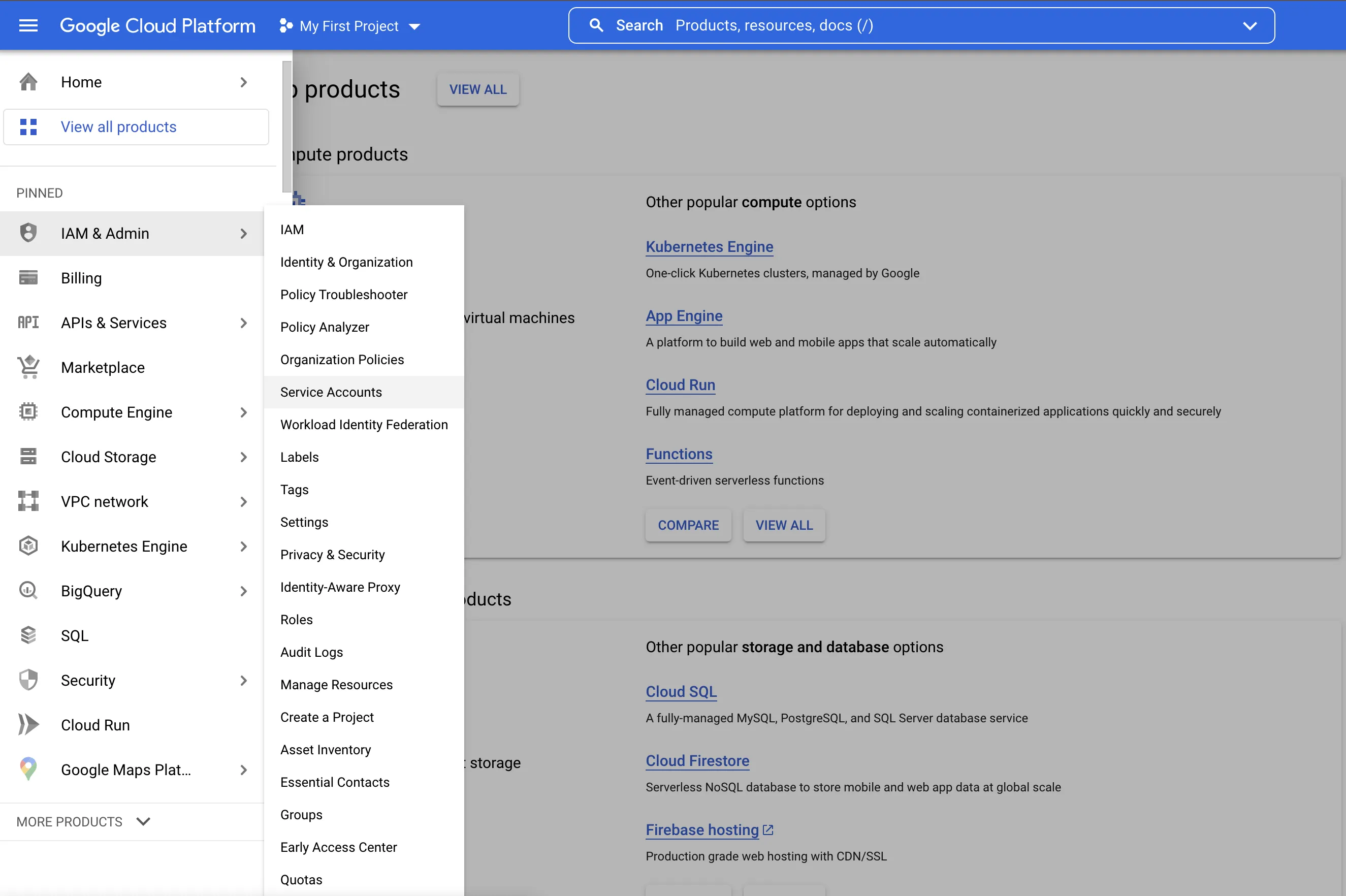
- Click Create Service Account
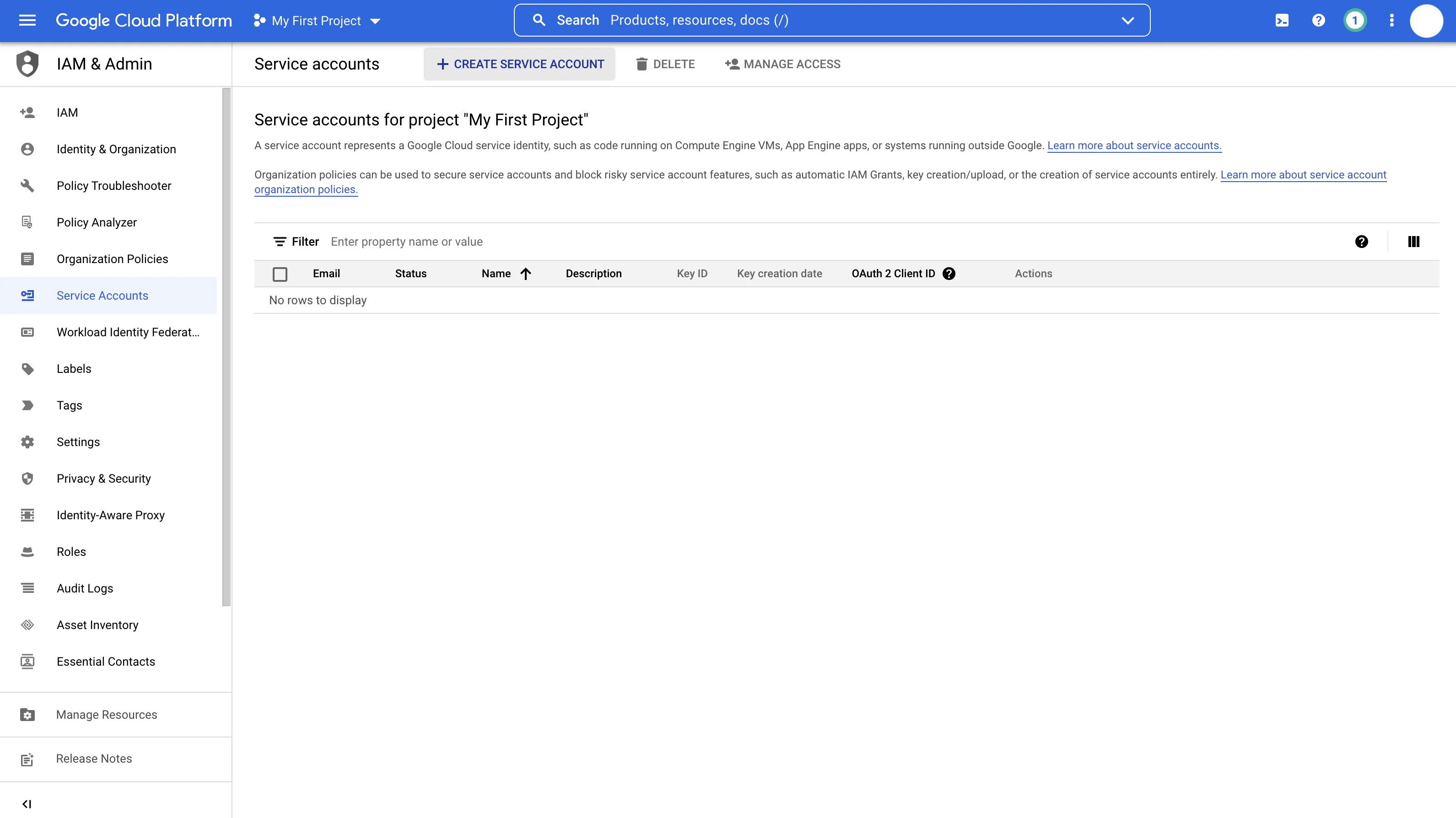
- Enter a service account name (this will auto-generate a service account ID)
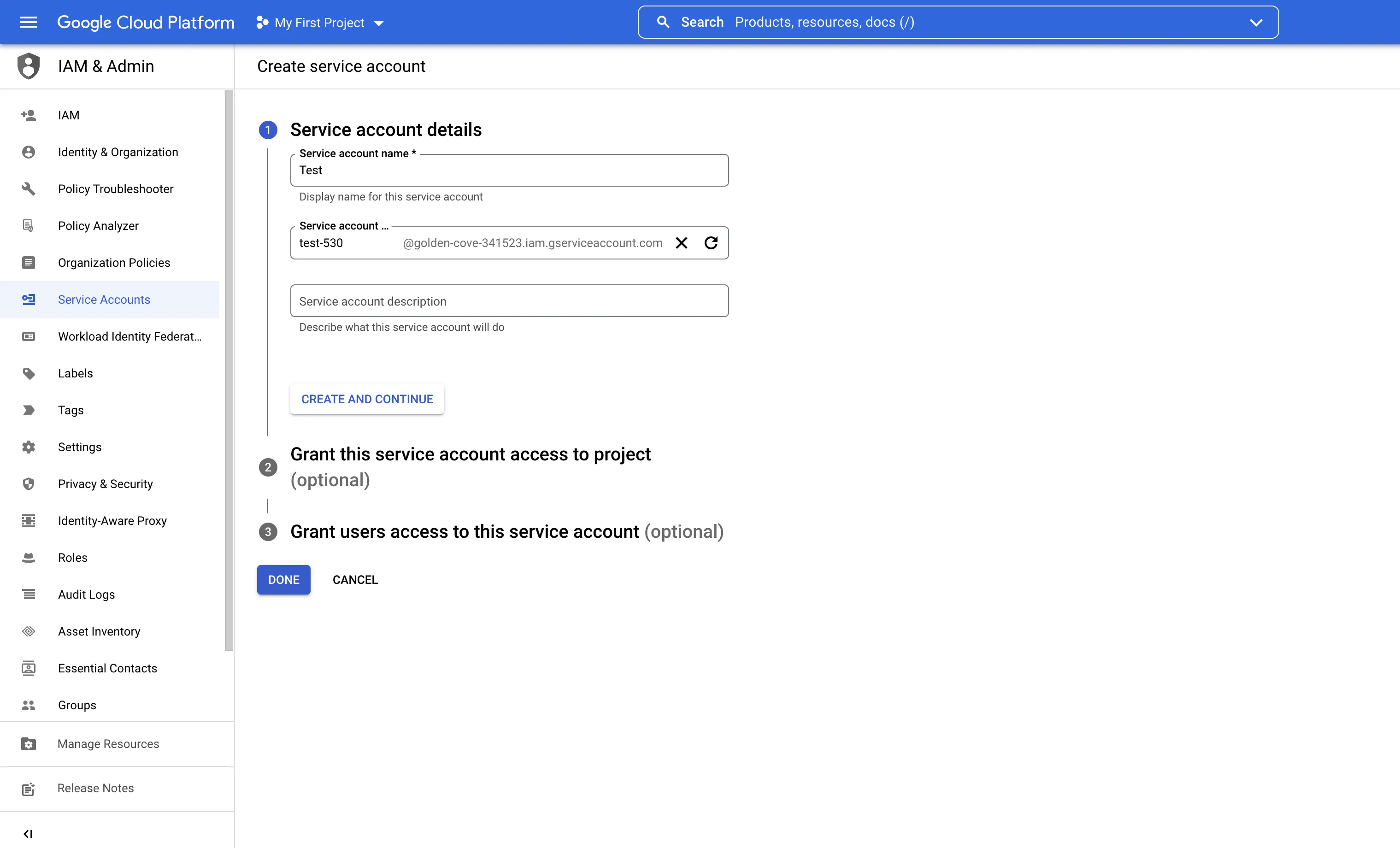
- Click Create and Continue
- Assign the following roles:
- Cloud Storage > Storage Object Admin
- Cloud Storage > Storage Object Viewer
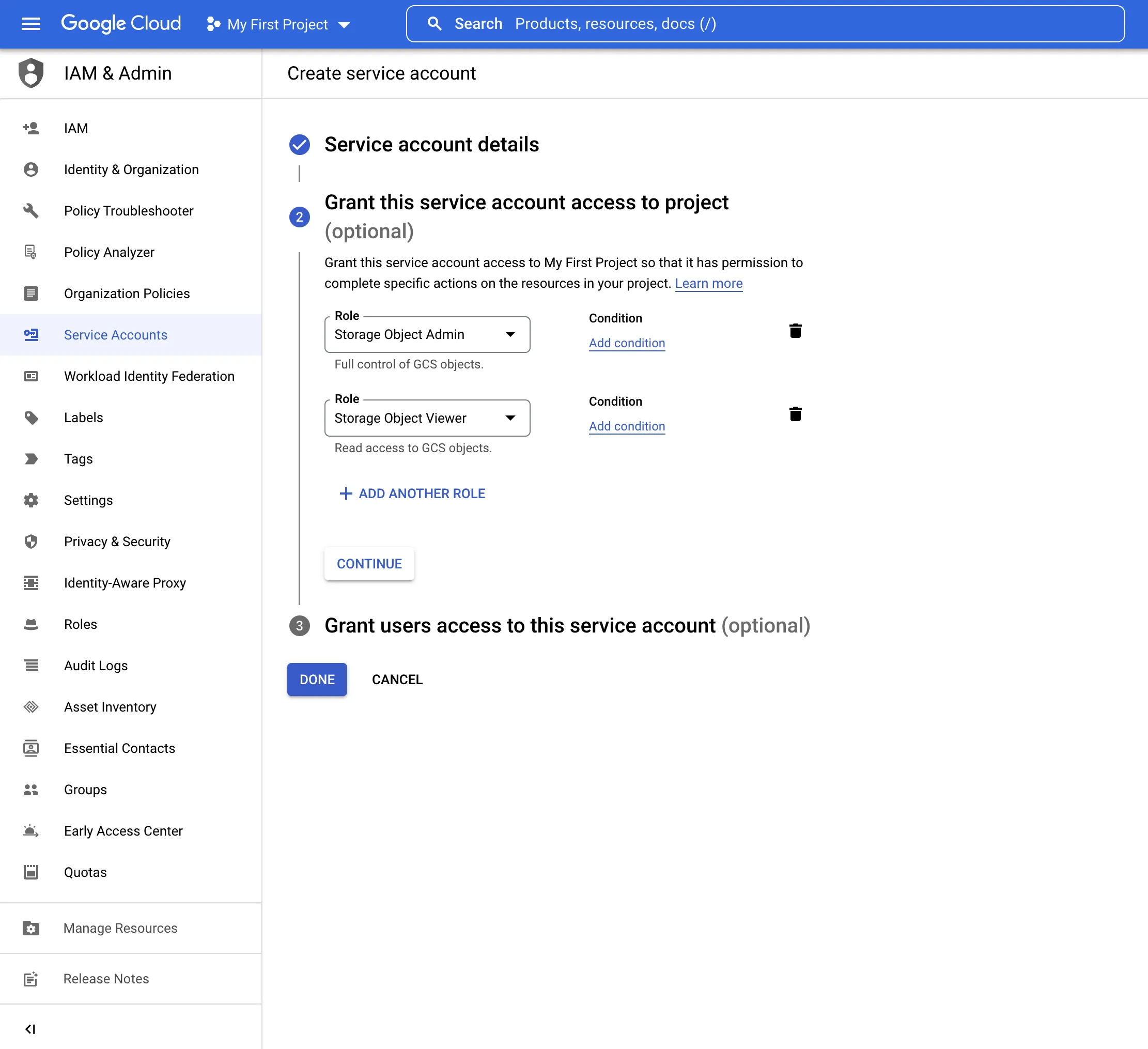
- Click Done
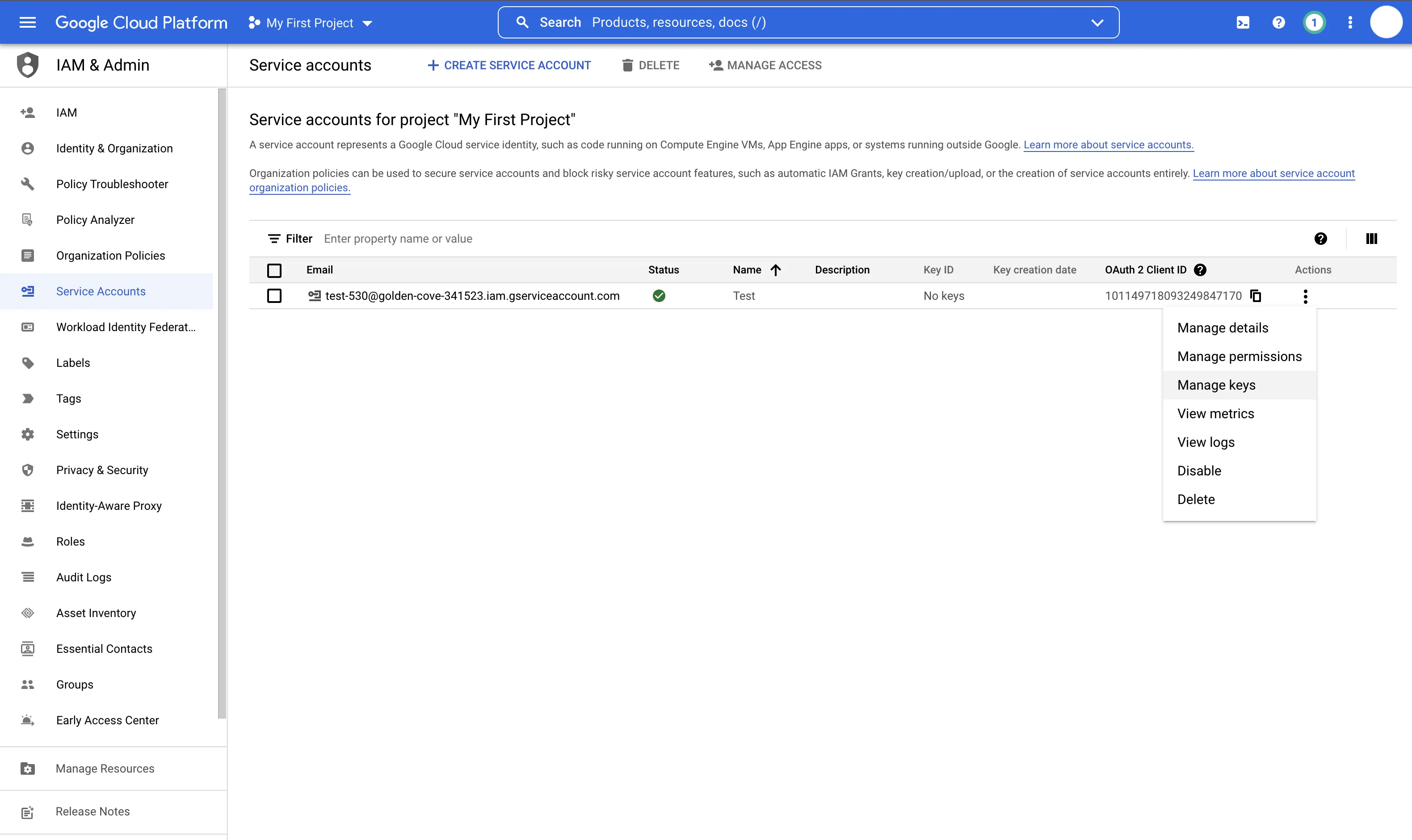
- Under Actions, click the three dots menu and select Manage keys
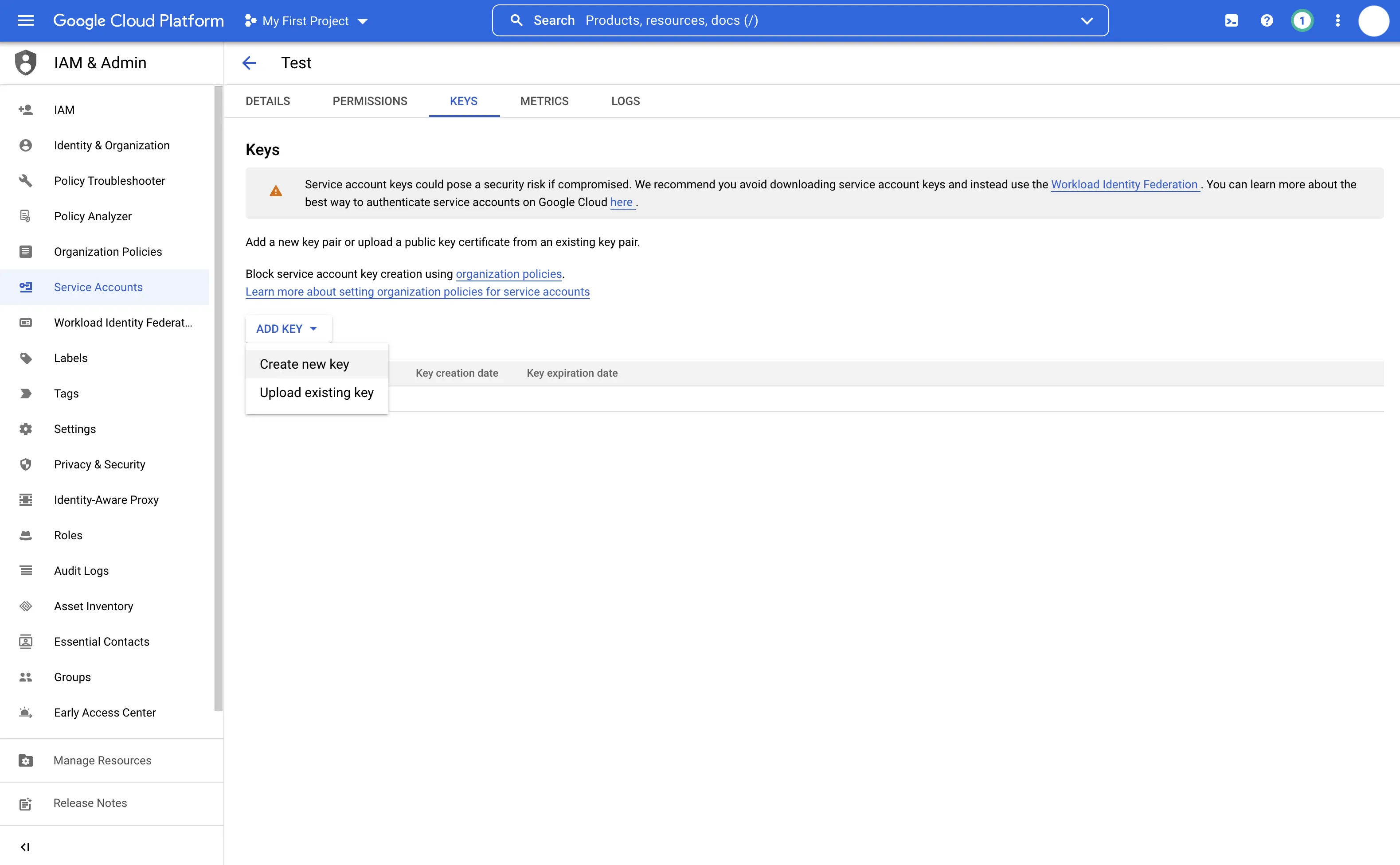
- Select Add Key > Create New Key
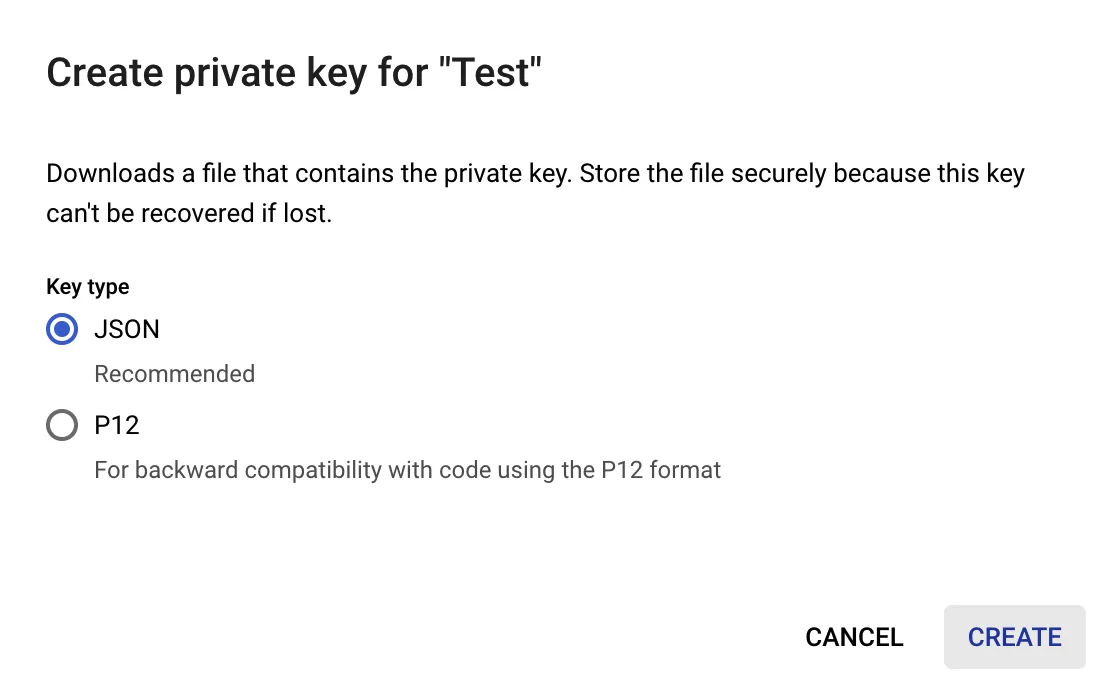
- Select JSON format and click Create
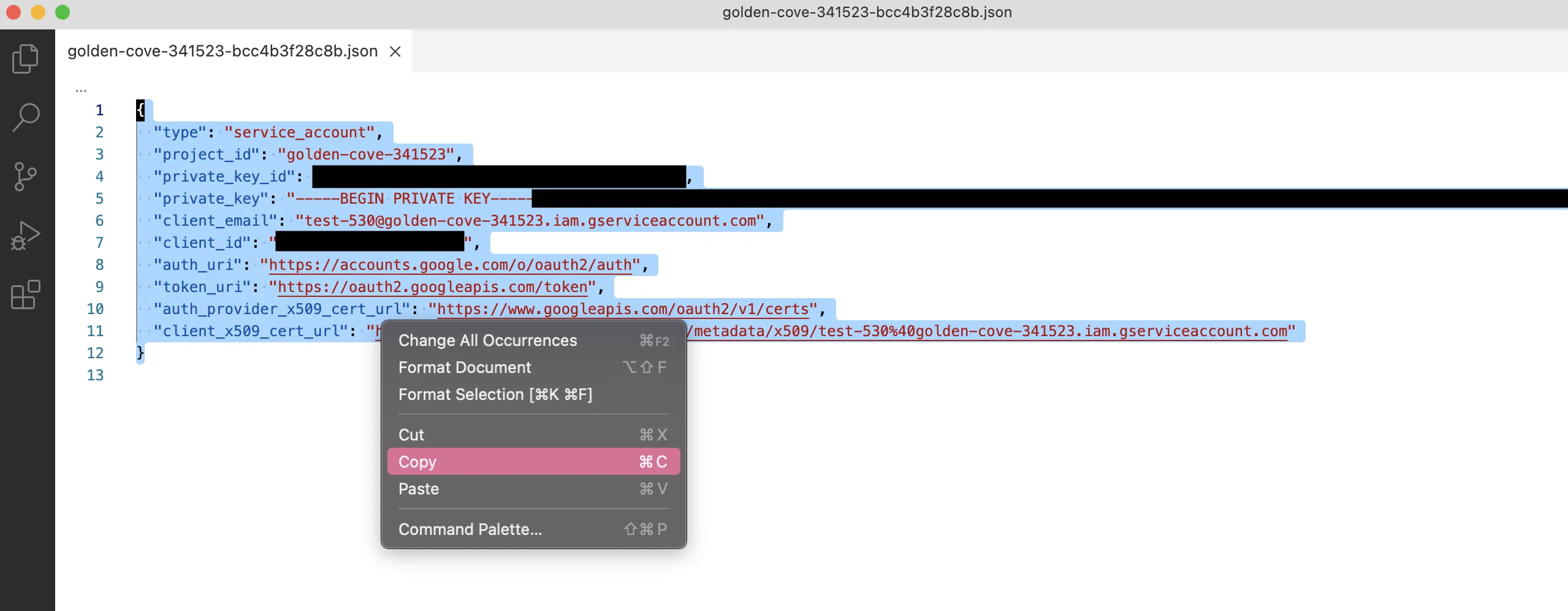
- Save and open the downloaded file
- Add the credentials to Visual Notebooks:
- Add a Google Cloud Storage node to your workspace
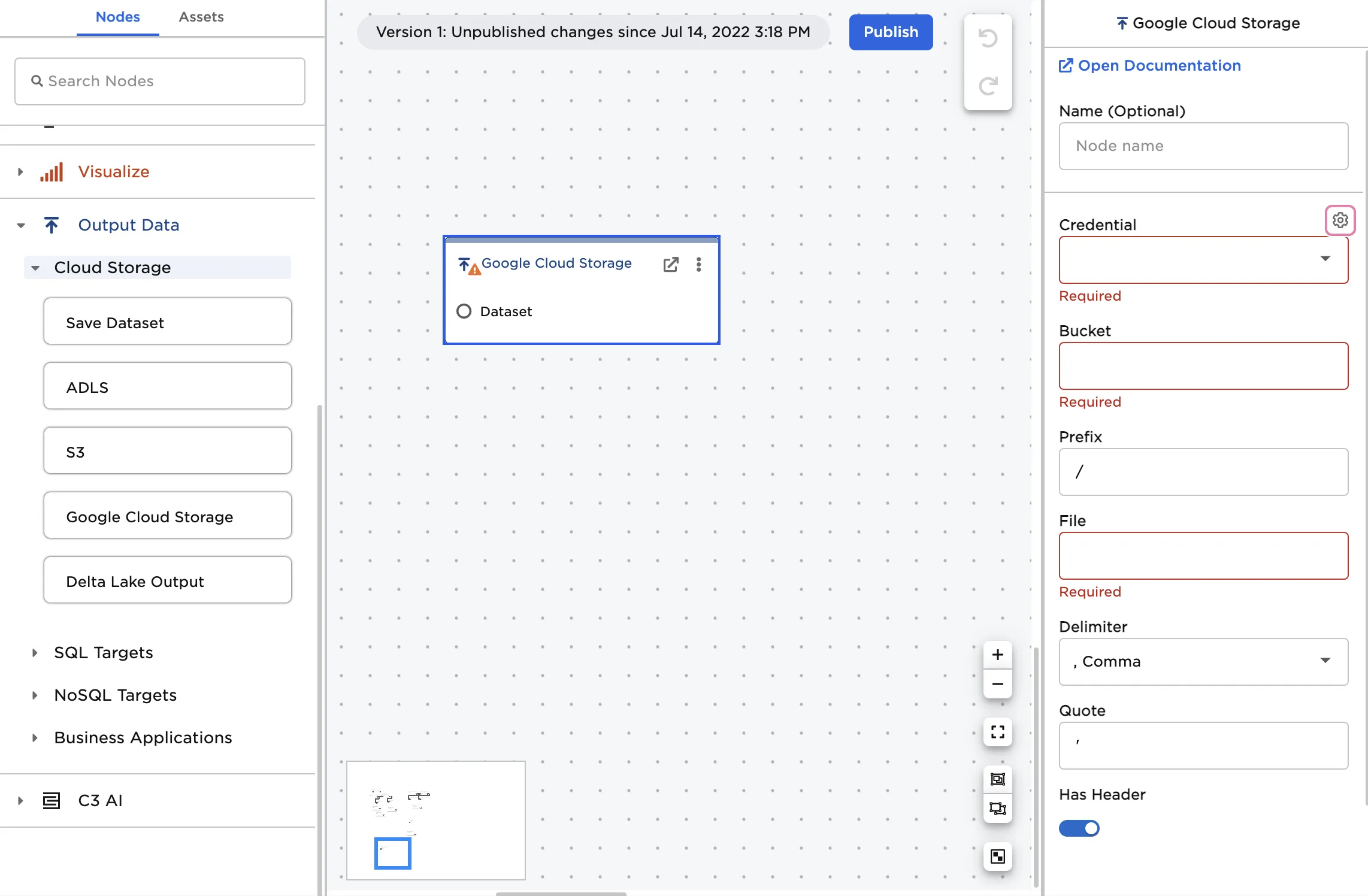
- Click the gear icon next to Credential
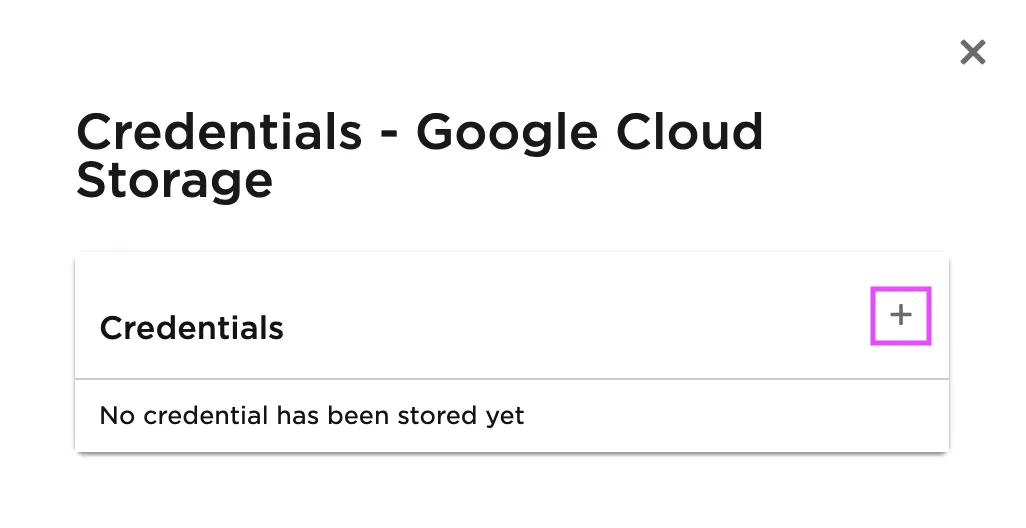
- Click the plus icon to add new credentials
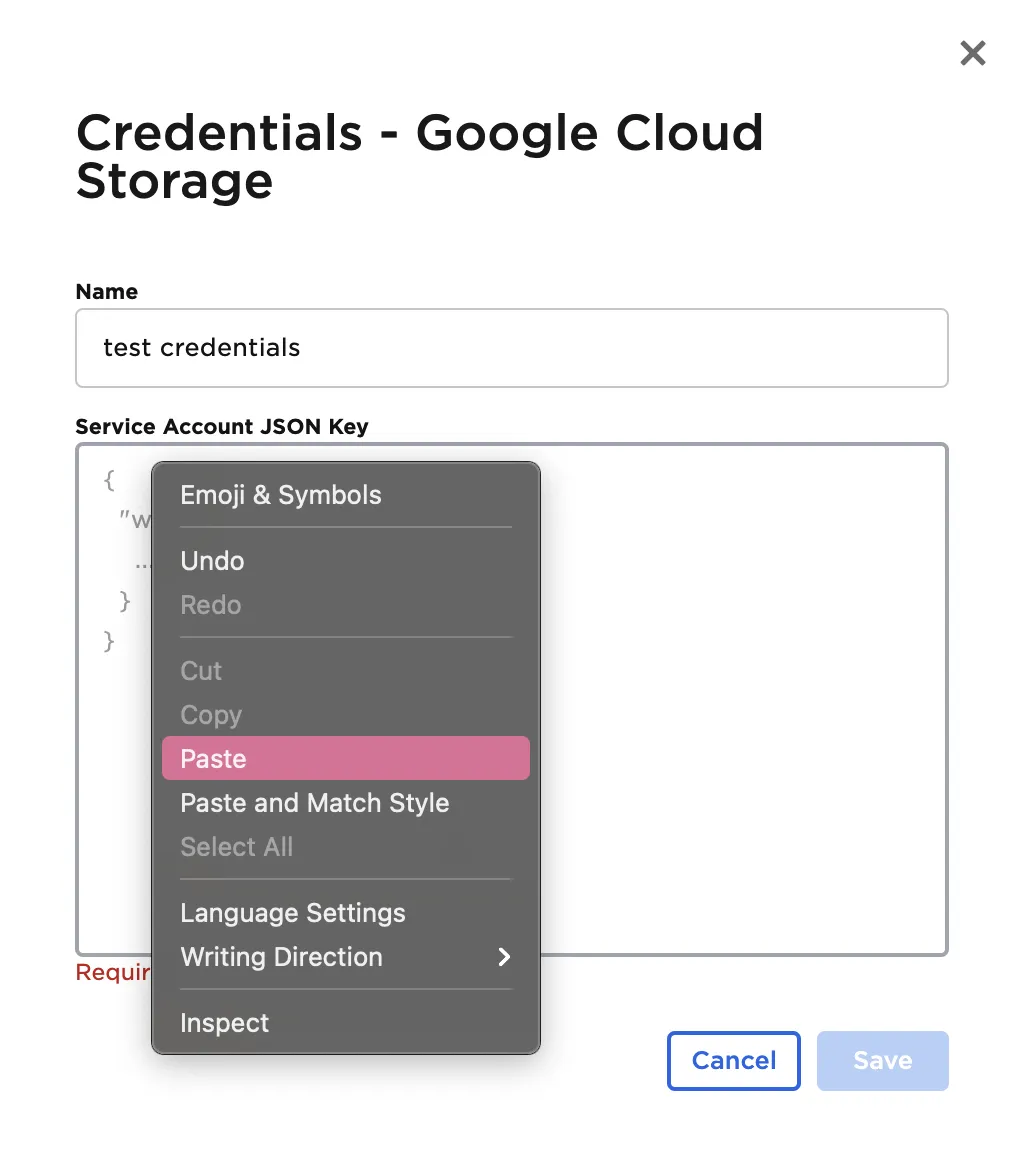
- Enter a name for the credentials
- Paste the JSON key contents into the Service Account JSON Key field
Configuration
| Field | Description |
|---|---|
| Name | Node name displayed in the workspace Optional - Defaults to none |
| Credential | Authentication information for Google Cloud Storage Required Select a saved credential or click the gear icon to manage credentials |
| Bucket | Target Google Cloud Storage bucket Required Must be an existing bucket name |
| Prefix | Storage prefix path (similar to directories) Optional - Defaults to / |
| File | Output CSV filename Optional - Defaults to auto-generated name |
| Delimiter | Value separator character Optional - Defaults to comma (,) Options: comma, pipe, colon, semicolon, tab, space |
| Quote | Character to enclose values Optional - Defaults to single quote (') Delimiters within quotes are treated as text |
| Has Header | Include column names as CSV header Optional - Defaults to enabled |
Node Inputs and Outputs
| Type | Description |
|---|---|
| Input | Visual Notebooks dataframe |
| Output | None - Data is exported to Google Cloud Storage |
Usage Example
- Connect the Google Cloud Storage node to any node that produces a dataframe output
- Configure the node:
- Select your Google Cloud credentials
- Specify the target bucket
- Set the desired file name and options
- Run the node to export your data
While the node doesn't produce a visible output in Visual Notebooks, it successfully exports your data to the specified Google Cloud Storage location.
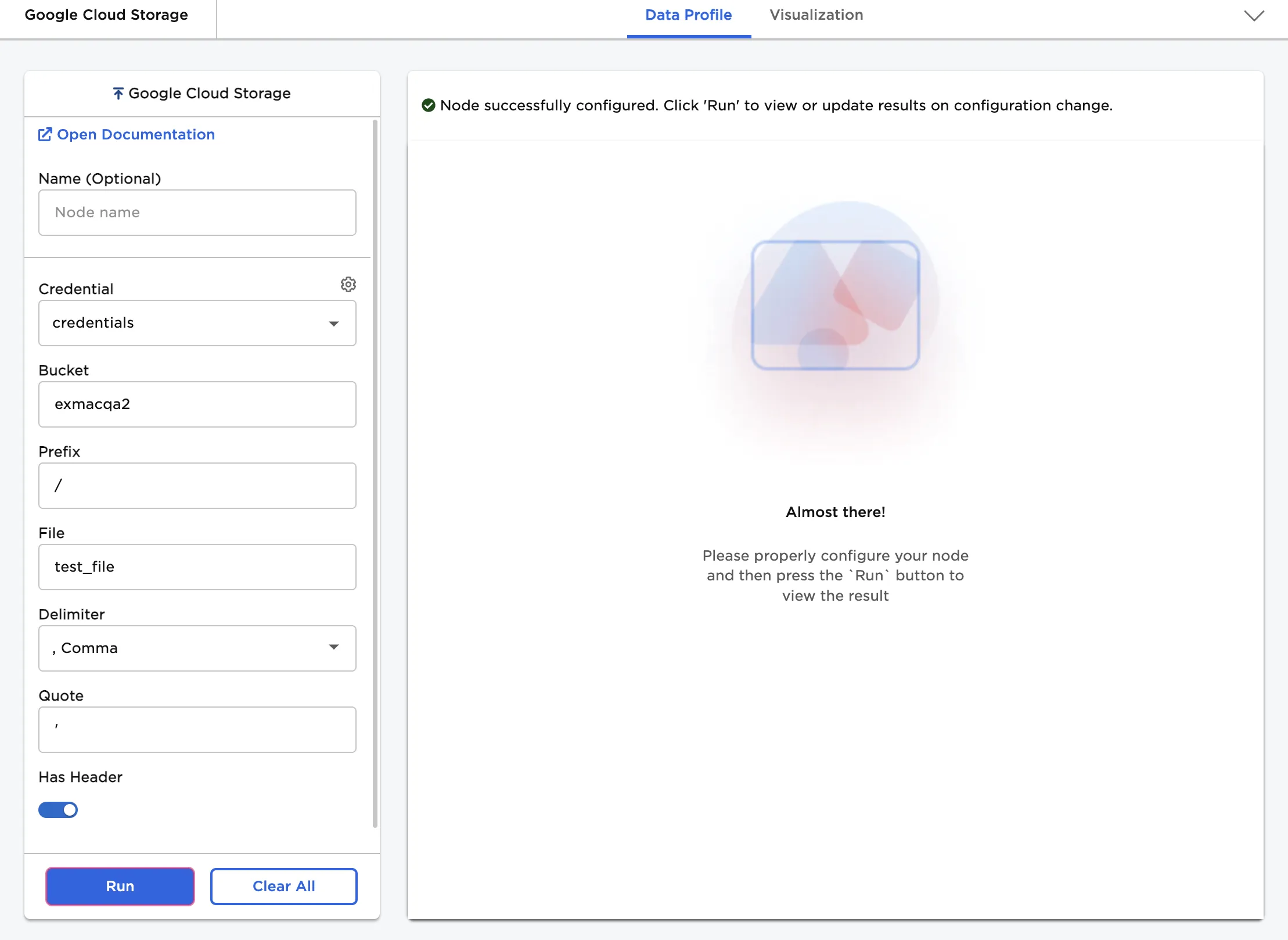 Figure 1: Configuring the Google Cloud Storage Output node for data export