Google Cloud Storage Node
Input data from Google Cloud Storage to Visual Notebooks. You must have an existing Cloud Storage account to use this node. For more information about Cloud Storage, see Google Cloud Storage.
Prerequisites
You must add a Google Cloud "service account JSON key" to Visual Notebooks before using the Google Cloud Storage node. Follow the steps below to generate this key and add it to Visual Notebooks. For more information about service account JSON keys, see the Google Cloud documentation.
- Log into Google Cloud Platform
- Select the hamburger menu in the top left corner, then select IAM & Admin > Service Accounts
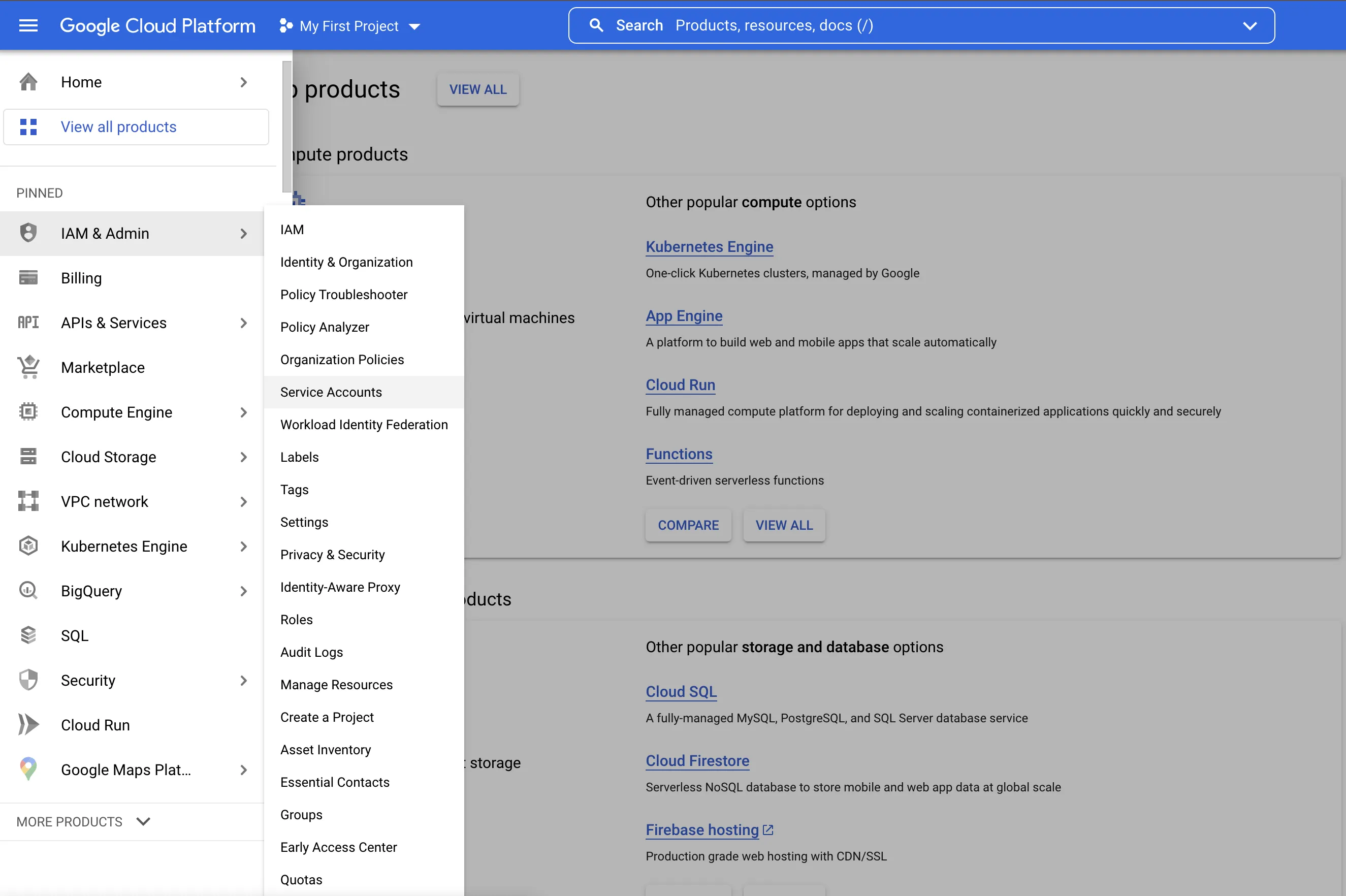
- Select Create Service Account near the top of the page
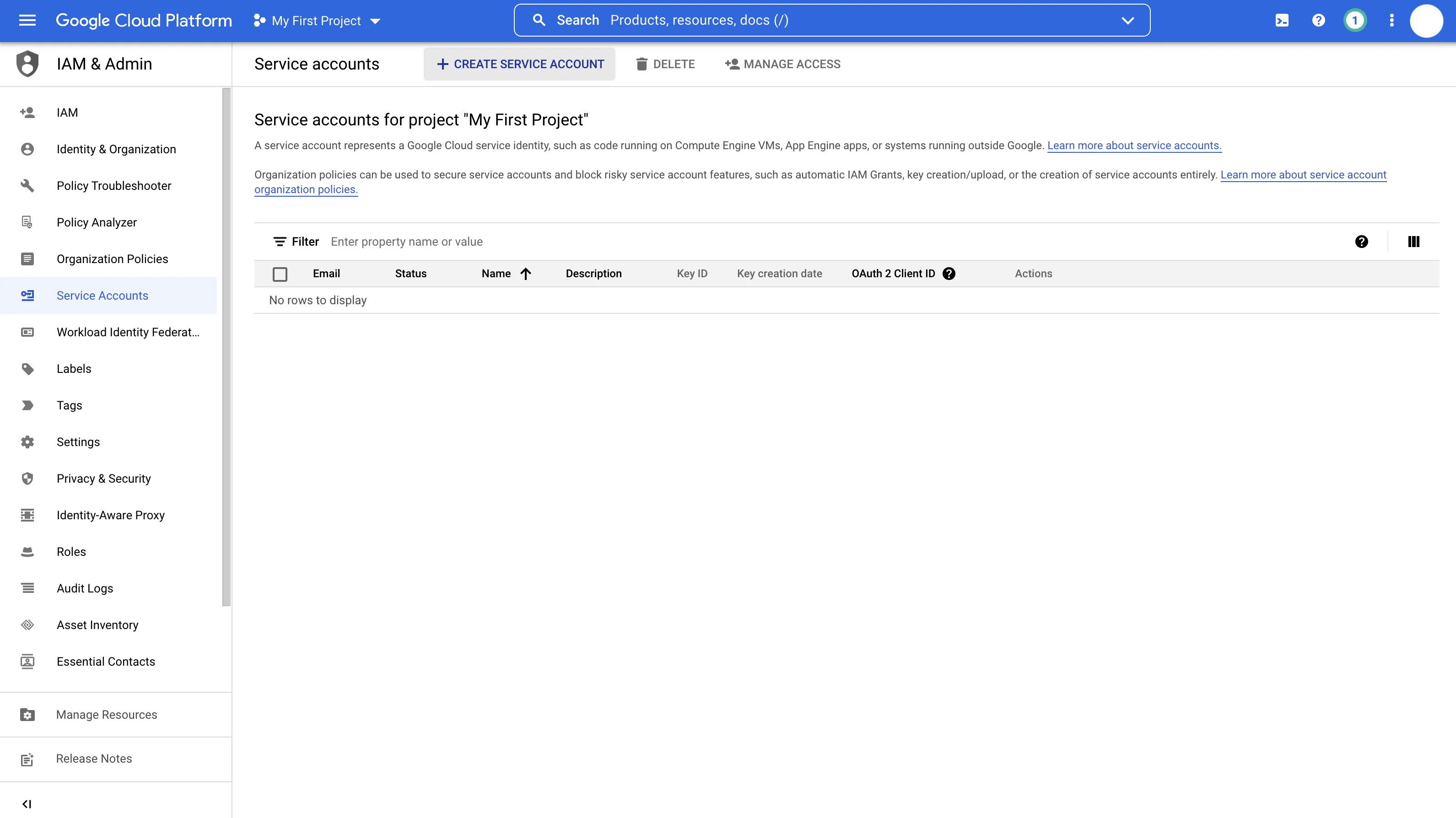
- Enter a service account name. This will auto-generate a service account ID
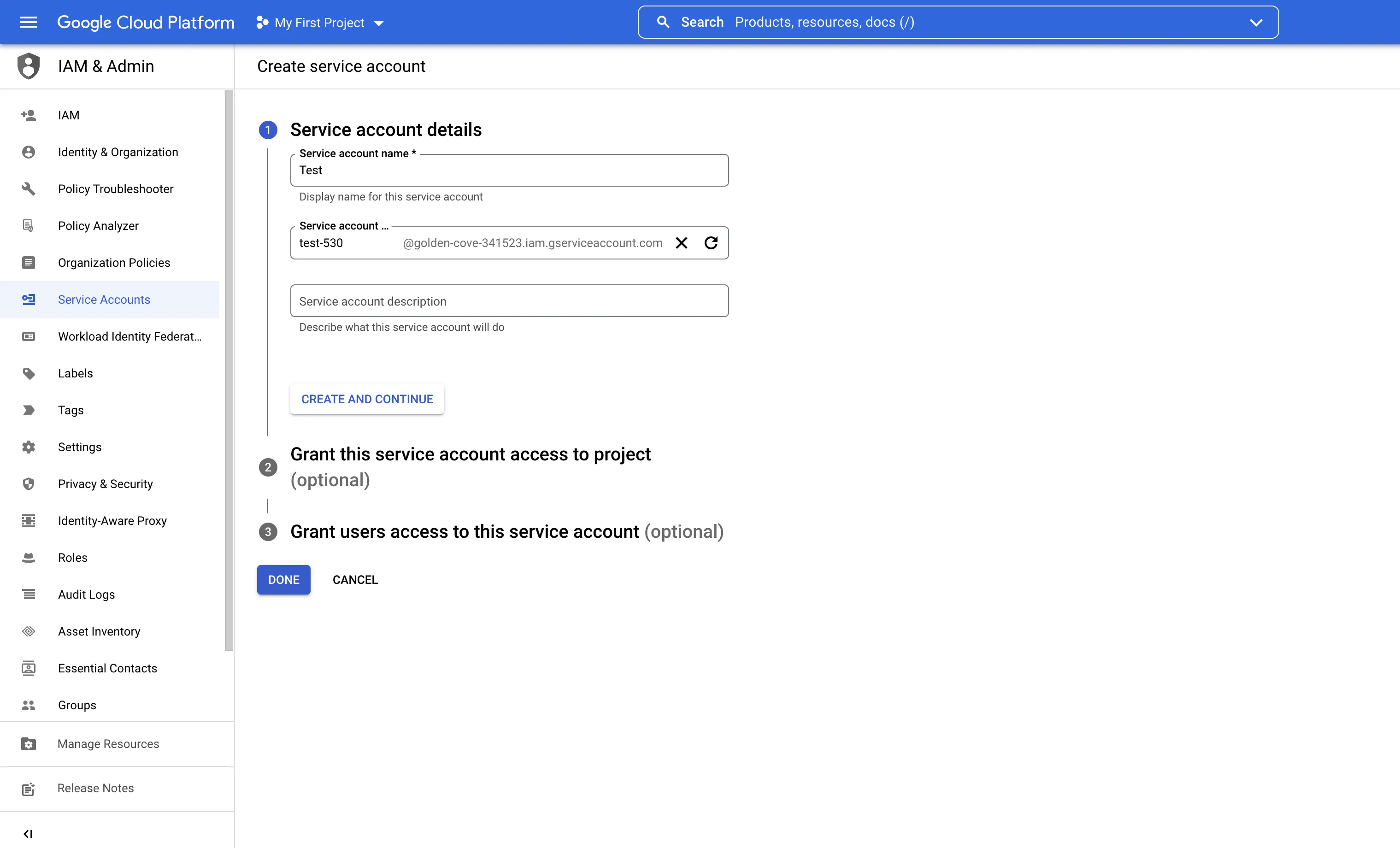
- Select Create and Continue
- Add the following roles:
- Cloud Storage > Storage Object Admin
- Cloud Storage > Storage Object Viewer
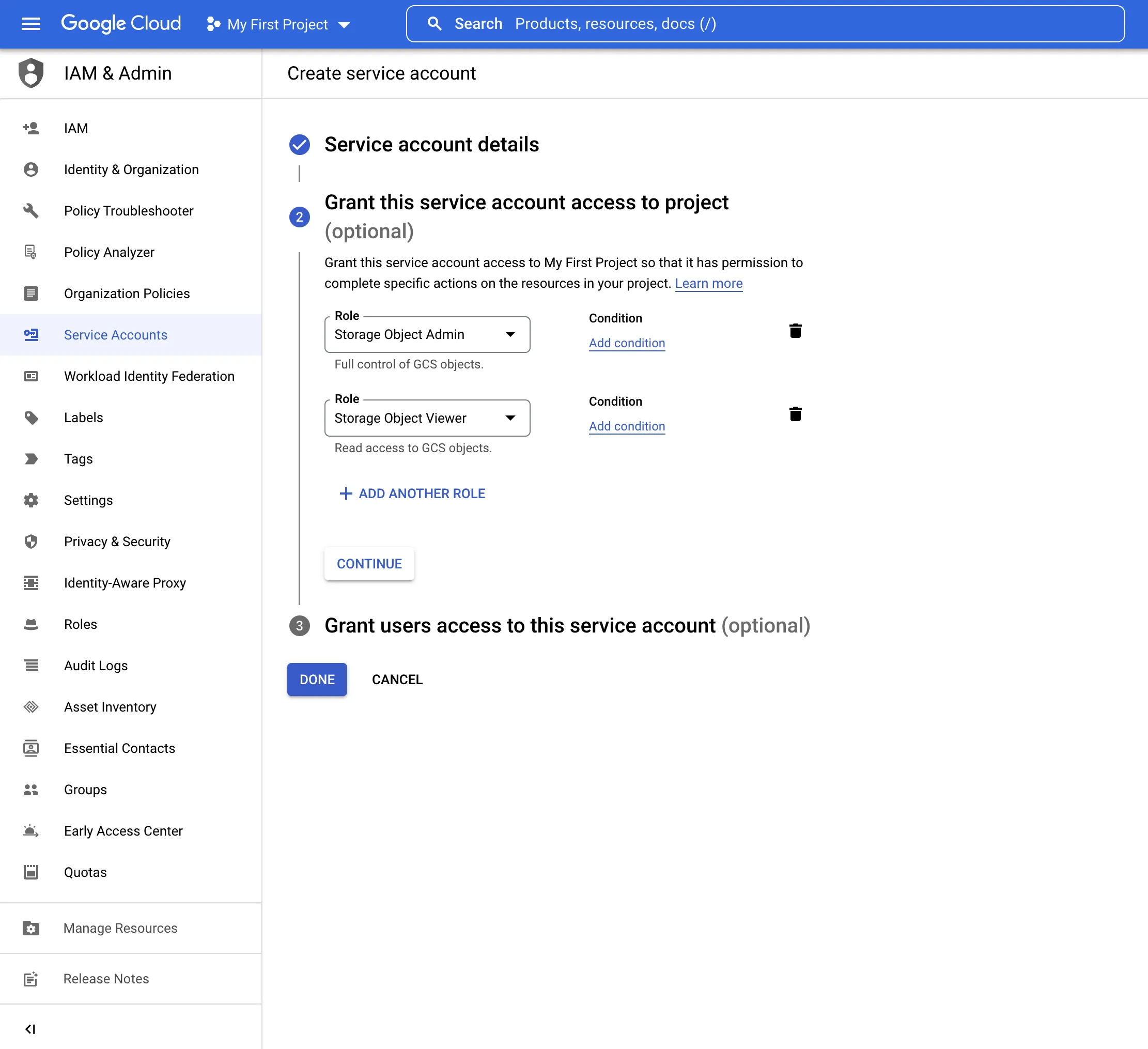
- Select Done
- Select the three vertical dots under Actions, then Manage keys
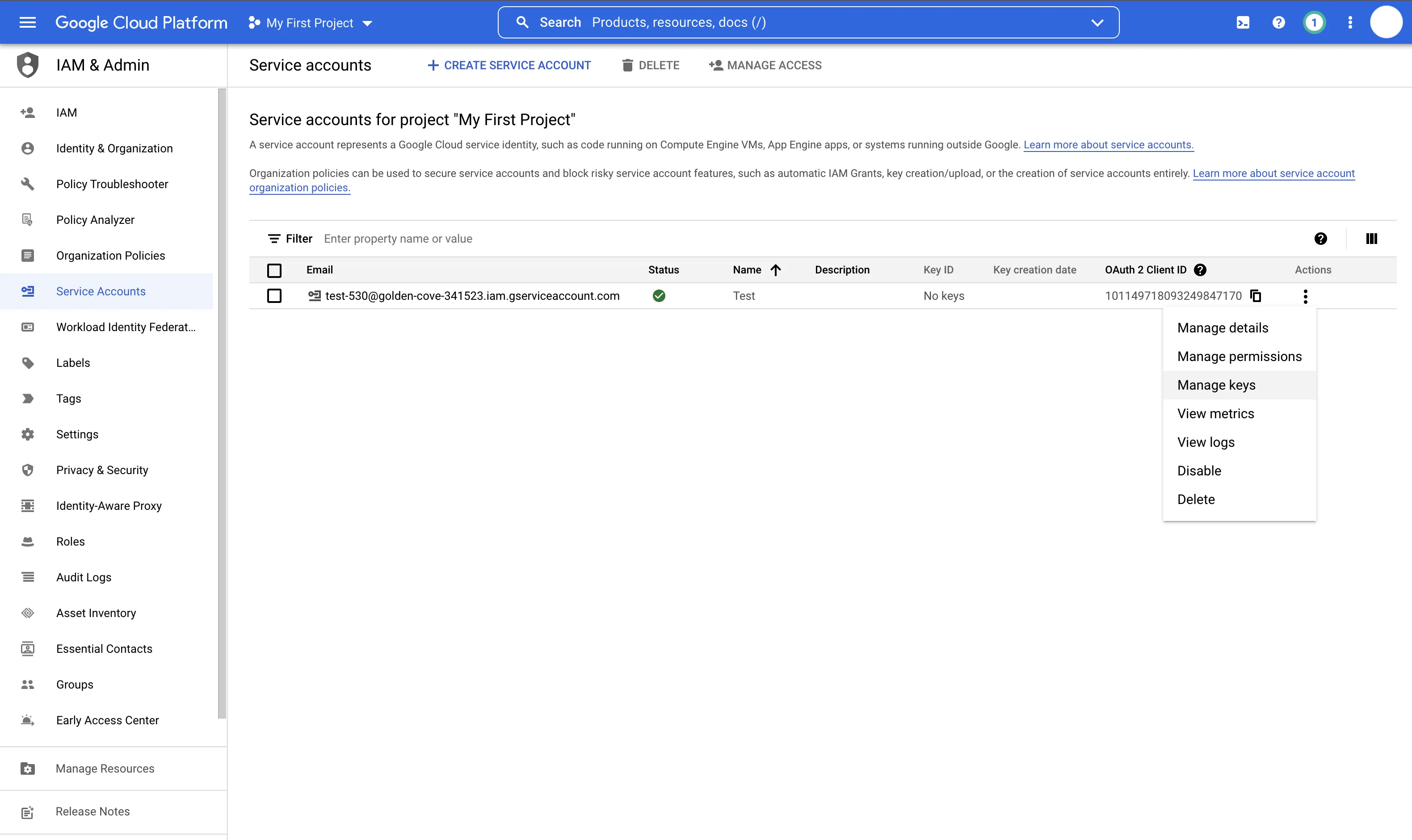
- Select Add Key > Create New Key
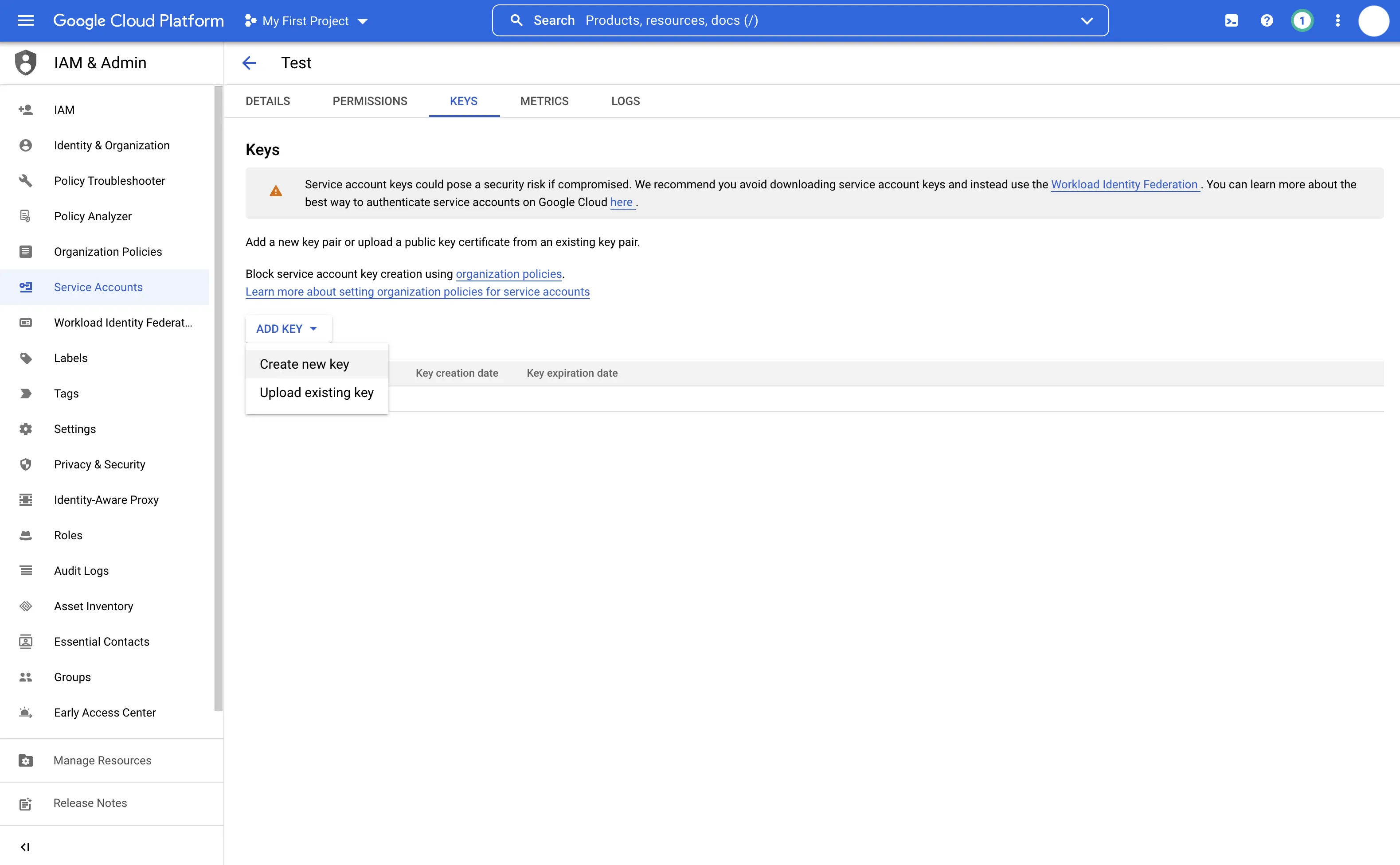
- Check that JSON is selected, then select Create
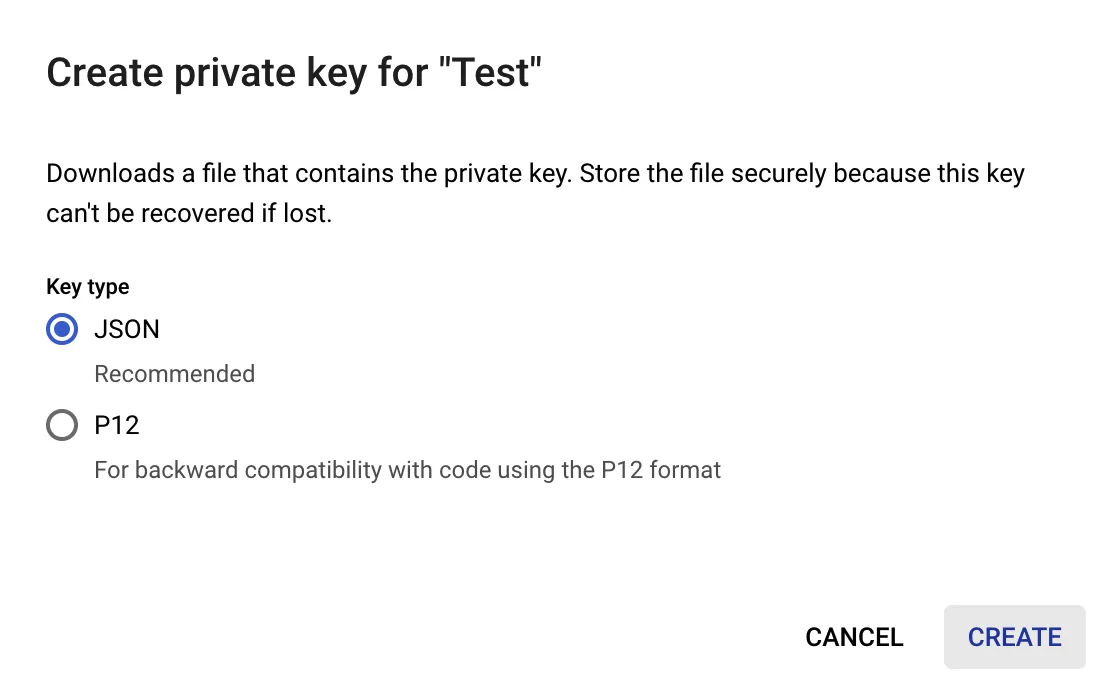
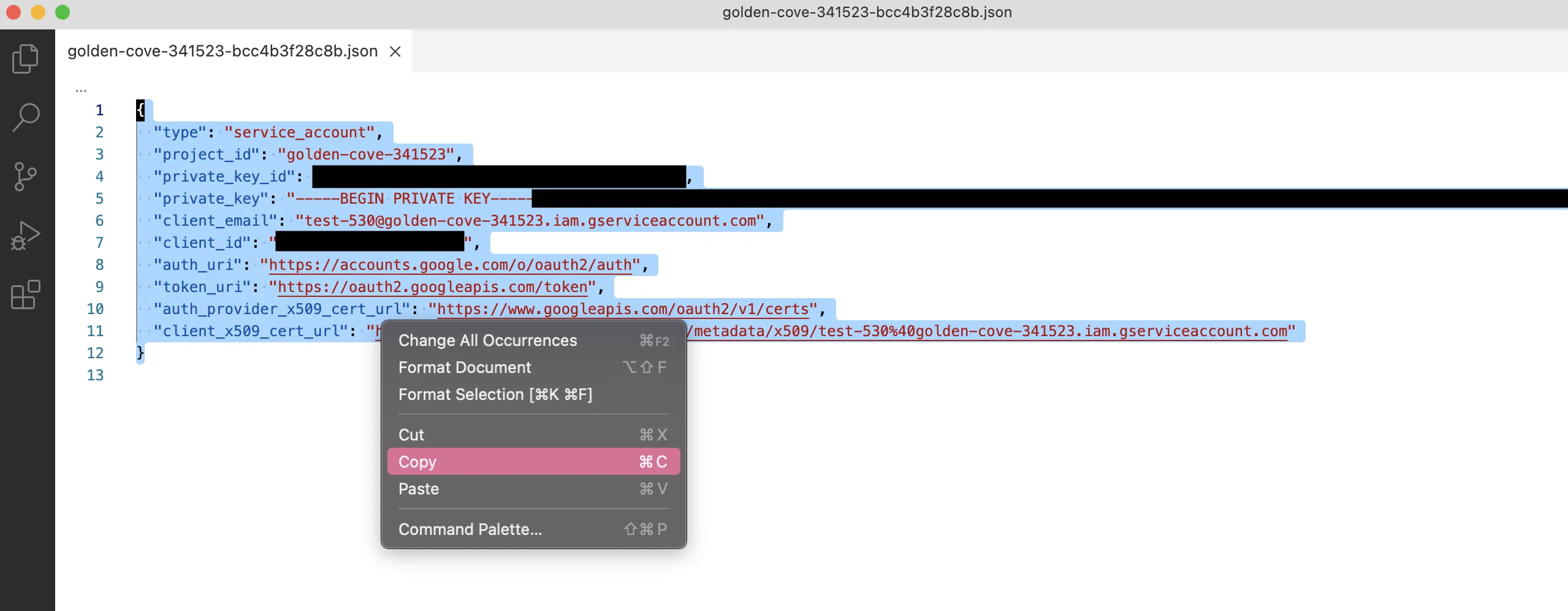
- Open the file that automatically downloads and copy the content
- Drag a Google Cloud Storage node onto the Visual Notebooks workspace
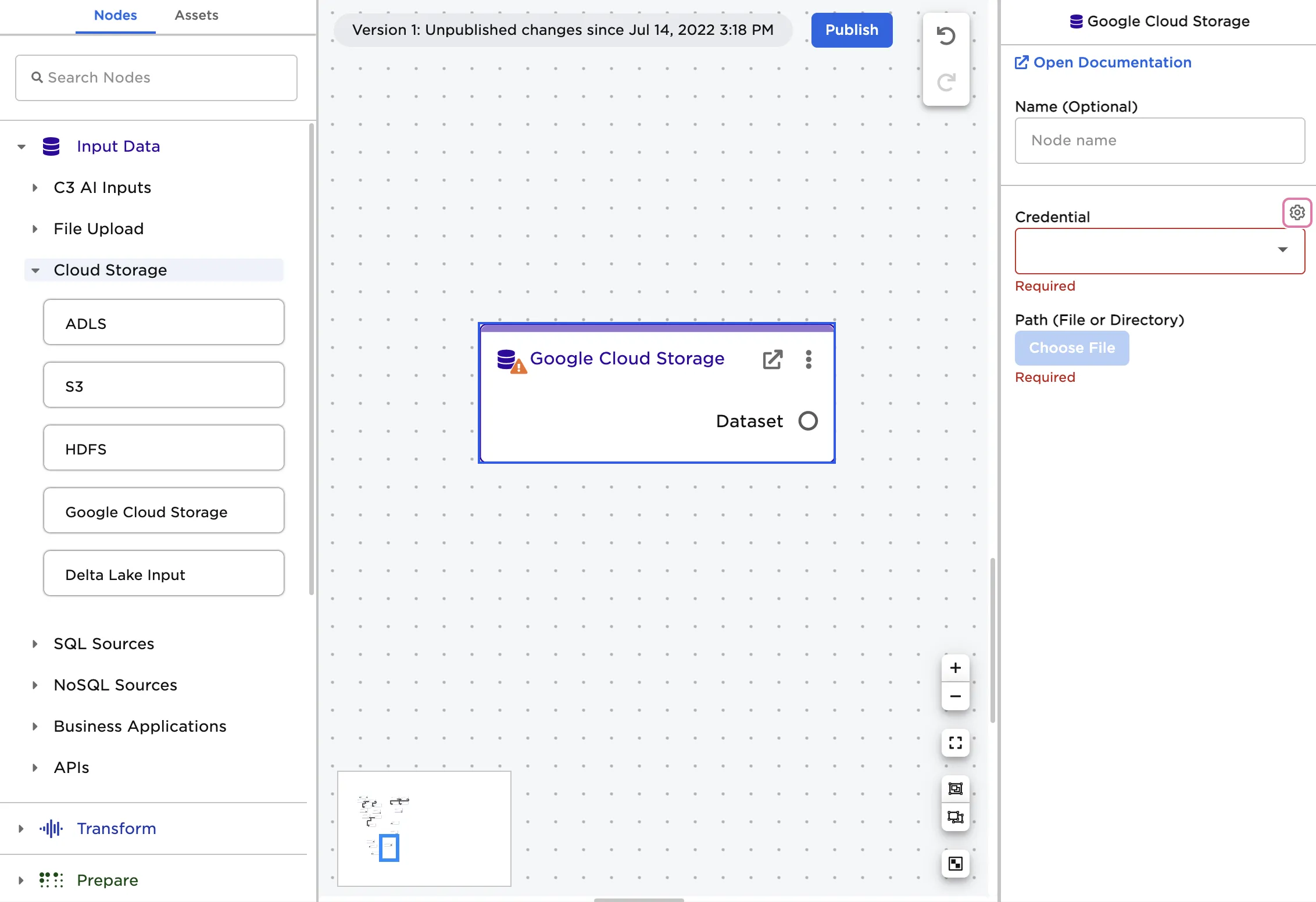
- Select the gear icon beside the Credential field
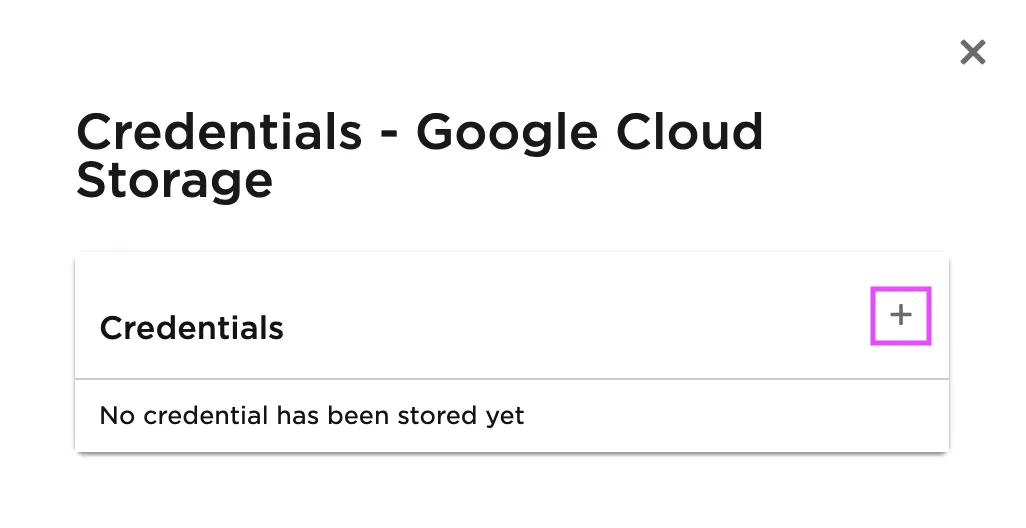
- Select the plus sign in the upper right corner
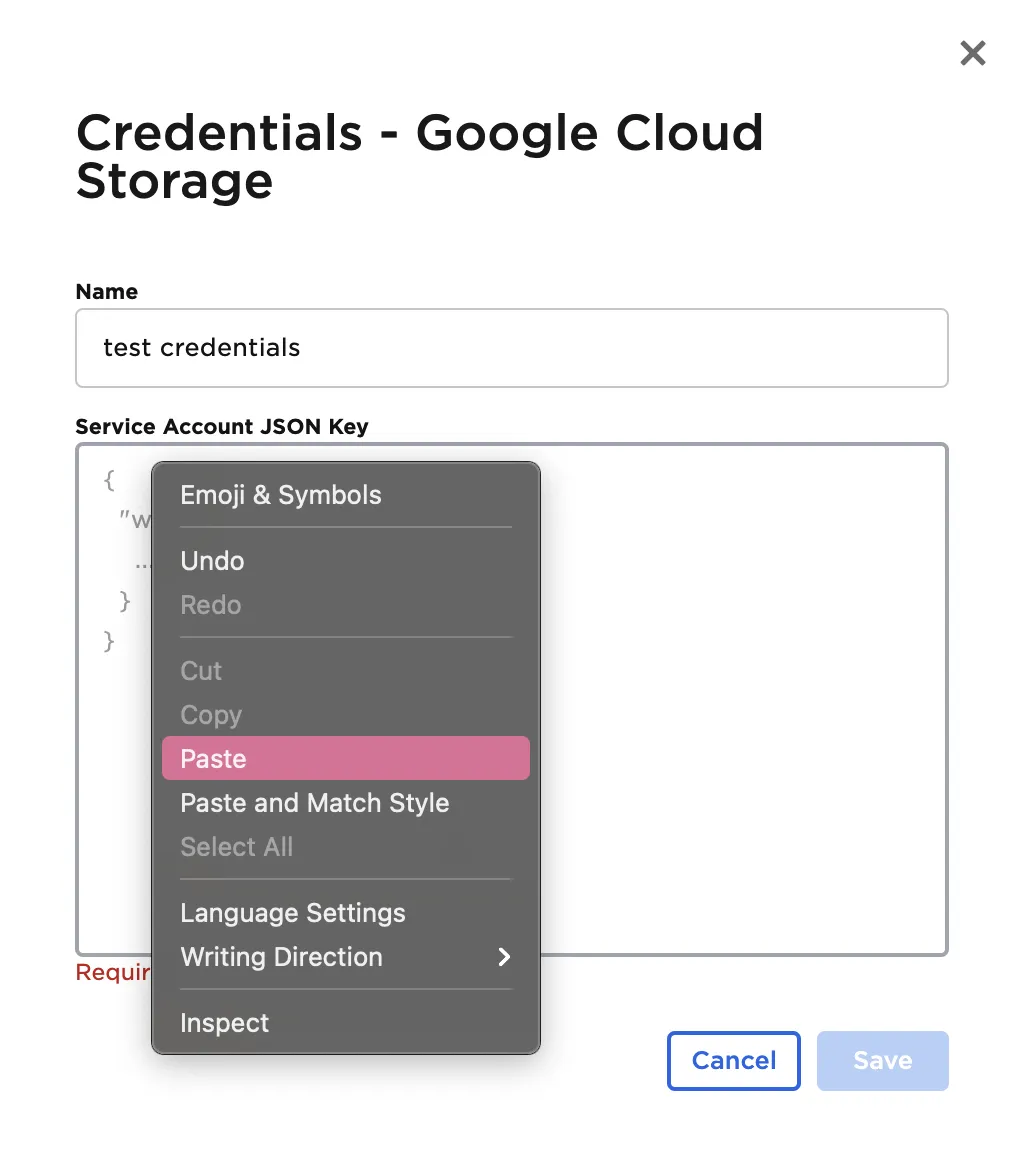
- Enter a name for the credentials
- Paste the contents of the downloaded file into the Service Account JSON Key field
Configuration
Initial configuration sidebar 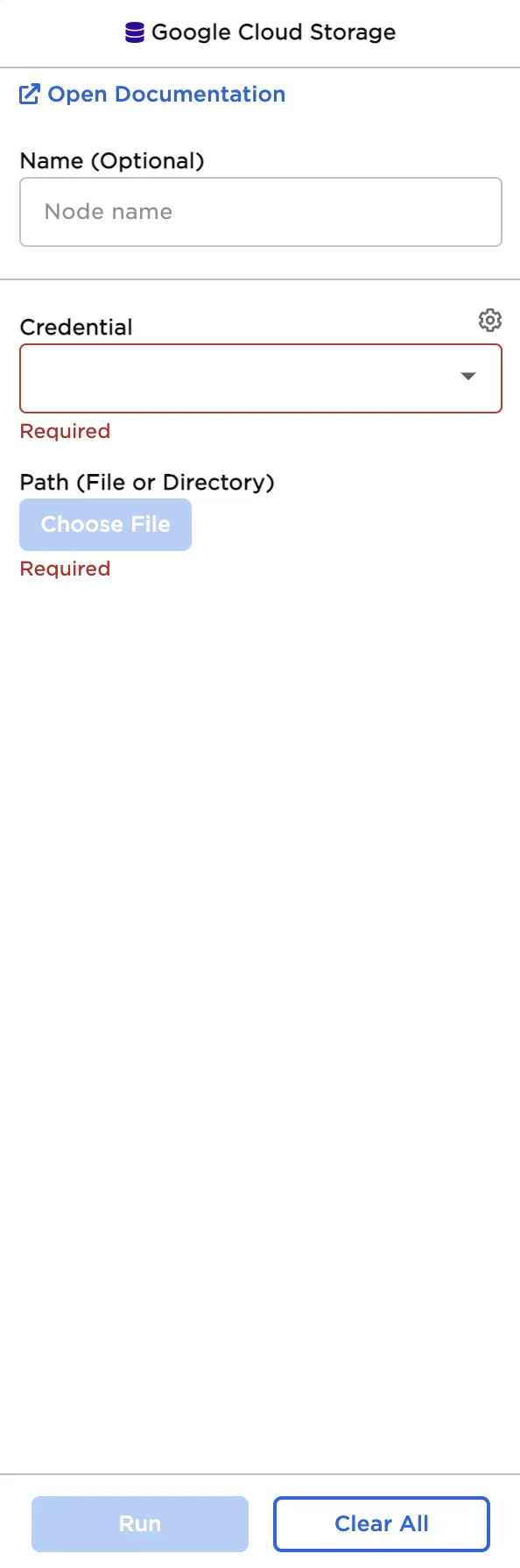
Sidebar after selecting a file 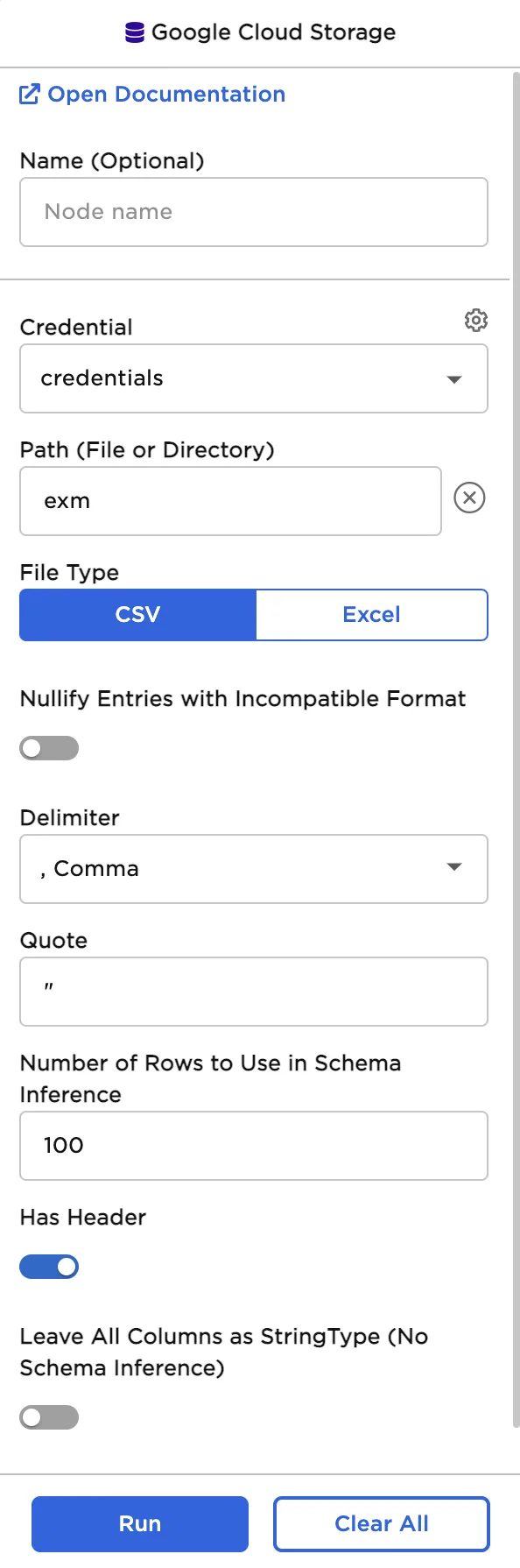
| Field | Description |
|---|---|
| Name Optional | Name of the node An optional user-specified node name displayed in the workspace, both on the node and in the dataframe as a tab. |
| Credential Required | The information needed to access Cloud Storage data Select a saved credential from the dropdown menu. Select the gear icon to add a new credential or delete existing credentials. |
| Path Required | The file to upload Select the bucket and the desired file from the pop-up menu. The rest of the fields appear after a file is selected. |
| Nullify Entries with Incompatible Format Default: Off | Discard bad values Toggle this switch on to find values with data types (string, integer, decimal, Boolean, etc.) that are different from the data type found in the rest of the column. Entries with different data types are changed to null values. |
| Delimiter Default: Comma | The character that separates values Set the delimiter to comma, pipe, colon, semicolon, tab, or space. Only change this field if the uploaded file uses nonstandard formatting. |
| Quote Default: " | The character that surrounds values to ignore Set the quote to any character. Delimiters inside quotes are ignored. Only change this field if the uploaded file uses nonstandard formatting. |
| Number of rows to use in schema inference Default: 100 | Rows used to determine a column's data type Set this value to any valid whole number. Visual Notebooks reads the number of rows specified, starting with the first row of the file. These rows are used to determine each column's data type. |
| Has Header Default: On | Header data to be used as column names Toggle the "Has Header" switch on if the uploaded file has an initial header row of column names. Toggle the switch off to use numerical column names ("_c0", "_c1", etc.) instead. |
| Leave all columns as StringType (no schema inference) Default: Off | String data type Toggle this switch on to read all columns as strings and upload all values. |
Node Inputs/Outputs
| Input | None |
|---|---|
| Output | Visual Notebooks returns a table, called a dataframe, that contains all uploaded data. Columns are labeled and include a symbol that specifies the data type of that column. |
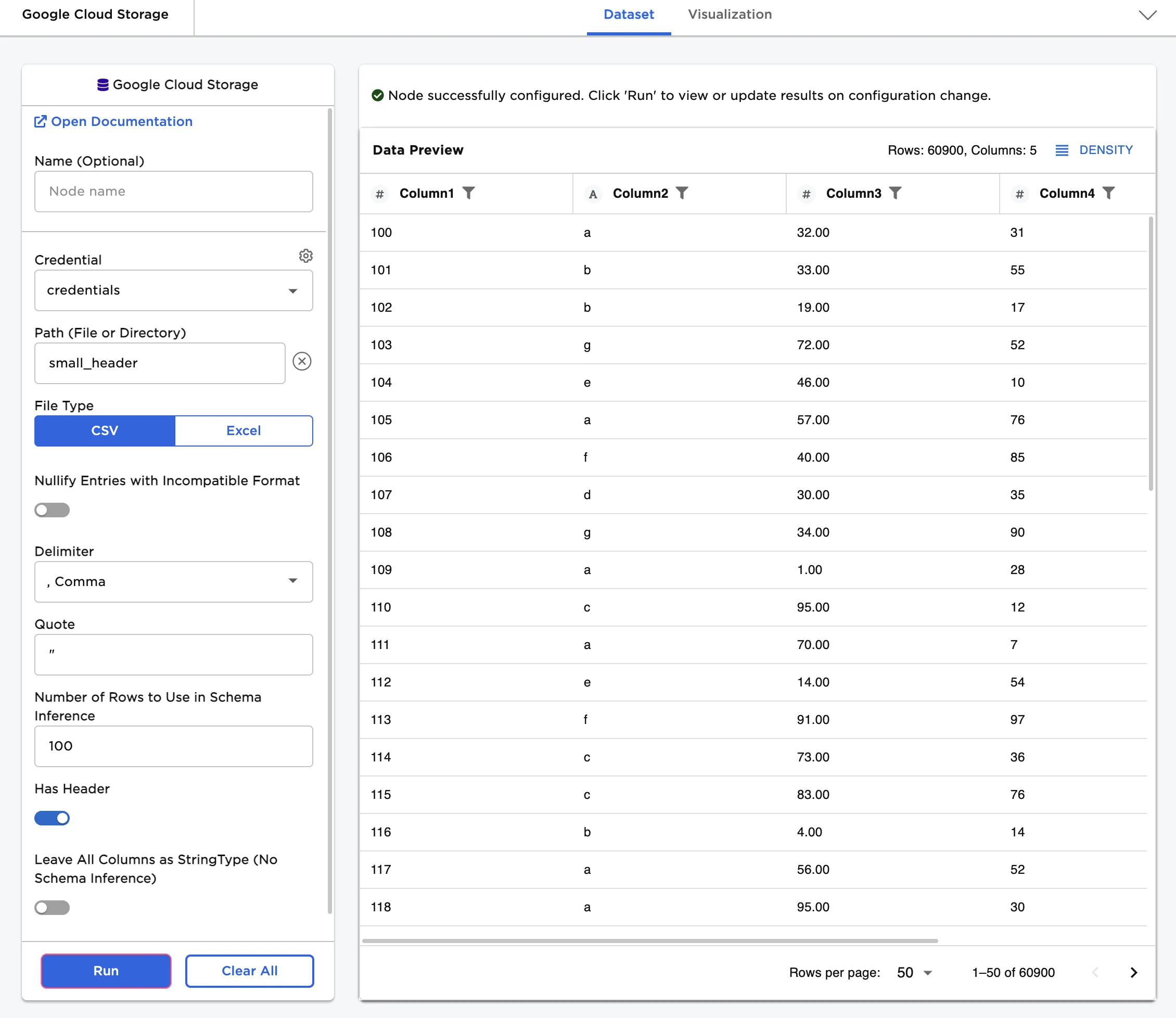
Figure 1: Example output
Examples
Follow the steps below to import data from Cloud Storage.
- Select the saved credentials used to access Cloud Storage. If you have not yet saved credentials, follow the steps in the Prerequisites section above.
- Select the file to upload using the Path field.
- Select Run to create a dataframe with the default settings.
Notice that columns are labeled and include a symbol that specifies the data type of that column. Various data types are present in the data and are accurately represented in the dataframe.
Figure 2: Example dataframe with default settings
If you want to upload all data as strings, toggle the Leave all columns as StringType (no schema inference) switch on and select Run. Notice that the "A" symbol beside each column indicates the string data type.
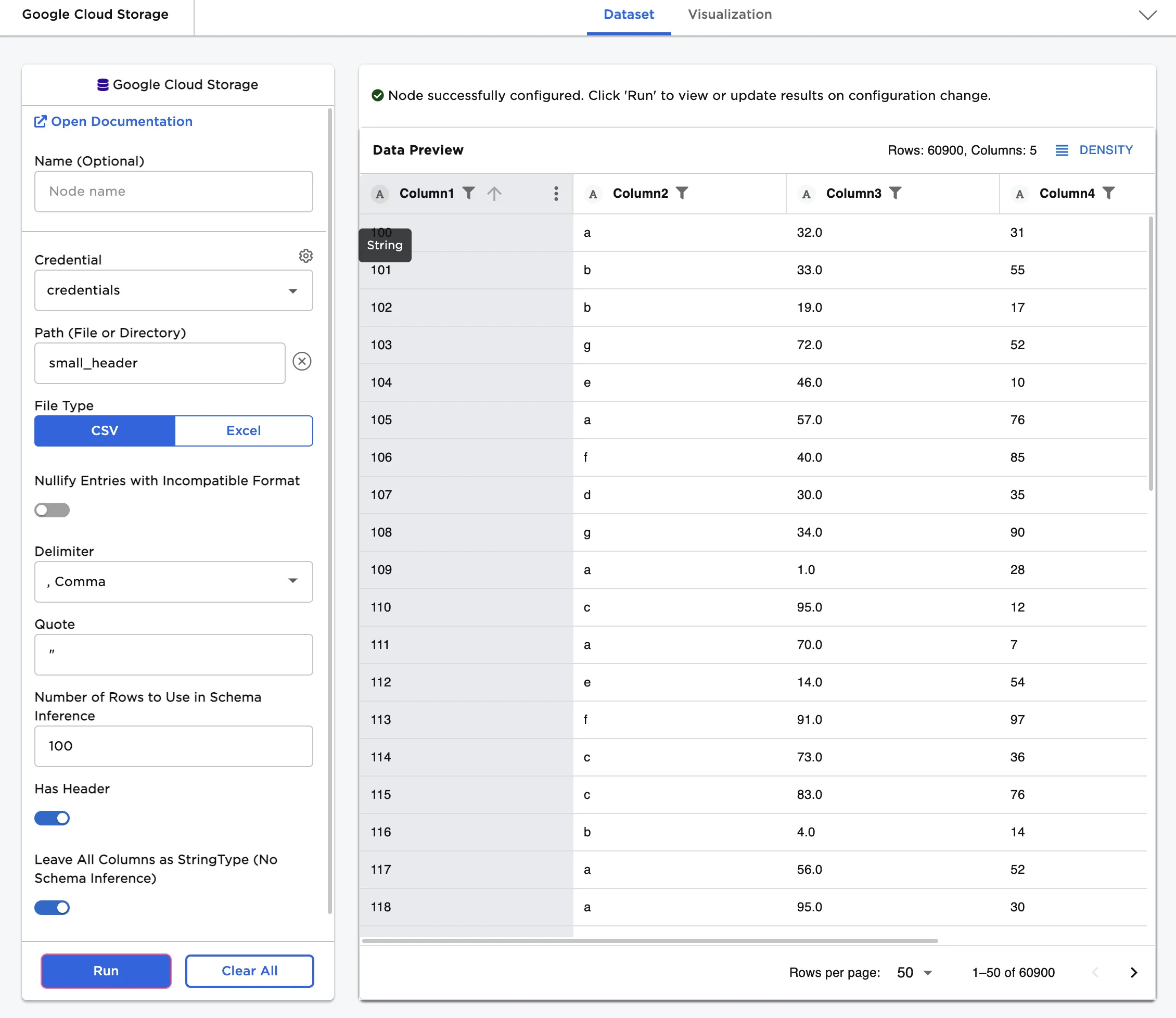
Figure 3: Example dataframe with all data uploaded as strings