Oracle
Output data from Visual Notebooks into Oracle. You must have an existing Oracle database to use this node.
Prerequisites
Follow the steps below to add credentials for Oracle. You must have a valid Oracle Server URL, username, database (SID), and password.
- Drag an Oracle node onto the Visual Notebooks workspace
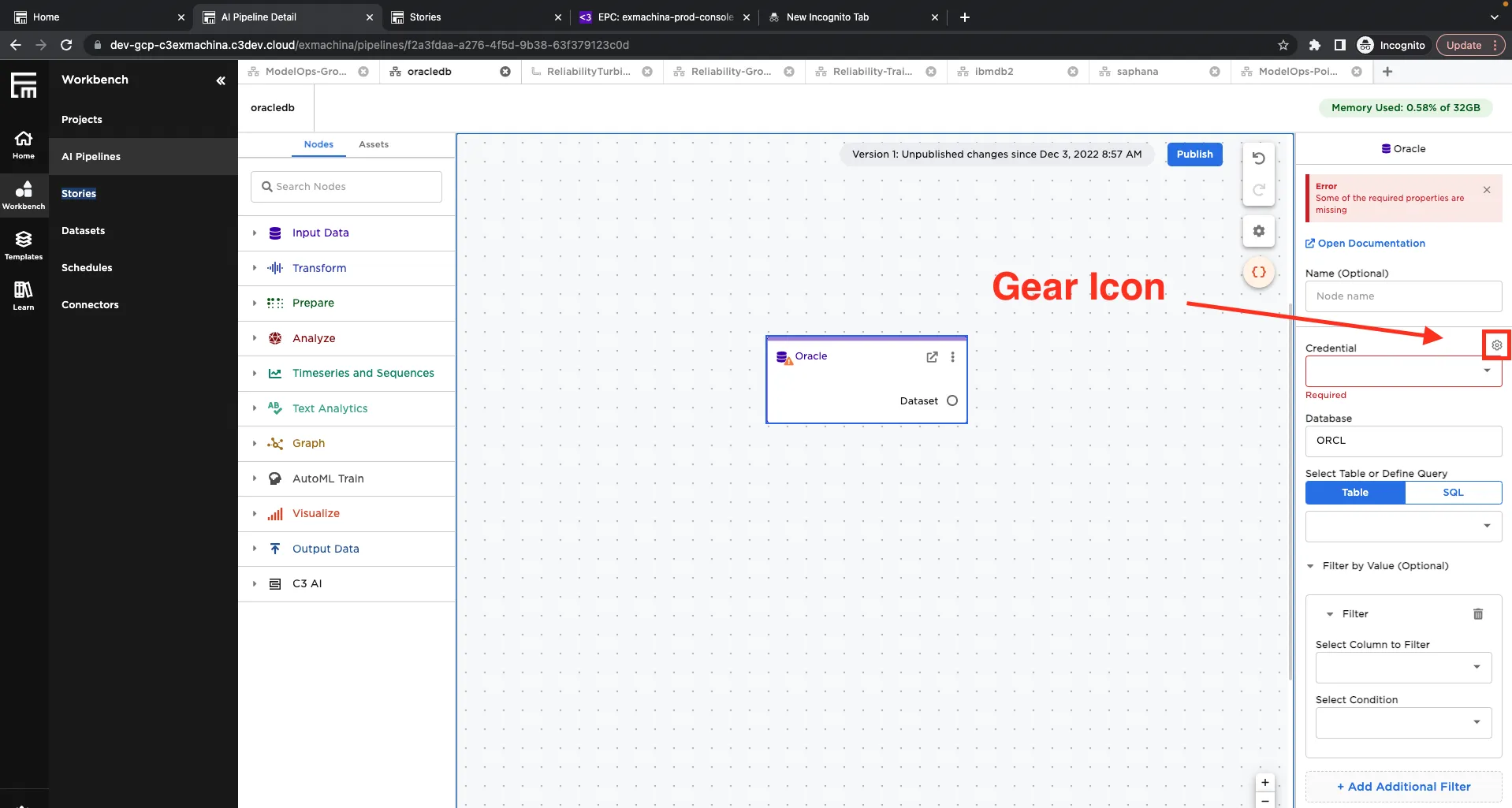
- Select the gear icon beside the Credential field
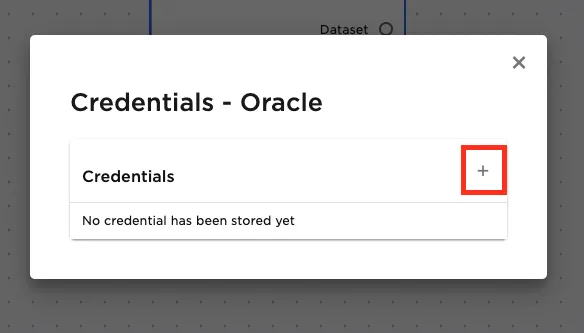
- Select the plus sign in the upper right corner
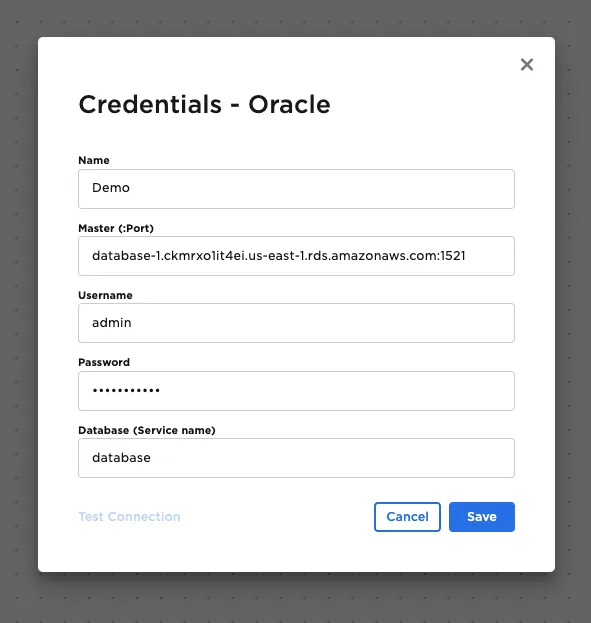
- Enter a name for the credential
- Enter the URL for Oracle
- Enter the username and password you use to access Oracle
Configuration
| Field | Description |
|---|---|
| Name default=none | A user-specified node name displayed in the canvas |
| Credential Required | The information needed to access Oracle Select a saved credential from the dropdown menu. Select the gear icon to add a new credential or delete existing credentials. |
| Database Required | The name of the desired Oracle database Type the database name to upload data to. |
| Table Required | Table name Enter a table to upload the data to in Oracle. |
Save Mode default=Overwrite | Duplicate data strategy Specify how to save the data from Visual Notebooks if a table with the given name already exists in Oracle. Select Append to add the new data at the end of the preexisting Oracle table. Select Overwrite to replace the preexisting table with the new data. Select Error If Exists to show an error if a table with the same name already exists in Oracle. Select Ignore to keep the preexisting table and ignore the request to save the new data. |
Node Inputs/Outputs
| Input | A Visual Notebooks dataframe |
|---|---|
| Output | None |
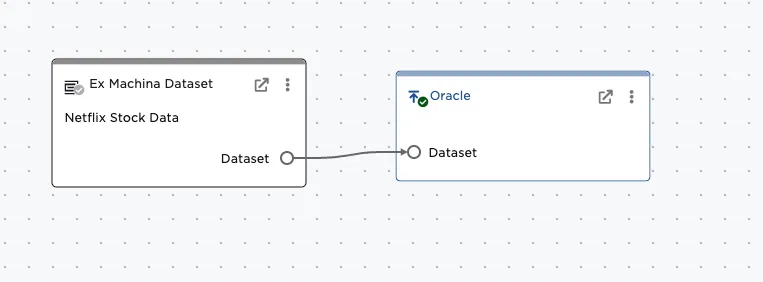
Figure 1: Example Oracle output setup.
Examples
Follow the steps below to save data from Visual Notebooks to Oracle.
- Connect a Oracle output node to an existing node.
- Select the saved credentials used to access Oracle. If you have not yet saved credentials, follow the steps in the Prerequisites section above.
- Specify the Oracle database where you would like to save the data.
- Enter a name for the table in the Table field. Note that if a table with the same name already exists in Oracle, the preexisting table will be overwritten with the new data. Use the Save Mode field to change this behavior.
- Select Run to save the data to Oracle.
Although the node doesn't display any output, the data saves successfully. The data should be present in your Oracle account.
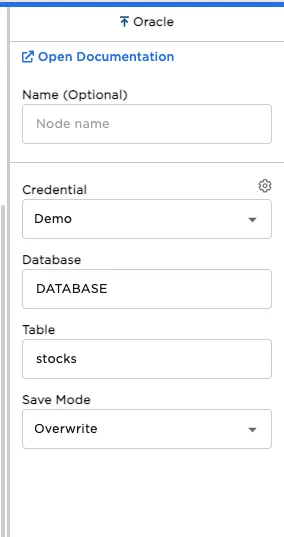
Figure 2: Oracle output node