Postgres Node
Load data from Postgres into Visual Notebooks.
Prerequisites
Follow the steps below to add credentials for Postgres. You must have a valid Postgres URL, username, and password.
- Drag a Postgres node onto the Visual Notebooks workspace
- Select the gear icon beside the Credential field

- Select the plus sign in the upper right corner
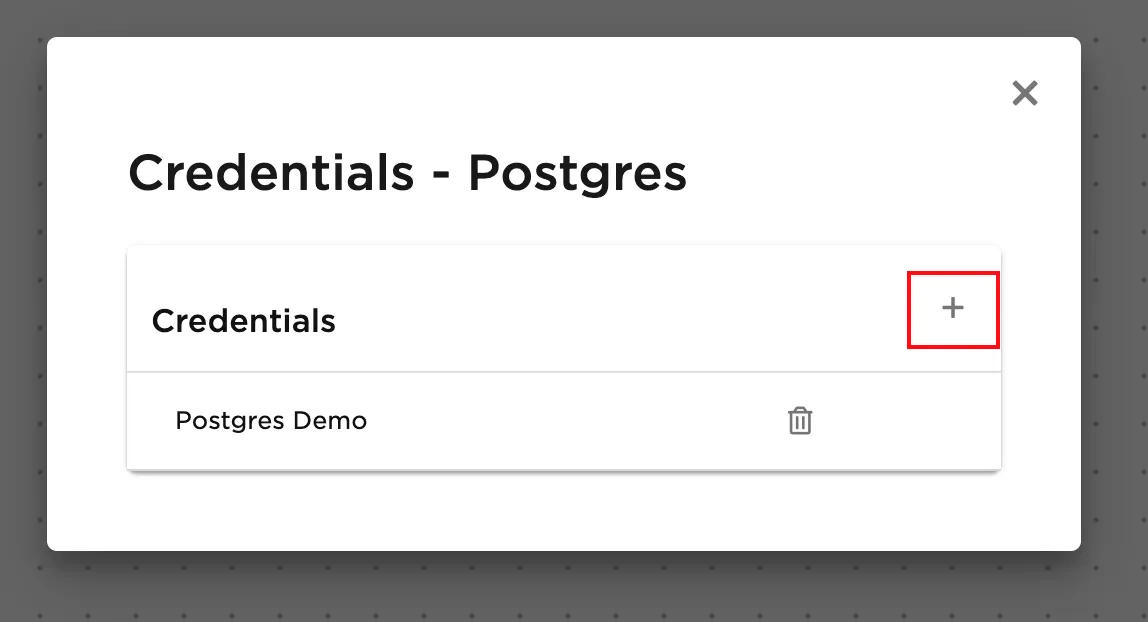
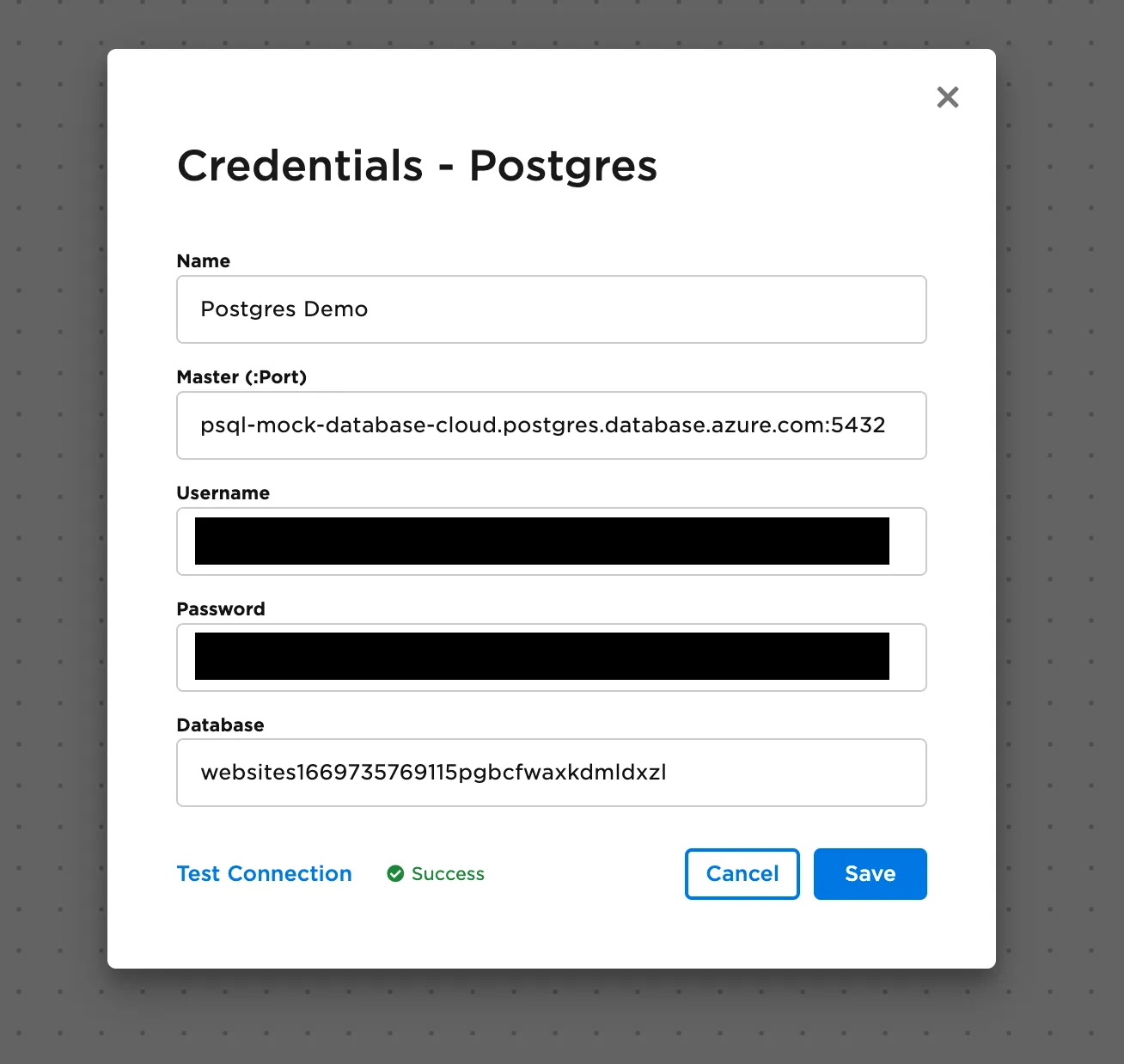
- Enter a name for the credential
- Enter the URL that you use to log into the Postgres web interface
- Enter the username and password you use to access Postgres
Configuration
| Field | Description |
|---|---|
| Name Optional | A user-specified node name displayed in the canvas |
| Credential Required | The information needed to access Postgres data Select a saved credential from the dropdown menu. Select the gear icon to add a new credential or delete existing credentials. |
| Database Required | The name of the desired Postgres database Select the database from the auto-populated dropdown menu. |
| Select Table or Define Query Required | The data to upload Select the table you want to upload from the auto-populated dropdown menu or enter a SQL query that returns the desired data. |
| Filter by Value Optional | Configure filters to be applied to data Use the dropdown fields to filter results. Filter options include is null, is not null, is equal, is not equal, begins with, ends with, in between, is less than, is less than or equal to, is greater than, and is greater than or equal to. Filters can be applied on any column datatype. Add additional filters to create "And" conditional logic treatment. |
Node Inputs/Outputs
| Input | None |
|---|---|
| Output | Visual Notebooks returns a table, called a dataframe, that contains all uploaded data. Columns are labeled and include a symbol that specifies the data type of that column. |
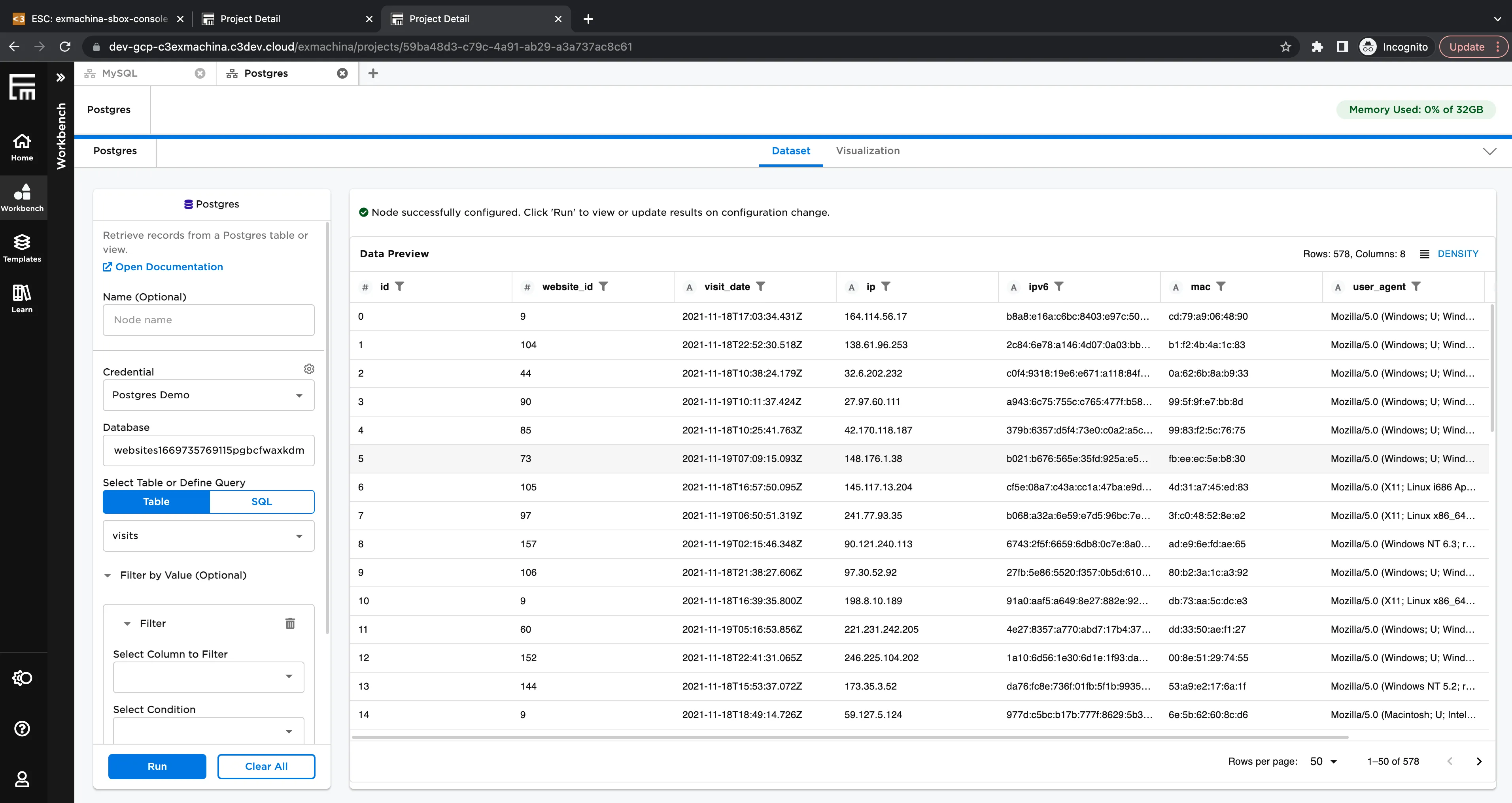
Figure 1: Example dataframe output
Examples
- Select the Postgres database and table that contains the desired data.
- Select Run to create a dataframe.
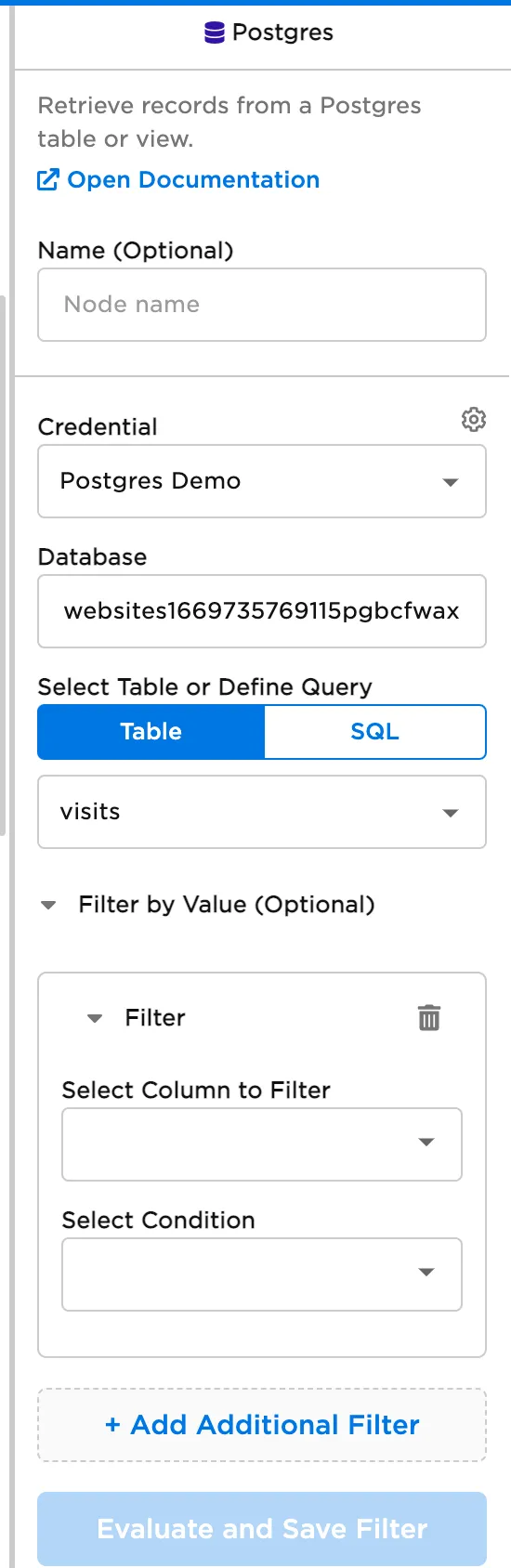
Figure 2: Example Postgres configuration
Figure 3: Example dataframe created from a Postgres table
- Select a Postgres database.
- Write a query that returns the desired data. In the example below, the query returns all columns for the first 100 rows of the "visits" table.
- Select Run to create a dataframe.
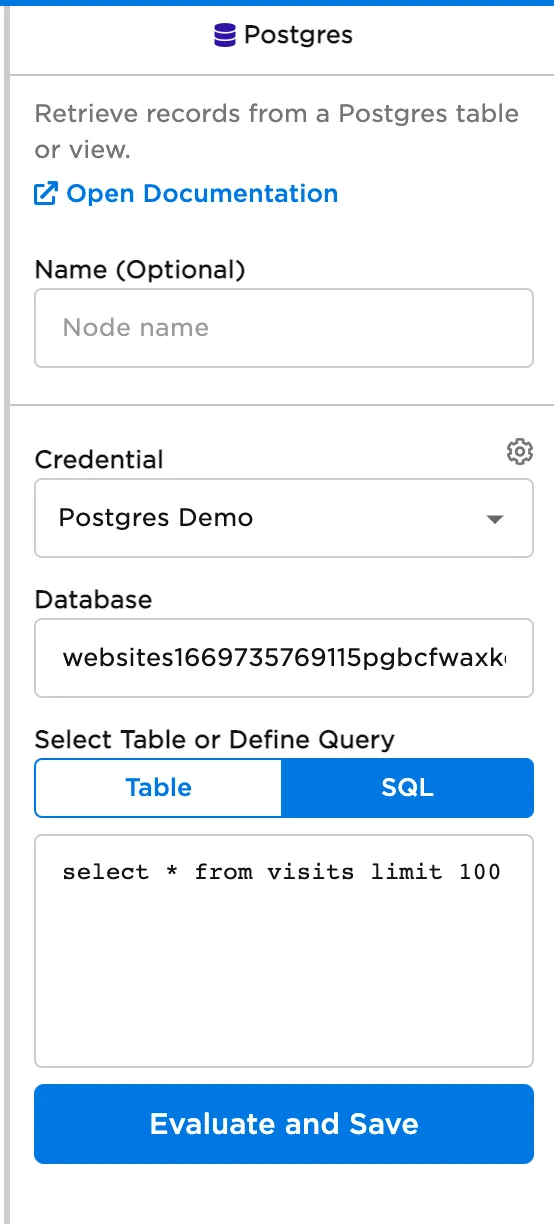
Figure 4: Example Postgres configuration using a query
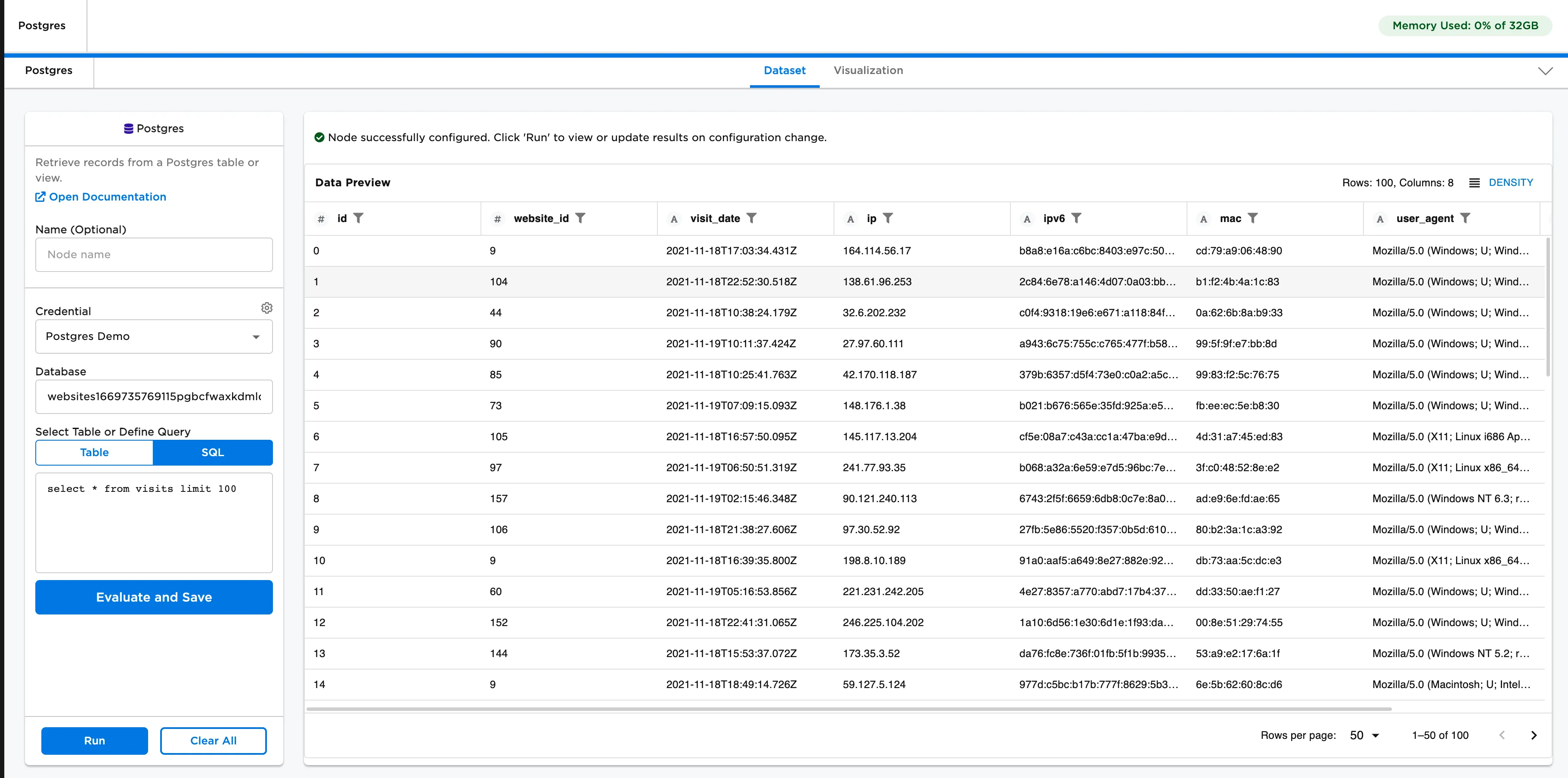
Figure 5: Example dataframe created from a Postgres query
- Select the Postgres credential and table ("visits" in this example) that contains the desired data.
- Add a filter using the Filter by Value optional input. The input allows users to easily and visually configure ways to filter--for example by selecting a string column and only selecting rows that begin with a certain letter or selecting a numeric column and only returning results where the value is greater than a user specified input. In this example, use a filter for rows where the "website_id" is equal to 126
- Select Run to create a dataframe.
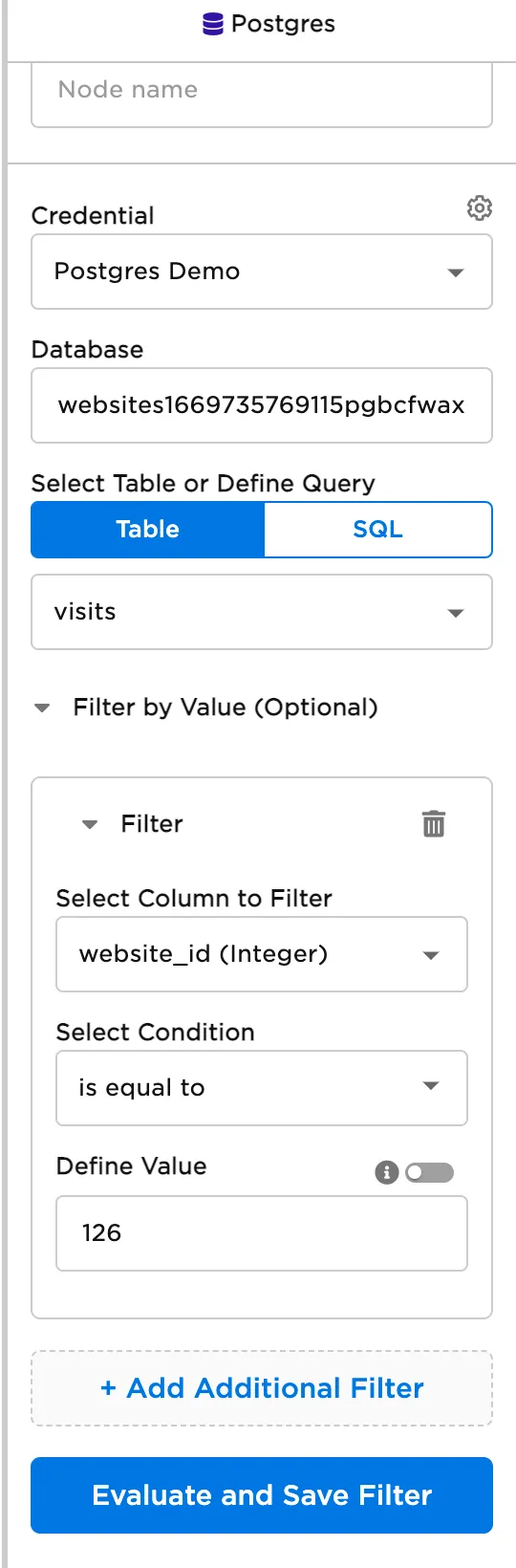
Figure 6: Example Postgres configuration using a filter
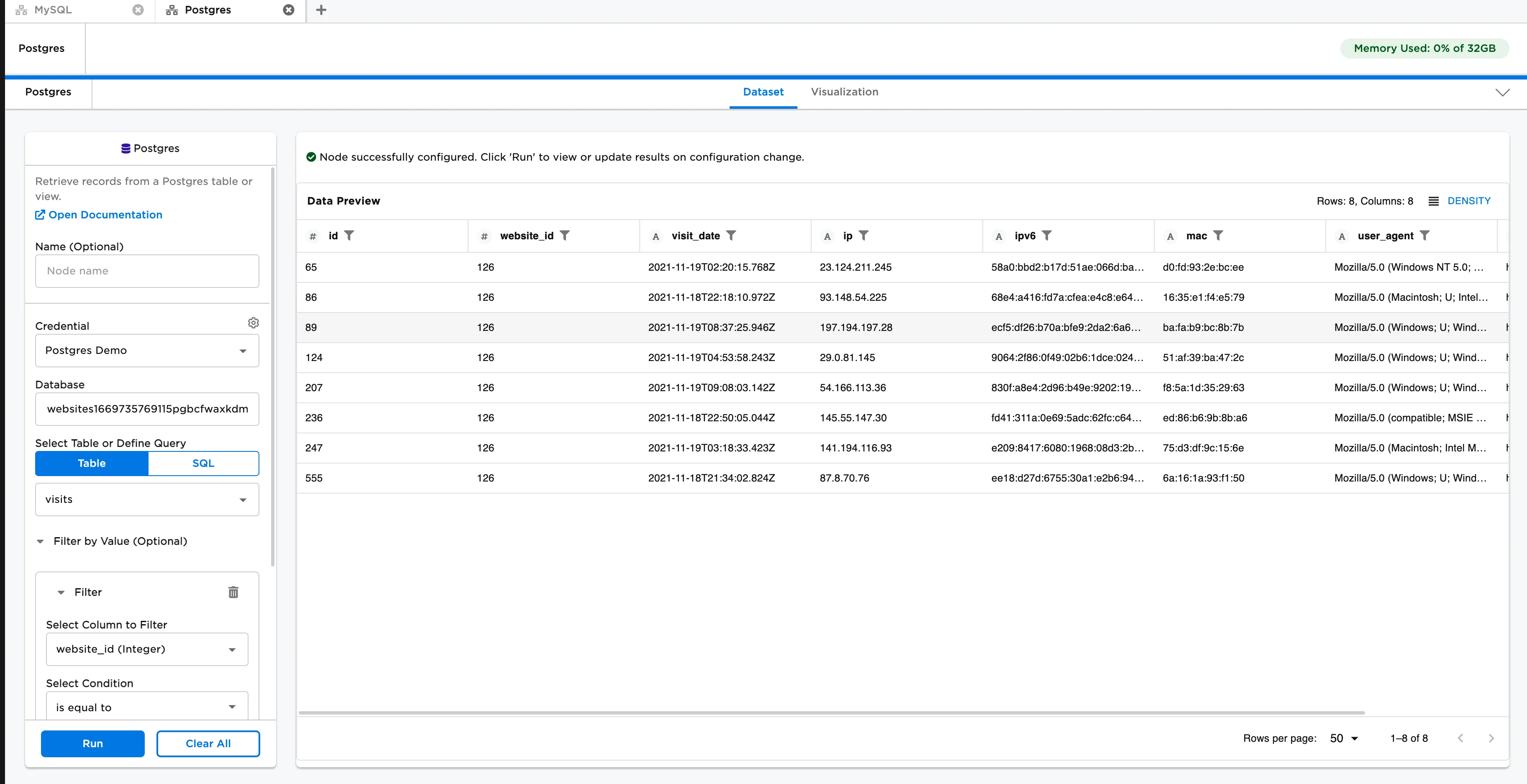
Figure 7: Example dataframe created using a filter