Save Dataset Node
The Save Dataset node allows you to save and version your dataframes as reusable assets in Visual Notebooks. These datasets can be shared with team members and used across different visual notebooks, enabling efficient collaboration.
Configuration
| Field | Description |
|---|---|
| Node Name | Name displayed in the workspace Optional - Defaults to none Used to identify the node in your workspace |
| Dataset Name | Name for this version of the dataset Required Identifies this specific version of the dataset |
| Description | Dataset description Optional Helpful context about the dataset's contents and purpose |
| Topic | Dataset topic name Required Groups related datasets together - can be new or existing |
Node Inputs and Outputs
| Type | Description |
|---|---|
| Input | Visual Notebooks dataframe |
| Output | Shareable dataset asset |
Usage Guide
Creating a New Dataset
- Connect a Save Dataset node to any node with a dataframe output
- Configure the node:
- Enter a descriptive name for this dataset version
- Choose a topic name (select existing or create new)
- Add an optional description
- Click Run to save the dataset
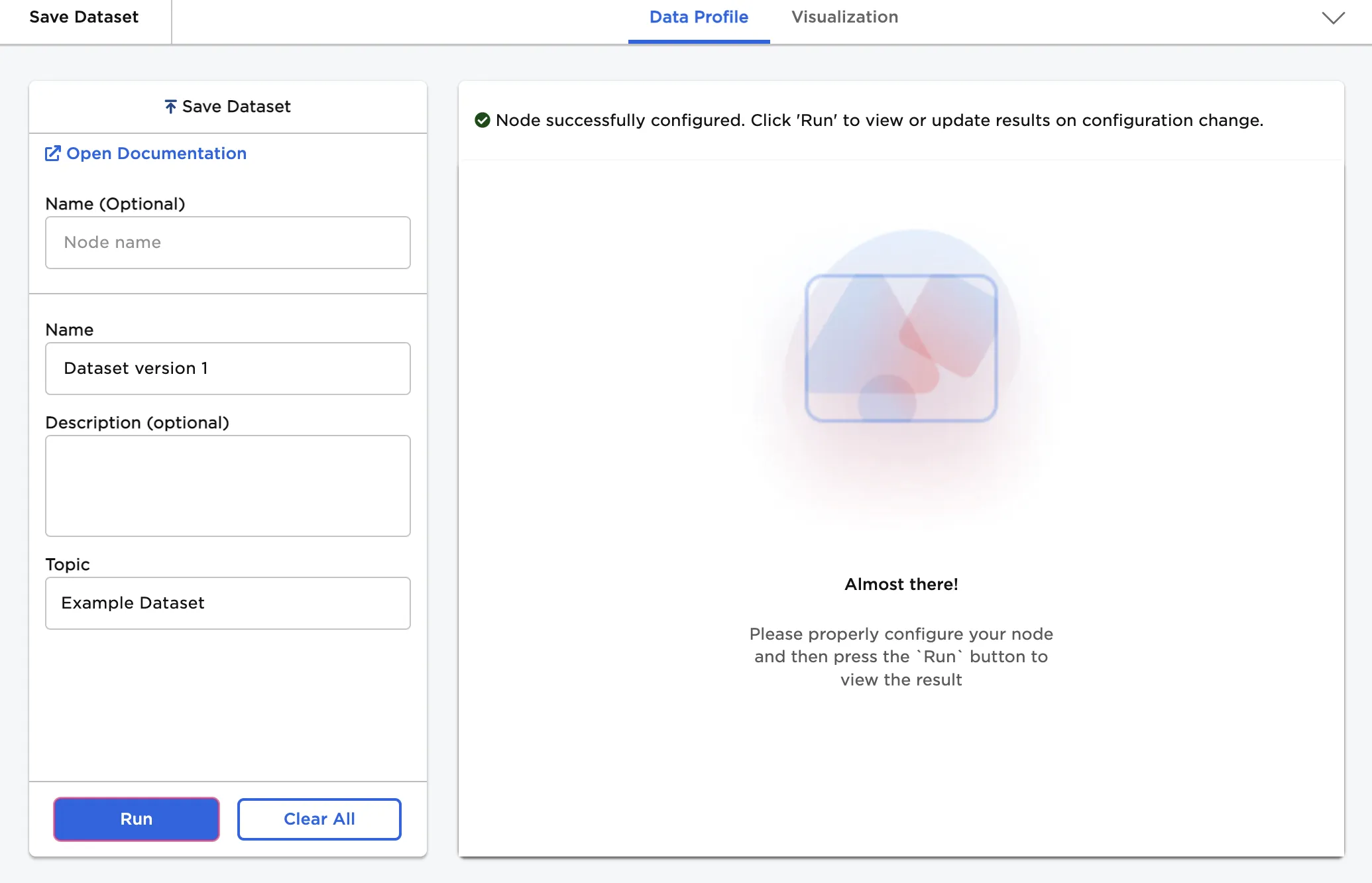 Figure 1: Configuring and running a Save Dataset node
Accessing Saved Datasets
- Navigate to the Assets tab at the top of the canvas
- Expand the Datasets section
- Select the Owned tab to view your datasets
Your saved datasets will be organized by topic name. You can:
- Preview dataset contents and metadata
- Add datasets directly to your workspace
- Share datasets with team members
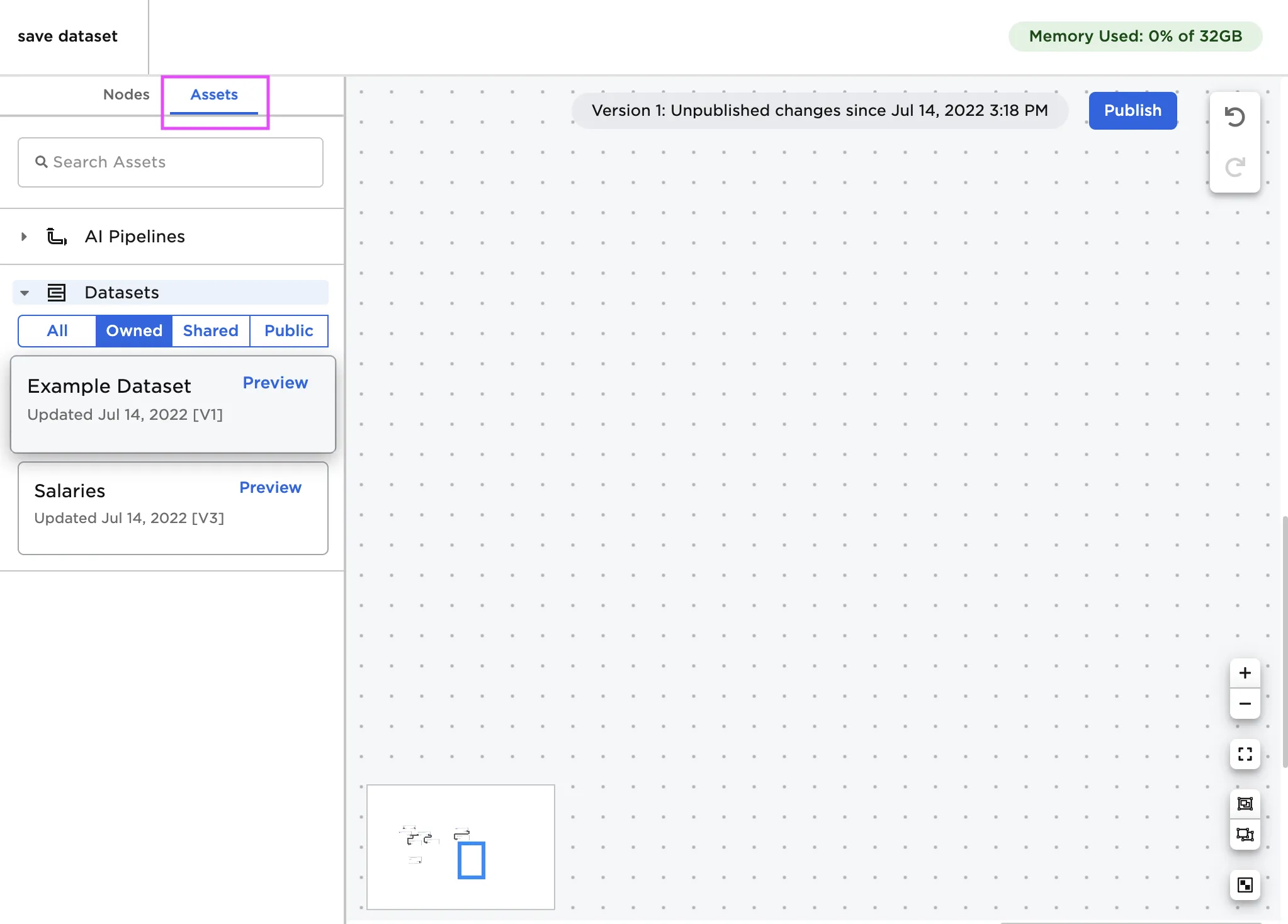 Figure 2: Accessing saved datasets from the Assets tab
Dataset Versioning
You can create multiple versions of a dataset under the same topic:
- Add another Save Dataset node to your workspace
- Configure the node:
- Enter a new version name
- Select the existing topic name
- Run the node to save the new version
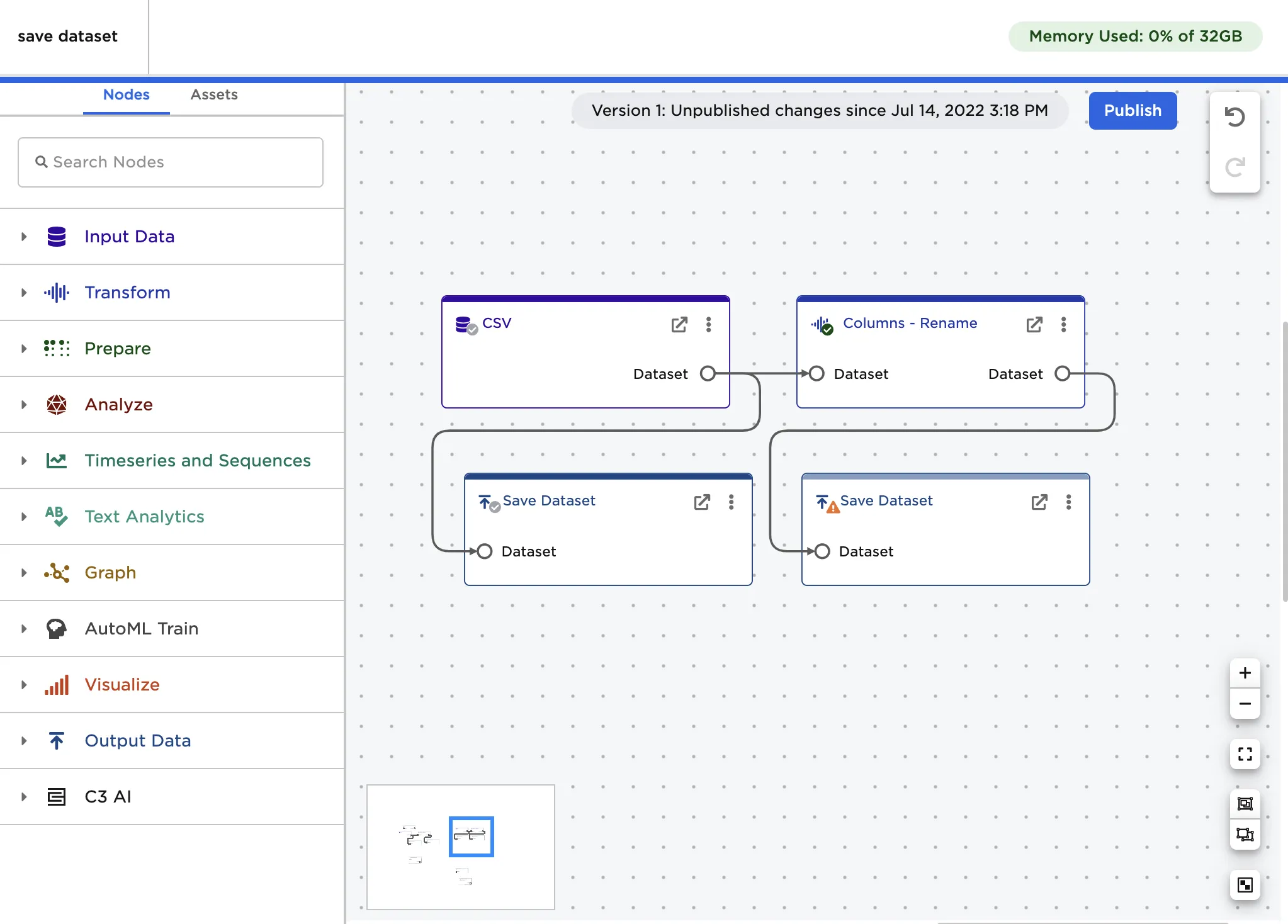 Figure 3: Creating multiple versions of a dataset
Viewing Dataset Versions
When previewing a dataset from the Assets tab, you can see all saved versions:
- Each version shows its unique name
- Versions are organized chronologically
- All versions remain accessible
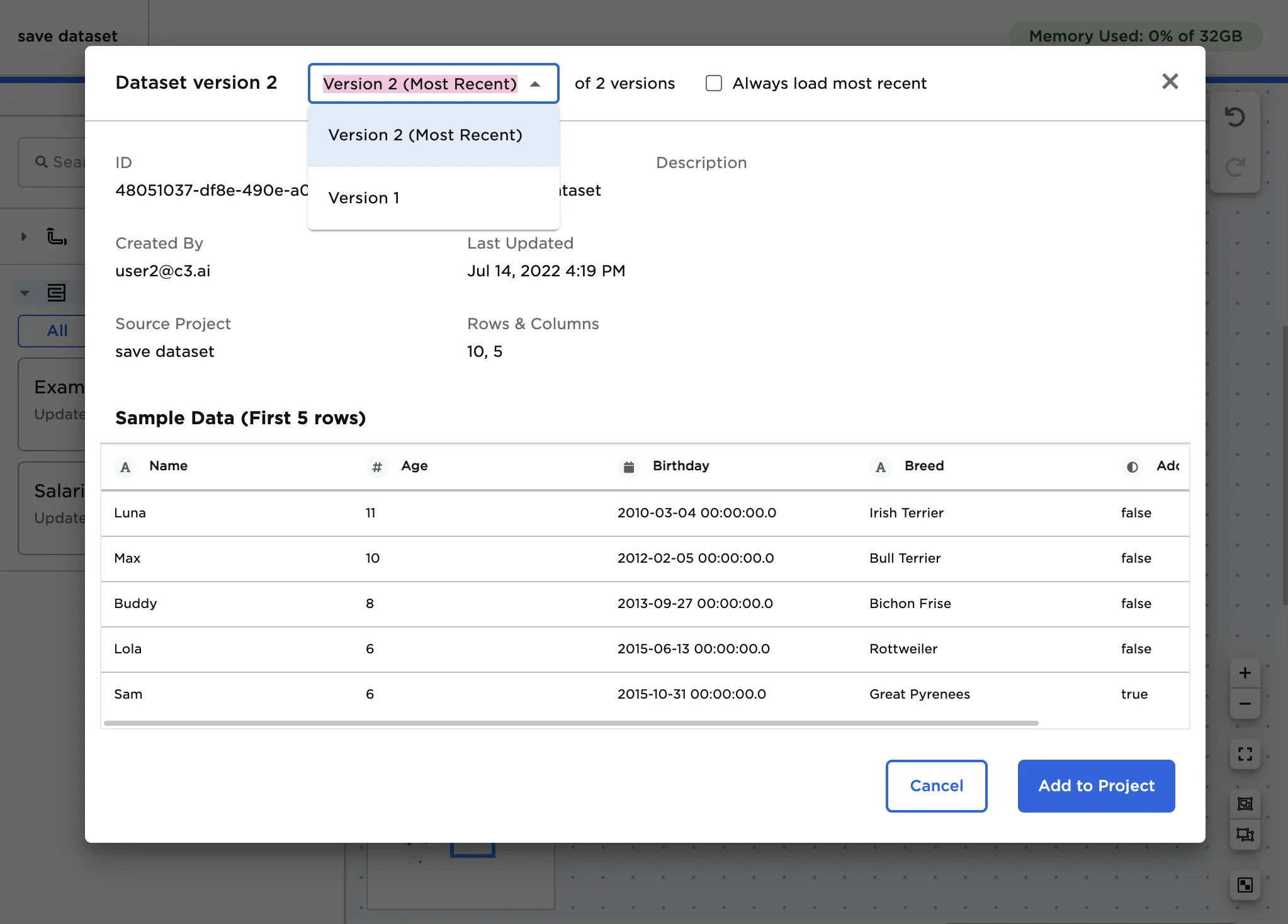 Figure 4: Managing multiple dataset versions
Example Workflow
To practice using the Save Dataset node, you can:
- Import the sample data using a CSV node
- Process the data as needed
- Save versions of the dataset at different stages:
- Raw data version
- Cleaned data version
- Analyzed data version
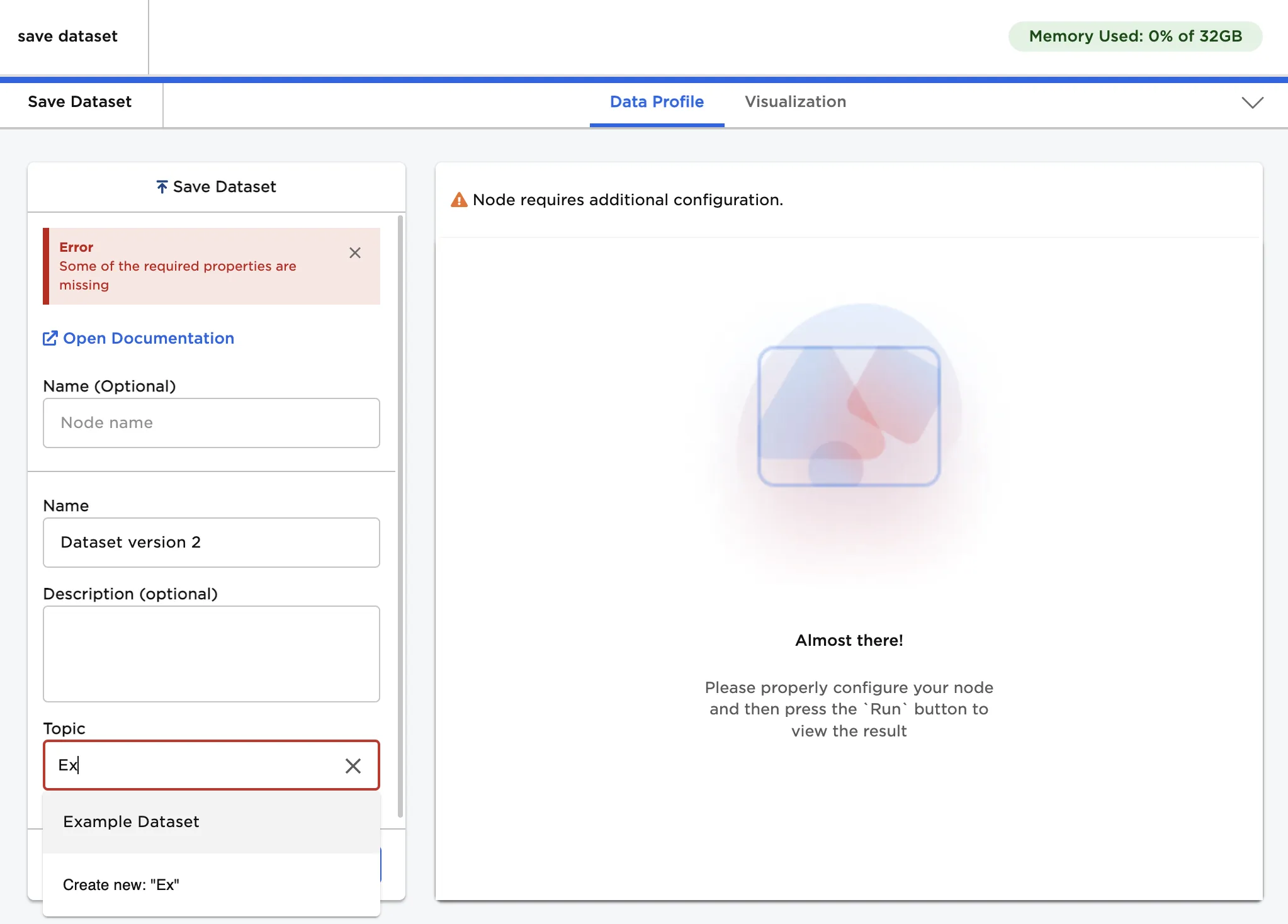 Figure 5: Example workflow showing dataset versioning
Remember:
- Use the same topic name to create versions of the same dataset
- Use different topic names to create entirely new datasets
- Add descriptive version names and descriptions for better organization
- Preview datasets from the Assets tab to manage versions and access points