C3 Server Logs
You can use VSCE to see server logs in real time. Logs are enabled by default.
How to see logs
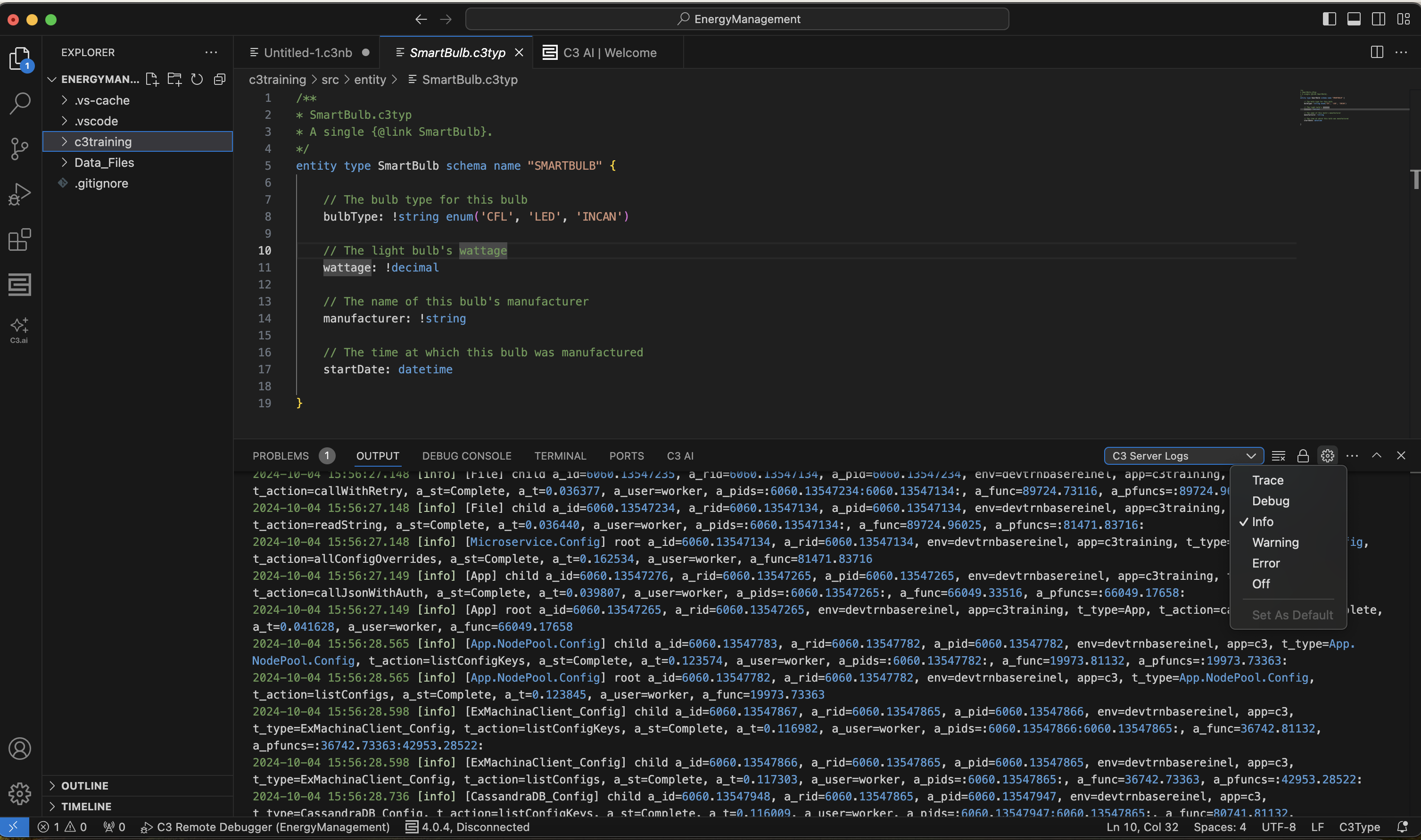
While you're connected to your environment, open the OUTPUT tab in VS Code. If you can't find the OUTPUT tab, you may need to open it by using a shortcut. Use Ctrl + Shift + M for Windows, and Command + Shift + M for Mac.
In the dropdown menu of the OUTPUT tab, choose C3 Server Logs. You should see your logs output in real time.
Large logs
If there are too many logs, you may not be able to see your entire log through the VS Code output. You can choose to view logs as a text file by opening the logs folder directly.
- Open the VS Code Command Palette using
Ctrl + Shift + Pfor Windows, orCommand + Shift + Pfor Mac. - Type
Developer: Open Extension Logs Folderand press Enter. - You can find C3 Server Logs, as well as other logs generated by your extensions in this folder.