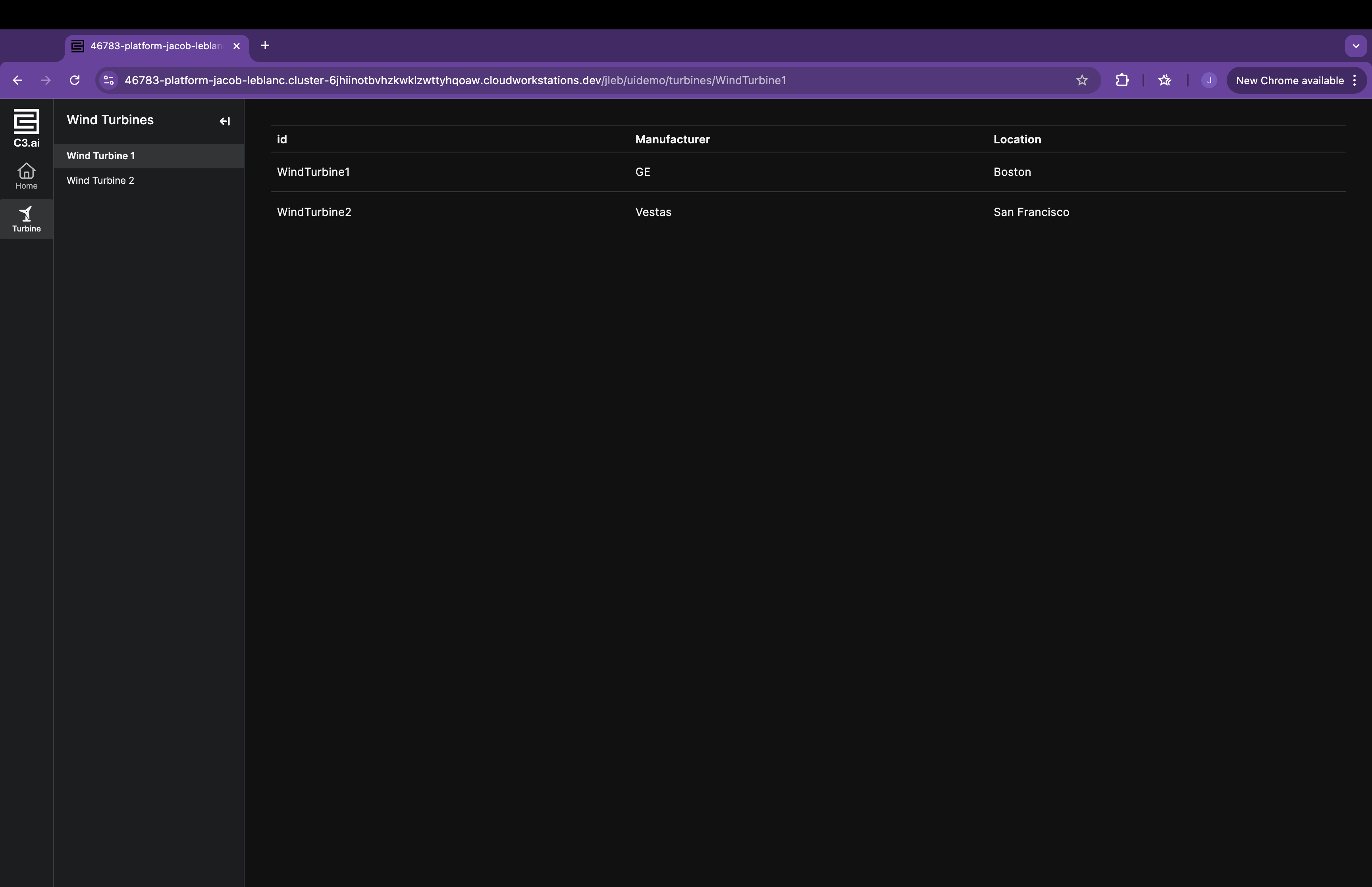
Add a navigation menu to the application
This tutorial explains how to create a navigation menu and add it to a page.
Create a navigation menu
Add a new JSON file in examplePackage/ui/c3/meta:
examplePackage
├── examplePackage.c3pkg.json
└── ui
    └── c3
        └── meta
            ├──  examplePackage.PageLayout.json
            ├──  examplePackage.TurbineGrid.json
            └──  examplePackage.NavMenu.json
Define the UiSdlNavMenu in examplePackage.NavMenu.json:
/* examplePackage/ui/c3/meta/examplePackage.NavMenu.json */
{
  "type": "UiSdlConnected<UiSdlNavMenu>",
  "component": {
    "itemSections": [
      {
        "items": [
          {
            "id": "home",
            "title": "Home",
            "icon": "house",
            "redirectRoute": {
              "urlPath": "/"
            }
          }
        ]
      }
    ]
  }
}
This basic example defines a navigation menu with one item. The itemSections field contains an array of UiSdlNavMenuSections, each with an items array of UiSdlNavMenuItems. The title represents the displayed text, icon specifies a Font Awesome icon, and redirectRoute defines the UiSdlRoute destination.
To add a second item with a subMenu:
/* examplePackage/ui/c3/meta/examplePackage.NavMenu.json */
{
  "type": "UiSdlConnected<UiSdlNavMenu>",
  "component": {
    "itemSections": [
      {
        "items": [
          {
            "id": "home",
            "title": "Home",
            "icon": "house",
            "redirectRoute": {
              "urlPath": "/"
            }
          },
          {
            "id": "turbines",
            "title": "Turbine",
            "icon": "wind-turbine",
            "subMenu": {
              "title": "Wind Turbines",
              "items": [
                {
                  "type": "UiSdlNavMenuitem",
                  "id": "WindTurbine1",
                  "title": "Wind Turbine 1",
                  "redirectRoute": {
                    "urlPath": "turbines/WindTurbine1"
                  }
                },
                {
                  "type": "UiSdlNavMenuitem",
                  "id": "WindTurbine2",
                  "title": "Wind Turbine 2",
                  "redirectRoute": {
                    "urlPath": "turbines/WindTurbine2"
                  }
                }
              ]
            }
          }
        ]
      }
    ]
  }
}
This example adds a subMenu under Turbine. Clicking Turbine expands the submenu.
Add a navigation menu to a page
To add the navigation menu to a page, modify examplePackage.PageLayout.json:
/* examplePackage/ui/c3/meta/examplePackage.PageLayout.json */
{
  "type": "UiSdlConnected<UiSdlGridLayout>",
  "component": {
    "gridStyle": "FLUID",
    "gutter": 8,
    "display": "VERTICAL",
    "children": ["examplePackage.TurbineGrid"],
    "navMenu": {
      "id": "examplePackage.NavMenu"
    }
  }
}
UiSdlGridLayout includes a specific field for adding a navigation menu. Adding the menu in this way ensures it appears as expected.