Set up UI Demo
UI Demo serves as an application that showcases the following:
- Available UI components,
- Diverse examples illustrating various configurations of these components.
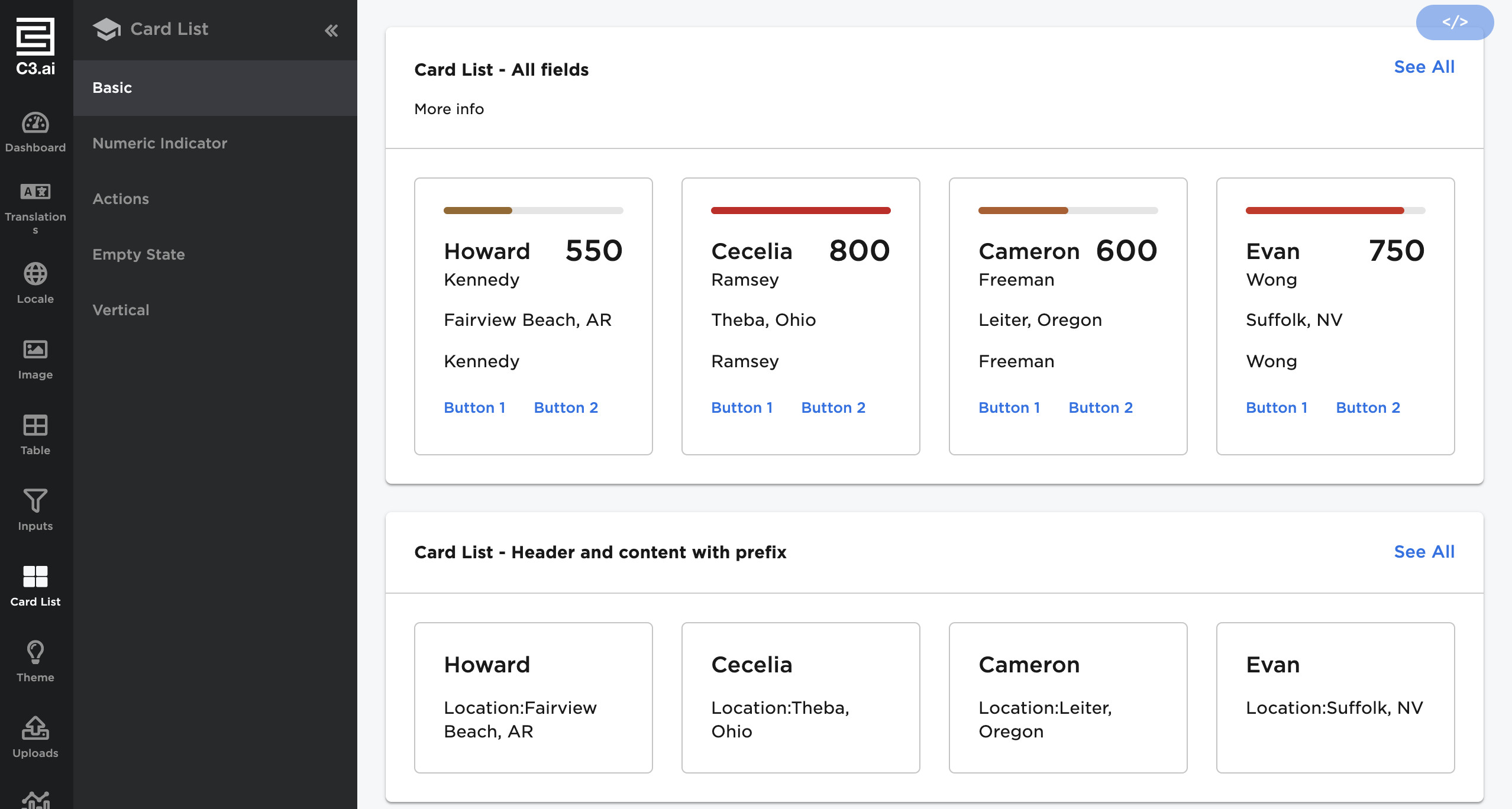
You can launch UI Demo in a single node or a multi node environment. This document covers how to launch UI Demo in a single node environment. To learn how to launch UI Demo in a multi node environment, see Start your application based on a package and build from Release Management documentation.
Launch UI Demo from C3 AI Studio
Since UI Demo is within the C3 AI Platform, you can launch it from C3 AI Studio. To launch UI Demo:
- Navigate to C3 AI Studio.
- Ensure you have a single node environment and you are in the desired environment by verifying the environment name in the Current environment.
- Select Create Application.
- Select Start from a blank package.
- Enter the following fields:
- Environment: Select the desirable environment.
- Application Name: Enter the unique application name.
- Package dependencies: Select
uiDemopackage.
Access UI Demo application
To access the UI Demo application from C3 AI Studio:
- From the Home page or go to the Applications page of C3 AI Studio and select the application that has
uiDemoas the package. - Select the Open application button and access UI Demo.
