Dynamic Agent System Prompts
Overview
You can update the system prompt of an agent in C3 Generative AI through changing its chat manager specification. The chat_manager_spec is a field configuration on the agent that you can get and set the value of.
This document covers configuration for CanvasAgent_default and CanvasAgent_deep_research. All other agents are instances of Genai.Agent.Dynamic.Canvas and you can configure the following steps in the same way.
Prerequisites
Before you begin, ensure the following:
- You can access Jupyter Notebook and the Application C3 AI Console.
Open Jupyter Notebook
Open Jupyter Notebook from the C3 Generative AI Application card:
- Navigate to your application in C3 AI Studio.
- Select Jupyter Notebook.
- Set the
py-canvas_312runtime as the notebook kernel.
Update the current system prompt
To view the system prompt, you must first identify the agent name.
Retrieve the name of the Dynamic agent by running the following in a Jupyter cell:
Pythonresults = c3.Genai.Agent.Dynamic.Canvas.fetch({ "order": "descending(meta.updated)" }) results
This returns a table with the most recently updated Dynamic Agents at the top. Check the config.name column to see each agent's name.
If no agents have been added from the UI, you will see only one agent in the list. That agent is the default and is named CanvasAgent_default. If you have created additional agents in the UI, they will also appear in this list.
Change the
chatManagerSpecfield in the agent.config(). In this example, we would like the agent to always include the latitudes of furnaces when returning their locations. You can retrieve the system prompt from thechatManagerSpecin the Dynamic Agent configuration using the agent name:Pythonc3.Genai.Agent.Dynamic.Config.forConfigKey('CanvasAgent_default').getConfig().chatManagerSpecEdit the system prompt. You would instruct the agent explicitly with the new requirement and also edit the
<solution>tag in theEXAMPLE FLOW:section:PythonUPDATED_SYSTEM_PROMPT = """ (... the rest remain unchanged) OTHER INSTRUCTIONS: - Also return the phone number of each office EXAMPLE FLOW: (... same as about as we only edit the part of solution tag) <solution> The locations of the offices and their phone numbers. </solution> (... the rest remain unchanged) """ # We add the SYSTEM_PROMPT_TEST (a docstring) into the Prompt config. SYSTEM_PROMPT = c3.Genai.Prompt.fromString(UPDATED_SYSTEM_PROMPT) SYSTEM_PROMPT = SYSTEM_PROMPT.upsert(returnInclude="this")Update the agent configuration to use the new system prompt. In the following code, you set the
chatManagerSpecto useSYSTEM_PROMPTwhich was updated previously.Pythonagent_config = c3.Genai.Agent.Dynamic.Config.forConfigKey("CanvasAgent_default") chat_manager_spec = c3.Genai.Agent.Dynamic.ChatManagerSpec( systemPrompt=SYSTEM_PROMPT ) agent_config.setConfigValues({ "chatManagerSpec": chat_manager_spec })Check the updated system prompt with this command:
Pythonc3.Genai.Agent.Dynamic.Config.forConfigKey('CanvasAgent_default').getConfig().chatManagerSpec
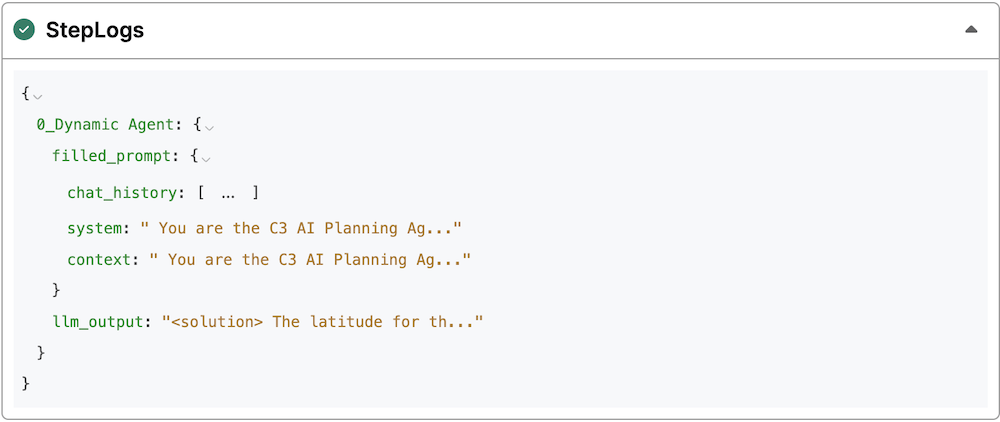
You can check that the system prompt was updated in the application. Under Query Detail under the History tab, you can expand the StepLogs.