Create Custom Tools
You can perform specialized tasks such as calling an external API or accessing a data store in response to user queries using an agentic tool in C3 Generative AI. These tools let agents delegate low-level operations to defined tool logic.
C3 Generative AI provides several built-in tools. You can extend its capabilities further by creating and deploying your own custom tools.
This guide explains how to develop, upload, integrate, and optionally remove a custom tool from an agent toolkit.
- Write the tool logic in a Python file with a
call()method. - Upload the Python file and capture its URL.
- List the available agents.
- Add the tool to an agent’s toolkit.
- Restart the agent deployment.
- Verify in the UI.
- Delete the tool.
Tool logic
Each custom tool defines three key methods:
initialize()(optional): Defines any setup logic needed before using the tool.call()(required): Executes the tool’s core logic in response to agent calls.terminate()(optional): Performs cleanup operations when the tool is terminated.
Each tool can also include a toolConfigurationParams object. This JSON field on Genai.Agent.Dynamic.Tool lets you pass configuration parameters to your custom tool without hardcoding values in the Python source file. It is automatically injected as a global variable in your tool’s execution context.
You can use toolConfigurationParams to:
- Configure tool behavior without modifying the code (for example, model names, API endpoints, thresholds).
- Pass environment-specific settings (for example, development vs. production configurations).
- Enable or disable features dynamically (for example,
enableProfiling: false). - Provide initialization values that differ between tool instances.
Using toolConfigurationParams improves maintainability and reusability by keeping configuration separate from implementation logic. It's available at runtime and can be accessed within the initialize(), call(), and terminate() methods of the tool.
Use the following example to define your tool logic in a Python file.
from typing import TYPE_CHECKING
import requests
import json
import logging

tool_logger = logging.getLogger(__name__)
tool_logger.debug("Initializing book lookup tool...")

if TYPE_CHECKING:
    toolConfigurationParams: dict = {}

SOME_VAR = None


def initialize():
    """
    Initializes the book lookup tool by setting a global variable
    with an initialization message.

    Global Variables:
        SOME_VAR (str): Holds the initialization message.

    Returns:
        None
    """
    global SOME_VAR
    init_config = toolConfigurationParams.get("initializeConfig", "default_value")
    SOME_VAR = "Initialize set." + init_config
    print(f"Initializing {SOME_VAR}")


def call(query: str) -> str:
    """
    Use this tool to look up books using the Open Library API.

    It fetches books matching a query (title, author, subject, etc.)
    and returns the JSON response as a string.

    Parameters:
        query (str): The book title, author, or subject to look up.

    Returns:
        str: The list of matching books as a JSON string.

    Raises:
        ValueError: If the request fails or the response is invalid JSON.
    """
    url = f"https://openlibrary.org/search.json?q={query}"
    try:
        resp = requests.get(url, timeout=10)
        resp.raise_for_status()

        try:
            data = resp.json()
        except ValueError:
            raise ValueError("Invalid JSON response received from server.")

        books = data.get("docs", [])[:5]
        return json.dumps(books, indent=2)

    except requests.exceptions.RequestException as e:
        tool_logger.error(f"book_lookup_tool: Unable to fetch data: {e}")
        raise ValueError(f"Error fetching books: {e}")


def terminate():
    """
    Teardown logic to clean up resources and indicate termination.

    Global Variables:
        SOME_VAR (str): Holds the termination message.

    Returns:
        None
    """
    global SOME_VAR
    terminate_config = toolConfigurationParams.get("terminateConfig", "default_value")
    SOME_VAR = "tool terminated." + terminate_config
    print(f"Terminating {SOME_VAR}")
Save the file as book_lookup.py.
Upload the Python file
- In the C3 AI Console, open your C3 Generative AI application card.
- Select Tools > Load File.
- In the upload dialog:
- Select the Python file book_lookup.py.
- Set Destination to File System.
- Set File System mount to datasets.
- Select Load.
- After upload completes, copy and save the generated file URL (for example,
azure://genai/envnov5/testapp504/dl/book_lookup.py). You will use this in later steps.
List the available agents
Get the config.name of the Dynamic Agent you want to configure the tool for. Run this command in your Python notebook.
c3.Genai.Agent.Dynamic.Canvas.fetch()The same command provides both the id and config.name values. Use config.name when updating toolkits and id when restarting or redeploying agents.
Add the tool to an agent’s toolkit
You can configure custom tools for specific agent instances such as CanvasAgent_default or CanvasAgent_deep_research.
This document covers configuration for CanvasAgent_default and CanvasAgent_deep_research. All other agents are instances of Dynamic Agent Canvas or Dynamic Agent Deep Research, and you can follow the same steps for any agent instance.
Open Jupyter from your C3 AI Studio application card.
Create a new notebook and select the py-query_orchestrator kernel.
Run the following code to view and extend your agent’s toolkit.
Pythonconfig = c3.Genai.Agent.Dynamic.Config.forConfigKey('<agent config.name>') current_toolkit = config.getConfig().toolkit.get() print(current_toolkit) current_tools = current_toolkit.allTools() for tool in current_tools: print(f"- {tool.id}: {tool.name}")Create and register the new tool.
Pythonbooks_lookup = c3.Genai.Agent.Dynamic.Tool.make({ "id": "books_lookup", "name": "books_lookup", "descriptionForLlm": "A tool that looks up books from the global Open Library database.", "pySrc": c3.File.make({"url": "azure://genai/envnov5/testapp504/dl/book_lookup.py"}), "toolConfigurationParams": {} })If you define configuration parameters while creating the tool, reference them in your Python code using the global variable
toolConfigurationParams.For example, use a parameter such as apiEndpoint instead of hardcoding the URL:
Python"toolConfigurationParams": { "apiEndpoint": "https://openlibrary.org/search.json", "enableProfiling": False, "initializeConfig": "custom_init_value" }Add the new tool to the existing toolkit.
Pythonexisting_tools = current_toolkit.allTools() tools_dict = {tool.id: {"id": tool.id} for tool in existing_tools} tools_dict["books_lookup"] = {"id": "books_lookup"} updated_toolkit = current_toolkit.withTools(tools_dict).merge() c3.Genai.Agent.Dynamic.Config.forConfigKey('<agent config.name>').setConfigValue("toolkit", updated_toolkit)
Restart the agent deployment
After updating the toolkit, restart the agent deployment for the changes to take effect. Use the agent ID (not the config.name) obtained from the earlier fetch command.
def stopCoreAgentDeployment(dynamicAgentId):
    agent = c3.Genai.Agent.Dynamic.Core.forId(dynamicAgentId)
    deployment = c3.GenaiCore.Agent.Deployment.fetch({
        "filter": c3.Filter.startsWith('name', agent.name)
    }).first()

    if deployment:
        deployment.remove()

    engines = c3.Genai.PyUtil.listAllEngines()
    for engine in engines:
        if agent.name in engine.name:
            engine.terminate()


def startCoreAgentDeployment(dynamicAgentId):
    agent = c3.Genai.Agent.Dynamic.Core.forId(dynamicAgentId)
    deployment = agent.deploy(name=f"{agent.name}_deploy_{c3.Uuid.create()}")
    return deployment


def restartCoreAgentDeployment(dynamicAgentId):
    stopCoreAgentDeployment(dynamicAgentId)
    startCoreAgentDeployment(dynamicAgentId)


agent_id = "<agent-id>"

stopCoreAgentDeployment(agent_id)
startCoreAgentDeployment(agent_id)
restartCoreAgentDeployment(agent_id)Verify in the UI
Refresh your C3 AI Application UI after the deployment restart.
From the Agents tab, open Dynamic Agent.
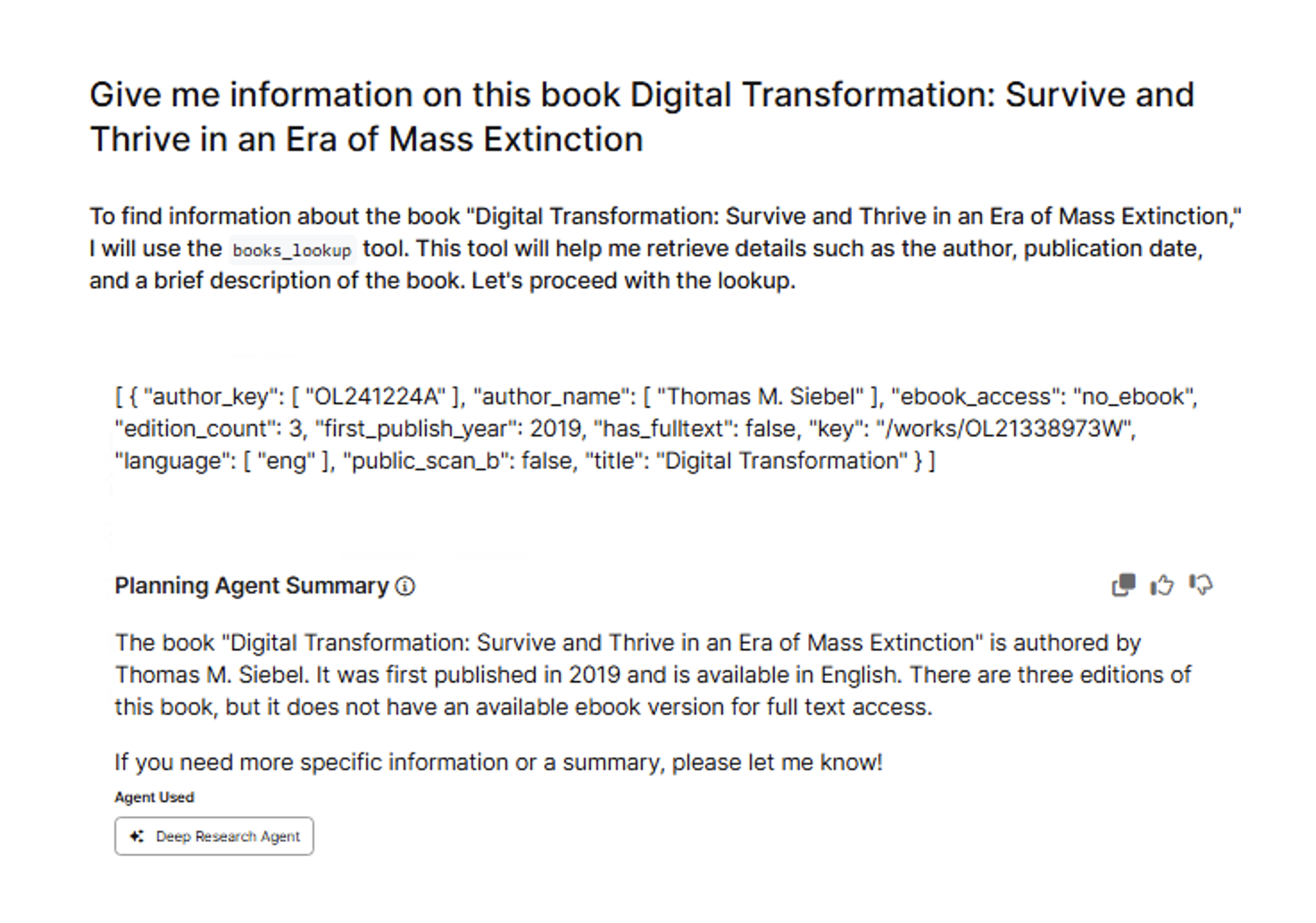
Confirm that the new tool appears in the Toolkit list.
To validate the tool is active, query the agent with:
“Give me list of all the tools you have access to”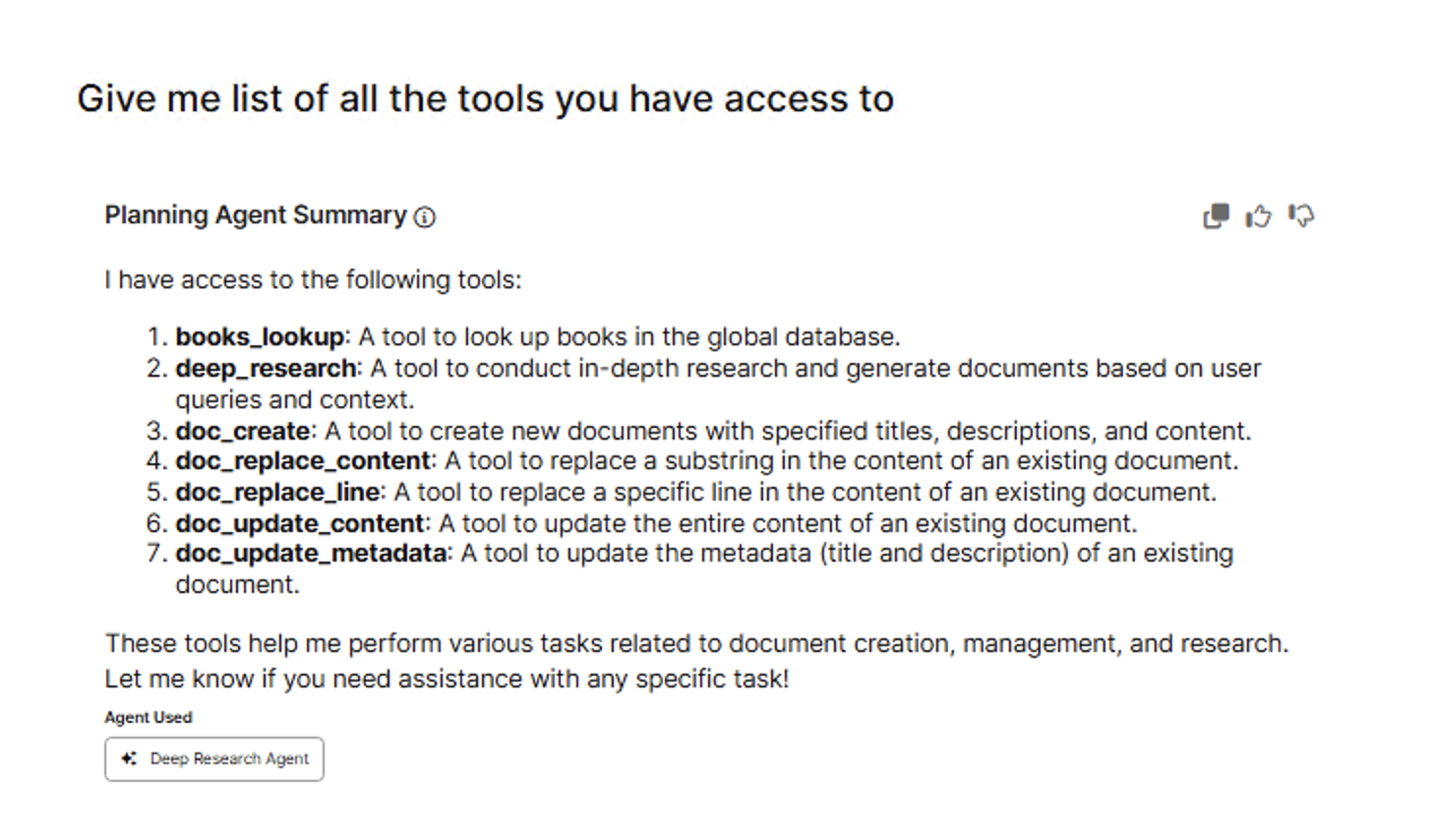
Delete the tool
If you need to remove a tool, follow these steps:
Fetch the toolkit and its tools.
Pythontoolkit = c3.Genai.Agent.Dynamic.Toolkit.forId('<toolkit-id>').get('tools') print(toolkit)Filter out the tool you want to delete and update the toolkit.
Pythonupdated_tools = [tool for tool in toolkit.tools if tool.id != 'books_lookup'] toolkit = toolkit.withTools(updated_tools).merge()Restart the deployment to apply the change. You can reuse the restart steps from the previous section. Ensure you pass the agent ID (not the
config.name) when calling the deployment functions.