Manual Addition and Removal of Metadata Tags
C3 Generative AI provides multiple ways to manage metadata tags associated with a specific Genai.SourceFile. The available operations are:
- Add a new metadata tag (from document upload form or tags modal).
- Edit an existing metadata tag.
- Remove a metadata tag from a source file.
Tag Categories System
The system supports two types of tag categories:
Open Categories
For open categories, users can enter custom tag values in a text input field.
Closed Categories
For closed categories, users must select from predefined tag values in a dropdown menu.
Enabling the manage popover UX
To enable the full-page search, run the following command from the static console:
GenAiUiConfig.setConfigValue('tagsPageVisibility', 'full');After enabling this setting, you can navigate to the Documents page, where the metadata cell in the grid will become active.
Using manage metadata tag popover UX
Adding a new tag
There are two ways to add a new tag:
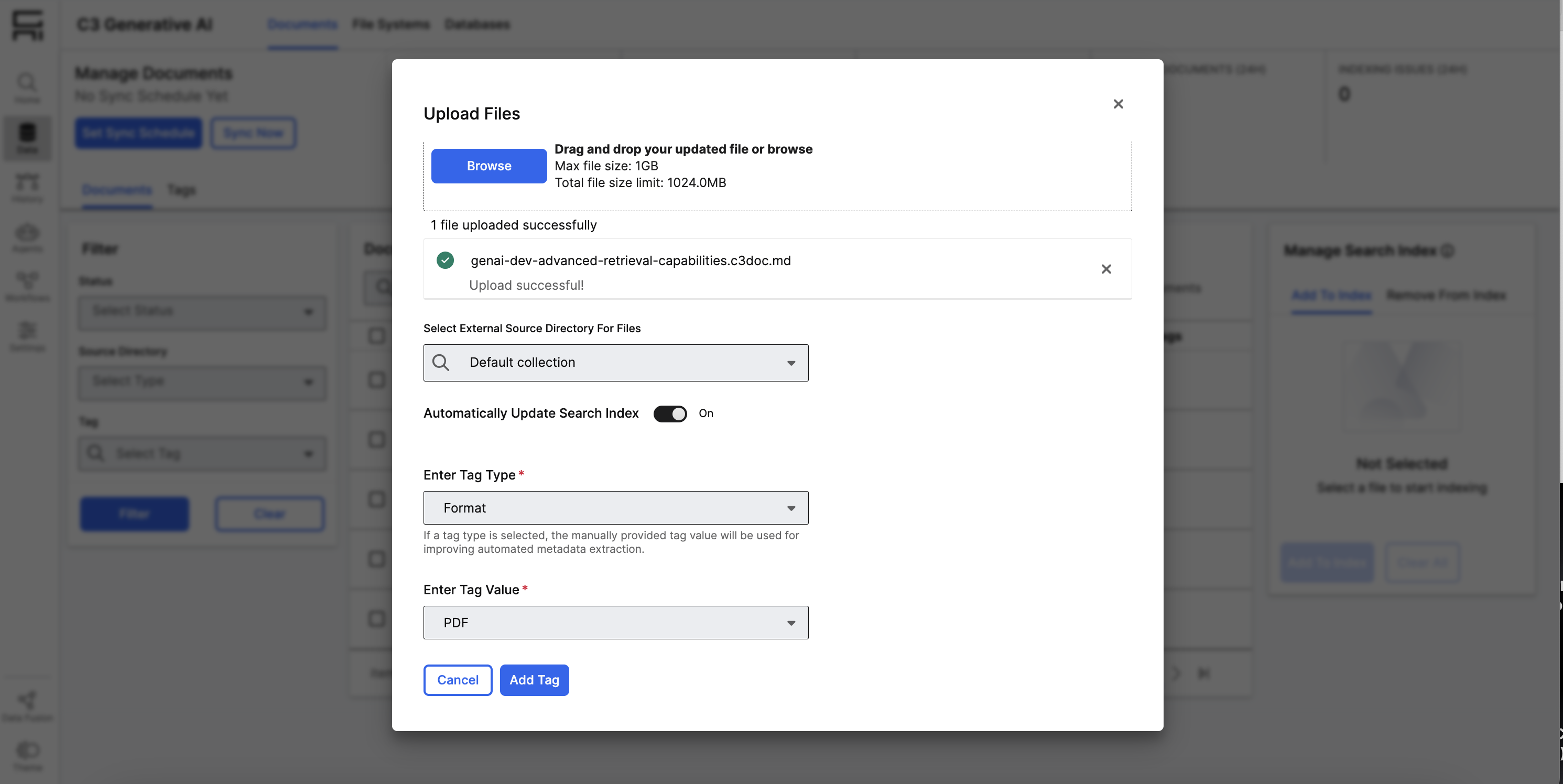
Method 1: From Document Upload Form
When uploading documents, you can add tags directly from the Document Modal. The tag input field appears as an optional section where you can:
- Browse and select documents (mandatory - the "Add Tag" button will be disabled until documents are selected)
- Select a category (open or closed)
- Enter or select a tag value based on the category type
- Select "Add Tag" to add the tag to your document
Method 2: From Tags Modal
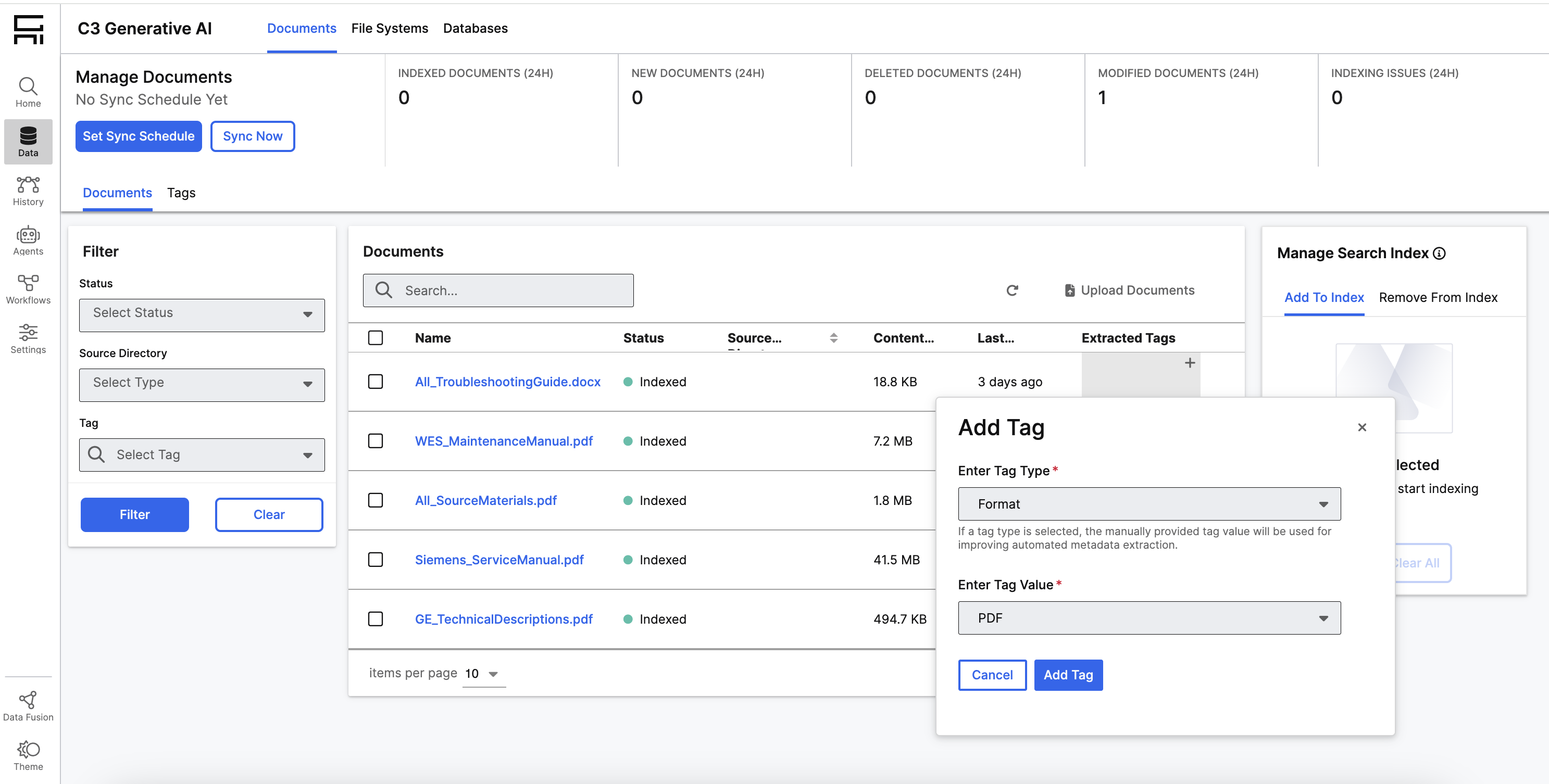
To add a tag to an existing document, hover your mouse over the tag cell for the Genai.SourceFile. A (+) button will appear in the top-left corner of the row. Selecting this button opens the tags modal.
In the modal, you can add a new tag by:
- Selecting a category from the dropdown (required)
- For open categories: Entering a custom tag value in the text field
- For closed categories: Selecting a predefined tag value from the dropdown
- Selecting "Add Tag" to save the tag
The category selection is mandatory when adding tags from the modal, ensuring proper organization of metadata.
Editing a tag
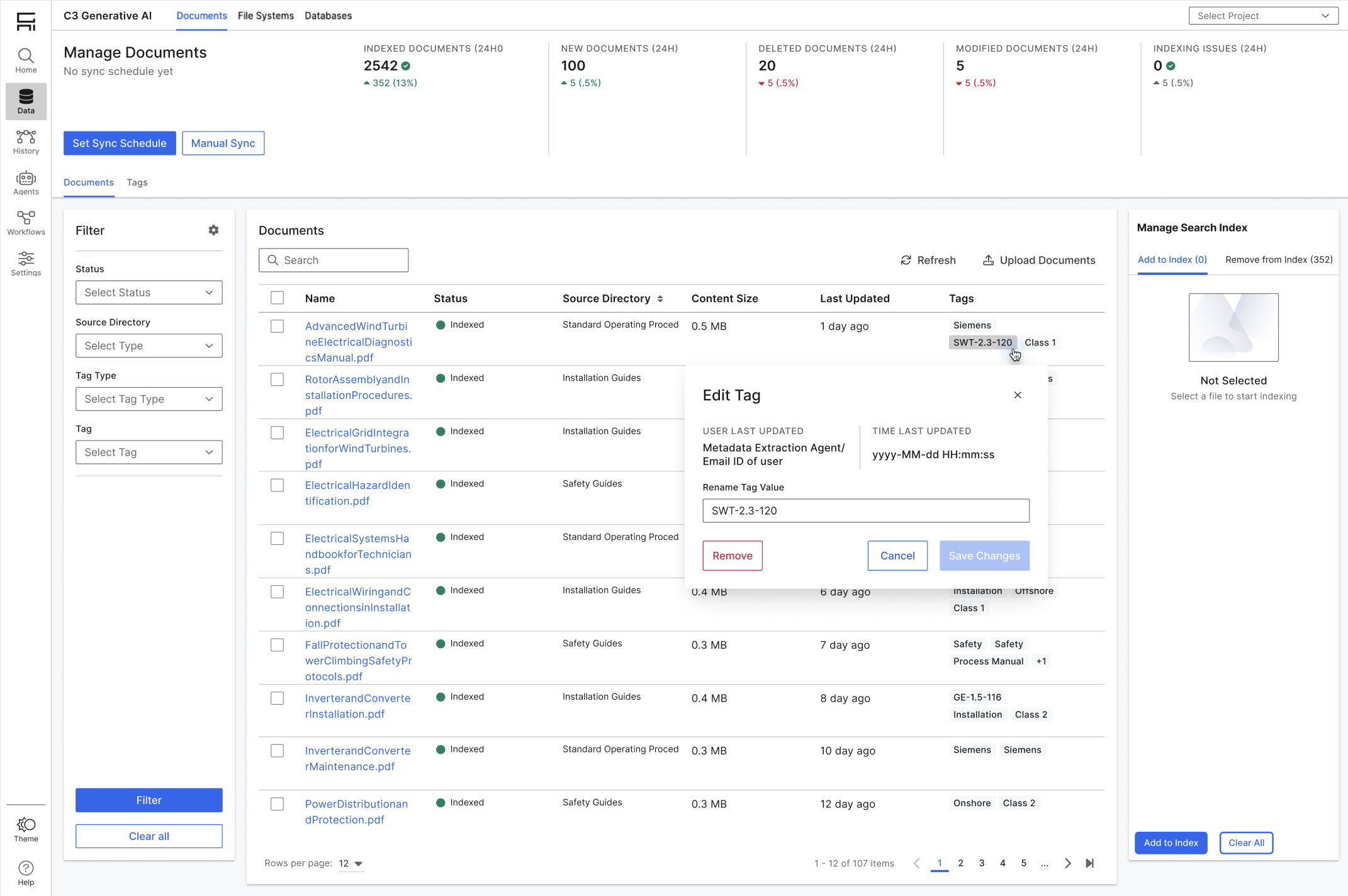
To edit an existing tag, hover over the tag you want to edit, then select the pencil icon. A popover will appear, displaying the current tag information. You can then update the tag value. Once you've made your changes, select the "Save Changes" button to finalize the update.
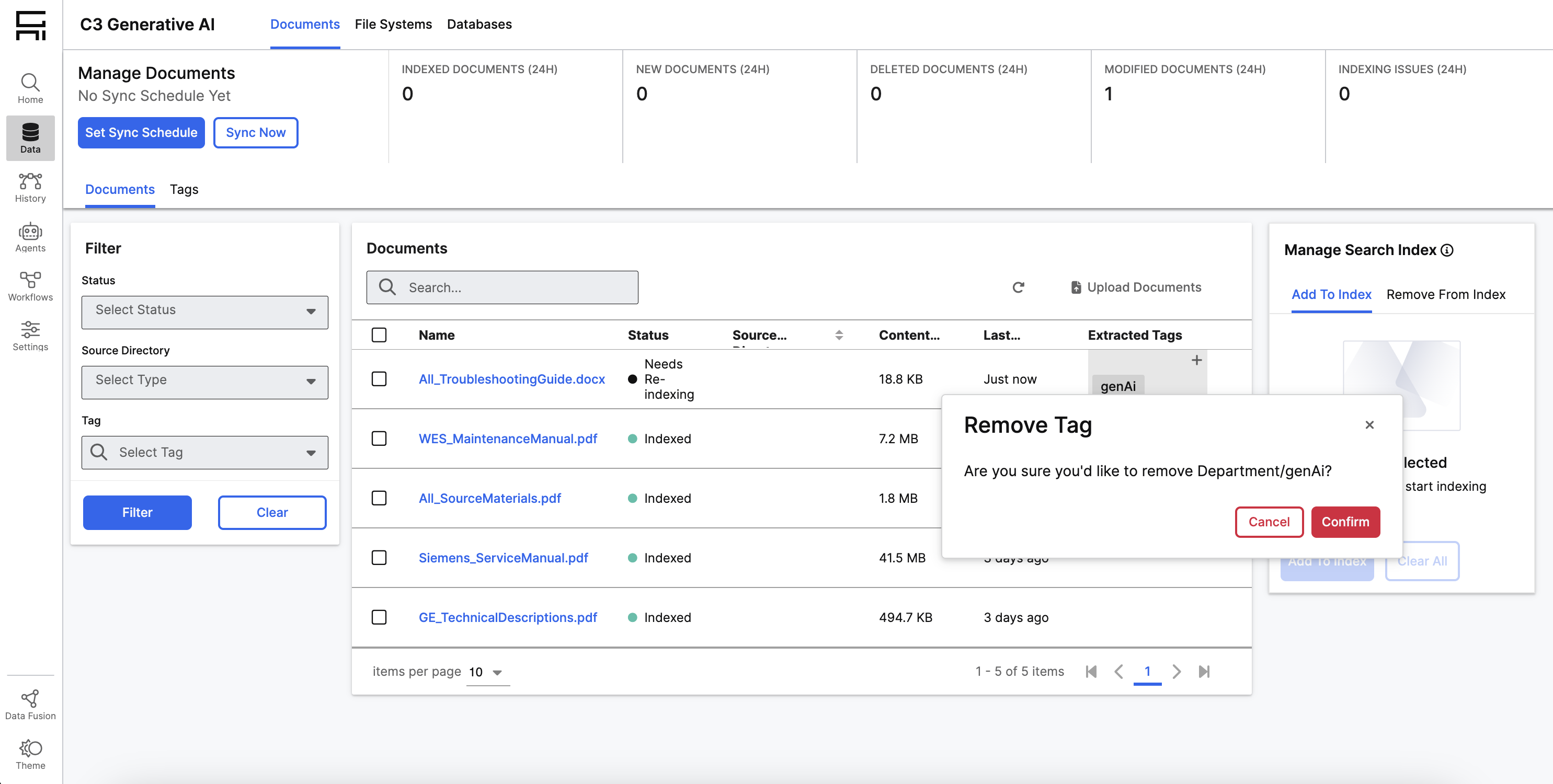
Removing a tag
To remove a tag, hover over the tag you want to delete, then select the dustbin icon. A confirmation message will appear. If you confirm the removal, the tag will be deleted from the source file.
Note that the tag won't be removed from the database, so it can still be used in other documents if needed.