Agent Workbench
The Agent Workbench is where you configure agent behavior, test responses, and review execution traces. Use the Agent Workbench to define agent objectives, select models, configure memory, define a data model (for Dynamic agents only), add tools, and validate agent performance before moving to production.
Access the Agent Workbench
Access the Agent Workbench from the Agent Gallery:
- Navigate to Agents > Gallery.
- Select a draft agent card to open the Agent Workbench.
The Agent Workbench displays the agent name, draft status, and last updated time at the top.
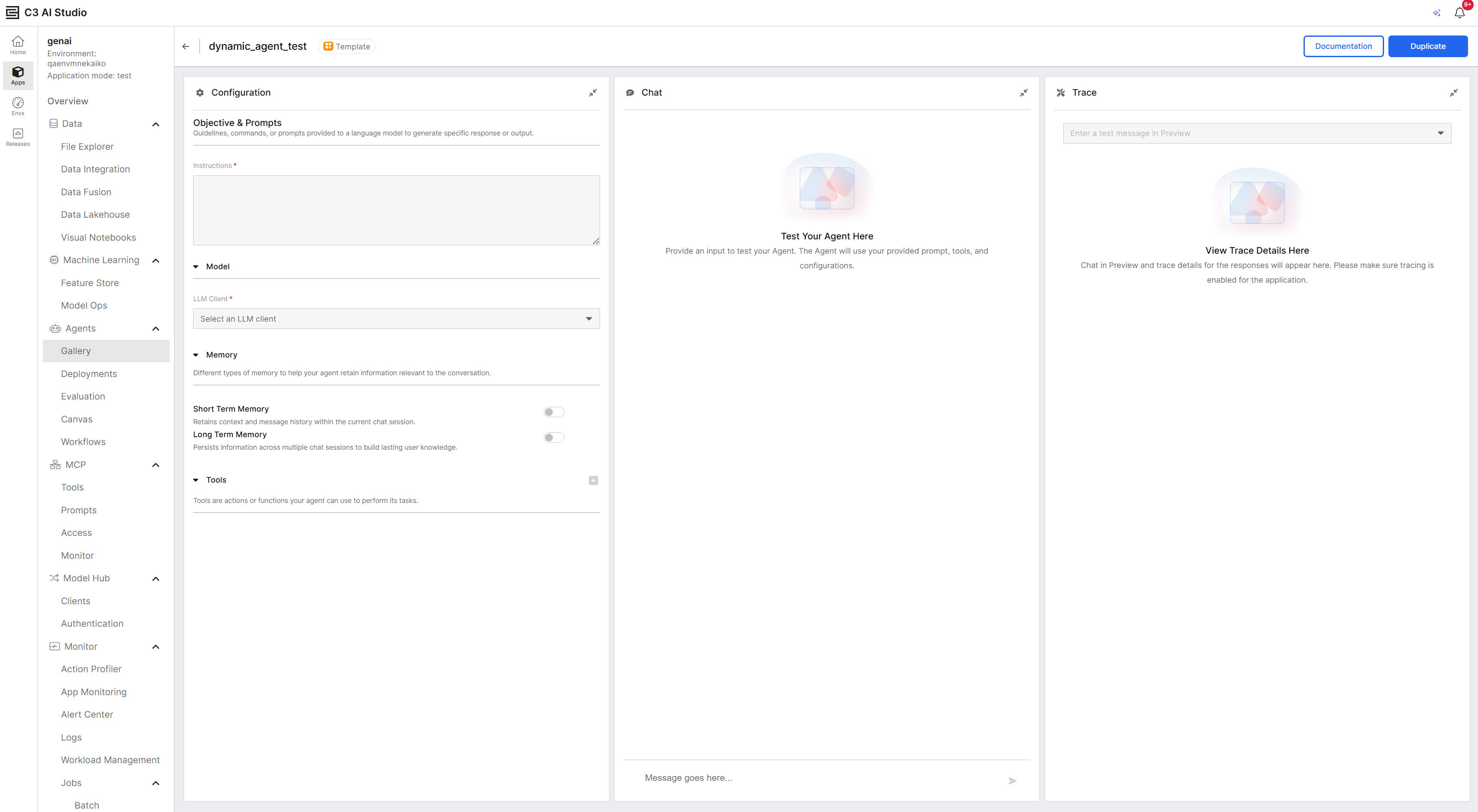
Agent Workbench layout
The Agent Workbench displays three panels:
- Configuration (left): Configure agent settings.
- Chat (center): Test your agent with a live chat interface.
- Trace (right): View detailed execution traces.
All panels are collapsible. The Trace panel is collapsed by default.
Configuration panel
The Configuration panel organizes agent settings into collapsible sections:
- Objective & Prompts: Define your agent's purpose and behavior with clear instructions.
- Model: Select the LLM client (VertexAI, AzureAI, AzureOpenAI, or Bedrock).
- Memory: Configure short-term memory to maintain conversation context.
- Data Model: Configure structured data sources and generated data model documentation for Dynamic agents.
- Tools: Add tools to extend your agent's capabilities.
- Skills: Attach reusable skills that provide focused instructions, resources & skills for specific tasks.
For complete configuration instructions, see Configure Agents. For structured data model setup, see Configure Data Models in Agent Workbench in the genAiSearch documentation (genai-dev-configure-agent-data-model.c3doc.md).
Chat panel
The Chat panel provides a live interface to test your agent:
- Enter messages in the input field at the bottom.
- Review agent responses in real time.
- Test different conversation scenarios to validate agent behavior.
Trace panel
The Trace panel displays detailed execution information for each chat interaction with your agent.
- Trace selector dropdown: Choose which trace to view.
- Tree view: Shows operations in hierarchical order with execution durations.
- Span Detail section: Displays detailed information about the selected operation.
For trace interpretation guidance, see Debug using Traces and Spans.
Top actions
The Agent Workbench provides action buttons in the top-right corner:
- Documentation: Open a text editor to document your agent's purpose, capabilities, and limitations. This documentation helps other users understand what the agent does and how to use it. Users can view this documentation in the Agent Gallery by selecting the information icon on the agent card.
- Finish Configuration (draft agents only): Move the agent to Store or store and deploy.
When moving an agent to Store or deploying, you can select Publish to package to make the store agent and deployment available across applications that depend on your package. You must be in development mode to do this.
- Duplicate (store agents only): Create a copy of the current agent as a new draft.
Permissions
You can modify, test, and save changes only for draft agents you created. Users with GenaiCore.AgentAdmin or C3.AppAdmin roles can modify any agent draft.