Create Semantic Search Tools from the UI
Semantic Search tools enable agents to perform similarity searches against a vector store. Use a Semantic Search tool when you want an agent to retrieve relevant documents or passages based on a natural language query.
Prerequisites
The Semantic Search Tool option is only available when Postgres Database (shared DB) is enabled for the environment. If it is not enabled, the option is grayed out in the tool type selector.
Step 1 — Open the tools gallery
- Navigate to Agents > Gallery > Tools tab.
- Select Create Tool to open the creation modal.
Step 2 — Provide basic details
- Enter a Name for the tool (required — must be unique).
- (Optional) Add a Description to help other users understand the tool's purpose in the gallery.
- (Optional) Add one or more Tags from the dropdown. You can select existing tags or create new ones inline.
- Select Next to continue.
Step 3 — Select tool type
- The dialog displays three tool type options:
- Python Tool
- C3 Action Tool
- Semantic Search Tool (only available if Postgres DB is enabled)
- Select Semantic Search Tool.
- Select Create to generate the draft tool. The Tool Workbench opens in draft state.
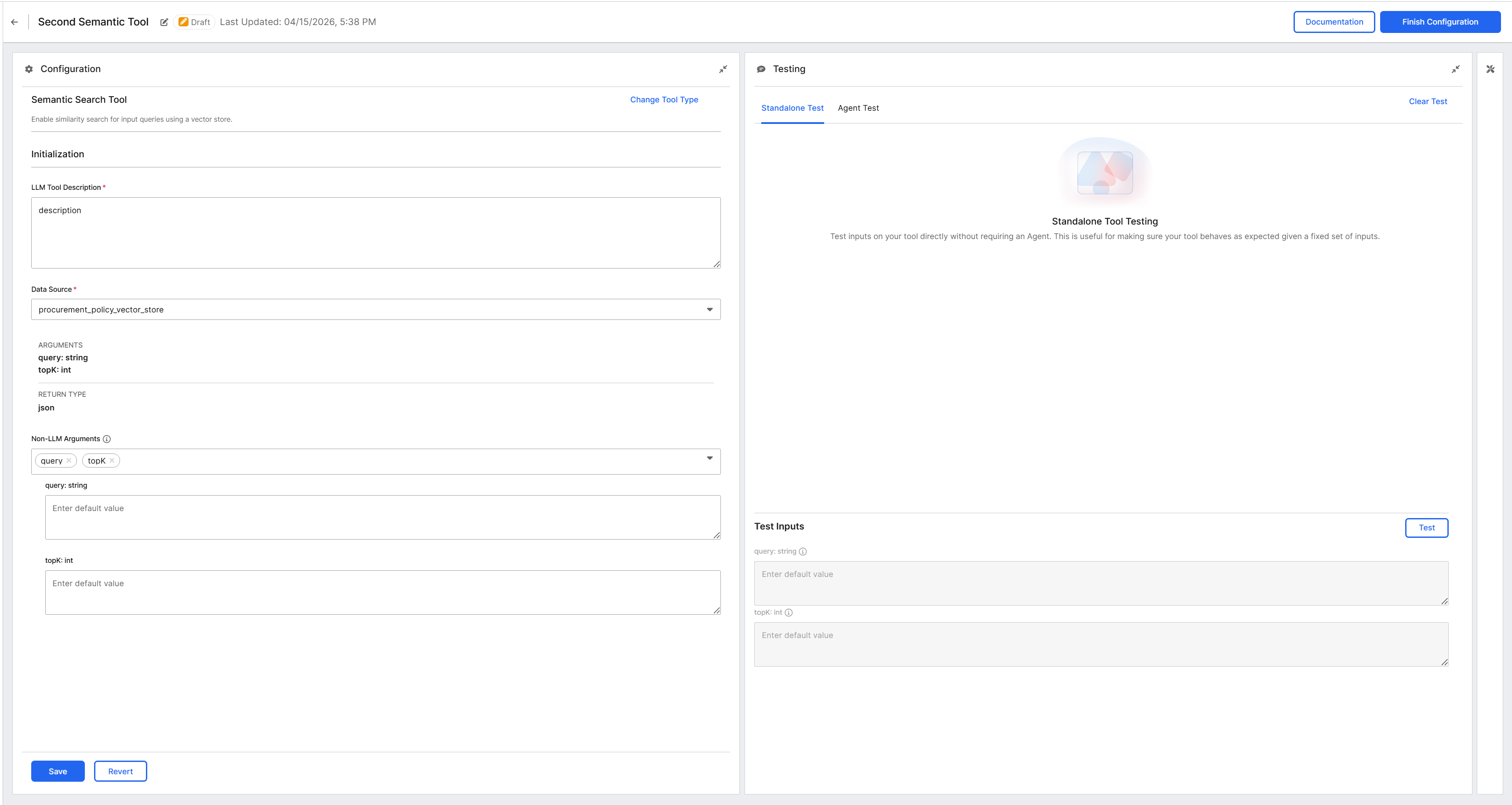
Step 4 — Configure the tool
The Configuration panel contains an Initialization section with the following fields:
LLM Tool Description (required): Write a description the LLM uses to decide when to invoke this tool. Example:
Searches the product documentation vector store to find passages relevant to the user's query.Data Source (required): Select a vector store from the dropdown. The dropdown lists all available vector stores that use an LLM-compatible embedder. To learn more about vector stores and how to populate them, check the python notebook GenAI Platform Tutorials - Vector Store.
After you select a vector store, the UI automatically renders the tool's fixed arguments:
query(string, required): The natural language query to search for in the vector store.topK(int, required): The number of results to return from the similarity search.
Saving is blocked if the Data Source field is empty.
Step 5 — Test the tool
Run standalone tests
- Select the Standalone Test tab.
- Enter a sample value for the query parameter. Example:
How do I reset my password? - Enter a value for the topK parameter. Example:
5 - Select Test to execute the search.
- Review the output in the results pane. The response displays the top matching passages from the vector store.
Test with an agent
After standalone testing, test how the tool performs when called by an agent.
- Select the Agent Test tab in the Testing panel.
- Select Select Agent to choose an existing draft agent from your environment.
- Enter a test message that would cause the agent to use your tool. Example:
Find documentation about resetting a password. Use the available tools. - Review the agent's response and the tool execution trace in the Trace panel.
Step 6 — Move to Store
After successful validation and testing:
- Select Finish Configuration in the upper-right corner.
- Choose Move to Store to complete configuration. This makes it available for others to add to their agents.
Once the tool has been moved to the store, it appears under the Store section in the gallery.
When moving a tool to Store, you can select Publish to package to make the tool available across applications that depend on your package. You must be in development mode to do this.
For more information on creating agents, see Create Agents from Scratch.