Deploy Agents
After configuring and testing your agent, you can share it with your organization through the Store or deploy it for end-user access.
Prerequisites
Before deploying an agent, ensure the following:
- You have configured your agent in the Agent Workbench. If you have not yet configured your agent, see Configure Agents.
- You have confirmed through testing that your agent behaves as expected.
Choose deployment path
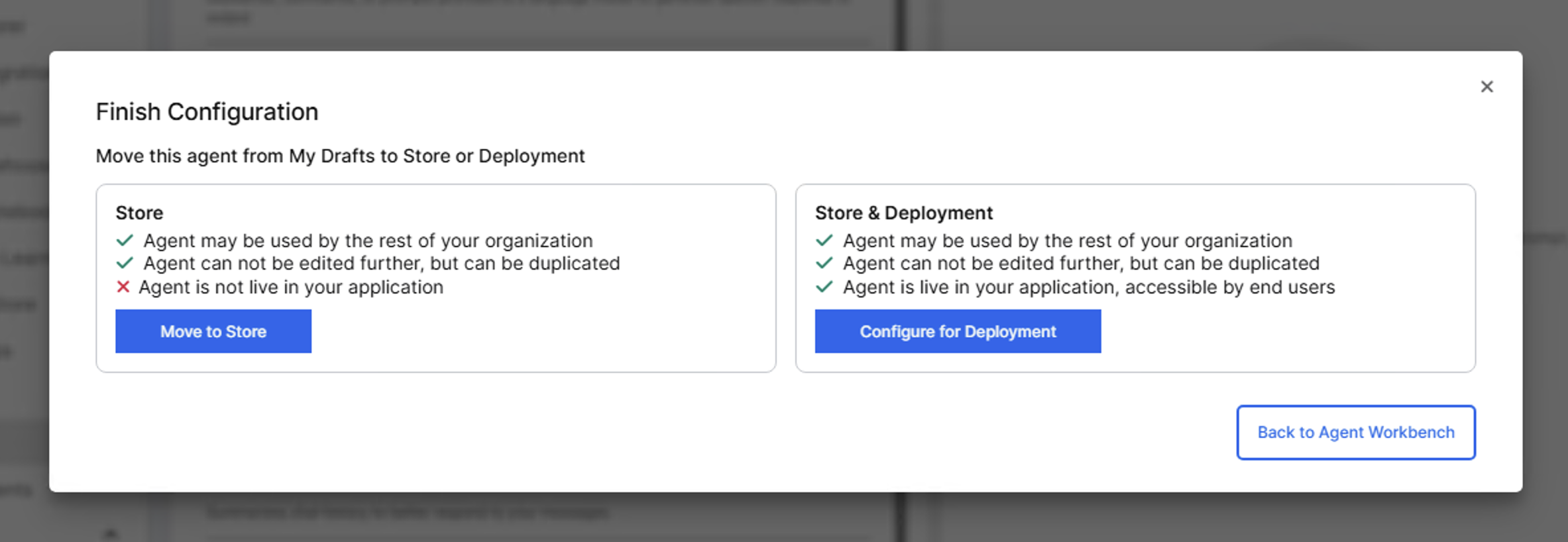
After you configure your agent, select Finish Configuration in the agent workbench. You have two deployment options:
- Store: Makes your agent available for others in your organization to view, test and duplicate. The agent is not deployed for end-user access.
- Store & Deployment: Makes your agent available in the Store and deploys it for end-user access.
Move to Store
To make your fully configured agent available to others without deploying:
- Select Move to Store in the Finish Configuration modal.
- Select Move to Store.
Your agent appears in the Store where colleagues can view, test and duplicate it. The agent is not live in your application and not accessible to end users.
Deploy directly from Agent Workbench
To deploy immediately after configuration:
- Select Store & Deployment in the Finish Configuration modal.
- Enter the agent name and description, then select Deploy Configuration.
- The Deployment Configuration modal appears. Complete the following fields:
- Agent name - Pre-filled with the agent's name and not editable
- Deployment type - Choose New Deployment to create a new deployment or Update existing deployment to redeploy to the same endpoint
- Deployment name - Enter a unique identifier for this deployment (only appears when you select New Deployment)
- Node pool - Select compute resources (contact your administrator for options)
- Thread pool size - Set concurrent conversation capacity based on your expected workload
- Tracing mode - Enable or disable execution logging
- Publish to package - Select this checkbox to make the deployment available across applications that use your package. You must be in development mode to do this.
- Select Deploy.
Selecting Update existing deployment redirects all existing applications and users to the new agent version immediately. This affects production applications. Use this option with caution.
Deploy from Store
To deploy an agent that is already in the Store:
- Navigate to Agents > Gallery.
- Locate your agent in the Store section.
- Select Deploy next to your agent.
- Configure the same deployment settings listed above in the Deployment Configuration modal.
- Select Deploy.
The system provisions resources and activates your agent within 2-3 minutes.
Production deployments are immediately accessible to end users with access to your application. Test thoroughly before deploying.
Verify deployment
After deployment:
- Navigate to Agents > Deployments.
- Confirm status shows "Running".
- Select Chat to test basic functionality.
See also
For detailed deployment configuration and management: