Explore Types in the Object Model
The Object Model perspective in Data Fusion opens to a catalog of every C3 Object Type in your application and its dependency packages. Use the Grid view and List view to browse the catalog, search for a Type by name, filter the catalog by package or count, and mark frequently used Types as favorites.
This topic covers the catalog views. For the Diagram view, see Manipulate ERD Views with Object Model. For the Type Detail panel that opens when you select a Type, see Inspect a Type in the Object Model.
Open the Object Model catalog
- In C3 AI Studio, open the application you want to explore.
- Select Data Fusion > Object Model.
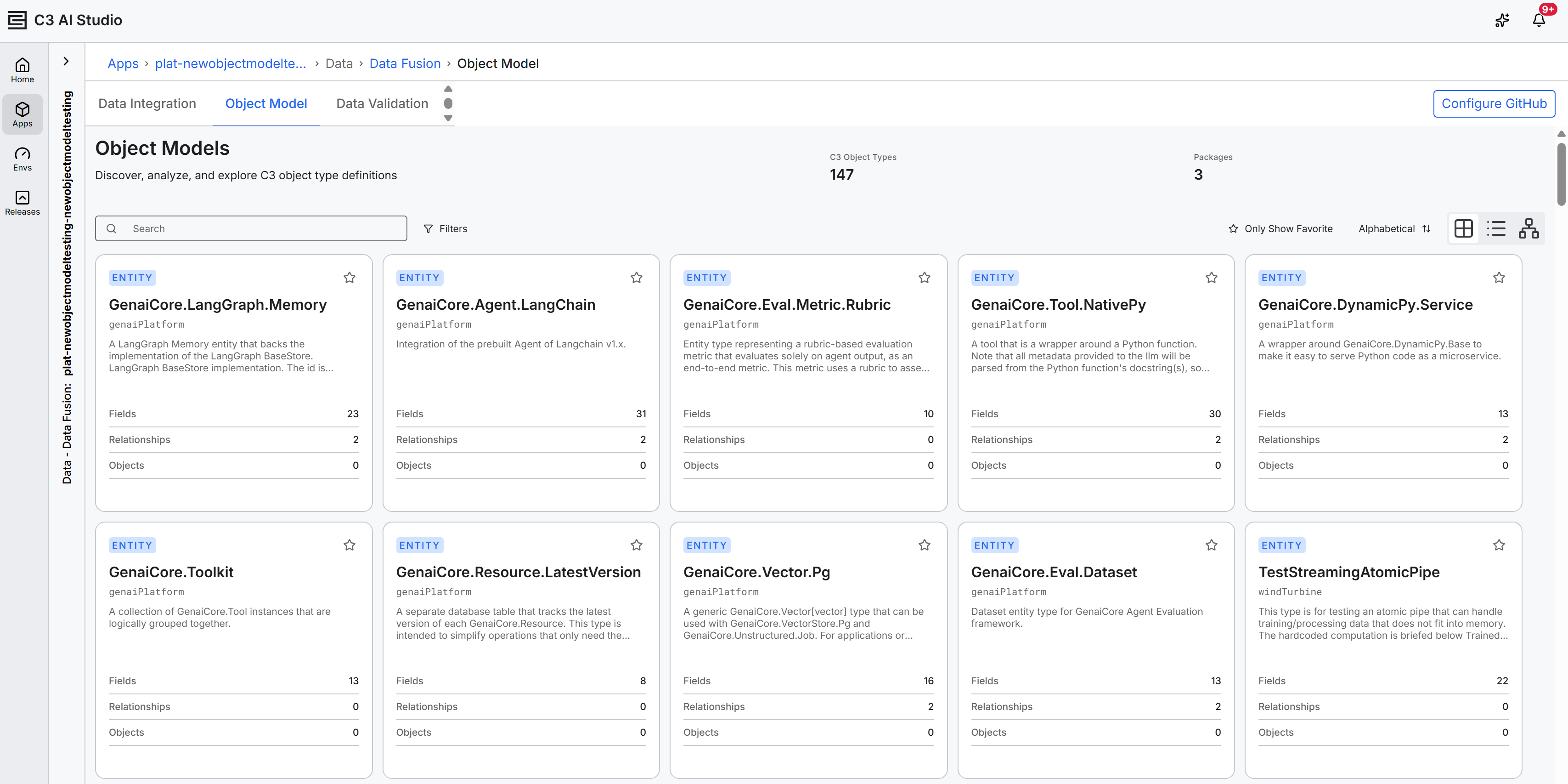
The page opens to the Grid view by default. The header shows the page title Object Models with the subtitle Discover, analyze, and explore C3 object type definitions, plus two metric tiles: C3 Object Types (count of Types in scope) and Packages (count of packages in scope). Note that given the filtering functionality, the values for C3 Object Types and Packages will update according to the current values in the active filter selections.
Switch between Grid, List, and Diagram views
The view toggle in the toolbar lets you switch between three views of the same catalog:
- Grid view: Type cards arranged for visual browsing.
- List view: A condensed table with sortable columns.
- Diagram view: An interactive Entity Relationship Diagram.
To switch views, select the Grid view, List view, or Diagram view icon in the toolbar. The active view is highlighted. The current Type selection, search term, and filter selections persist when you change views.
Browse Types in the Grid view
The Grid view arranges all Types in scope as cards. Each card shows:
- The Type name.
- The package the Type belongs to.
- A short description.
- Two metric tiles, in order: Fields and Relationships.
- The
ENTITYbadge for entity Types. - A star icon to mark or unmark the Type as a favorite.
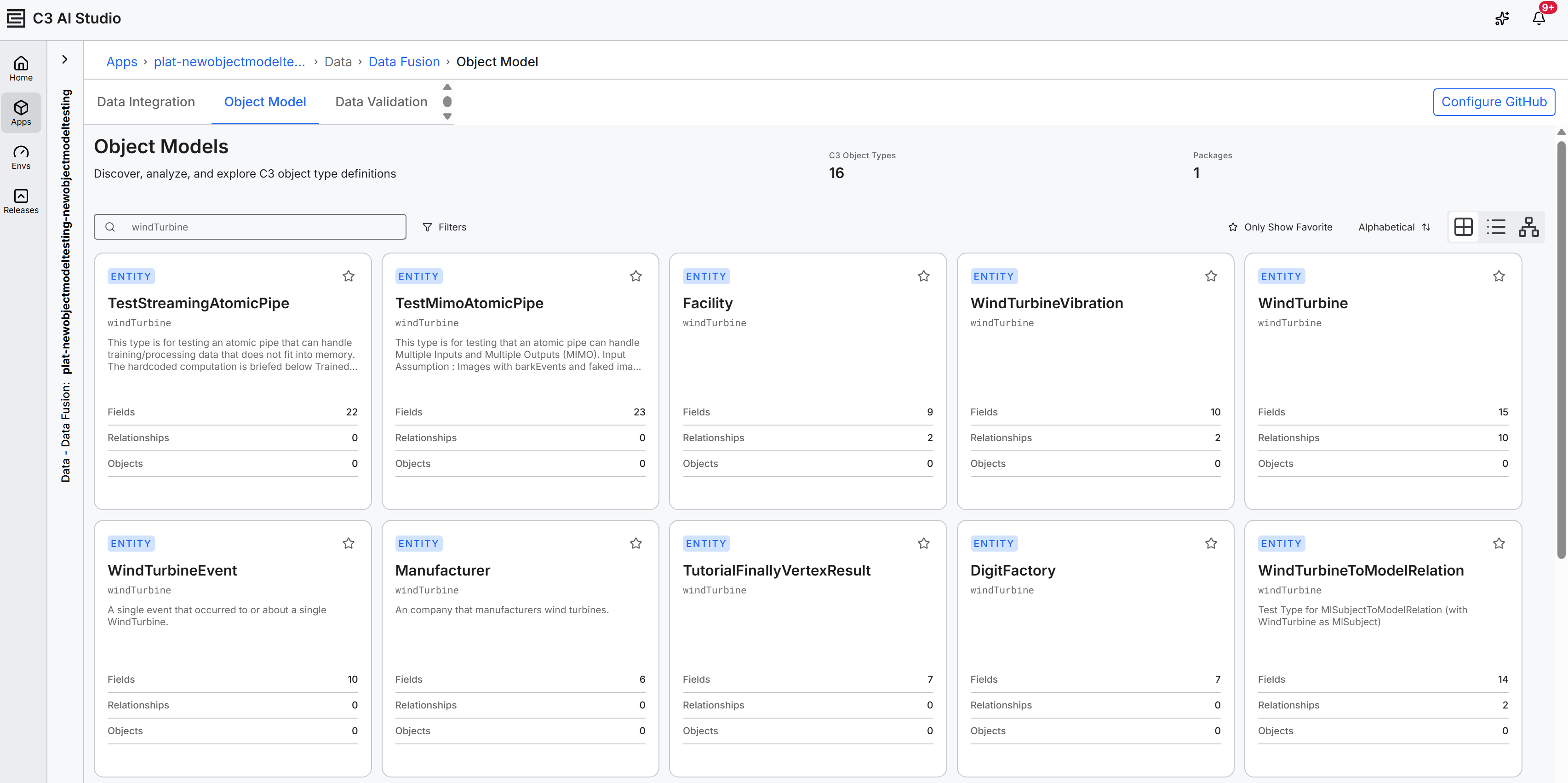
Select a Type card to open the Type Detail panel on the right of the catalog. For more information on the panel, see Inspect a Type in the Object Model.
Browse Types in the List view
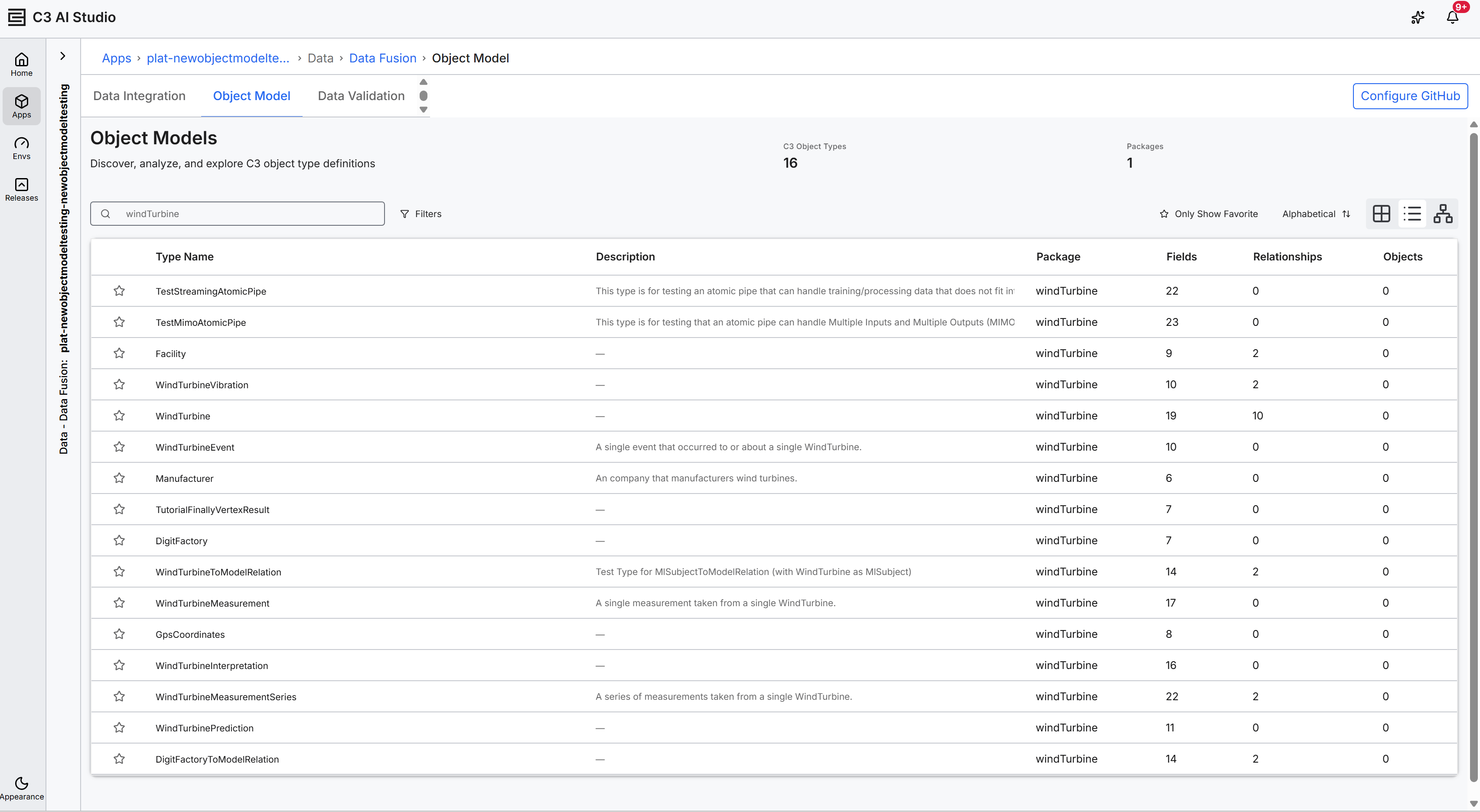
The List view shows the same catalog as a sortable table. Columns are:
- Type Name: The name of the Type.
- Description: A short description.
- Package: The package the Type belongs to.
- Fields: The number of fields defined on the Type.
- Relationships: The number of relationships the Type participates in.
Select a row to open the Type Detail panel for that Type.
Search the catalog
The Search field in the toolbar filters the visible Types as you type. Search matches against Type names. The Grid view and List view both update live to show only matching Types.
To clear the search, clear the Search field.
Filter the catalog
Select Filters in the toolbar to open the Filters modal. The modal lets you narrow the catalog by:
- Package: Show only Types that belong to selected packages.
- Fields: Show only Types whose field count satisfies the operator and value you choose.
- Relationships: Show only Types whose relationship count satisfies the operator and value you choose.
The Filters button in the toolbar shows the active filter count when one or more filters are applied, for example Filters (3).
To apply your selections, select Apply. To remove all filter selections without closing the modal, select Clear All. To close the modal without changing the active filters, select Cancel.
Mark Types as favorites
The favorites feature requires an application server version of 8.11 or later. When the application runs on an earlier server version, the star icons and the Only Show Favorite toggle are hidden.
Select the star icon on a Type card or List view row to mark the Type as a favorite. Select the star again to unmark the Type.
To narrow the catalog to your favorites, enable the Only Show Favorite toggle in the toolbar. The Grid view and List view show only Types you have starred. Disable the toggle to return to the full catalog.
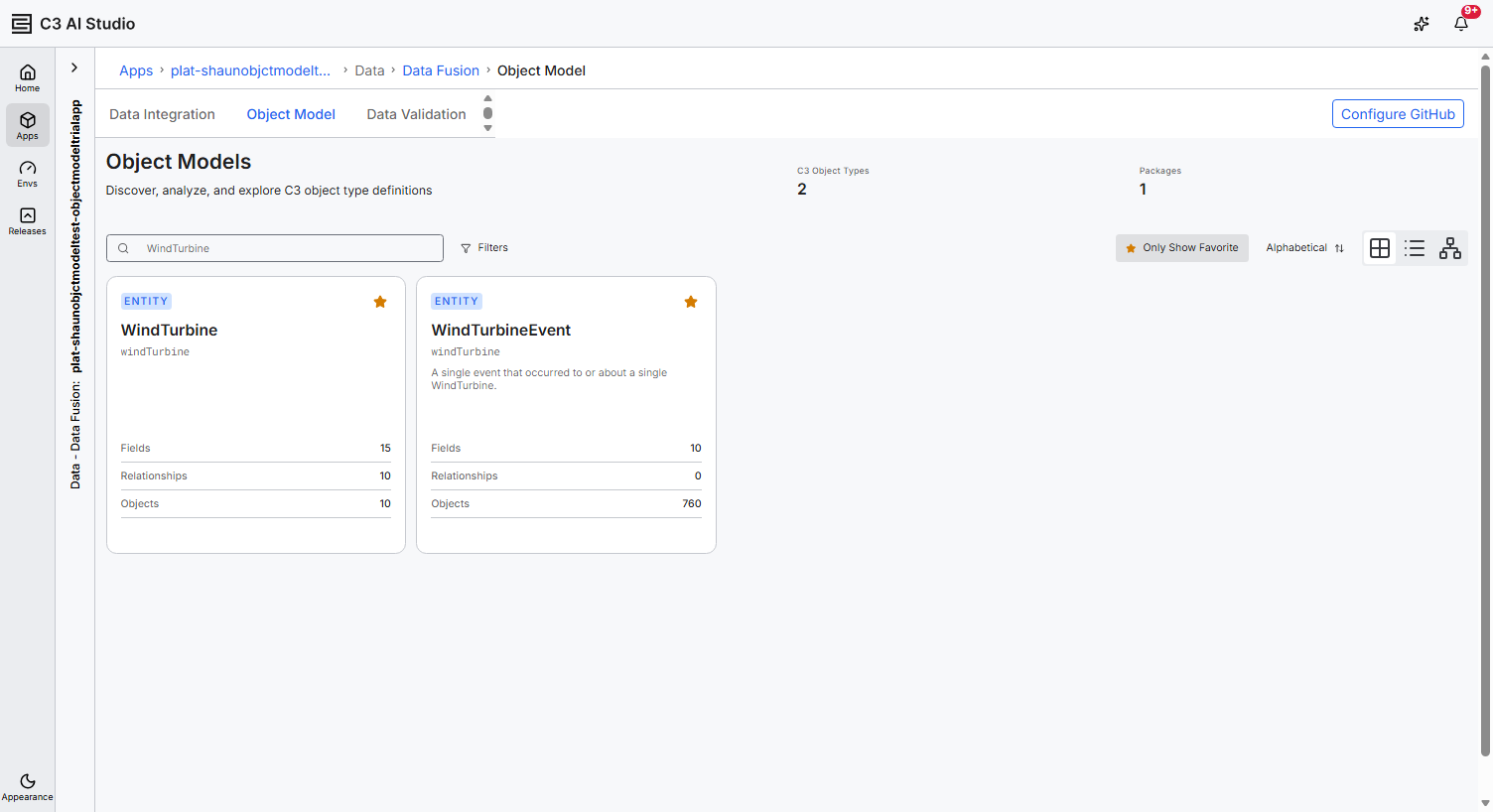
Favorite selections are stored per user and persist across browser sessions.
Sort the catalog
The Grid view orders Type cards alphabetically by Type name by default. The List view also defaults to alphabetical order by Type Name. In both views, select the alphabetical sort icon to reverse the order.
Handle empty and error states
The catalog renders one of the following messages when Types cannot load or none are in scope:
- Loading types...: Type metadata is loading from Data Fusion.
- No types found: No Types are in scope for the current application and dependency packages.
If a filter combination returns no Types, the catalog shows No types match current filters.