Inspect a Type in the Object Model
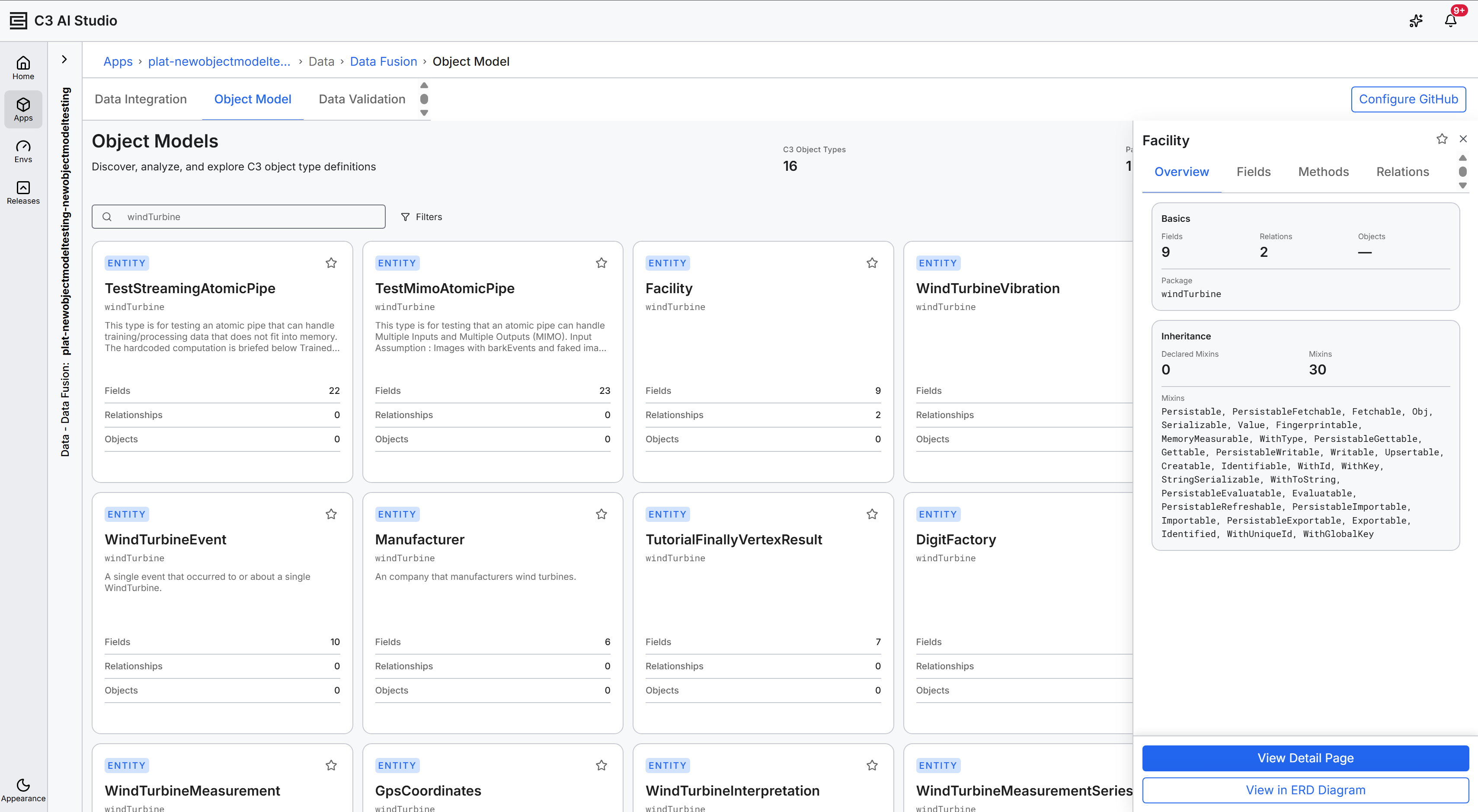
When you select a Type from the Grid view, List view, or Diagram view of the Object Model perspective in Data Fusion, a Type Detail side panel slides in. From the panel you can open the full Type Detail page, where an additional Objects tab lets you browse persisted instances of the Type.
This topic covers both surfaces. For the catalog views, see Explore Types in the Object Model. For the Diagram view, see Manipulate ERD Views with Object Model.
Open the Type Detail side panel
The side panel opens when you do any of the following:
- Select a Type card in the Grid view.
- Select a row in the List view.
- Select an entity node in the Diagram view.
The panel slides in from the right of the workspace. The header shows the Type name, a star icon to mark or unmark the Type as a favorite, and a close icon.
Navigate the side panel tabs
The side panel has four tabs:
- Overview: Summary cards for Basics (field and relation counts plus the package) and Inheritance (declared mixins and the full mixin chain).
- Fields: Searchable list of the Type's fields. Each field appears as a card with its data type and description. Required fields show a
REQUIREDbadge. - Methods: Searchable list of the Type's method signatures. The tab shows
No methods foundwhen the Type declares no methods. - Relations: Searchable list of the Type's reference and collection fields. Each related Type appears as a card with the
ENTITYbadge, the package, and a relationship-cardinality badge such asONE TO ONE.
Fields tab
Each field card shows the field name, Data Type, and Description. Required fields show a red REQUIRED badge in the upper right.
Methods tab
Each method card shows the method signature and description. The tab shows No methods found when the Type has no declared methods.
Relations tab
Each related Type appears as a card with the ENTITY badge, the package name, and a Relationship Detail label.
Side panel actions
Action buttons at the bottom of the panel:
Note: The Preview Data and Edit Entity buttons are only visible when the side panel is open on the Diagram View page.
- View Detail Page: Open the full Type Detail page for this Type. The page adds an Objects tab for browsing instances.
- View in ERD Diagram (Overview tab, top right): Switch to the Diagram view with this Type centered.
- Preview Data: Open a preview of recent persisted instances of this Type without leaving the panel.
- Edit Entity: Open the Type's source for editing. Available when the application is in development or trial mode.
Open the full Type Detail page
Select View Detail Page from any side-panel tab. The URL updates to ?perspective=ObjectModel/typedetail&pkg=<package>&type=<TypeName>. A breadcrumb (Type Explorer / <TypeName>) appears under the Object Model tab, the Type name shows alongside the ENTITY badge, and a View in Diagram button appears on the right.
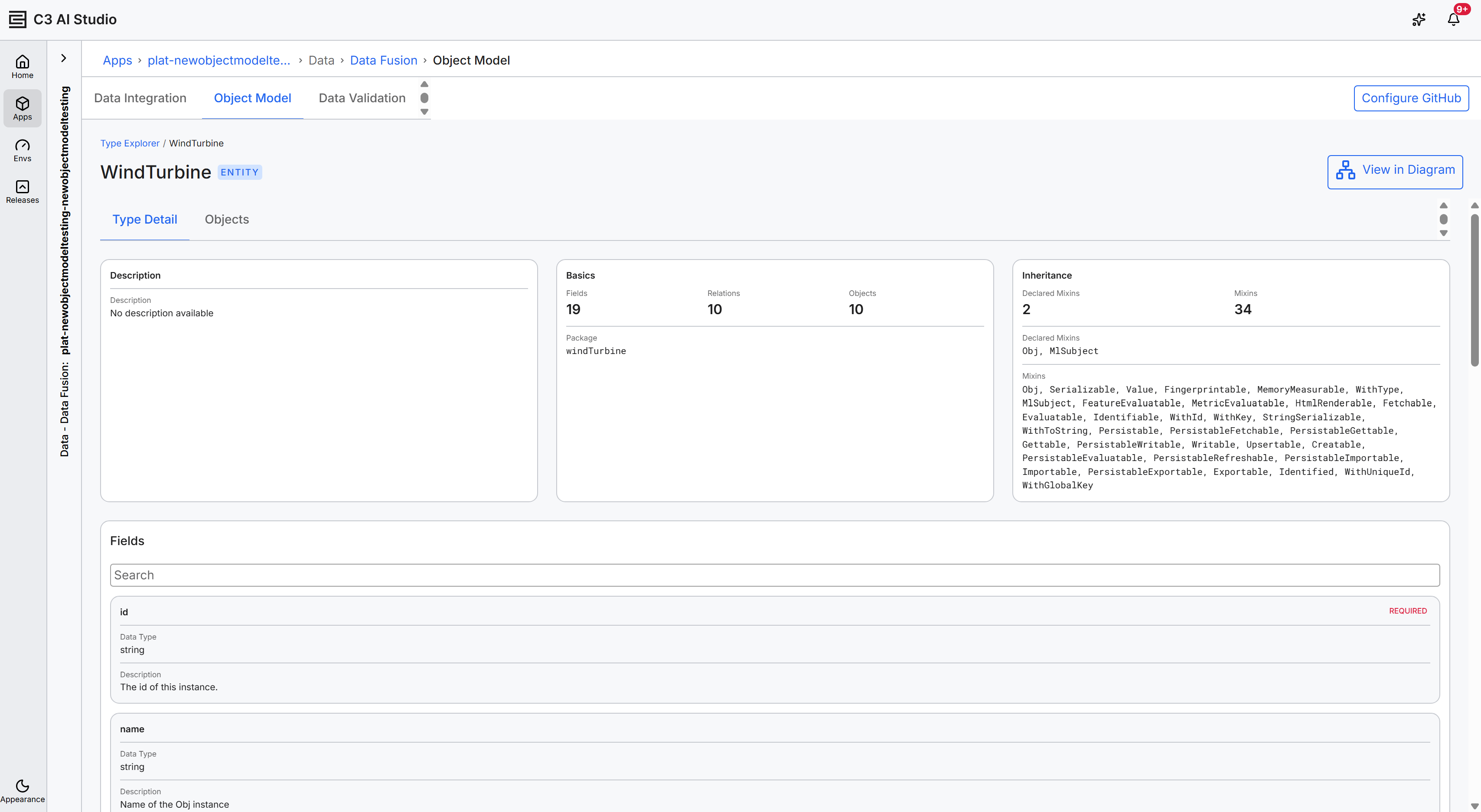
The page has two tabs:
- Type Detail: Three side-by-side cards (Description, Basics, Inheritance) above a scrollable Fields list. The same content as the side panel, in a wider layout.
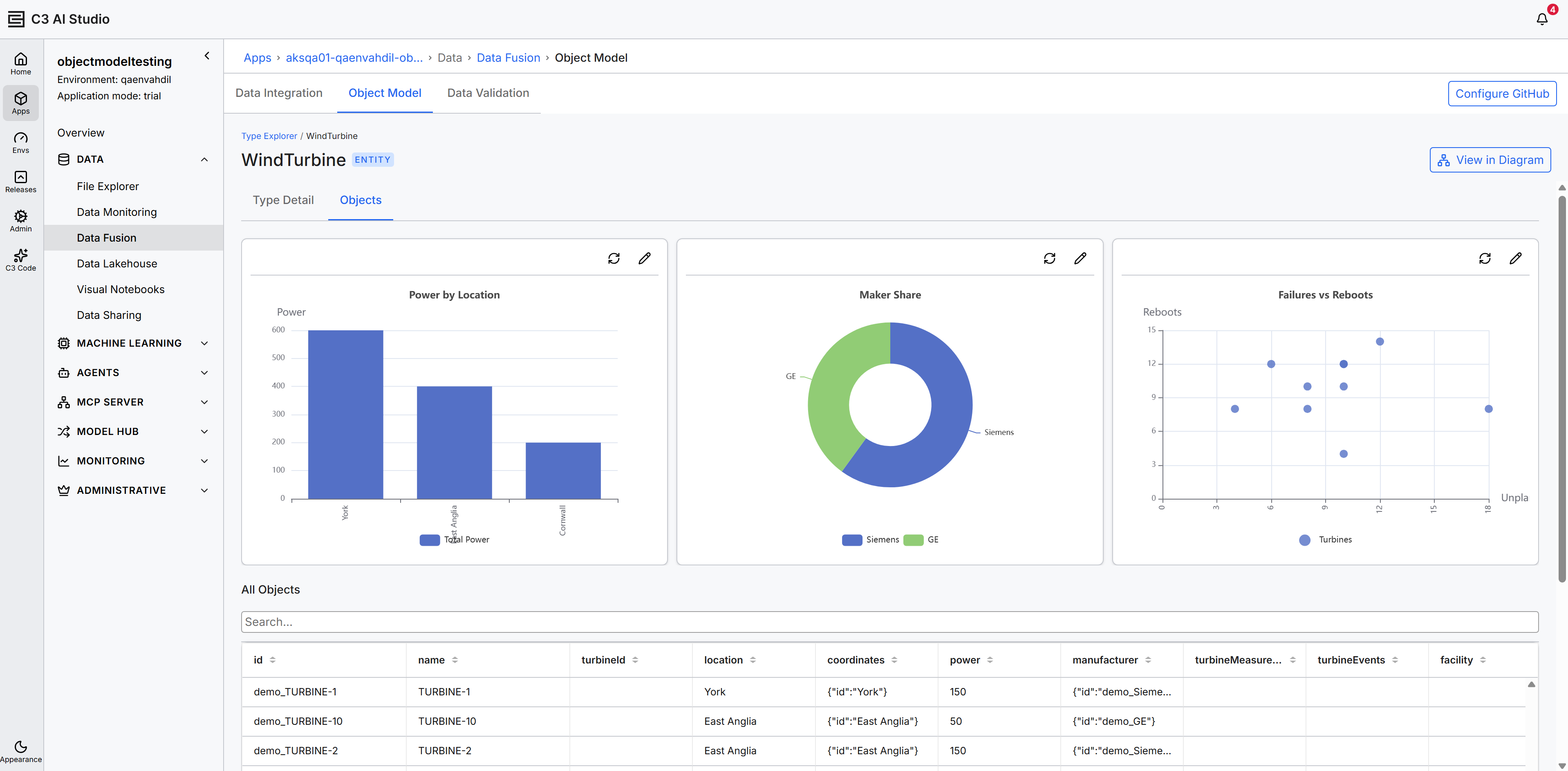
- Objects: A chart dashboard that visualizes the Type's object data with AI-generated charts, above a sortable, searchable grid of persisted instances.
Generate and explore charts in the Objects tab
The chart dashboard uses AI to generate its visualizations, so it makes LLM calls through a configured completion client. Before you use it, confirm the following:
- Completion client: A completion client must be configured. The feature defaults to the
default-completionsclient. To configure a completion client, see Set Up LLMs and Embedders Via UI. - Max Completion Tokens: Set this parameter to 5,000 tokens or greater.
- Model support: Examples of models used include Sonnet 4.6, Sonnet 5.0, and GPT 5.1.
The AI-generated chart dashboard requires an application server version of 8.11 or later. When the application runs on an earlier server version, the dashboard does not appear and the Objects tab shows only the grid of persisted instances.
The top of the Objects tab is a chart dashboard that visualizes the Type's object data with AI-generated charts. The dashboard loads automatically when you open the tab, showing the status messages Loading Dashboard..., Configuring Rows..., and Drawing Charts... while it prepares, then arranges the charts in a grid.
If the dashboard has no charts, it shows No Charts Available with the message The dashboard exists but has no charts. Create a new dashboard to generate visualizations.
Each chart renders as a card with two actions in its header:
- Refresh chart data (refresh icon): Re-runs the chart against the latest object data and redraws it. While the chart updates, the card cycles through
Fetching data...,Planning configuration..., andDrawing result.... - Reconfigure chart (pencil icon): Opens the Generate Chart dialog, pre-filled with the chart's current description, so you can change what the chart shows.
If a chart cannot load, the card shows Chart data unavailable with a Regenerate button to try again.
Generate or reconfigure a chart
Select Reconfigure chart on a chart card, or Regenerate on a chart that failed to load, to open the Generate Chart dialog:
- In the Chart Description field, describe the chart in plain language, for example
Show a pie chart of objects by statusorDisplay a bar chart comparing counts by category. - Select Generate to build the chart from your description, or Cancel to close the dialog without changes.
The platform uses an LLM to interpret your description, query the Type's objects, and produce the chart, so generation can take a short time to complete.
Browse instances in the Objects tab
The Objects tab shows the heading All Objects followed by a Search... input and a grid of every persisted instance.
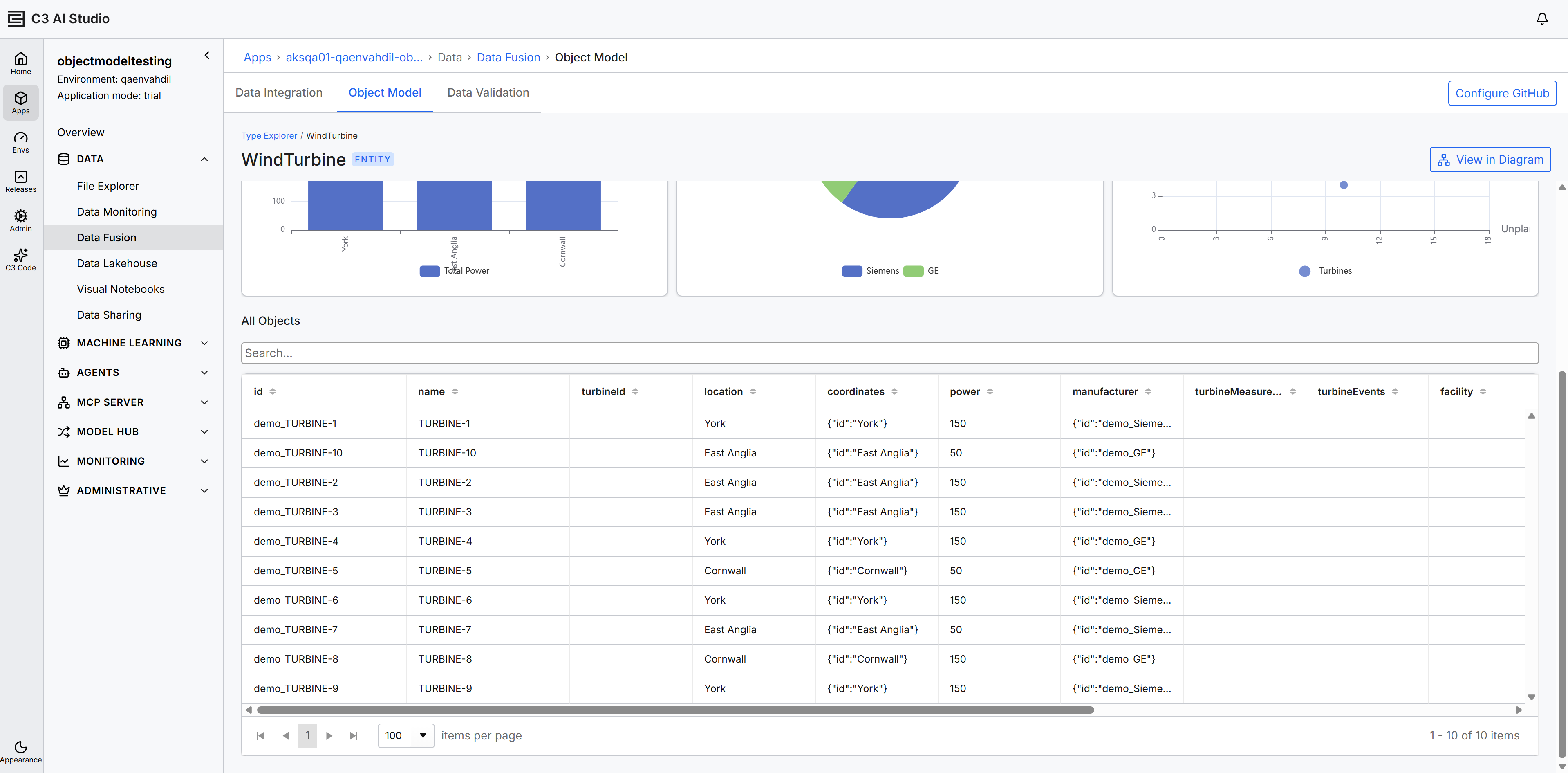
The grid columns are derived from the Type's stored fields. Each column header shows sort arrows; select a header to sort the rows by that column. Reference fields display the referenced object as a JSON object (for example, {"id":"demo_GE"}).
To filter the visible rows, type a query into the Search... input above the grid.
If the Type has no persisted instances, the grid is empty.