Modify Data Mappings in Data Integration
Data Fusion is in Beta. Please contact your C3 AI representative to enable this feature.
After integrating sources and mapping them to C3 AI Entity Types, you can use the Data Integration tab in Data Fusion to modify connections between data sources and target canonicals. Use this tool to update data pipelines whether you initially built them with code or in the Source tab of Data Fusion. You can modify pipelines with both Data Integration and high-code solutions interchangeably.
Prerequisites
- A running C3 AI environment set to version 8.8 or above
- An app that connects to either of the following types of data sources:
- File system
- Cloud message broker/Streaming source
- Pipelines that integrate your data source in your C3 AI application, regardless of whether created using Data Fusion
Use Data Integration to review data pipelines
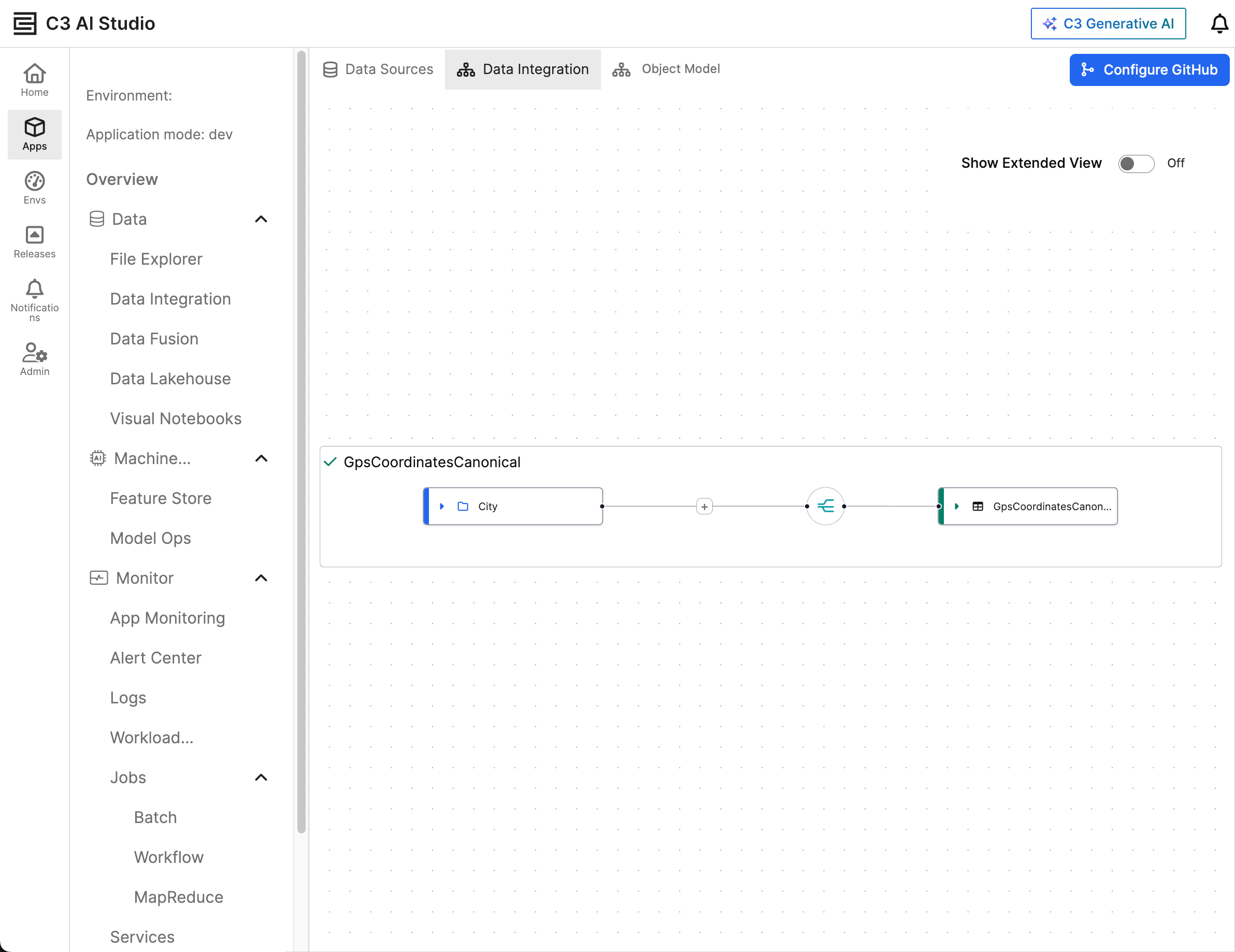
In C3 AI Studio, navigate to Apps and select your app. Open the Data Fusion tab and select Data Integration. From Data Integration, you can view all data pipelines for your app.
The icon on the left marked with a blue edge is the data source. Select the source to view which fields connect to the target canonical. To see the full path of the source data, toggle Show Extended View on.
The icon on the right marked with a green edge is the target canonical. Select the canonical to view which fields connect to the data source.
Modify data changes
You can select the following icons on the connection lines to change how you handle the data:
- If your app projects the source data, the connection features an icon with three diverging lines.
- If your app transforms the source data with a Lambda function, the connection features a code icon (</>).
- If your app filters the data, the connection features a filter icon.
Select the icon to update the connection between source and target.
To restart the process of defining the pipeline, select the connection icon and select Delete from the dropdown menu. This action allows you to create a new pipeline using a different method (Transformer or Projection) to connect the source to the target.
For more information on Transformer and Projections, see Map and Transform Source Data.
Add new filters
You can also add a filter to a connection with unfiltered data. A connection does not have a filter if it has a plus icon (+) beside the projection or transformer icon. Select this plus icon to add a filter.
Filters follow the same syntax conventions as the condition key in data transforms. The following example is a valid filter:
(Facility == "FacilityA" OR Facility == "Facility B") AND (Inventory > 10 AND Inventory < 20)This condition includes the entry in the target canonical if the value of Facility is either FacilityA or FacilityB and has an Inventory value between 11 and 19.