Work with Runtimes
Python Runtimes serve as an execution context for Python code on the C3 Agentic AI Platform. A runtime is a recipe that lists all the library versions and fully defines a context in which some application logic can be run. Runtimes provide flexibility to easily add or remove any specific library. Install Runtimes in different execution environments, including as Jupyter kernels in JupyterLab and on the C3 AI Server, for running Python actions and pipelines. Runtimes are also referenced in action requirements as a part of a Python method or pipeline declaration to indicate the required libraries needed to run that method/pipeline.
Runtime naming convention
A runtime uses the following naming convention
{{language}}-{{-suffix}}For example, py-deeplearning means that the runtime is implemented in Python, and includes various deep learning libraries like TensorFlow and Keras.
Each runtime name is unique and must always start with language.
Runtime resolution
The runtimes that applications and data scientists create specify the required libraries for executing an action. These runtimes need only specify libraries directly used by your method or pipeline. The versions of these libraries may be as loose or strict as you feel appropriate.
From a single, user-defined runtime, the C3 AI Server creates several resolved runtimes. These resolved runtimes have all libraries explicitly listed in the runtime. C3 requires these libraries for its infrastructure, and all the libraries they depend on, run in a given environment (such as a Jupyter kernel or the server). All libraries in a resolved runtime have their versions pinned to the most specific granularity possible.
Freeze your runtimes to avoid unexpected changes in production deployments. If these libraries publish new versions, freezing will prevent unintended updates to library versions.
Information in a runtime definition
A runtime definition contains the following information:
- name - the name of your runtime
- languageVersion - the version of the runtime’s associated programming language (Python 3.9, 3.10, 3.11, or 3.12).
- repositories - a list of (additional) repositories to include if a package manager supports multiple package repositories—and the default repository is not sufficient. For Python, Conda's channels map to these repositories.
- libraries - the list of libraries required for the runtime.
- parents - an optional list of runtimes to inherit from. The package requirements of these parents are included in the requirements for this runtime.
You can view, edit, and create runtime definitions in one of two ways:
- The C3 AI Jupyter Service provides a UI for working with Python runtimes and installing them as Jupyter kernels
- The C3 Type System provides APIs available in Python and JavaScript to work with runtimes at the code level
This tutorial shows how to use both approaches. You can find details on working with the Jupyter Runtime Management UI in the C3 AI Jupyter Service documentation.
Runtime definition format
The C3 Agentic AI Platform uses a JSON-based format for defining runtimes, independent of the underlying package manager technologies (like conda, pip, or node). Here is an example:
{'type': 'ImplLanguage.Runtime',
 'name': 'py-my-runtime',
 'languageVersion': '3.9',
 'repositories': [
      "defaults",
      "conda-forge"
 ],
 'libraries': [
     'conda scikit-learn>1.0,<2',
     'pip sktime'
  ],
  'parents': [ 'py-data' ]
}
The keys in the JSON representation correspond directly to the parts of a runtime definition described above.
Each library entry has a package manager, a space, and a package expression. For Python, either conda or pip can be used as a package manager. Although Conda and Pip packages may be combined in the same runtime, it's recommended to use the Conda version of a library when possible. Package expression syntax is specific to each package manager – see the Conda documentation and the Pip documentation for details.
Viewing a list of available runtimes
Jupyter Runtime Management
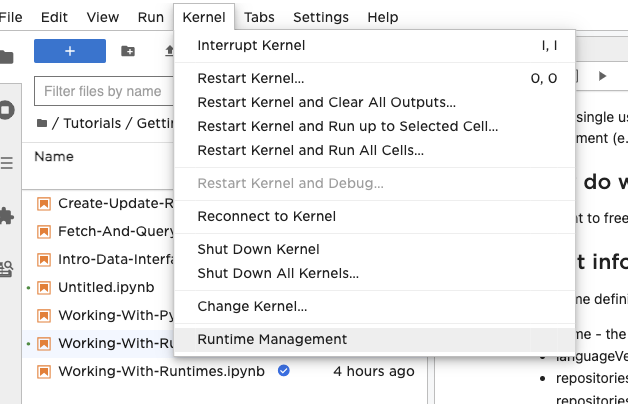
In the JupyterLab UI, select Kernel > Runtime Management. This menu shows a list of available runtimes: 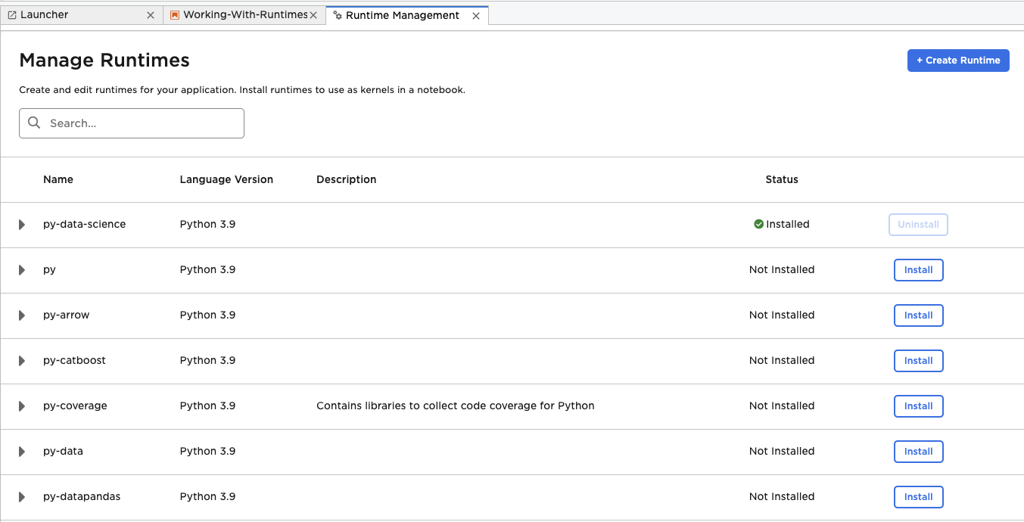
Python APIs
From a Notebook or Python Console in Jupyter, you can view a list of available Python runtimes by calling the following commands:
c3.ImplLanguage.Runtime.fetch(include='name,parents,description', filter="startsWith(name, 'py')")Your set of runtimes may look like the following:
| name                | parents   | description                                                                                                |
|:--------------------|:----------|:-----------------------------------------------------------------------------------------------------------|
| py-data-science     | [10]      | No description available                                                                                                        |
| py-ml               | [6]       | This runtime has been DEPRECATED and will be removed in a future version of the C3 Agentic AI Platform.            |
| py-xgboost          | [1]       | No description available                                                                                                        |
| py                  | []        | No description available                                                                                                        |
| py-tutorial2        | []        | No description available                                                                                                        |
| ⋯                   | ⋯         | ⋯                                                                                                          |
| py-matplotlib       | []        | No description available                                                                                                        |
| py-catboost         | [1]       | No description available                                                                                                        |
| py-conda            | []        | This runtime is for internal use only. It is used for parsing conda package URLs during runtime resolution |
| py-spacy            | [3]       | No description available                                                                                                        |
| py-3.9-ipython_executor | []        | Runtime for IPython executor. Internal use only                                                            |

---Viewing the definition of a runtime
You can view your runtime definitions through both Jupyter UI and Python API calls.
Runtime packages in Jupyter UI
In the JupyterLab UI, Kernel > Runtime Management. This menu shows a list of available runtimes. Select a runtime and select the arrow on the left side of runtime's entry to show a list of packages included in the runtime.
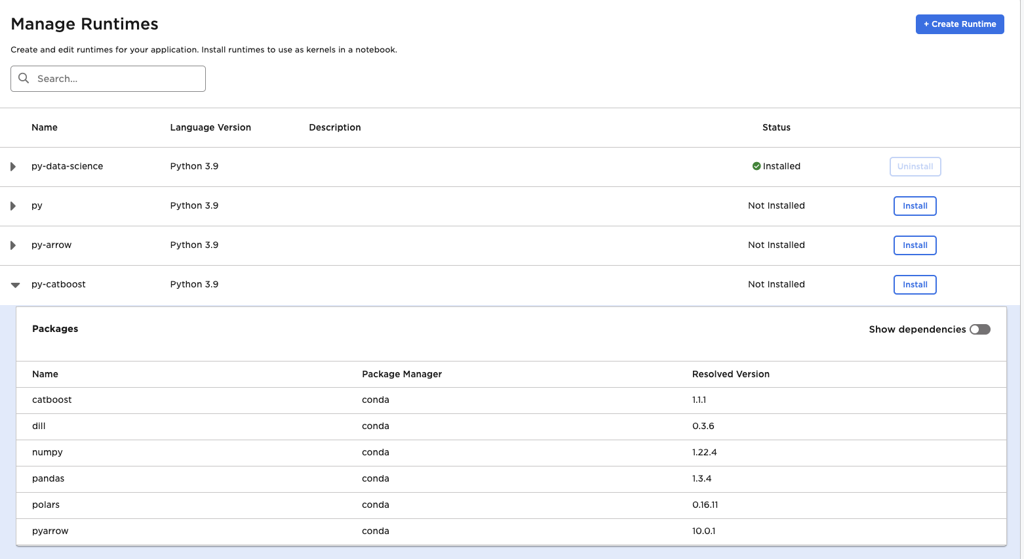
By default, the package list only shows packages explicitly requested by the runtime definition (and its parents). Move the "Show Dependencies" slider on the right side of the runtime's entry to see a list of all packages included in the runtime.
View a runtime definition using the Python APIs
To see the definition of a specific runtime, run code like the following:
c3.ImplLanguage.Runtime.forName("py-catboost")py-catboost can be replaced with any runtime. The previous call gave the following output:
{
  "type" : "ImplLanguage.Runtime",
  "meta" : {
    "deserSource" : "meta://platform/metadata/ImplLanguage.Runtime/py-catboost.json"
  },
  "name" : "py-catboost",
  "languageVersion" : "3.9",
  "repositories" : [ "conda-forge" ],
  "libraries" : [ "conda catboost==1.1.1" ],
  "parents" : [ "py-data" ]
}Install a runtime definition in Jupyter
In the JupyterLab UI, select Kernel > Runtime Management. Locate the runtime and select "Install" on the right side of the entry. Here is an example that installs py-data:
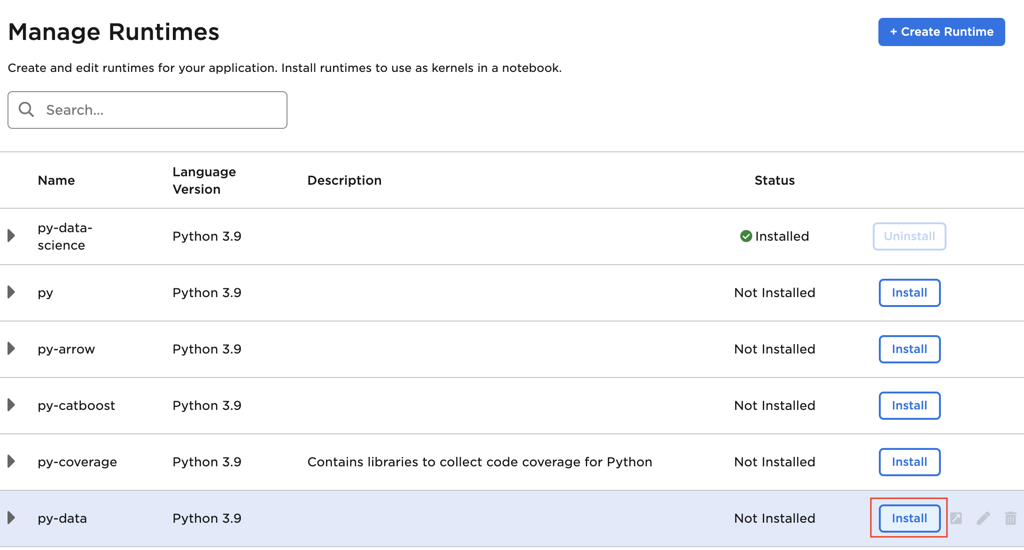
This action will install the Conda environment into your JupyterLab container and create a Jupyter Kernel referencing this Conda environment. You will now see the new kernel as an option in your Jupyter launcher:
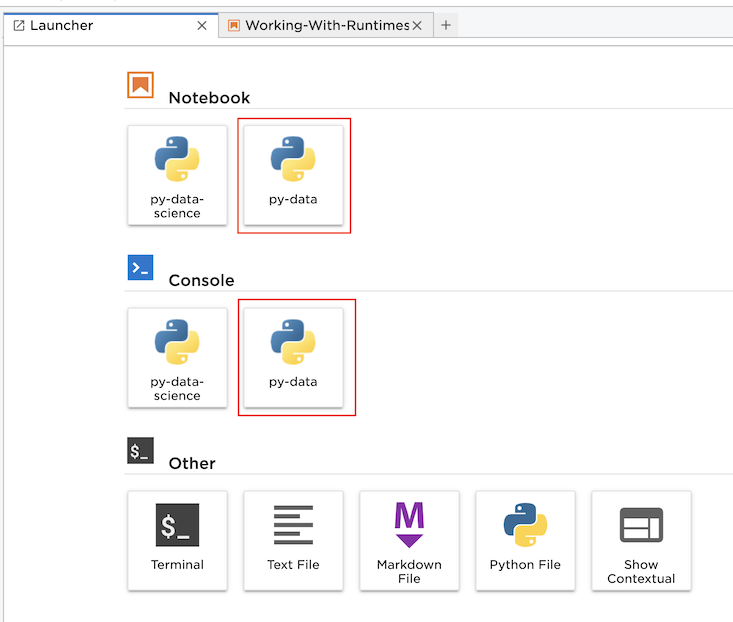
You can also select the runtime/kernel for an existing notebook by selecting the runtime name in the upper right corner of the notebook:

A runtime selection dialog will pop up, prompting you to select a runtime for this notebook. The new runtime will appear in the list.
Create and seed a runtime
Often, custom pipes and Python methods require additional sets of imported packages.
Prerequisites
Custom runtimes can only be created or updated in a Single Node Environment. Otherwise you will get an error because the package is read only.
In order to include the runtime in your application package, VSCode needs to be connected to your environment when you create the runtime. VSCode will download the metadata files for your runtime and place them in the right directory within your local workspace. Configure VSCode so that the client is the source of truth and "Union" mode is enabled. Here is what the configuration looks like in VSCode:
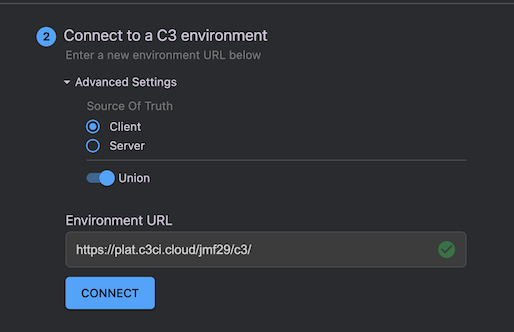
Creating a runtime from the Jupyter UI
In the JupyterLab UI, select Kernel > Runtime Management. Select the "+Create Runtime" button in the upper-right corner to open the runtime creation and editor form:
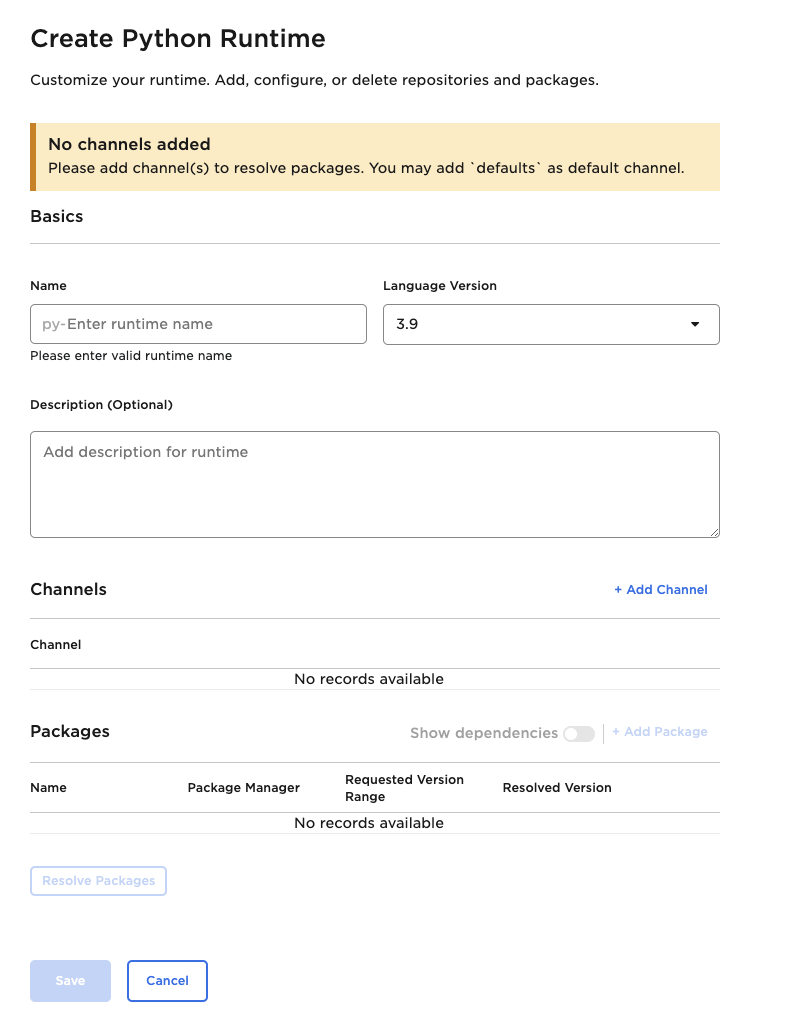
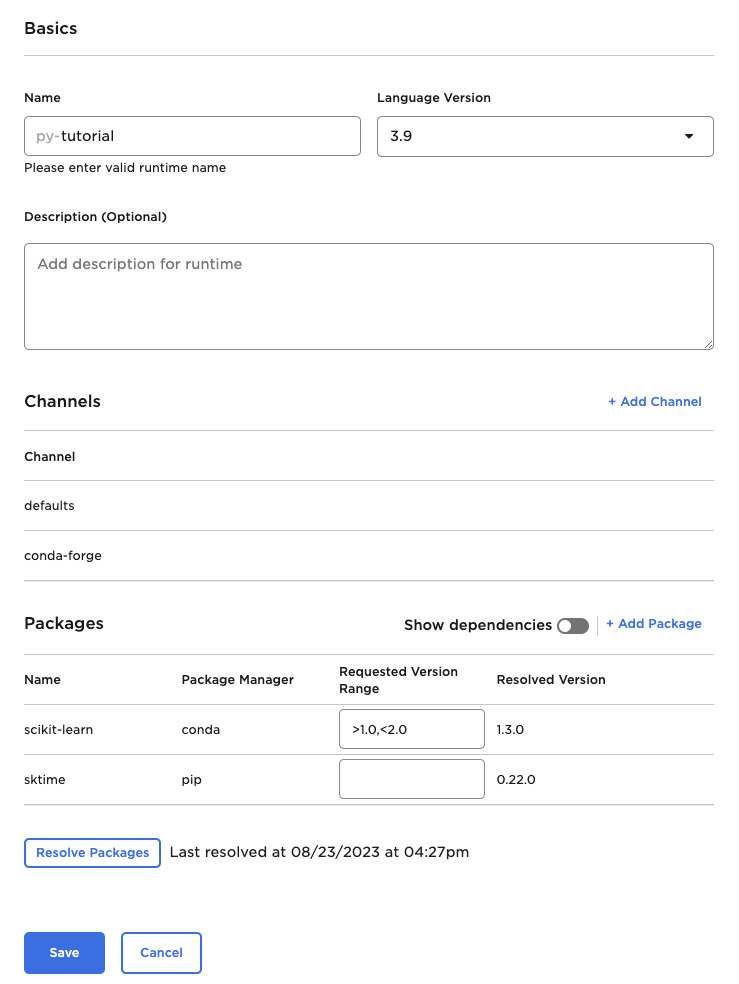
Next provide the following information:
- Name - the name of the runtime, following the conventions described above
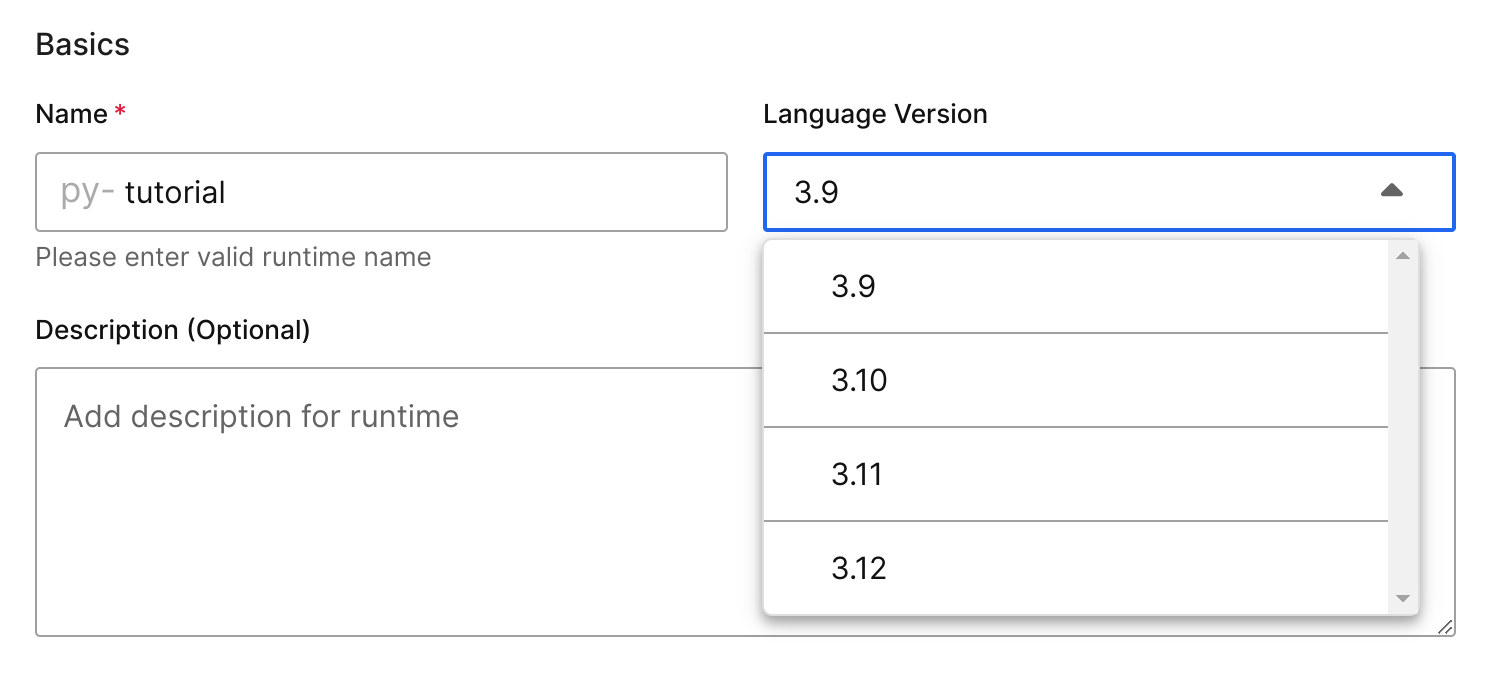
- Python Version - the Python version to be used by the runtime. C3 supports Python 3.9, 3.10, 3.11, and 3.12.
- Channels - the Conda channels used by the runtime
- Packages - the Conda and Pip packages needed for the runtime, along with any version constraints
Here is an example:
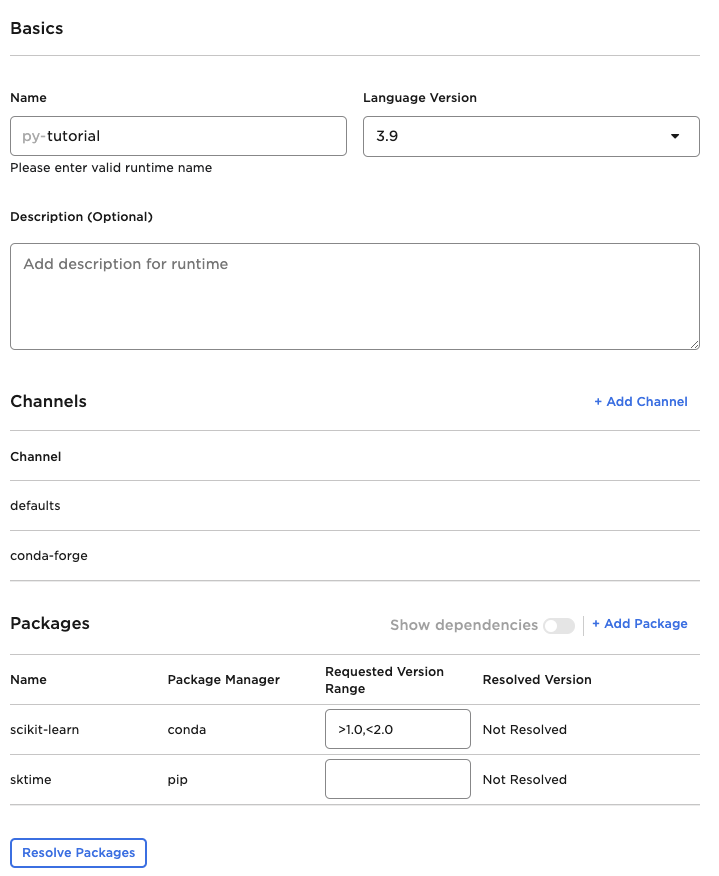
You can choose a specific language version in the dropdown box:
After completing the form, select "Resolve" to have the C3 AI Server resolve the runtime. This process can take more than a few minutes, as it is resolving four separate versions of the runtime:
- Client-side, without testing libraries
- Client-side, with testing libraries
- Server-side, without testing libraries
- Server-side, with testing libraries
Below is an example of the above form after the runtime has been resolved. The resolved version of the packages has been populated and the "Save" button is now enabled.
Select Save. Find your new runtime in the list of runtimes and install it locally in Jupyter.
Create a runtime using the Python APIs
You can create the same runtime definition using the Python APIs. First create the JSON structure of your runtime definition:
custom_runtime_definition = {
  "type" : "ImplLanguage.Runtime",
  "name" : "py-tutorial2",
  "languageVersion" : "3.9",
  "repositories" : [ "defaults", "conda-forge" ],
  "libraries" : [ "conda scikit-learn>1.0,<2.0", "pip sktime" ]
}output = c3.Py.upsertRuntime(custom_runtime_definition) # this may take a while
# The result is the full definition of the runtimes that were created.The above code will run for a while. After it is done, look at errors key.
print(output['errors'])If this key contains an empty dictionary, everything ran successfully. Otherwise, it will contain the errors that were found.
Now list the actual resolved runtimes that were created from the upsert using the following command:
[ action_engine for action_engine in output['seededRuntimes']] The output will look something like the following:
['py-tutorial2-client-ipython',
 'py-tutorial2-client-ipython-test',
 'py-tutorial2-server-py4j-test',
 'py-tutorial2-server-py4j']
Test the runtime on the C3 AI Server by defining a Lambda that requires the runtime.
REQUIREMENT = 'py-tutorial2' + '-server' # we want to run this on the server
c3.Lambda.fromPyFunc(func=lambda: c3.context().runtime, actionRequirement=REQUIREMENT).apply()
The above call will output the runtime in the following format:
{
  "type" : "ImplLanguage.Runtime",
  "meta" : {
    "deserSource" : "meta://myWindTurbine/metadata/ImplLanguage.Runtime/py-tutorial2.json"
  },
  "name" : "py-tutorial2",
  "languageVersion" : "3.9",
  "repositories" : [ "defaults", "conda-forge" ],
  "libraries" : [ "conda scikit-learn>1.0,<2.0", "pip sktime" ]
}Verify the synchronization of your runtime to your application package
VSCode's synchronization copies the newly-created runtimes from the server to your local workspace. It creates five JSON metadata files (replacing MY_PACKAGE with your package name and MY_RUNTIME with your runtime name):
- MY_PACKAGE/metadata/ImplLanguage.Runtime/py-MY_RUNTIME.json (the runtime definition)
- MY_PACKAGE/metadata/Py.Runtime/py-MY_RUNTIME-client-ipython.json (the resolved runtime for client)
- MY_PACKAGE/metadata/Py.Runtime/py-MY_RUNTIME-client-ipython-test.json (the resolved runtime for client with test files)
- MY_PACKAGE/metadata/Py.Runtime/py-MY_RUNTIME-server-py4j.json (the resolved runtime for server)
- MY_PACKAGE/metadata/Py.Runtime/py-MY_RUNTIME-server-py4j-test.json (the resolved runtime for server with test files)
You can now add these files to the git repository for your package.
See Also
- Use Python with C3 Agentic AI Platform Overview
- Implement Python Methods on Types
- Using the Python SDK on the C3 Agentic AI Platform.
- Initialize, configure, and utilize C3 AI-managed JupyterLab notebook instances.
- Author Custom Machine Learning Pipes in Native Python - MlLambdaPipe Tutorial
- Author Custom Machine Learning Pipes in Native Python - MlDynamicPipe Tutorial