Reauthenticate Session from JupyterLab
C3 AI authentication tokens for JupyterLab expire after 24 hours. In order to run Jupyter for extended periods of time, you may need to manually reauthenticate your session.
Closing JupyterLab and relaunching Jupyter from C3 AI Studio triggers reauthentication automatically. You only need to manually reauthenticate in JupyterLab for the following reasons:
- You are running a job in Jupyter for extended periods of time — You do not need to reauthenticate after leaving JupyterLab open without running. Leaving a session open on your browser without running a job causes the session to go stale. Upon relaunching your C3 AI environment, Jupyter refreshes the token automatically.
- Your job in Jupyter calls C3 AI — This token authenticates your C3 AI session; if your job only calls Python, your job will not be impacted by this token's expiration.
Refresh your C3 AI token from JupyterLab Launcher
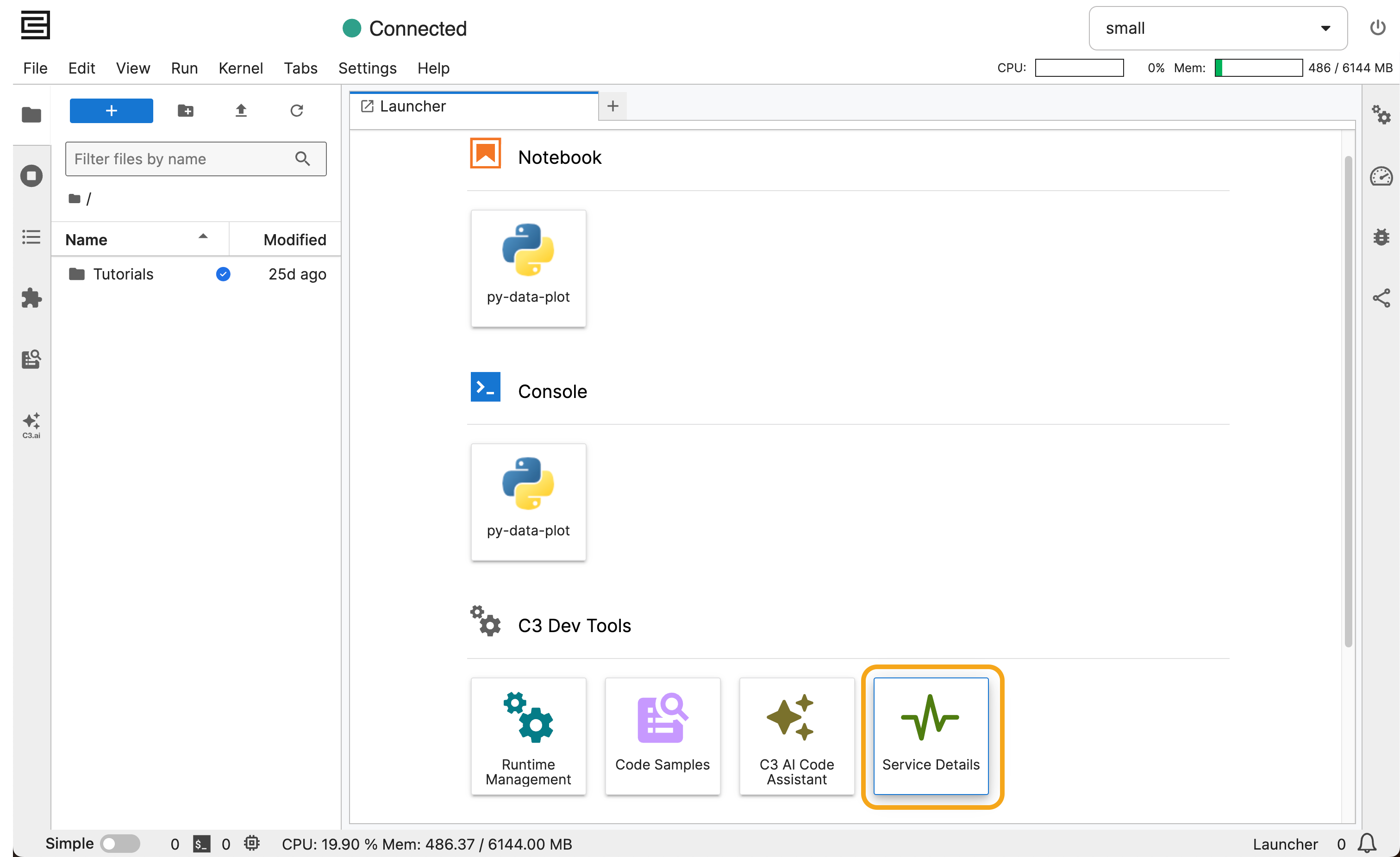
From the JupyterLab Launcher tab, navigate to the C3 Dev Tools section and select Service Details. The Jupyter Service Detail window will pop up.
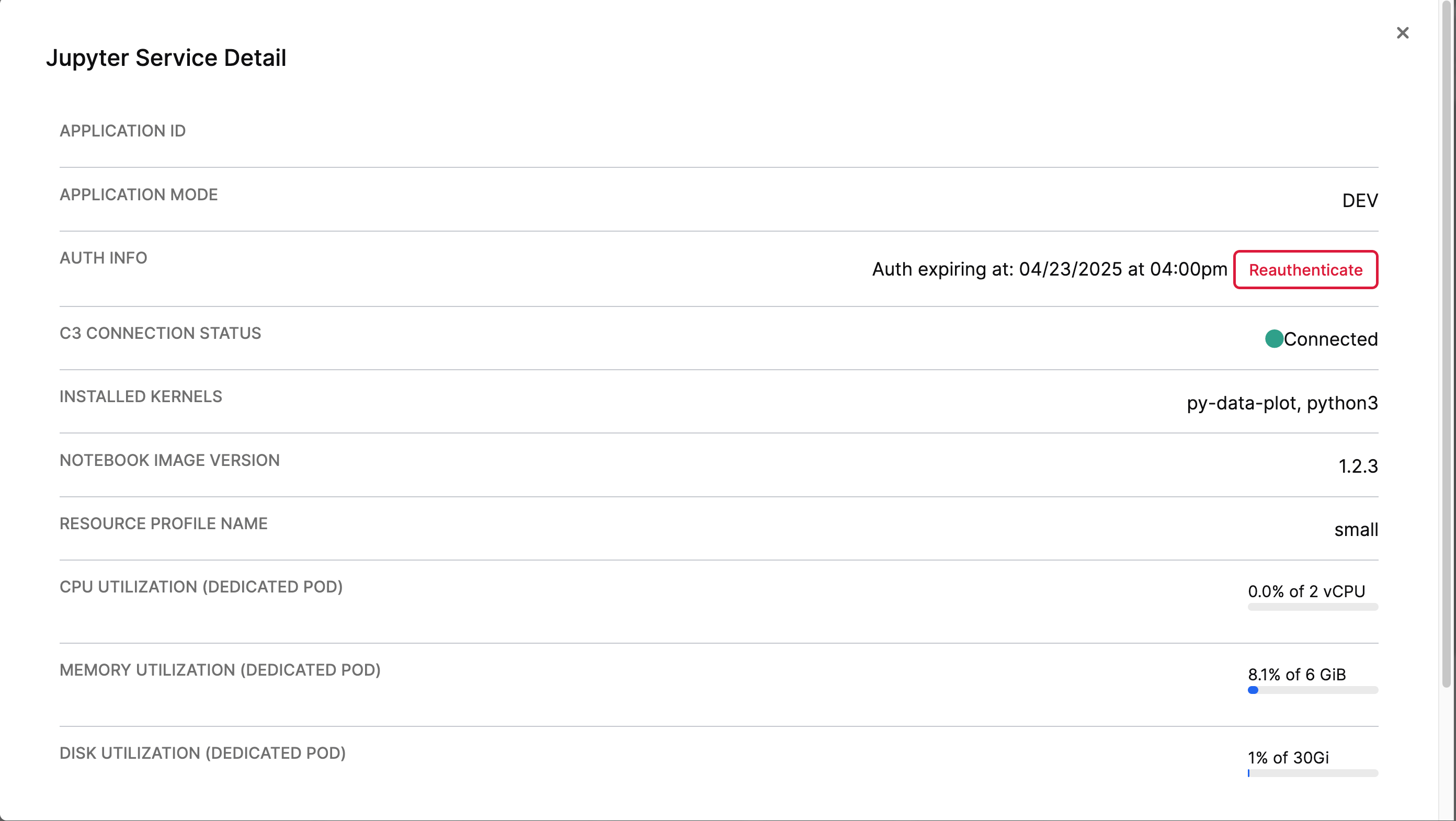
The Auth Info section lists the time when the current session token expires. To trigger an early refresh of the token, select Reauthenticate. You will be redirected to your C3 AI authentication service and then back to JupyterLab. Confirm a successful refresh by reviewing the new expiration datetime on the authentication token.
Reauthenticating Jupyter resets the JupyterLab UI, including the spinner animation on running cells. Even so, active cells continue to run on the kernel without this animation and the notebook maintains its state.
Refresh your C3 AI token from a warning banner
If your authentication token expires within 30 minutes, JupyterLab surfaces a warning banner at the bottom of the window. This banner updates every minute to show how much time is left. Navigate to the Launcher tab and follow the above instructions to avoid losing access to C3 AI from Jupyter.