Version Control with GitHub
Data Fusion is in Beta. Please contact your C3 AI representative to enable this feature.
Version control allows you to push local changes into a shared space for collaborators to access and iterate on.
With version control, you can also view the history of different users' changes for easier troubleshooting.
To save any changes through Data Fusion, you must configure your application with GitHub credentials. You can connect your application to GitHub either when first creating your application or by opening your application in C3 AI Studio and navigating to the Data Fusion tool. Similar to working in C3 AI VS Code extension, when you work in Data Fusion your files are saved in GitHub and become part of the C3 AI package.
Start Fresh or Build on Existing GitHub Package in GitHub
Create a new package from scratch
Use this option when you are starting fresh and there is no existing GitHub package that fits your needs. For example, if you're building a new integration or testing a feature in isolation, you can create an empty package, develop your changes, and publish it to GitHub. This allows you or others to resume work on the package later from the same repository.
Even when starting from scratch, you can add dependency packages to reuse existing entities, pipelines, or configurations. This helps accelerate development by leveraging proven components without directly building on a full existing package.
Use existing package
Choose this option when there is already a published package in GitHub that contains relevant logic or setup. This is useful for continuing development, making incremental updates, or deploying the same package to a different environment or cluster.
GitHub Integration at the Environment Level
In Data Fusion, GitHub integration is configured at the environment level, not per application.
This means:
- When you create a new application within an environment that already has GitHub configured, the application automatically uses the GitHub repository and branch specified at the environment level.
- You cannot configure different GitHub branches for individual applications within the same environment.
- All changes made across applications in that environment are tracked against the same GitHub branch, as defined during environment setup.
Tip:
To work on a different branch (for example, for feature development or isolated testing), switch the environment’s GitHub configuration before creating the application, or create a new environment configured with the desired branch.
Review your GitHub repository before connecting to C3 AI
Each C3 AI environment allows for only one set of credentials and all updates made from that environment save to the same path. After connecting your environment to a GitHub repository, all applications in the environment use the same GitHub setup, including:
- User credentials
- Repository
- Branch
- Path
If multiple collaborators build applications in the same environment, you may need to negotiate the branch where you save packages, and whose credentials should be tied to all GitHub updates. Ensure all C3 AI packages are in the same folder.
To find the path for your GitHub connection, identify the folder that contains the C3 AI packages for your application.
For example, if the path to the C3 AI packages in Branch1 are the following:
RepositoryName/Packages/Package1
RepositoryName/Packages/Package2
Enter the following when configuring GitHub:
Branch: Branch1
Repository: RepositoryName
Code path: Packages
Package: Package1
For the next application you create on the same environment in C3 AI Studio, you can use either Package1 or Package2 as your Package. All other details remain the same.
Review the following notes before configuring GitHub to your environment:
- Do not end the Code path with a forward slash (/).
- All changes committed from Data Fusion push directly to the branch. Ensure the branch you configure is safe for direct pushes.
- At this time, you cannot pull changes or revert to previous versions through Data Fusion. If you need to propagate changes from GitHub to your app, you must create a new C3 AI environment and app.
For more information about GitHub and Git, refer to GitHub documentation.
Connect to GitHub in Data Fusion
- In C3 AI Studio, select your running application and navigate to the Data Fusion tab.
- Connect your application to GitHub by selecting Configure GitHub.
- In the configuration popup, enter
https://api.github.comto the REST API field if your repository is public. - If your repository belongs to an enterprise account, supply the custom domain in this field.
- Enter your authentication token in the Authentication Token field.
- You can select + Generate Token to create a new authentication token in GitHub. After you generate the token in GitHub, copy the token into the Authentication Token field in studio.
You must generate a classic token with repository permissions to integrate C3 AI and your GitHub repository. A fine-grained token does not work.
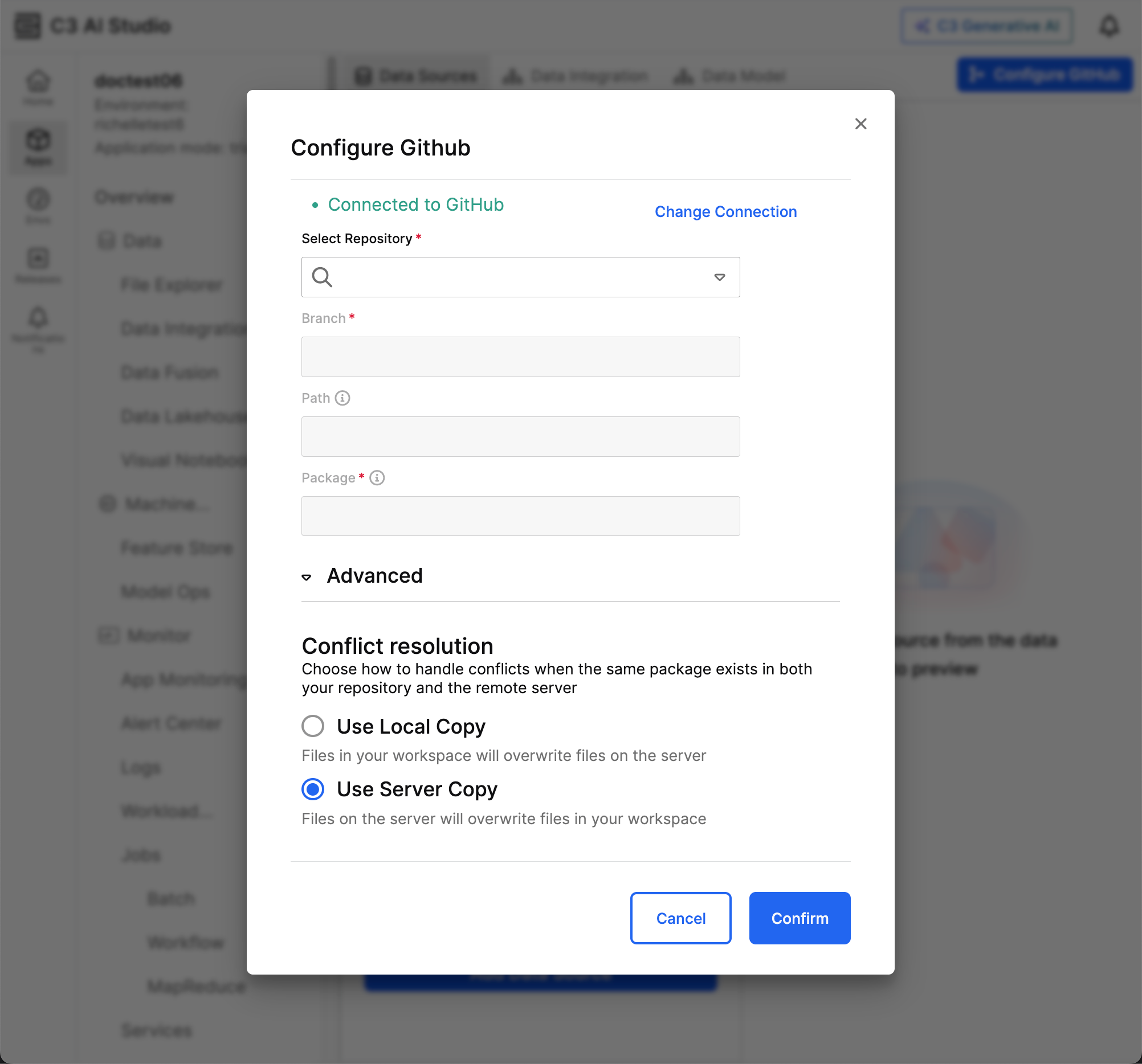
- Select Connect to GitHub.
- To connect to a GitHub branch, identify and select the branch from the Select existing branch dropdown menu.
- If the application already exists within the selected Code path in the GitHub Branch, open the Advanced dropdown to enter whether C3 AI should use the local copy of your package, or use the GitHub server copy instead.
The copy you choose overwrites the package in the branch.
Connect to GitHub during application creation
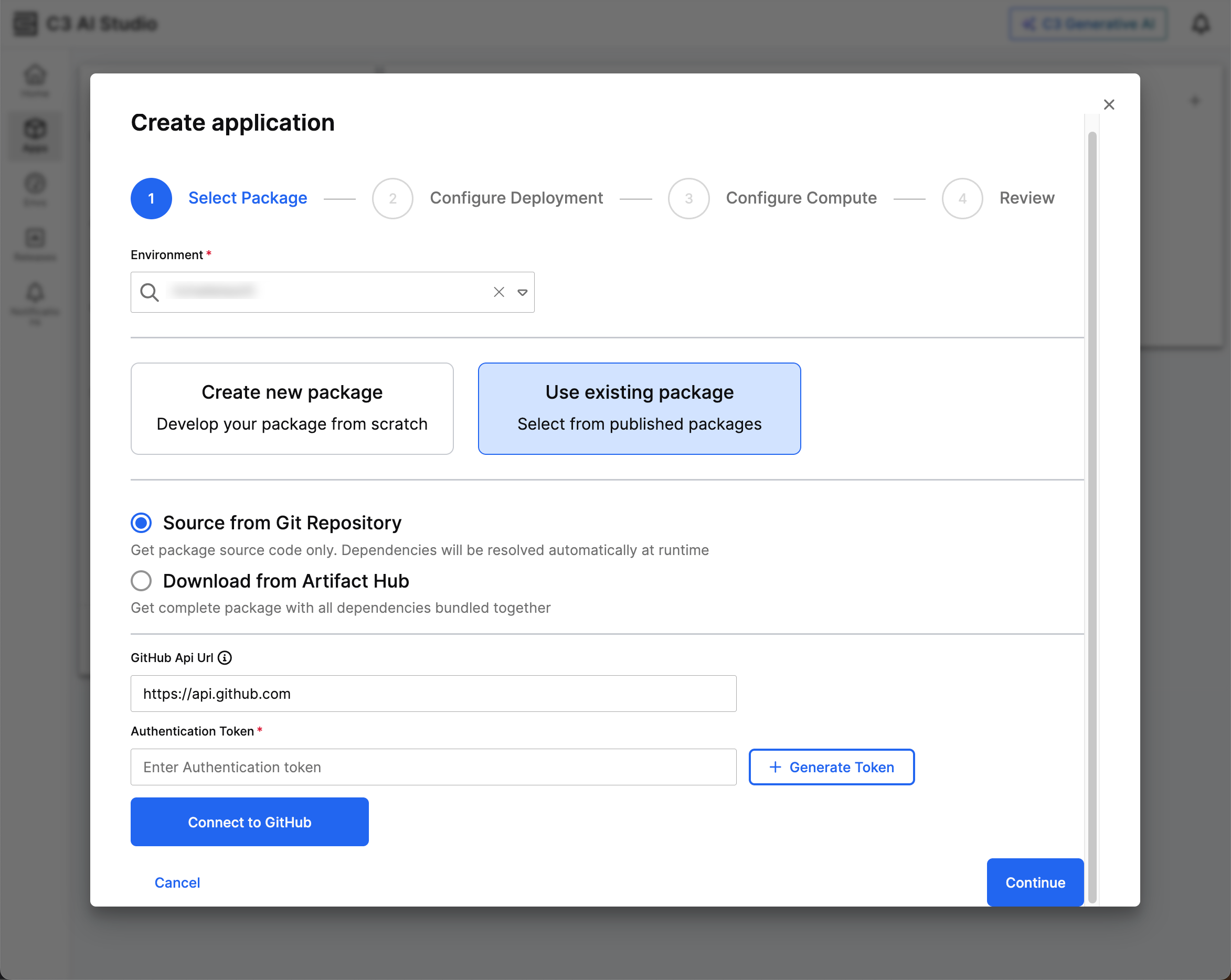
If this is the first time connecting to GitHub, follow these steps to do so during application creation:
- When first creating an application in C3 AI Studio, select the plus icon (+) to open the Create application workflow.
- Select an environment running version 8.8 or above in the dropdown menu.
- Select Use existing package. A modal opens prompting you to select Source from Git Repository.
- Enter the GitHub Api Url. For a public repository, enter
https://api.github.com. For an enterprise account, enter the custom domain for your GitHub account. - Enter an Authentication Token. You can select + Generate Token to redirect to GitHub for the token creation flow. Ensure your token includes the following specifications:
- The token is classic, not fine-grained.
- The token includes repository permissions.
- The token has no expiration date.
- Select Connect to GitHub. If the token is valid, Connected to GitHub appears.
- In the Select Repository field, use the dropdown menu to enter the name of a repository associated with your account. If you do not see the correct repository, you either entered the wrong API URL or your token does not give repository permissions.
- Select your branch using the dropdown menu for the Branch field.
- Enter the path to your package in Path and the package name in Package. Refer to Review your GitHub repository before connecting to C3 AI for more information on these fields.
- Select Continue to complete the application creation flow.
- After creating your app, select the application name, navigate to the Data Fusion tab and select GitHub to confirm your application connects to GitHub.
Connect to GitHub while developing an existing application
From C3 AI Studio, select Develop an Existing Application and Next. The next window prompts you for the GitHub repository address and a Personal Access Token to authenticate your connection.
Follow Steps 4 – 11 in Connect to GitHub during application creation.
Show Version History
The Show Version History option in the GitHub menu of a Data Fusion application displays the commit history of the connected GitHub branch. It provides visibility into who made changes and when, and includes links to view each commit directly on GitHub.
From the GitHub commit page, users can:
- View changes made in a specific commit
- View the list of modified files
While users currently cannot revert versions directly within Studio, future versions of Data Fusion will support reverting to previous versions from Studio itself.
Pull changes from GitHub
After you configure a GitHub Repository, you can pull changes to retrieve the latest updates from the configured branch. From the GitHub dropdown menu, select Pull Changes.
Handle merge conflicts
Merge conflicts might occur during push or pull operations. Data fusion provides the following options to resolve merge conflicts based on the operation:
Push conflicts
If you encounter merge conflicts during a push operation, you can select from the following resolution options:
- Use My Version: Overwrite the remote branch with local changes
- Resolve Conflicts Manually: Open a pull request in the GitHub web editor, manually resolve the conflicts, and merge the pull request to the configured branch.
Pull conflicts
If you encounter merge conflicts during a pull operation, you can select from the following resolution options:
- Use Remote Version: Overwrite local changes with the remote branch.
- Resolve Conflicts Manually: Open a pull request in the GitHub web editor, manually resolve the conflicts, merge the pull request to the configured branch, and return to Data Fusion to pull the latest changes again.
Discard Current Changes
The Discard Current Changes option allows you to revert all uncommitted modifications made in your local working branch. When selected, it resets your branch to match the most recent committed state from the connected GitHub repository. Use this option if you want to undo local edits, configuration updates, or documentation changes that you do not wish to keep before publishing or pulling updates. This action helps ensure your workspace remains clean and consistent with the repository version.
Publish changes from Data Fusion to GitHub
After configuration, you can push changes to your C3 application from Data Fusion to your branch in GitHub.
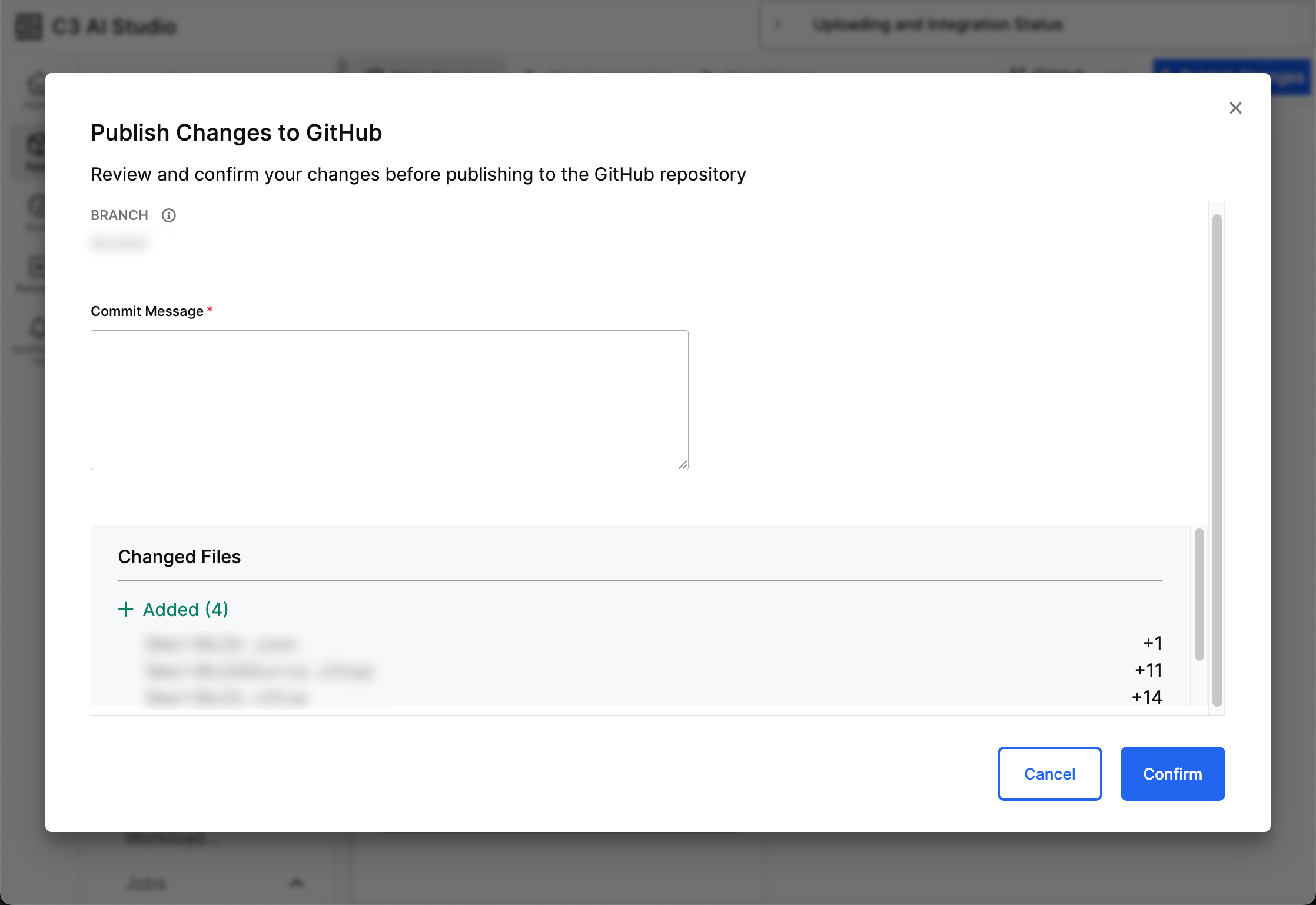
Select Publish changes. The Publish Changes to GitHub window appears, prompting you to enter details about the change in the Commit Message field. You can review your updates in the Changed Files section.
Select Confirm to push your changes to GitHub.
All commits made through Data Fusion push directly to the branch. Ensure your branch is safe to push directly into before pushing changes from Data Fusion.
Change the configured branch
To change the configured branch, select Reconfigure GitHub from the GitHub dropdown menu. You can select an existing branch or create a new one.
If you have unpublished local changes, the system attempts to rebase them onto the latest commit of the new target branch. If merge conflicts occur during the rebase operation, you can choose to use the remote version or resolve the conflicts manually.
If you resolve merge conflicts manually, you must return to Data Fusion and pull the latest changes. This step is part of the branch reconfiguration process and differs from standard push and pull operations.
Troubleshooting
After configuring to GitHub, no Entity Types in the package appear in the Object Model tab.
You likely entered the wrong path in the Path field when configuring GitHub. Delete your C3 AI environment, create a new environment, and create a new application. As you connect to GitHub, ensure the path ends in the folder that includes your package.
Instead of saving to the existing package, Data Fusion generated a new package in GitHub.
You entered the wrong path in the Path field when configuring GitHub. Delete your C3 AI environment, create a new environment, and create a new application. As you connect to GitHub, ensure the path ends in the folder that includes your package.
GitHub is in a disconnected state.
The token may have expired. To reconnect to GitHub, delete your C3 AI environment, create a new environment, and create a new application using a token that does not expire.