Select and Modify Data Sources for Data Integration
Data Fusion is in Beta. Please contact your C3 AI representative to enable this feature.
In the Data Fusion tab of C3 AI Studio, the Data Sources tab allows you to configure data sources, establish new connections, and integrate external data through a visual interface. When you use the Data Sources tab, you can create, update, or modify the following C3 Types:
You can only apply transforms and connect to canonicals when your source belongs to one of the following categories:
- File systems
- Cloud message broker/Streaming systems
- File upload
Databases & Data warehouses generate External entity Types, which do not allow transformations.
For configuration examples, see any of the following:
- File Upload Configuration Example
- File System Configuration Example — Amazon S3
- Database Configuration Example — Snowflake
- Data Broker Configuration Example — Kafka
Preview data
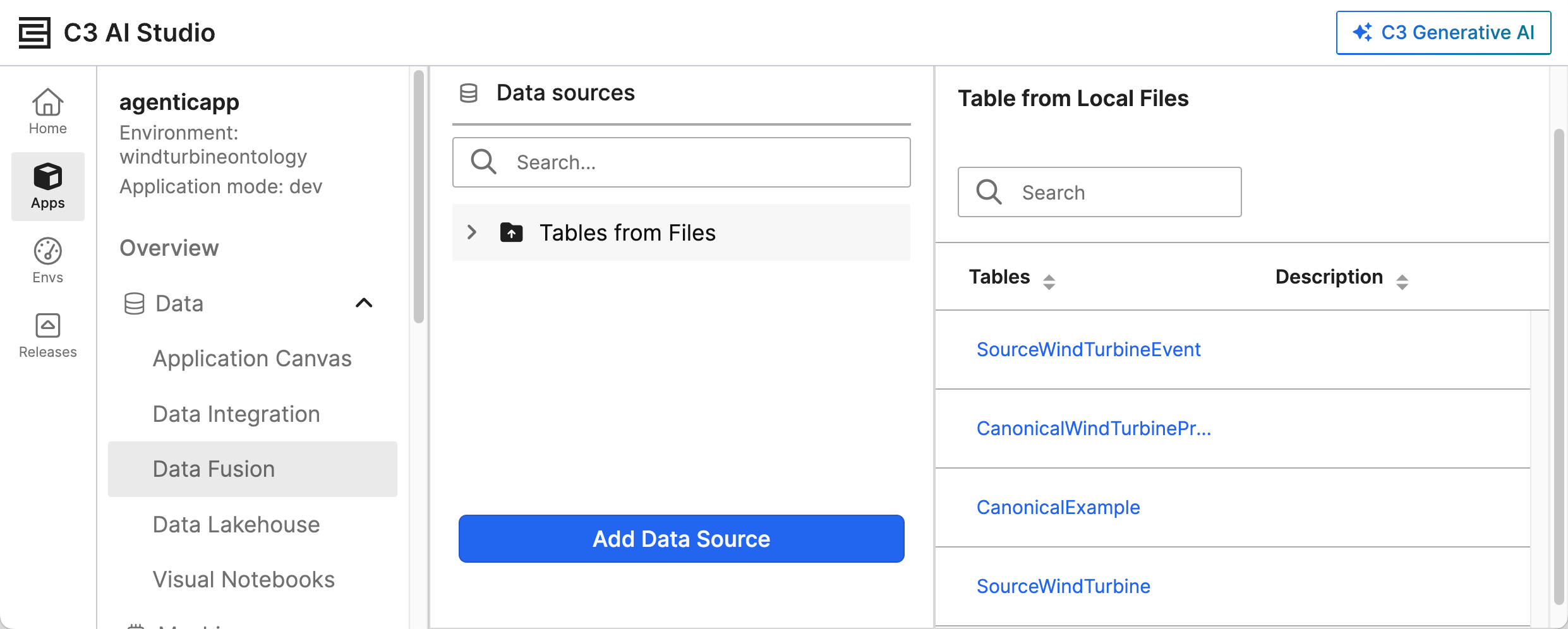
All data sources appear in the Data sources tab. Some notes on how to understand this list of connections:
- The left panel lists all configured data sources.
- A green check mark next to a data source indicates that the connection is already established.
- The right panel (main area) displays details or previews of the selected data source.
To preview a configured data source, locate the data source in the left-hand panel. Ensure the data source has a green check mark, indicating the connection is established. Select the data source to preview its details in the right-hand panel. You can now preview information to verify its accuracy and usability.
Add a new data source
The Add Data Source panel allows you to configure data from multiple external systems. Data sources are categorized based on their organizational system:
- Databases & Data warehouses: Highly structured data
- File systems: Document-based storage
- Cloud message brokers/Streaming systems: Data sent by streams in real time
- Big Data & NoSQL: Large-scale distributed data storage and processing systems
- ERP & CRM: Enterprise resource planning and customer relationship management systems
- Accounting: Financial and accounting software systems
- Marketing & Analytics: Marketing automation and analytics platforms
- Collaboration: Team collaboration and productivity tools
- File & API Integration: File-based data and application programming interfaces
- E-Commerce: Online retail and commerce platforms
- Relational Databases: Traditional SQL-based database systems
The Add Data Source interface presents a categorized set of supported data connectors for streamlined selection. Follow these steps to select a data source:
- Open your application in C3 AI Studio and go to the Data Fusion module.
- In the Data Sources panel on the left side of the screen, select Add Data Source.
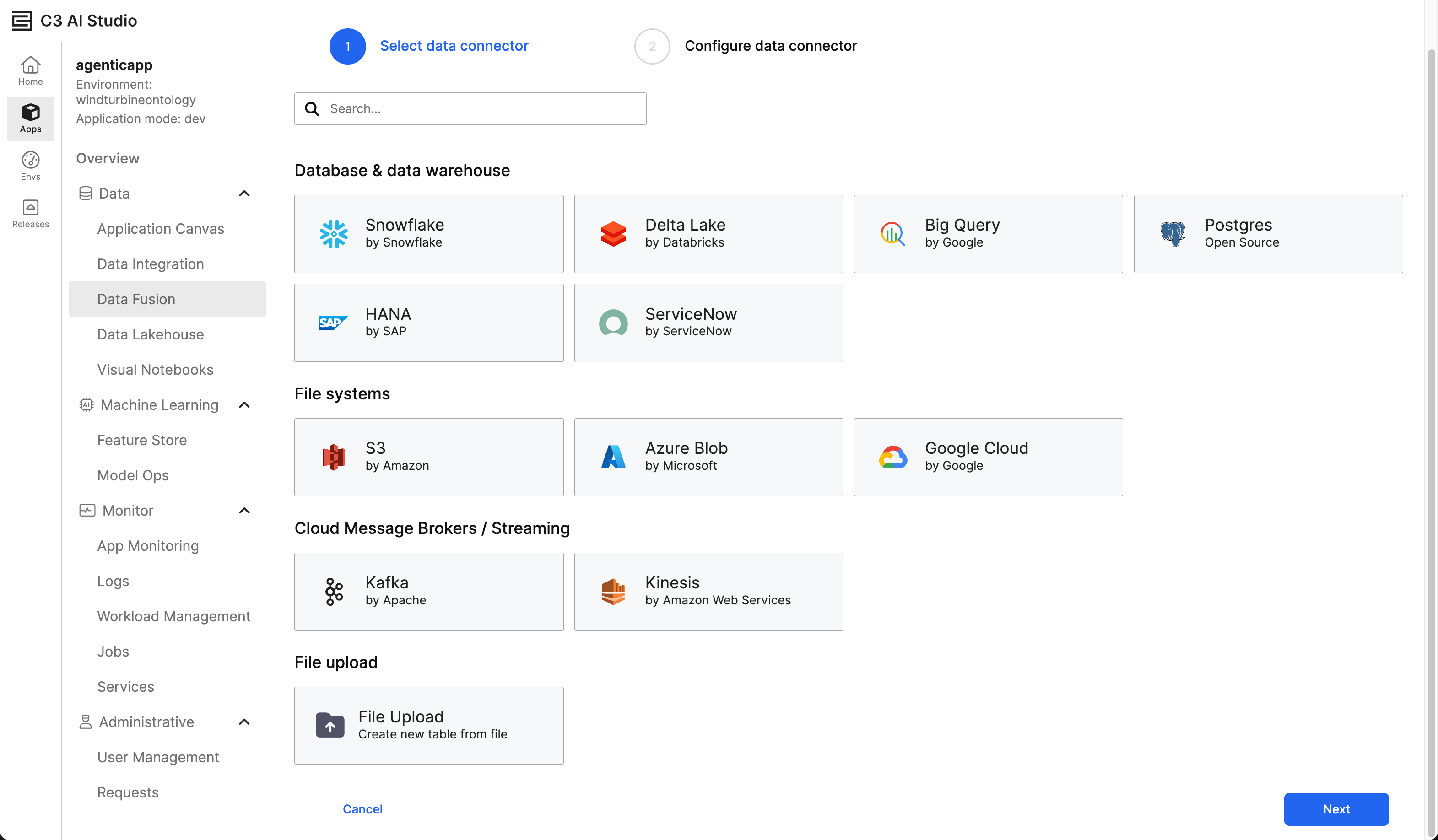
Select your data source and follow the prompts to provide connection details (such as credentials, endpoint, schema), test the connection, and save the new configuration to the list of available data sources.
For SQL-based connectors, such as Google Big Query or Jira, Data Fusion dynamically updates query parameters when you enter a Java Database Connectivity (JDBC) URL.
If the connector has mounts, such as Amazon S3, Google Cloud Platform (GCP), or Azure, you can select from a mount dropdown or enter a custom value. The platform automatically configures default mounts for your applications. Your cloud provider for the cluster determines which connector has the default mounts. When you enter a custom value in Data Fusion, you connect to an external bucket.
Manage data sources for databases and data warehouses
Select the ellipsis menu next to a data source to edit, test, or delete configurations. The following actions are available to configure and maintain data connectors and their children:
- Update
- Connector properties
- Delete Connector
Depending on the connection type, you may also be able to add files and delete tables. Proper permissions may be required to run these actions.
Any changes made through these actions can impact dependent systems, data pipelines, or processes relying on the connector. Please review dependencies and configurations before modifying or deleting connections.
Update allows you to modify selected data from the connected data source. The type of data connection determines what you can update.
Connector provides access to the connection's configuration settings. Select this action to do any of the following:
- Review or update connection details such as credentials or endpoint URLs
- Adjust parameters related to authentication, data transfer limits, or timeout values
- Troubleshoot configuration issues
Delete connector permanently removes the connector and its configuration. Select this action to:
- Decommission the connector of an unnecessary data source.
- Replace the connector with a new one pointing to a different data source.