Write Tests with Pytest
The C3 Agentic AI Platform offers out of the box support for writing tests using the pytest testing framework. For more information on pytest, see Full pytest documentation.
Folder structure
To write pytest, create a new Python file in /<package-folder>/test/<action-requirement>/**/test_<name>.py.
package-folder— The folder that contains your package.action-requirement— The name of the action requirement you want your test to run in. If you do not have a action requirement, usepyas a namespace holder.**— Any subpath directory structure.
The following diagram shows the folder structure of an example application containing different types of tests including the pytest testing framework. You must start each test file name with test_.
examplePackage
├── examplePackage.c3pkg.json
└── test
    └── py
        ├── unit
        │   ├── test_exampleTest1.py
        │   └── py-tensorflow_2_1_0
        │       └── test_exampleTest2.py
        └── integration
            └── test_exampleTest3.py
While py-tensorflow_2_1_0 is a valid subfolder name for testing, pytest does not run test_example2.py in py-tensorflow_2_1_0. Because py-tensorflow_2_1_0 is not the first action-requirement in the file path, pytest uses py to test test_exampleTest2.py.
Action requirement
Just as you can specify runtime requirements for an engine running your method, you can specify runtime requirements for an engine running your test.
To learn how you can specify action requirements for your methods, see Implementing Type Methods. To learn more about engines, see Understanding Action Engines.
The C3 Agentic AI Platform may run your code in different engines; test your code running in distinct engines to avoid unexpected errors. The platform automatically runs your test against all engines that can run the action requirement.
If a test is located in zooPackage/test/py-foo/bar/baz/test_myTest.py, the action requirement is py-foo. The expected engines that run your test are TestRunner.withRequirement("py-foo").enginesForTests(). One TestSuiteResult reports per Action.Engine for each TestSuite.
Write a test
You can write tests to suit your individual needs. Refer to the following example of a test.
def test_success():
    a = b = 1
    assert  a + b == 2

def test_fail():
    a = 1
    assert a == 2

def test_throw():
    a = b = 1
    a[2] + b
These tests give the following outputs:
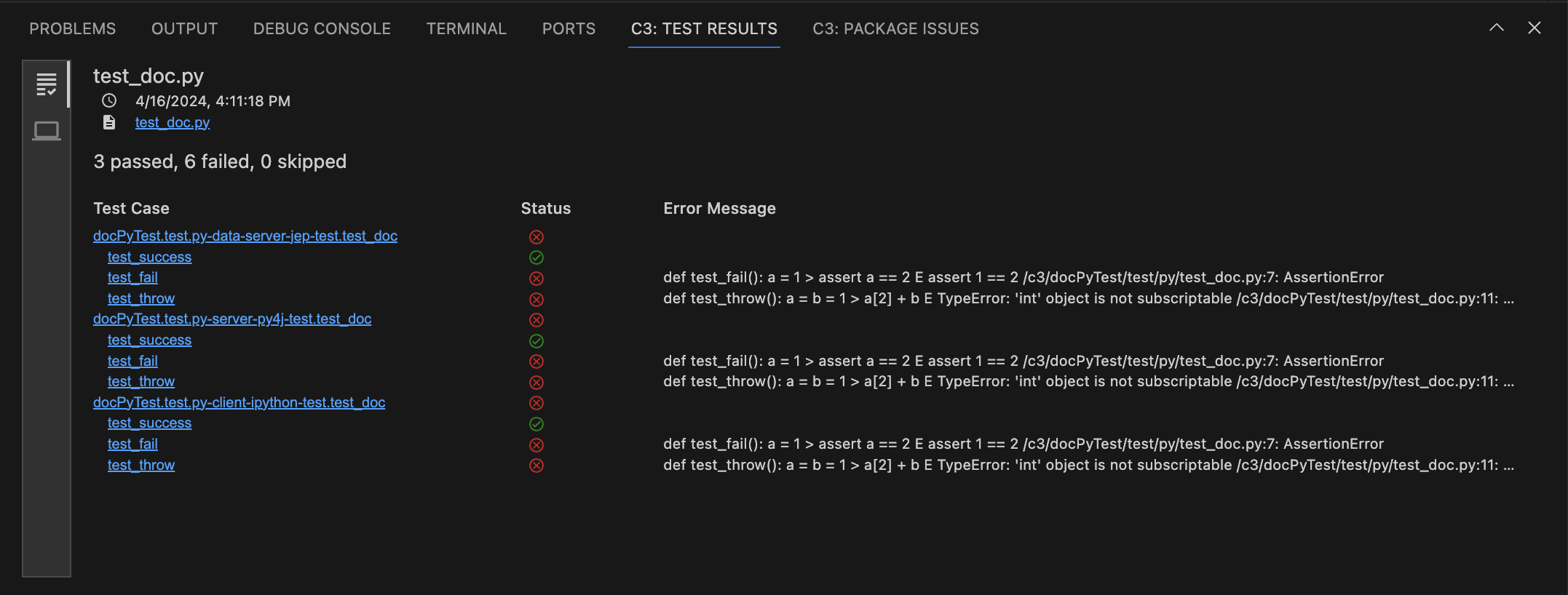
test_success()succeeds becausea + bresults in 2.test_fail()fails because the value ofais not 2.test_throw()throws an exception because int objects are not subscriptable.
Use test fixtures to set up the test suite
When writing unit tests, ensure your test methods have no side effects and do not persist data in the database. Instead, use test fixtures to simulate the data for your tests. Test fixtures allow you to set up and tear down tests with temporary contexts. Temporary contexts make tests easier to extend and maintain.
This ensures tests run fast without external components, such as a database or external service. Refer to the following example of a test fixture:
# test_exampleTest2.py
import pytest

@pytest.fixture
def get_usernames():
    '''
    Creates a list of test users
    '''
    return ["alice", "bob"]

def test_example1(get_usernames):
    assert get_usernames == ["alice", "bob"]
To learn more about fixtures, see About fixtures.
C3 AI variables in tests
C3 Agentic AI Platform automatically injects the Python SDK into the global variables of your pytests. Use the c3 variable directly (without passing it as a parameter) to access all available Types and methods in the application package.
The following example shows how to access a user-defined User Type:
# test_exampleTest3.py
def test_example3():
    user = c3.User(email="john.smith@c3.ai")
    assert user.toJson() == {'type': 'User', 'email': 'john.smith@c3.ai'}
In C3 AI Platform v7, the c3 object was passed as a parameter to test functions. In v8 and later, c3 is injected as a global variable and should not be used as a function parameter.
Run tests using VSCE
C3's VS Code Extension offers the fastest way to run tests. After syncing your environment and starting your application, hover your cursor over the test file in your package to queue the tests for running directly within VSCE.
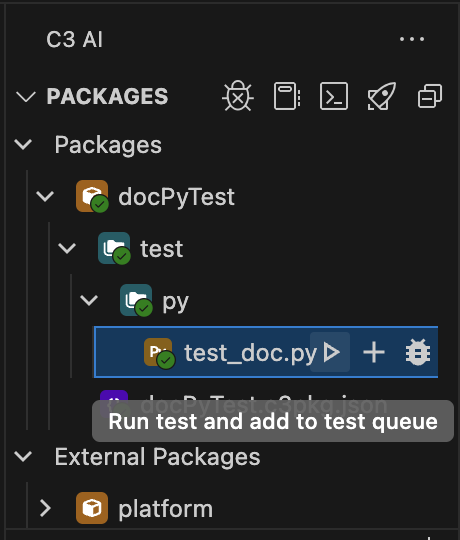
Using the VSCE tester, you can do the following:
- Run test and add to test queue
- Add file to test queue
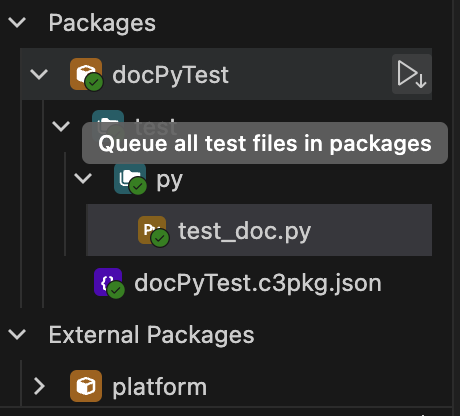
Hovering over the package allows you to run all tests in the package with a single action.
The following screenshot reveals the results of the example test from the Write a test section.
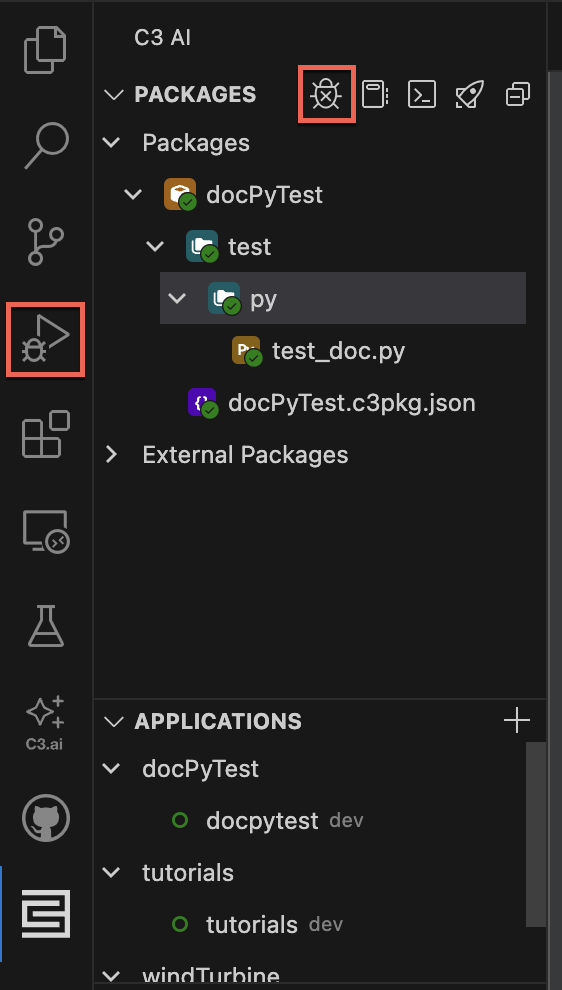
Use the Remote Python Debugger
You can use VSCE to access the Remote Python Debugger for debugging Python code executed on a remote server. Start the debugger by selecting the bug icon in the package view, or by selecting the Run and Debug tab.
For more information, see the VSCE documentation in the Visual Studio Marketplace.
Run tests from console
You can also run tests in C3 AI Console.
Open the console for your application.
Open Chrome Developer Tools in console. On Mac, you can press the the
Cmd + Option + Jshortcut. On Windows or Linus, press theCtrl + Shift + Jshortcut.In the console, input the following code snippet. Replace
test_doc.pywith the name of your test script.JavaScriptresult = TestRunner.make().withTestNameGlob("test_doc.py").run()The test always returns a
TestResult. You can use the following code snippet to generate a more readable result:JavaScriptconsole.log(result.toYamlString())
When specifying the file name, do not specify the path of the file. For example, even though the test file is located in test/py/test_doc.py, only write test_doc.py when using withTestNameGlob.
Select tests based on their name
You can use TesterRunSpec#includePatterns to specify tests based on their name, using regexes to filter test cases based on one or more patterns.
The TesterRunSpec#includePatterns field is functionally equivalent to pytest's -k command line option. This field uses the supplied regex to run a substring match on the full name of each test. For more information on using the TesterRunSpec#includePatterns field, see Using -k expr to select tests based on their name in the pytest documentation.