Arithmetic Operations in Visual Notebooks
The Arithmetic node in Visual Notebooks allows you to apply mathematical operators on columns in your dataset. Separate nodes are needed for each column.
Visual Notebooks offers a number of nodes that make calculations on your data. The Arithmetic node applies specific formulas to specific columns of your own specification to use for other machine learning purposes.
Configuration
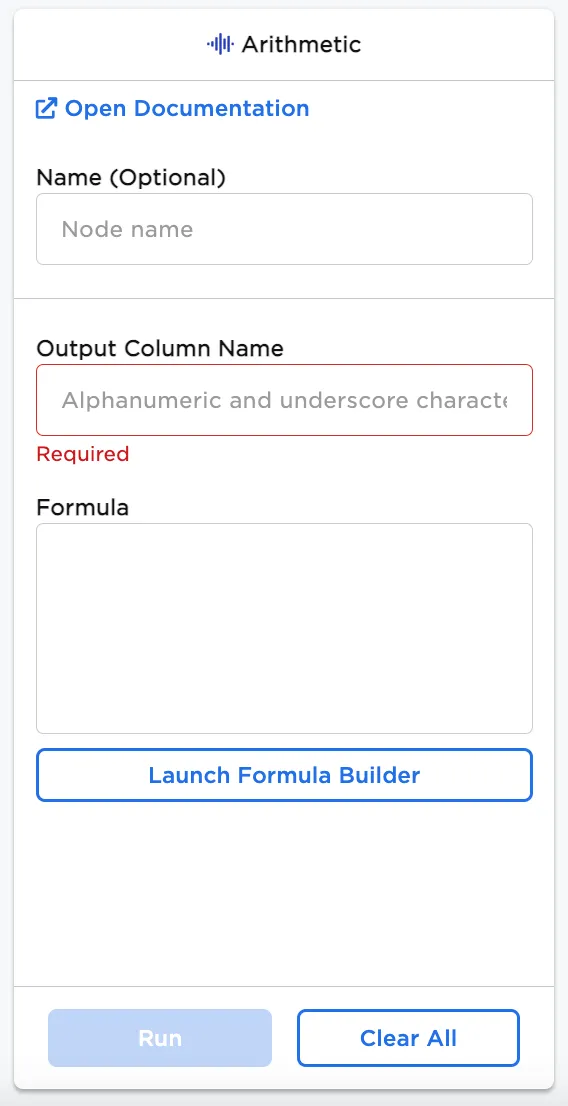
Configuration sidebar
| Field | Description |
|---|---|
| Name (default=none) | Field to name the chart - An optional user-specified node name displayed in the workspace, both on the node and in the dataframe as a tab. |
| Output Column Name Required | Custom name for the new column - Enter a custom name for the new column you will create with the applied formula. |
| Formula Required | Build your formula - Select the Launch Formula Builder to open formula options for the selected column. Formulas can only be used with numeric data types such as integer and double. |
Formula Configuration
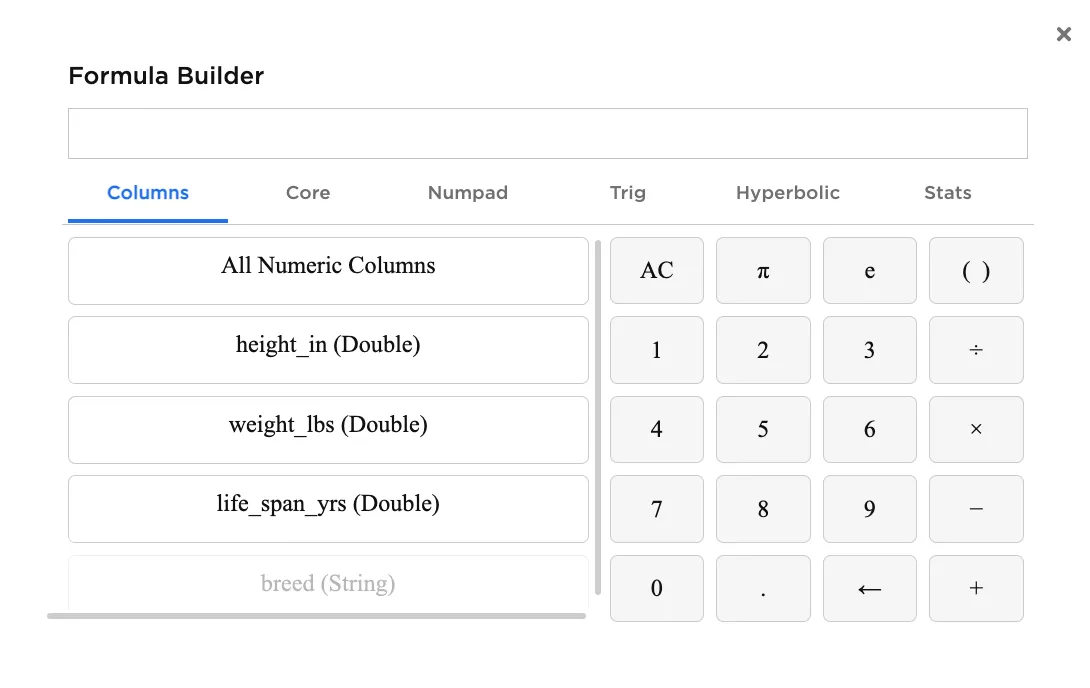
Column selections
| Field | Description |
|---|---|
| Columns Required | Numeric columns from the dataset - Select the column to build your formula. |
| Calculator (default=none) | Pad with basic calculator functions - Optional basic calculations using numbers to apply such as division, multiplication, subtraction, addition. Pi, exponents, parentheses, decimals, and enter are also available. |
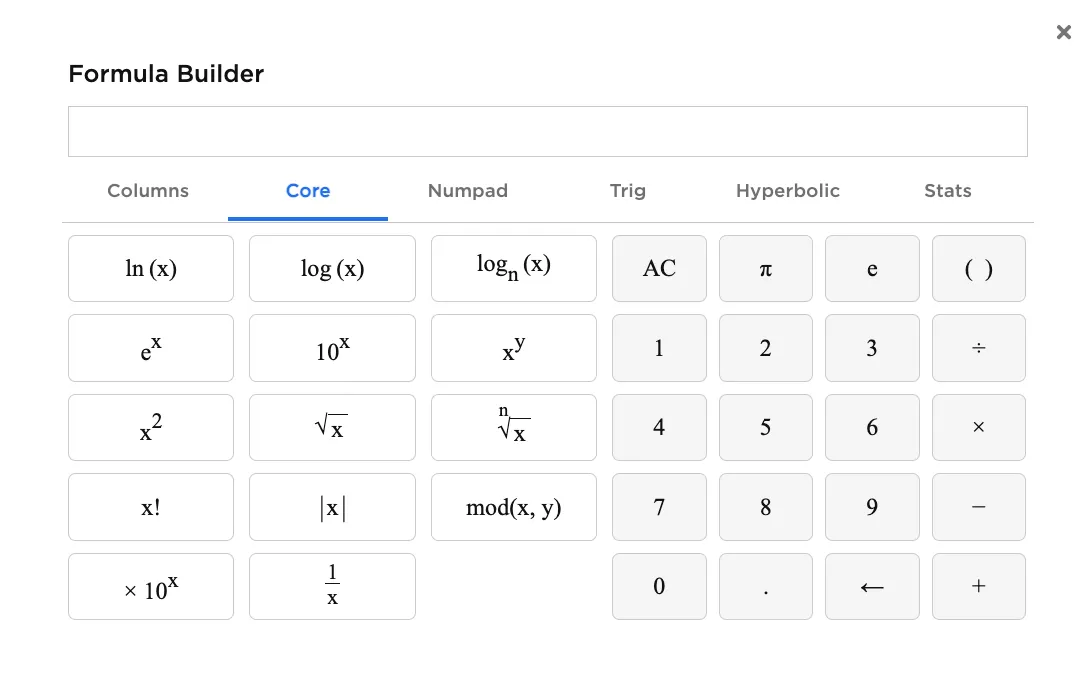
Core functions
| Field | Description |
|---|---|
| Core (default=none) | Select core functions - Optional functions that can be applied for calculations. |
| Calculator (default=none) | Pad with basic calculator functions - Optional basic calculations using numbers to apply such as division, multiplication, subtraction, addition. Pi, exponents, parentheses, decimals, and enter are also available. |
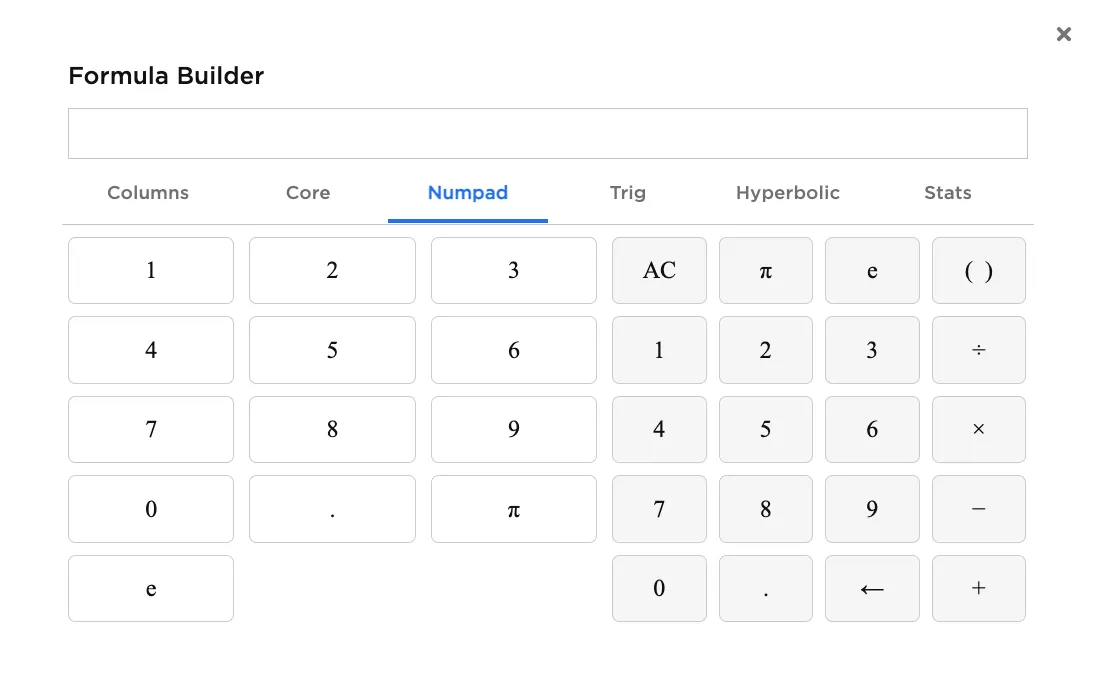
Number pad
| Field | Description |
|---|---|
| Numpad (default=none) | Number pad entries - Optional number pad that can be used to create calculations. |
| Calculator (default=none) | Pad with basic calculator functions - Optional basic calculations using numbers to apply such as division, multiplication, subtraction, addition. Pi, exponents, parentheses, decimals, and enter are also available. |
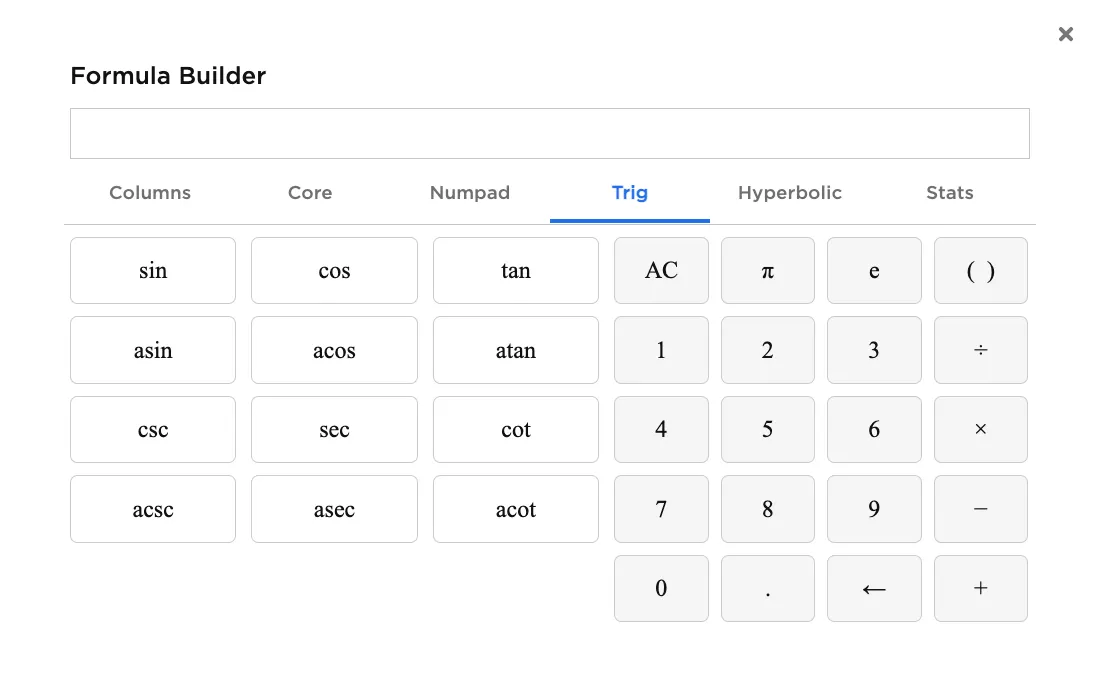
Trigonometry functions
| Field | Description |
|---|---|
| Trig (default=none) | Trigonometry functions - Optional trigonometry functions that can be used to create calculations. |
| Calculator (default=none) | Pad with basic calculator functions - Optional basic calculations using numbers to apply such as division, multiplication, subtraction, addition. Pi, exponents, parentheses, decimals, and enter are also available. |
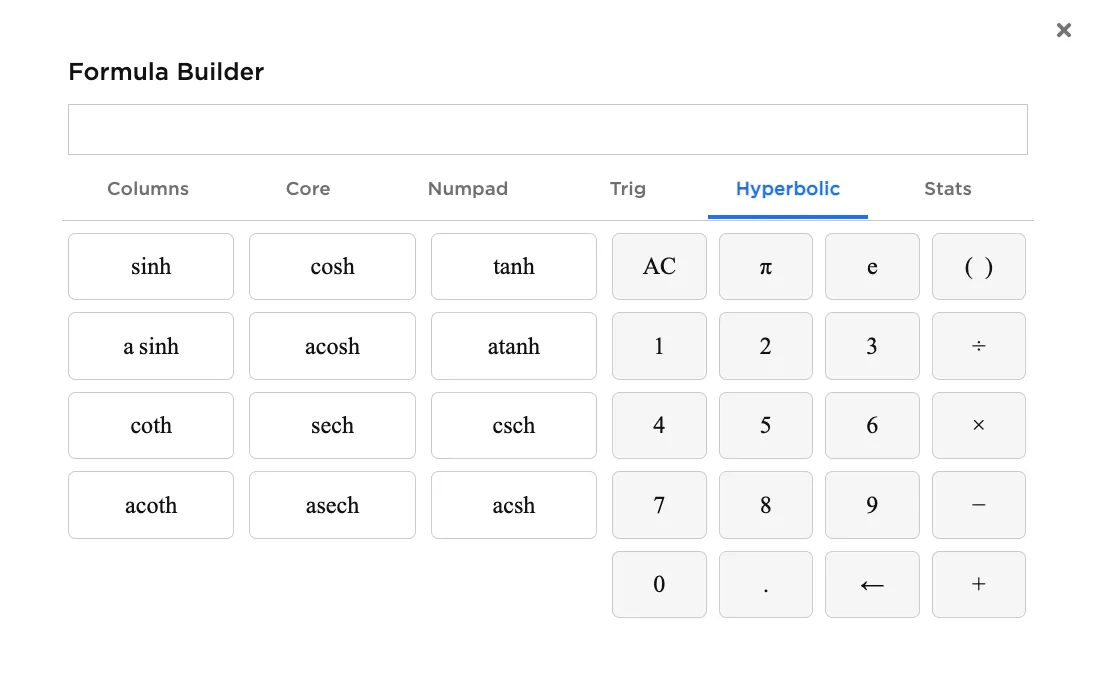
Hyperbolic functions
| Field | Description |
|---|---|
| Hyperbolic (default=none) | Hyperbolic functions - Optional hyperbolic functions that can be used to create calculations. |
| Calculator (default=none) | Pad with basic calculator functions - Optional basic calculations using numbers to apply such as division, multiplication, subtraction, addition. Pi, exponents, parentheses, decimals, and enter are also available. |
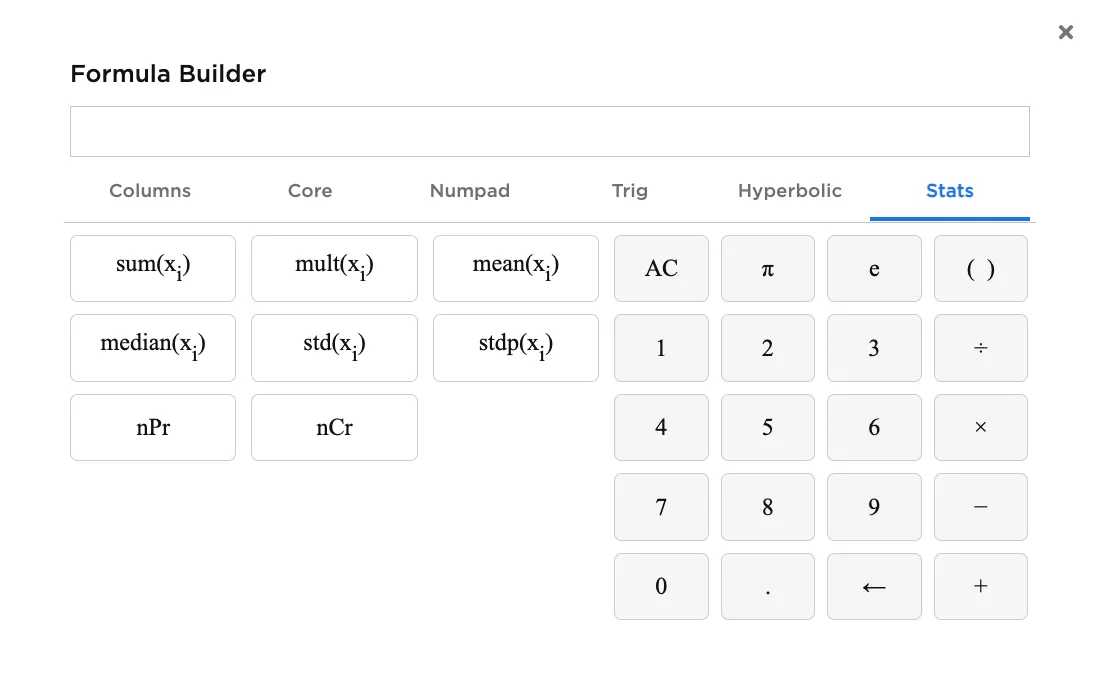
Statistics functions
| Field | Description |
|---|---|
| Stats (default=none) | Statistics functions - Optional statistics functions that can be used to create calculations. |
| Calculator (default=none) | Pad with basic calculator functions - Optional basic calculations using numbers to apply such as division, multiplication, subtraction, addition. Pi, exponents, parentheses, decimals, and enter are also available. |
Node Inputs/Outputs
| Input | A Visual Notebooks dataframe |
|---|---|
| Output | A dataframe with a user-specified calculation column |
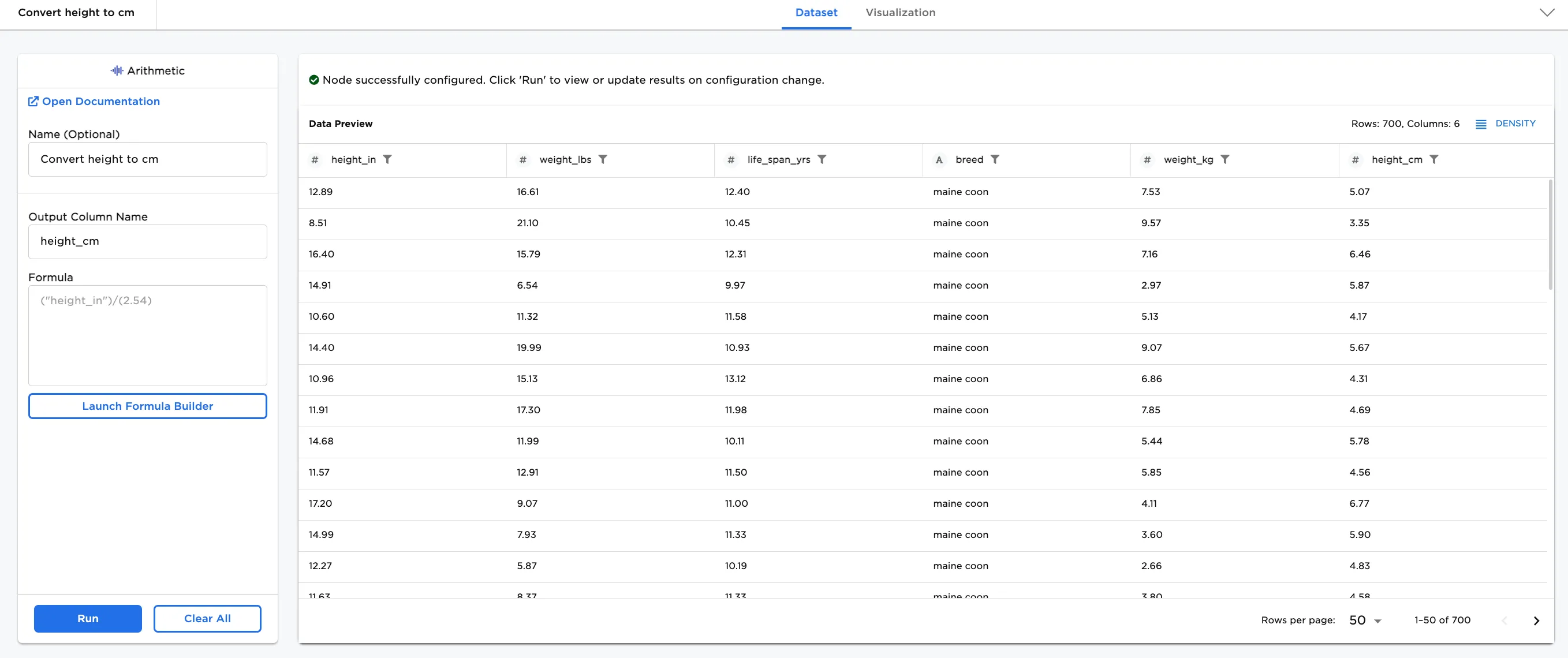
Figure 1: Example output
Examples
Data about the lifespan of cats is used to formulate new cat foods and products. In this example, our dataset has height and weight information about cats in US measurements, inches and pounds. In the examples below, we use two Arithmetic nodes to convert both columns to the metric system. The example data is available in the Visual Notebooks sample datasets.
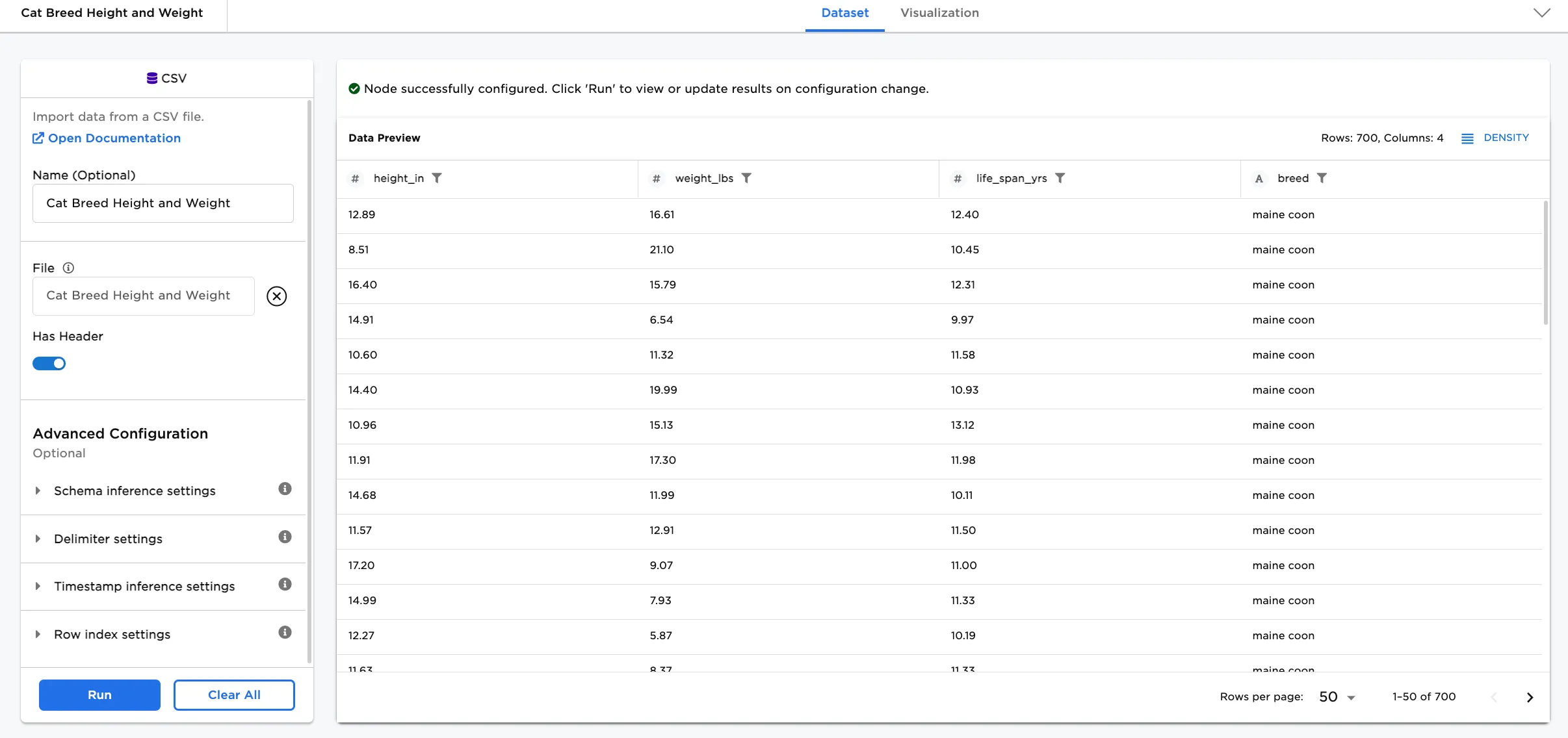
Figure 2: Example input dataset
Note: The Arithmetic node can be used to create more complex formulas than what we are showing in the example. Our purpose is to familiarize you with the node and how it can work to customize your data for machine learning.
- Connect an Arithmetic node to an existing node. In this case, it is connected to a CSV node with the sample dataset.
- Optionally, add a name for the node. In this case, it is named,
Convert weight to kg. - Name the output column. Figure 3 shows
weight_kgfor the output column. - Select
Launch Formula Builderand create your formula for the output column.
- In the
Columnstab, select theweight_lbscolumn. - Add the formula to the value in the column:
/2.205 - Close the formula box.
- Select Run.
Notice that a new column is added to the dataset called weight_kg.
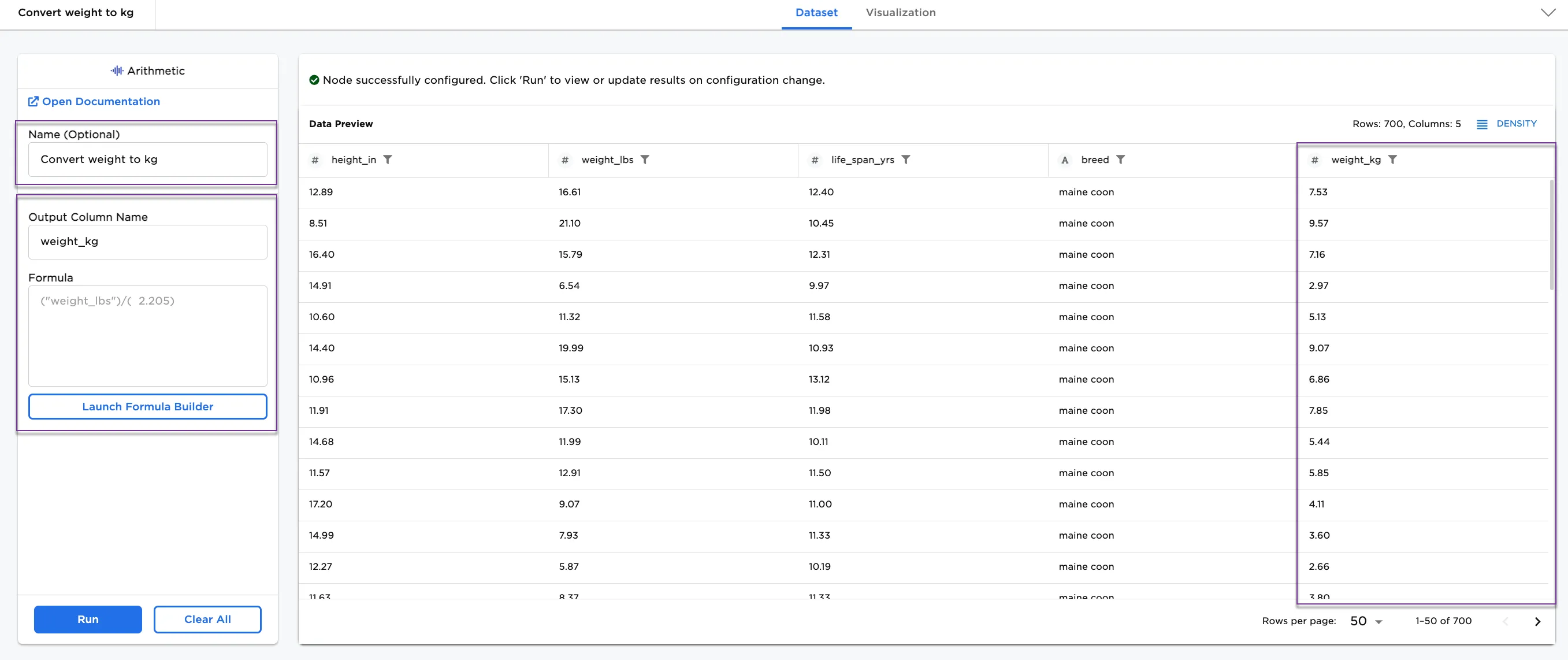
Figure 3: Example dataframe with weight converted to kg
Now, let's add a second Arithmetic node to the workspace to convert height from inches to centimeters.
- Connect a second Arithmetic node to the existing one. See Figure 5 to view an example workspace with two Arithmetic nodes.
- Optionally, add a name for the node. In this case, it is named,
Convert height to cm. - Name the output column. Figure 4 shows
height_cmfor the output column. - Select
Launch Formula Builderand create your formula for the output column.
- In the
Columnstab, select theheight_incolumn. - Add the formula to the value in the column:
/2.54 - Close the formula box.
- Select Run.
Notice that another new column is added to the dataset called height_cm.
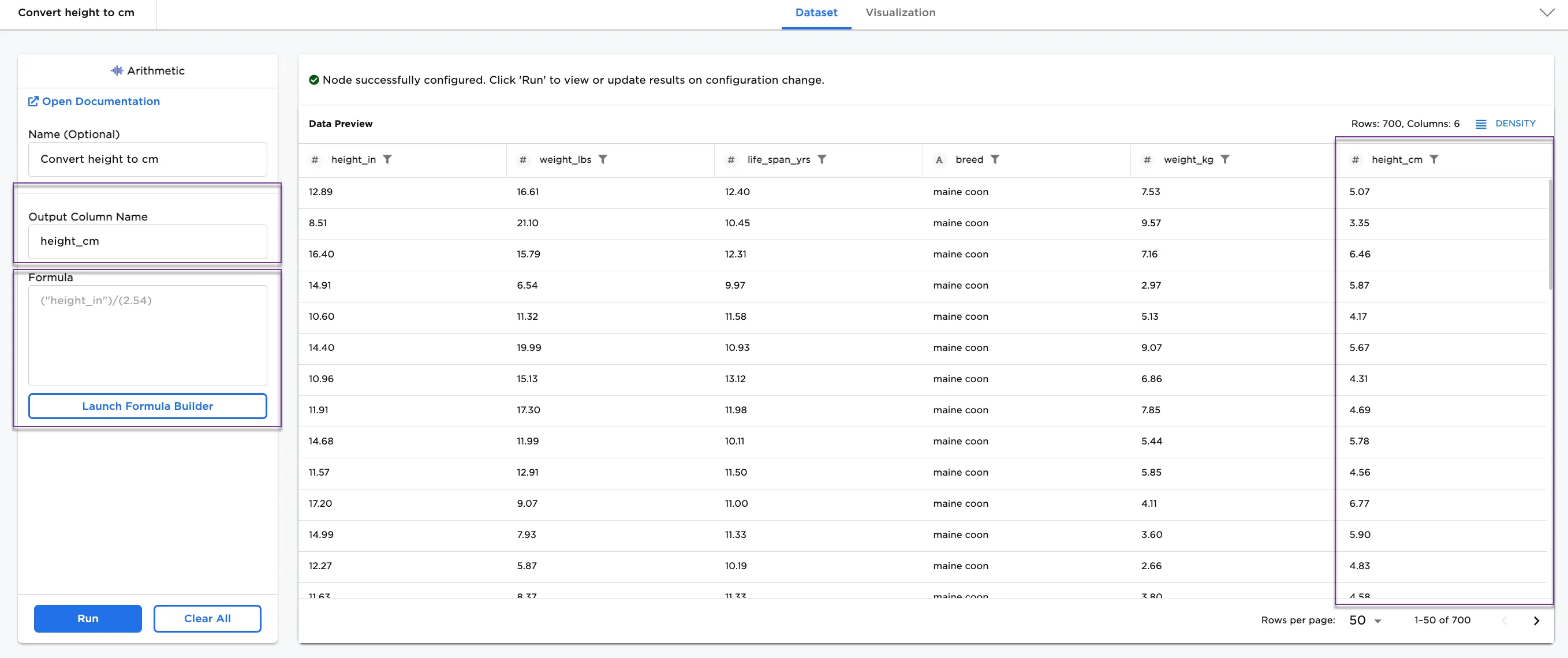
Figure 4: Example dataframe with height converted to cm
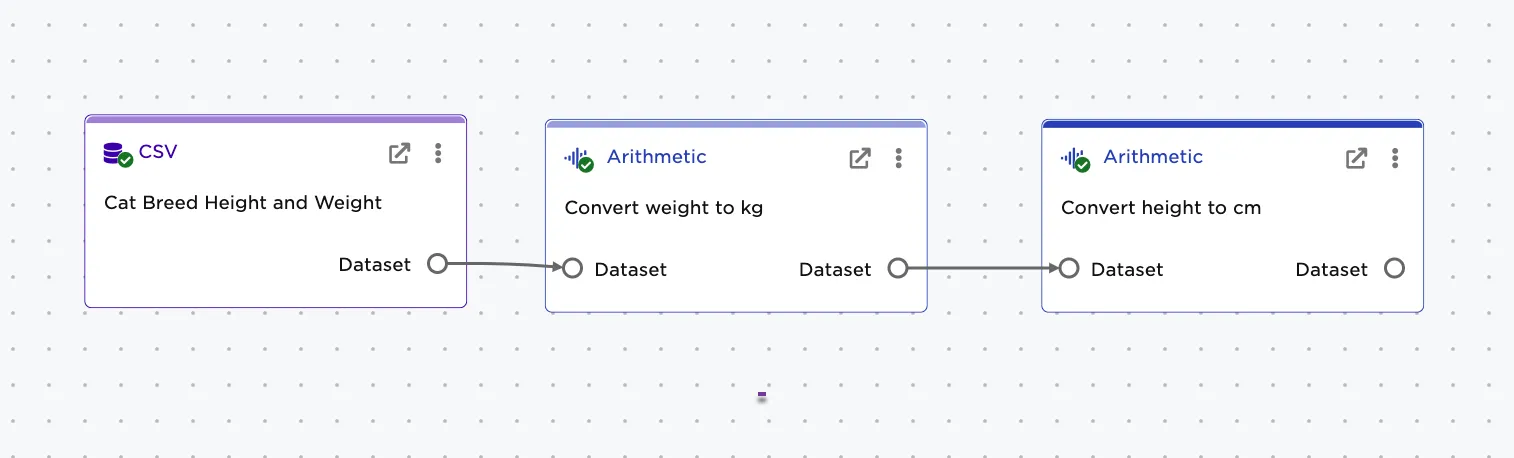
Figure 5: workspace with two nodes