Using the Binarizer Multilabel Node in Visual Notebooks
Use the Binarizer Multilabel node in Visual Notebooks to convert a numerical or string column into multiple binary categorical columns, which is one option for preprocessing your data for machine learning.
A multilabel binarizer assigns a binary column of 0s or 1s per category, preprocessing your data and preparing for training a model later.
Configuration

Configuration sidebar
| Field | Description |
|---|---|
| Name (default=none) | Field to name the node - An optional user-specified node name displayed in the workspace, both on the node and in the dataframe as a tab. |
| Column to Binarize Required | Add a column from dataset - Select a column from your dataset to binarize. String labels should have 50 or fewer unique labels-more than 50 labels yields an error. Numeric labels can be binned (see Number of Bins), but string labels cannot. |
| Number of Bins (default=none) | Bins for numeric columns - Specify number of bins to create for numeric columns. For example 2 bins for a numeric column with values between 1-2000, creates new bin columns for "1-1000" and "1001-2000." If the value is 575, for example, 1 is entered in the 1-1000 column and 0 in the 1001-2000 column. If the value is 1575, 0 is entered in the new 1-1000 column and 1 in the 1001-2000 column. Leave Number of Bins blank for string columns since string columns binarize by label. |
Node Inputs/Outputs
| Input | A Visual Notebooks dataframe |
|---|---|
| Output | A dataframe with binarized columns |
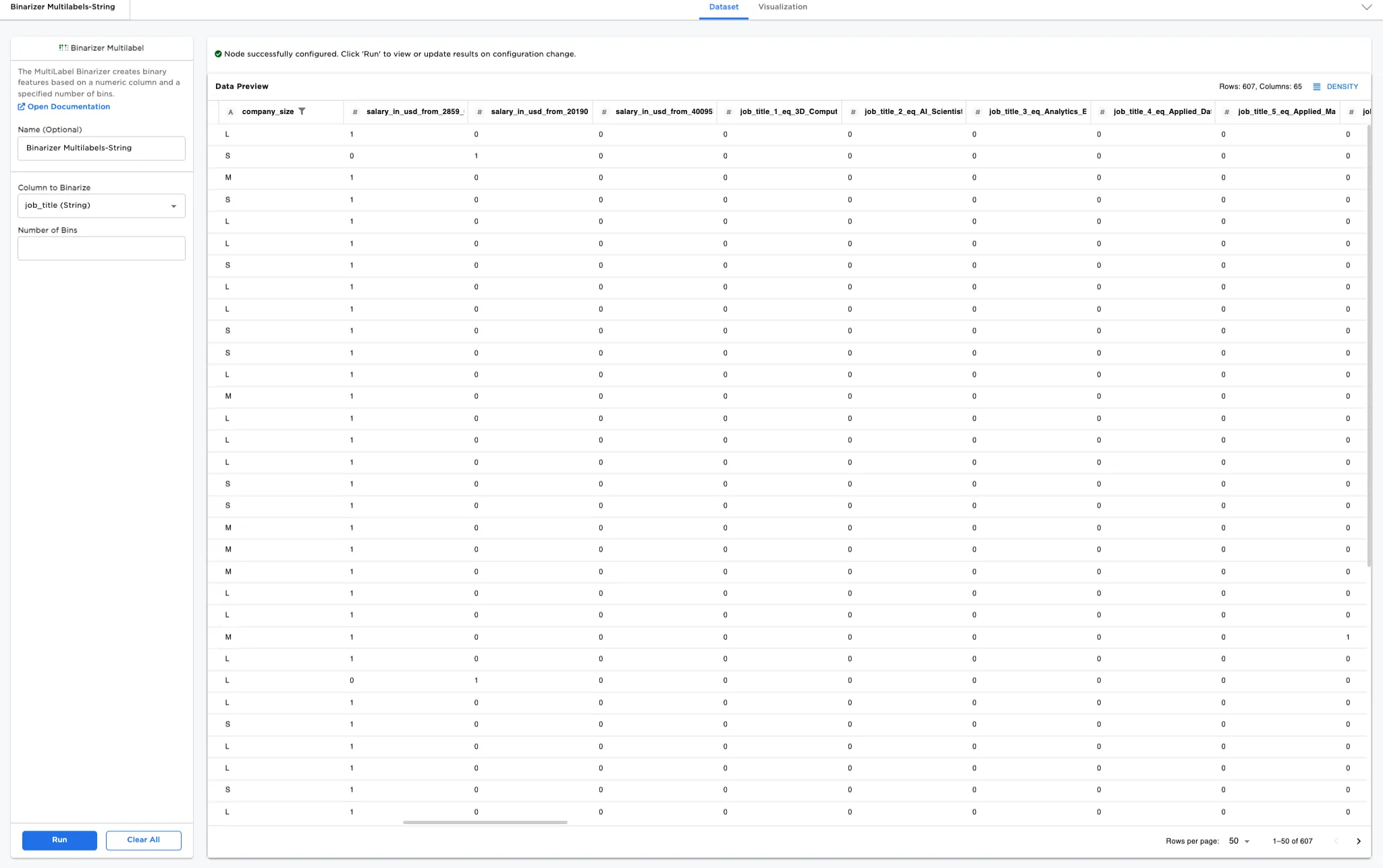
Figure 1: Example output dataframe
Examples
In this example, we have a dataset representing salaries in data science for different job titles in different cities around the world. There are 607 rows of data.
The example data is available in the Visual Notebooks sample datasets.
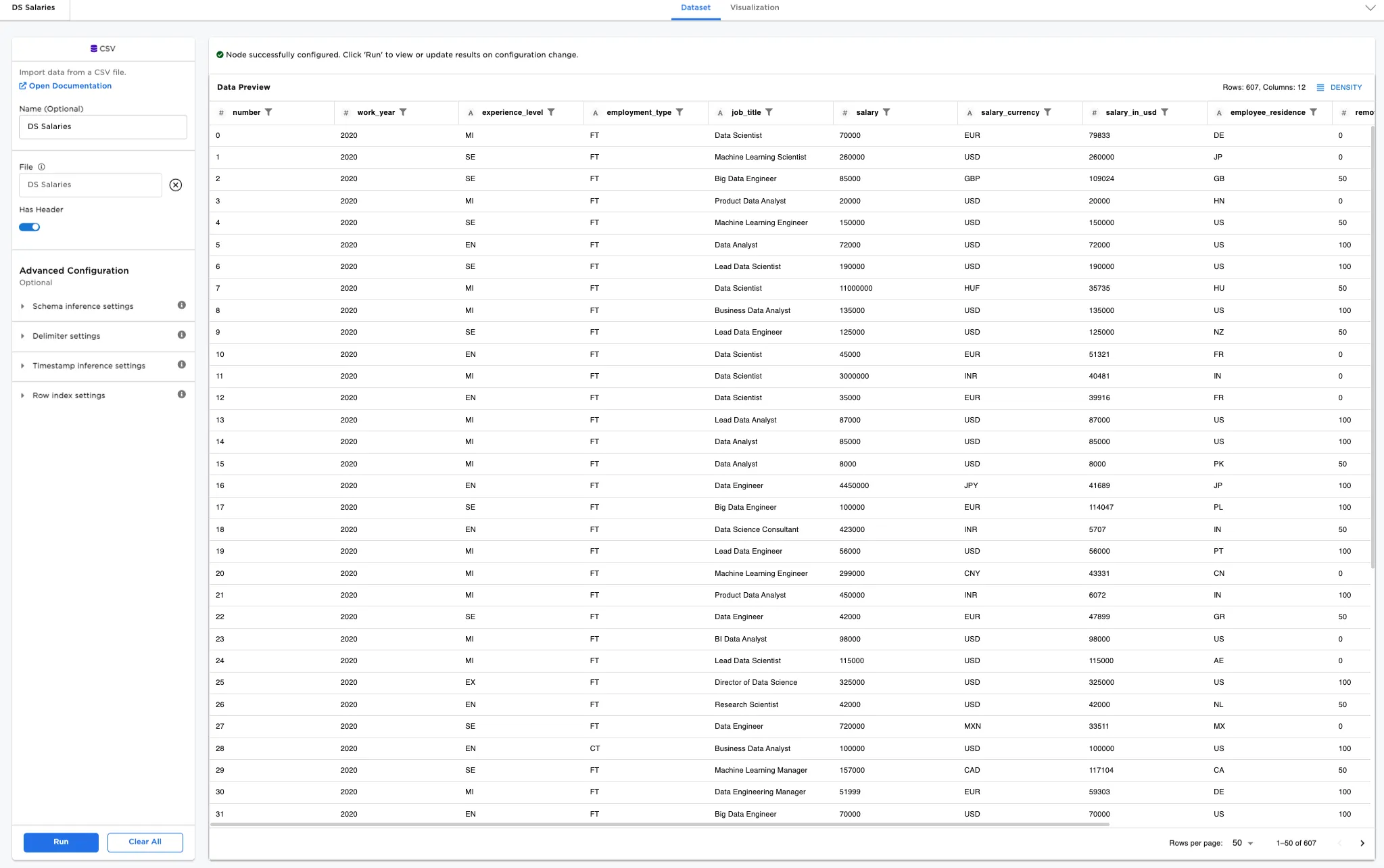
Figure 2: Example input data
- Connect a Binarizer Multilabel node to an existing node. In this case, it is connected to the DS Salaries CSV file.
- Optionally, name the Binarizer Multilabel node. In the example, the node is named,
Binarizer Multilabels. - Select the Column to Binarize. In Figure 3, the
salary_in_usd (integer)is selected. - Select the Number of Bins. In the example,
3is entered. - Select Run.
Notice that Figures 3 has three columns, representing the three bins in the configuration. Each of the three bins splits the full range, so that $2859-$600,000 is broken down to: $2859-$201,906, $201,907-$400,953, and $400,953-$600,000.
The last columns of the dataset have a binarized column for each bin (0 for false, 1 for true for that row and column). Note that only one column at a time can be binarized with a single node. See Figures 5 and 6 for an example of how to use multiple Binarizer Multilabel nodes to binarize multiple columns.
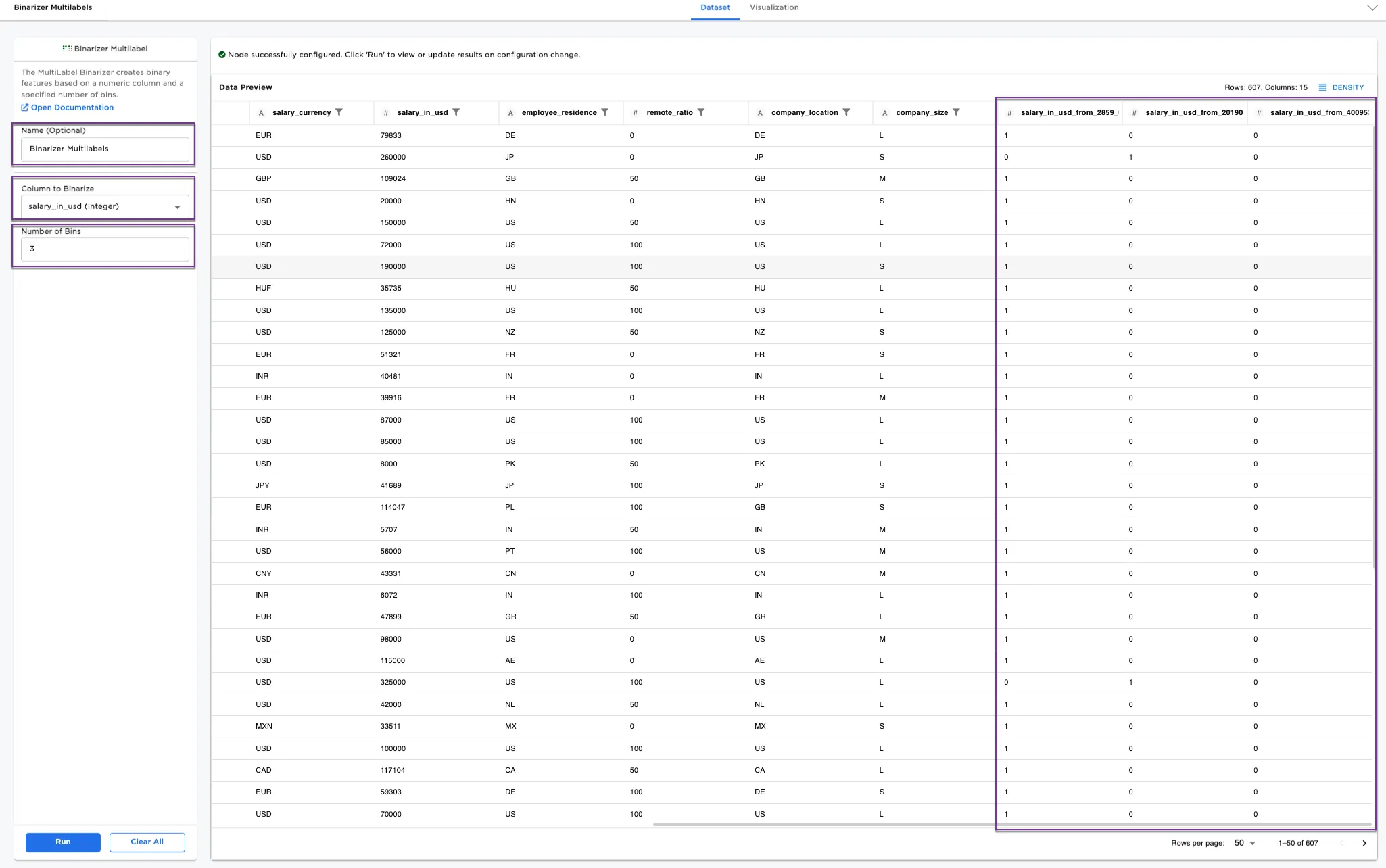
Figure 3: Example dataframe with 3 bins on numeric labels
We can also binarize on multiple strings. For Figures 4, clear the number of bins and select job_title (String) for Column to Binarize.
Notice that for strings, instead of bins, each column is a unique job title with 0 for false, 1 for true for that row and column. There must be < 50 strings to binarize successfully.
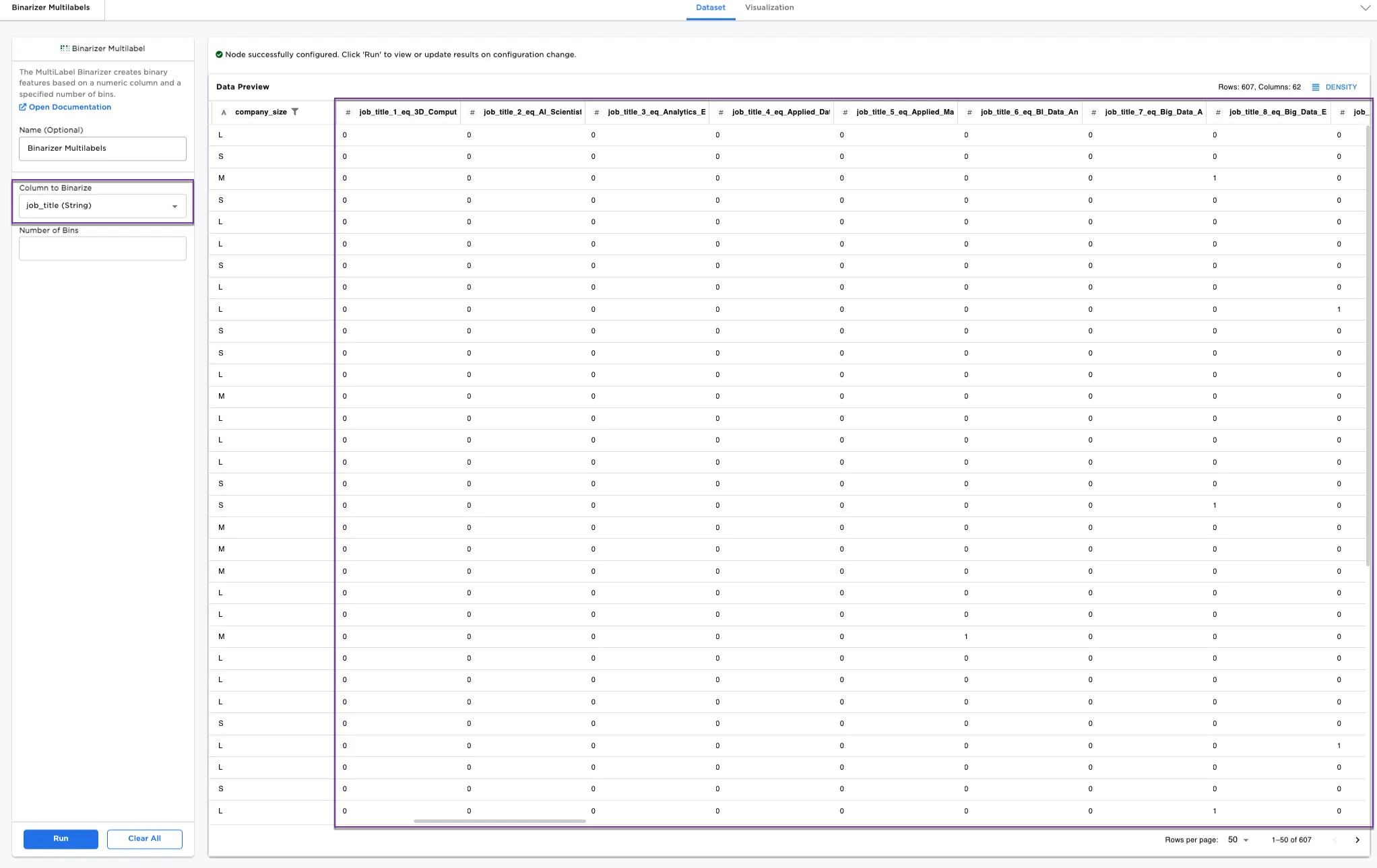
Figure 4: Example dataframe with string labels
If you would like to binarize more than one column, multiple nodes can be added to the workspace as seen in Figures 5 and 6.
Recreate the selections from Figure 3 earlier:
- Rename the original node
Binarizer Multilabels-Numeric. - Select
salary_in_usd (integer)in Column to Binarize. - Enter
3in the Number of Bins. - Select Run.
Now, add a second node:
- Add a second Binarizer Multilabel node to the workspace and connect it to the
Binarizer Multilables-Numericnode. - Optionally, name the new node. In the example, the second node is named,
Binarizer Multilabels-String. - Select the column you'd like to encode. In Figure 5, the job_title (String) is selected.
- Select Run.
Notice the last columns of the new dataset have binarized columns both for the USD salary columns binarized in three bins, and all the unique job titles (0 for false, 1 for true for that row and column).
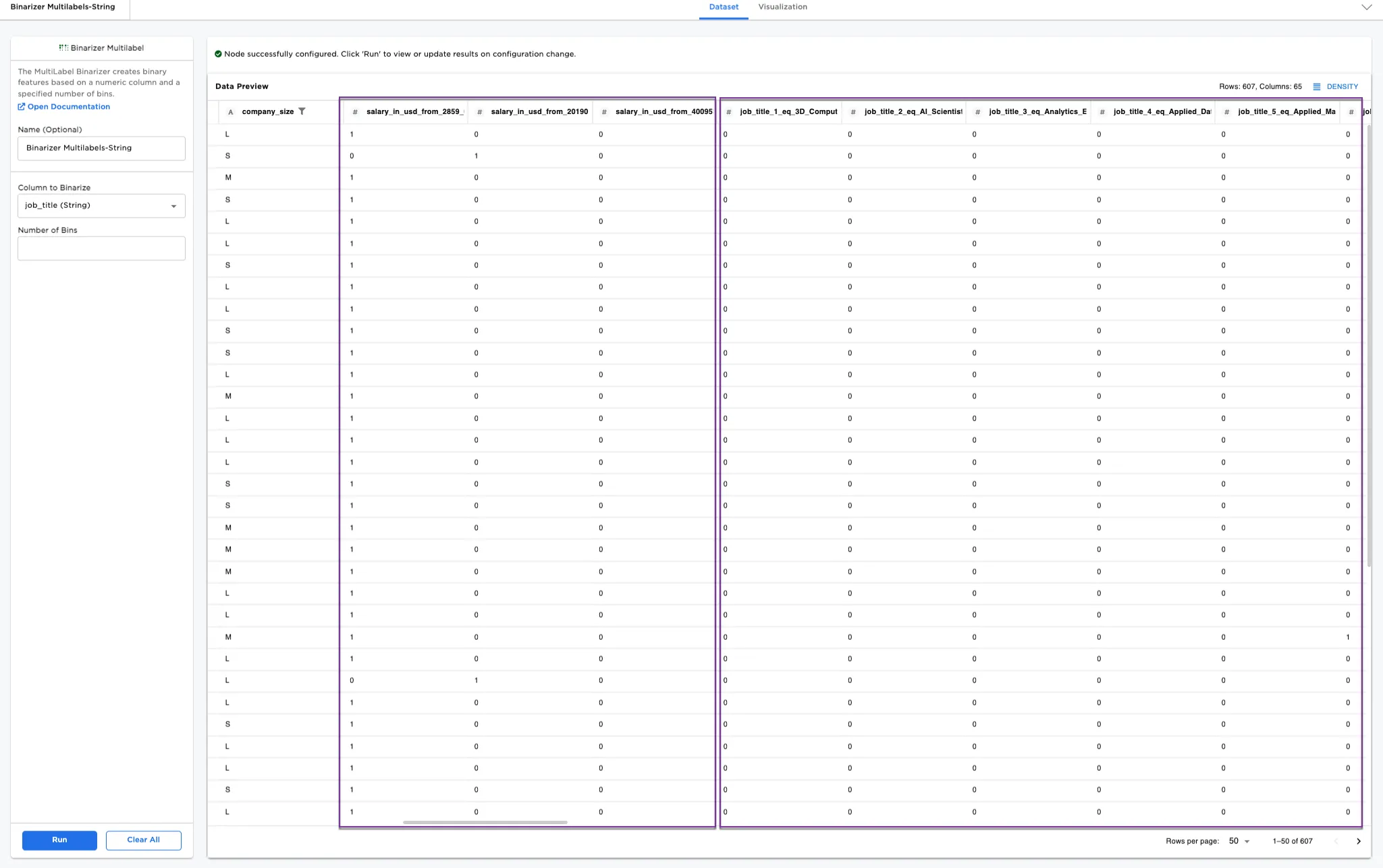
Figure 5: Example dataframe with numeric and string labels binarized
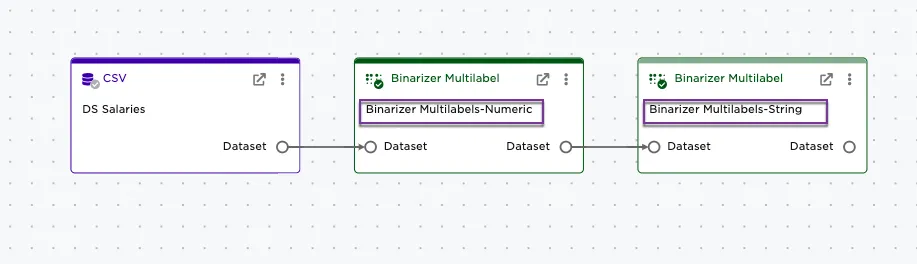
Figure 6: Example workspace