Label Encoding
Use the Label Encoding node in Visual Notebooks to convert columns into a numeric form with a key for each column entry and its corresponding numeric form. Label encoding is a preprocessing step that improves the performance of machine learning algorithms.
Configuration
Expand this section to see the configuration sidebar
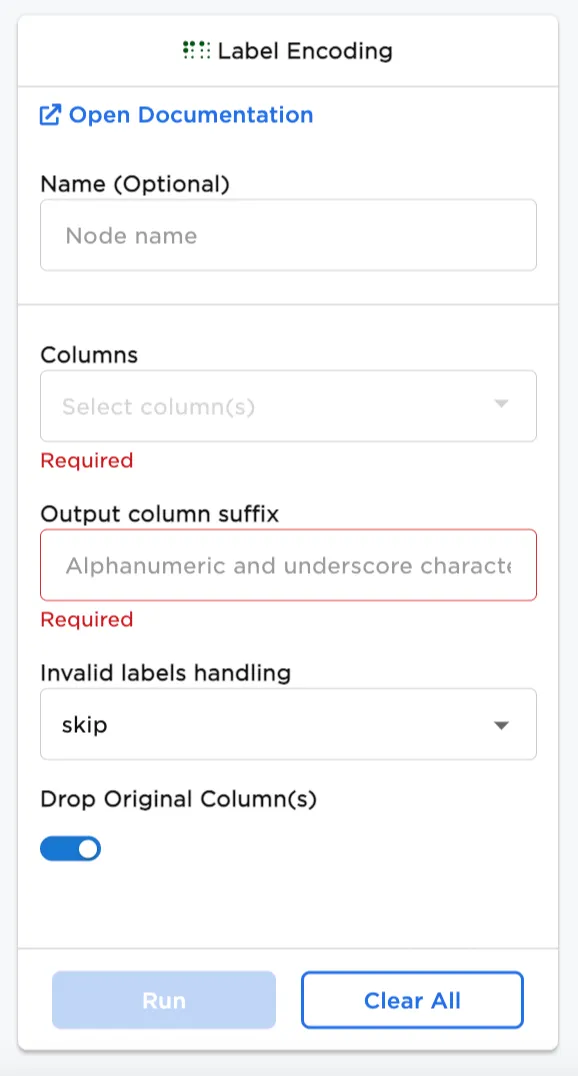
| Field | Description |
|---|---|
| Name default=none | Field to name the node: An optional user-specified node name displayed in the workspace, both on the node and in the dataframe as a tab. |
| Columns Required | Columns for label encoding: Select columns from your dataset for label encoding. |
| Output column suffix Required | Suffix for label encoded columns: Create a suffix to add to all columns that have label encoding. |
Invalid label handling default=skip | Handling invalid labels: Select how to handle invalid labels. The options are: skip (default), keep, and error. |
Drop Original Column(s) default=on | Original column handling: Select whether to drop original column(s) with the toggle on (default) or to keep original column(s) with the toggle off. |
Node Inputs/Outputs
| Input | A Visual Notebooks dataframe |
|---|---|
| Output | A dataframe with labels encoded |
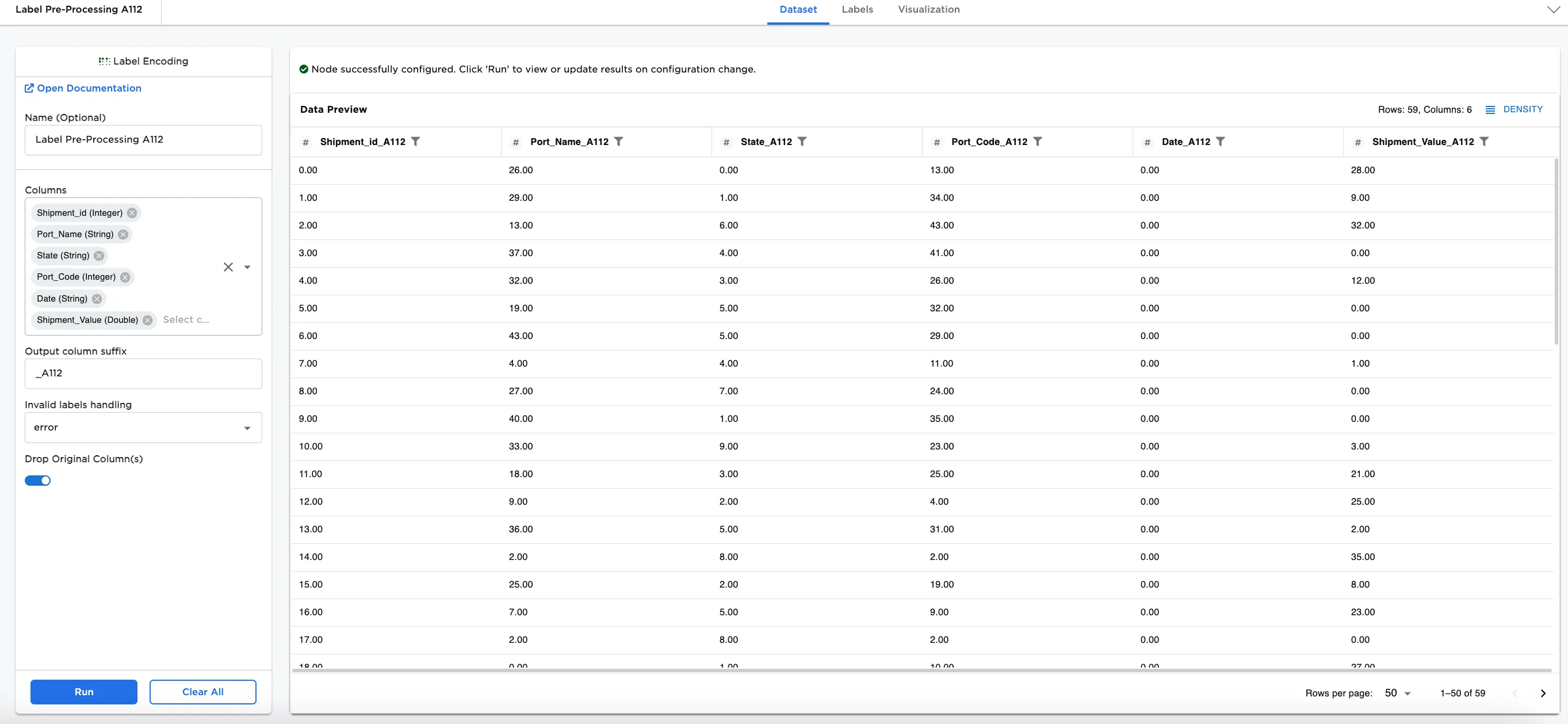
Figure 1a: Example dataframe output
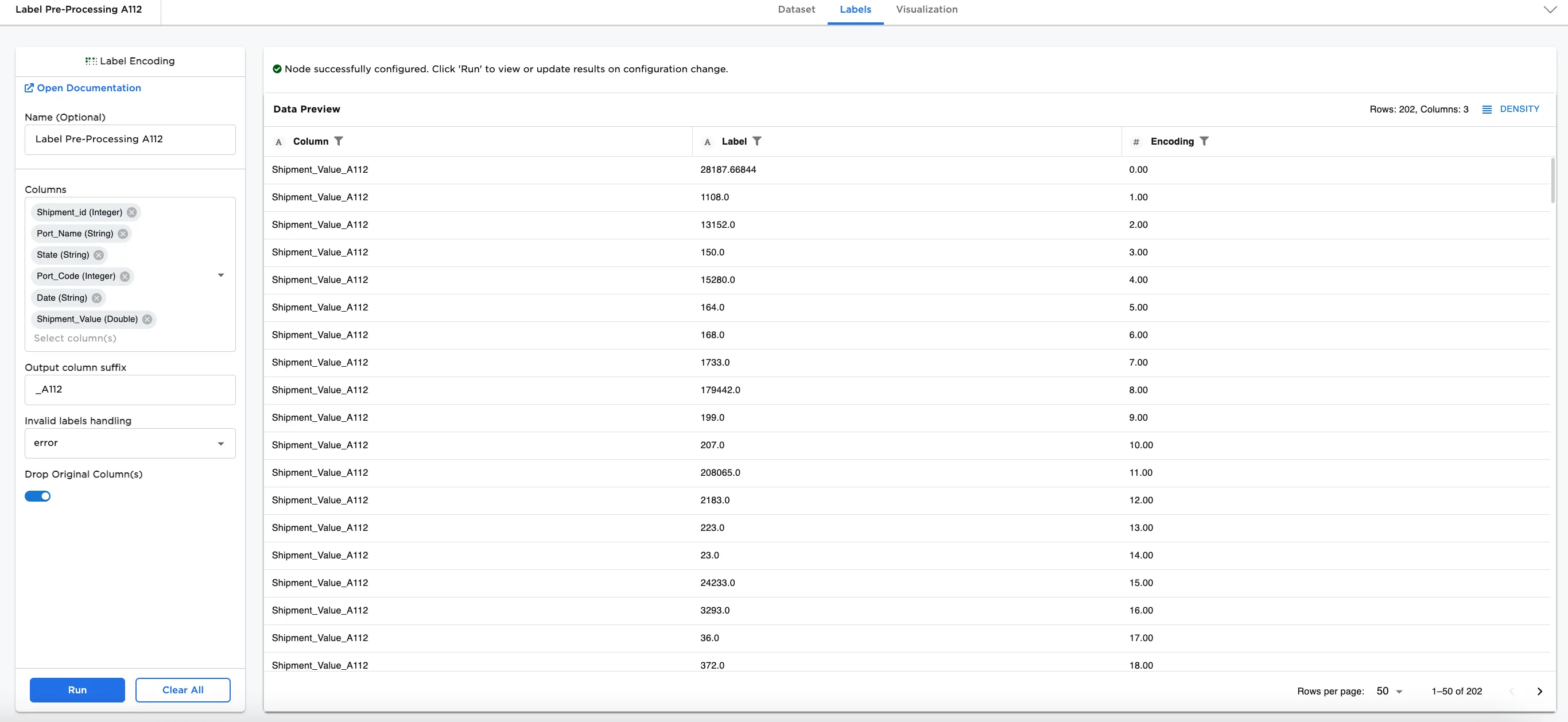
Figure 1b: Example dataframe label key
Examples
In this example, we have a dataset of shipment information with 59 rows of data. The dataset includes Shipment Ids, Port Names, States, Port Codes, Dates, and Shipment Values. We'll use this dataset and preprocess it for machine learning in the examples.
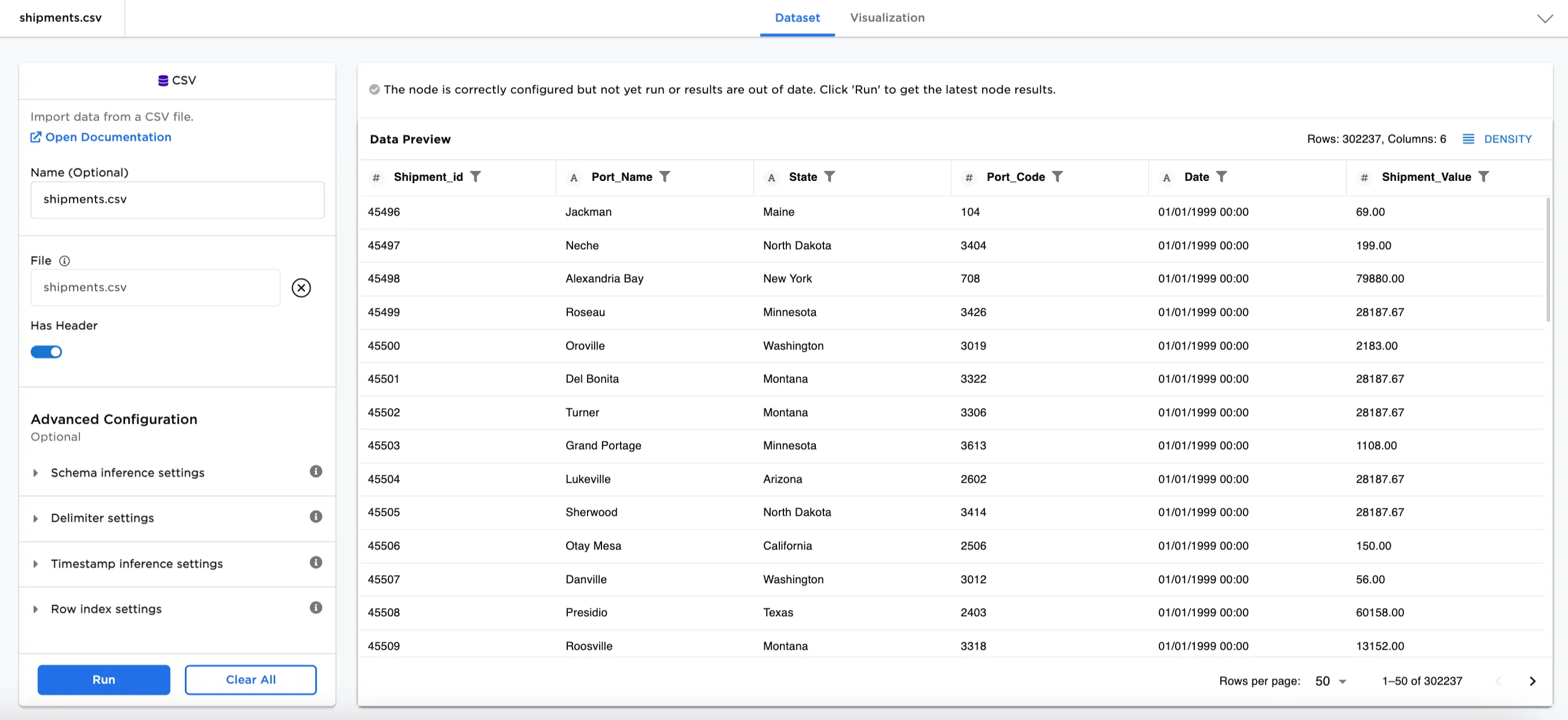
Figure 2: Example input data
- Connect a Label Encoding node to an existing node. In this case, it is connected to the Shipment CSV file.
- Optionally, name the Label Encoding node. In the example, the node is named,
Label Pre-Processing A112. - Select the column label(s) you'd like to encode. In Figure 3a, the Port_Code (integer) is selected.
- Create a column suffix to assign to the column with the encoded label. In Figure 3a,
_A112is added as the suffix so the column is named_A112_. - Select how to handle invalid labels. For this example
erroris selected. - Toggle off the Drop Original Column(s) to keep the original column.
- Select Run.
Figure 3a shows the dataframe with a new column at the end of the dataset called, Port_Code_A112 and the original column has also been kept at the beginning. The data in the Port_Code_A112 column is converted into a machine-readable numeric form.
Figure 3b has the label key that lists the original text and the numeric representation-there are 46 unique labels, which means that there are some repeating labels in the dataset with the same label encoding for Figure 3a. Notice that Port Code 3011 appears twice in Figure 3a and is assigned the same label encoding, 8 in Figure 3b. Also notice that Port Code 3413 appears once and is assigned 10. Figure 3b shows that the labels are assigned in order starting from 0.
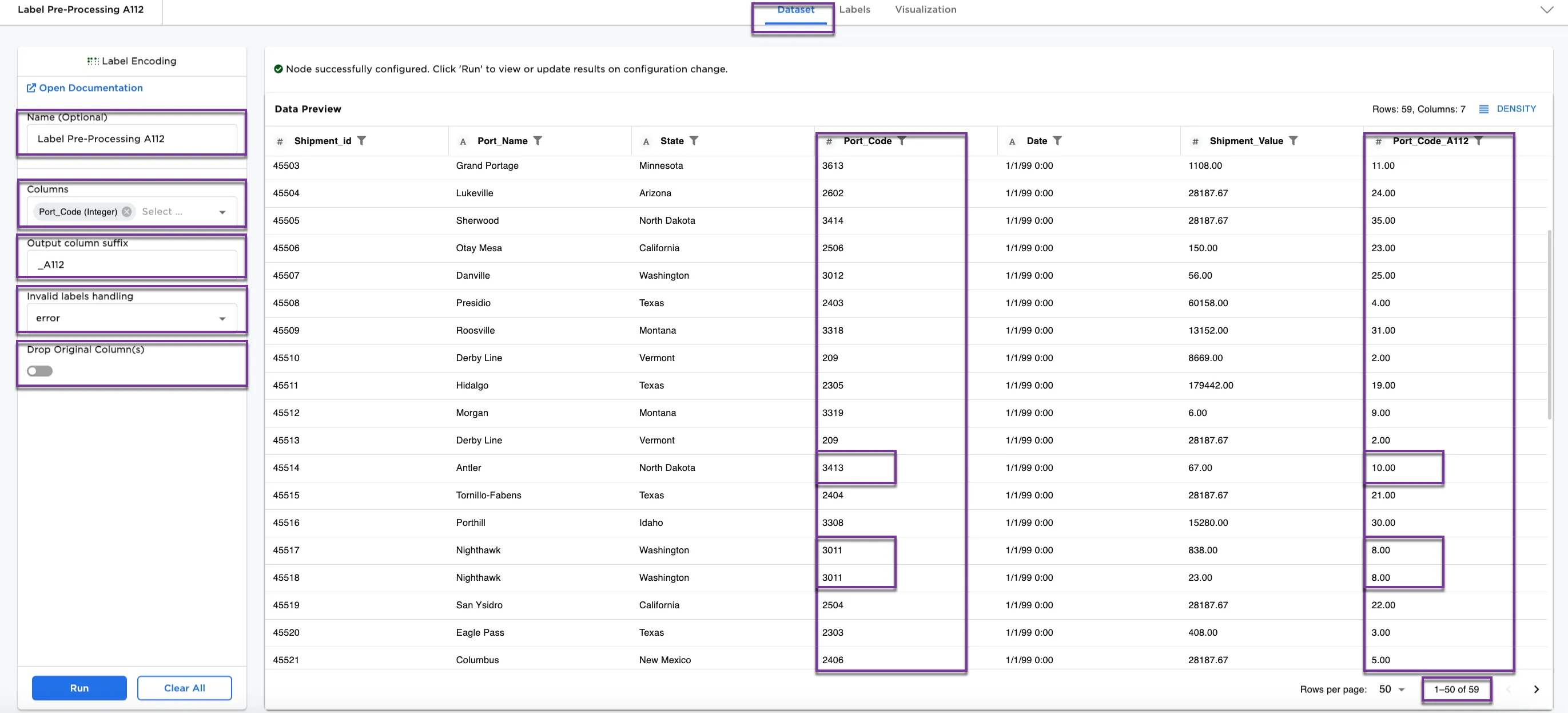
Figure 3a: Example dataframe with integer column processed
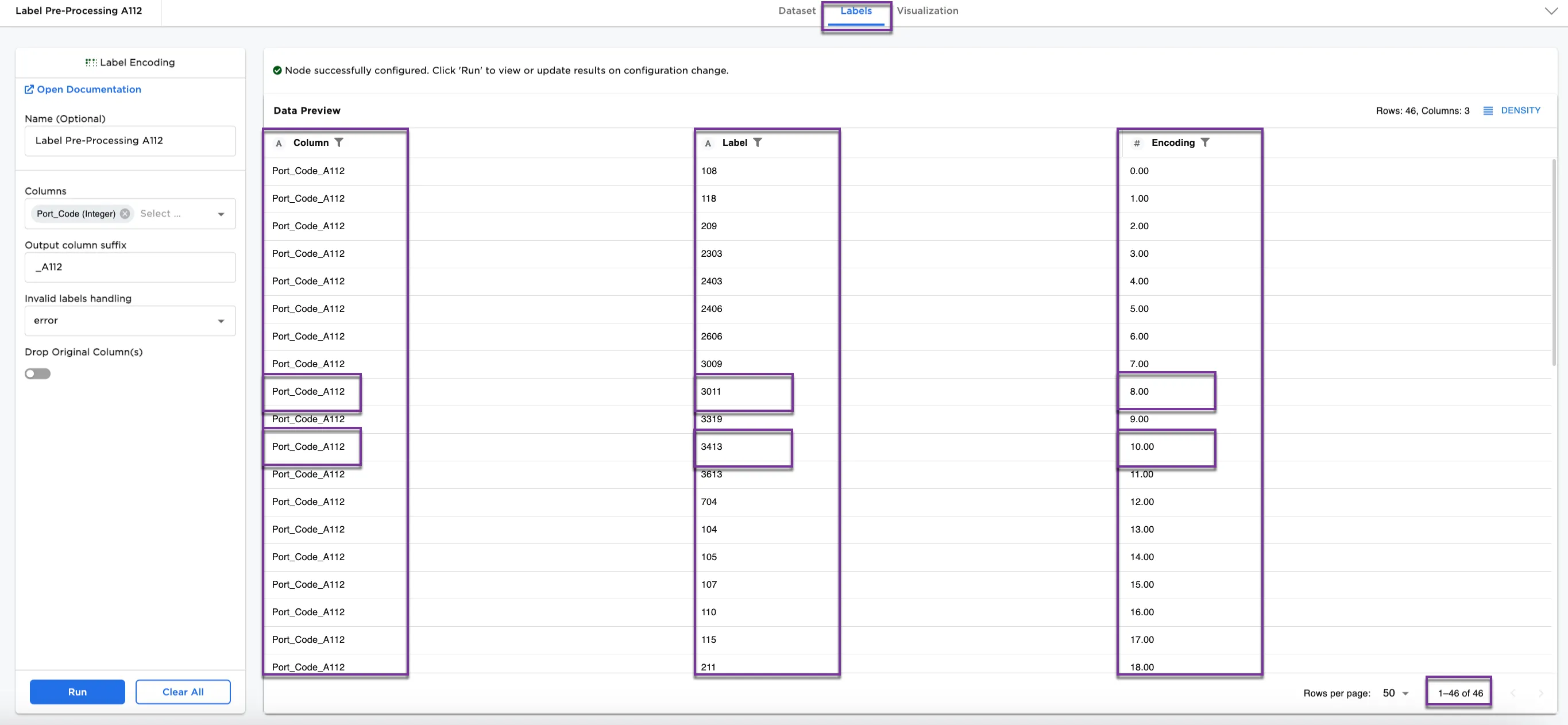
Figure 3b: Example dataframe label key
We can also use label encoding on strings. For Figures 4a and 4b, Port_Name (String) has been added to the Column(s) field for encoding.
This dataset shows a new column called Port_Name_A112 with the text converted to a machine-readable form. Notice that Figure 4a has 0 assigned to the Antler Port_Name as well as 10 assigned earlier to the 3413 Port_Code.
Figure 4b shows 92 rows of unique labels. Notice that, once again, Nighthawk is labeled 8 in sequential order for Port_Name and coincidentally it is also labeled 8 in sequential order for Port_Code.
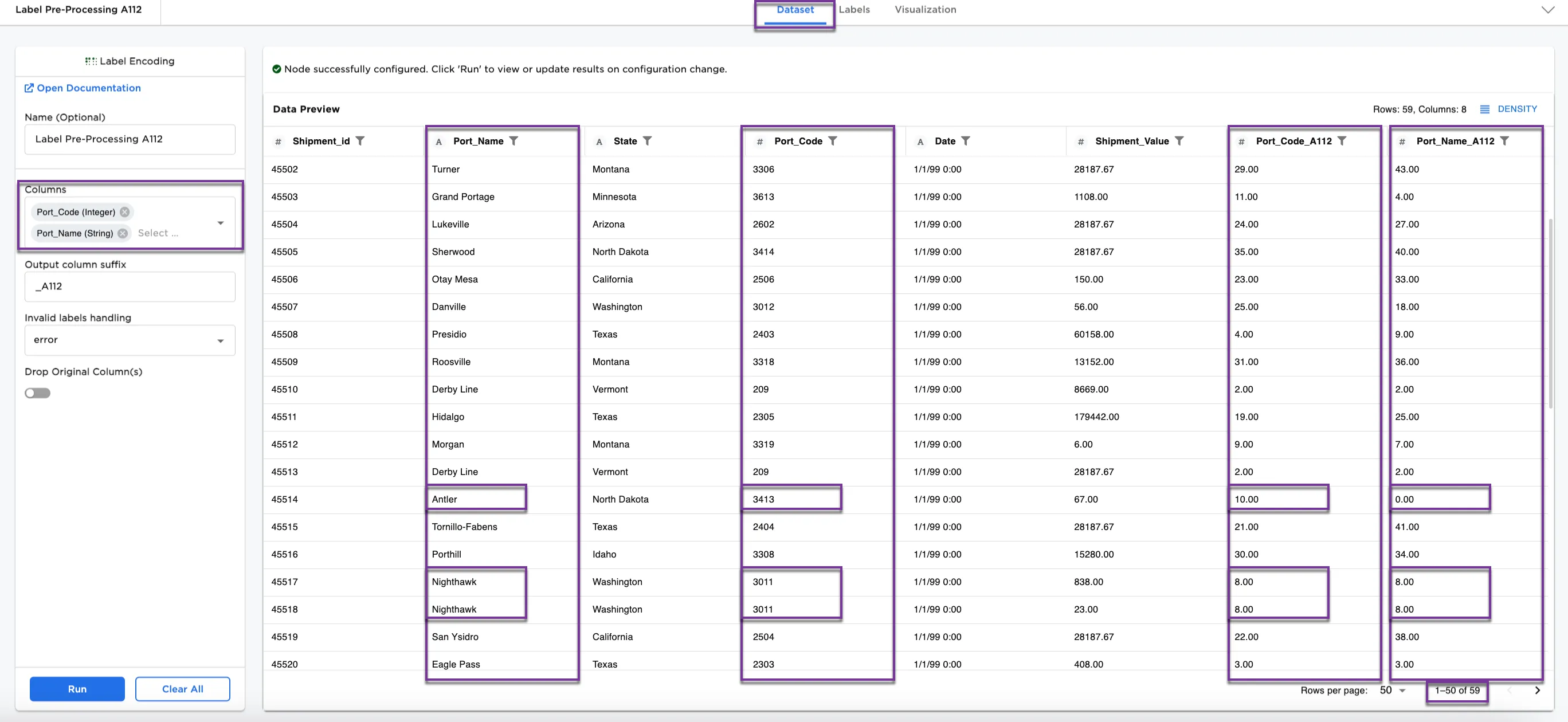
Figure 4a: Example dataframe with string text and numeric entries encoded
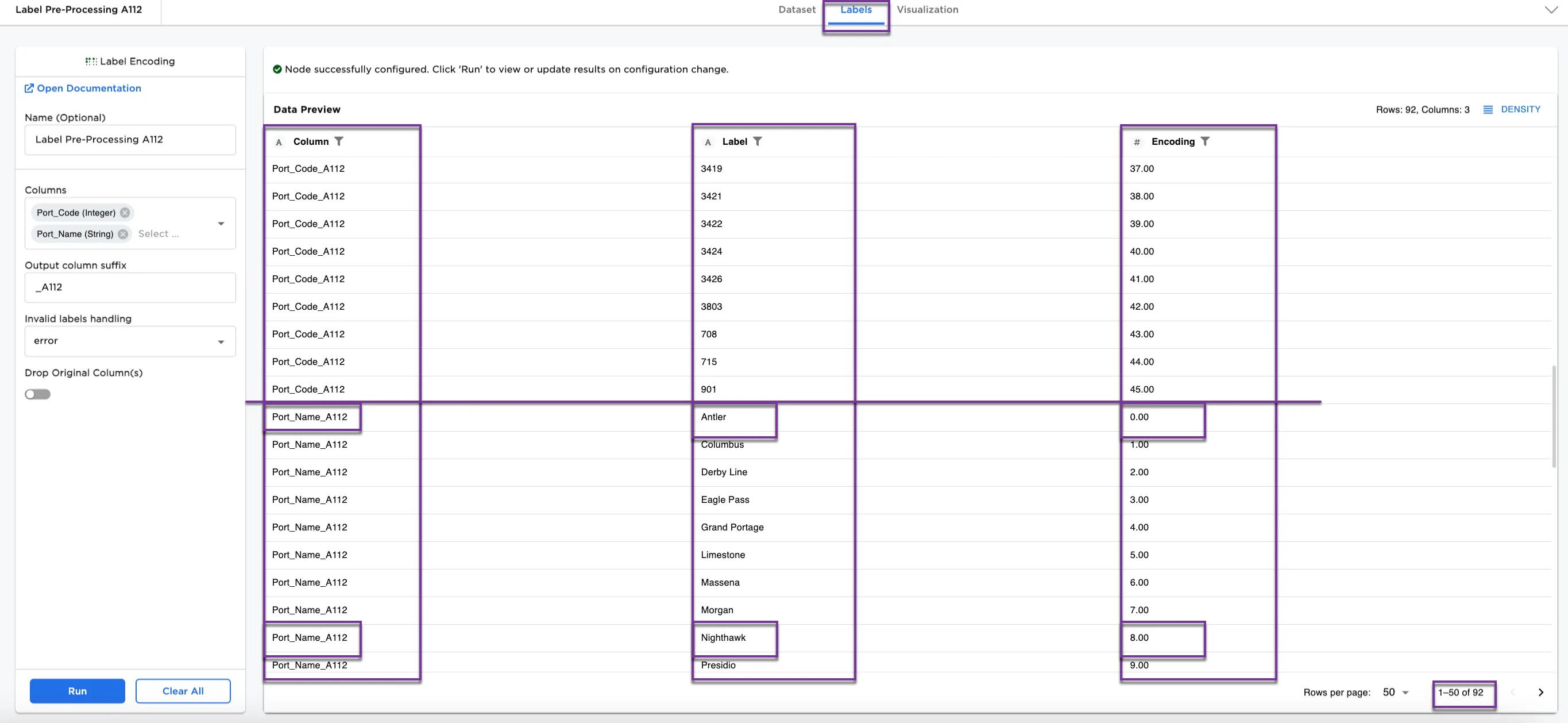
Figure 4b: Example dataframe with label key for two encoded columns