C3 AI Fetch
The Fetch node enables a user to query a C3 Type or object by identifier or filter specification. Data that match the identifier or filter selection criteria are placed in the output dataset.
A C3 Type represents underlying data, including tabular data, timeseries data, or more complex data objects and relationships. The source of all C3 AI platform data access operations are done via C3 Types.
C3 Types provide an abstraction layer with a simple interface to retrieve, update, and persist data without worrying about implementation details like what enterprise system is used--whether it be a SQL database, NoSQL database, or filesystem.
This enables users to retrieve data through simple APIs and consistent interaction patters across all data stores rather than needing to know CQL or SQL and updating logic if underlying data systems change.
Many developers with an object-oriented background might feel comfortable thinking of a C3 Type as similar to a class in Java, which describes data fields, operations and static methods that can be called on the type by one or more applications.
Analysts can also think of a C3 Type as a "table" in a more traditional enterprise system.
Prerequisites
The user must be in the appropriate Admin Group and have the correct roles to be authorized to read data from the selected C3 Type. By default, C3 AI follows the principle of least privilege and users may not have been granted access to retrieve data from C3 Types. Please speak to the C3 AI Support Team to ensure proper setup.
Configuration
| Field | Description |
|---|---|
| Name default=none | A user-specified node name displayed in the canvas |
| Select C3 Types and Fields Required | Select the C3 Type of interest and fields to be retrieved |
| Use the C3 Type Selector UI to search the C3 Application Data Model in a tree structure and select data of interest. | |
Filter default=none | The simple or complex expression used to identify and retrieve specific data elements (rows) and object instances |
| Use the powerful C3 Type query interface to define which C3 Type instances to return. Filter on time, strings, or numerical values. | |
Ids default=none | Specific IDs to use in retrieving C3 Type objects |
| Enter a comma delimited list of object identifiers to be used for investigation. | |
Limit default=200 | Number of rows to be retrieved |
| The number of rows to be used for investigation. In many instances, this is a subset of of the results returned by the filter specification. For example, if the filter returns 900 rows and the limit is 200, only 200 rows will be used for investigation. |
Node Inputs/Outputs
| Input | None |
|---|---|
| Output | Visual Notebooks returns a table, called a dataframe from the C3 AI Application Data Model, that contains all relevant data. Columns are labeled and include a symbol that specifies the data type of that column. |
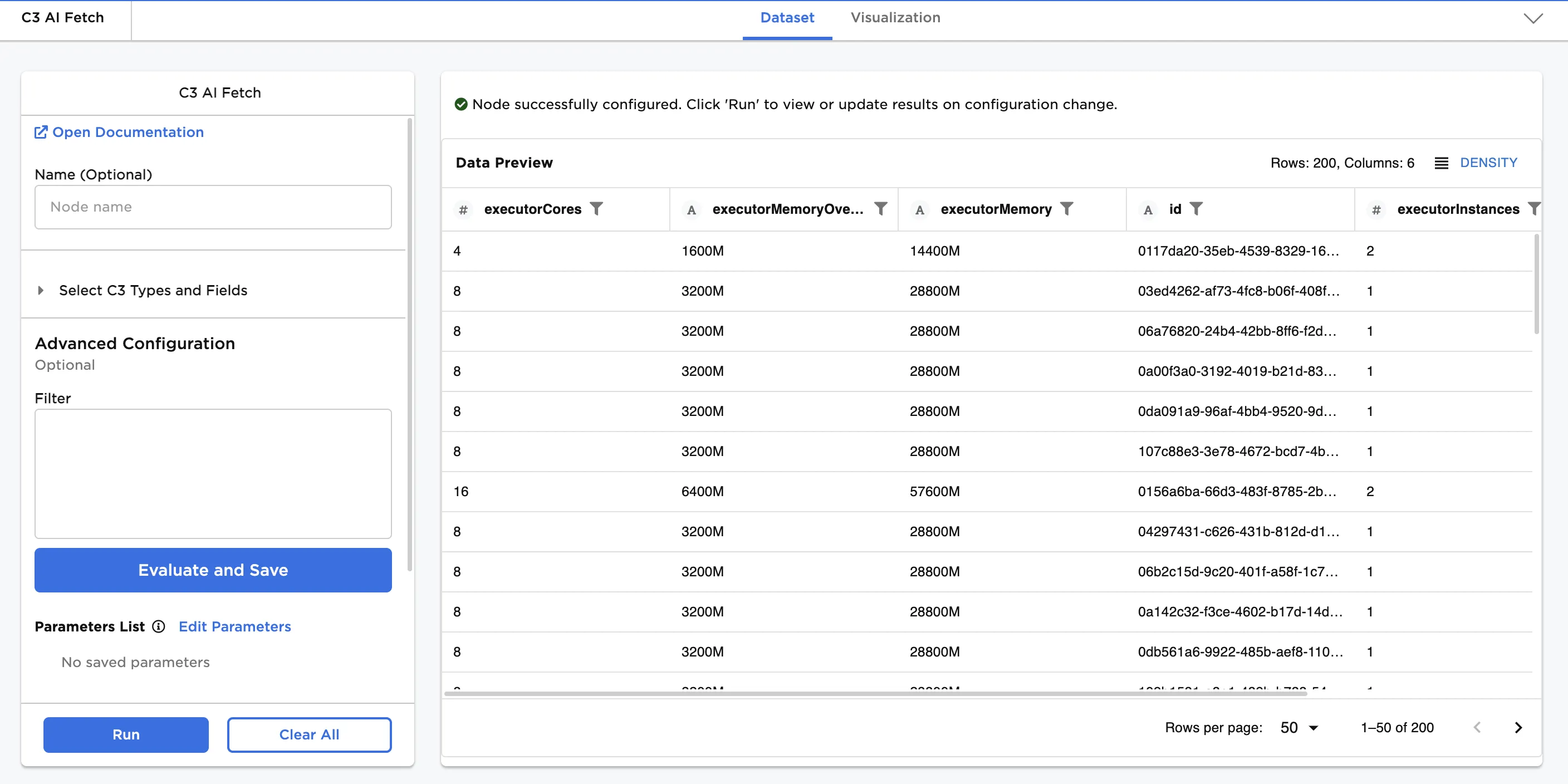
Figure 1: Resulting dataframe with C3 Type objects and associated fields.
Examples
Example 1
Select 200 instances of the ExMachinaWorkspaceConfig type. This C3 Type represents a user's workspace and associated information about it--the memory, size, user, etc.
Use the Type Selector to view and search for ExMachinaWorkspaceConfig
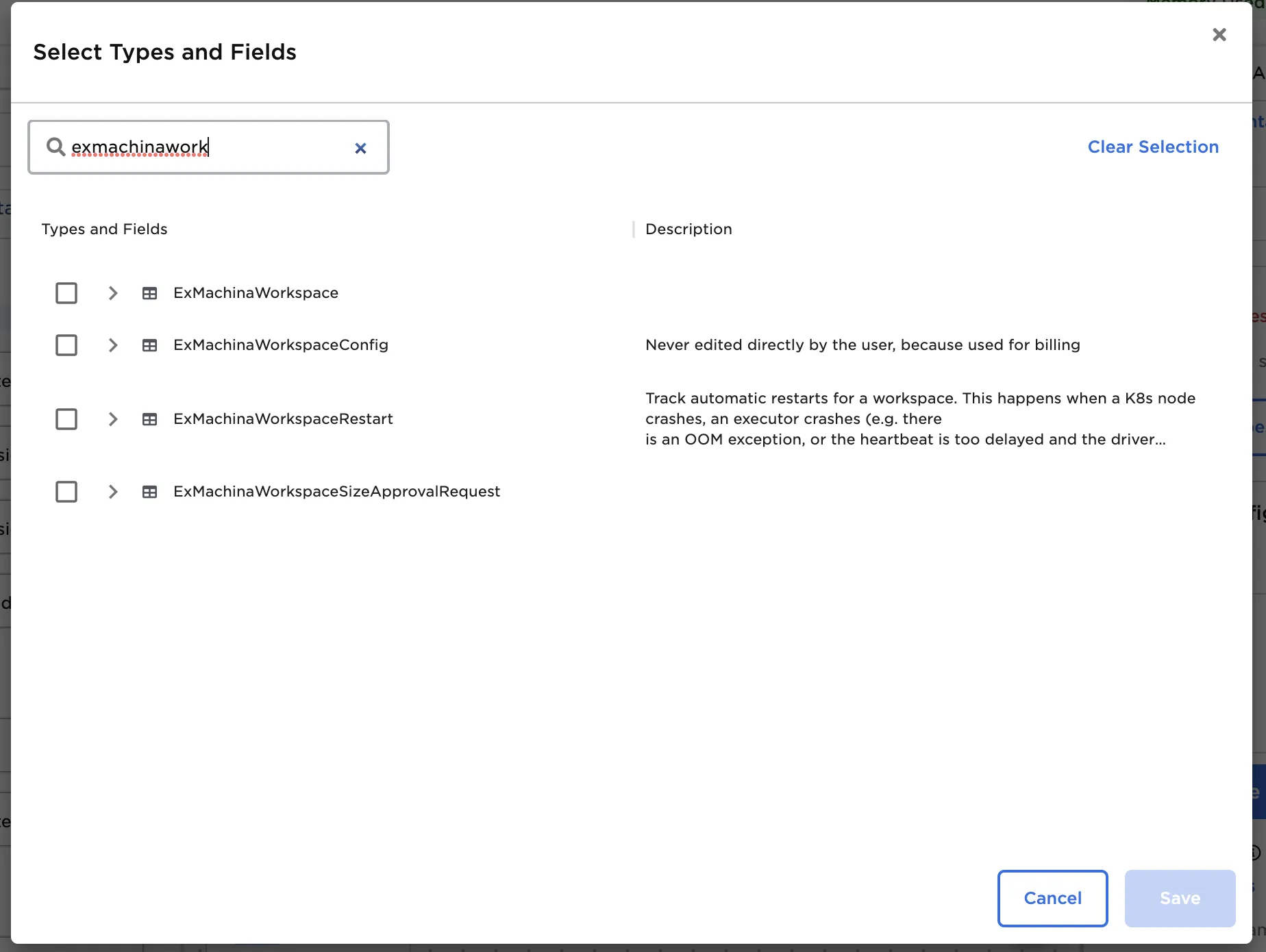
Figure 2: Searching for a type.
Use the tree structure to select the desired fields and information to be returned.
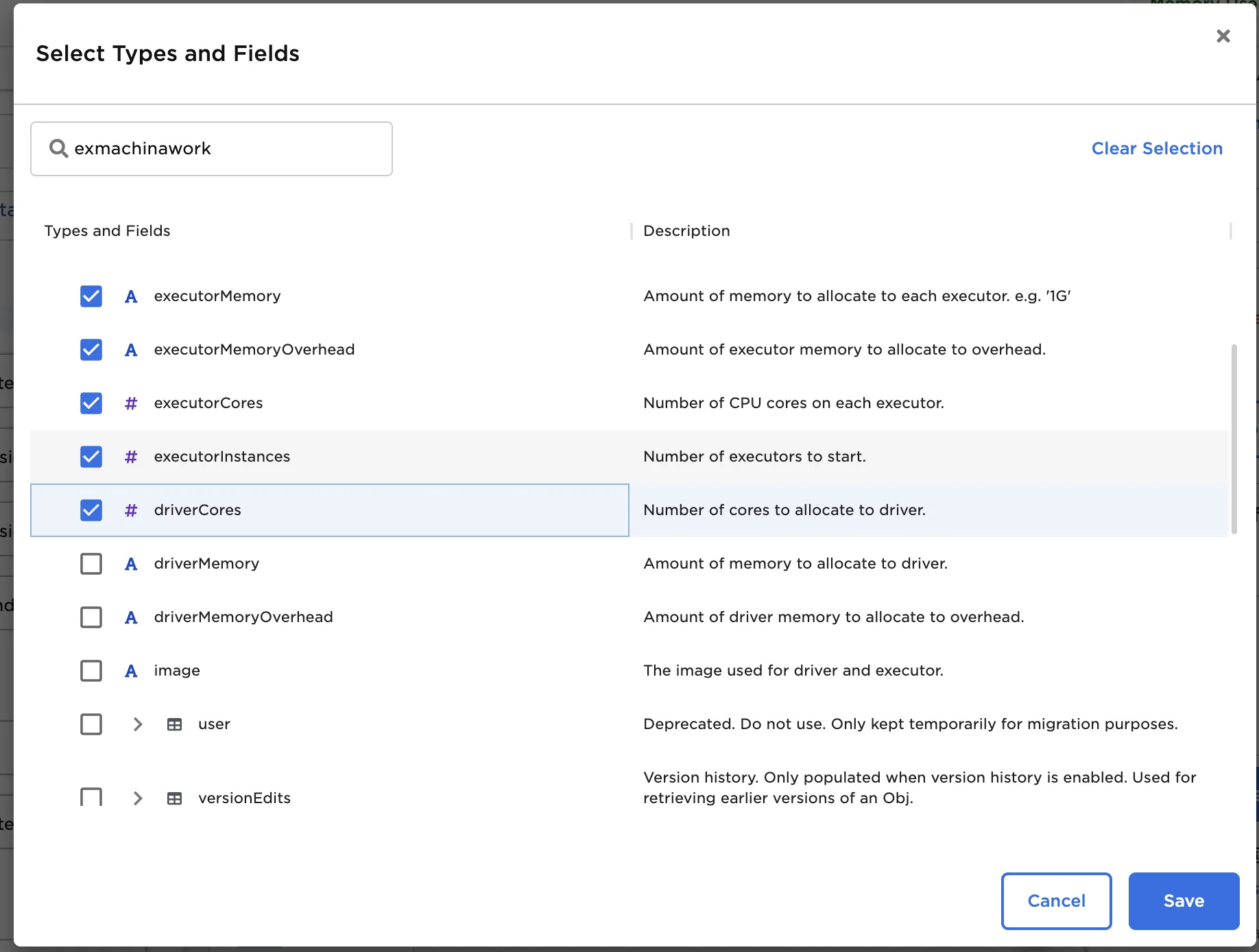
Figure 3: Selecting fields to be included in the fetch
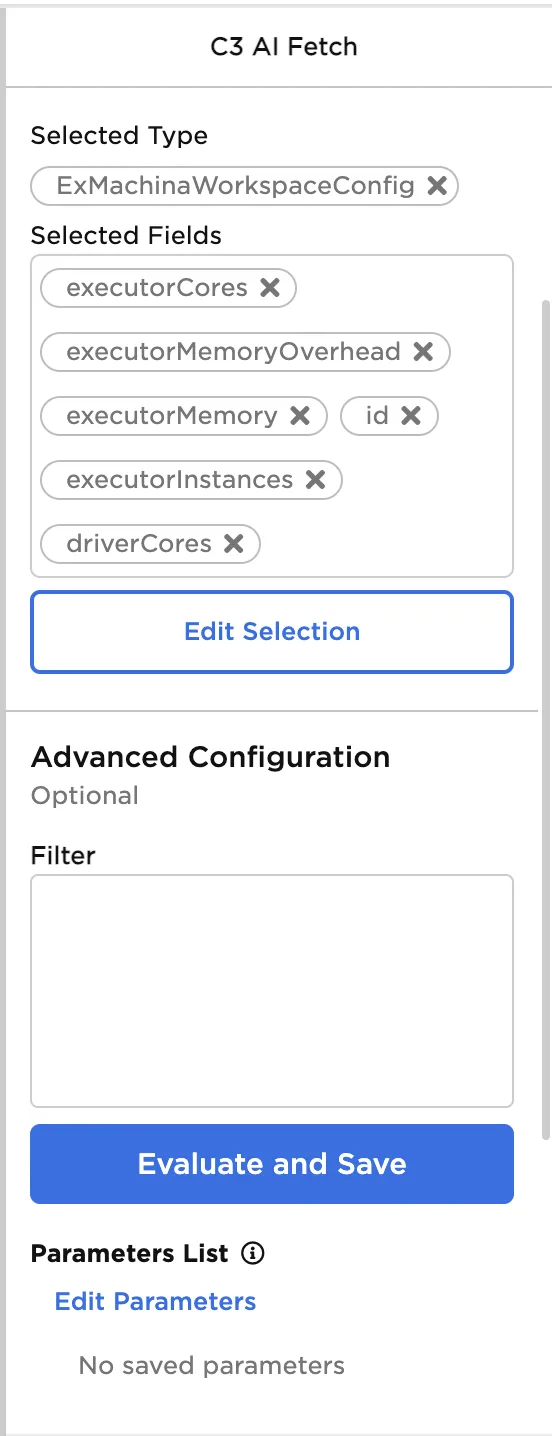
Figure 4: Resulting properties panel configuration
Example 2
Navigate the type system, sometimes called "dot notation", to include additional data about each object. This may be thought of as performing a join and combining tables. The tree view of the application data model shows related data that may be retrieved. In this example, the account associated with the workspace is included in the fetch by adding the "parent.account.name" field in the C3 AI Fetch node
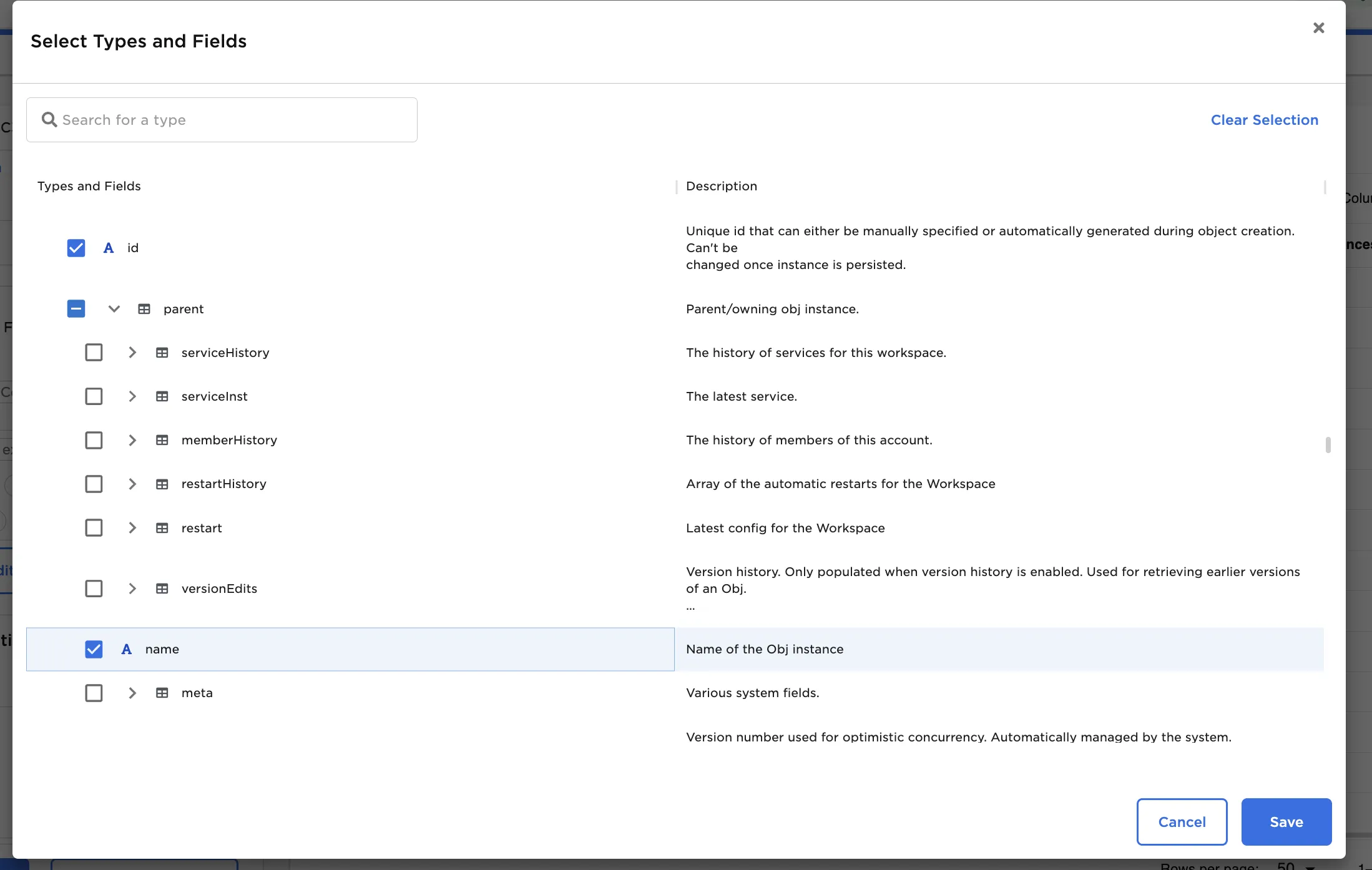
Figure 5: Expanding the "tree" and including additional data from related types
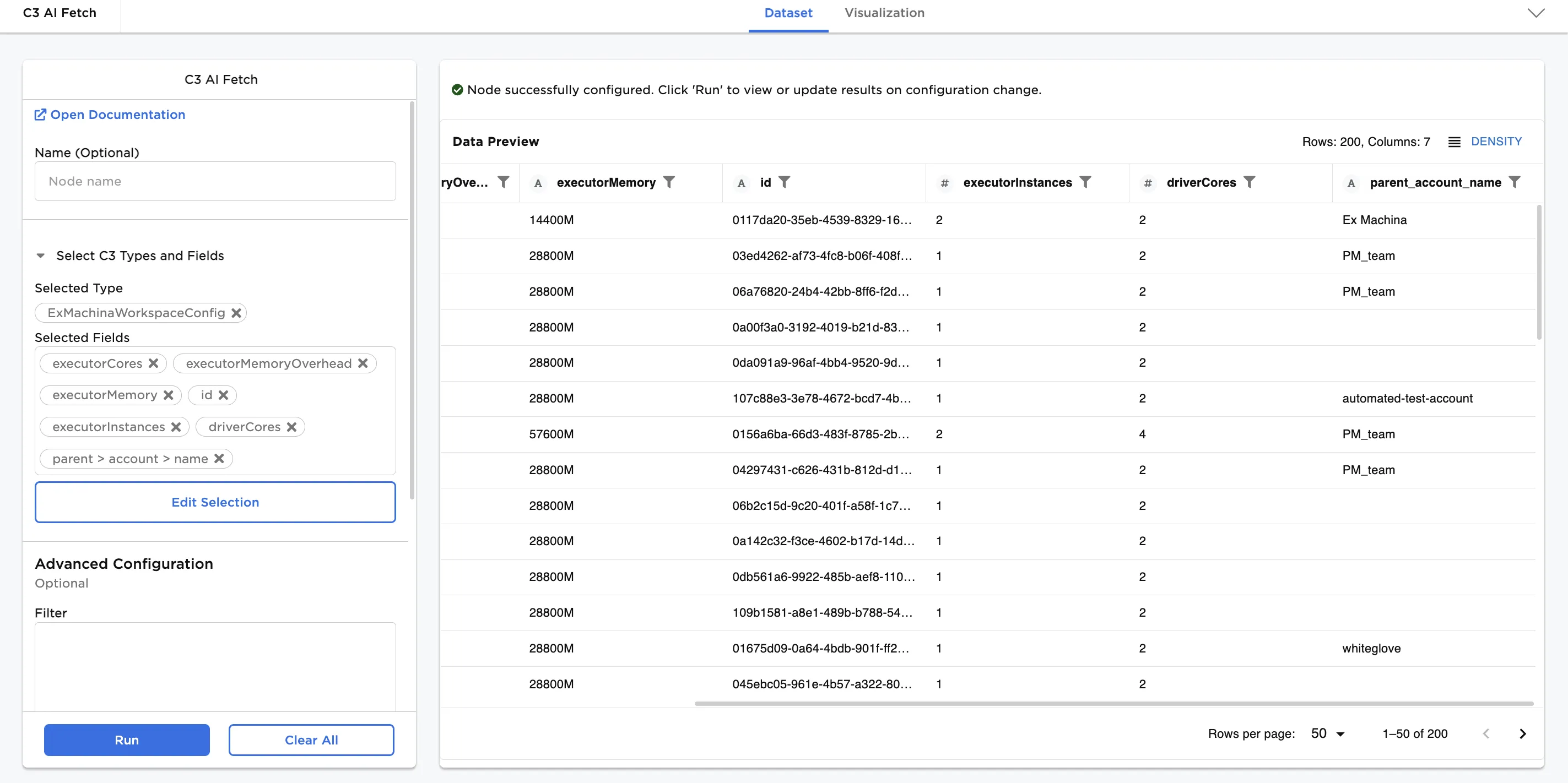
Figure 6: Results including the "account name" for the workspace
Example 3
Apply a filter and retrieve only Workspaces that were turned on after 10/01/2022. Be sure to click "Evaluate and Save"!
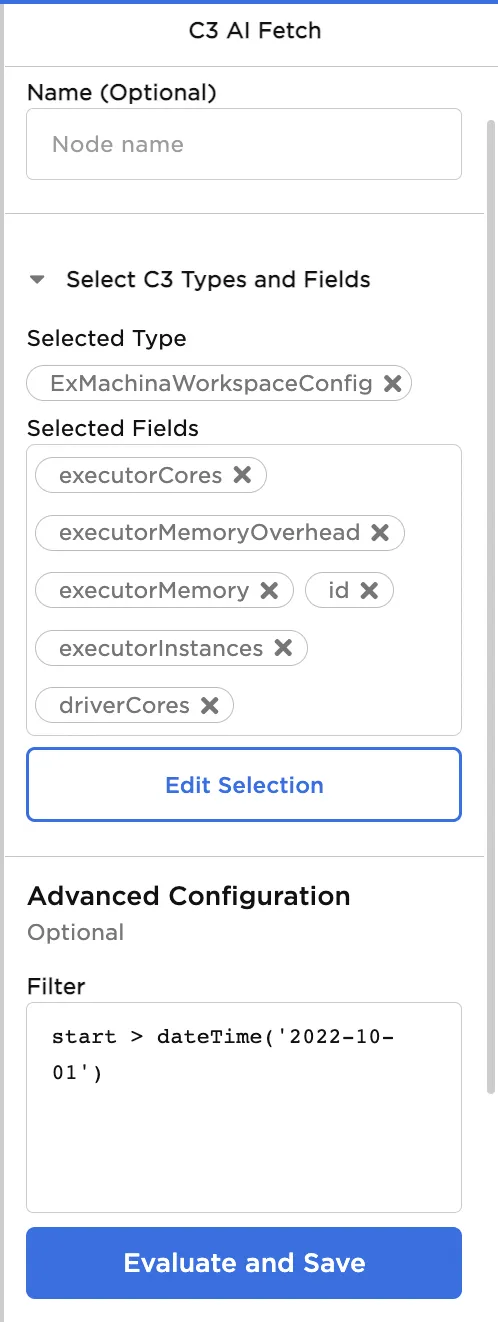
Figure 7: Adding a filter to the configuration
Example 4
Retrieve ALL workspaces and apply a complex filter to select Workspaces with an activation date after 10/1/2022 that are in the "PM_Team" account team.
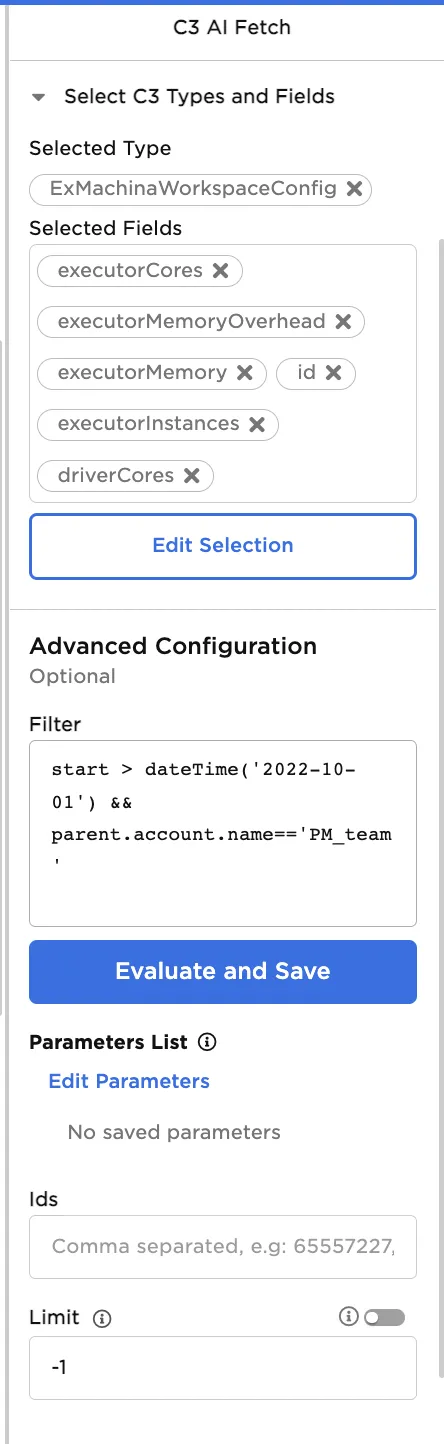
Figure 8: Adding a complex filter to the configuration and changing the limit
More information
See a list of additional possible filters below.
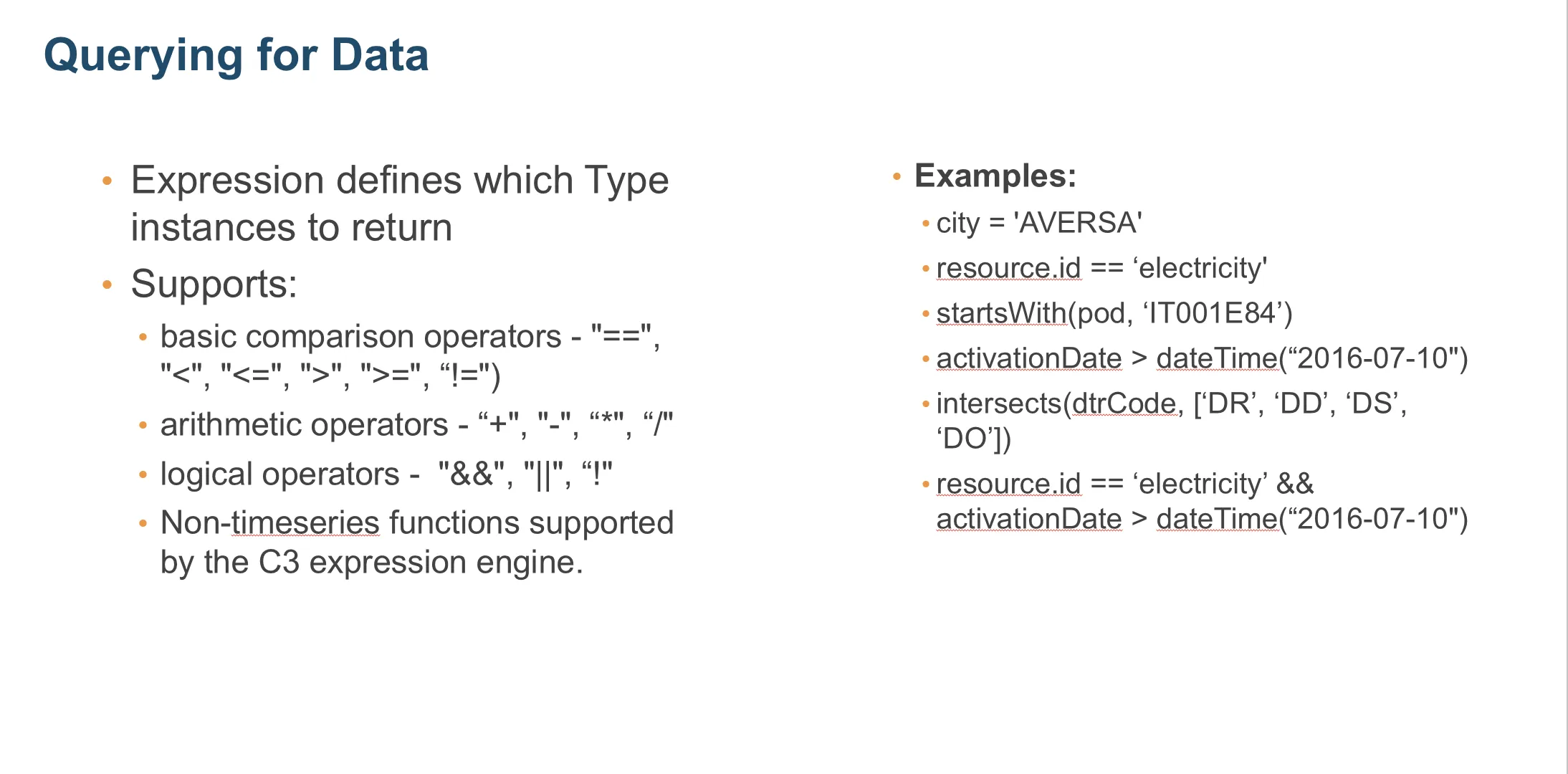
Figure 9: Additional filter expressions
Reach out to the C3 AI team for more information on the C3 AI Application Data Model.