FileSystemExport
Export data in Visual Notebooks to the C3 FileSystem. Depending on the C3 AI Deployment, files exported to the C3 AI FileSystem will be stored in AWS S3, Google Cloud Storage, Azure Blob, or an on-premise file system. The Filesystem Export node enables Visual Notebooks Users to share data and collaborate with data scientists and app developers.
Prerequisites
The user must be in the appropriate Admin Group and have the correct roles to be authorized to write data from the filesystem to Visual Notebooks. Please speak to the C3 AI Support Team to ensure proper setup.
Configuration
| Field | Description |
|---|---|
| Name default=none | A user-specified node name displayed in the canvas |
| Data Path Required | The URL path in the C3 AI FileSytem where the data should be saved |
| Type in the directory URL where the data is to be saved. | |
Format default=CSV | The file format to be used in saving the data |
| Set the format to CSV, Parquet, or JSON. | |
Has Header default=On | Specify if the data has column header names |
| Toggle this switch on if the data has a header column with names | |
Delimiter default=, Comma | The character that separates values |
| Set the delimiter to Comma, Pipe, Colon, Semicolon, Tab, or Space. Only change this field if the file to upload uses nonstandard formatting. | |
Quote default=" | The character that surrounds values to ignore |
| Set the quote to any character. Delimiters inside quotes are ignored. Only change this field if the file to upload uses nonstandard formatting. | |
Select Timestamp Format Option default=Autodetect | Specify the format of timestamps or use autodetection for inference |
| By default, Visual Notebooks autodetects timestamp columns. If needed, specify a custom format to fit data requirements. | |
Batch Size default=10000 | Specify the batch size for partitioning the file |
| By default Visual Notebooks partitions the file and creates multiple "parts" to speed up performance. |
Node Inputs/Outputs
| Input | A Visual Notebooks dataframe |
|---|---|
| Output | A file or files containing the data exported to the specified URL in the C3 File System |
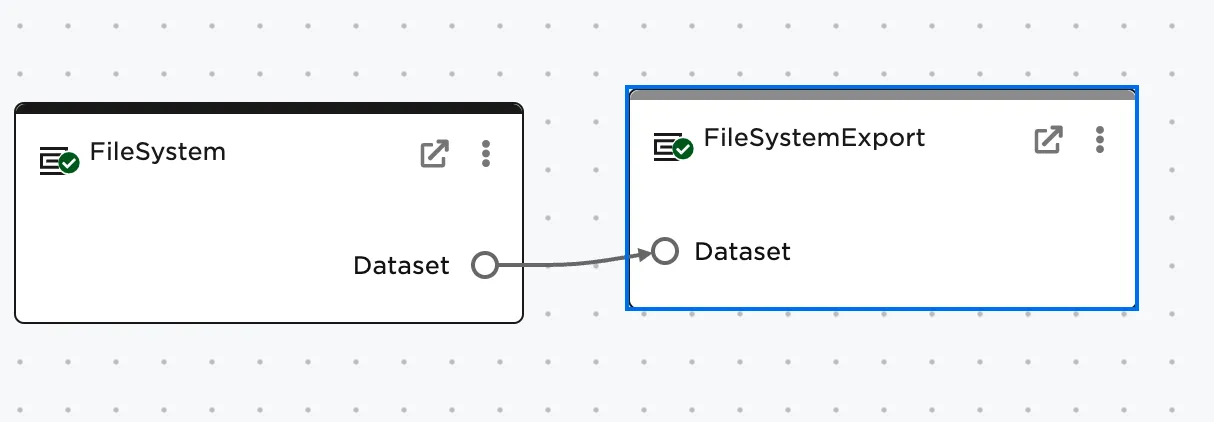
Figure 1: Example FileSystem export requires an input from a dataframe node.
Examples
- Specify the path where the file should be saved in the specified format.
- Select Run to create and upload the file.
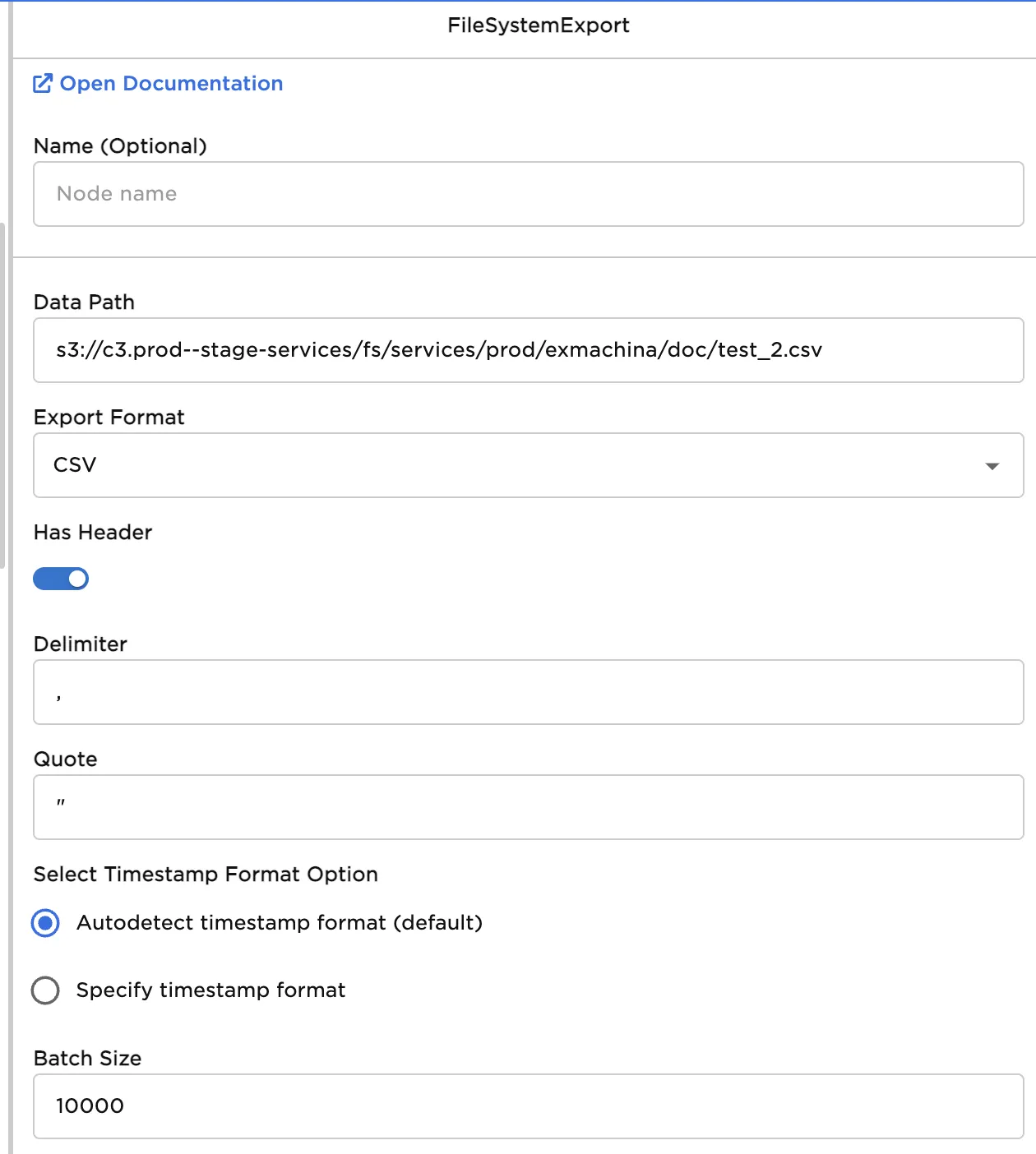
Figure 2: Example configuration to write a file to C3 AI FileSystem.