Columns - Rename
Rename columns in Visual Notebooks.
Configuration
| Field | Description |
|---|---|
Name (default=Columns - Rename) | A user-specified node name displayed in the workspace |
| Rename Columns (Required) | Column naming details |
Select a column to rename from the auto-populated dropdown menu. Enter the new name for the selected column in the "To" field. Column names can only contain letters, numbers, and underscores. Spaces and other special characters are not permitted. Rename multiple columns with the "Add" button. |
Node Inputs/Outputs
| Input | A Visual Notebooks dataframe |
|---|---|
| Output | A dataframe with renamed columns. |
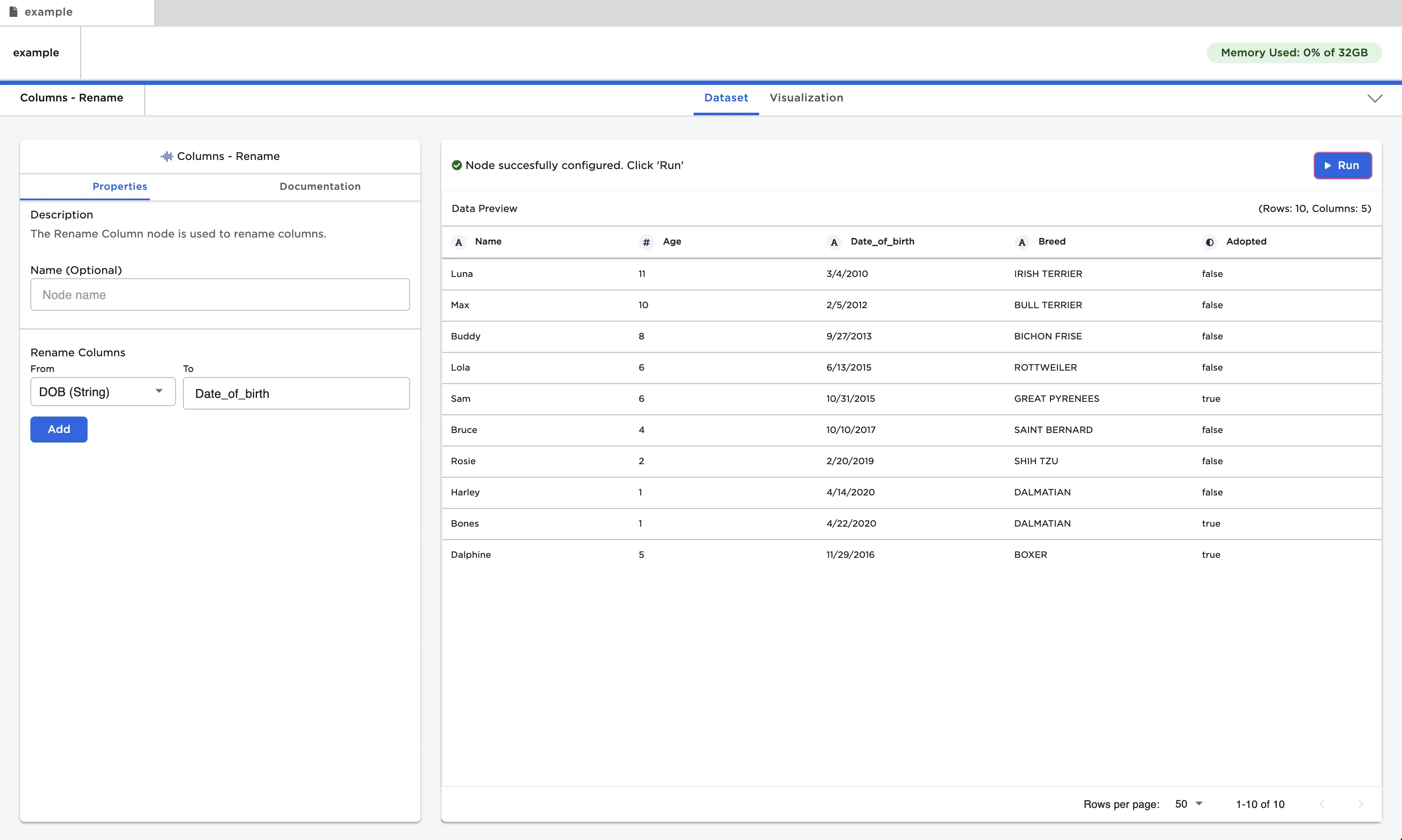
Figure 1: Example dataframe output
Examples
- Connect a "Columns - Rename" node to an existing node.
- Select a column to rename from the auto-populated dropdown menu.
- Enter the new column name in the "To" field.
- In the example below, the column "DOB" is renamed to "Date_of_birth".
- Select "Run" to create a dataframe with the renamed column.
Figure 2: Example dataframe with a renamed column