Columns - Type Converter
The Columns - Type Converter node in Visual Notebooks converts the data type of column(s) from one data type to another. This node can help in cases where your dataset needs to be cleaned up for machine learning or further analysis.
Configuration
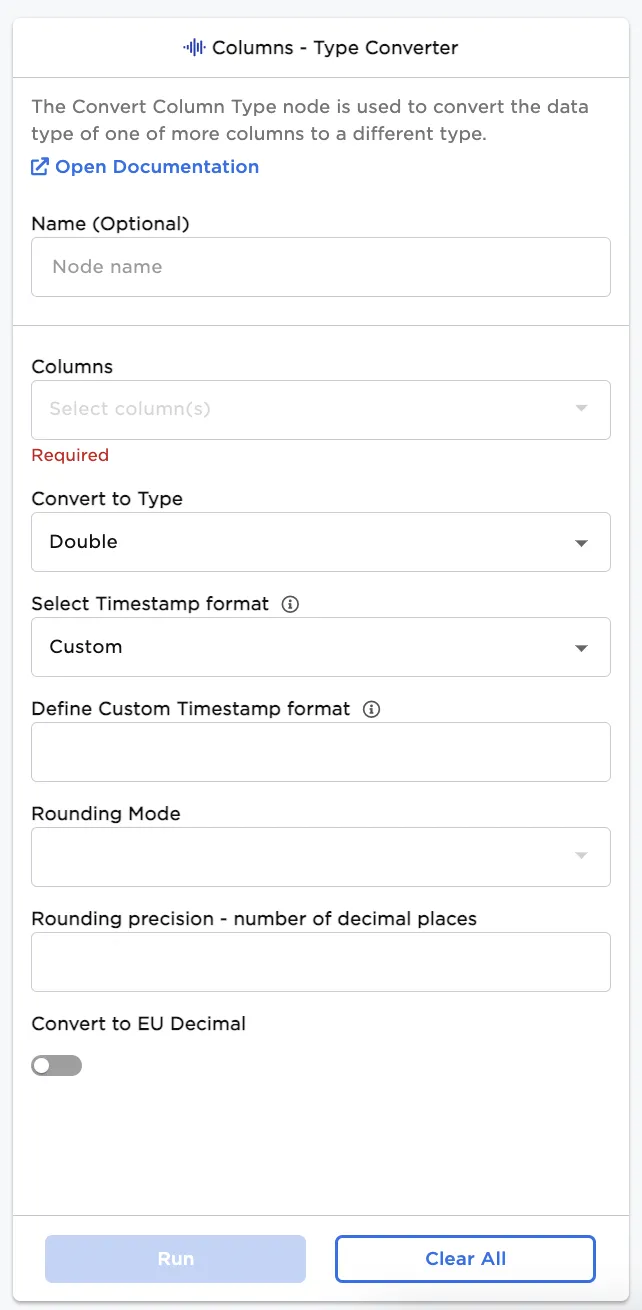
| Field | Description |
|---|---|
| Name (default=none) | Field to name the node: An optional user-specified node name displayed in the canvas, both on the node and in the dataframe as a tab. |
| Columns (Required) | Select column(s) to convert to a different type: Select column(s) to convert to a new data type using the auto-populated dropdown menu. |
Convert to Type (default=Double) | Select data type the selected column(s) will be converted to: Choose a data type from the dropdown menu. The available data types are Double, Date, Timestamp, Integer, Long, String, Boolean, Double Timeseries, Integer Timeseries, and String Timeseries. |
Select Timestamp format (default=Custom) | Choose the Timestamp formatting: Select a timestamp format from the dropdown menu to specify the format that you are converting from. If the given timestamp formats don't match your data, enter a custom timestamp format by selecting the Define Custom Timestamp format field. |
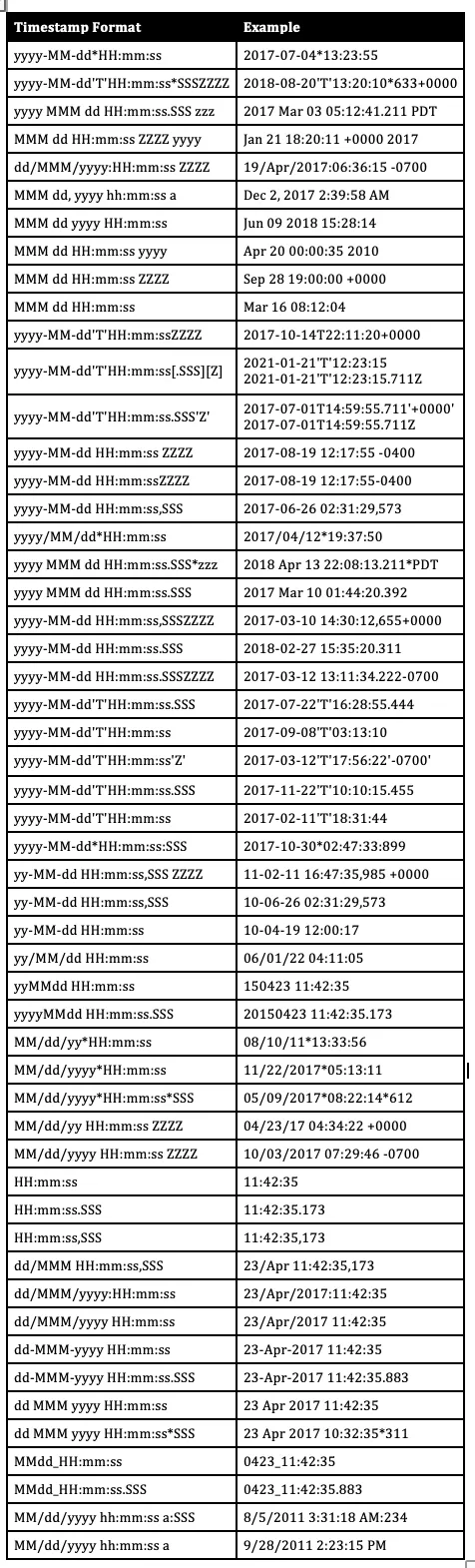
| Define Custom Timestamp format (default=none) | Enter custom timestamp formatting: Enter a custom timestamp format if the given formats don't match your data. See below for common timestamp conventions. |
| Rounding Mode (default=none) | Choose the rounding type |
Select a rounding method if converting to an integer or long. The floor option rounds all numbers down to the nearest integer, while the ceiling option rounds all numbers up to the nearest integer. The more common round option rounds numbers with a fraction less than 0.5 down to the nearest integer, and rounds numbers with a fraction of 0.5 or higher up to the nearest integer. |
Node Inputs/Outputs
| Input | A Visual Notebooks dataframe |
|---|---|
| Output | A dataframe with columns of the specified data type |
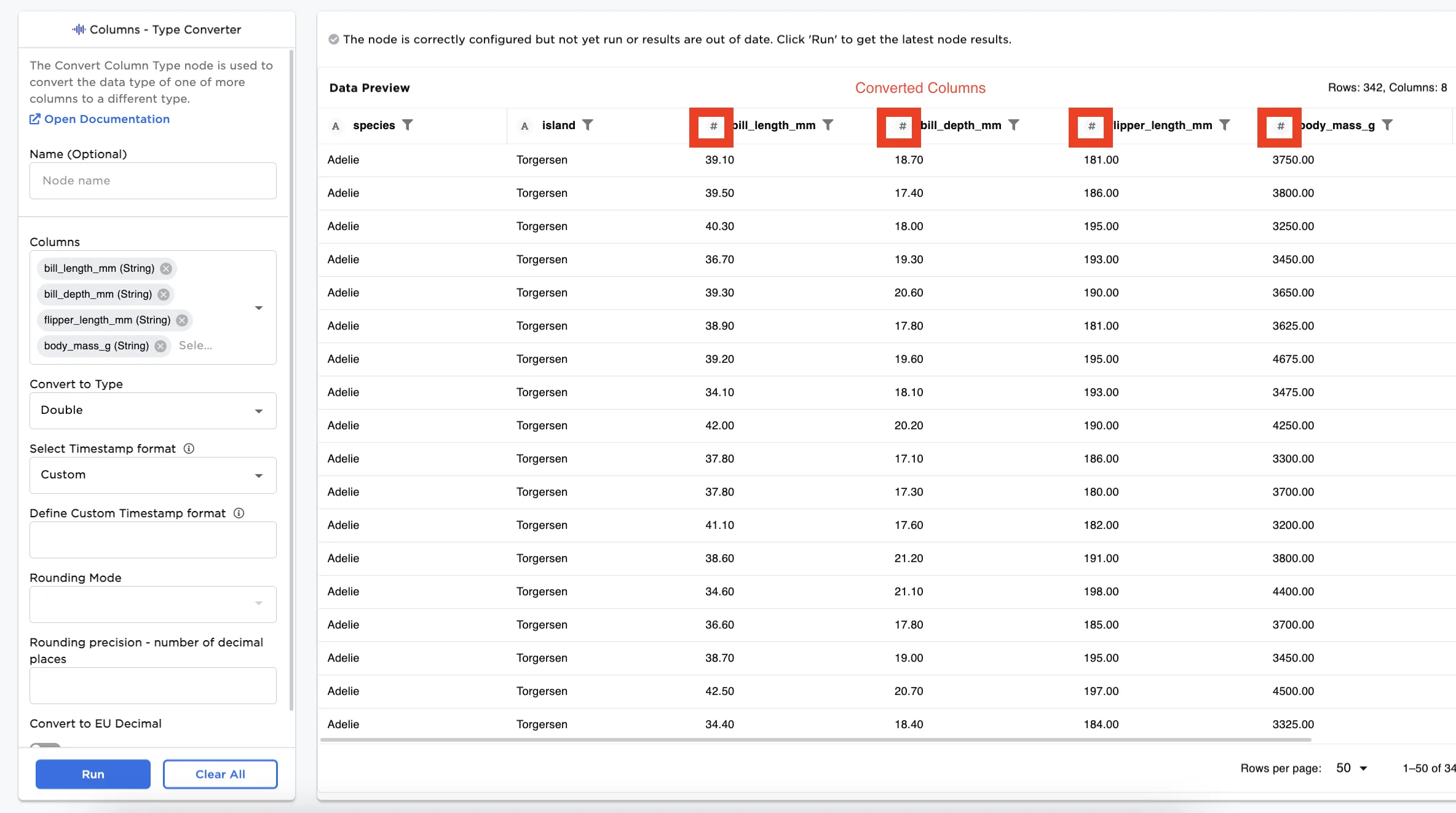
Figure 1: Example Dataframe Output
Examples
To introduce you to the Columns - Type Converter node, we are using a small dataset with information about penguins. The current dataset has all of the fields imported in the string format.
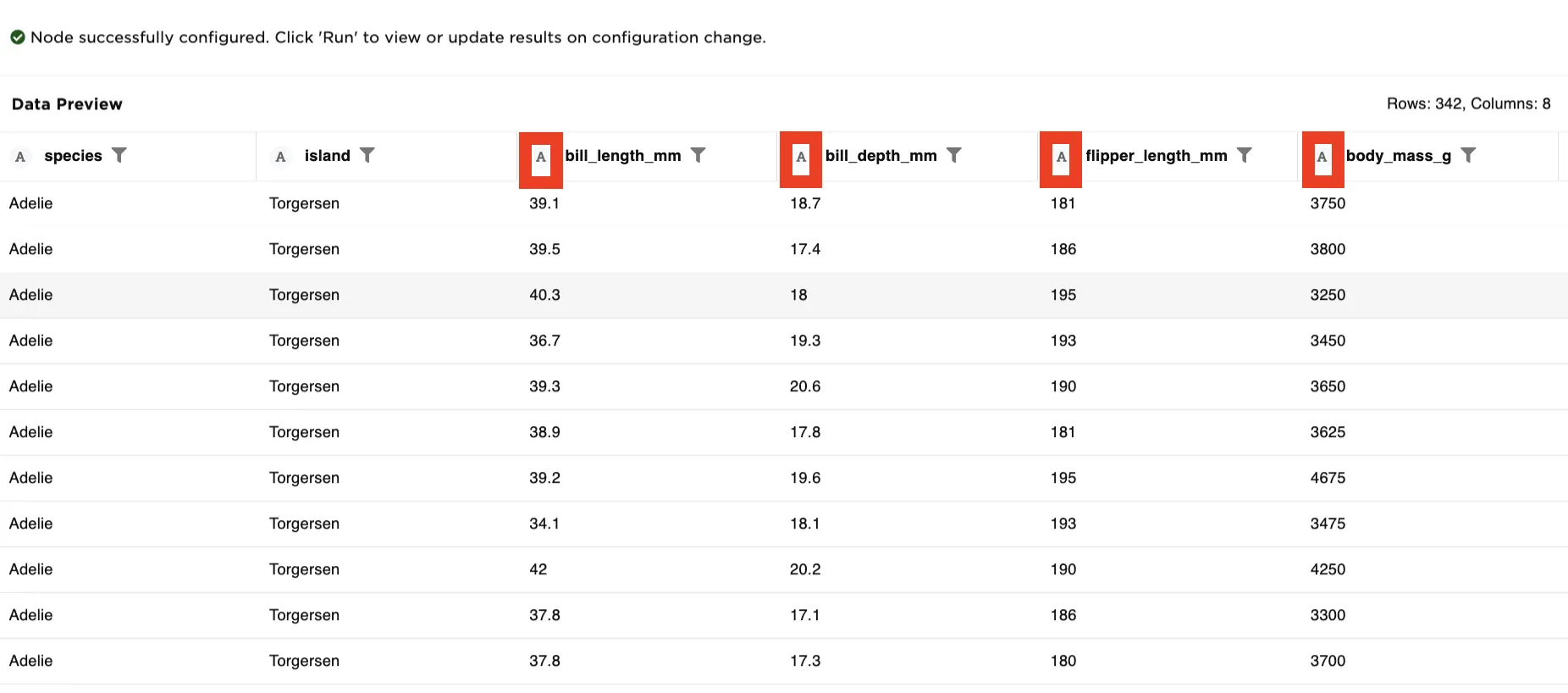
Figure 2: Original Dataset with Only String Column Type
- Connect a Columns - Type Converter node to an existing node.
- Select one or more columns from the auto-populated dropdown menu. In this example, the "bill depth mm", "bill length mm", "flipper length mm", and "body mass g" fields are selected.
- Choose the data type that you want to convert to.
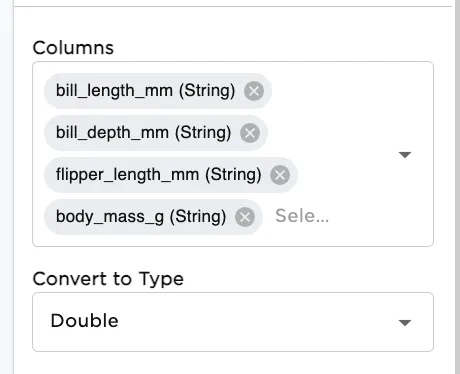
Figure 3: Selected Fields for Type Conversion
- Select Run to create a dataframe with the selected fields converted.
Figure 4: Example dataframe with converted fields
If you want to convert a column to a date or timestamp type, reference the Spark SQL guide for an explanation of the available datetime symbols.