Select or Drop Columns
Select columns to keep or remove in a Visual Notebooks dataframe.
Configuration
| Field | Description |
|---|---|
| Name | A user-specified node name displayed in the workspace |
| Selection method | Keep or remove the selected columns Select columns to keep and delete the remaining columns, or select columns to delete and keep the remaining columns. |
| Select Columns to Combine | The columns to keep or remove Select all numeric columns, all string columns, or specific columns from the dropdown menu. The "All numeric columns" option selects all columns with decimal, integer, and long data types. |
Node Inputs/Outputs
| Input | A Visual Notebooks dataframe |
|---|---|
| Output | A dataframe with only the desired columns |
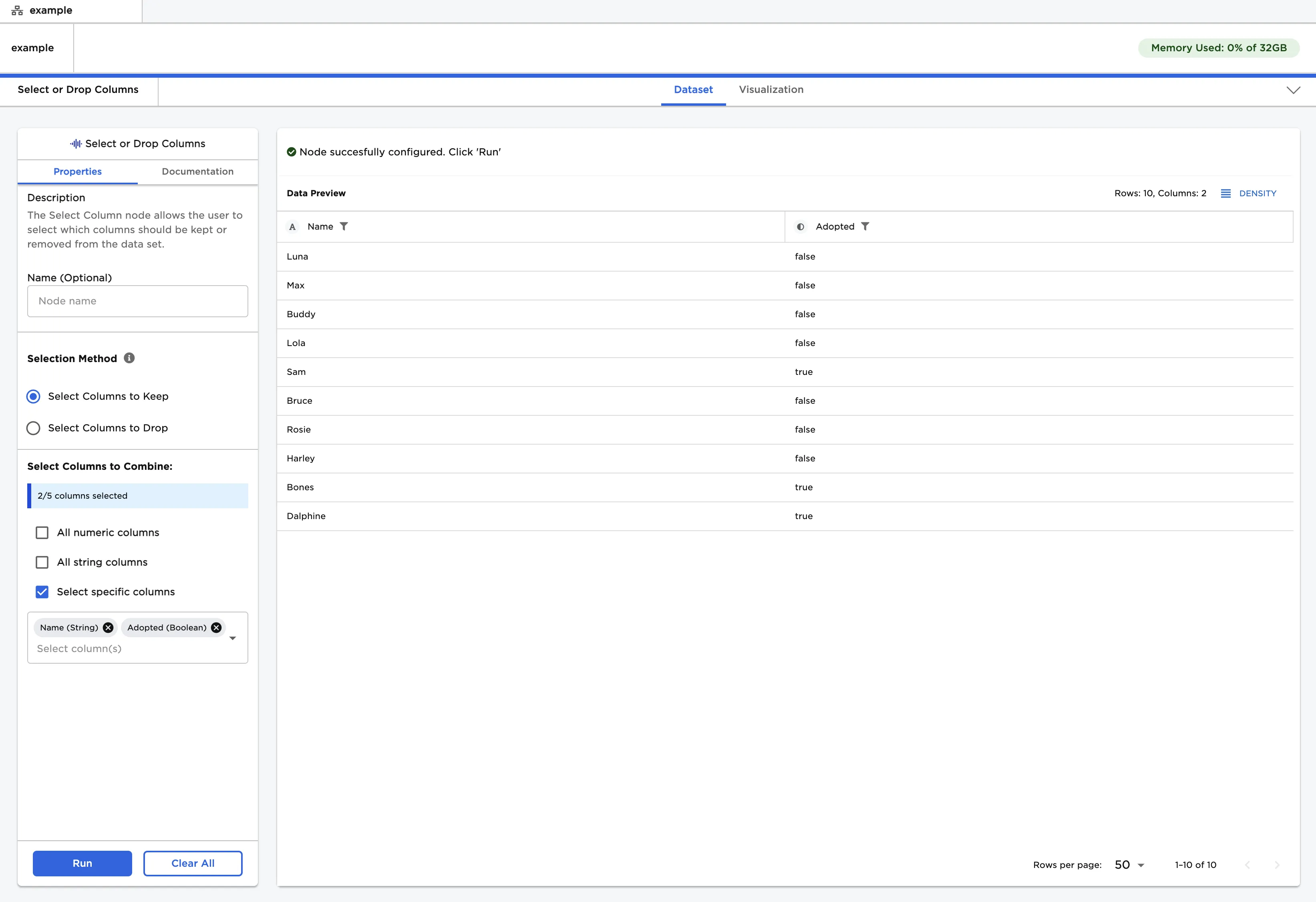
Figure 1: Example dataframe output
Examples
- Connect a "Select or Drop Columns" node to an existing node.
- Leave "Select Columns to Keep" and "Select specific columns" selected.
- Select one or more columns from the auto-populated dropdown menu.
- In this example, the "Name" and "Adopted" fields are selected.
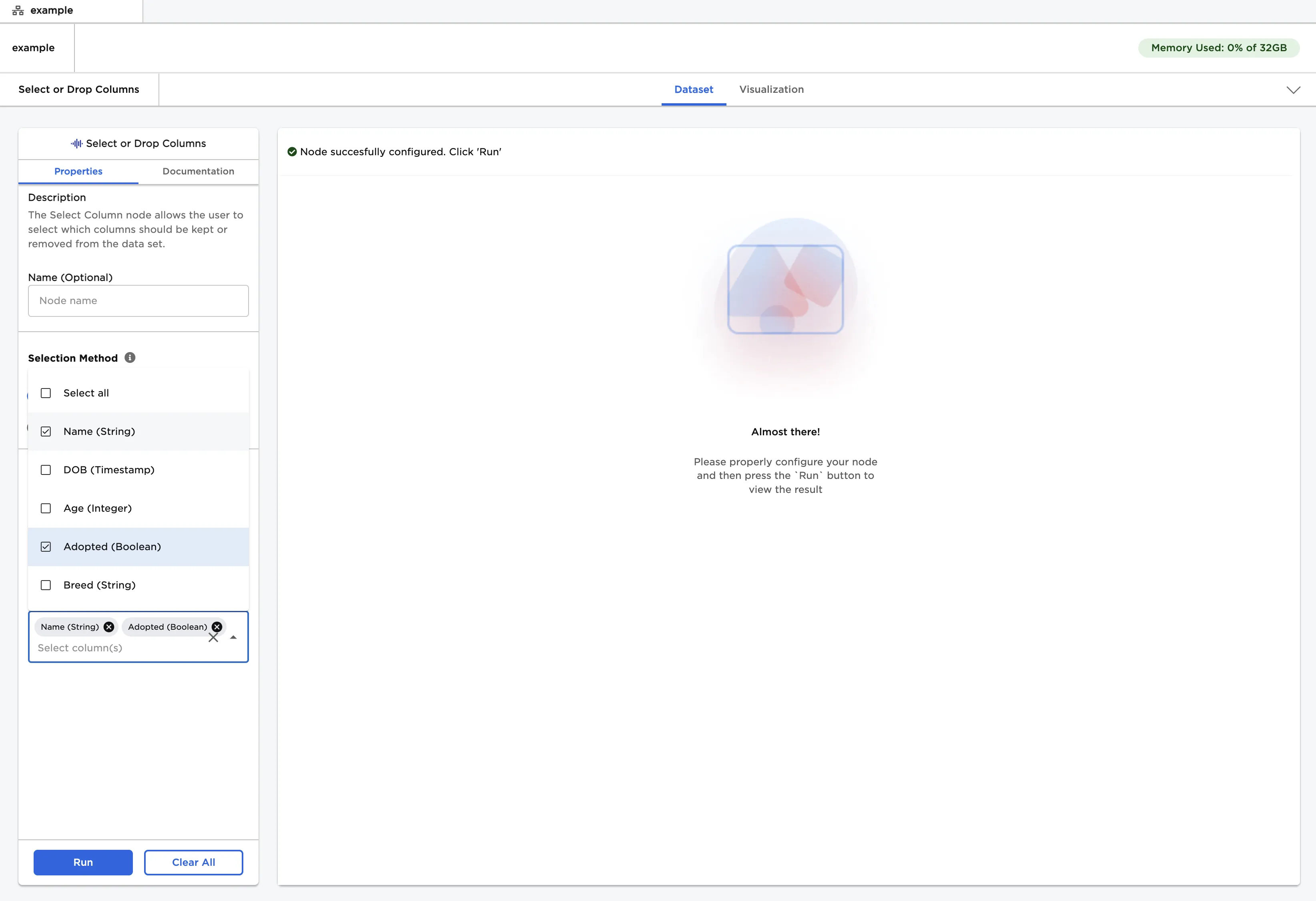
Figure 2: Select fields to keep from the dropdown menu
- Select "Run" to create a dataframe that contains only the selected fields.
Figure 3: Example dataframe with only the selected fields
- Select the "Select Columns to Drop" option.
- Select the "All string columns" option.
- Select "Run" to create a dataframe without columns with the string data type.
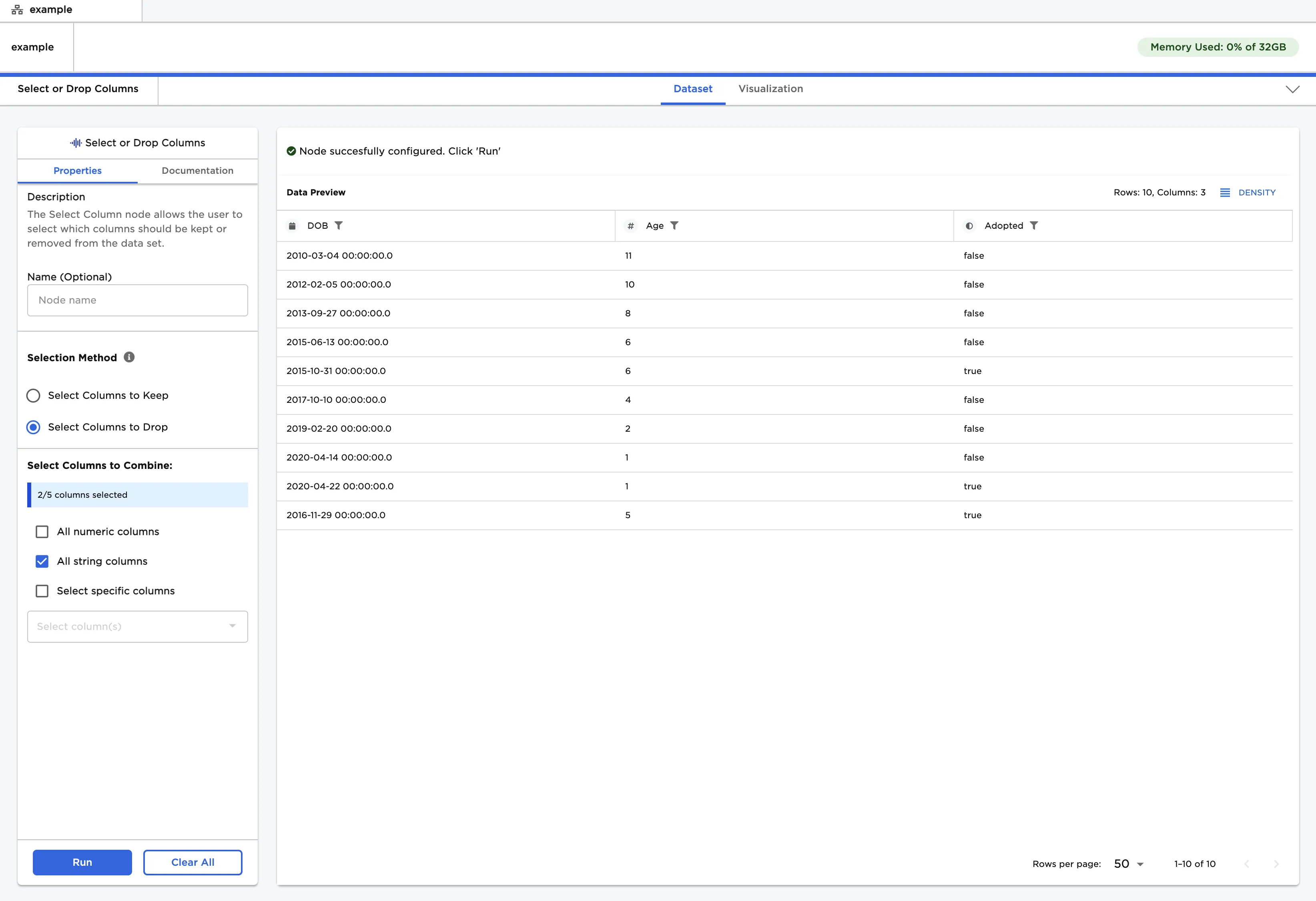
Figure 4: Example dataframe with string columns dropped