Custom SQL Function
Create a new column with the results of a custom SQL formula in C3 AI Ex Machina. For more information and a list of available functions, see the Spark SQL documentation.
Configuration
| Field | Description |
|---|---|
| Name default=none | A user-specified node name displayed in the canvas |
| Output Column Name Required | The column name for the SQL output: Enter a name for the column that contains the output of the custom SQL formula. Column names can contain alphanumeric characters and underscores, but cannot contain spaces. |
| Spark SQL Formula Required | SQL function to execute: Enter a valid SQL formula. For a complete list of available functions, see the Spark SQL documentation. If you enter an invalid formula, an error is displayed. |
Node Inputs/Outputs
| Input | A Visual Notebooks dataframe |
|---|---|
| Output | A dataframe with the results of the custom SQL formula in a new column |
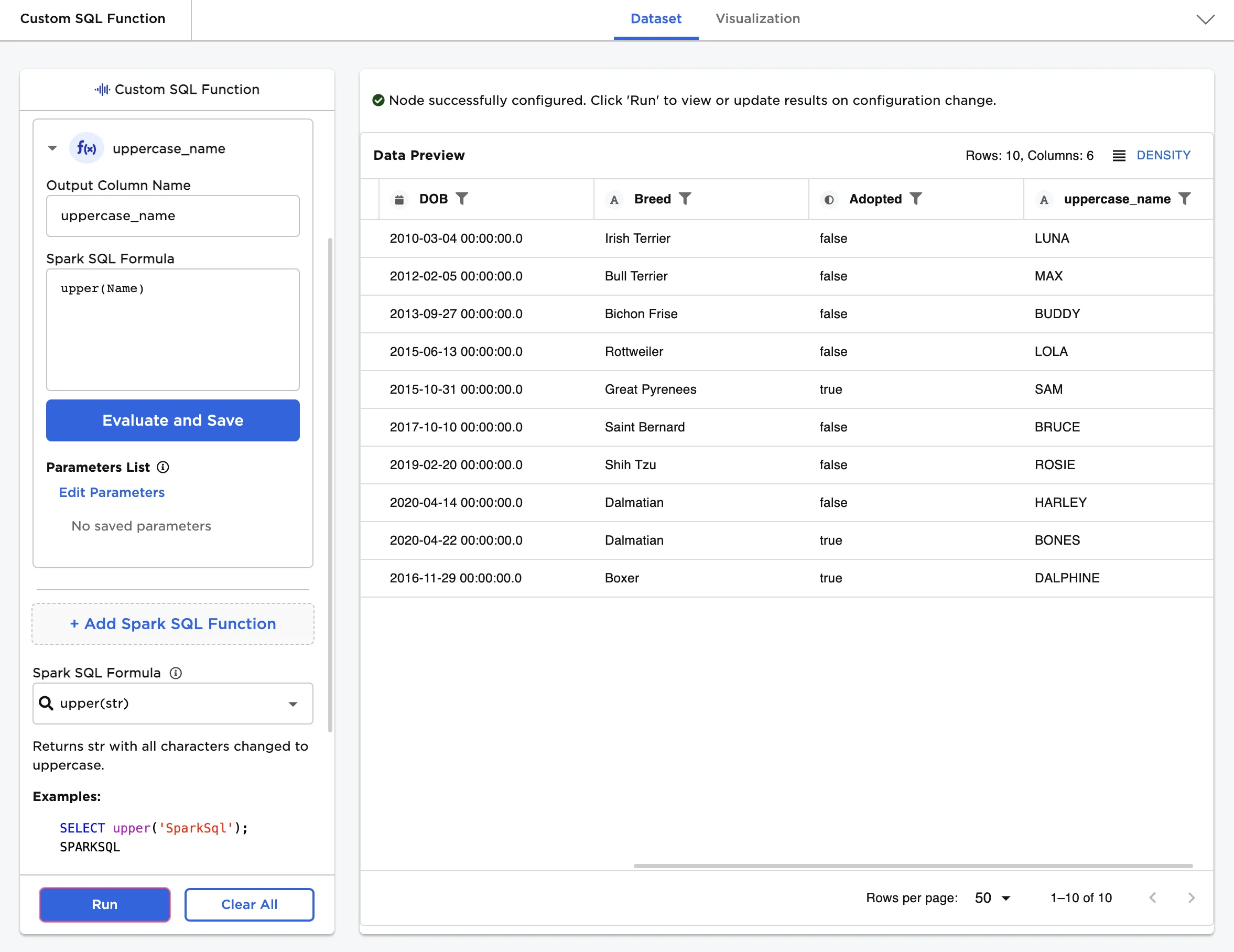
Figure 1: Example dataframe output
Examples
The dataframe shown below is used in this example. It contains the name, age, date of birth, breed, and adoption status of ten dogs.
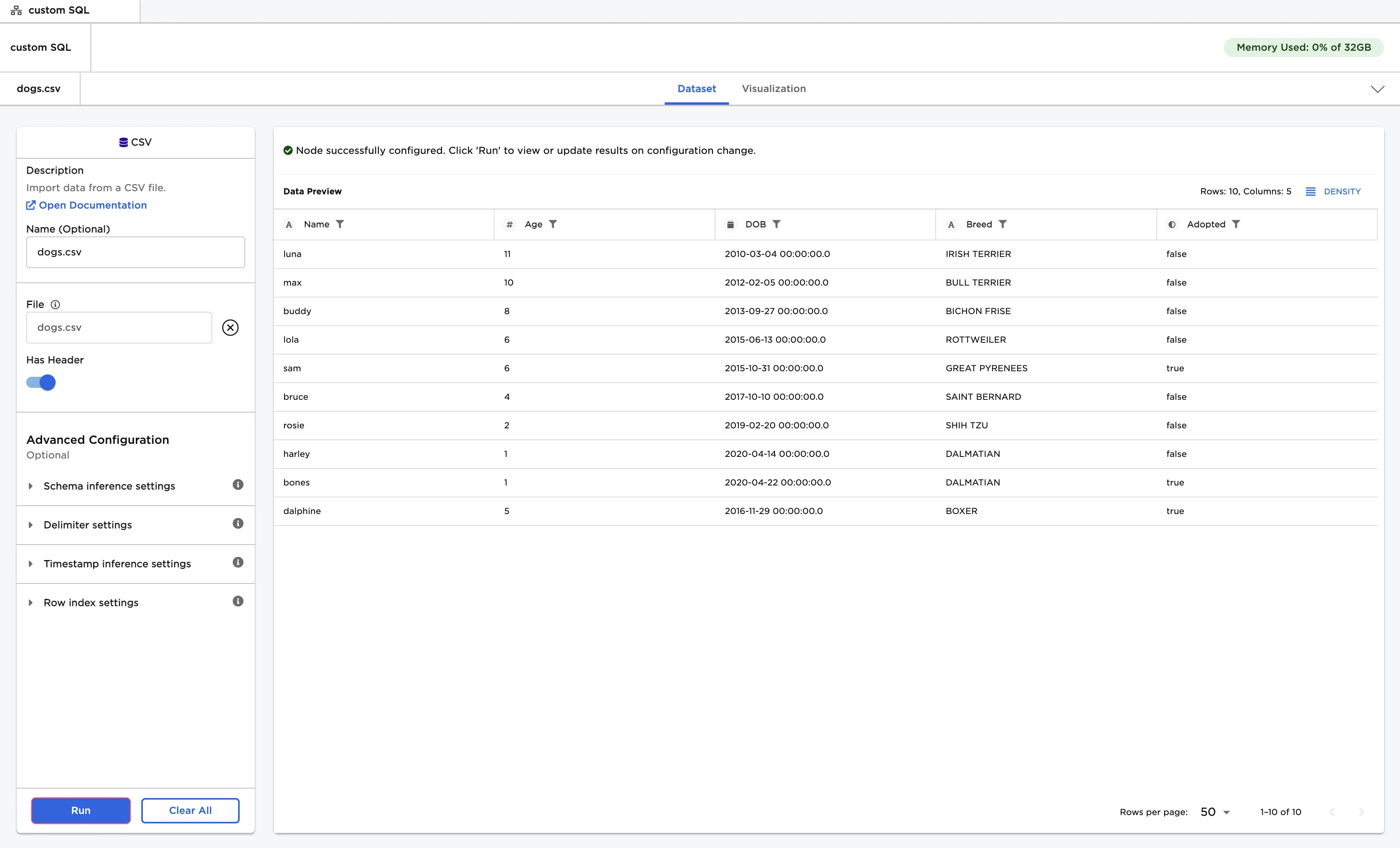
Figure 2: Example input data
Imagine that you want to change the "Name" column to use all uppercase letters. This can be accomplished with the upper SQL function.
- Enter "uppercase_name" in the Output Column Name field.
- Search for the
upperfunction in the Spark SQL Formula reference field to see usage information.- Notice that this function takes one argument: the string to change to uppercase characters.
- When using Spark SQL functions in Visual Notebooks, you do not need to enter "SELECT" before the function.
- Enter
upper(Name)in the Spark SQL Formula field. Select Evaluate and Save.- Notice that Visual Notebooks displays a list of column names and types as a reference.
- If you enter an invalid SQL formula, Visual Notebooks presents an error.
- Select Run to create the "uppercase_name" column with the output of the custom SQL formula.
Figure 3: Example dataframe with the output of the upper SQL function
Imagine that you want to abbreviate the "Breed" column so only the first four letters of each breed are displayed. This can be accomplished with the left SQL function.
- Select + Add Spark SQL Function
- Enter "abbreviated_breed" in the Output Column Name field.
- Search for the
leftfunction in the Spark SQL Formula reference field to see usage information.- Notice that this function takes two arguments: the string to take characters from and the number of characters to use.
- When using Spark SQL functions in Visual Notebooks, you do not need to enter "SELECT" before the function.
- Enter
left(Breed,4)in the Spark SQL Formula field to keep the leftmost four letters in each row of the "Breed" column. Select Evaluate and Save.- Notice that Visual Notebooks displays a list of column names and types as a reference.
- If you enter an invalid SQL formula, Visual Notebooks presents an error.
- Select Run to create the "abbreviated_breed" column with the output of the custom SQL formula.
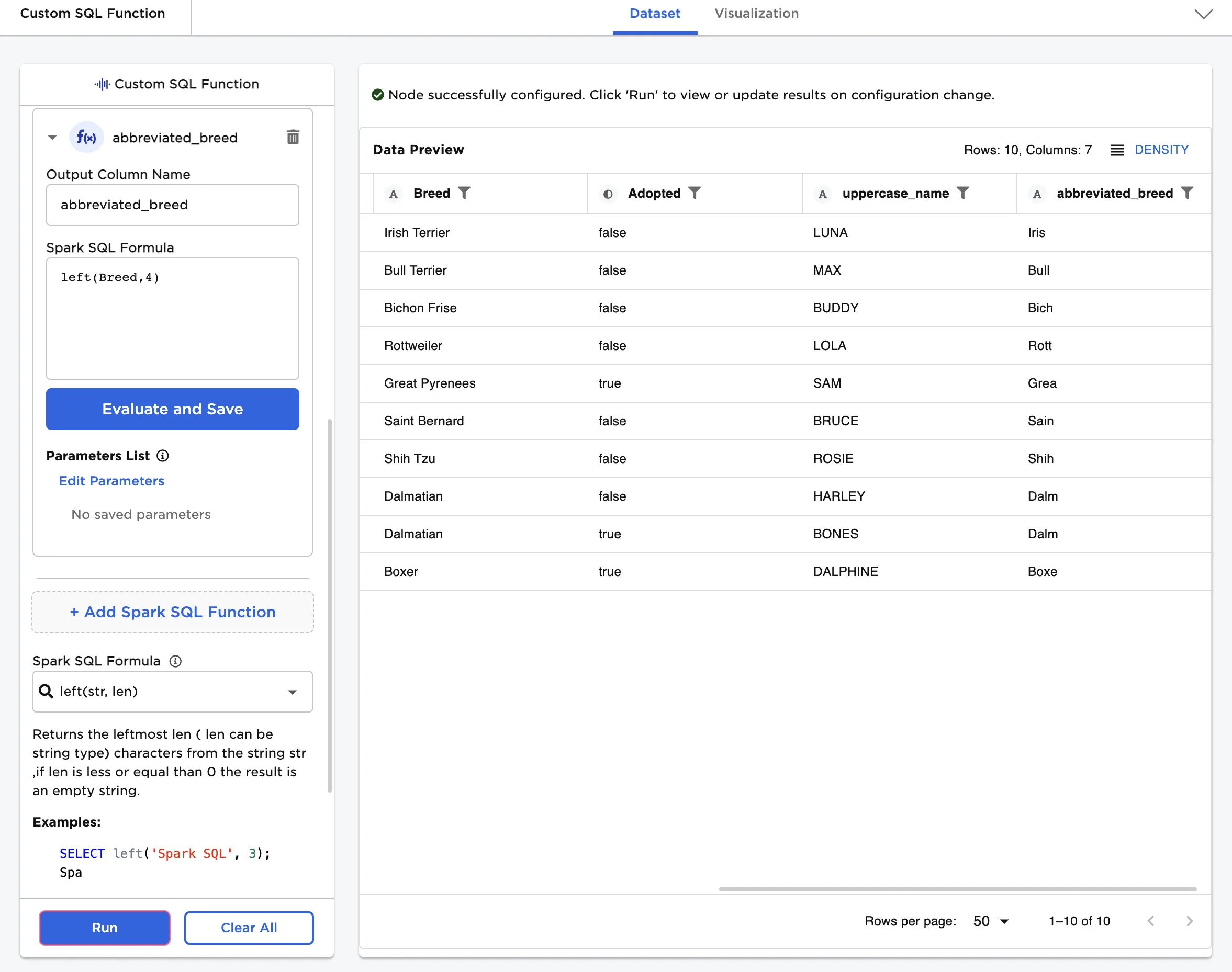
Figure 4: Example dataframe with the output of the left SQL function
The Custom SQL Function node supports user-created parameters. To use a saved parameter in a SQL formula, prefix it with $. Depending on the SQL functions used, you may need to encase the parameter in single quotes or curly brackets.
The following example assumes that you have previously created and saved a custom string parameter. For more information about parameters, see the Visual Notebooks capabilities document.
- Select + Add Spark SQL Function
- Enter "parameter_value" in the Output Column Name field.
- Search for the
replacefunction in the Spark SQL Formula reference field to see usage information.- Notice that this function takes three arguments: the string to search in, the string to replace, and the replacement value.
- When using Spark SQL functions in Visual Notebooks, you do not need to enter "SELECT" before the function.
- Enter
replace(Breed,'Irish Terrier','$mystring')in the Spark SQL Formula field to replace all instances of the string "Irish Terrier" in the "Breed" column with the pre-saved string parameter. Select Evaluate and Save.- Notice that Visual Notebooks displays a list of column names and types as a reference.
- If you enter an invalid SQL formula, Visual Notebooks presents an error.
- Select Run to create the "parameter_value" column with the output of the custom SQL formula.
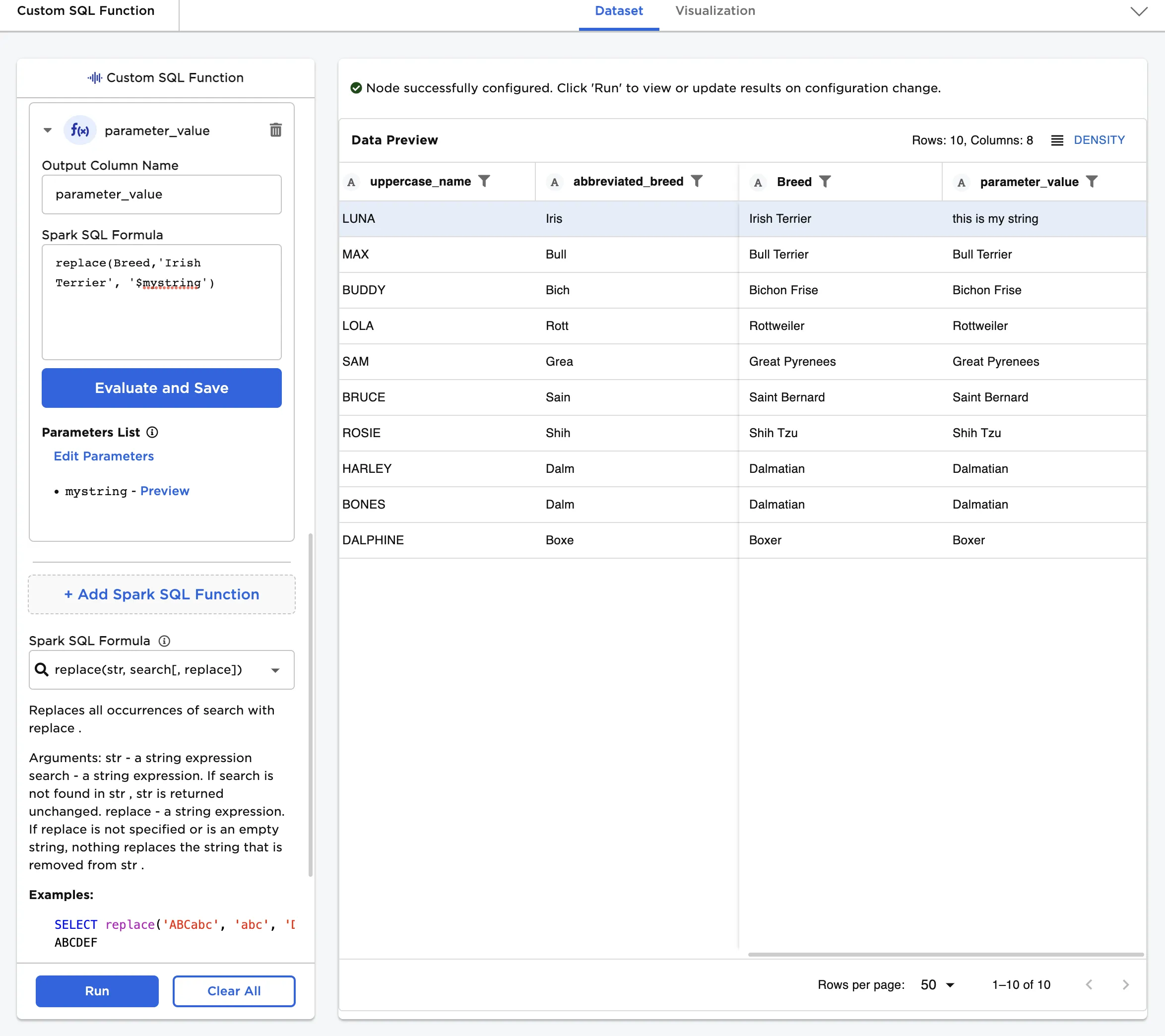
Figure 5: Example dataframe created with a parameter inside a custom SQL formula