Visual Notebooks Dataset
Use a dataset asset in a Visual Notebooks project.
Configuration
| Field | Description |
|---|---|
| Name default=none | Name of the node |
| A user-specified node name, displayed in the workspace and in the dataframe as a tab. | |
Always load most recent when visual notebook is run default=Off | Automatic versioning |
| Toggle this switch on to use the most recent version of the dataset each time the visual notebook runs. | |
Select Version default=(Most Recent) | Dataset version |
| Select a version of the dataset to use in the current project. This version is used each time the visual notebook runs. |
Node Inputs/Outputs
| Input | None |
|---|---|
| Output | A Visual Notebooks dataframe |
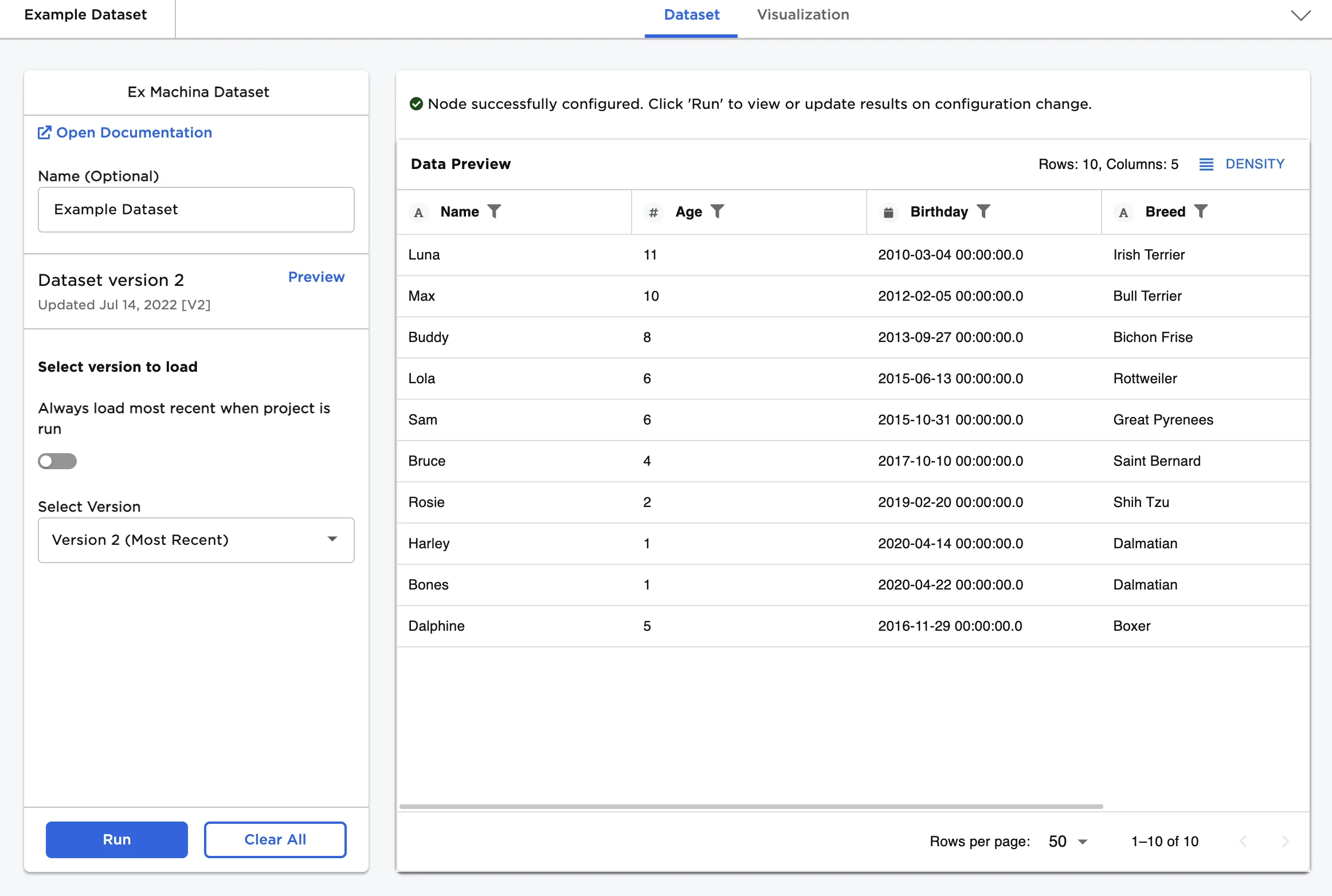
Figure 1: Example output
Examples
Visual Notebooks datasets are versioned assets that can be shared among team members for collaboration. To create a dataset, use the Save Dataset node.
After datasets are created, they can be used as a node in projects. Follow the steps below to view saved datasets and other assets in the Ex Machina canvas.
- Select the Assets tab near the top of the canvas.
- Expand the Datasets section.
- Select the Owned tab to view datasets you created. Alternatively, select the Shared tab to view datasets that have been shared with you, or select the Public tab to view publicly shared datasets.
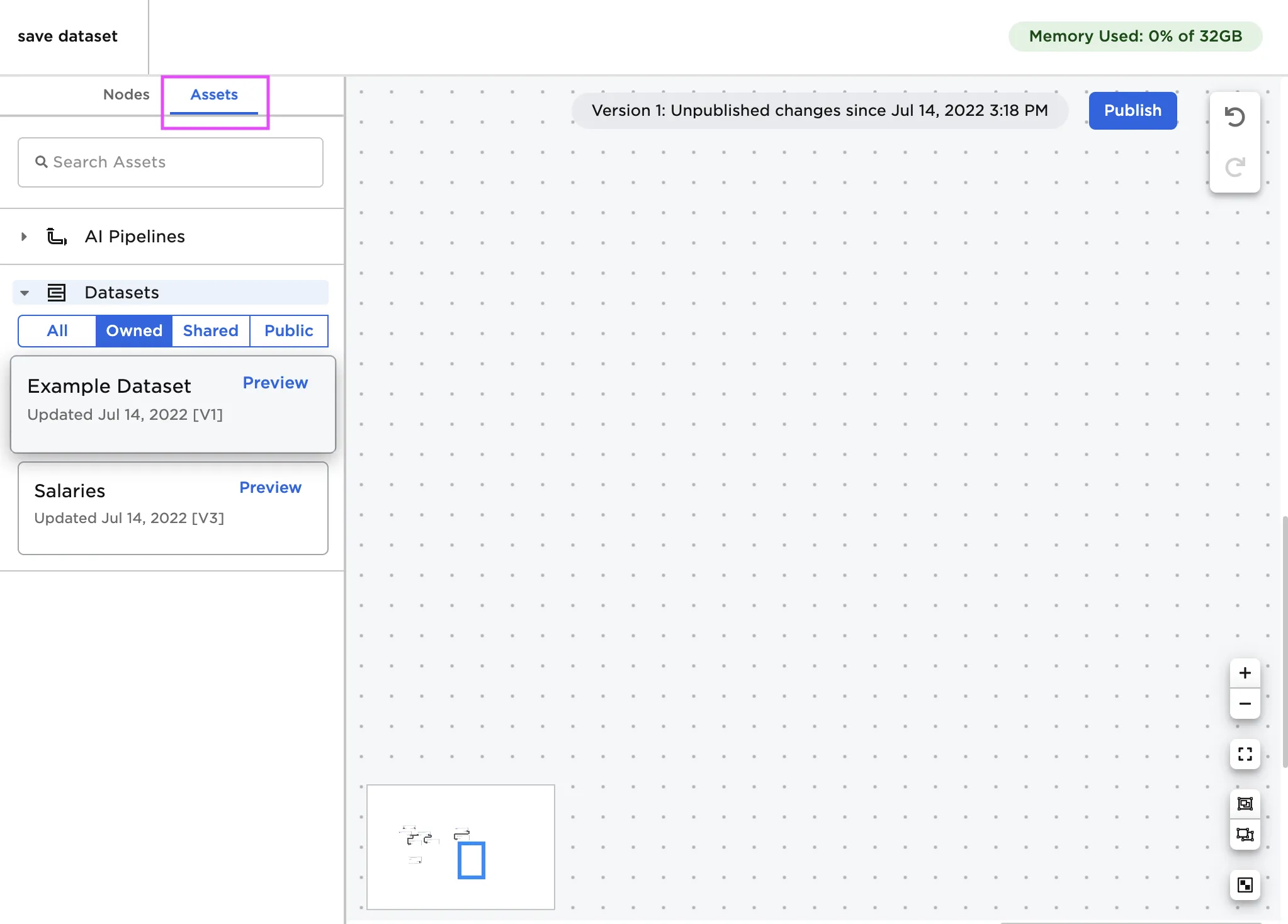
Figure 2: Saved datasets in the Assets tab
Select Preview to view more information about a dataset or add the dataset to your project. You can also drag the dataset onto the canvas as you would a node.
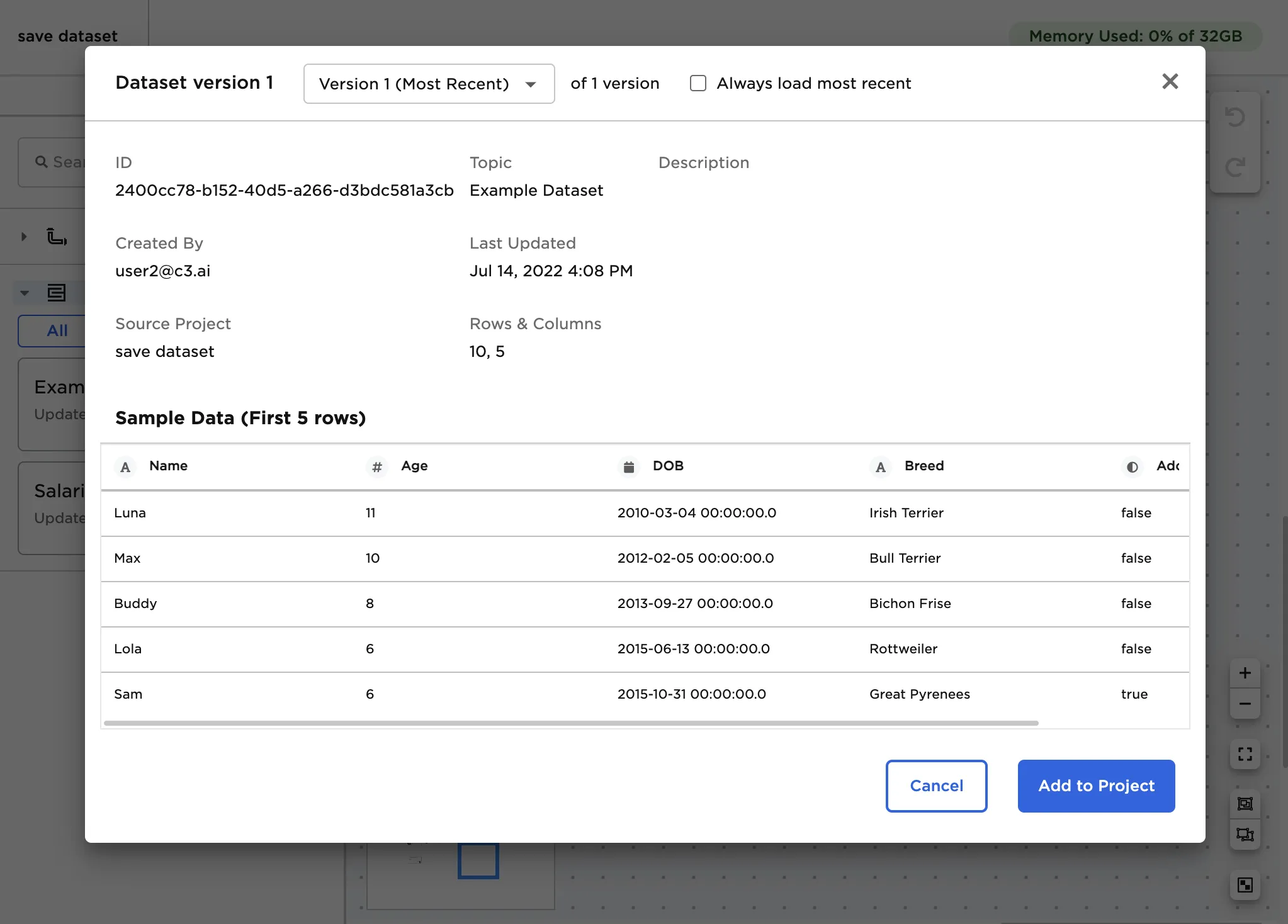
Figure 3: Dataset preview
After an Visual Notebooks Dataset node is on the canvas, select the node to configure it.
By default, the node loads the most recent version of the dataset. Select Run to use this specific version of the dataset each time the visual notebook runs. The version selected is used even if a new version of the dataset is published.
Figure 4: Example dataset with the default settings
In some cases, you may want to always work with the most recent version of the dataset. To keep the dataset up-to-date without continually selecting the most recent version, toggle the Always load most recent when visual notebook is run switch on.
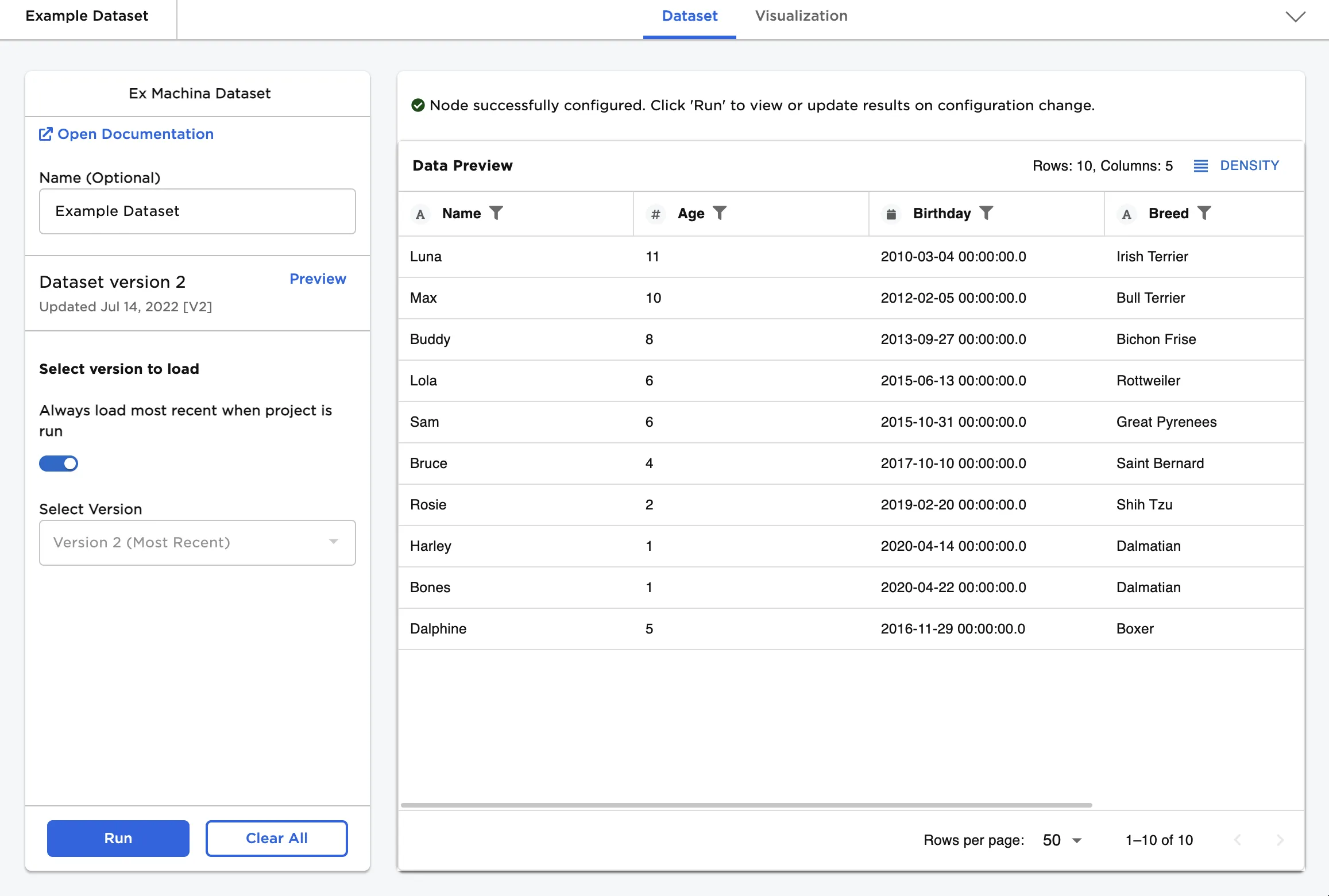
Figure 5: Example dataset that automatically updates