C3 AI Filter
The C3 AI Filter node enables a user to query (fetch or evaluate a metric) a C3 Type by providing a source C3 Type and dataset that contains the record identifiers to search. Data that match the identifier are placed in the output dataset.
Prerequisites
The user must be in the appropriate Admin Group and have the correct roles to be authorized to load data from the selected C3 Type. By default, C3 AI follows the principle of least privilege and users may not have been granted access to read data (rows) from types. Please speak to the C3 AI Support Team to ensure proper setup.
Configuration
| Field | Description |
|---|---|
| Name default=none | A user-specified node name displayed in the canvas |
| From Column Required | The column from the input dataset to be used for searching |
| To Field Required | The field from the input C3 Type to search against. |
| The field may also be a field on a related C3 Type and accessed using "dot notation". | |
| Filter Combination Mode Required | Determines how to handle filter criteria specified on the input C3 Type and the contents of the input dataset. |
| Select And if you want the output dataset to contain the union of records resulting from the filter property on the input C3 Type AND the records contained in the input dataset. Select Or if you want the output dataset to contain the union of records resulting from the filter property on the input C3 Type OR the records contained in the input dataset. Select Replace if you want the output dataset to contain the records specified in the input dataset. |
Node Inputs/Outputs
| Input | A dataset from a preceding nodeA C3 Type node with the C3 Type to query against A Visual Notebooks dataframe |
|---|---|
| Output | None. The C3 AI Filter can be thought of as a C3 AI Type node. It must be connected to a C3 AI Fetch or one of the C3 AI Analytics nodes as part of a sequence of nodes |
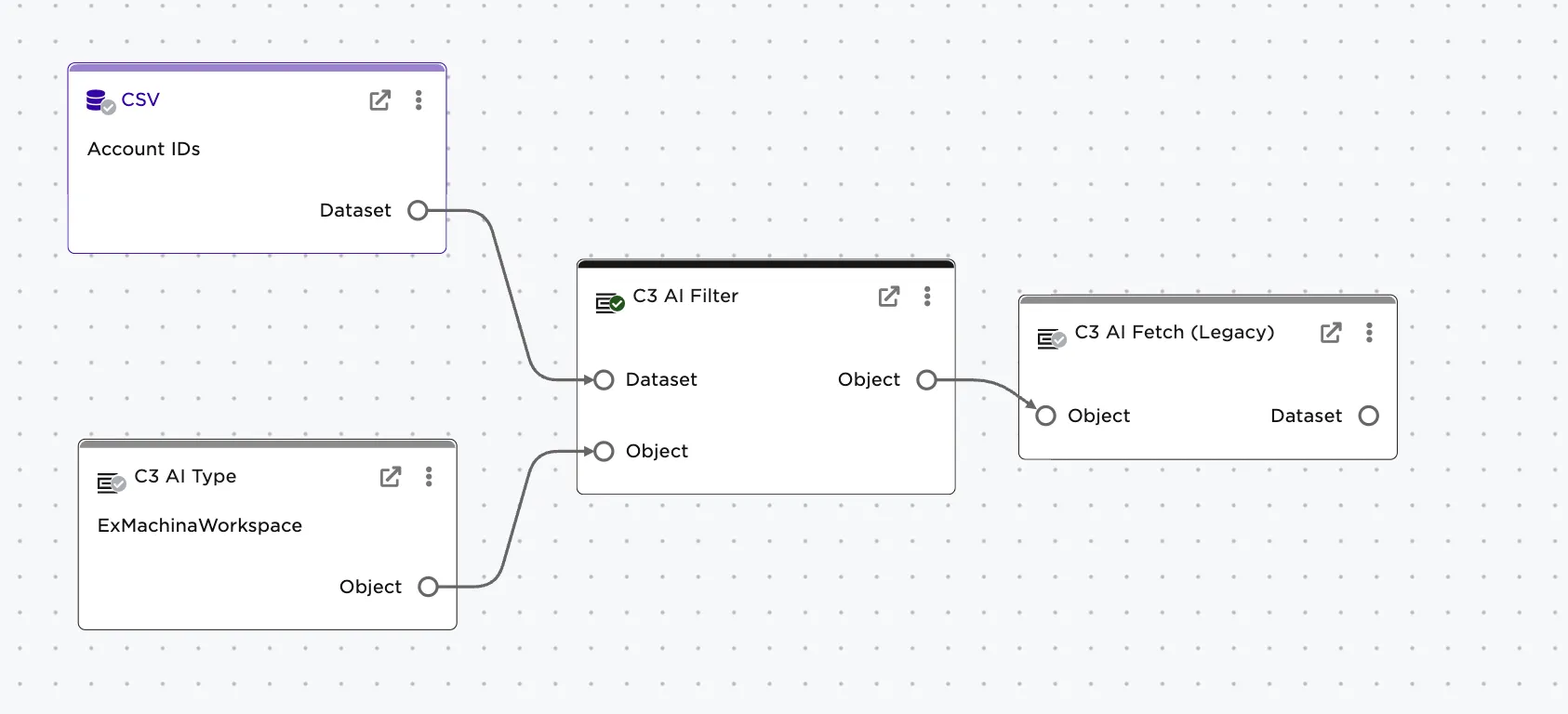
*Figure 1: Example node setup. Note the node must take a dataframe AND C3 Type node as input. It is then connected to a C3 Fetch node to retrieve data as specified. *

*Figure 2: Example output. The C3 AI Filter node does not return a dataframe itself, but rather a complex filter that otherwise could not be easily specified. *
Examples
A user has a list of specific accounts they need to retrieve ExMachinaWorkspace information about for additional analysis. The example data, in CSV, has a list of 5 account IDs to be used in the filter.
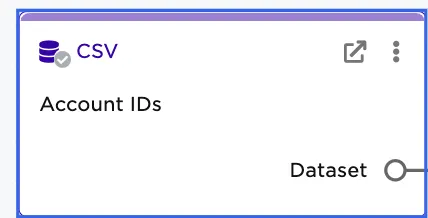
Figure 3: CSV Node with dataset containing record identifiers--the account IDs
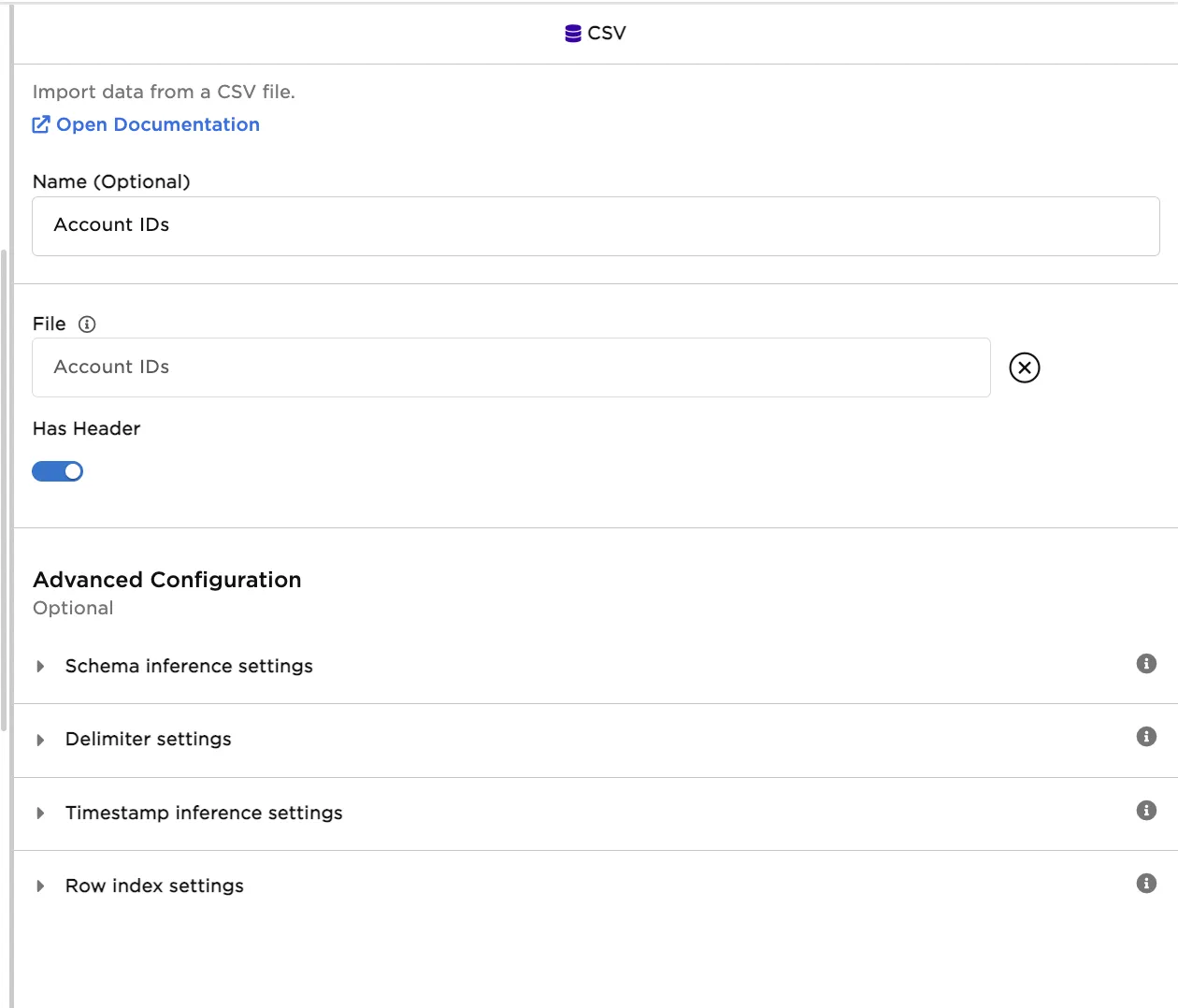
Figure 4: CSV Node properties panel
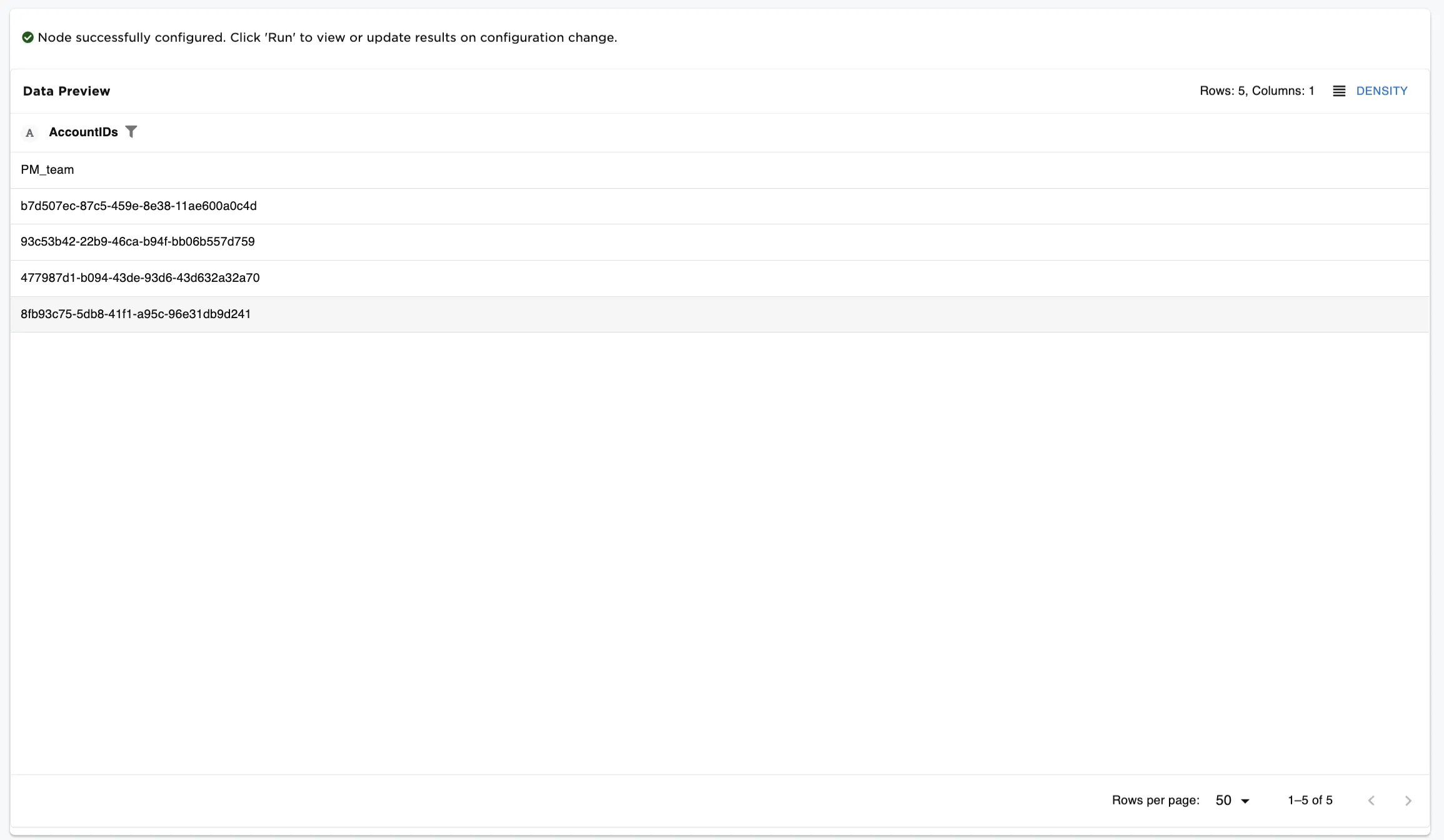
Figure 5: Account IDs to be used to identify pertinent data
Select the C3 Type to be used in retrieving the data--the ExMachinaWorkspaceConfig Type.
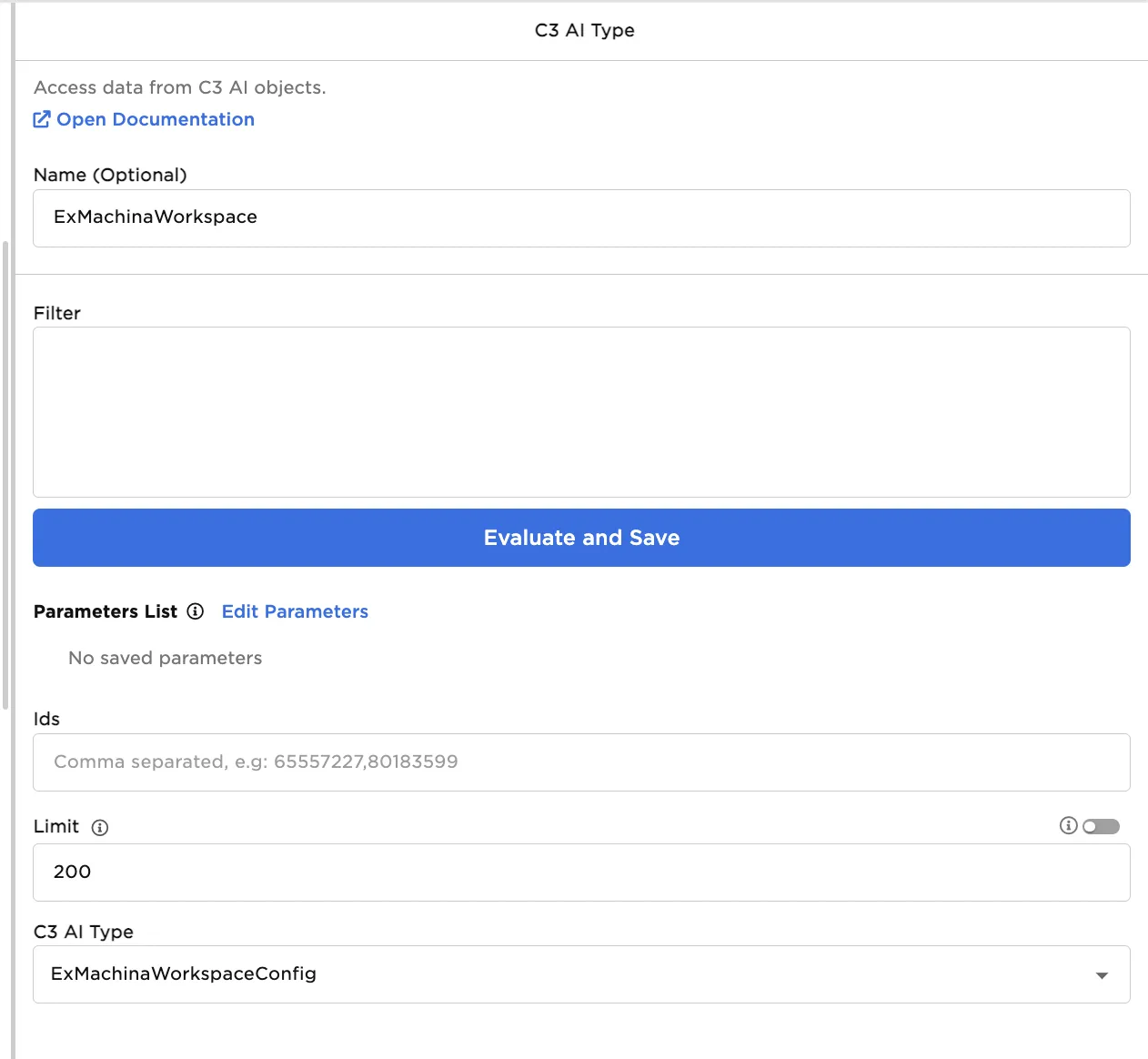
Figure 6: The configuration of the C3 Type Node
- Connect to the C3 AI Filter Node.
- Specify the From Column--which is the column from the input dataset to be used for searching. In this case, select AccountIDs.
- Specify the To Field--which is a field defined on the C3 Type. In this case, enter
parent.account.id. - Last select the combination mode. In this case, select And.
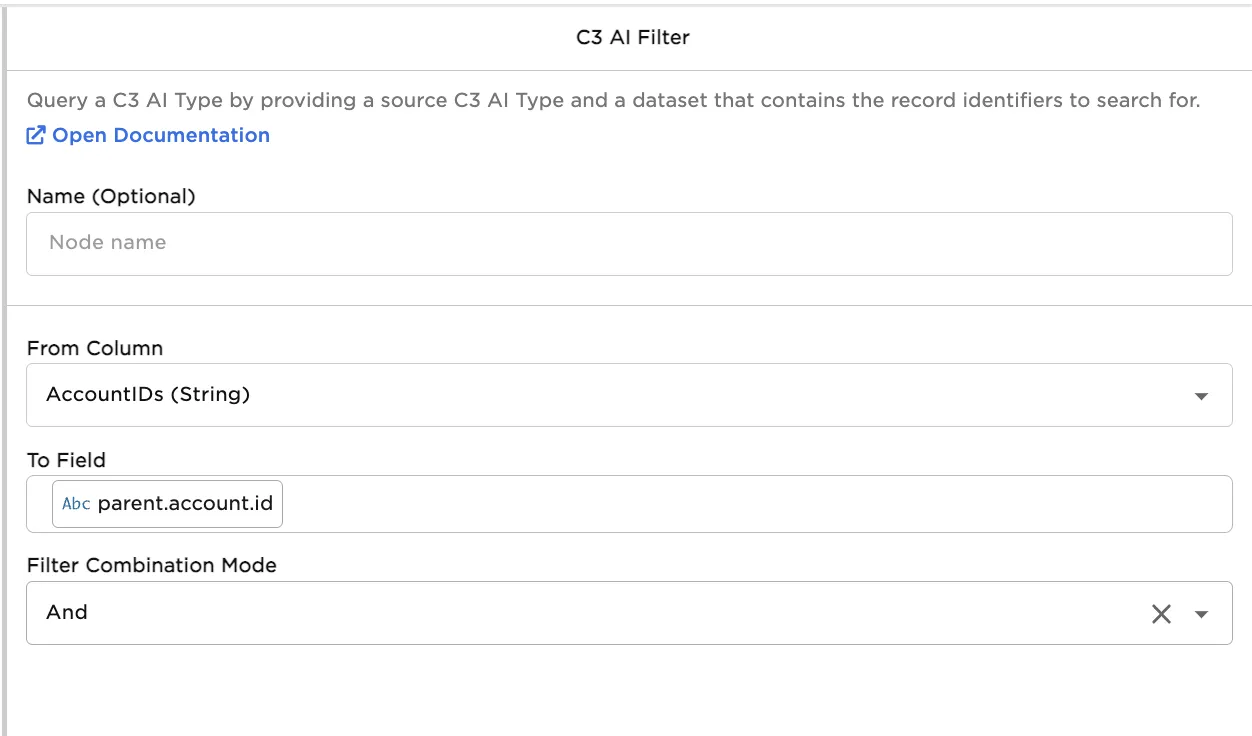
Figure 7: The configuration of the C3 AI Filter Node
The node generates a complex filter that can be used to now fetch or evaluate an analytic. For this example, the filter automatically created an "intersects" expression using the IDs provided. In the case where a user may have hundreds or thousands of record identifiers, this makes creating the filter expression much easier.
*Figure 8: Example output. The C3 AI Filter node does not return a dataframe itself, but rather a complex filter that otherwise could not be easily specified. *