Filter By Value
Select or reject part of your data in Visual Notebooks by matching data values against a user-specified value.
Configuration
| Field | Description |
|---|---|
| Name Default=none | A user-specified node name displayed in the workspace |
| Column Required | The column on which to filter the data: Select the column that contains the value upon which the data is filtered. |
Keep or Remove Matched Records? default=Keep | Whether the filtered data should be kept or it should be discarded: Decide how you want to use the filter: to retain the values matched by the filter, and to discard the values not matched by the filter -- or the opposite (discard the values matched by the filter, and retain the values not matched by the filter). |
| Filter Value Required | The value that the data is compared to: Enter a value to compare the data against. |
Error Margin for Numeric Comparisons default=0.000001 | Filter tolerance: Specify a numerical tolerance. If a given data value, d, is within that tolerance of the filter value, f, the filter selects that data value. In other words, if f-t <= d <= f+t, then the filter selects d. |
| Case Sensitive Required | Take the case of the data into account: Choose whether the filter uses a case-sensitive match. |
Node Inputs/Outputs
| Input | A Visual Notebooks dataframe |
|---|---|
| Output | A dataframe that contains filtered data |
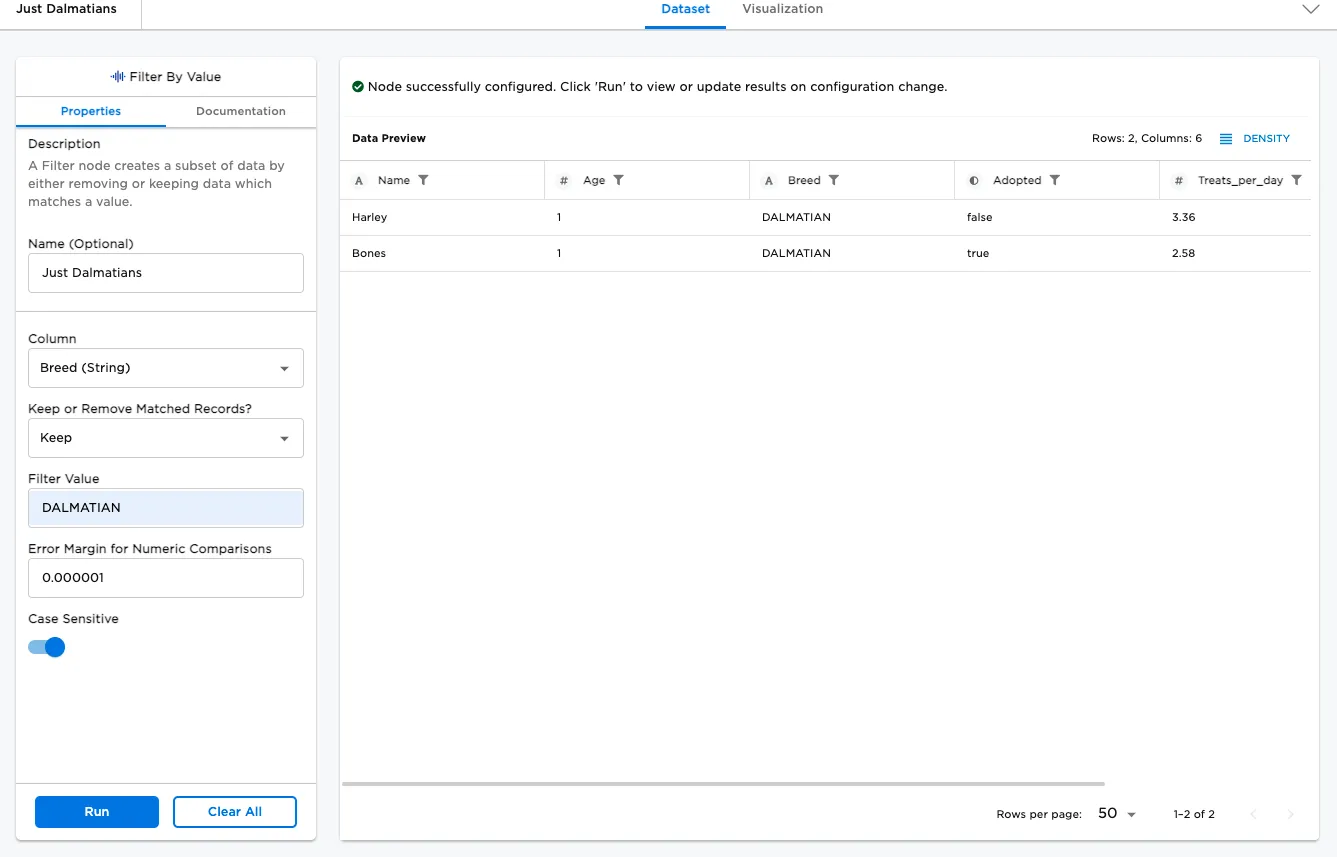
Figure 1: Example output
Examples
The following image shows an input file:
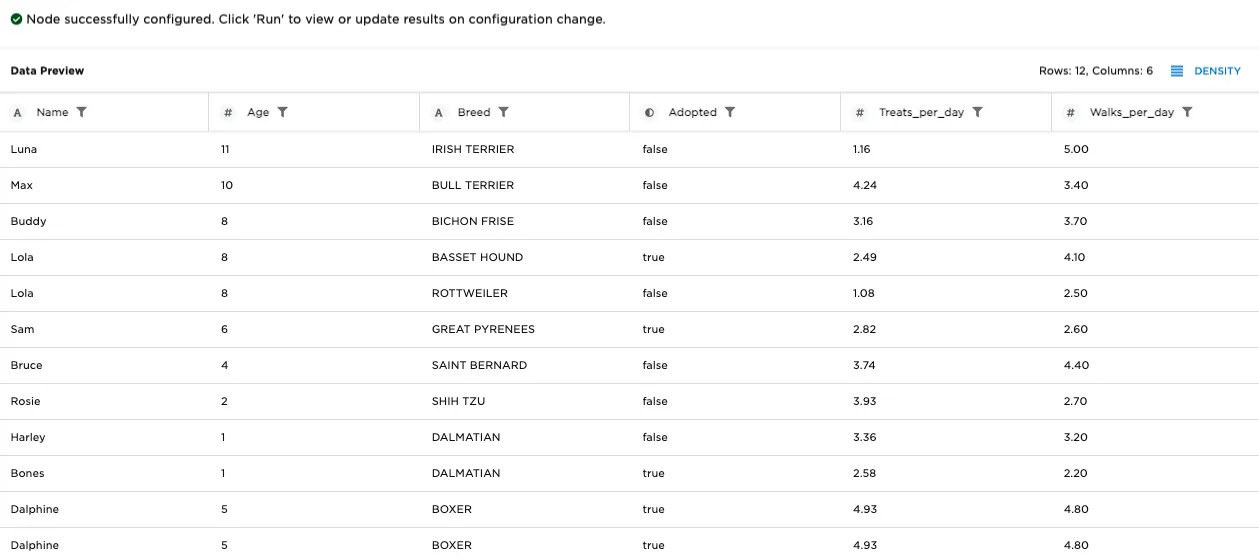
Figure 2: Example input data
First, we will run a filter on the word "Dalmatian":
- Connect a Filter By Value node to an existing node.
- Select the Filter By Value node to configure it.
- Select a Column on which to filter. This example uses Breed, so we will have Visual Notebooks display data that matches only one breed.
- Since we want the system to display the filtered results rather than remove them, for Keep or Remove Matched Records? select Keep.
- For Filter Value, enter "Dalmatian". This is not a numeric comparison, so setting an error margin has no effect on the output.
- Since the system has the Breed listed as "DALMATIAN", turn off Case Sensitive so the filter matches "Dalmatian".
- Select Run.
The filter returns two records, both of which are for the breed "DALMATIAN".
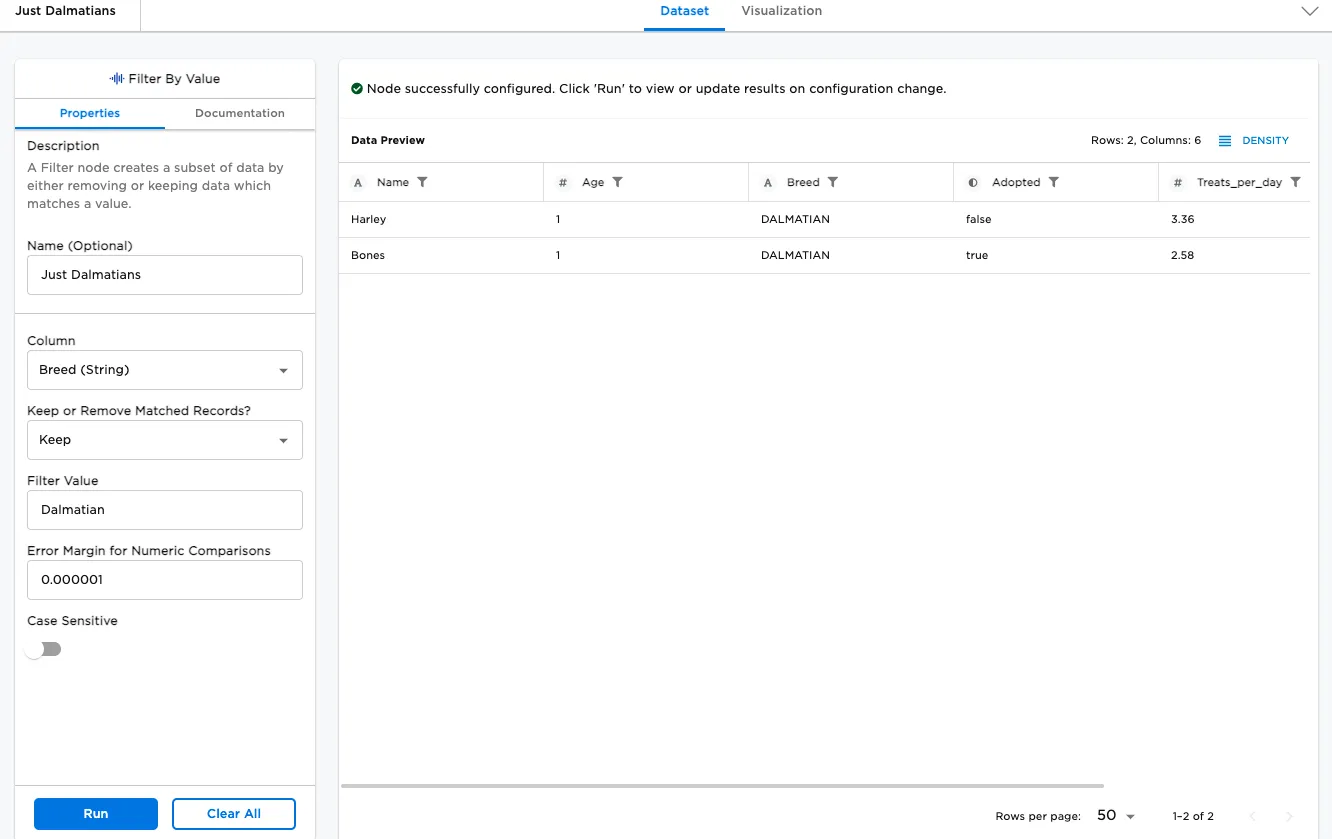
Figure 3: Data filtered on "Dalmatian"
The next example demonstrates a numerical search:
- Change Column to "Treats_per_day".
- Once again, choose to keep the data, rather than discard it.
- Since this is a numerical filter, specify a Filter Value of 1.08, indicating that we wish to retain all values where (the average value of) "Treats_per_day" is 1.08.
- It does not matter whether the filter is run with case sensitivity or not, since this is a numerical filter.
- Select Run.
The filter returns one data row. Notice that, to return this data row, we had to know that the Rottweiler breed consumes, on average, 1.08 treats per day. Since this knowledge is not realistic in most non-integer numerical filters, we improve on this result in the next example.
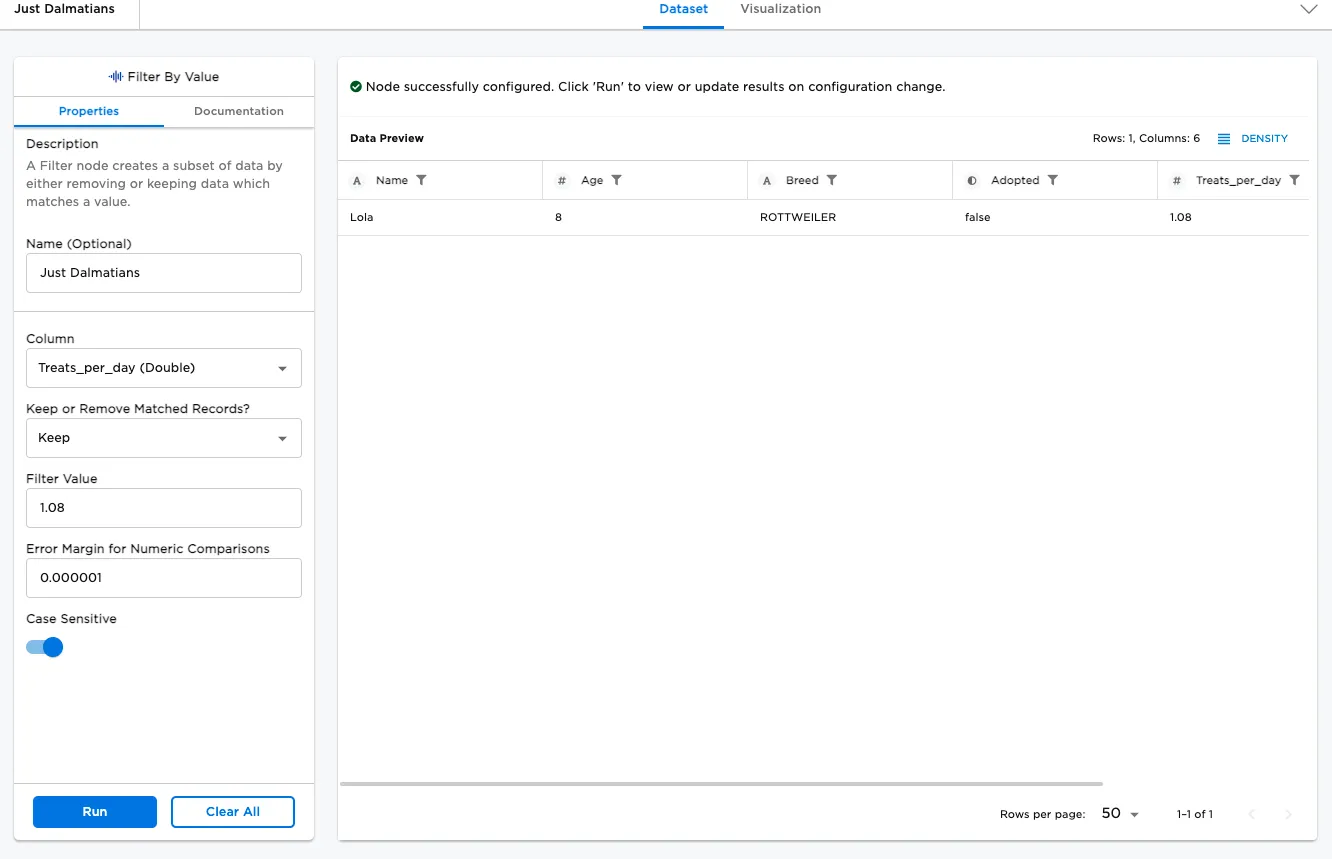
Figure 4: Numerical search
The next example improves on the previous example by showing data with a more realistic filter, where the user does not know the precise numerical value of the filtered results ahead of time:
- Alter the previous run by changing Filter Value to 1.
- For Error Margin for Numeric Comparisons, change the value to .25.
- Select Run.
Since the the filter value is 1, and the error tolerance is .25, this filter selects all data where .75 <= Treats_per_day <= 1.25.
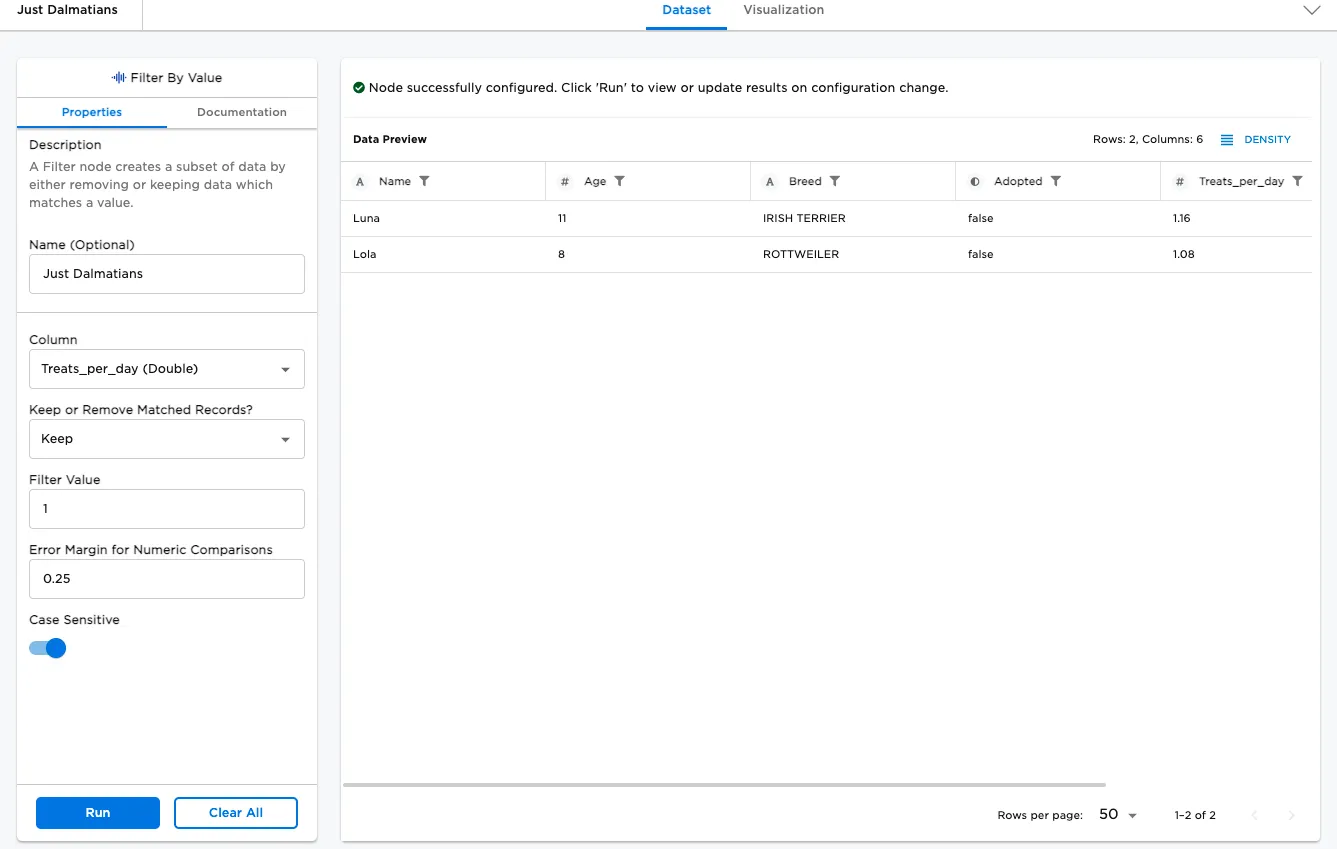
Figure 5: Improved numerical search