Filter By SQL
Use Visual Notebooks to filter results using SQL expressions. For a complete list of SQL operators and expressions that can be used, see the Apache SPARK SQL reference.
Configuration
| Field | Description |
|---|---|
| Name (Optional) default=none | A user-specified node name displayed in the workspace |
| Filter (SQL Formula) Required | SQL expression: Enter a SQL formula to filter the data. |
Column Reference default=none | List of available columns to use in the SQL formula: This is a read-only field that contains the names of columns available for use in the SQL formula, and the data types the columns contain. |
Node Inputs/Outputs
| Input | A Visual Notebooks dataframe |
|---|---|
| Output | Data filtered through a SQL query |
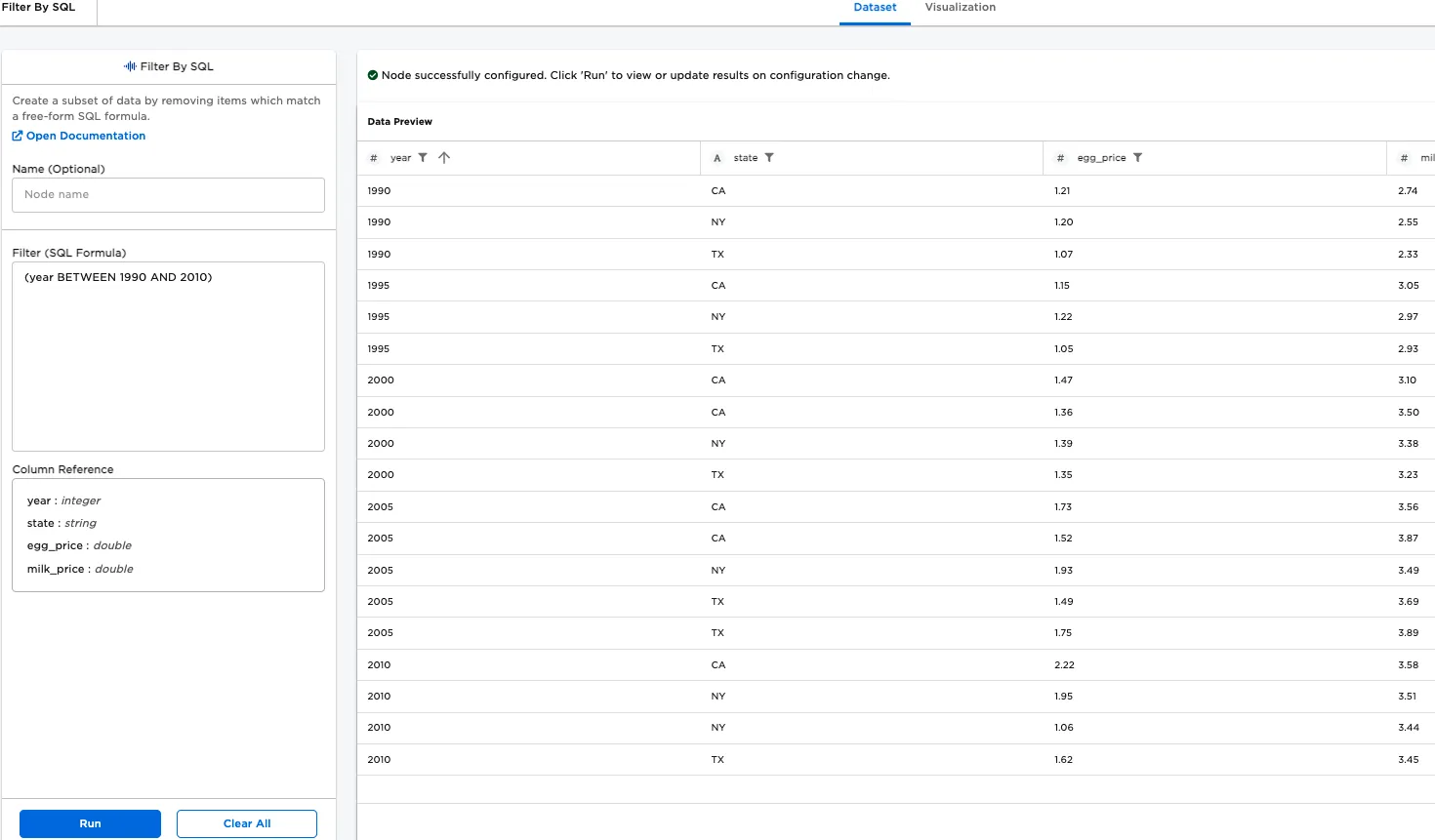
Figure 1: Example output
Examples
The following image shows an example input node.
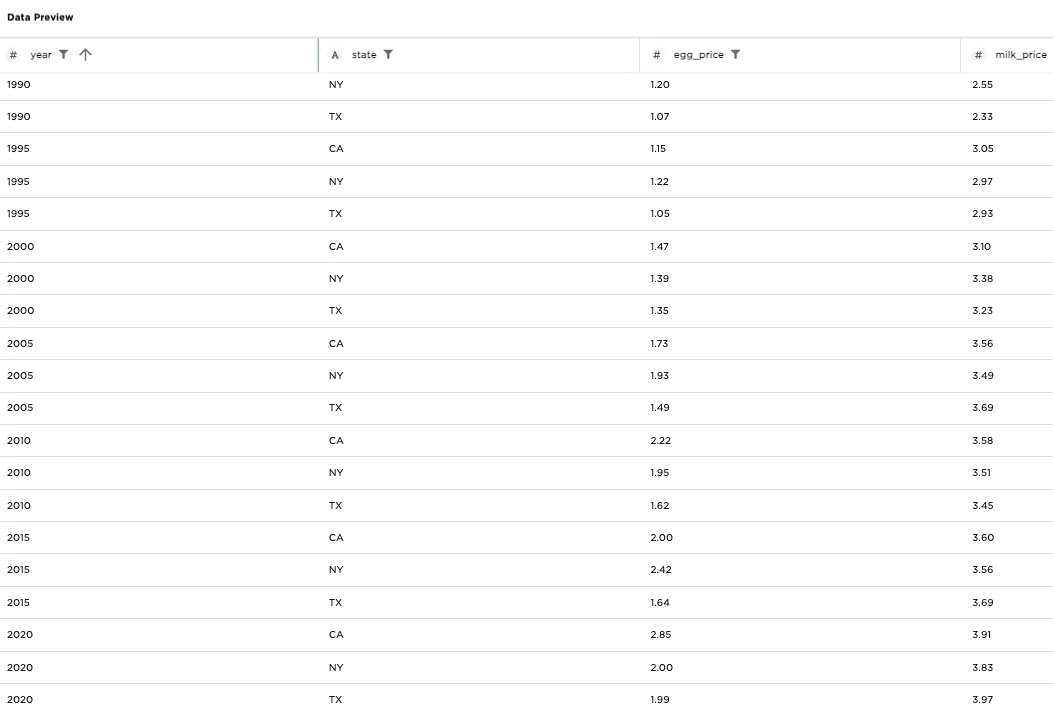
Figure 2: Example input data
The Filter By SQL node allows you to filter data using a (custom) SQL expression. The source file used in the examples contains data for 1980-2020. Filter that data to only show data for 1985-2010, using these steps:
- Import the data using a CSV node.
- Connect the CSV node to a Filter By SQL node.
- Select the Filter by SQL node to configure it.
- For the Filter (SQL Formula), enter
(year BETWEEN 1985 AND 2010). - Select Run.
Only data from 1985-2010 is now visible. Notice that there are parentheses around the SQL expression used in the previous example. Strictly speaking, this is not required, but doing this allows us to more easily build up the expression, as we will do in the next example.
Figure 3: Data restricted to 1985-2010
For the next example, we will further filter our data to show only information pertaining to Texas, by altering the previous example as follows:
- Change Filter to
(year BETWEEN 1985 AND 2010) AND (state == 'TX'). - Select Run.
The data now only pertains to Texas. Notice that milk rose above $3.00 for the first time in 2000.
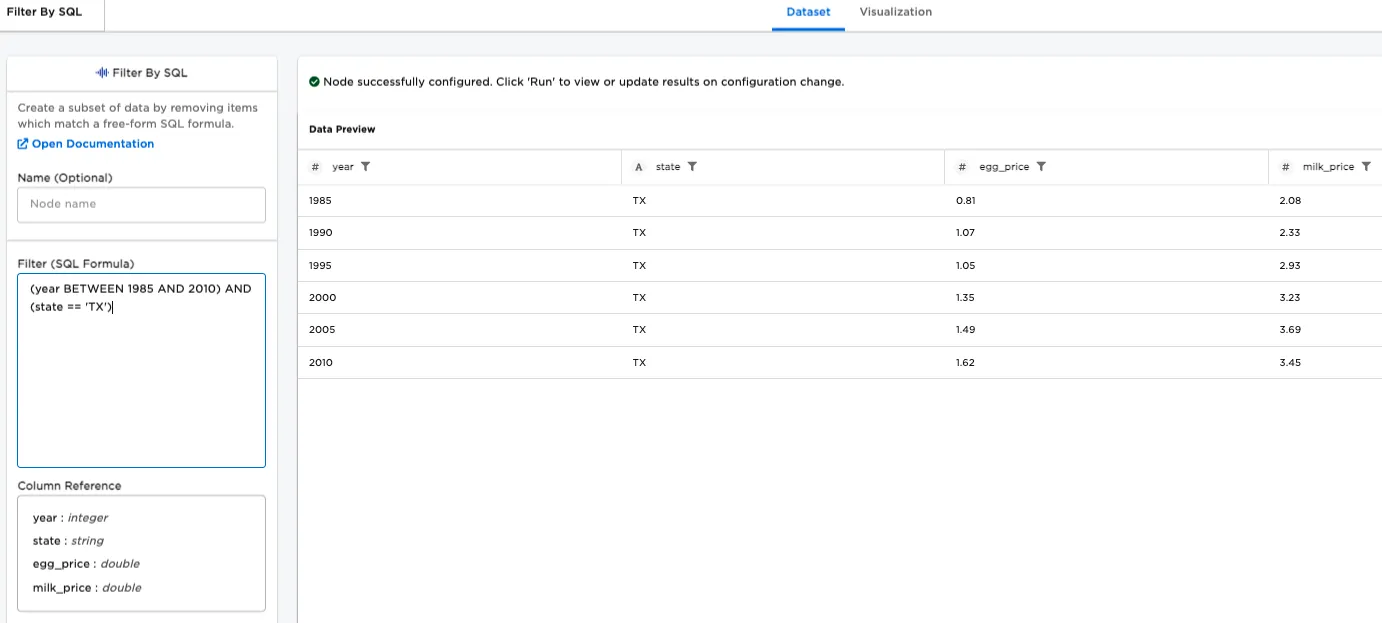
Figure 4: Output further restricted to just TX data
For the final example, we will further restrict the output to milk that costs over $3.00, by modifying the previous example as follows:
- Change Filter to
(year BETWEEN 1985 AND 2010) AND (state == 'TX') AND (milk_price > 3.00). - Select Run.
There are three data rows left, which contain data now satisfying the following three criteria:
- Milk prices are over $3.00.
- Data pertains to Texas.
- The timeframe under consideration is 1985-2010.
The highest price, $3.69, was reached in 2005.
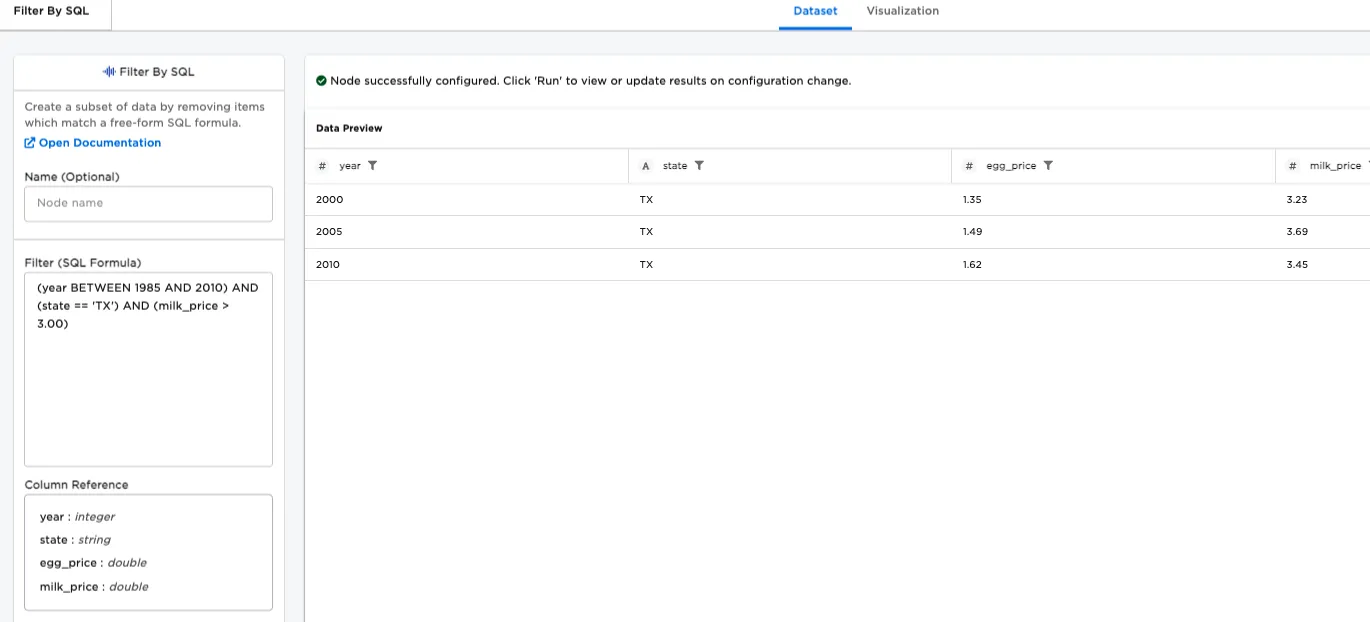
Figure 5: Output further restricted to just TX data