Split by Filter
Use Split by Filter in Visual Notebooks to split datasets by filter using SQL expressions. For a complete list of SQL operators and expressions that can be used, see the Apache SPARK SQL reference.
Configuration
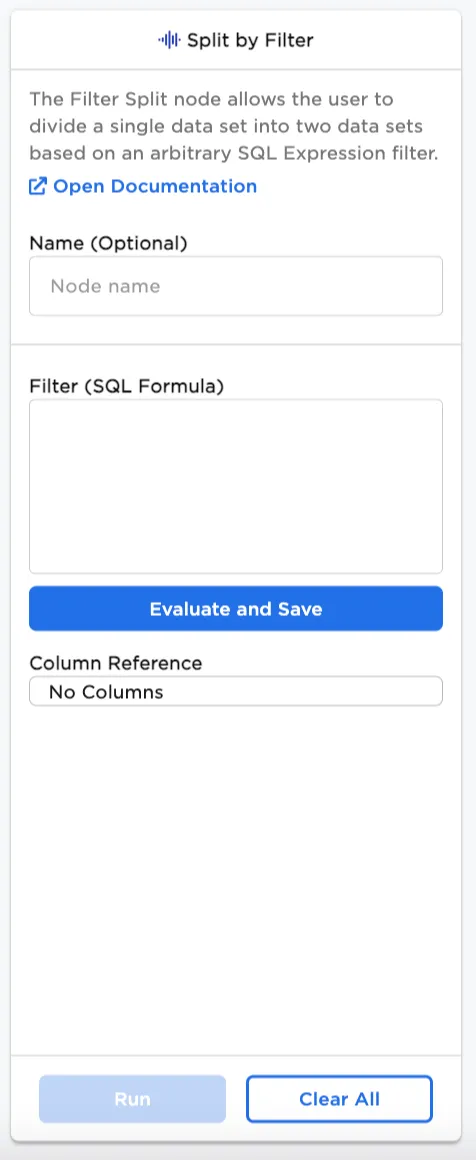
| Field | Description |
|---|---|
| Name | Name of the node A user-specified node name displayed in the workspace, both on the node and in the dataframe as a tab. |
| Filter (SQL Formula) | SQL expression Enter a SQL formula to split the dataset by filter. |
| Column Reference | List of available columns to use in the SQL formula This is a read-only field that contains the names of columns available for use in the SQL formula, and the data types the columns contain. |
Node Inputs/Outputs
| Input | A Visual Notebooks dataframe |
|---|---|
| Output | A dataset split into two datasets filtered through a SQL query |
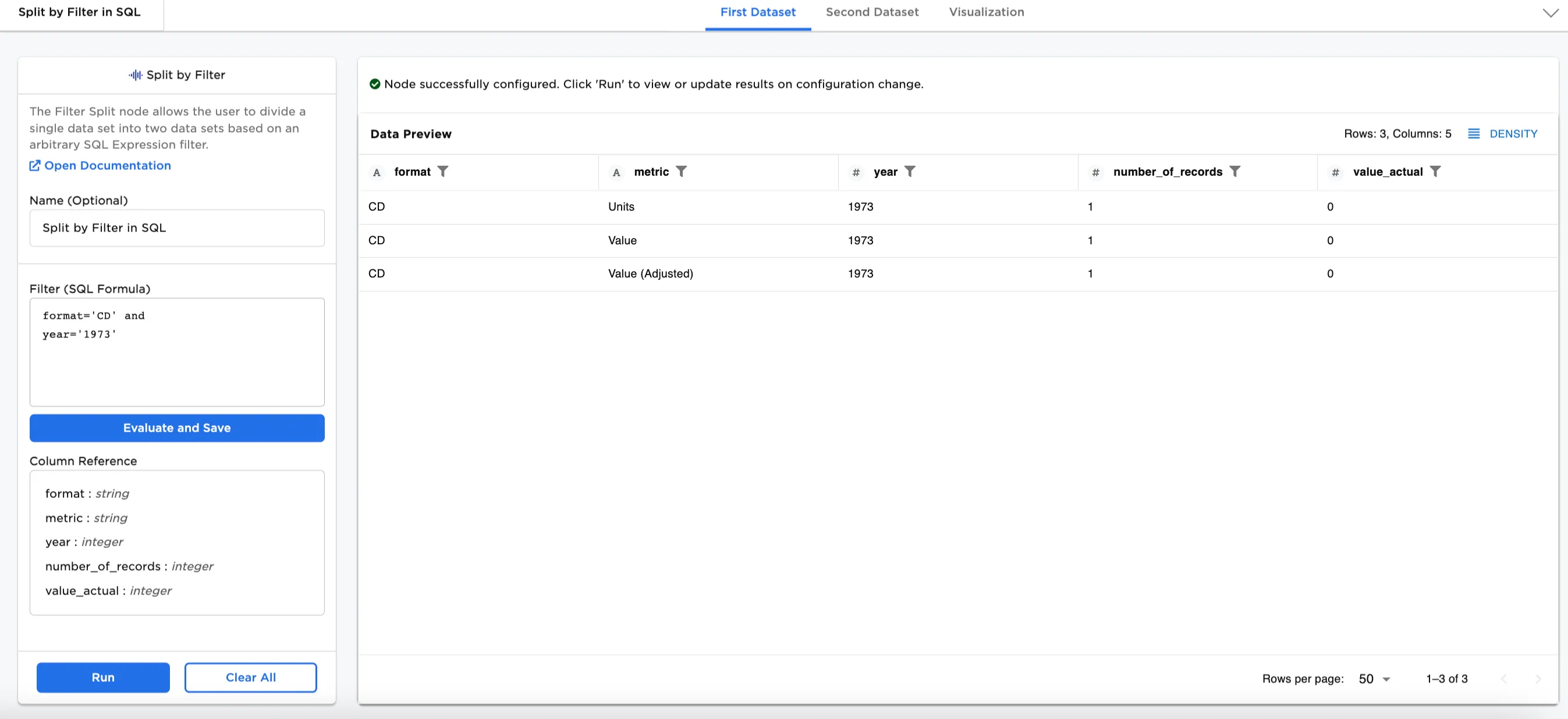 Figure 1a: Example output First Dataset
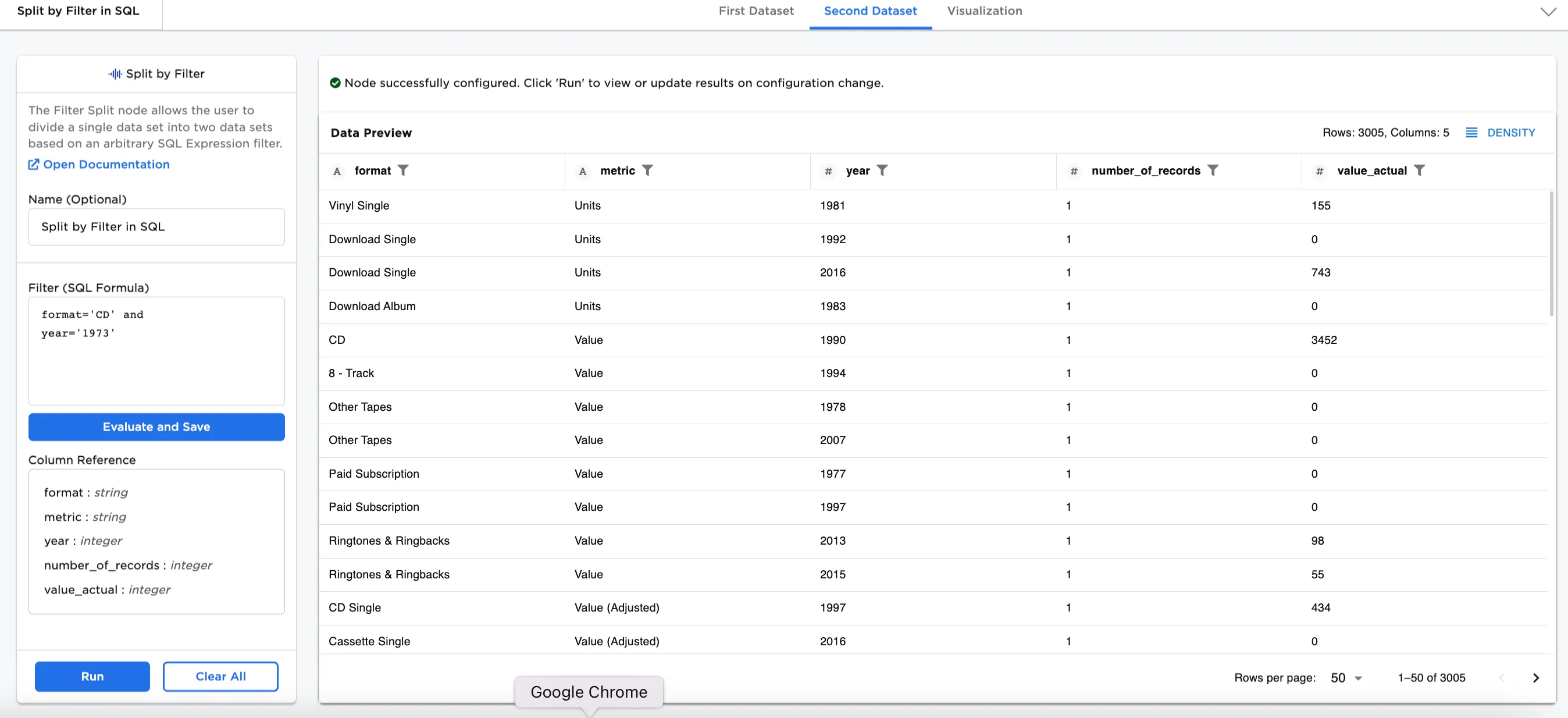 Figure 1b: Example output Second Dataset
Examples
Historical data offers context and insight for future predictions. Larger datasets over longer periods of time can provide insights for future trends compensating for evolving technologies or trends, or even random anomalies. Therefore, a best practice for training and testing data is using a larger dataset with a lot of data and criteria. In this Split by Filter node, we show how to split the dataset into two using SQL expressions.
In the following examples, music sales by format is used. Figure 2 shows an input node with the example data. You'll notice in the bottom right corner that there are 3008 rows in the dataset. The dataset shows the number and dollar amount of sales by format (8-Track, Cassette, CD, and other formats) between 1973 and 2019.
Note: The data comes from Kaggle compiled from data available at Visualcapitalist and Riaa. A license was not specified at the source.
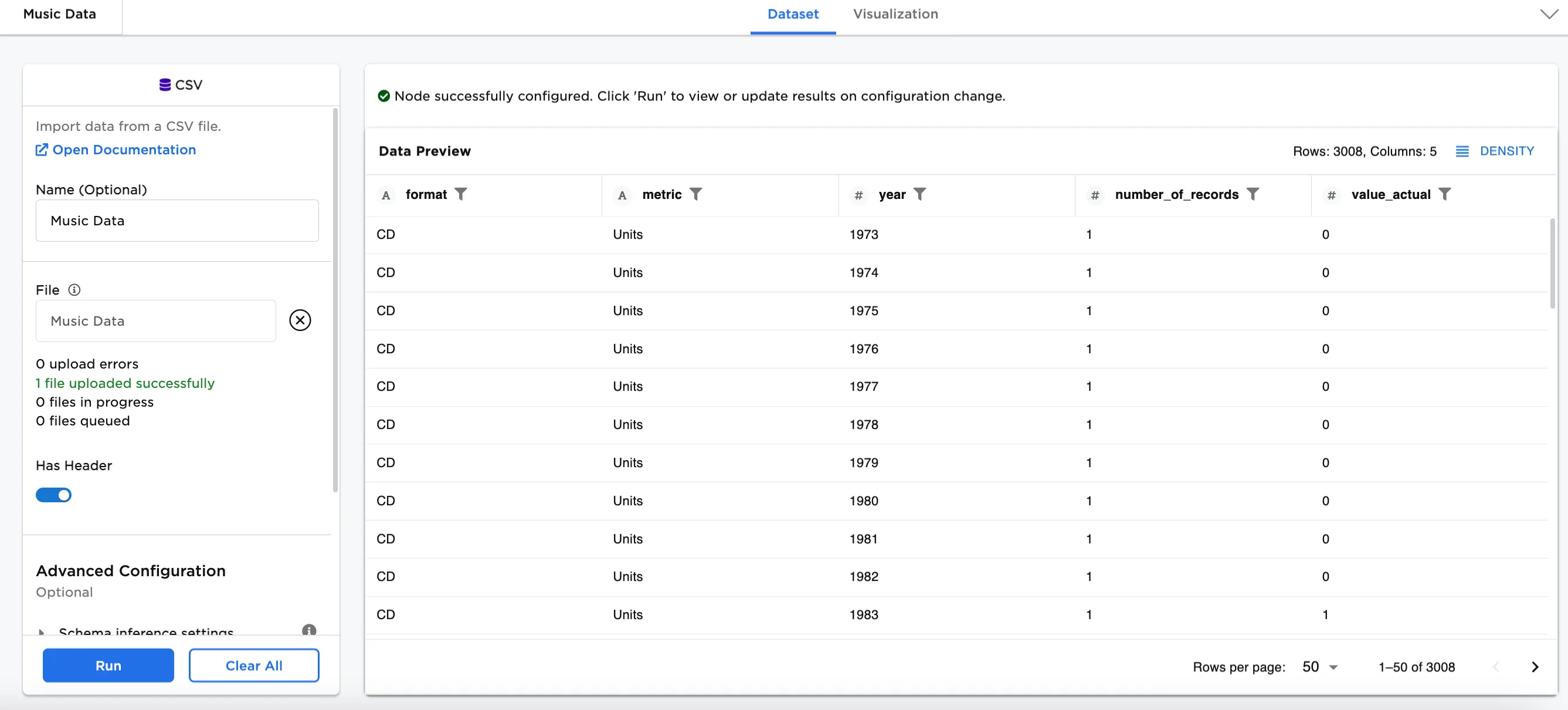 Figure 2: Example input dataframe
- Connect a Split by Filter node to an existing node. In this case, it is connected to a CSV node with the
Music Datafile. - Optionally, name the Split by Filter node. In the example, the node is named,
Split by Filter in SQL. - Enter the SQL expression. In this case,
format='CD'is used. - Select Evaluate and Save
- Select Run
Notice that Figure 2 shows 3008 rows of data. After splitting the dataset by SQL expression filter, Figure 3a shows the First Dataset with 141 rows that has a format that is "CD." Figure 3b shows the Second Dataset with 2867 rows without "CD" in the format.
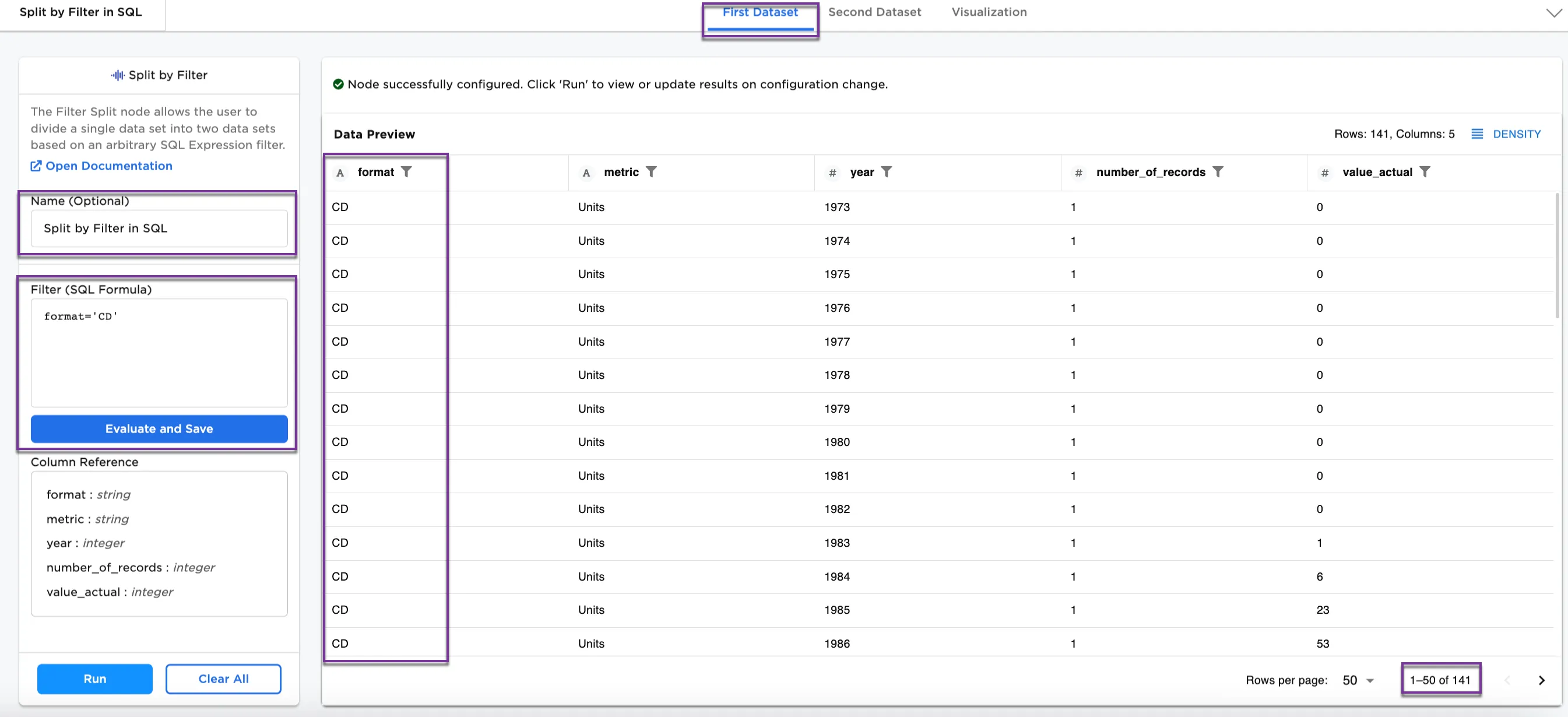 Figure 3a: Example First Dataset with CD
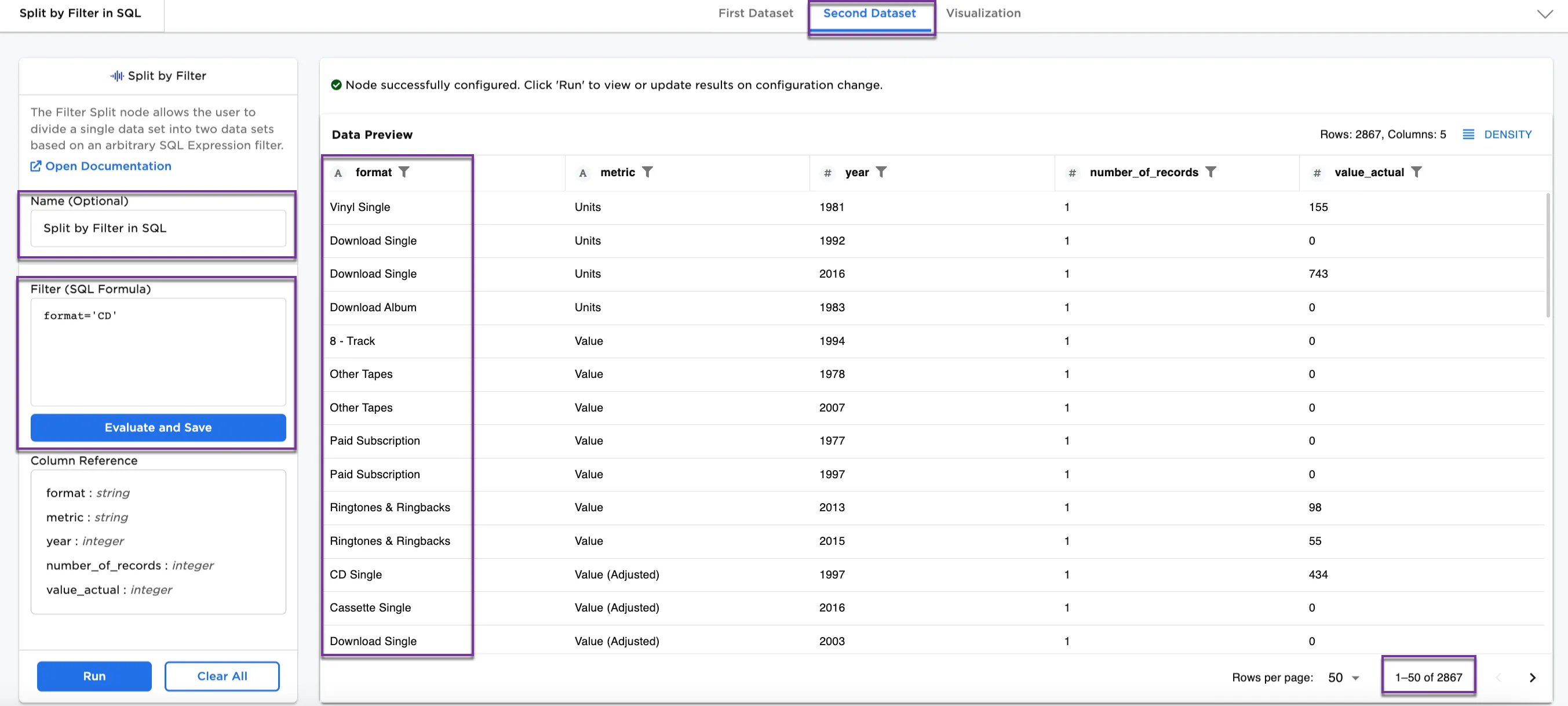 Figure 3b: Example Second Dataset without CD
Optionally, we can add more SQL expressions to filter the dataset.
- Change Filter to
format='CD' and year between '1975' and '1979'. - Select Evaluate and Save
- Select Run
Figure 4a shows the First Dataset with a CD format between 1975 and 1979 (15 rows). Figure 4b shows the Second Dataset with the rest of the data (2993 rows). You can continue changing the SQL expression filter to split the dataset as you would like to see it.
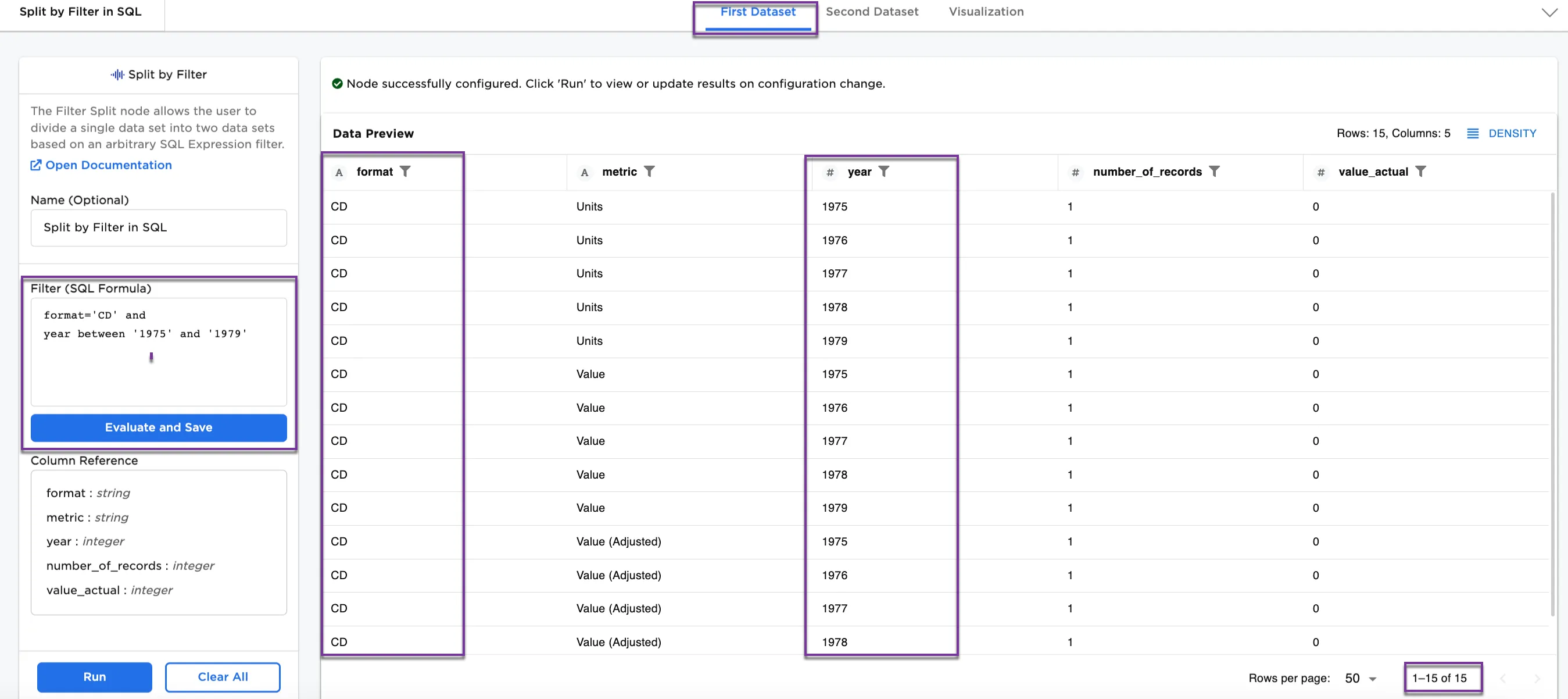 Figure 4a: Example First Dataset with CD format between 1975 and 1979
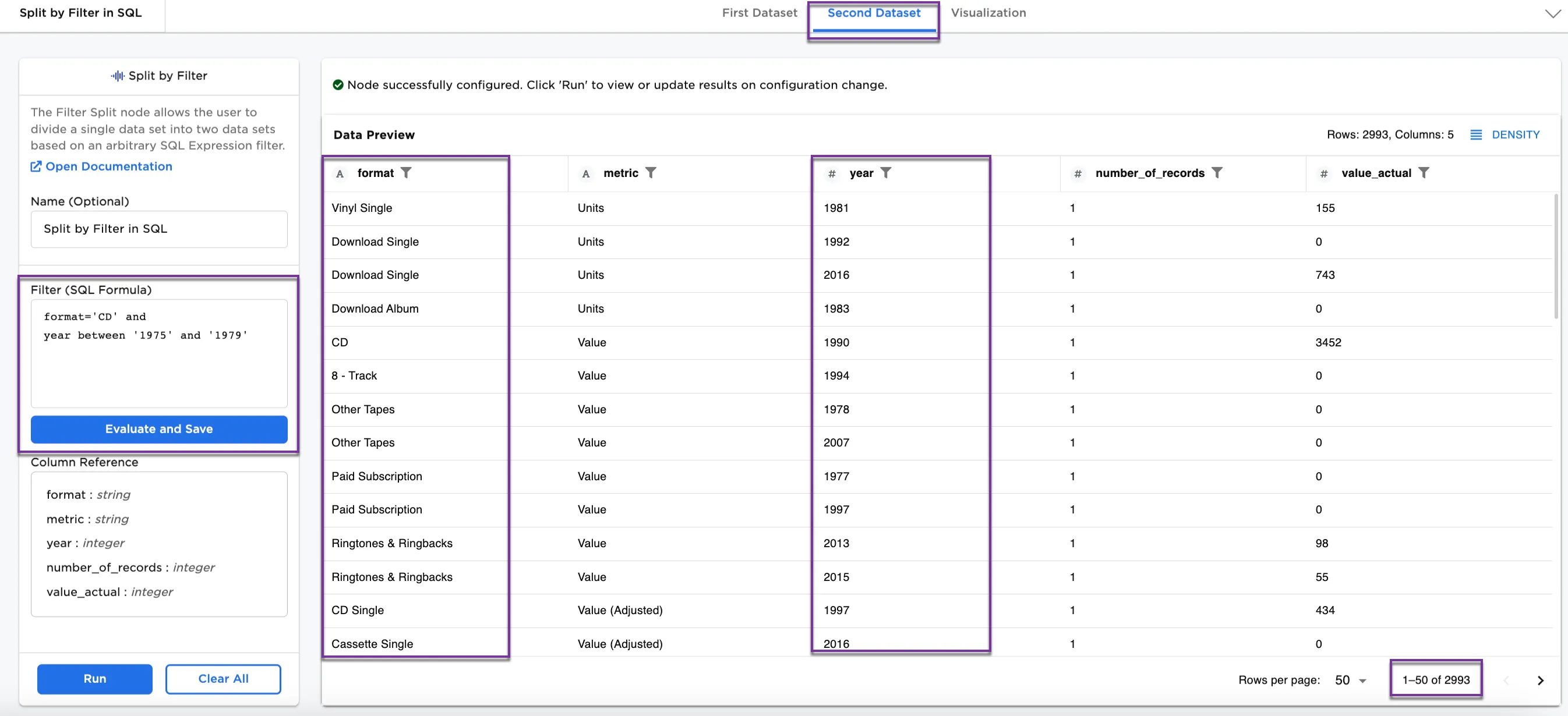 Figure 4b: Example Second Dataset without CD format between 1975 and 1979