Load SparkML Model
Import a model trained with Spark MLIB from Azure Data Lake Storage (ADLS) to Visual Notebooks. You must have an existing ADLS account and saved model to use this node. For more information about ADLS, see Azure Data Lake Storage.
Warning
The Load SparkML Model node only supports MLIB models stored in ADLS
Prerequisites
Follow the steps below to connect your ADLS account to Visual Notebooks and load the desired Spark ML model.
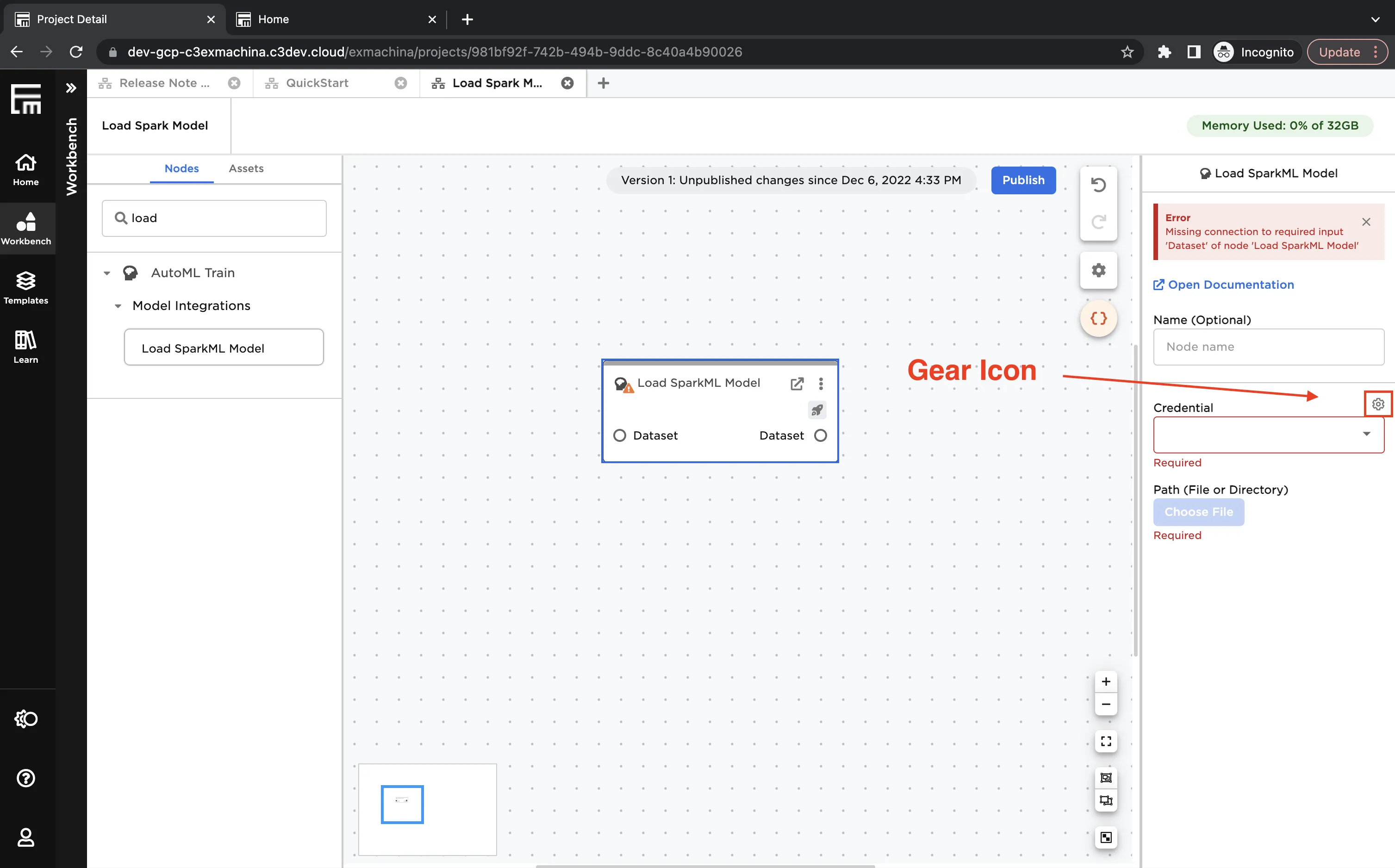
- In Visual Notebooks, drag the Load SparkML Model node onto the canvas
- Select the gear icon beside the Credential field
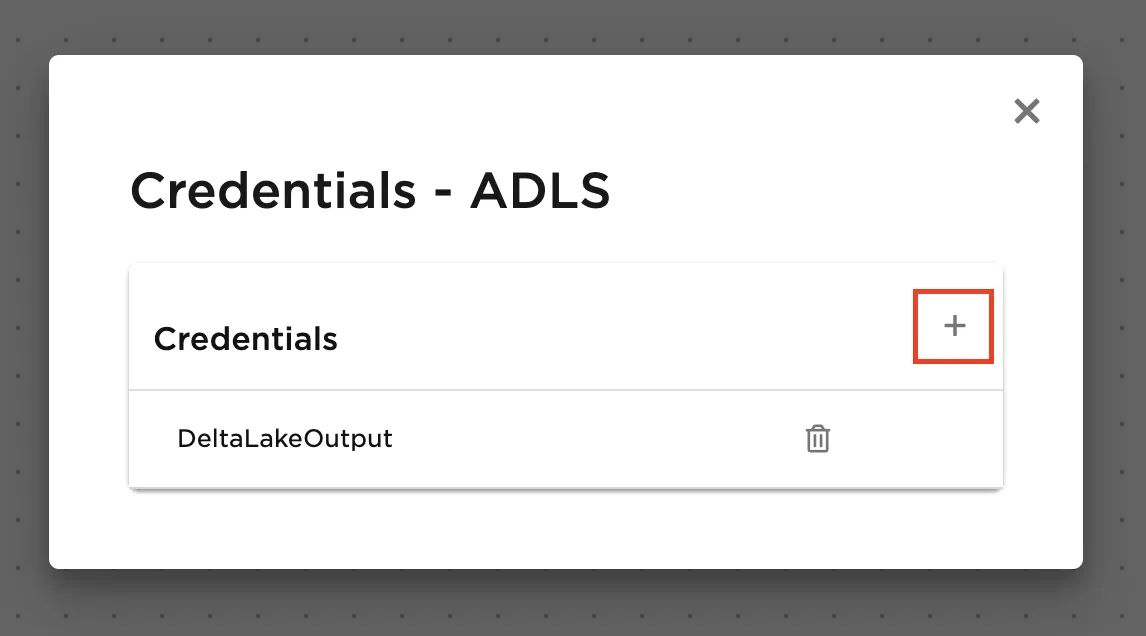
- Select the plus sign in the upper right corner
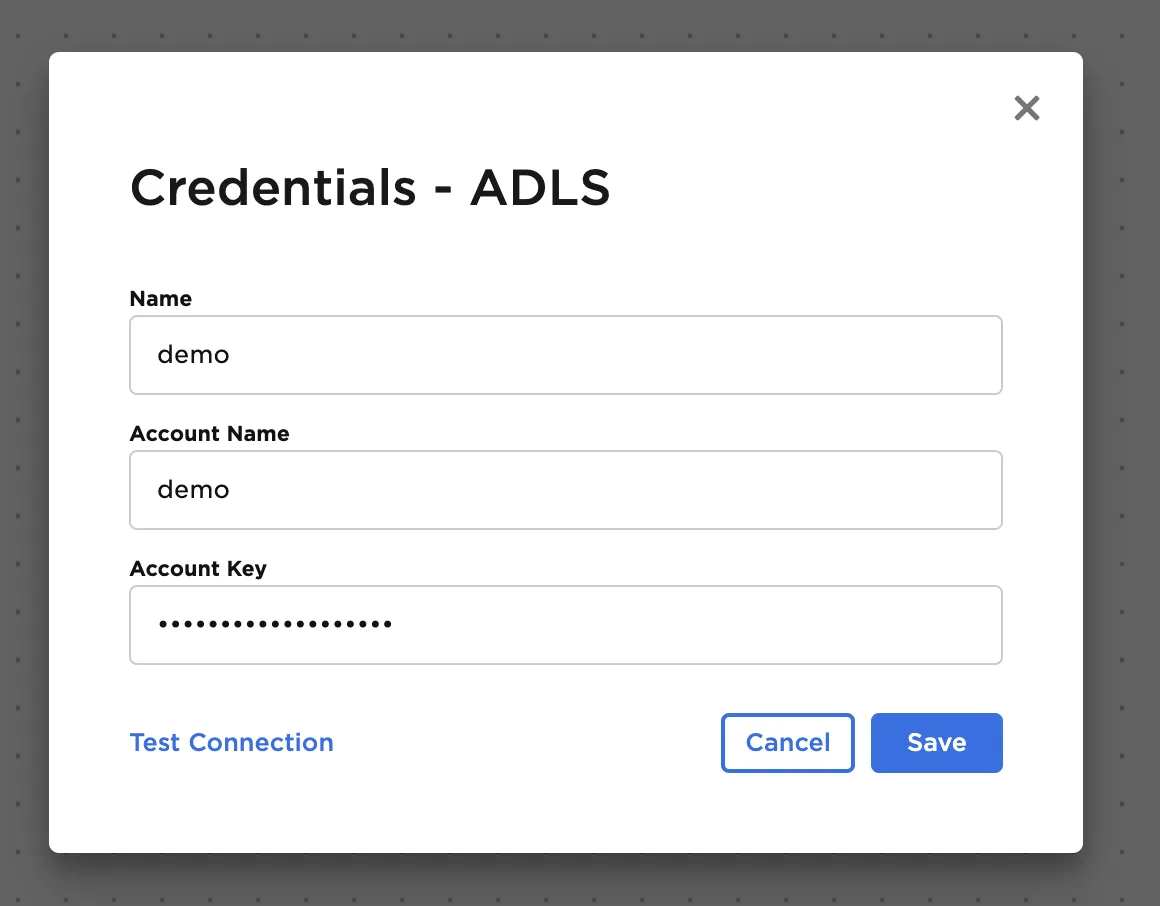
- Paste the contents of the storage account name into Account Name and key into Account Key
Configuration
| Field | Description |
|---|---|
| Name default=none | Name of the node An optional user-specified node name displayed in the canvas, both on the node and in the dataframe as a tab. |
| Credential *Required | The information needed to access ADLS and load the model Select a saved credential from the dropdown menu. Select the gear icon to add a new credential or delete existing credentials. |
| Path *Required | The path to the model to load Select the bucket and the desired folder from the pop-up menu. |
Node Inputs/Outputs
| Input | A Visual Notebooks dataframe |
|---|---|
| Output | A dataframe with a column appended with the prediction from the loaded model |
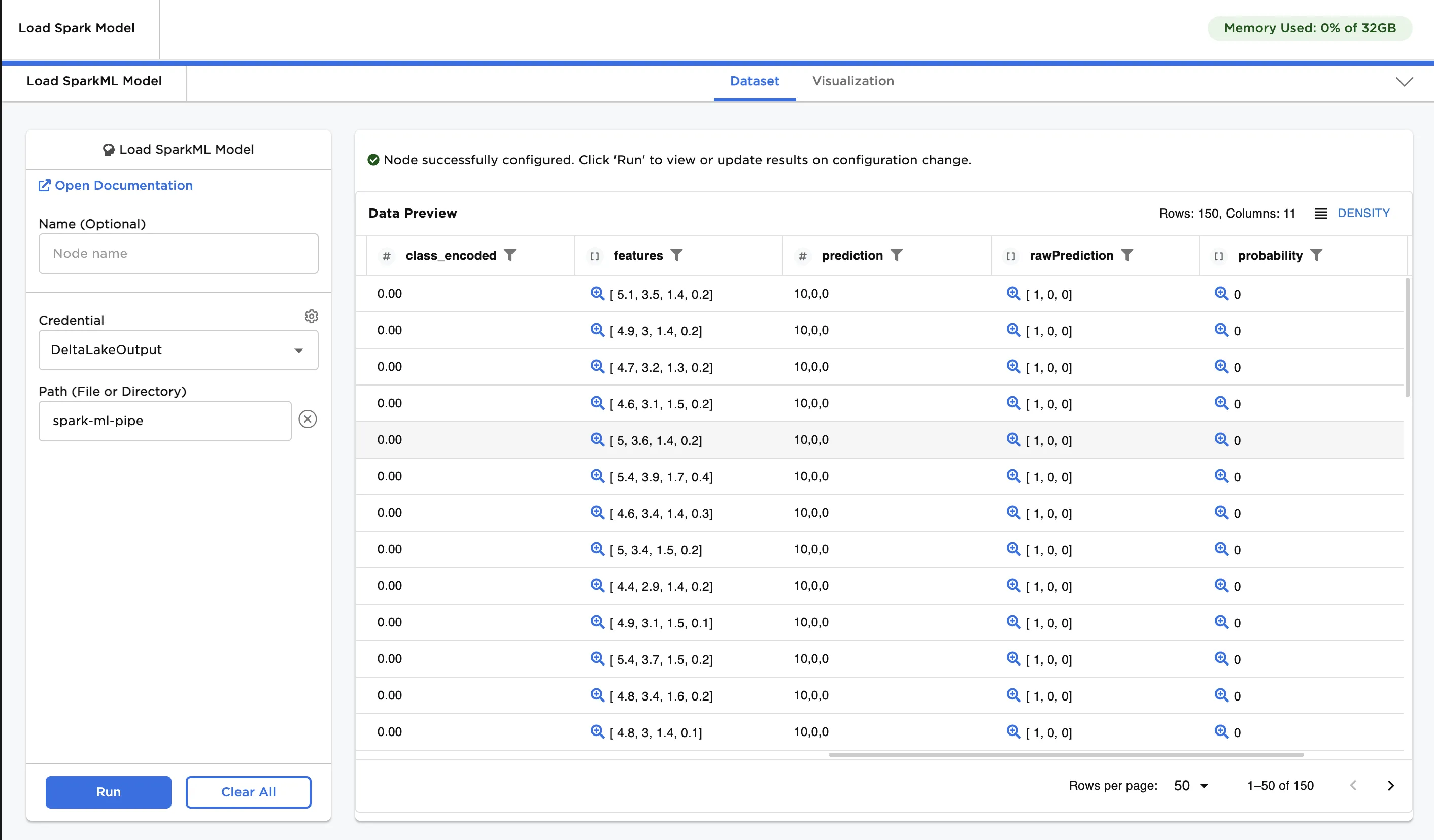
Figure 1: Example output
Be sure to connect a dataset to be used for inference to the Load SparkML Model node.
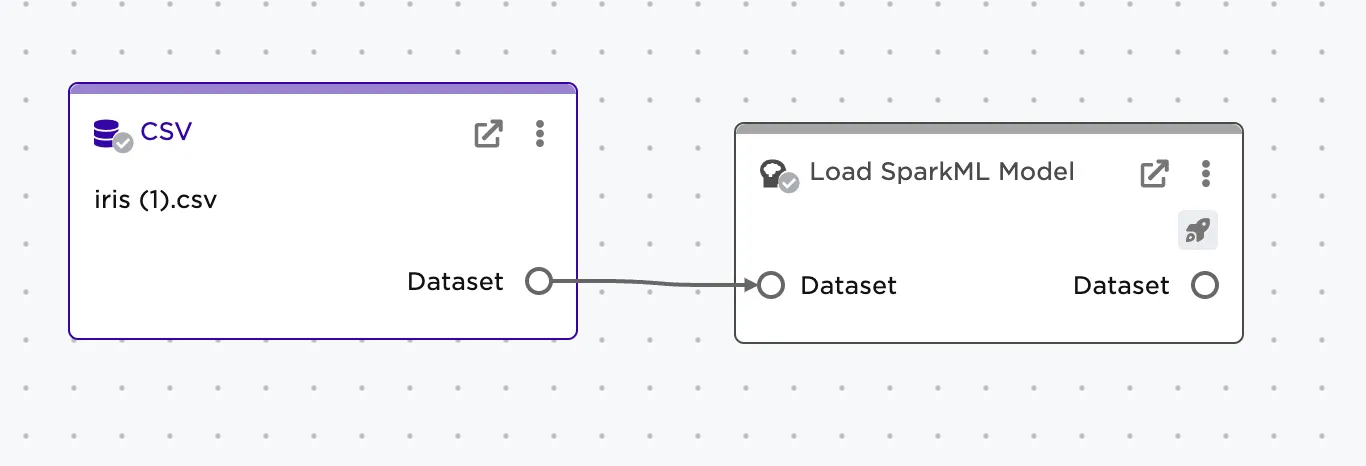
Figure 2: Example setup
Examples
Follow the steps below to use a Spark ML model from ADLS.
- Select the saved credentials used to access ADLS. If you have not yet saved credentials, follow the steps in the Prerequisites section above.
- Select the saved Spark ML model using the Path field.
- Select Run to create a dataframe and perform inference.
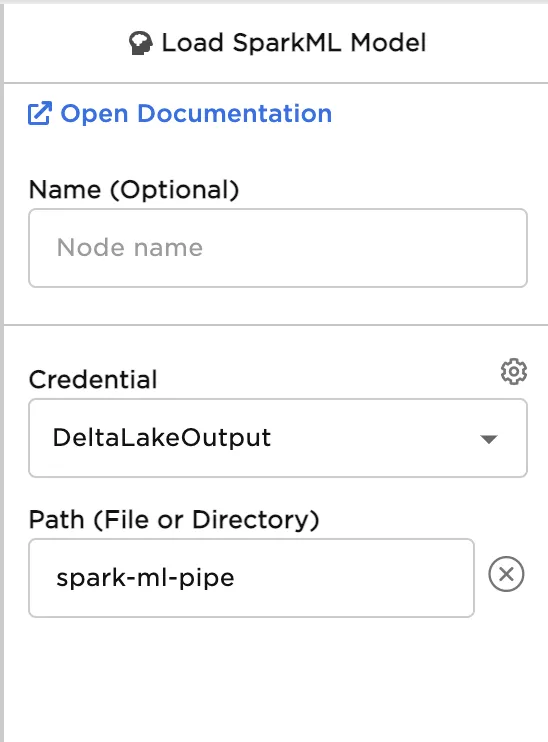
Figure 3: Example configuration
Figure 4: Example dataframe with predictions