Model Search Classifier
Train multiple classification models that categorize your data in Visual Notebooks. The Model Search Classifier allows you to train multiple types of models at once and make educated choices for which one(s) to use. To learn more about machine learning models, see the C3 AI glossary.
Configuration
| Field | Description |
|---|---|
| Name default=none | Name of the node A user-specified node name displayed in the workspace, both on the node and in the dataframe as a tab. |
| Columns *Required | Features to train the model with Use all columns as features, or select specific columns using the dropdown menu. Columns selected as features are used to train the model. |
| Training Label *Required | The column the model search classifer should predict Select a column from the dropdown menu. This column contains the labels that the model should be able to predict after the training. |
| Weight Column default=none | An optional column with how much to weight each piece of training data Select which column, if any, contains weights for each piece of training data. This is used in situations in which your data is very imbalanced, and you need to weight data with rare outcomes more heavily. |
| Algos to Exclude default=none | Types of algorithms to exclude Select which algorithms, if any, you would like the Model Search Classifier to exclude from its process of training various models. Choose from DeepLearning, DRF, GBM, GLM, StackedEnsemble and XGBoost. |
Node Inputs/Outputs
| Input | A Visual Notebooks dataframe |
|---|---|
| Output | Trained models ranked by their performance metrics |
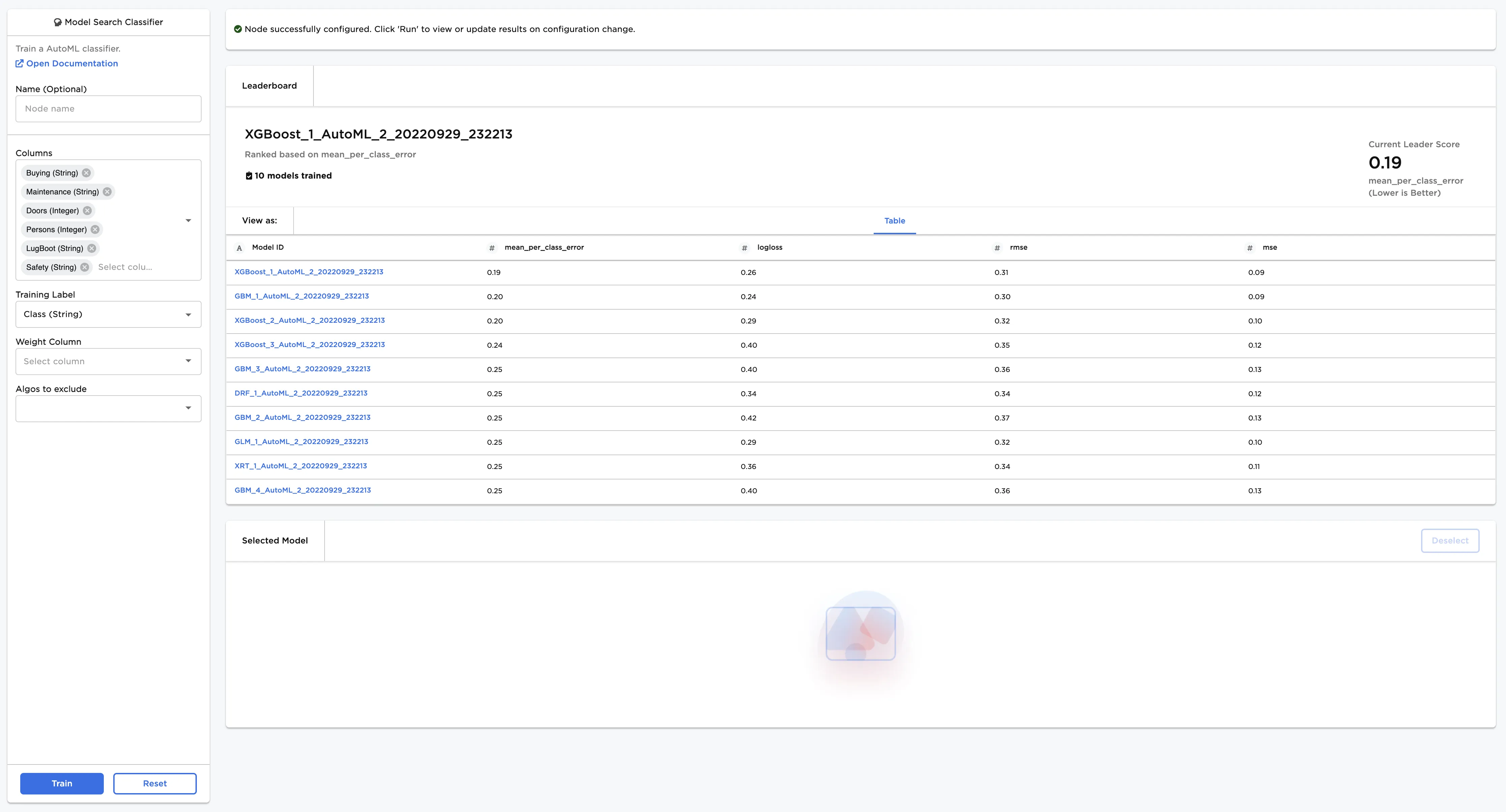
Figure 1: Example output
Examples
The dataframe shown in Figure 2 contains identifying characteristics of four classes of used car quality. This data is used to train a model that can identify the class of the car (unacceptable, acceptable, good, or very good) based on the given data. This is a classification problem because the data can be grouped into different categories based on a specified label column. To learn more about classification, see the C3 AI Glossary.
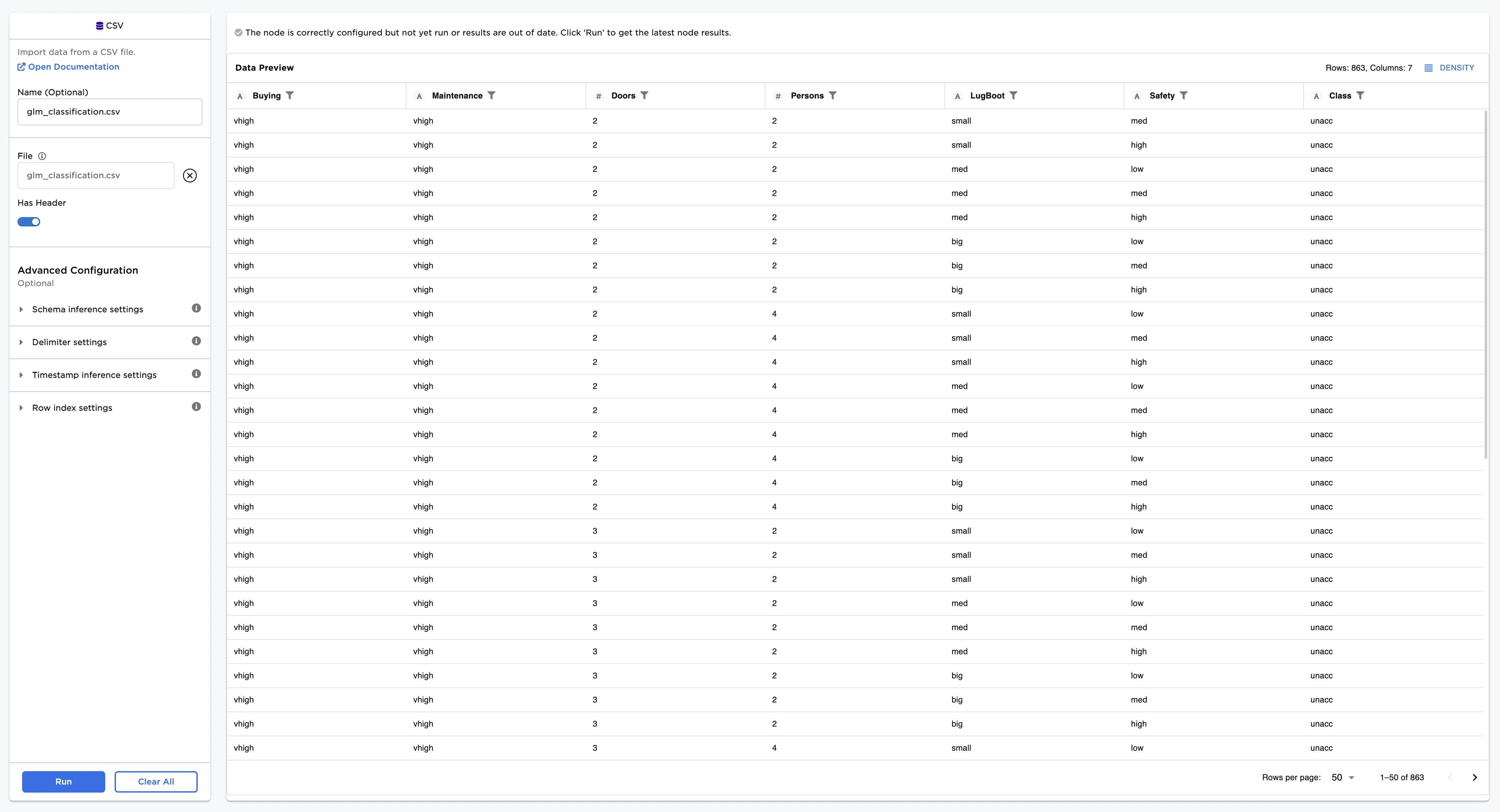
Figure 2: Example input data
Follow the steps below to train a model that can predict used car quality given the input data.
- Connect a Model Search Classifier node to an existing node.
- Select Class (String) for the Training Label field. The model predicts the values in this column after training.
- Select all columns except Class (String) for the Columns field.
- Select Train to train the models.
Notice that Visual Notebooks trains multiple models, each with different algorithms and hyperparameter configurations. All trained models are displayed on a leaderboard and ranked by performance using mean per class error. This is a commonly used loss function for classification models. Models with lower mean per class error values offer better predictions.
Figure 3: Model leaderboard
Follow the steps below to learn more about a specific model on the leaderboard.
- Select a model, then scroll down to view information about the model and a bar chart with the importance of each feature.
- Select Calculate Additional Details to view additional test metrics and a confusion matrix. The button appears dimmed after it has been selected. For more information about test metrics, see the Visual Notebooks User Guide.
The model selected in Figure 4 determined that a low safety rating is the most important characteristic when categorizing used car quality.
The confusion matrix shows the predicted labels vs. the true labels. The selected model correctly identifies 100% of unacceptable vehicles in the data. However, when met with an acceptable car, the selected model does seem to have a some trouble identifying it correctly as seen in the leftmost column of the confusion matrix. A confusion matrix with a diagonal row of "100%" values from the top left to the bottom right indicates that the model correctly classifies every training input correctly.
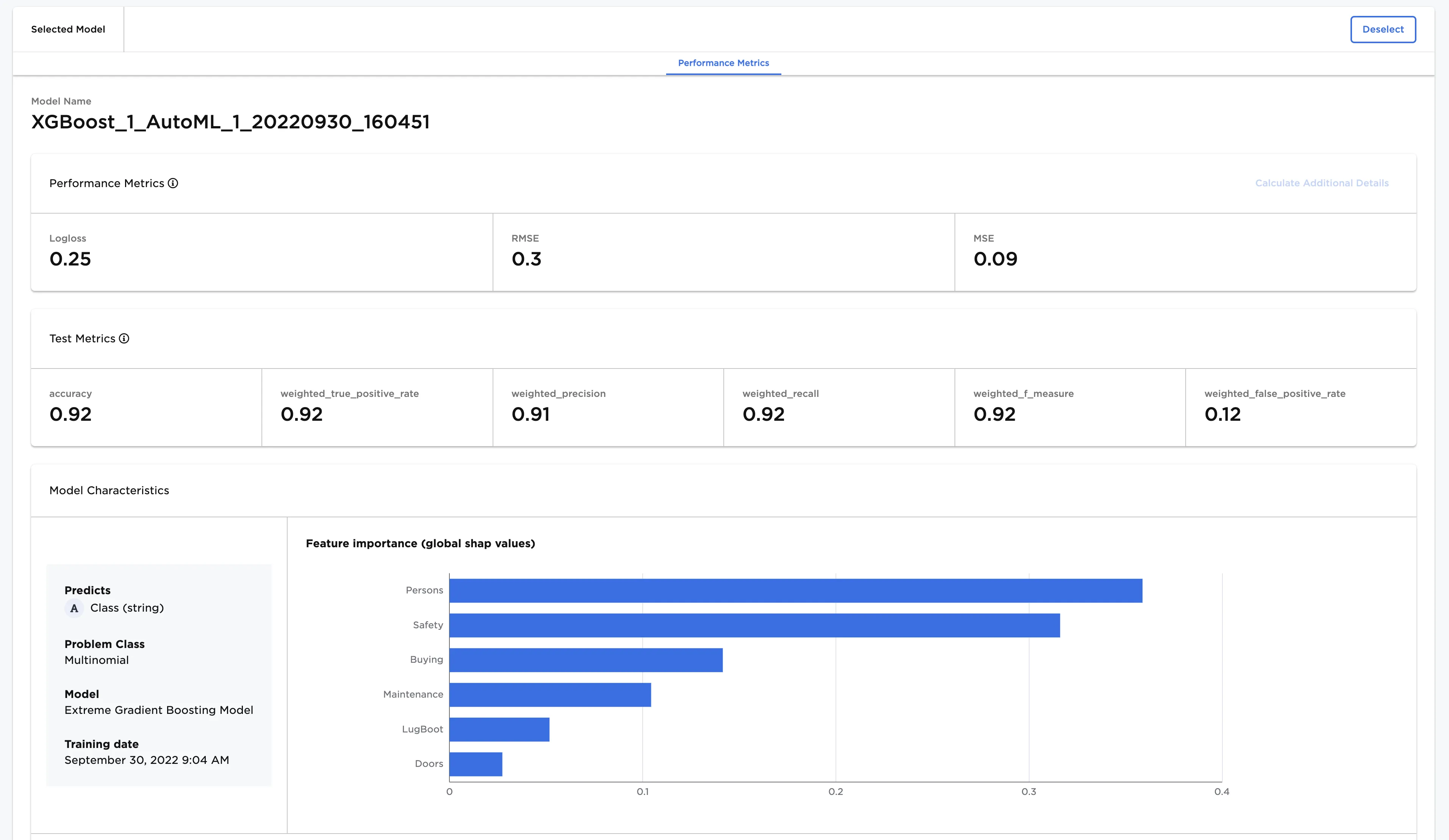
Figure 4: Model details
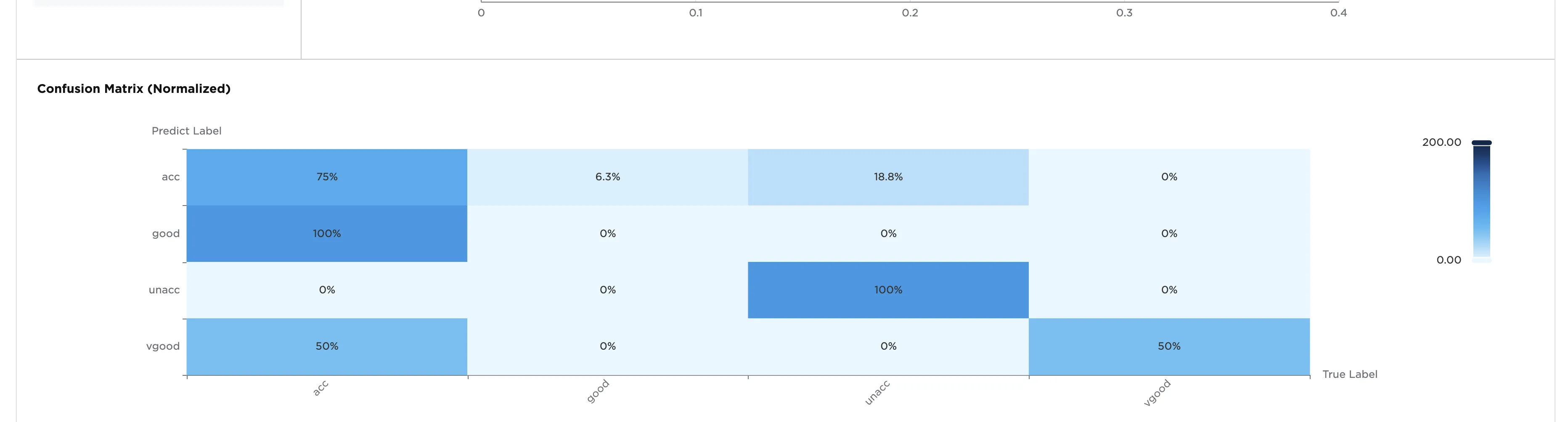
Figure 5: Confusion matrix