Search / Replace
The Search / Replace node in Visual Notebooks finds and replaces words and values. This node can help in cases where your dataset needs to be cleaned up for machine learning or further analysis.
Configuration
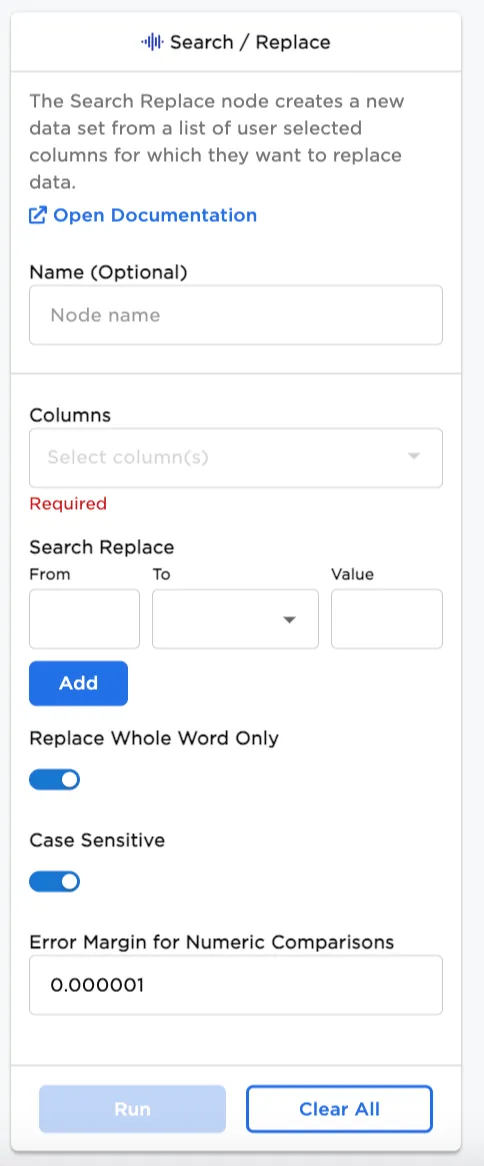
| Field | Description |
|---|---|
| Name | Field to name the chart An optional user-specified node name displayed in the workspace, both on the node and in the dataframe as a tab. |
| Search Replace | Add From and To information Select From, To, and the new Value. Both numbers and words can be replaced. |
| Add | Add additional search and replace values Create additional search and replace values. |
| Replace Whole Word Only | Search for whole words Toggle this selection off for any words or on for partial words. |
| Case Sensitive | Search for case sensitive words Toggle this selection off for any words or on for case-specific words. |
| Error Margin for Numeric Comparisons | Enter the margin of error When searching and replacing numeric values, enter a margin for numeric comparisons. |
Node Inputs/Outputs
| Input | A Visual Notebooks dataframe |
|---|---|
| Output | A dataframe with words and/or values replaced. |
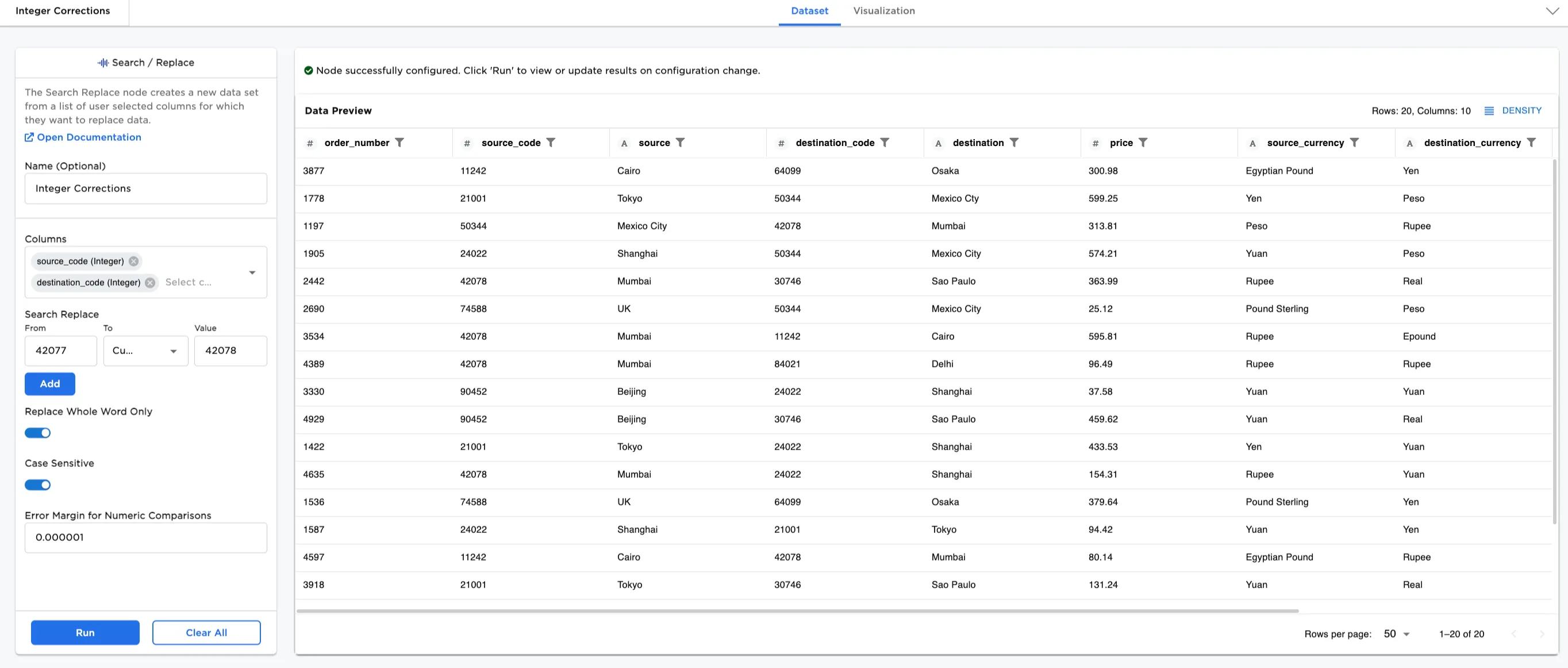
Figure 1: Example dataframe output
Examples
To introduce you to the Search / Replace node, we are using a small dataset with source and destination shipping information. The following examples illustrate how search and replace works in Visual Notebooks.
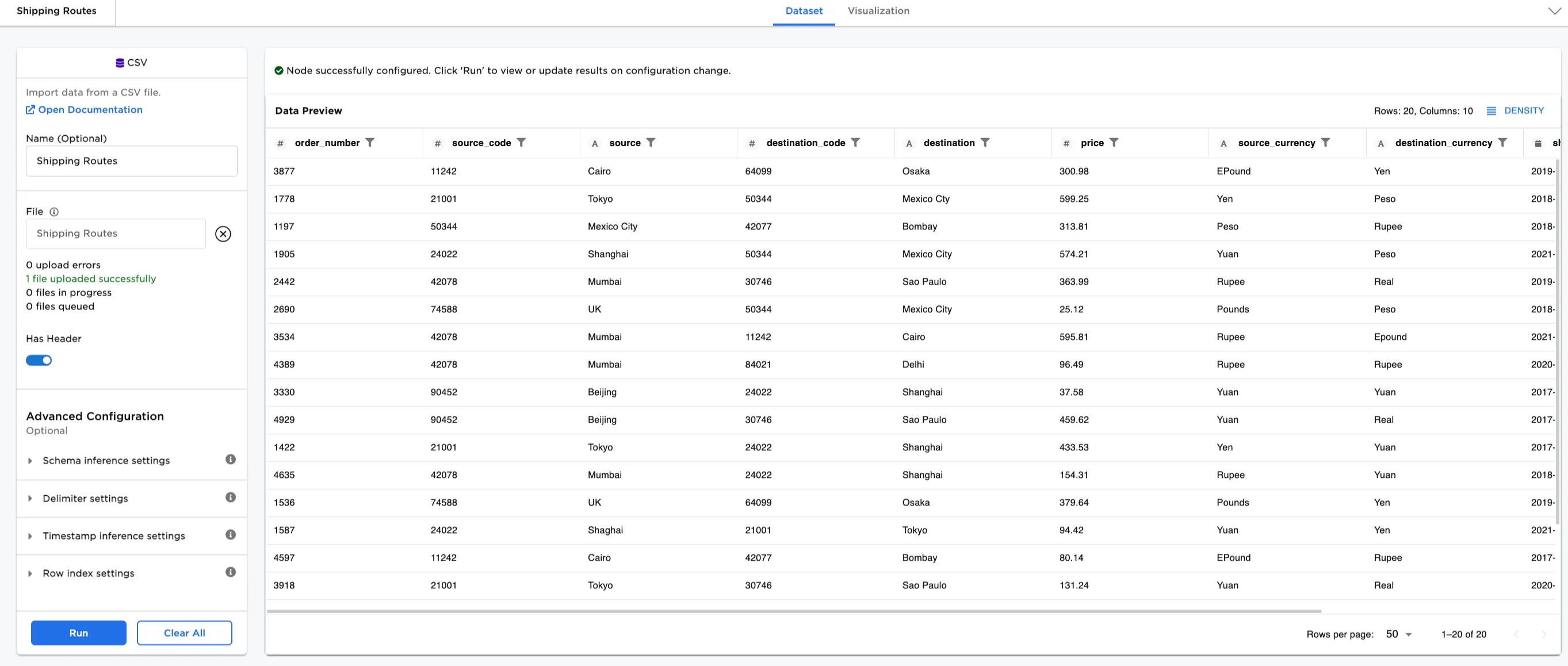
Figure 2: Example input dataframe
- Connect an existing node to the Search / Replace node. In Figure 3, the Search / Replace node is connected to the CSV node with the
search_replace.csvdata for shipping routes. - Select the Search / Replace node to configure it. Optionally, name the node
String Corrections. - Select columns in the Columns dropdown menu. In this case, the
source (String),destination (String),source_currency (String), anddestination_currency (String)are selected. - Enter the Search Replace words. Use
Customto replace a word with a word entered in Value.- From
Pounds, ToCustom, ValuePound Sterling - From
EPound, ToCustom, ValueEgyptian Pound - From
Bombay, ToCustom, ValueMumbai - From
Shaghai, ToCustom, ValueShanghai
- From
- In this example, we kept Replace Whole Word Only and Case Sensitive on. For your dataset, it might make sense to search for partial words on a case by case basis. If some whole words are changed and some partial words need to be changed, you'll need a second Search / Replace node.
- Select Run
Since we are not making any numeric comparisons in Figure 3, we don't need the Error Margin for Numeric Comparisons.
Note: Search and replace works on one data type at a time. In this case, we are replacing words for string columns. Later, we will add a second Search / Replace node for integers.
To understand how to use the To field, it is helpful to know that both String columns and Integer columns have the option for Mean, Medium, Mode, and Custom.
- String columns can be used with
ModeandCustomonly. Use caution when selectingModefor strings to prevent unintended replacements. - Numeric columns can be used with
Mean,Medium,Mode, andCustom.
Notice that the word changes have been made in the dataset in Figure 3.
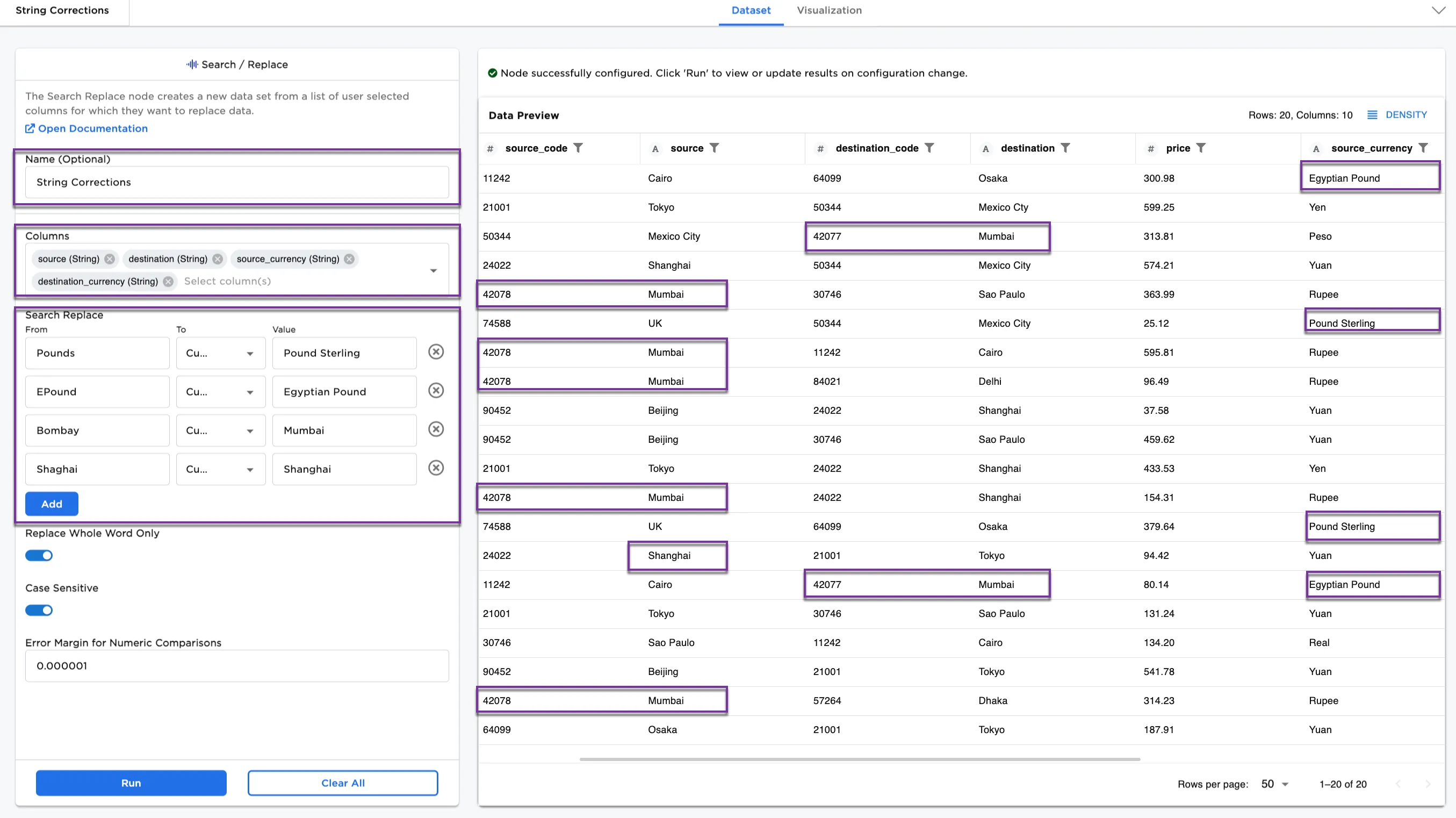
Figure 3: Example dataframe with words replaced
Notice that Figure 2 included Mumbai and Bombay with different source and destination codes. Figure 3 corrects all instances of Bombay to Mumbai, which is the correct country name. However, the Bombay source and destination codes need to be updated to the Mumbai source and destination codes.
- Add a second Search / Replace node to your workspace. Optionally, name it
Integer Corrections. - Connect the
String Correctionsnode to theInteger Correctionsnode. See Figure 4b to see what your workspace should look like with two nodes. - Select
source_code (Integer)anddestination_code (Integer)for the Columns. - Add From
42077, ToCustom, Value42078. - Select Run.
Notice that all Mumbai source and destination codes are now 42078.
Caution:
Toggling on Replace Whole Word Only replaces the entire number that you've entered at every occurrence. Toggling the button off creates a partial replacement. Whole word or partial word replacements can both be used, but use caution with partial replacements.
For example, if you want to update 40277 to 40278:
- Toggled on: Replacing
77to78with Replace Whole Word Only toggled "on," affects only whole instances of77(77in40277is not replaced). - Toggled off: Replacing
77to78with Replace Whole Word Only toggled "off," changes77everywhere in a partial instance, even in unintended places (40277,77042,24775would become40278,78042,24785).
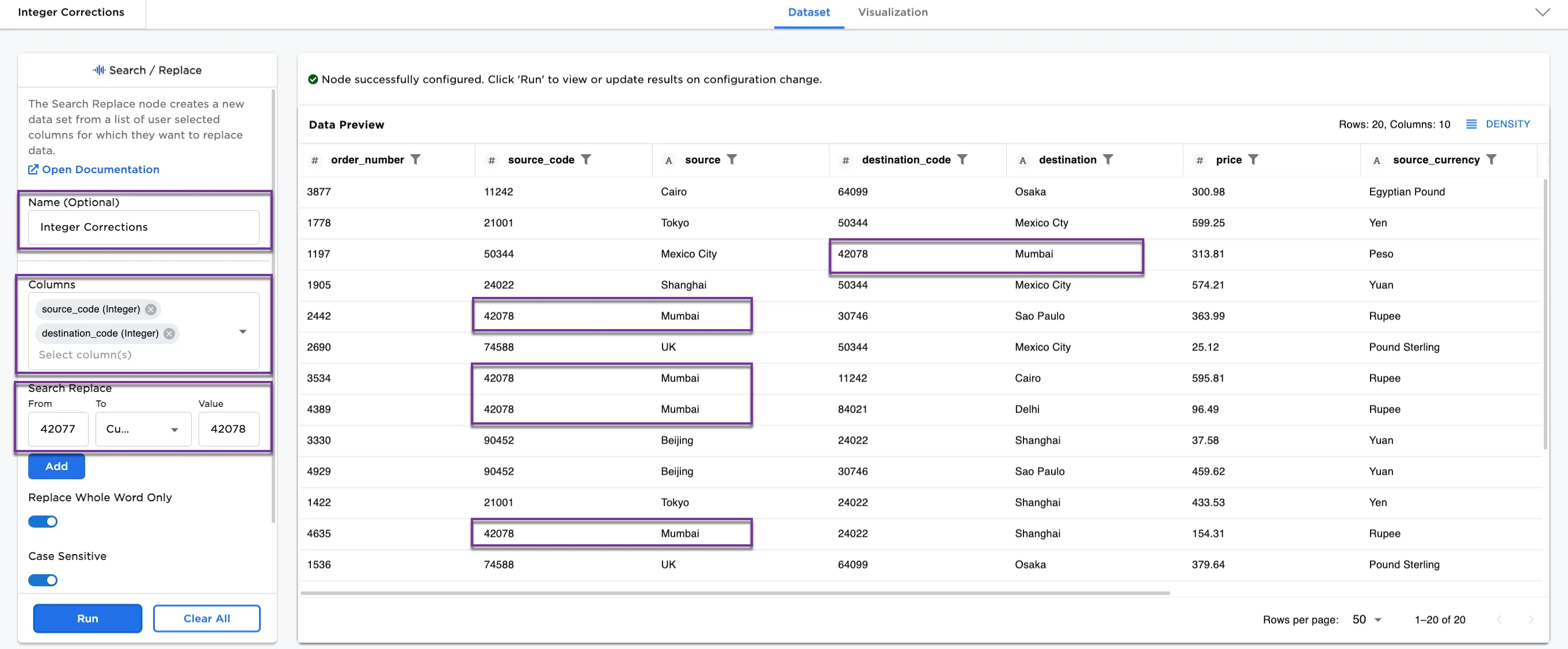
Figure 4a: Example dataframe with numbers replaced
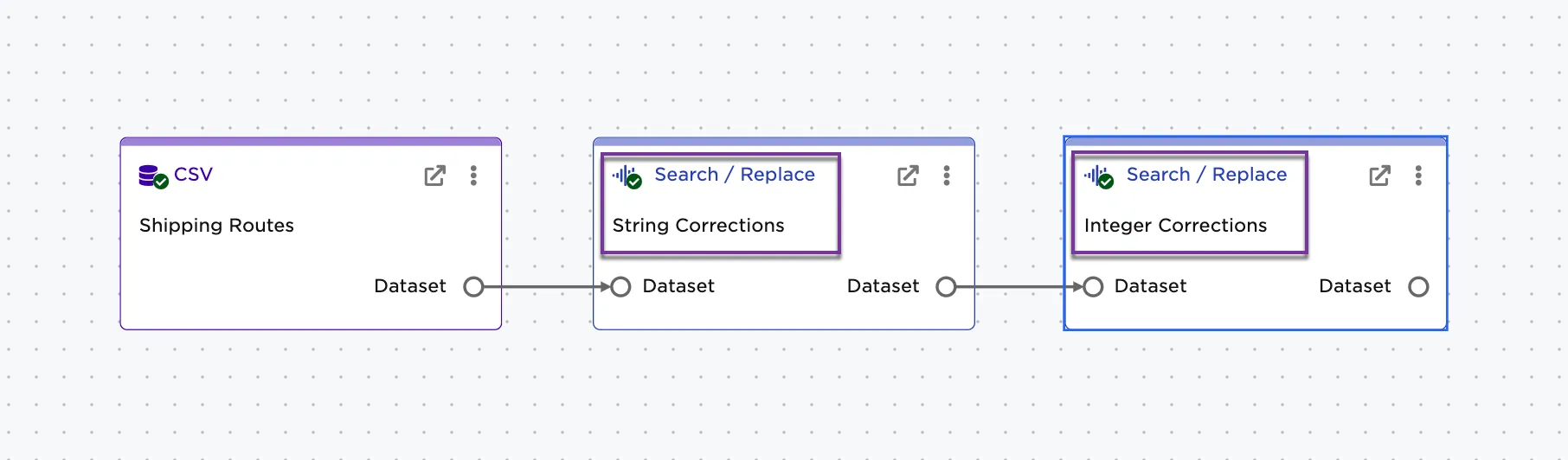
Figure 4b: Example workspace