Shift
The Shift node in Visual Notebooks moves data points to make a comparison of the data. These comparisons can be used by machine learning models to identify patterns.
Configuration
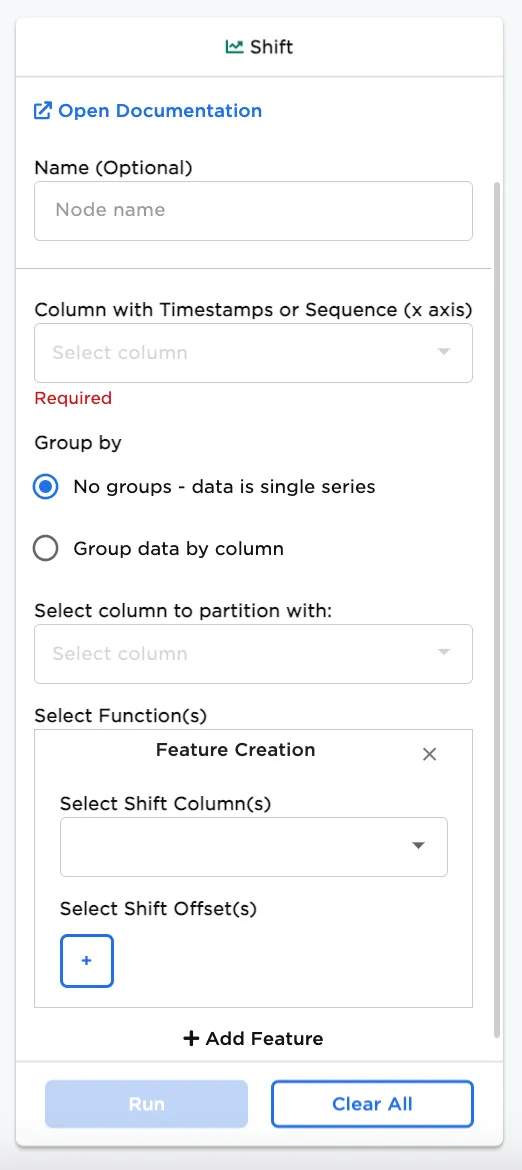
| Field | Description |
|---|---|
| Name | Field to name the node An optional user-specified node name displayed in the workspace, both on the node and in the dataframe as a tab. |
| Column with Timestamps or Sequence (x axis) | Select timeseries or sequence for data tracking Select a column that contains timestamp (or numeric data) from the dataset to use in the calculation. |
| Group by | Grouping selection Select whether to view the data in a single series or grouped by data in another column. |
| Select column to partition with | Column to group by If Group data by column is selected for the Group by field, select a column to partition the data. |
| Feature Creation | Create the functions for the feature Make selections for the Select Shift Columns(s) and Select Shift Offset(s) dropdown menus. Multiple features can be added. |
| Select Shift Column(s) | Select column(s) to view shift calculations Select columns with data to analyze the shift over time. Multiple columns can be selected at once. |
| Select Shift Offset(s) | Enter shift offset Enter the positive or negative factor to calculate the shift over entries in the timeseries or sequence. A positive integer calculates the shift with the value before the selection (lag) and a negative integer calculates the shift with the value after the selection (lead). 1 as the factor represents shift one value before the other in the timeseries or sequence; 3 as the factor represents the shift over three earlier values in the timeseries or sequence; -2 as the factor in comparison, represents the shift over two subsequent values after the selection. |
Node Inputs/Outputs
| Input | A dataframe in Visual Notebooks |
|---|---|
| Output | A dataframe with results of the Shift selections |
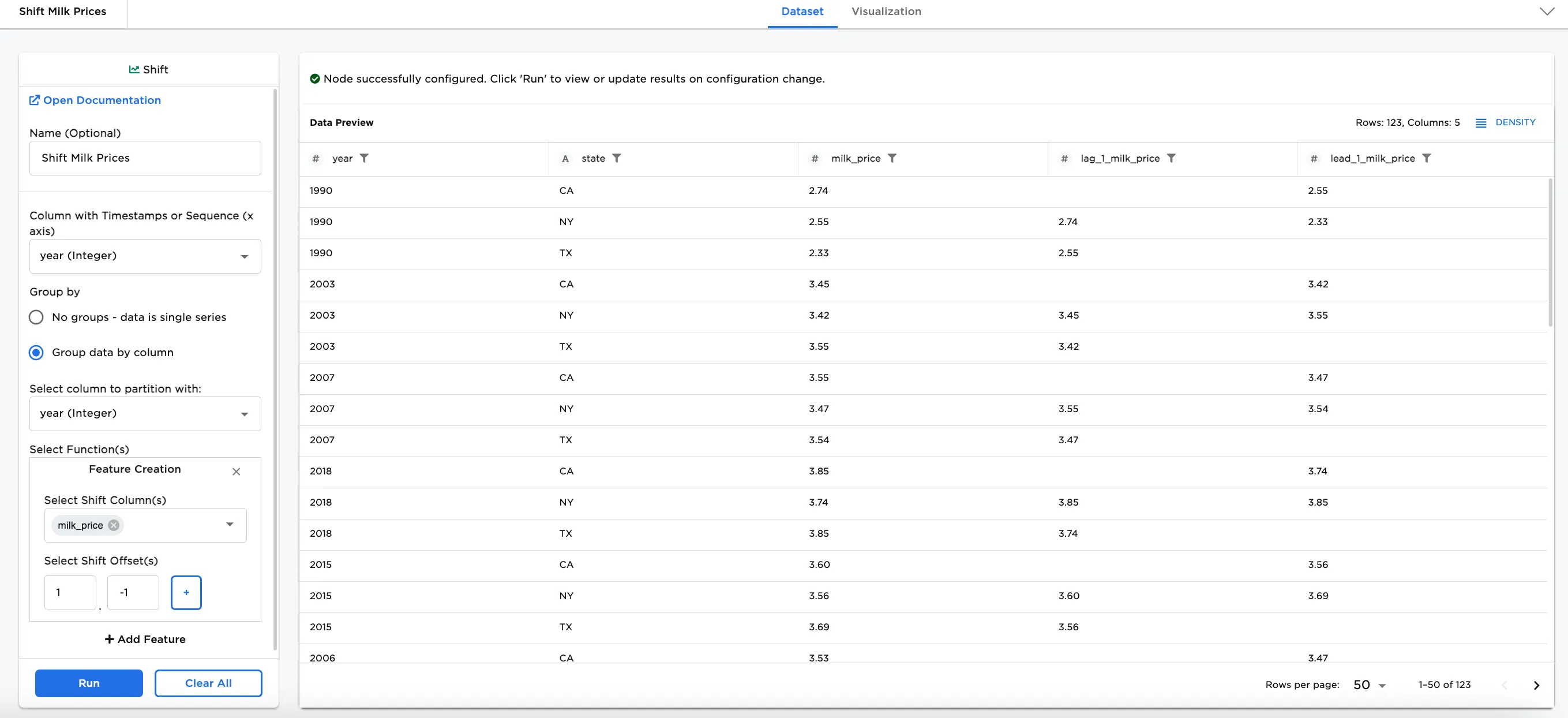
Figure 1: Example output
Examples
At times, it can be useful for businesses with new product ideas to analyze prices related to goods over time. Let's say your company has a product dependent on milk price trends. The dataframe shown in Figure 2 contains data about the price of milk in three US states from 1980 to 2020 that can be used to find trends.
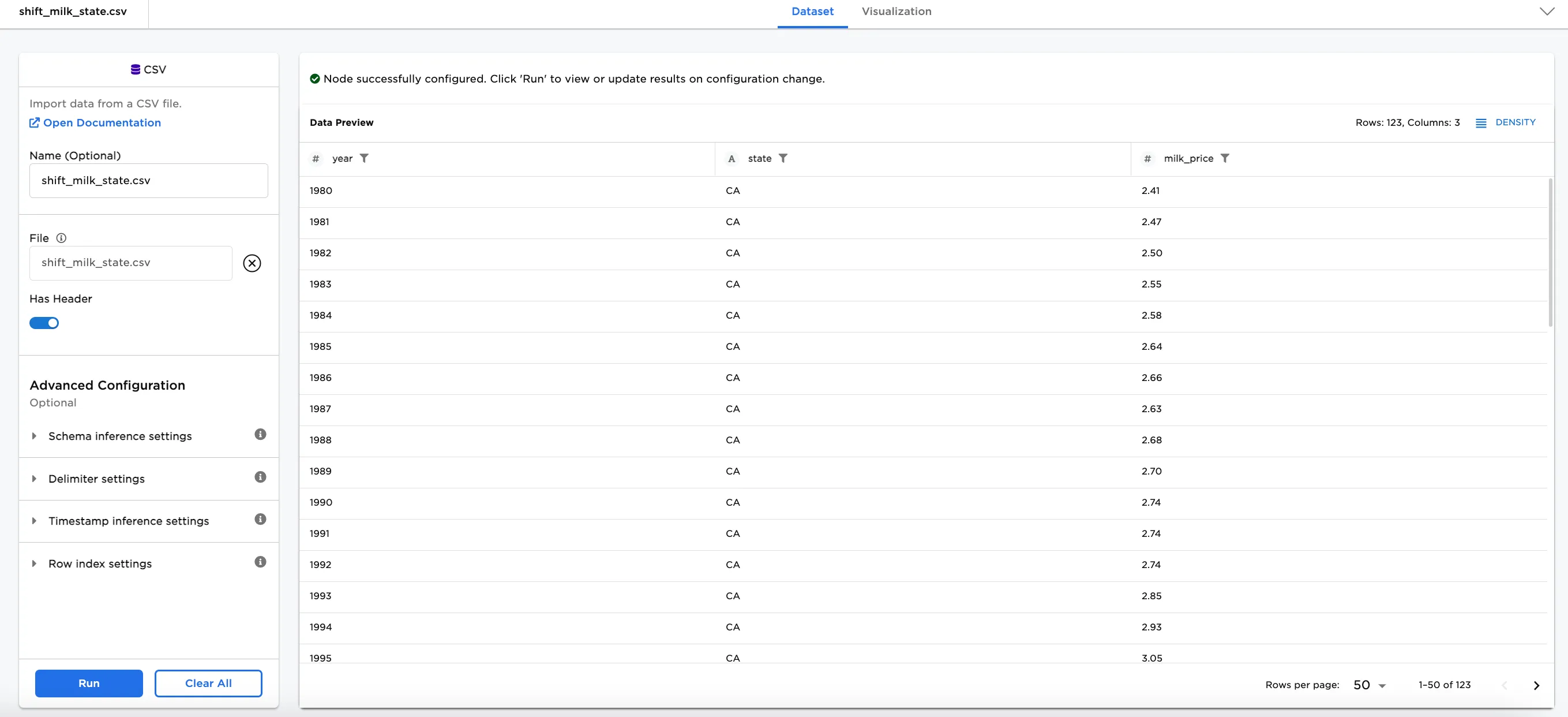
Figure 2. Example input data
The following are definitions for important shift fields used in this node:
- Column with Timestamps or Sequence (x axis) field: A timestamp column is ideal to shift data over time periods, but if your data does not have a timestamp column, selecting another column with another ordering system (month 1, month 2, for example) also works. If a numeric data field is selected, Visual Notebooks orders the data in the field in sequence (values are represented from lowest to highest).
- Select Function(s)/Feature Creation field: To create a Feature, select the column to shift and select the shift offset(s). Each shift column is combined with each shift offset to create a new column. For example, selecting
milk_priceand1and-1for the offset creates two new columns called,lag_1_milk_priceandlead_1_milk_price.Multiple columns and multiple functions can be selected at once to create multiple new columns. For convenience and readability, separate feature selections can also be created. - Shift Offset(s) field: As noted in the Configuration table, the shift offset(s) can be positive integer to calculate the shift with the value before the selection (lag) and a negative integer to calculate the shift with the value after the selection (lead). In the examples, there are three entries of milk prices, one each for CA, NY, and TX. This means that only a 2, 1, -1, and -2 offset can be selected when grouping by date or by state. There is not enough data to support an offset of 3 lag, or -3 lead. Larger lags and leads can only be used without grouping the data.
- Connect a Shift node to an existing node. In this case, it is connected to a CSV node with the
Shift_Milk_Statefile. - Optionally, name the Shift node. In the example, the node is named,
Shift Milk Prices. - Select the Column with Timestamps or Sequence (x axis) field. Figure 3 shows
year (integer)selected for this field. - Make your Feature Creation selections. In the example,
milk_priceis selected for the Select Shift Column(s), and1and-1are selected for the Select Shift Offset(s) field.
Notice Figure 3 includes several new columns combining each selected shift offset with milk_price. Shifting the prices in the data is helpful for visualizing trends.
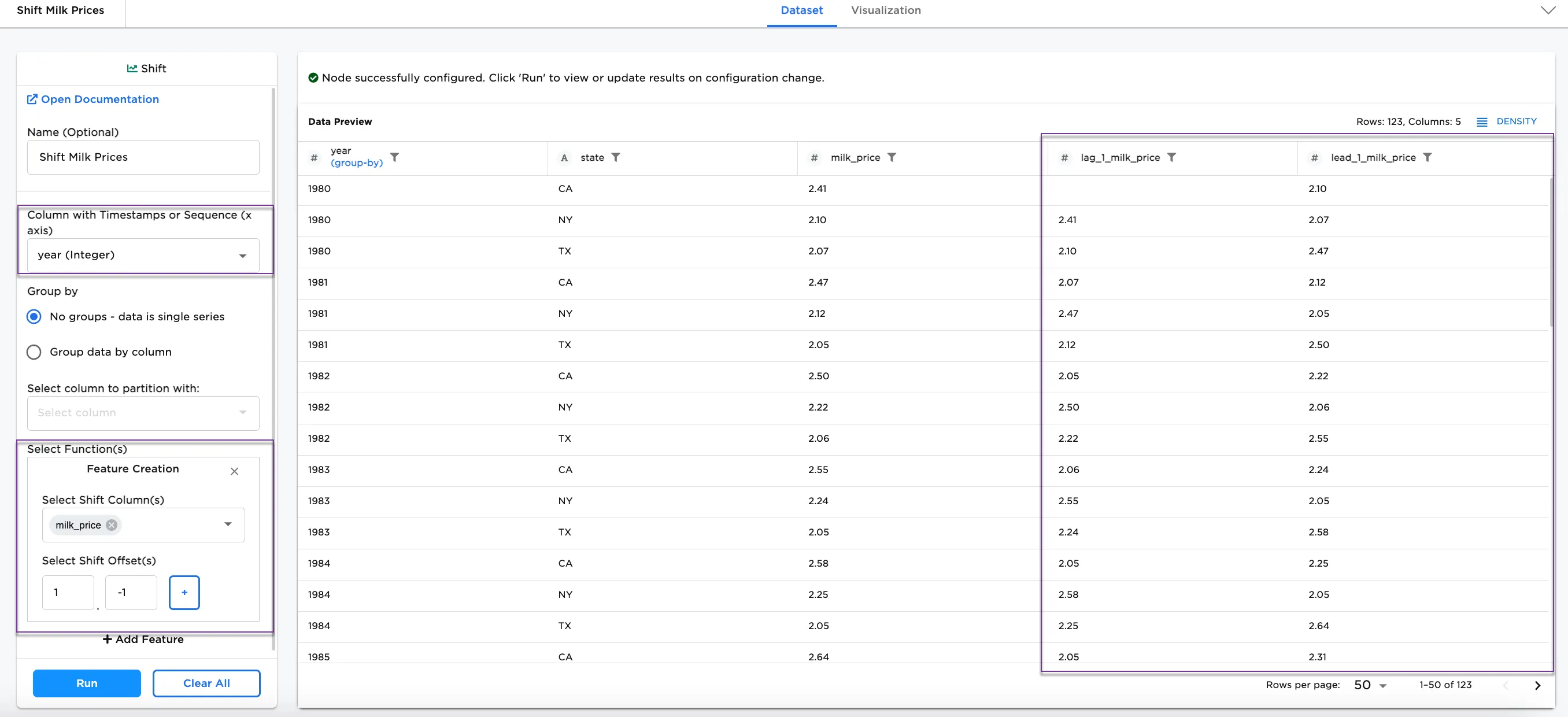 Figure 3: Example of shift on milk price
Next, to see the data grouped by state:
- Select Group data by column
- In the Select column to partition with dropdown menu, select
state (String).
Notice that the columns in Figure 4 are now grouped by the state column year over year.
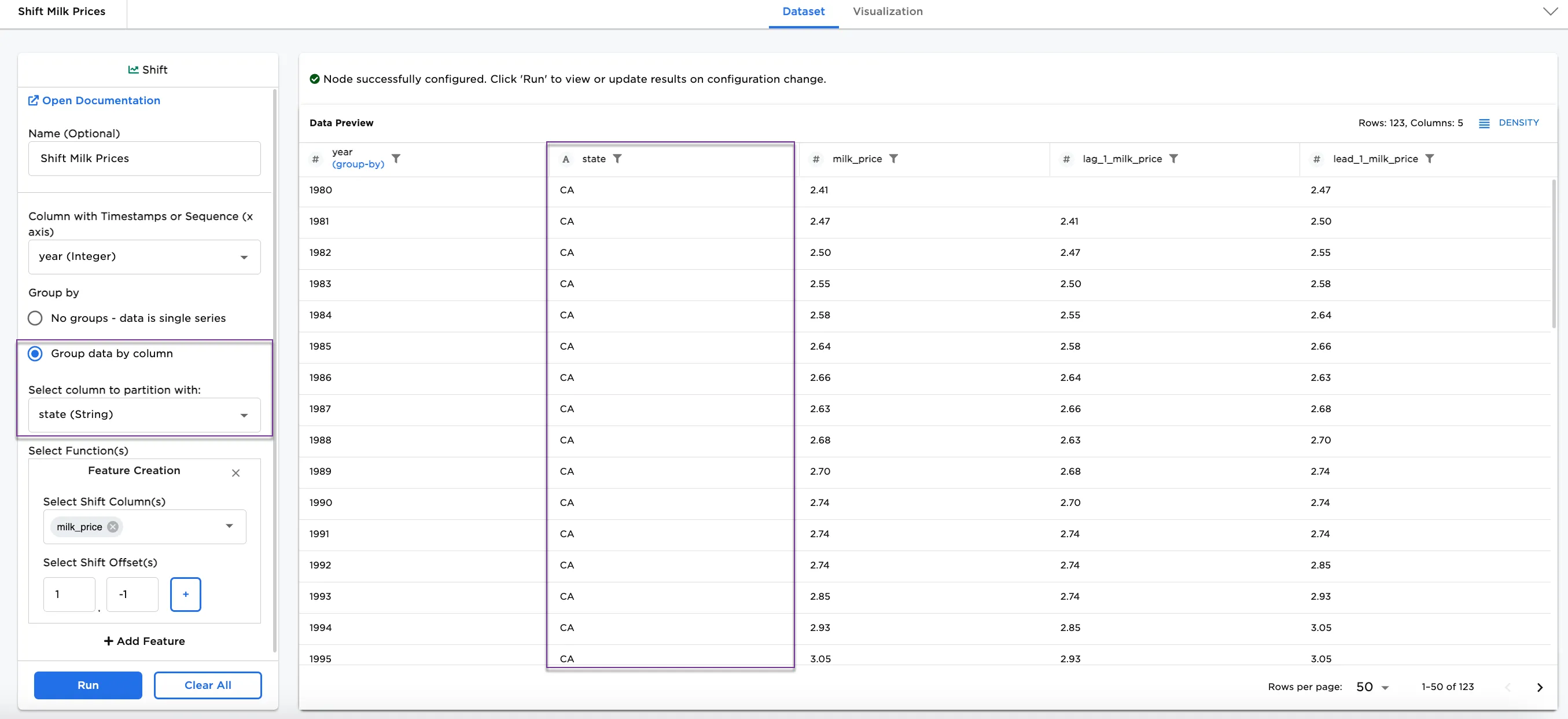 Figure 4: Example grouped by state
Alternatively, as in Figure 5, year (Integer) can be selected in the Select column to partition with dropdown menu to see the same data grouped by the year column.
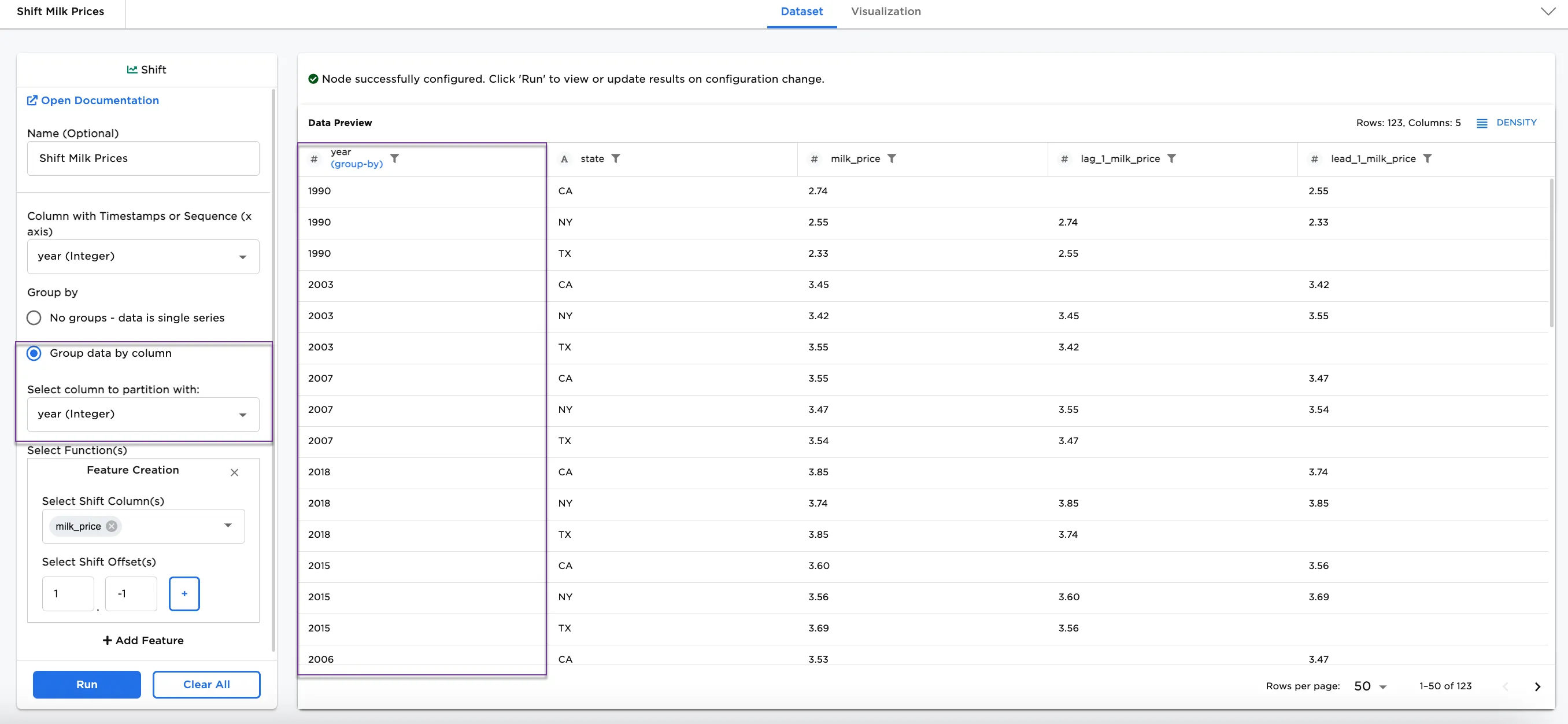 Figure 5: Example grouped by year
To see a different way to use the Shift node, try adding a new feature. In this case, we are adding columns to shift the year.
- Select + Add Feature
- Select Shift Column(s):
year - Select Shift Offset(s):
1and-1
Notice that there are now 4 columns showing lag_1_milk_price, lead_1_milk_price, lag_1_year, and lead_1_year.
Note: This is a similar result as having only one feature with both milk_price and year in one Select Shift Column(s) field. Both ways of adding features are available for your own datasets that could be more complex than the example dataset.
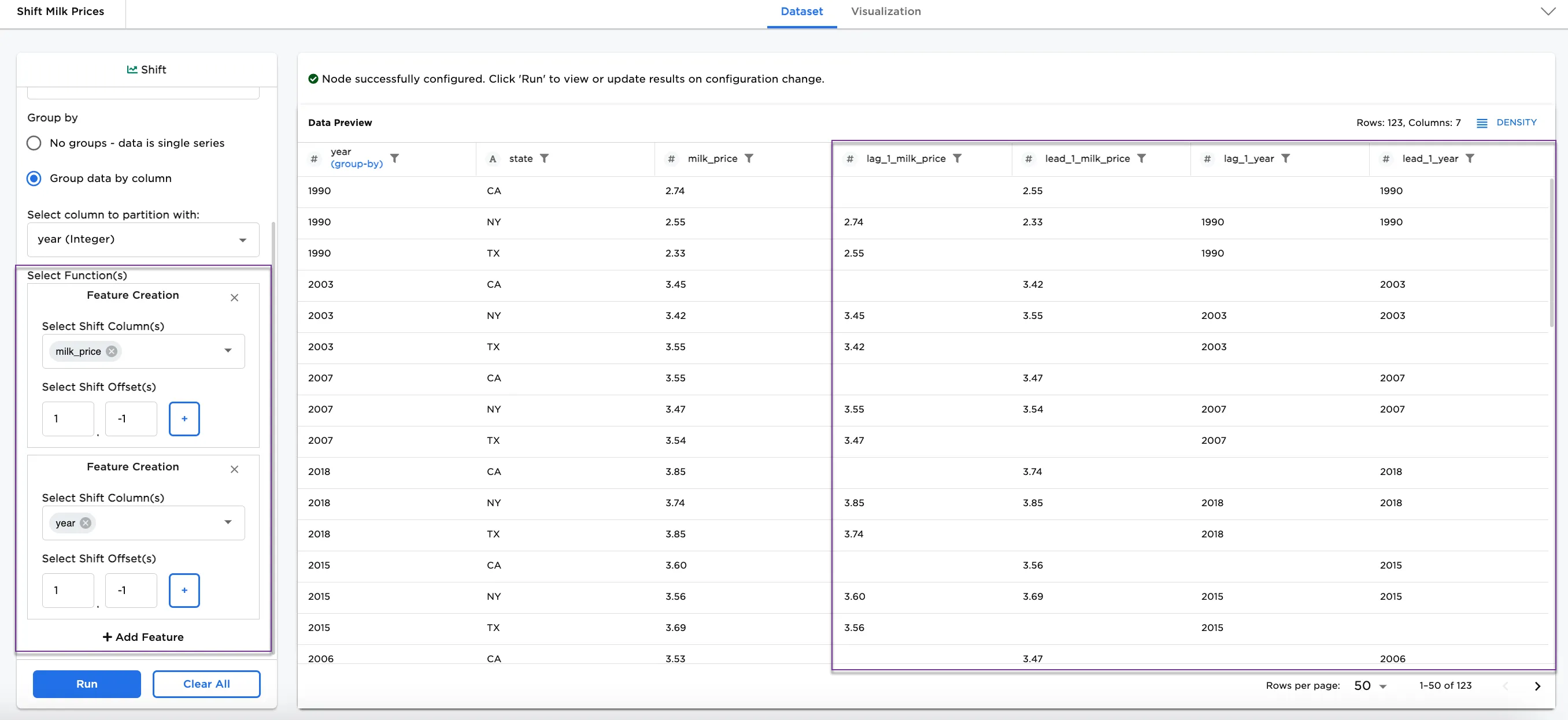
Figure 6: Example with multiple features