Text Split
Split text into an array of strings in Visual Notebooks.
Configuration
| Field | Description |
|---|---|
| Name | A user-specified node name displayed in the workspace |
| Select Column Containing Text | Column with text to split Select a column from the auto-populated dropdown menu. |
| Text Delimiter | Where to split text Select comma, pipe, colon, semicolon, tab, spaces, forward slash, backslash, period, new line, or custom. The text is split every time this character occurs. |
| Define Custom Delimiter | Custom character used to split text If you select "custom" for the field above, enter a character to use as a delimiter. |
| Define Output Column Name | Output location Select "As new column" to create a new column with the results of this node. Leave "Inplace" selected to replace the text column with the results of this node. |
| Output Column Name | Name for the array column If "As new column" is selected in the field above, enter a name for the output column. Column names can contain alphanumeric characters and underscores, but cannot contain spaces. |
Node Inputs/Outputs
| Input | A Visual Notebooks dataframe |
|---|---|
| Output | A dataframe with the selected text as an array of strings |
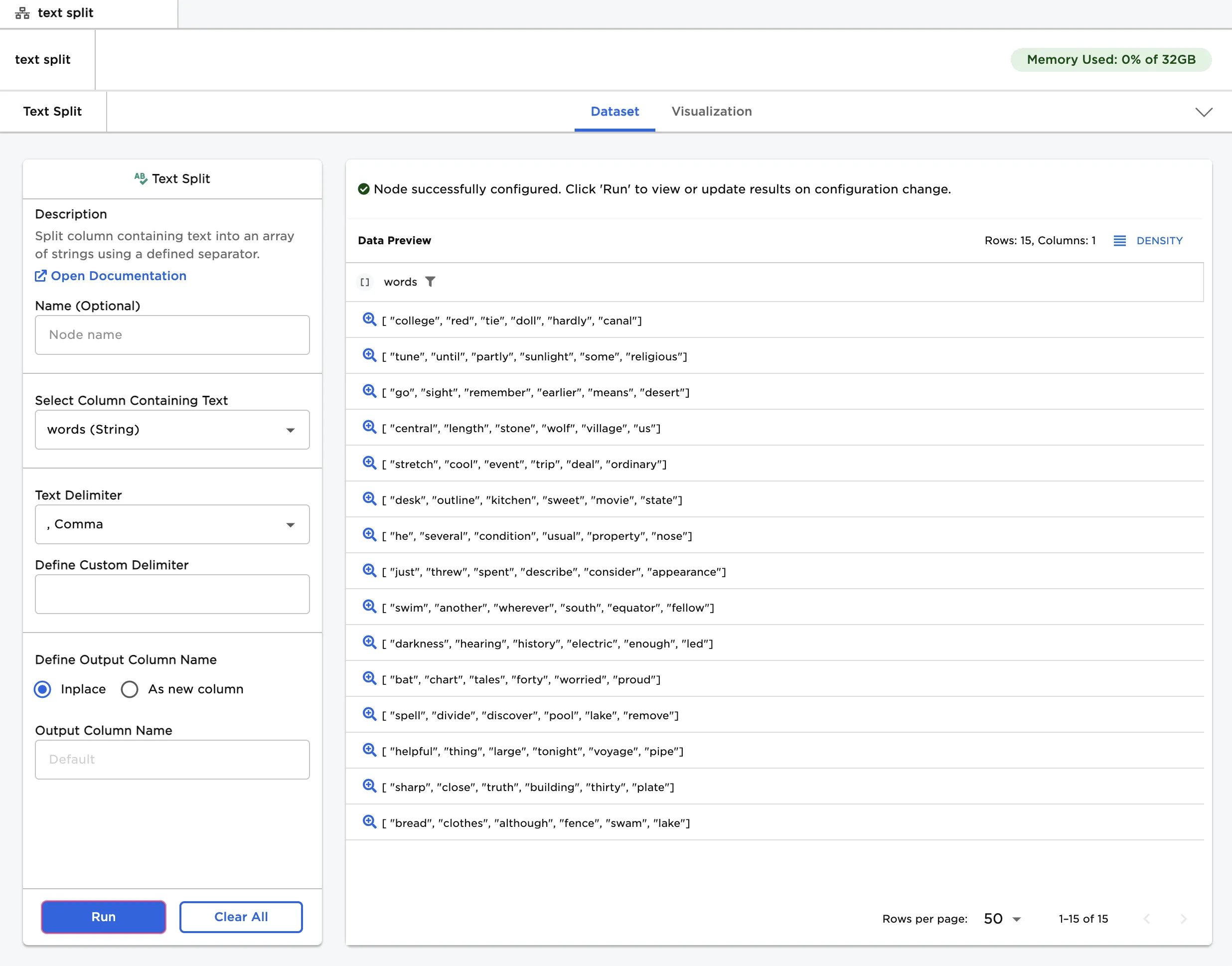
Figure 1: Example dataframe output
Examples
- Connect a Text Split node to an existing node.
- The dataframe shown below is used in this example. It contains restaurant reviews and ratings.
- Imagine that you want to train a machine learning model to find insights in the review text. Before this data can be given to a model, it must be in a format models can understand. This node allows you to split text into an array of words or smaller strings. Once the text is in an array, you can remove stop words and collapse different tenses and forms of words into one representation.
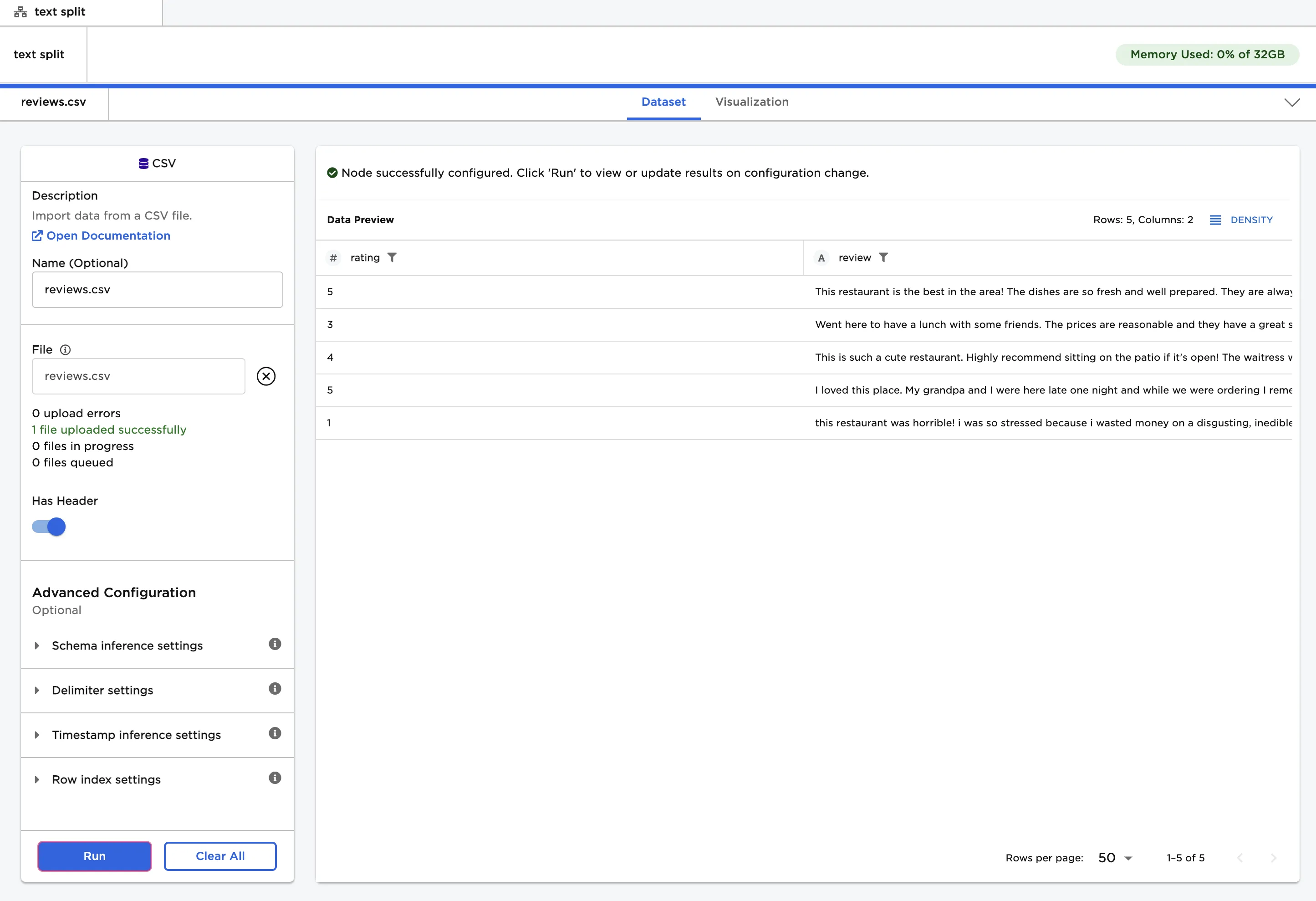
Figure 2: Example input data
- Select the "review" column for the "Select Column Containing Text" field.
- To create an array of individual words, select "Spaces" as the text delimiter.
- Select "Run" to replace the "review" column with an array of words.
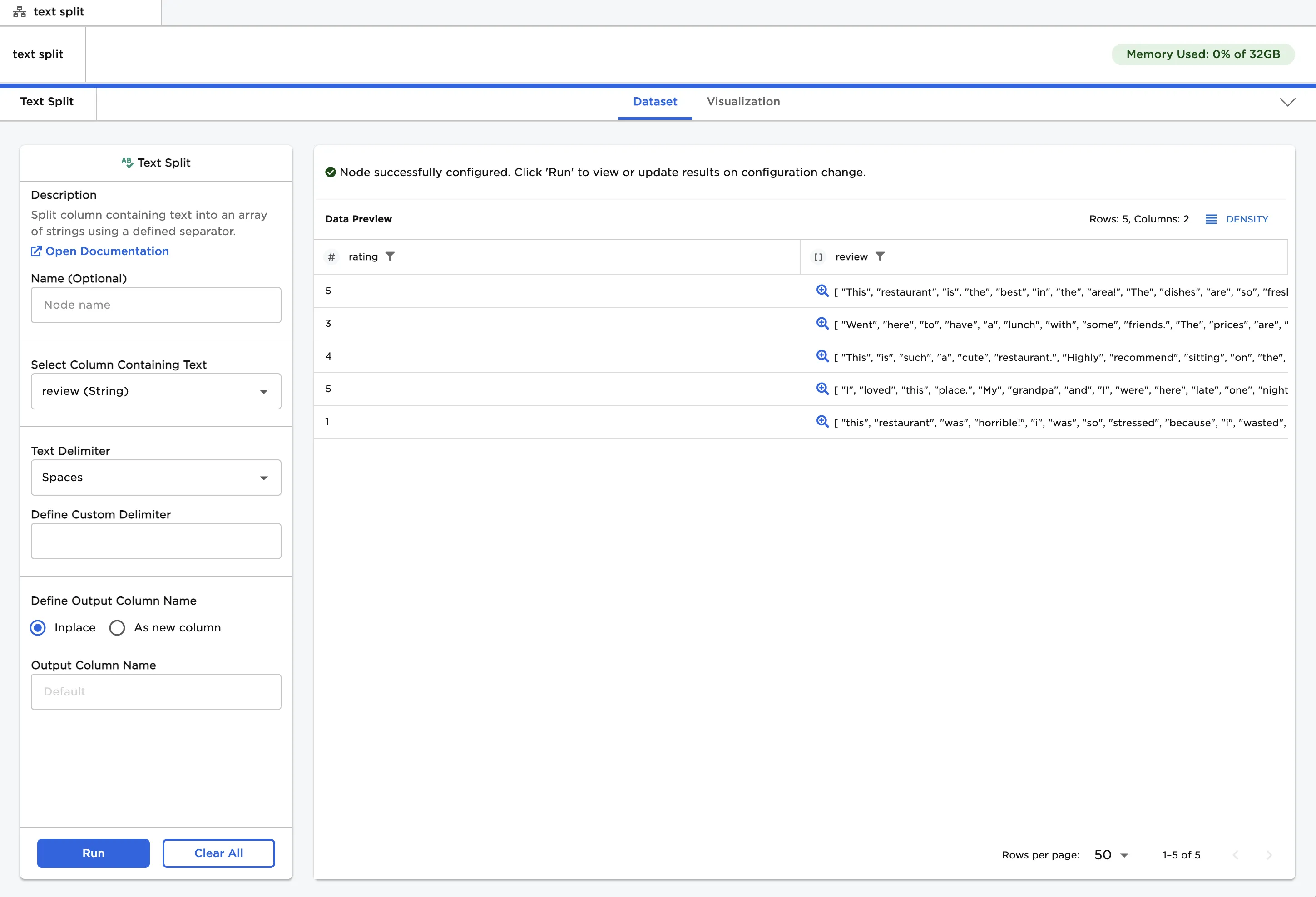
Figure 3: Example dataframe with an array of words
- To preserve the original column, select the "As new column" option.
- Enter an output column name.
- Select "Run" to create an array of words in a separate column.
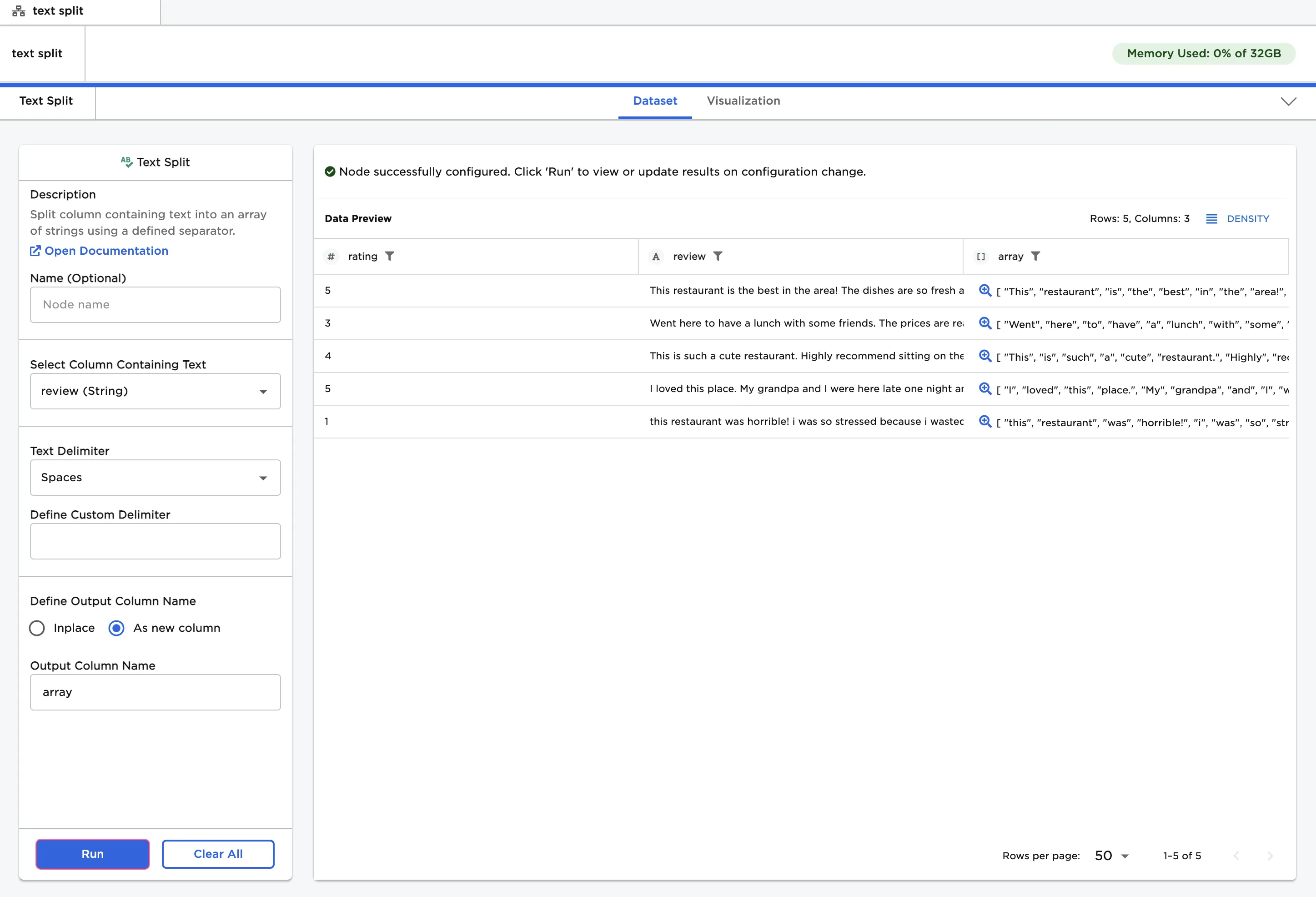
Figure 4: Example dataframe with an array of words in a separate column