Unpivot
Uncouple data from two or more columns in a Visual Notebooks dataframe, producing a dataframe with separate rows for the values in each column.
Configuration
| Field | Description |
|---|---|
| Name (Optional) | A user-specified node name displayed in the workspace |
| Columns to UnPivot | Coupled columns that you choose to uncouple Choose two or more columns that you wish to uncouple so that data from them appear in two separate rows, instead of two columns in the same row. |
| Output Variable Column Name | *User-defined name describing column headers of uncoupled columns * Enter a name that describes what the column labels (not the column data) of the uncoupled columns have in common. |
| Output Value Column Name | User-defined descriptor of the data in the uncoupled columns Enter a name that describes the data in the uncoupled columns. |
Node Inputs/Outputs
| Input | A Visual Notebooks table containing data coupled in two or more columns |
|---|---|
| Output | A Visual Notebooks table where the previously coupled data is now in two or more columns |
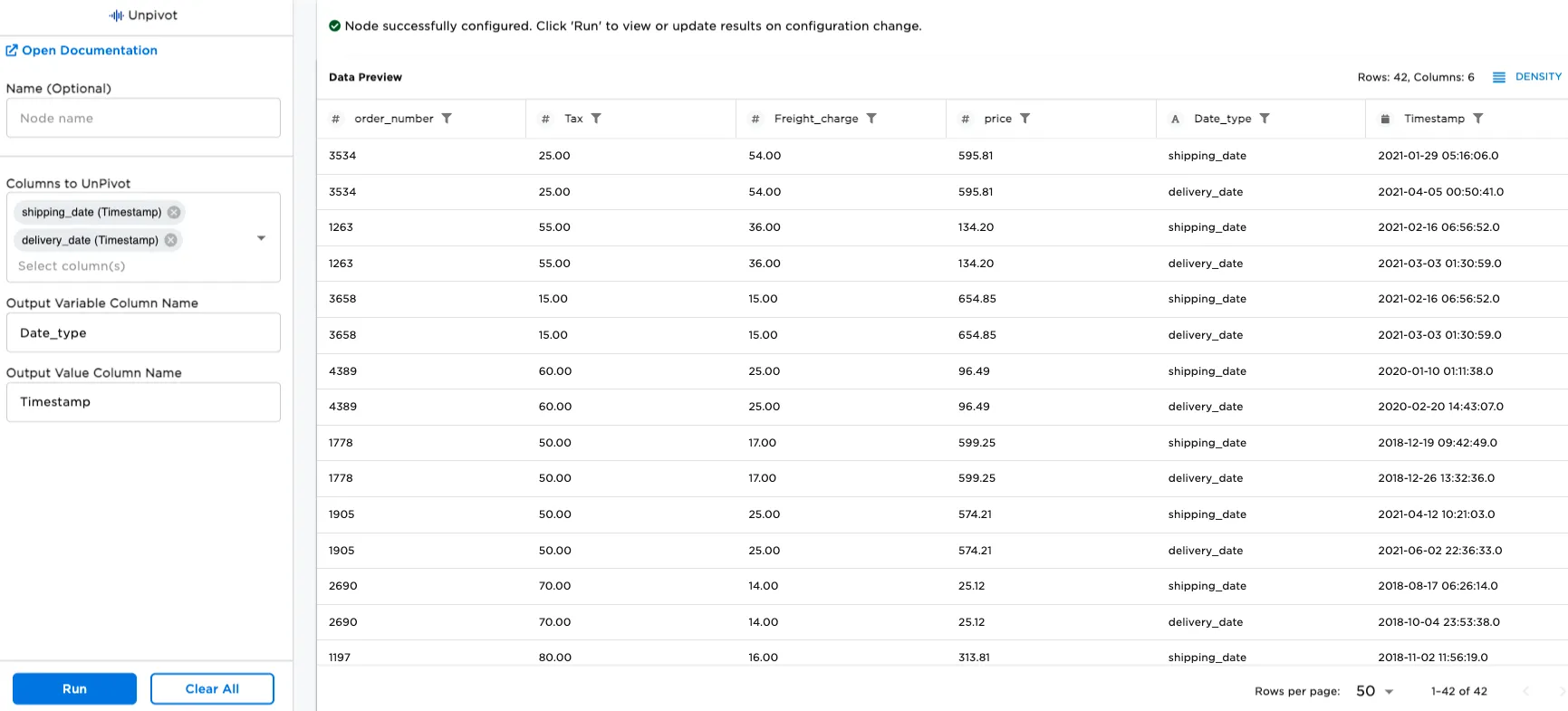
Figure 1: Example output from an Unpivot node
Examples
The following figure shows shipping data from an input node that is used in the examples that follow. The data includes order numbers, taxes, freight charges, the sales price of the shipments, the shipping date for individual orders, and delivery dates of the orders.
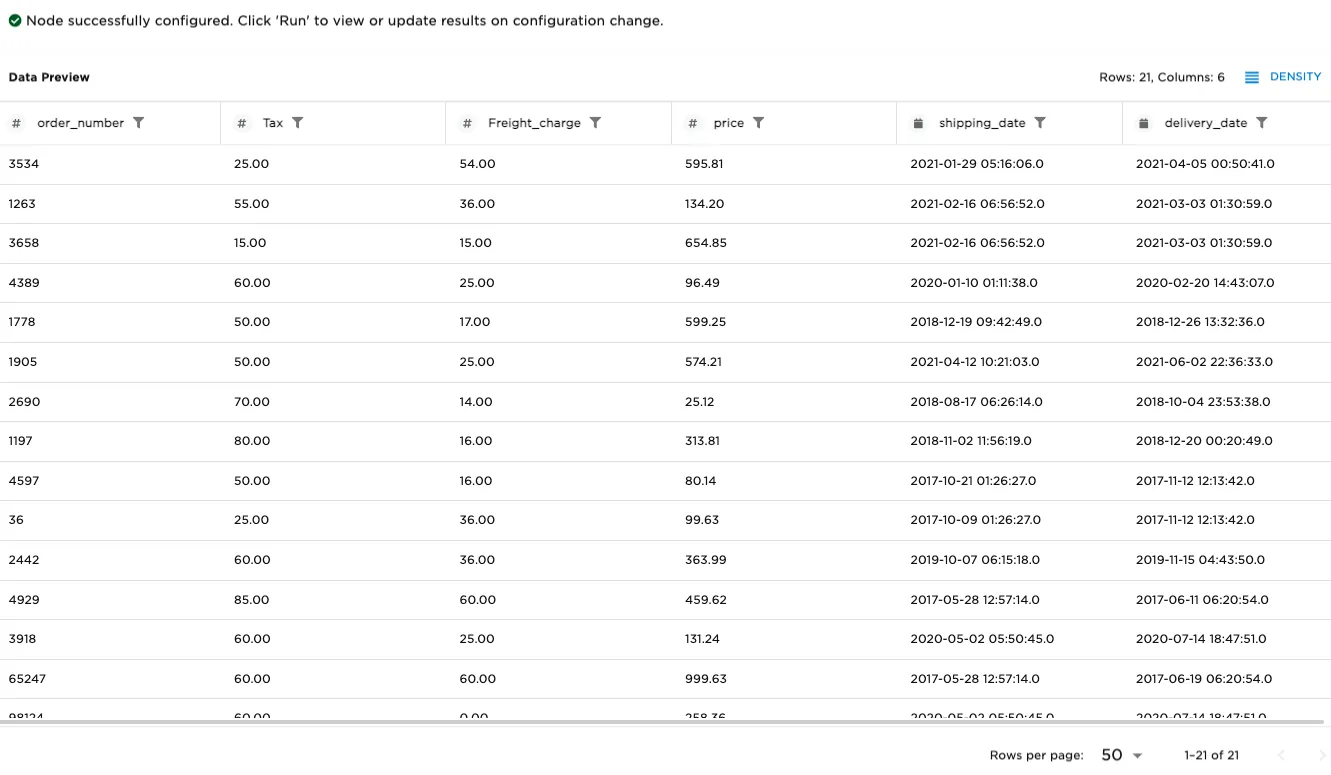
Figure 2: Example data input to Unpivot node
An Unpivot node takes input from a table that has two or more columns containing data of the same type, and produces a table where each row contains data from only one of the columns. The most common use of an Unpivot node is turning a table where each row contains two timestamps, into a table where each row contains only one timestamp (from the original table). In this new table, there are two rows for each row in the original table: one row contains the first timestamp, and another row contains the second timestamp. To construct this table, do the following:
- Connect an existing node to an Unpivot node.
- For Columns to UnPivot, select "shipping_date" and "delivery_date".
- For Output Variable Column Name, enter "Date_type".
- For Output Value Column Name, enter "Timestamp".
- Select Run.
The new table is the same as the original one except in two ways:
- There are twice as many rows, since each original row has been turned into two rows.
- The data is exactly the same, with nothing being filtered out or added. The only difference is in presentation: previously, each row contained both timestamps, while now, each row only contains one timestamp.
Figure 3: Table showing timestamps uncoupled from two columns to two rows
The following example demonstrates separating out three columns -- freight, taxes, and price -- into three rows. To construct the table, do the following:
- Clear the contents of the Columns to UnPivot field.
- For that same field, select "Tax", "Freight_charge", and "price".
- For the Output Variable Column Name, enter "Type_of_charge".
- For the Output Value Column Name, enter "Charge".
Notice how each order number now has a separate row for each of the three charges.
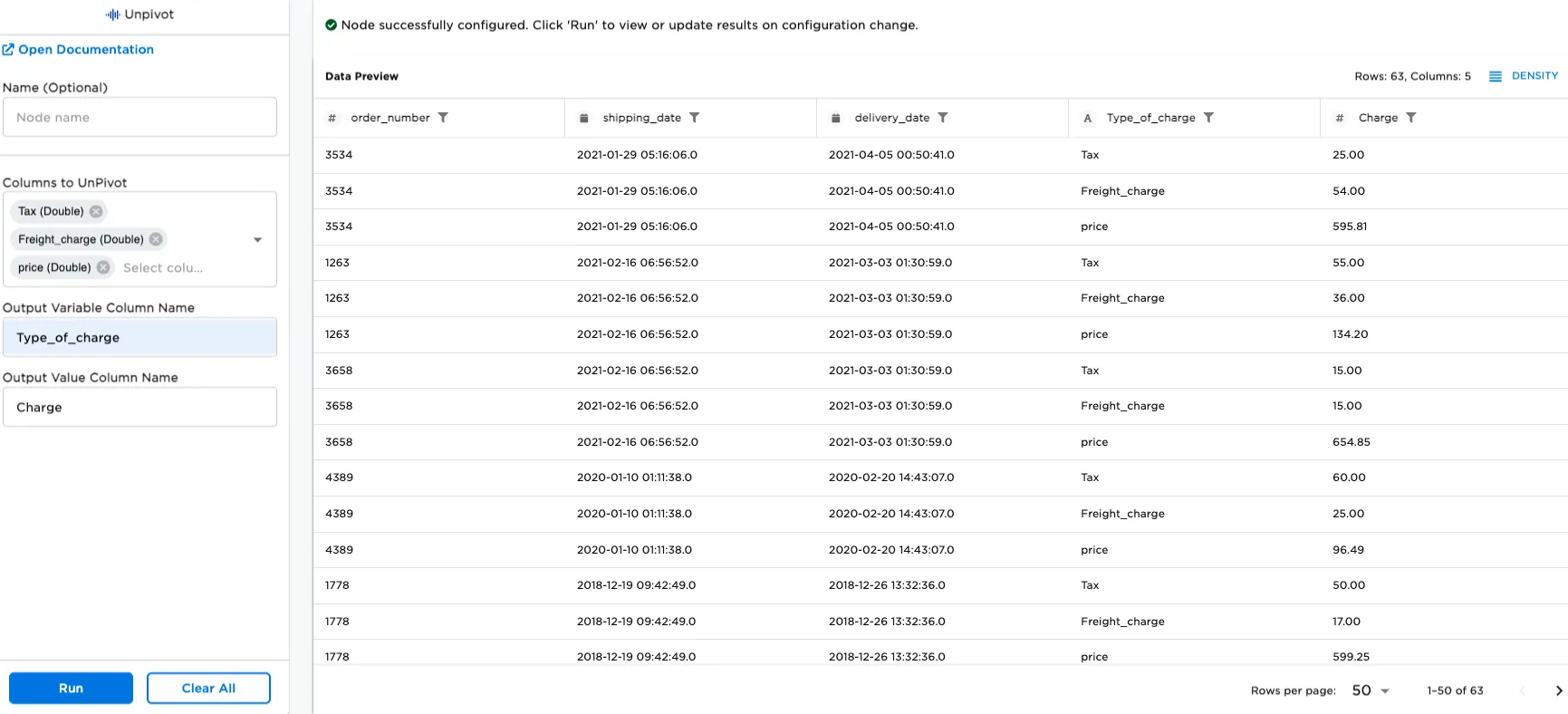
Figure 4: Table showing payment types separated