C3 AI VS Code Extension Overview
The C3 AI VS Code Extension (VSCE) supports application development on the C3 Agentic AI Platform. It provides features for defining and implementing C3 AI Types, code completion, testing, and debugging.
The C3 AI VSCE works with VS Code, VS Code in the browser, and Cursor. It adds a side bar to the code editor and new tabs to the panel with the integrated terminal. The status bar shows information such as the extension version and syncing status.
For guidance on VS Code UI terms such as status bar, panel, and side bar, refer to the Basic Layout section of the VS Code User Interface guide.
Requirements
Before using the C3 AI VSCE, install or update the following:
- VS Code or Cursor IDE
- Visual Studio Code extension for C3 AI developers
- Node.js version 20.18.0 or higher
For more information on dependencies and software requirements, see Supported Versions per Release.
Extension side bar
The extension side bar contains three collapsible sections:
Packages
The Package Explorer section (labeled Packages in the sidebar) lists local packages in the Packages folder and server dependencies under External Packages. You can manage application packages here instead of using the native file explorer. Available actions include:
Create a new package or UI package: Select a top-level icon to create a package, with or without UI-related folders.
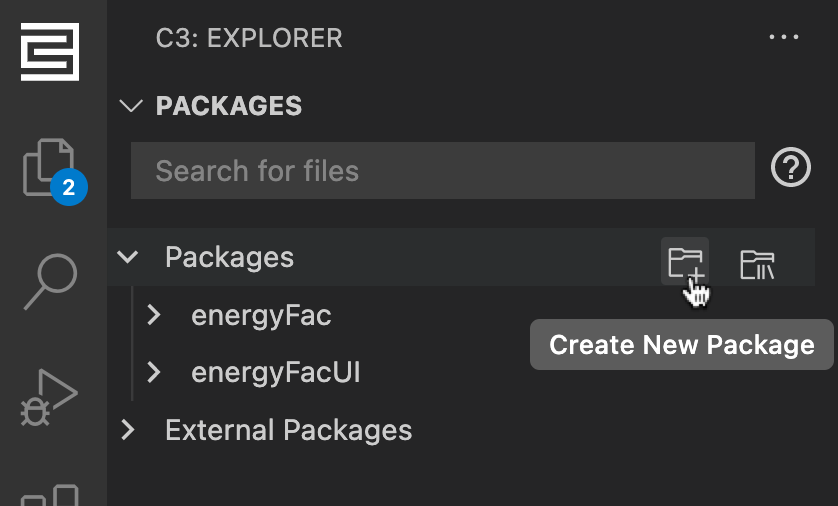
Create Package and Create UI Package side bar controls View the status of each file: Icons appear next to the filename to show file state:
- Unsynced
 : Shows that the file has not been sent to the server. Save your changes before syncing.
 - Synced
 : Shows that the file has been sent to the server.
 - Validated
 : Shows that the file has been sent to and validated by the server. If the file contains errors, the filename turns red.
- Unsynced
Run or add test files to the Tester queue: Hover over a test file and select an option.
View and interact with your local packages: Right-click a file or folder to see the available interactions.
To learn more about applications and packages, see Package Management Overview.
Applications
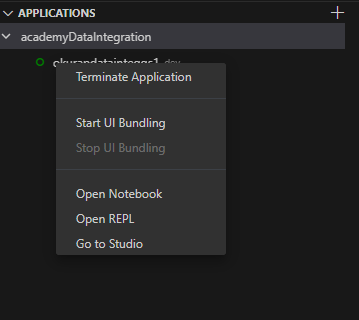
Use the Applications section to manage your single-node environment (SNE) application. Select Add (+) to start the application in the connected SNE. If no application exists, the extension creates one in the target environment.
 |
|---|
| Side bar Applications section |
Right-click the application to access additional actions from the context menu:
- Start or terminate an application: A green circle icon indicates a running application. In this case, the context menu shows Terminate Application.
- Start or stop UI bundling: Preview or update your UI. The UI package must depend on
uiComponentLibraryReact. After starting the application, right-click the package and select Start UI Bundling. To stop bundling, select Stop UI Bundling. - Open Notebook: Open a JavaScript Notebook to run code in your application or access your custom Types.
- Open REPL: Launch a REPL (Read-Evaluate-Print-Loop) instance linked to your application.
- Go to Studio: Access the C3 AI Studio cluster that contains your application.
Tester
You can use the Tester to queue and run test files, and to review the history of the last 10 test runs. The Tester has two sections:
QUEUE:
- Run or re-run all the test files in the queue.
- Stop or abort running test.
- Debug client-side JavaScript tests.
- Clear all the test in the queue.
HISTORY:
- Review or re-run the results of the last 10 test runs
Panel tabs
The panel contains multiple tabs that display information for development. It includes the following tabs:
 |
|---|
| Panel tabs in VS Code |
The OUTPUT tab displays logging information such as initialized synchronization, file uploads and validations, and UI bundling status. Filter logs by selecting the dropdown menu and choosing any of the following:
- C3 Extension
- C3 Python Language Server
- C3 Server Logs
The C3 AI tab shows error messages from your code. Keep this tab open as you make changes in your package. Select an error message to locate it in your code.
Use the extension
The extension adds utilities that help you navigate, test, and interact with your application directly in VS Code. The following sections describe how to use these features.
Developer utility
You can use the extension’s developer utilities to explore Types and code more efficiently:
- Autocompletion: Get suggestions for Types and methods in your local workspace and remote environment.
- Hover documentation: Hover over C3 AI Types to view in-context documentation.
- Peek Definition/Implementation: Right-click to preview a Type or implementation file.
- Jump to Definition/Implementation: Right-click or press
Ctrl+Shift+Jon macOS to navigate to another Type or implementation file.
Run tests with the Tester
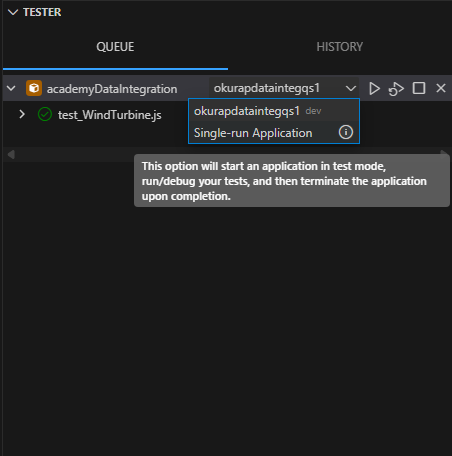
You can run tests in two modes:
- Run in existing application: This default option runs your tests in the current application. If no application exists for the package, a new one starts automatically.
- Run in new test application: This option creates a temporary, isolated application to run tests. After the test runs, the application is terminated. This option does not affect the current set of running applications.
Use the inline menu to toggle between these options.
 |
|---|
| Setting to toggle across tester modes |
To learn more about testing a C3 AI application, see C3 AI Testing Overview.
JavaScript Notebook
You can use the JavaScript Notebook to run console commands and access Type APIs within VS Code.
There are multiple ways to open the JavaScript Notebook for a running application:
- VS Code Command menu:
- Open the command menu with
Cmd+Shift+P(macOS) orCtrl+Shift+P(Windows). - Search for and select
C3: New Notebook.
- Open the command menu with
- In the C3 AI VSCE side bar: Access the notebook from these sections:
- Packages: Select the notebook icon in the collapsible header.
- Applications: Expand your package to reveal the application, then right-click the application and select New Notebook from the context menu.
When using the JavaScript Notebook:
Select the desired application. To change applications, choose Select Application.
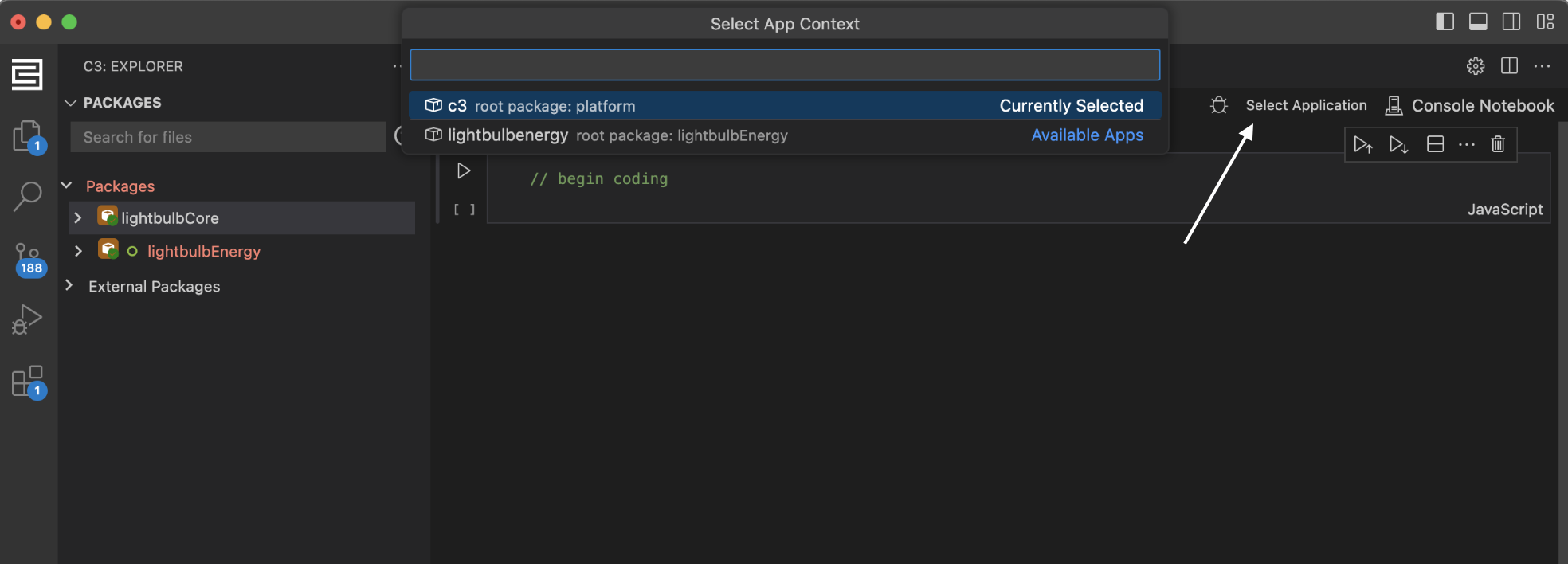
Run APIs in the JavaScript Notebook across multiple applications as in the browser console. Access Type APIs: Enter a Type name to view its documentation.
Run custom methods: Execute custom methods that you created in your application.
Troubleshoot the extension
You can often use error logs in the OUTPUT tab of the panel to troubleshoot issues.
Solutions for common issues are described below. For help with advanced troubleshooting, see C3 AI VS Code Extension Troubleshooting.
Path argument error
If you receive the error message Error → TypeError: The "path" argument must be of type string. Received undefined, try the following steps:
- Verify that you are connected to the correct environment. If it is an outdated or incorrect environment, completely quit VS Code and reconnect to the correct environment.
- Alternatively, close VS Code and relaunch it from the command line by running
code ..
See VS Code documentation to learn how to launch VS Code from the command line.
Connection issues
The C3 AI VSCE supports a single workspace. If you have multiple workspaces, close any unused workspaces and reconnect.