C3 AI VS Code Extension Troubleshooting
This topic describes how to troubleshoot common Visual Studio Code Extension (VSCE) issues.
If you're experiencing issues connecting to your environment, or if you're running into issues syncing your package, you should try these initial steps to restore your connection:
Confirm all of the following:
- Your environment is in a running state
- You have read and write permissions for your development space
- Your software versions are up to date. See compatible software versions on the Supported Versions per Release page.
Resync your packages. Right-click your package in VSCE and choose Sync Packages.
If the issues persist, restart VS Code.
The following sections go into more detail about specific issues you may be having.
- Reopen extension tab
- SSL and certificate issues
- Server authentication issues
- npm package issues
- Local permission issues
- Unreachable environment
- Connection fails in air-gapped environment because of Keyring
- Dev app inaccessible
- Adjust reconnect to network attempts
- Streaming errors
- Socket hang up
- Stale package issues
- Contact your IT admin
Reopen extension tab
If you close the VSCE tab, you can open it again with the VS Code Command Palette.
- In VS Code, open the Command Palette (
CMD+Shift+Pon Mac OS, orCtrl+Shift+Pon Windows). - Type in
C3: Open Login Pageand press Enter.
SSL and certificate issues
If you have trouble connecting to your environment, you may have SSL or certificate issues. The following section provides guidance on troubleshooting your connection and certificate settings to ensure you have a valid connection to your cluster.
Example error code: self signed certificate in certificate chain
Find relevant certificates
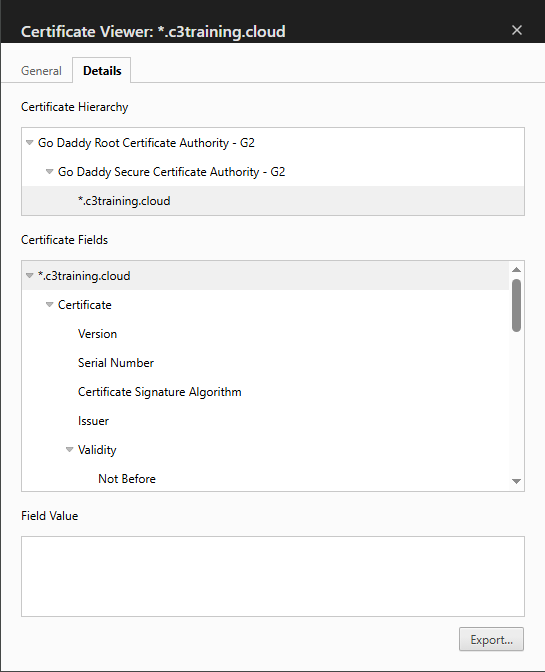
To see which certificates you should use, you can open the certificate settings in your browser while accessing Studio. You should be using the Chrome browser.
Navigate to C3 AI Studio homepage for your cluster.
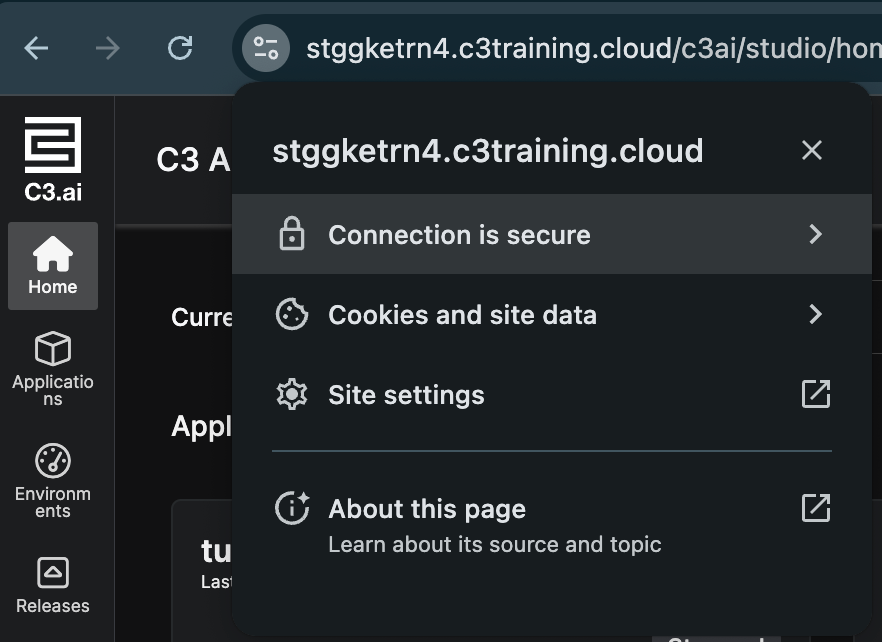
In your browser address bar, select the site information icon.
In the dropdown menu, select Connection is secure to open connection details.
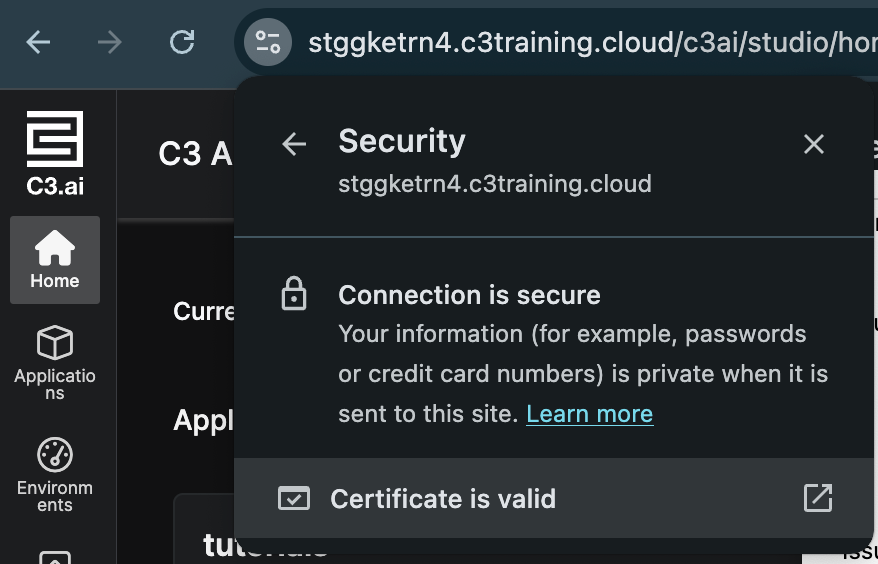
In the pop-up window, select Certificate is valid.
Select the Details tab. This tab shows the Certificate Authority for all certificates required to connect to your environment.
Add missing certificates
You can access all certificates in the chain for your cluster using the openssl command. The following example finds the certificates for a training cluster, uses the 443 port, and saves the certificates to cert_chain.txt:
openssl s_client -connect stggketrn4.c3training.cloud:443 -showcerts > cert_chain.txt- Save each certificate in its own
.pemfile. Certificates start with------BEGIN CERTIFICATEend withEND CERTIFICATE-----. - Consult your IT department for a valid outgoing port for your connection.
- Add certificates to your system trust store.
For Mac OS, run the following code in a CLI to add each certificate to your trust store. For each certificate, replace
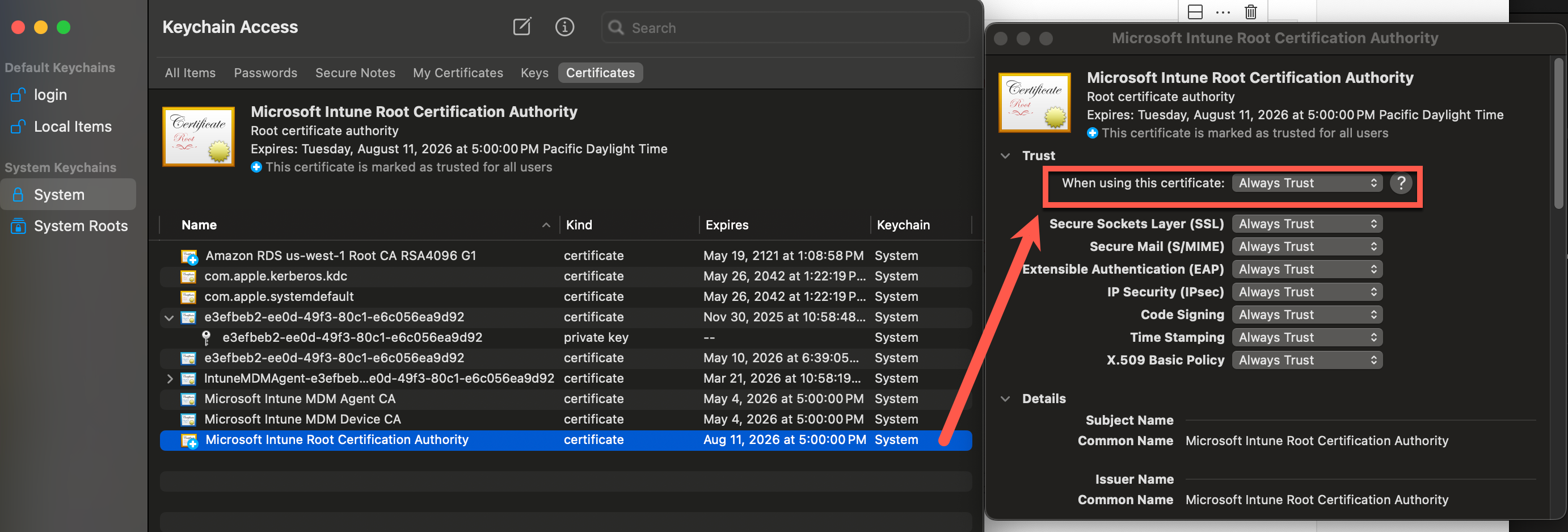
mycert.pemfor each.pemfile you saved.Textsudo security add-trusted-cert -d -r trustRoot -k /Library/Keychains/System.keychain mycert.pemThen open the Keychain Access application and set the When using this certificate: field to Always Trust for each certificate. See the following screenshot for this step:
For Windows, add each certificate using the Certificate Manager application for Windows.
Configure Node to use certificates
After you add missing certificates, specify the path for your certificates for Node.js. Certificate paths are environment variables that you must set in the shell configuration file to ensure that the server consistently uses the certificates when establishing secure connections.
For Mac OS or Linux, run the following in your command line to set the certificate paths. Replace <path_to_cert_chain> with the path to your certificates:
- bash: run
~/.bashrc export NODE_EXTRA_CA_CERTS="<path_to_cert_chain> - zsh: run
~/.zshrc export NODE_EXTRA_CA_CERTS="<path_to_cert_chain>
After you make this change, quit and relaunch the VS Code application. It ss recommended to relaunch the application from a new command line (CLI) window:
# Open the current folder in VS code
code .
If you cannot relaunch VS Code from a CLI, quit the application completely (CMD + Q in Mac OS, CTRL + Q in Windows) and then relaunching it.
Ignore certificate checks
If you are still unable to resolve certificate errors for your machine, you may need to ignore certificate checks. This is not recommended as ignoring certificate checks may expose you to security vulnerabilities.
Enter the following commands in a CLI to bypass VS Code certificate checks:
# Ignore NODE certificate checks
set NODE_TLS_REJECT_UNAUTHORIZED=0

npm config set strict-ssl false --global

# Ignore VS Code certificate checks
code --ignore-certificate-errorsServer authentication issues
Your connection may fail due to a stale authentication token. You can remove your authentication token using the Command Palette in VS Code:
- In VS Code, open the Command Palette (
CMD+Shift+Pon Mac OS, orCtrl+Shift+Pon Windows). - In the Command Palette, search for and select the command
C3: Remove Auth Token. - Type in your environment URL and press Enter.
If the issue persists, set the token manually through VS Code:
From C3 AI Studio, access your environment console.
In C3 AI Console, enter the following command and copy the output to your clipboard:
JavaScriptAuthenticator.generateActionAuthToken()In VS Code, open the Command Palette (
CMD+Shift+Pon Mac, orCtrl+Shift+Pon Windows).In the Command Palette, search for and select the command
C3: Set Auth Token.Select your environment from the dropdown menu, or enter the environment URL manually.
Paste the generated key from Step 1 into the prompt.
npm package issues
If you encounter npm error ENODATA, you may be missing some required data or metadata, or you may be using an outdated version of Node JS.
Try cleaning your cache. Run the following code in Terminal:
Command Linenpm cache clean --forceIf you're unable to access npm packages downloaded during runtime installation, you may need to uninstall and reinstall Node.js. Follow the instruction below that matches how you installed Node.js:
If you used
nvmto install Node.js, use the following command to uninstall:Command Linenvm uninstall --latestIf you used the official installer to install Node.js, use the following command to uninstall:
Command Linesudo rm -rf /usr/local/lib/node_modules /usr/local/include/node /usr/local/bin/nodeIf you used homebrew to install Node.js, use the following command to uninstall:
Command Linebrew uninstall node
For more information, see How to install Node.js in the Node.js documentation.
Local permission issues
If you see Failed to execute npm install or something similar, you may be experiencing permission issues for your machine.
In a CLI, navigate to the local cache for npm. This directory is typically a hidden
.npmdirectory.- For Mac, run
sudo chown -R 501:20 "/Users/User/.npm"in Terminal to change directory ownership. - For Windows, open VS Code as an administrator by right-clicking the application and selecting Run as administrator.
- For Mac, run
Unreachable environment
Based on your cluster administrative settings, your environment may have automatically hibernated activity. You may need to restart or resume your hibernated environment to resume development.
- Navigate to C3 AI Studio in your browser.
- Select your environment in the Current environment dropdown.
- Select the ellipse (...) next to the environment, and choose Resume environment.
- Wait for your environment to resume. When your environment shows a green check mark next to its name, it is in the running state.
Connection fails in air-gapped environment because of Keyring
Keyrings are storage systems that manage sensitive information, such as passwords, tokens, and encryption keys. Connection issues to air-gapped environments can result from incomplete keyring configurations.
For your GNOME Keyring on a Linux machine, you can verify if your GNOME Keyring is installed and running. Contact your customer IT admin for more troubleshooting instructions regarding your GNOME Keyring.
which gnome-keyring-daemonchecks if your GNOME Keyring is installedps aux | grep gnome-keyringchecks if your GNOME Keyring is running
Dev app inaccessible
The Dev application is where the VS Code Extension package launches from. If you can't start your Dev application, you may need to start it manually through the environment Console.
Navigate to C3 AI Studio in your browser.
On the homepage, select your environment in the Current environment dropdown (or confirm it is currently selected).
Navigate to the environment C3 AI Console, and run the following command:
JavaScriptDevEnv.ensureDevApp()
Adjust reconnect to network attempts
When VSCE detects the loss of connection, it provides a notification and attempts to reconnect.
If you lose your internet connection, the extension attempts to reconnect five times. Each reconnection attempt lasts 30 seconds.
To change the number of attempts, follow these steps:
- Open the VS Code settings (
CMD+,for Mac OS,Ctrl+,for Windows). - Search for
c3ai.reconnectAttemptsin the search bar, or select Extensions > C3 AI. - Under C3ai: Reconnect Attempts, enter your preferred number of reconnect attempts.
Streaming errors
If you see "Failed to stream" errors while trying to sync to environment, it could be that you need to enable streaming after a certain size, or reduce batch size.
You must run the following command in dev app only. Running this command in env/c3 does not work. Enabling this option is risky. Disabling streaming may cause out of memory errors while syncing.
// Enable streaming after 10000000 KB (10 GB)
IdeConfig.setConfigValue('maxBufferedWriteFileSize', 10000000);
IdeConfig.setConfigValue('maxBufferedReadFileSize', 10000000);

// Reduce batch size
IdeConfig.setConfigValue('downloadBatchSize', 100);
IdeConfig.setConfigValue('upsertBatchSize', 25);Socket hang up
If you see socket hang up issues, check if you have sym links in your package. Files from the sym links should be located in the root directory of your package, and can't link to other packages.
Example error message: Error: socket hang up
Stale package issues
If you see Java compilation errors or other code-gen issues, you may be experiencing stale Pkg issues. For example, you may see errors that involve declarations of the same Type.
Multiple type declarations with the same name `<TYPE NAME>` were found.If your metadata changes are not being synced, you may need to manually resync your packages.
To sync your packages, right-click the package you want to sync, and choose Sync Packages.
Force resync all
If you sync your package, but you still notice stale package issues, you can try force resyncing your package.
Note: Force resync all forcibly resyncs and re-validates everything in your package. Save your work appropriately.
- While synced to your environment, press
CMD + Shift + Pon Mac, orCtrl + Shift + Pon Windows to open the Command Palette. - Type in
C3: Force Resync All Packagesand press Enter.
Contact your IT admin
If you are connecting from a corporate laptop, or if you're connecting to non-C3 hosted cluster, you may need to reach out to your specific company IT admins for additional support in troubleshooting your connection issues.
Examples of configurations that can cause connection issues:
- Firewall settings
- VPN settings
- Network proxies
- Network security software
- Cluster whitelists for IP addresses