Create a Full-Stack Application Package
A package on the C3 AI Platform organizes front-end and back-end code, configurations, and assets in a structured format. The C3 AI Platform provides a framework for managing UI components, state, and dependencies, while supporting full-stack development within the same package. This topic explains how to create a package using the C3 AI VS Code Extension (VSCE) and describes its directory structure.
Create a UI package
The C3 AI VSCE allows you to quickly scaffold a package with the required folders and files if your application includes a UI.
This ensures consistency and reduces manual setup errors.
To create a UI package:
- Sync to your environment.
- Click the
Packagestab in the C3 AI extension. - Hover over
Packagesand selectCreate New UI Package.
The following image shows the button:
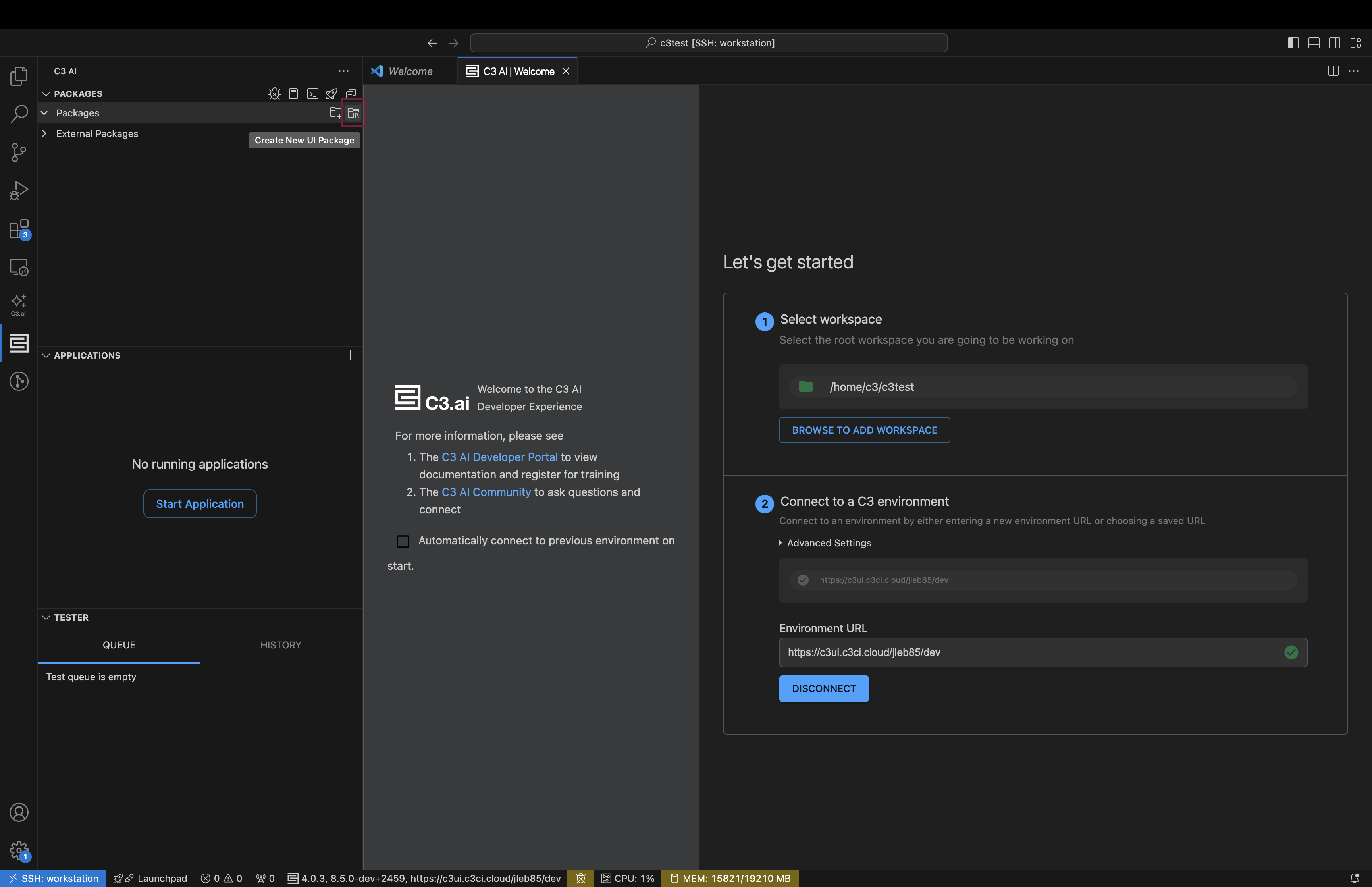
Enter a name for the package. The extension generates all essential directories. The next section describes the directory structure.
Directory structure of a UI package
A UI package follows a structured directory layout to organize components, data, configurations, and assets. This structure ensures clarity and consistency when developing front-end applications in the platform.
| Folder or File Name | Description |
|---|---|
examplePackage/examplePackage.c3pkg.json | Declare package dependency, name, author, and description. Include a dependency on uiComponentLibraryReact for UI functionality. |
examplePackage/config | Configure themes, locales, and bundler settings. Create a JSON file to configure an instance of any type that mixes UiSdlConfig. |
examplePackage/metadata | Define translations, routes, roles, and metrics. Store data for types that mix Metadata. |
examplePackage/seed | Provide seed data for data Types that mix SeedData. |
examplePackage/data | Store data for entity data Types or types that mix Persistable. |
examplePackage/src | Implement C3 AI Type definitions, methods, and epics. |
examplePackage/test | Implement C3 AI Types and test data. Maintain a structure that mirrors the package directories. For example, use examplePackage/test/seed for test seed data. |
examplePackage/test/{runtime} | Write tests under a directory specific to their runtime. For example, store UI Luke tests in examplePackage/test/js-luke-browser. |
examplePackage/ui/c3/config | Customize Webpack configurations. Most applications do not require changes in this directory. |
examplePackage/ui/c3/meta | Store UI component configurations. |
examplePackage/ui/content/assets | Store static assets, including images and stylesheets. |
examplePackage/ui/c3/src/customInstances | Implement custom UI components that do not depend on props for correct rendering. Use this for single-use components outside the C3 UI Framework. |
examplePackage/ui/c3/src/customInstances/**/{filename}.{tsx,ts} | Store custom UI components in subdirectories for better organization. Components can be nested at any depth within customInstances. |
examplePackage/ui/c3/src/**/{filename}.{tsx,ts} | Store custom React and Typescript files. Supports creating subdirectories to organize your code. |
examplePackage/src/doc/**/*.c3doc.md | Store c3doc.md documentation for the package. |
examplePackage/src/doc/examplePackage-overview.c3doc.md | Store the package overview document. Name the file using the format {package}-overview.c3doc.md, and place it directly under src/doc. |
examplePackage/src/ui/styling | Store css and scss files for custom component styling. |
The ** follows the common glob pattern syntax and means: Match files in any subdirectory, at any depth, under examplePackage/ui/c3/src/.
So the pattern:
examplePackage/ui/c3/src/**/{filename}.{tsx,ts}means: Any .tsx or .ts file with any filename, located anywhere inside the src/ folder, including all nested subdirectories.
Naming Conventions
The UI Framework uses specific naming conventions for files in your project. Some conventions are required, while others improve clarity and maintainability.
Required naming conventions
Follow these naming conventions to maintain compatibility with the UI Framework.
Epics
All instances of UiSdlEpic must include the word Epic in their *.c3typ name.
Component instances
Component instances in {packageName}/ui/c3/meta must follow a dot-separated naming pattern with two parts: {project}.{componentId}.json.
Use the package name for {project}. For example, examplePackage.PageLayout.json follows this convention for a component in the examplePackage.
Recommended naming conventions
Following these recommendations improves readability and prevents conflicts.
Data files
For data types, name the directory containing the *.json or *.csv files to match the Type name, except when creating a single instance with json. For example, store wind turbine data in the WindTurbine directory, examplePackage/data/WindTurbine/WindTurbine.csv. The *.json or *.csv file names doe not require the same name as the Type. For more details, see Add Data to Your Application.
All Types
Do not use UiSdl as a prefix for custom Type names. This prefix is reserved for UI Framework Types and may cause confusion during debugging.
Example package structure
The following example shows the structure of a simple full-stack application that stores and displays a list of machines.
examplePackage
├── examplePackage.c3pkg.json
├── config
│   └── UiSdlConfig
│       └── UiSdlConfig.json
├── metadata
│   ├── Translation
│   ├── UiSdlRoute
│       └── routes.csv
│   ├── Role
│   ├── SimpleMetric
├── seed
│   ├── Locale
│   │   └── en.csv
│   ├── SDLDemoMachine
│       └── SDLDemoMachine.csv
├── src
│   └── Machine.c3typ
├── test
└── ui
    ├── c3
    │   └── meta
    │       ├── examplePackage.Dashboard.json
    │       └── examplePackage.MachineList.json
    ├── content
        ├── assets
            ├── images
                └── logo.svg